This guide explains the step-by-step process for generating the Client ID and Client Secret required for integrating Zoho Books with PMS - POS
Step 1: Access the Zoho API Console
Open the Zoho API Console.
Log in using your Zoho account credentials.
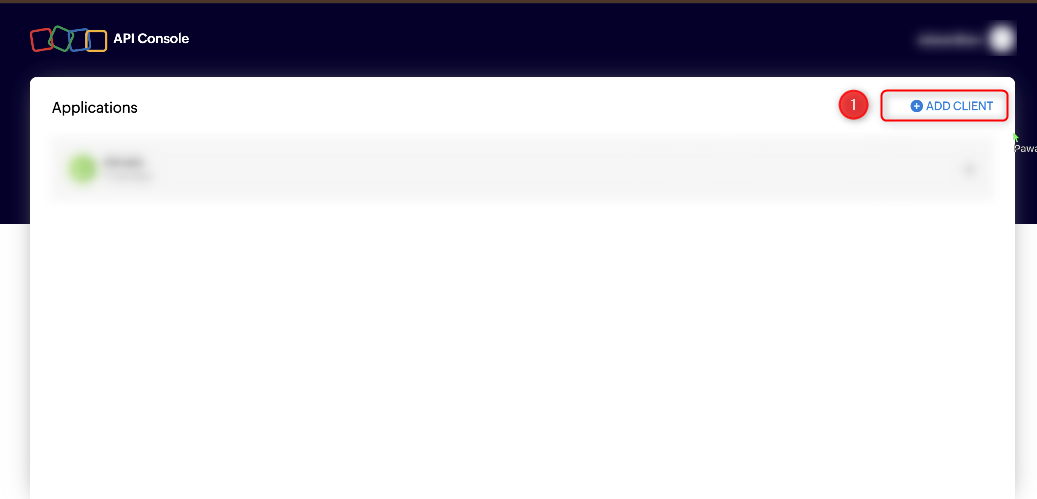
Navigate to the Applications section.
Click on + ADD CLIENT.
Please refer to the below screenshot for reference.
Step 2: Select the Client Type
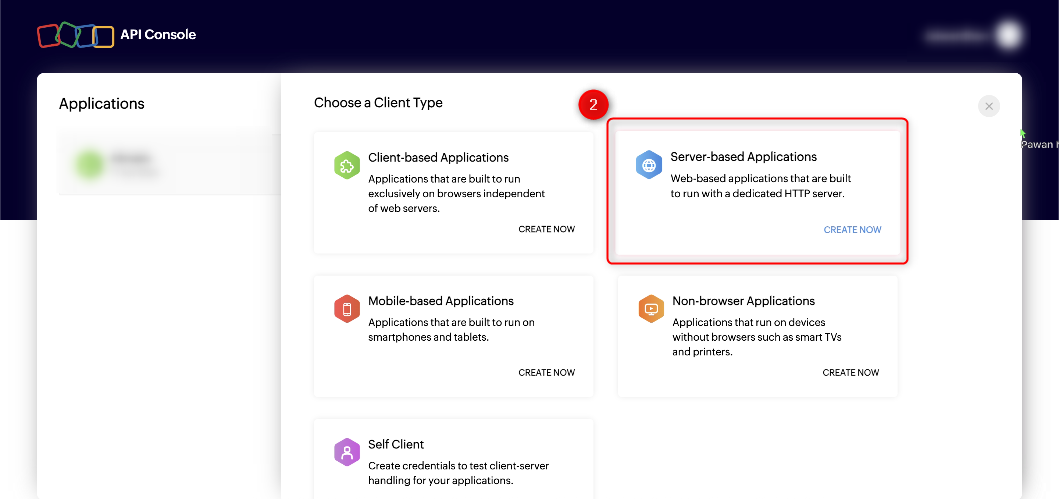
You will be prompted to select a Client Type.
Choose Server-based Applications.
Click on CREATE NOW.
Please refer to the below screenshot for reference.
Step 3: Enter the Application Details
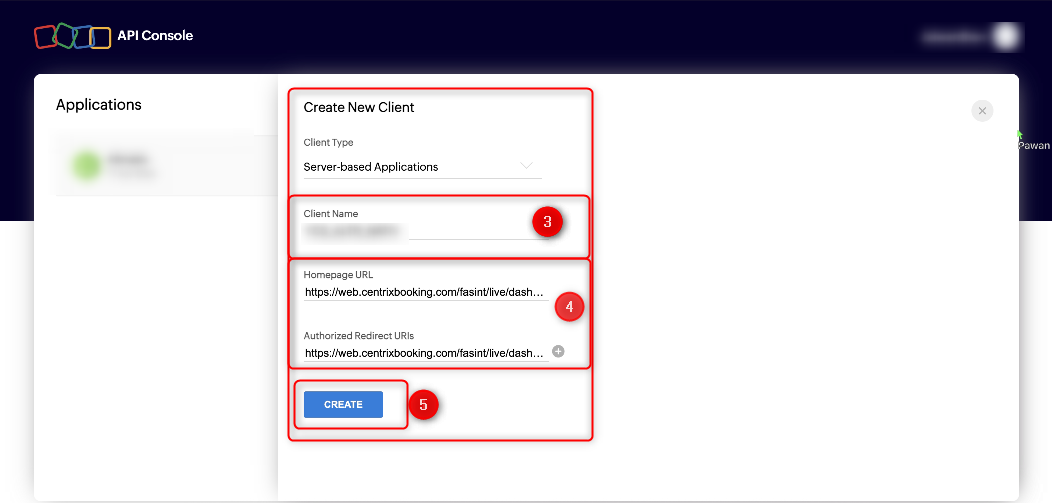
In the Create New Client form, enter the following details:
Client Type: Server-based Applications
Client Name: Enter an appropriate application name (e.g., YCS Integration).
Homepage URL:
https://web.centrixbooking.com/fasint/live/dashboard.htmlAuthorized Redirect URIs:
https://web.centrixbooking.com/fasint/live/dashboard.html
Important: Ensure that both the Homepage URL and Authorized Redirect URI are entered exactly as mentioned above.
After entering all the required details, click on CREATE.
Please refer to the below screenshot for reference.
Step 4: Retrieve the Client ID and Client Secret
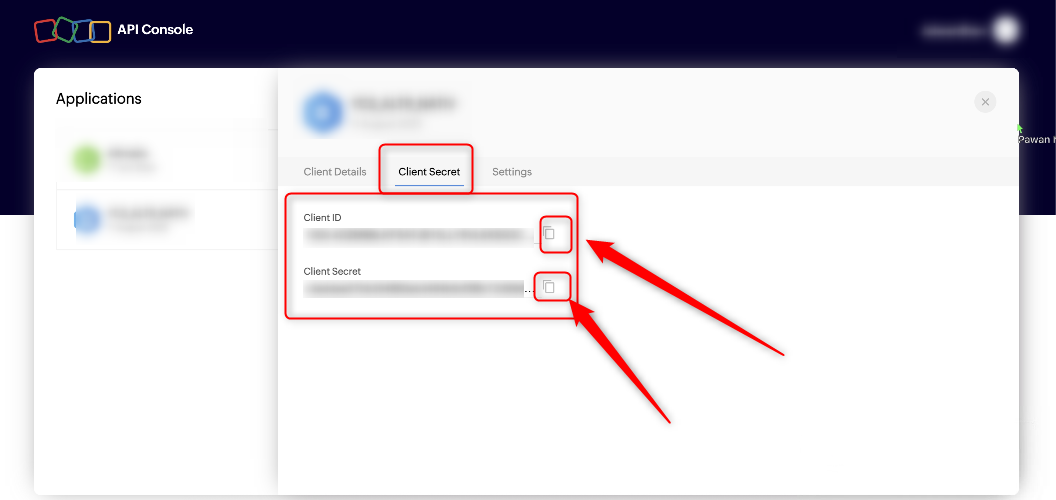
Once the application has been successfully created, navigate to the Applications section.
Select the newly created application.
Open the Client Secret tab.
You will find the following credentials:
Client ID
Client Secret
Click on the respective copy icons to copy both credentials.
Please refer to the below screenshot for reference.
Step 5: Share the Credentials with the YCS Team
After successfully generating the credentials, securely share the following details with the YCS Integration Team:
Client ID
Client Secret
The YCS team will use these credentials to proceed with the Zoho Books integration.
Note: The Client Secret is confidential. Please share it only with the authorized YCS Integration Team and do not disclose it publicly or to unauthorized individuals.
Was this article helpful?
That’s Great!
Thank you for your feedback
Sorry! We couldn't be helpful
Thank you for your feedback
Feedback sent
We appreciate your effort and will try to fix the article