You can follow the below steps to create Promotion in Booking Engine.
1. Go to rate and availability.
2. Navigate to Packages and Promotion.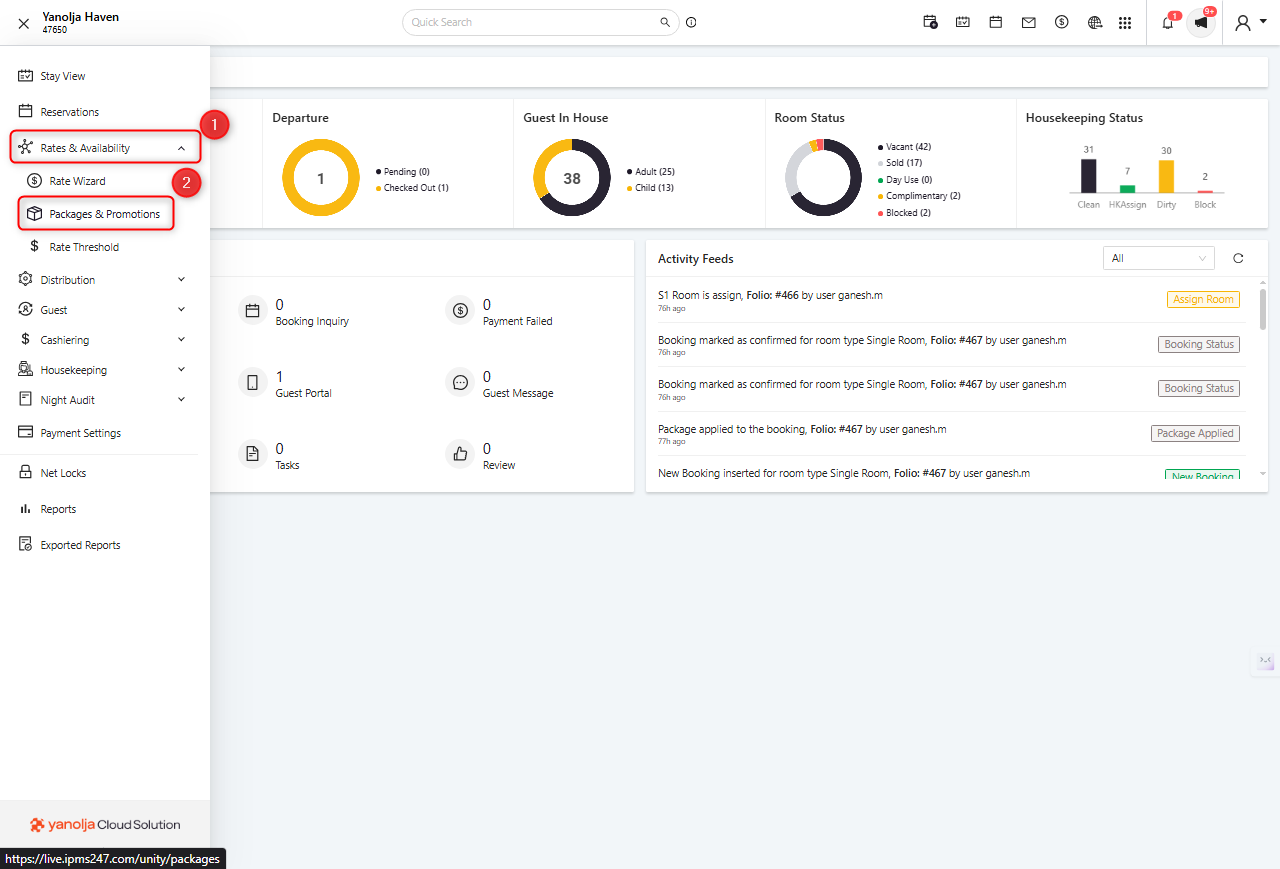
3. Select Create.
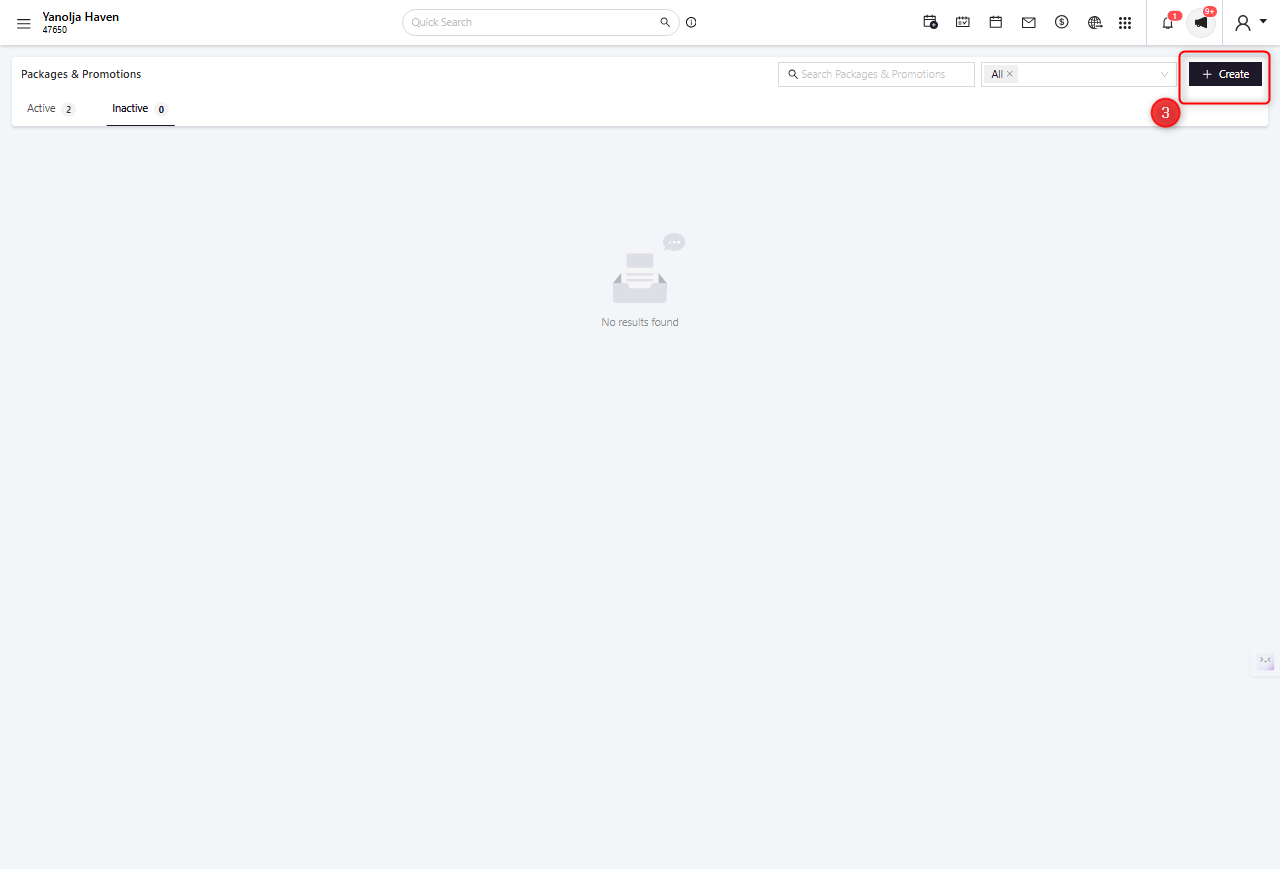
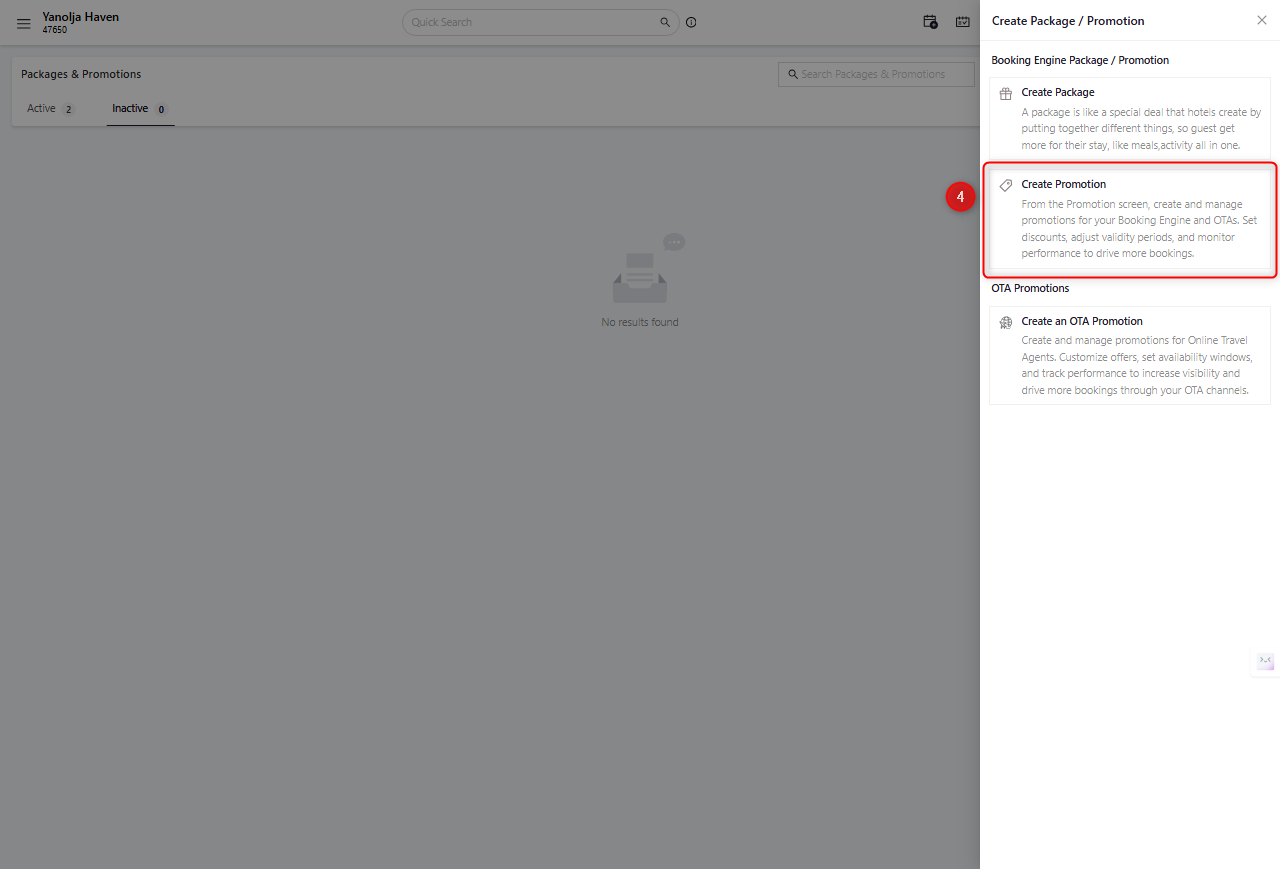
4. Click on the Create promotion tab.
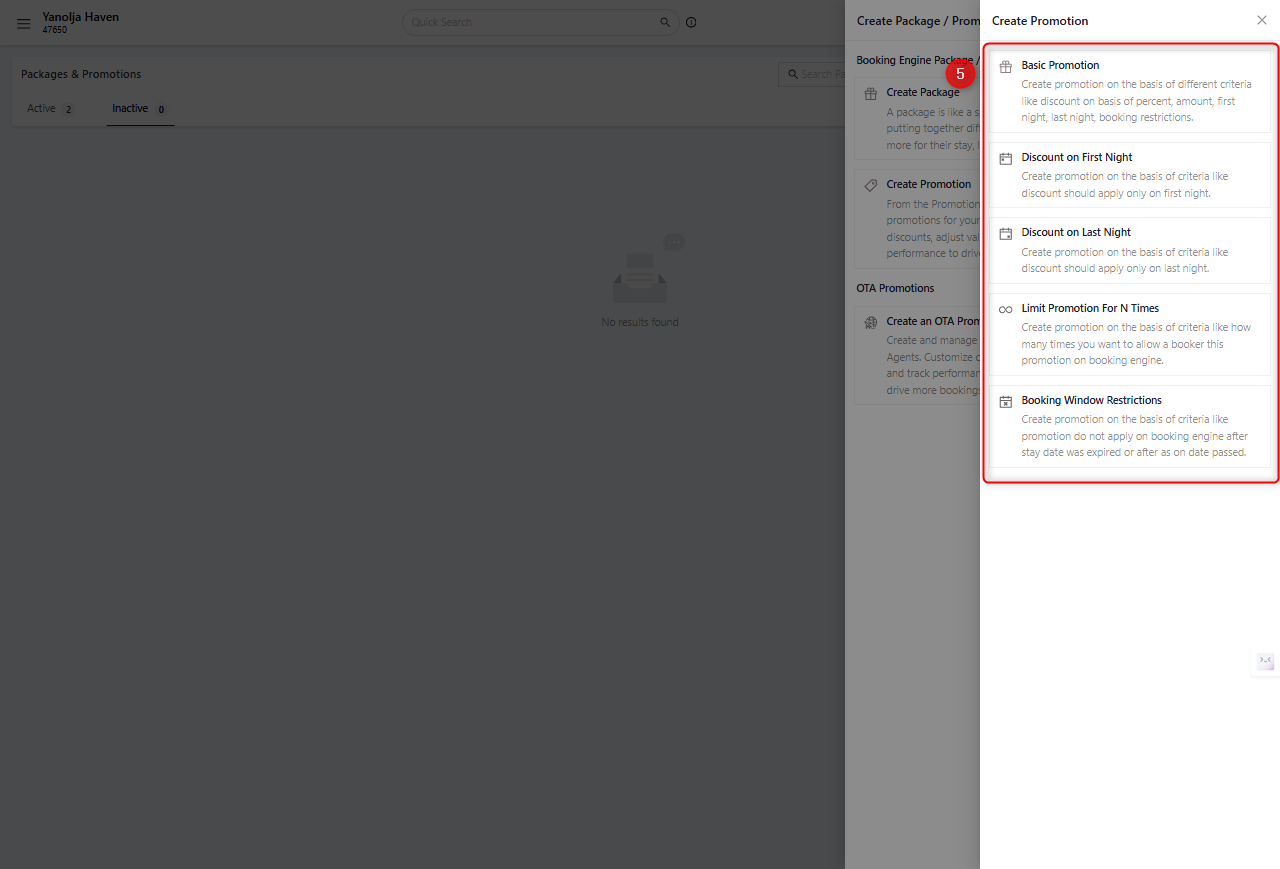
5. You will see the promotions which you can apply on your booking engine.
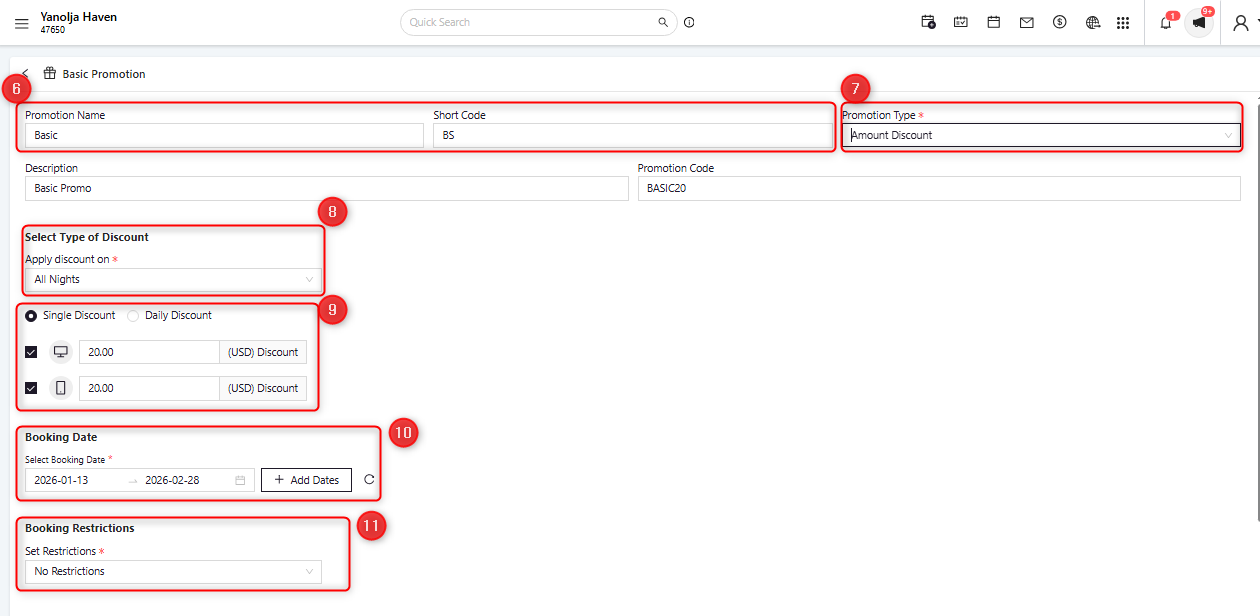
6. Enter the Promotion name and Short code.
7. Select the Promotion type, either Amount Discount or Percent Discount.
8. Select the Type of discount, where you can choose from the 4 types of discounts: After Every, Apply on All Night, First Night, and Last Night.
9. Select Single Discount or Daily Discount. You can also define different amounts or percentages for desktop users and mobile users, so when someone opens the link on mobile they may see a different promotion amount or percentage than on desktop.
10. Select Booking dates by entering the date range during which the promotion should run. You can select single dates or more than one month, and you can set the booking restriction accordingly for the promotion.
11. You can Add Booking Restrictions.
(No Restriction : If you select this option, there is no restriction for the promotion, and any guest can use it any number of times)
9.1 Daily Discount allows you to select Weekdays on which the discount should be applied.

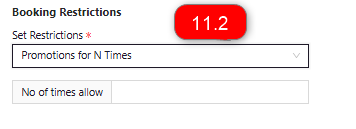
11.2 promotion for N times
This option allows guests to book the promotion for a limited number of times defined in the number of times allowed.
For example, if you mention 10, then this promotion can be used 10 times by different guests or by a single guest. If someone tries to use the promotion for the 11th time, the system will not allow the promotion to be applied.
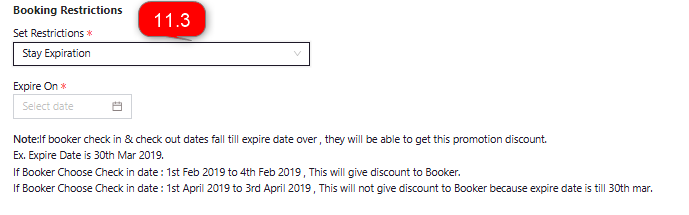
11.3 Stay Expiration
Note: If the booker’s check-in and check-out dates fall within the expiry date, the promotion discount will be applied.
Example:
Expire Date is 30th Mar 2026.
If the booker chooses Check-in: 1st Feb 2026 to 4th Feb 2026, the discount will be applied.
If the booker chooses Check-in: 1st April 2026 to 3rd April 2026, the discount will not be applied because the expiry date is till 30th Mar.
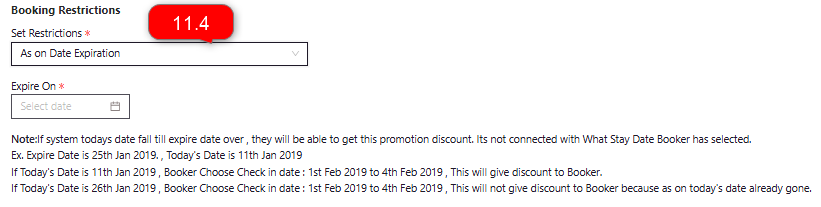
11.4 As on Date Expiration
Note: If the system’s current date falls within the expiry date, the promotion discount will be applied. This is not connected with the stay dates selected by the booker.
Example:
Expire Date is 25th Jan 2026, and today’s date is 11th Jan 2026.
If today’s date is 11th Jan 2026 and the booker chooses Check-in: 1st Feb 2026 to 4th Feb 2026 the discount will be applied.
If today’s date is 26th Jan 2026, the discount will not be applied because the expiry date has passed.
12. Select the Rate plans and packages on which you need to apply the promotion.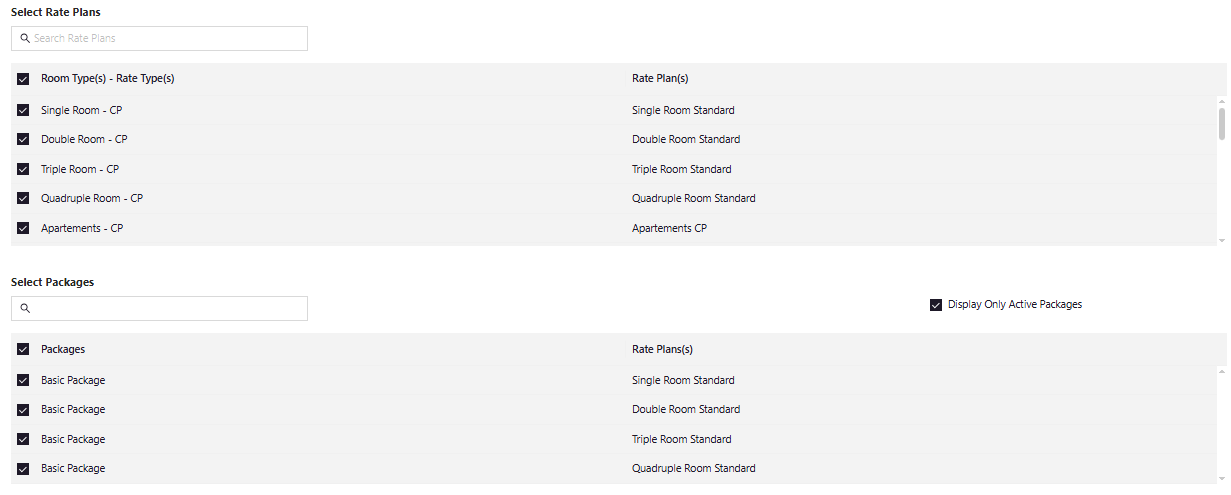
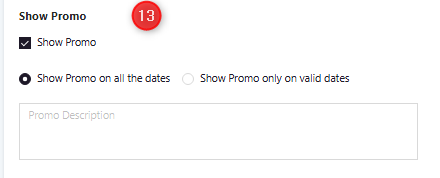
13. Show promotion
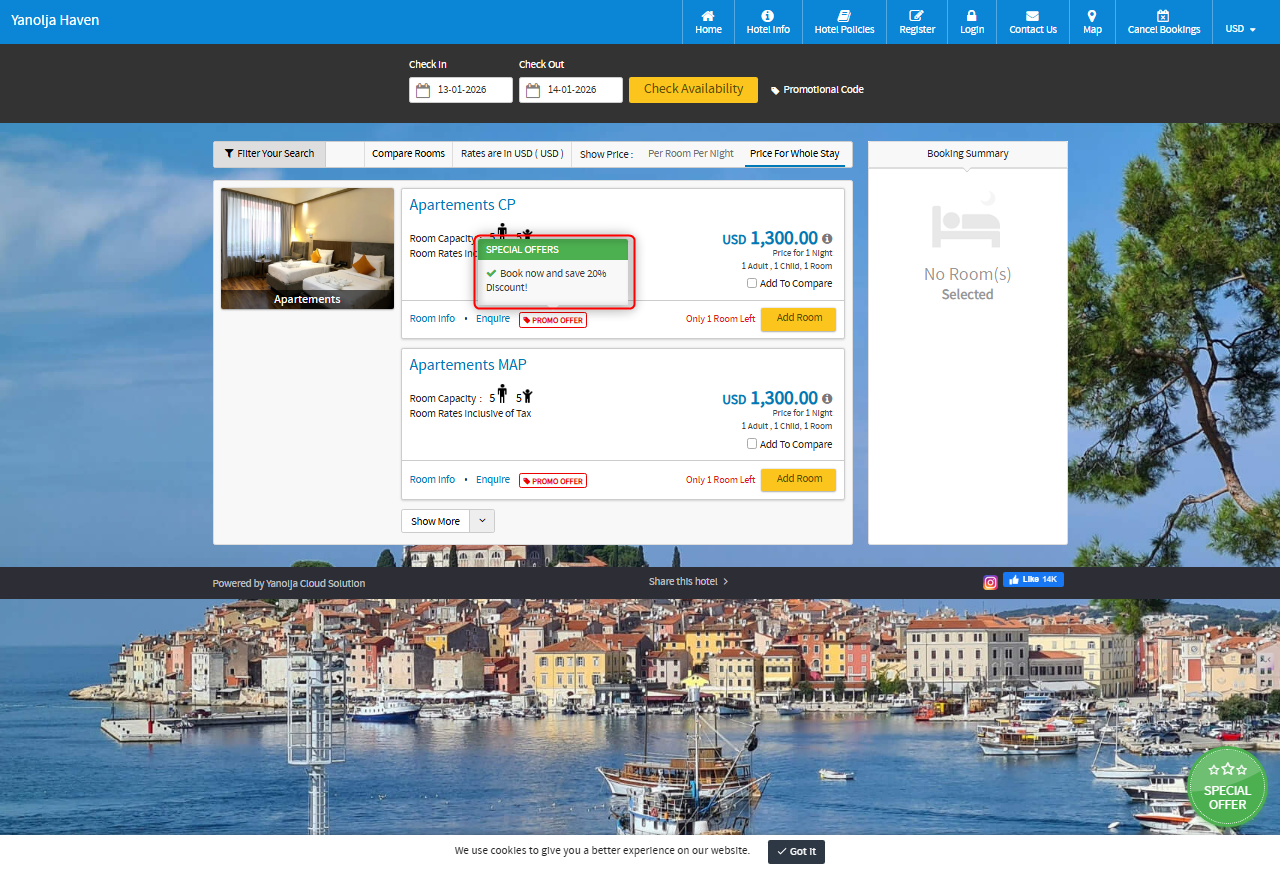
If this option is enabled, all guests can see the promotions running on the booking engine and apply them. If the hotelier does not want to show the promotion publicly and wants it only for selected guests, this option can be disabled and the promotion can be shared via marketing emails.
(Show promotion on all dates
This option displays the promotion on the booking engine for all dates.)
13.1 Show promotion on valid dates
This option displays the promotion on the booking engine only for valid dates selected under the booking date.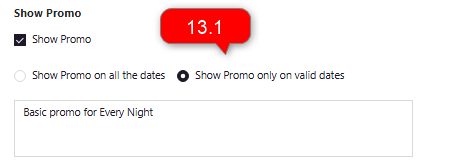
Was this article helpful?
That’s Great!
Thank you for your feedback
Sorry! We couldn't be helpful
Thank you for your feedback
Feedback sent
We appreciate your effort and will try to fix the article