Overview
If a payment method (such as Cash, Credit Card, Room Posting, etc.) is not appearing on the settlement screen while closing a bill, the reason is usually that the payment method is not enabled under the respective Order Type Setting in Outlet configuration.
This article explains how to enable missing payment methods for all order types in eZee Optimus.
VIDEO :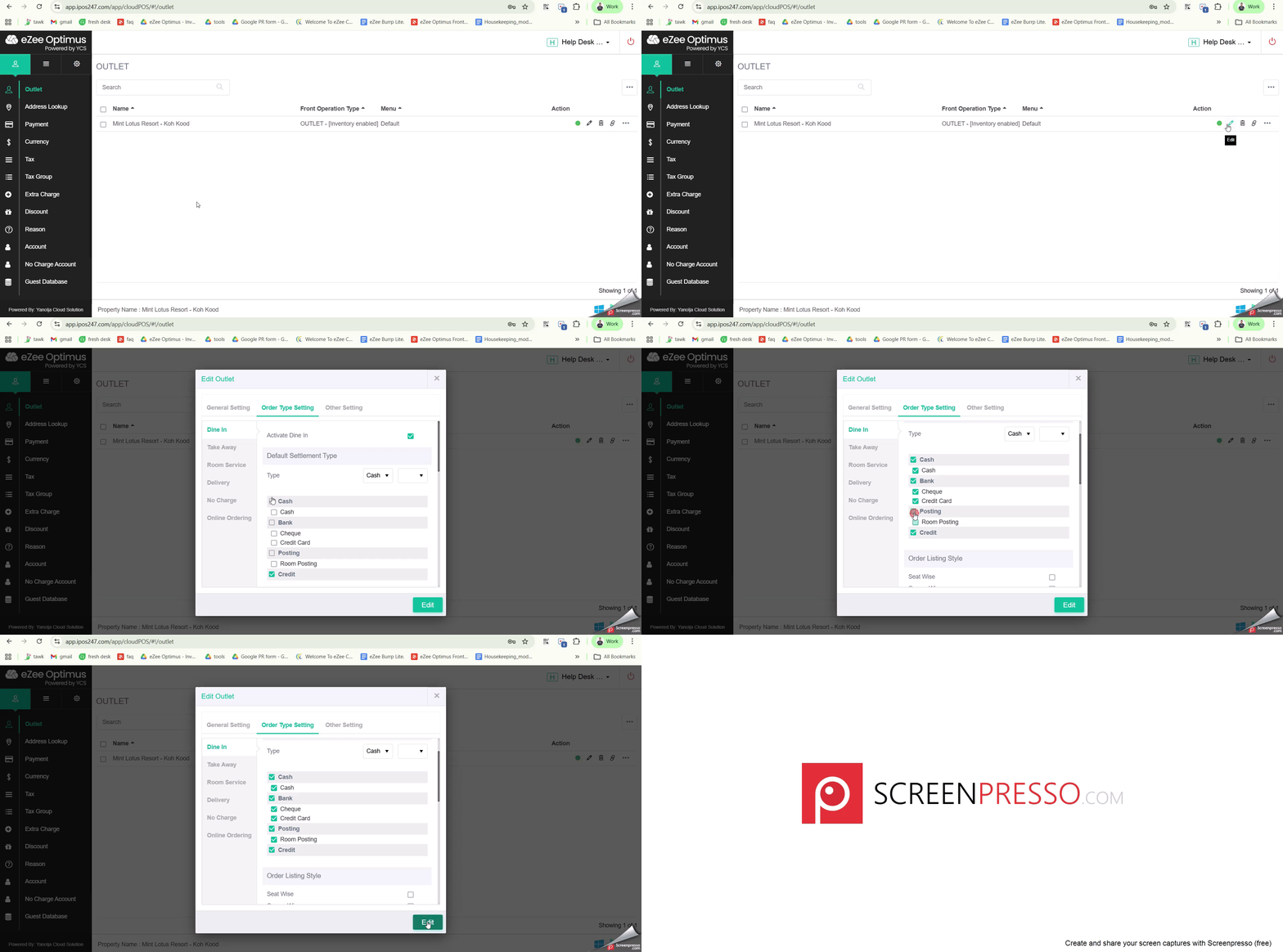
When Does This Issue Occur ?
You may notice this issue when:
A payment mode is available in the system but not visible during bill settlement.
Settlement options differ between Dine In, Take Away, Room Service, or Delivery.
A cashier is unable to select a required payment method while closing the bill.
This happens because settlement types are controlled order-type wise at the Outlet level.
Steps to Enable Missing Payment Method on Settlement Screen
Please follow the below steps:
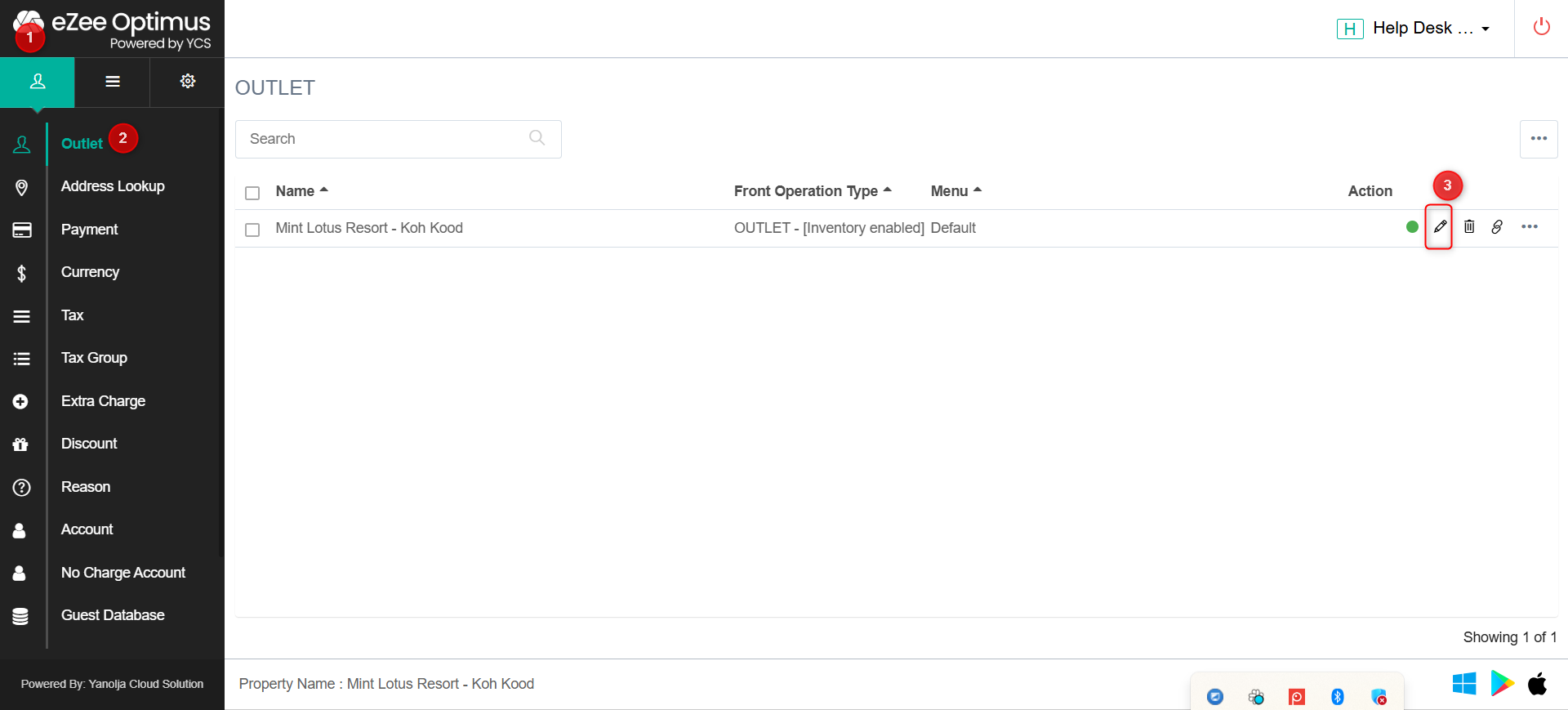
Step 1: Navigate to Outlet Configuration
Login to eZee Optimus
Click on Configuration (⚙ Icon)
Select Outlet
Step 2: Edit the Required Outlet
Search and locate the desired Outlet
Click on the Edit (✏ Icon) under the Action column
Step 3: Open Order Type Setting
In the Edit Outlet window
Click on the Order Type Setting tab
Step 4: Select the Required Order Type
From the left panel, select the order type where the payment method is missing:
Dine In
Take Away
Room Service
Delivery
No Charge
Online Ordering
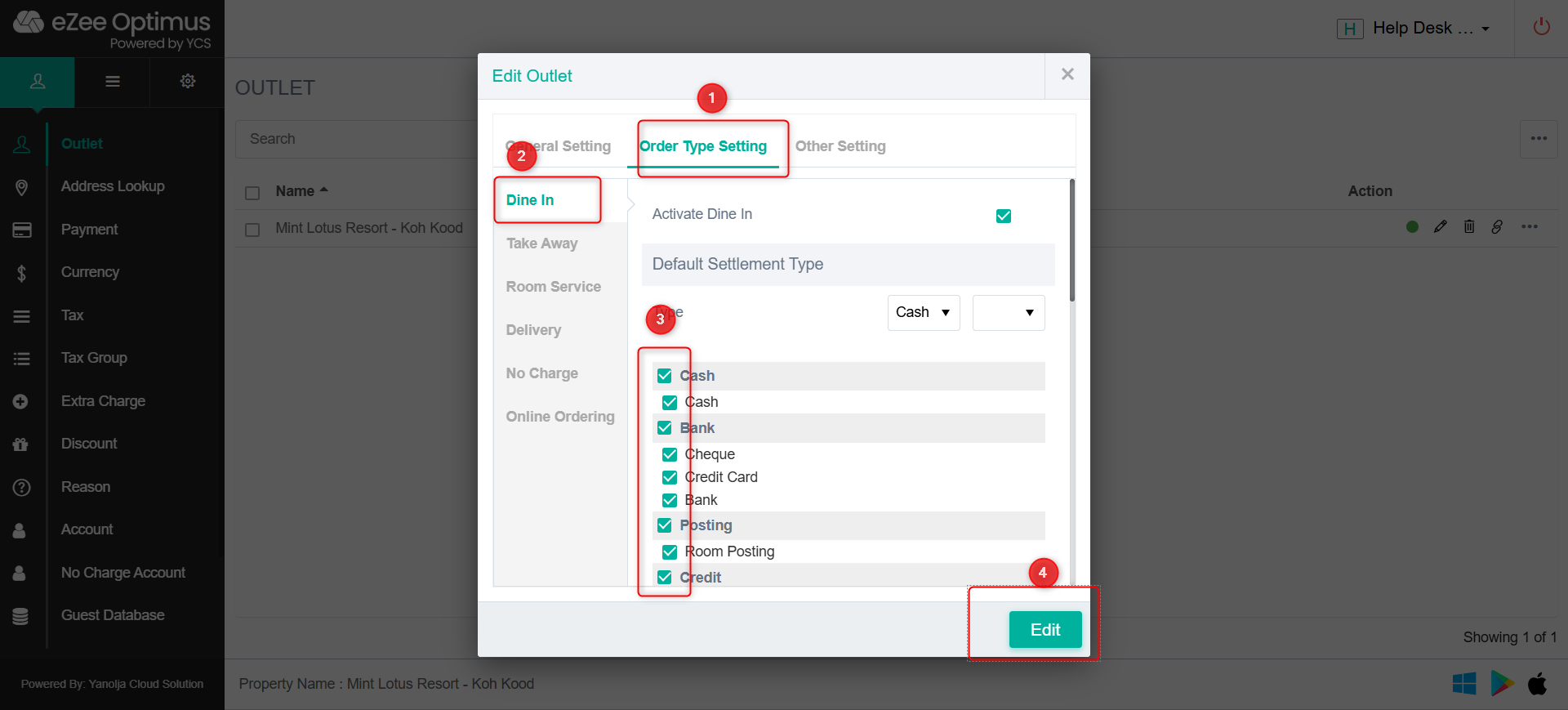
Note: Payment methods must be configured separately for each order type.
Step 5: Select the payment method need to be selected.
Select the appropriate default payment mode from the dropdown.
Tick (✔) all payment methods that should appear on the settlement screen, such as:
Cash
Bank
Cheque
Credit Card
Posting
Room Posting
Credit
If a payment method is not checked here, it will not be visible during settlement.
Step 6: Save the Configuration
Click on Edit to save the changes.
Was this article helpful?
That’s Great!
Thank you for your feedback
Sorry! We couldn't be helpful
Thank you for your feedback
Feedback sent
We appreciate your effort and will try to fix the article