This guide explains the steps to resolve the “Token is Already Expired” booking error that may occur during payment processing via the integration of Razorpay with the Booking Engine. Following the steps outlined below will help refresh the token, re-establish the connection, and ensure seamless payment processing.
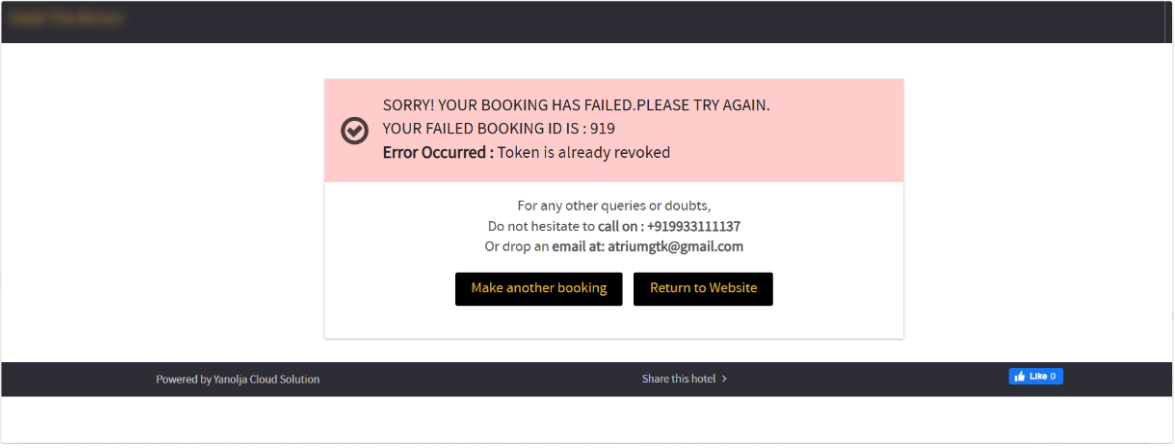
The following error may appear on your screen. If you encounter this error, you can proceed with the steps provided in this guide to resolve it.
Step 1: Access the Onboarding Portal
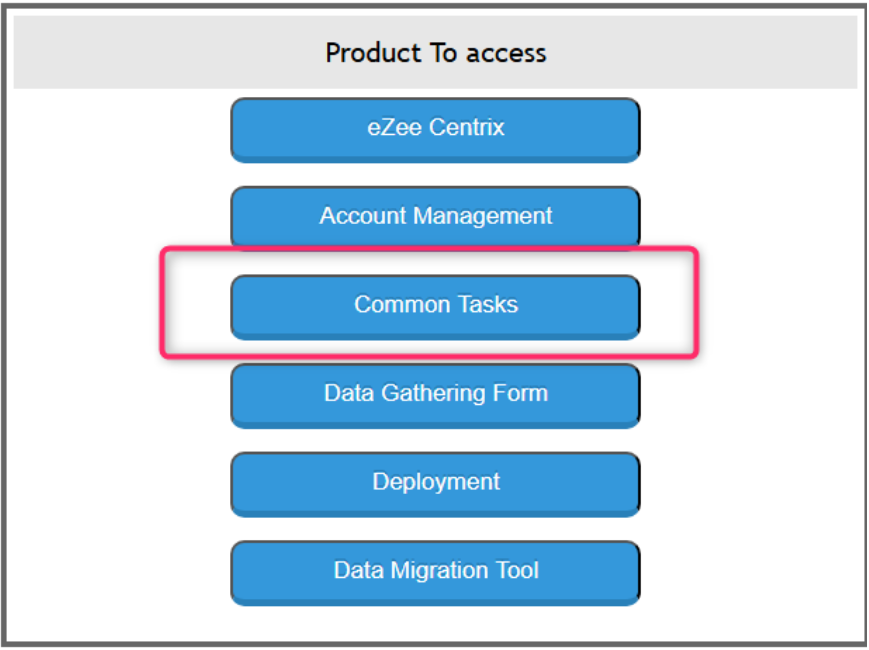
Open the Onboarding Portal and click on Common Tasks.
Step 2:
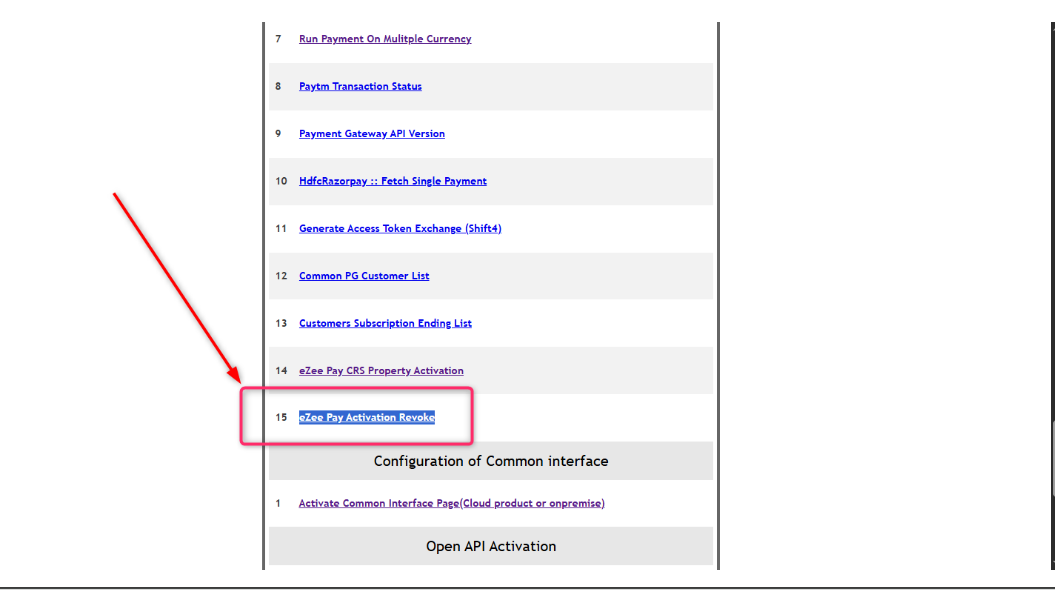
After accessing Common Tasks, click on eZee Pay Activation Revoke → Revoke to proceed.
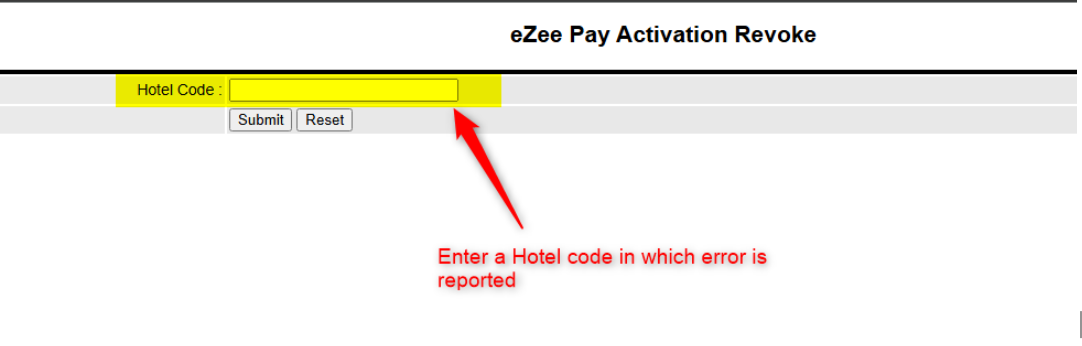
Enter the Hotel Code for which the “Token is Already Expired” error was reported.
Step 3: Authorize a New Token from Razorpay
A. Login to Razorpay
Open the Razorpay Portal and log in using the appropriate account credentials.
Link to open the Razorpay Portal - Click here
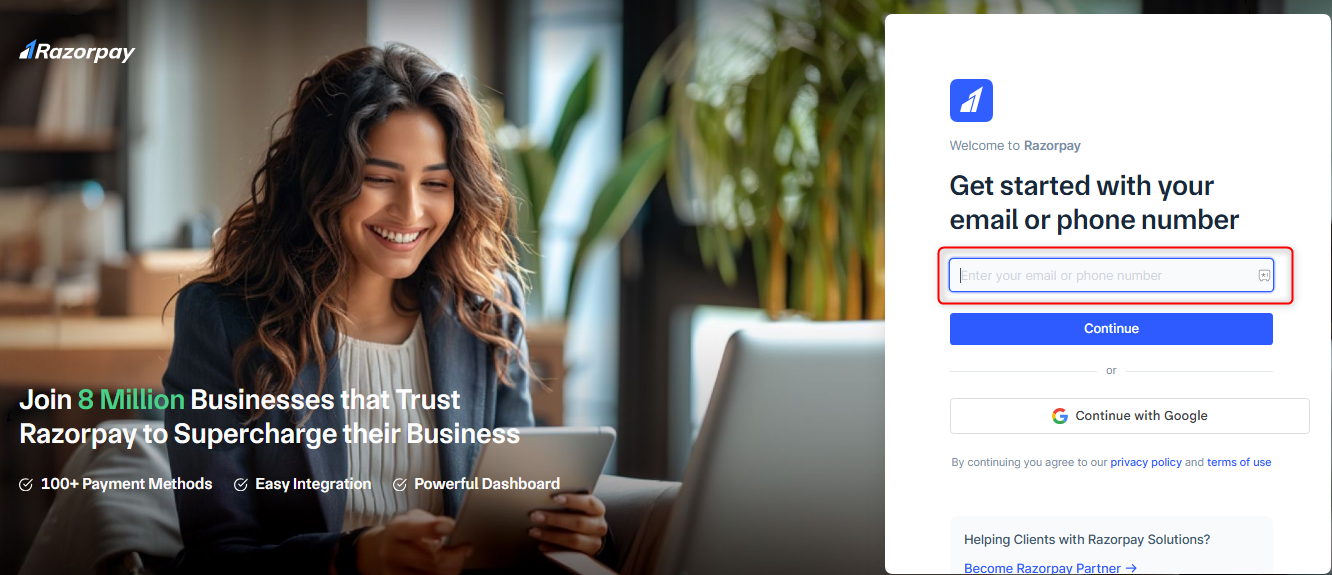
B. Login to eZee Absolute
In a separate browser tab, log in to eZee Absolute.
Navigate to: eZee Marketplace → Preferred Integration → eZeePay
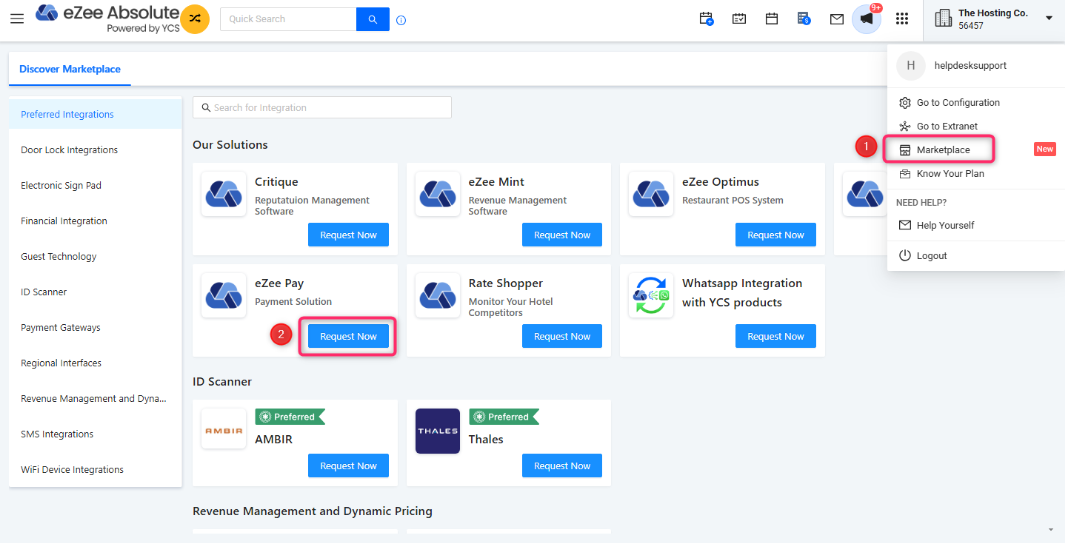
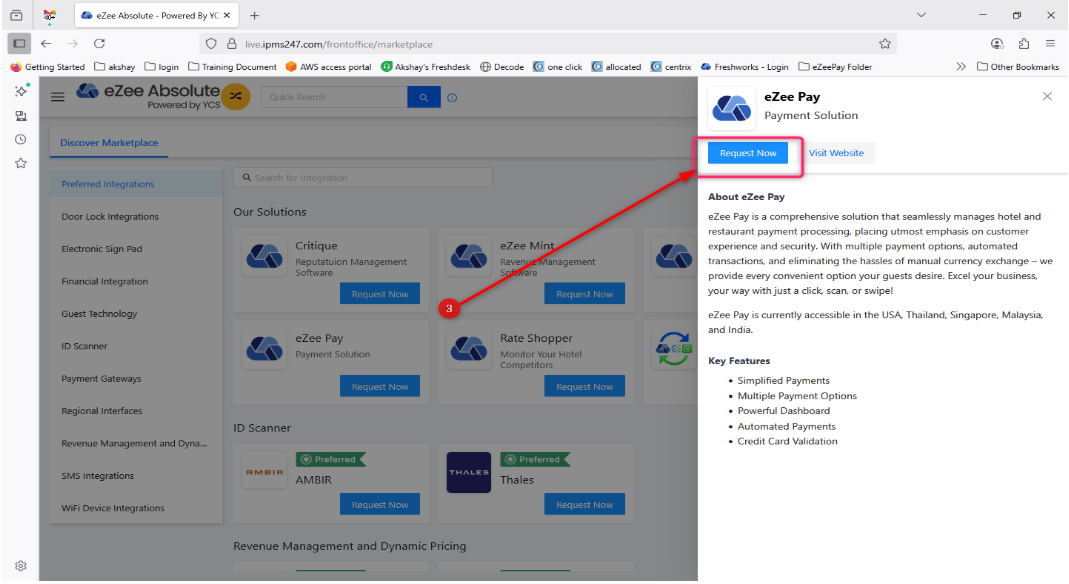
C. Generate a New Token
Click on Authorize.
The system will process the request and generate a new token automatically.
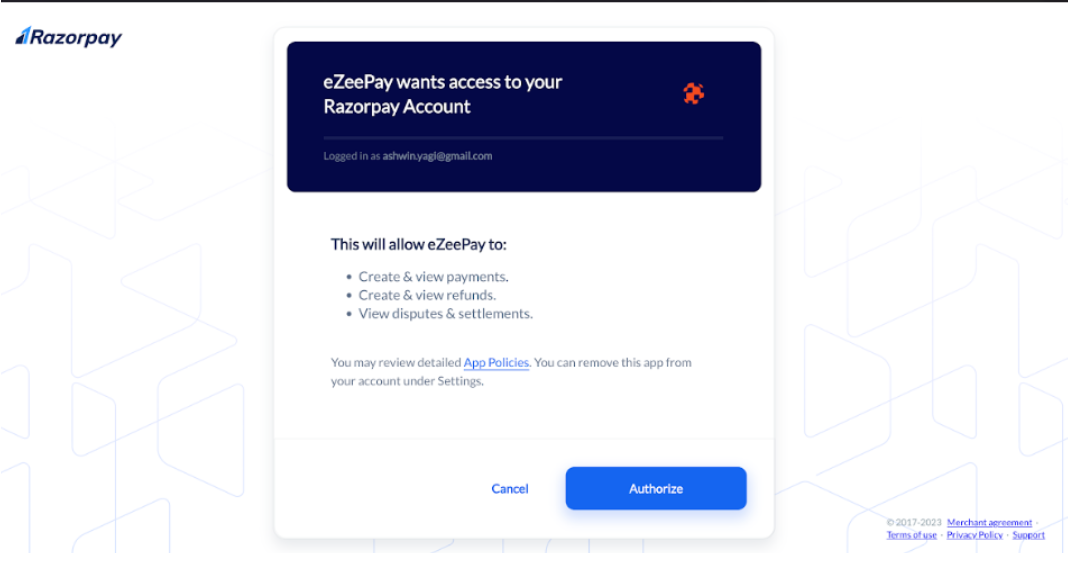
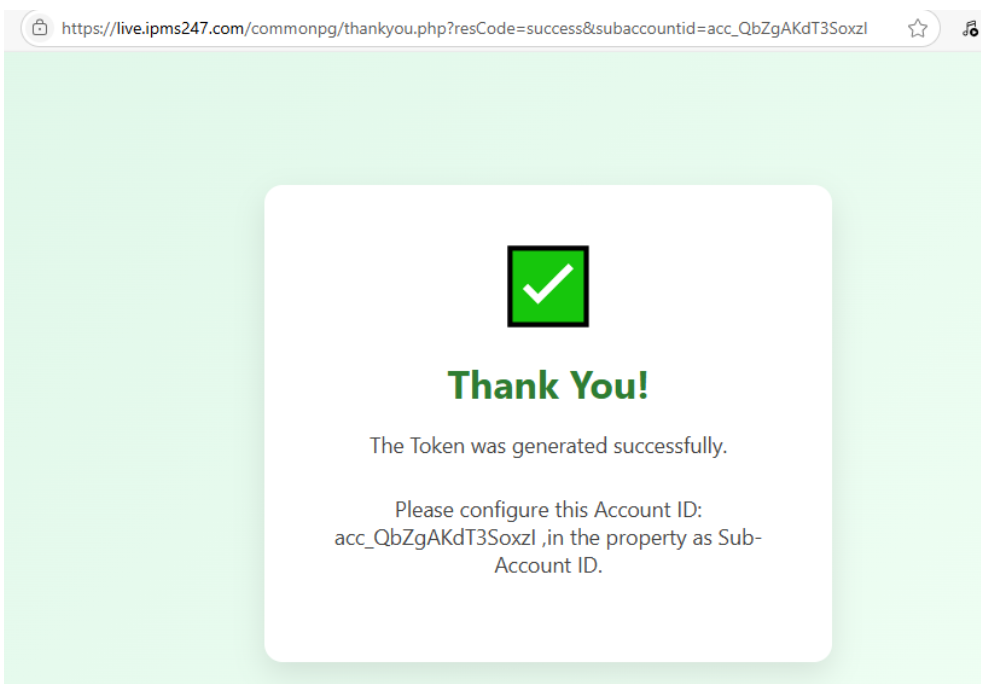
Step 3: Confirmation Message
Once the token is successfully generated, a confirmation message will appear:
“Thank you. The token was generated successfully.”
Was this article helpful?
That’s Great!
Thank you for your feedback
Sorry! We couldn't be helpful
Thank you for your feedback
Feedback sent
We appreciate your effort and will try to fix the article