Introduction
Managing guest preferences and special food instructions during busy service hours can be challenging. With eZee Optimus, servers can efficiently record and communicate special preparation instructions requested by guests.
By enabling the Preparation Remark feature and configuring it in the KOT template, these instructions are printed directly on the KOT (Kitchen Order Ticket). This ensures the kitchen team prepares the item exactly as requested, improving order accuracy, guest satisfaction, and operational efficiency.
How to Add a Predefined Preparation Remark (Back-End Operation)
Step 1: Navigate to Configuration Panel :
1. Go to the Setting.
2. Select the Printing Template.
3. Click on KOT Configuration.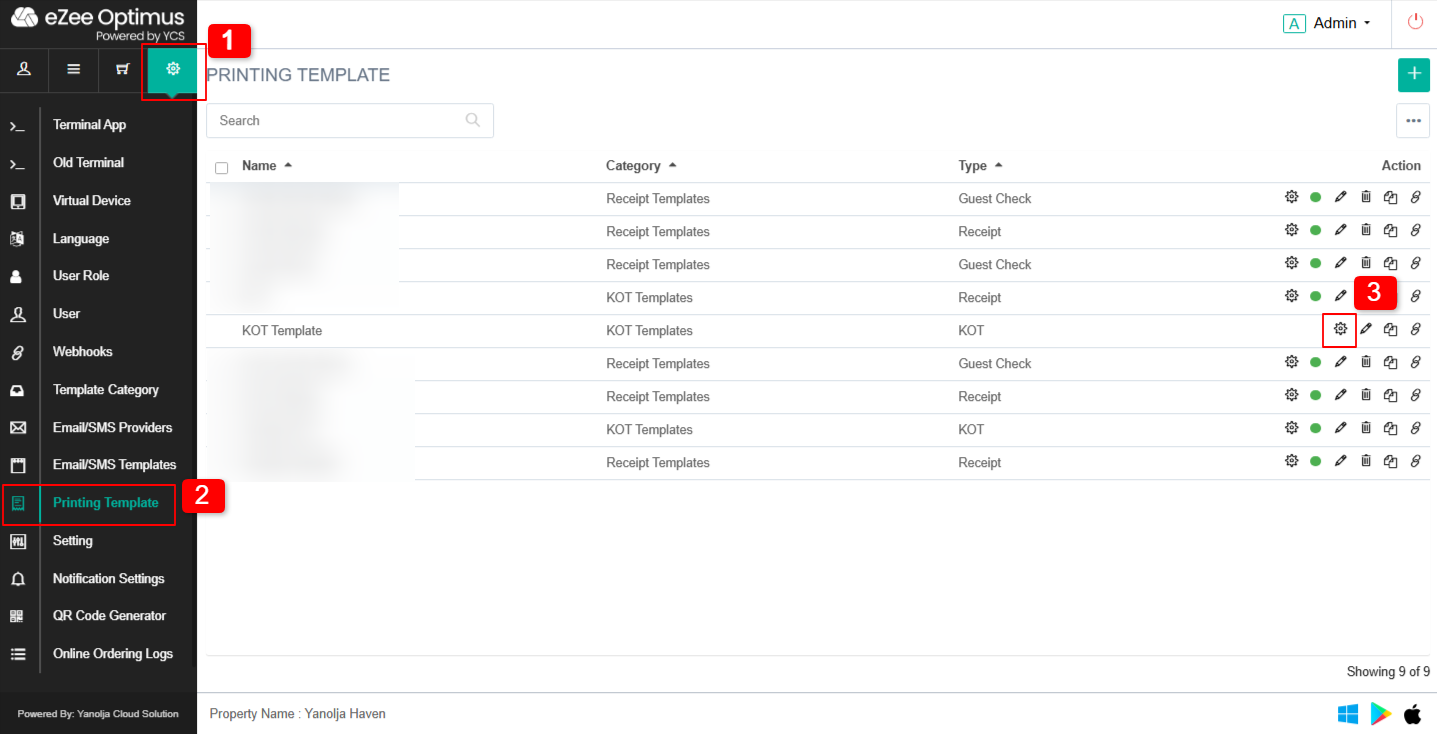
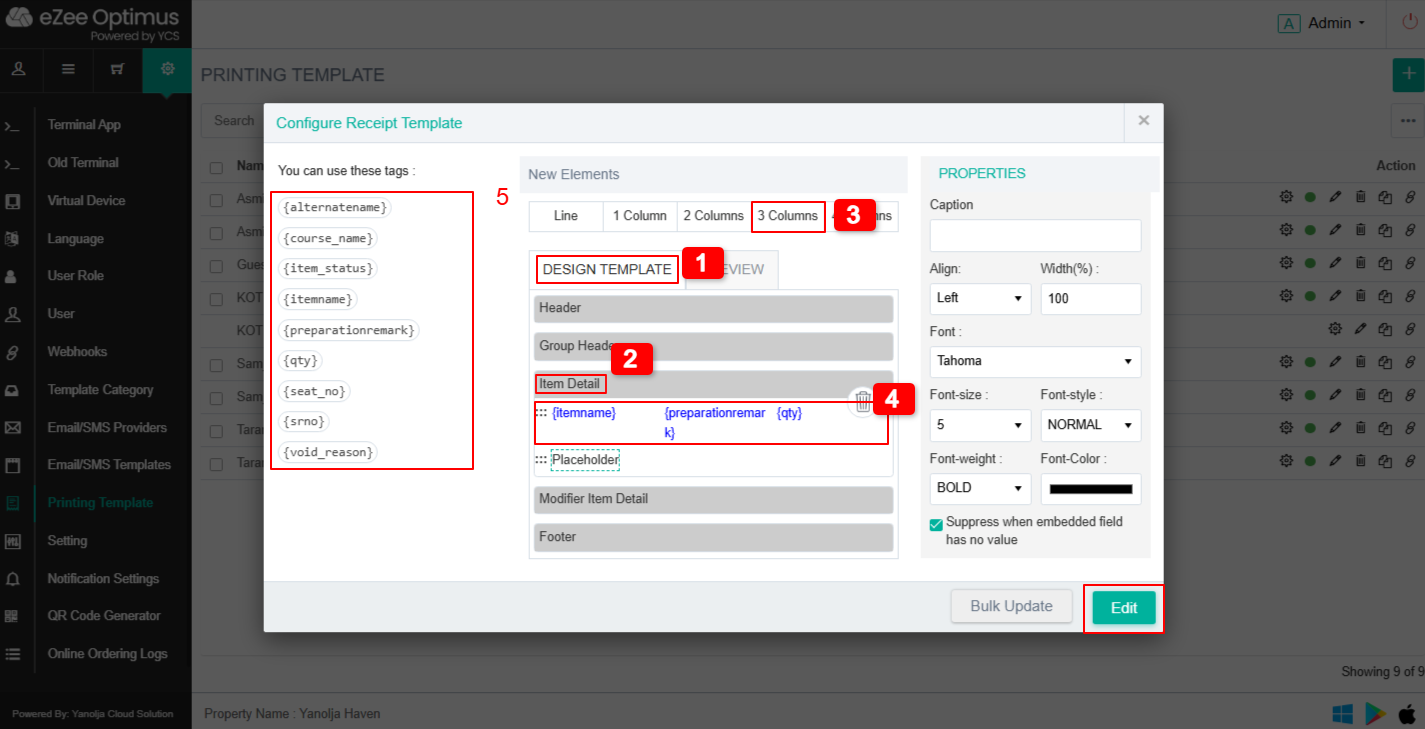
Step 2: Open the KOT Configuration :
1. Select the Design Template.
2. Click on Item Detail.
3. Drag the three columns into the Item Detail section.
4. Click on each Placeholder. The tags will be visible.
5. Select the required tag for each placeholder.
Step 3: Add a predefined preparation remark?
1. Go to Master.
2. Select Reason.
3. Click on Add.
4. Enter the reason and select Preparation Remark as the Type.
5. Click on Save.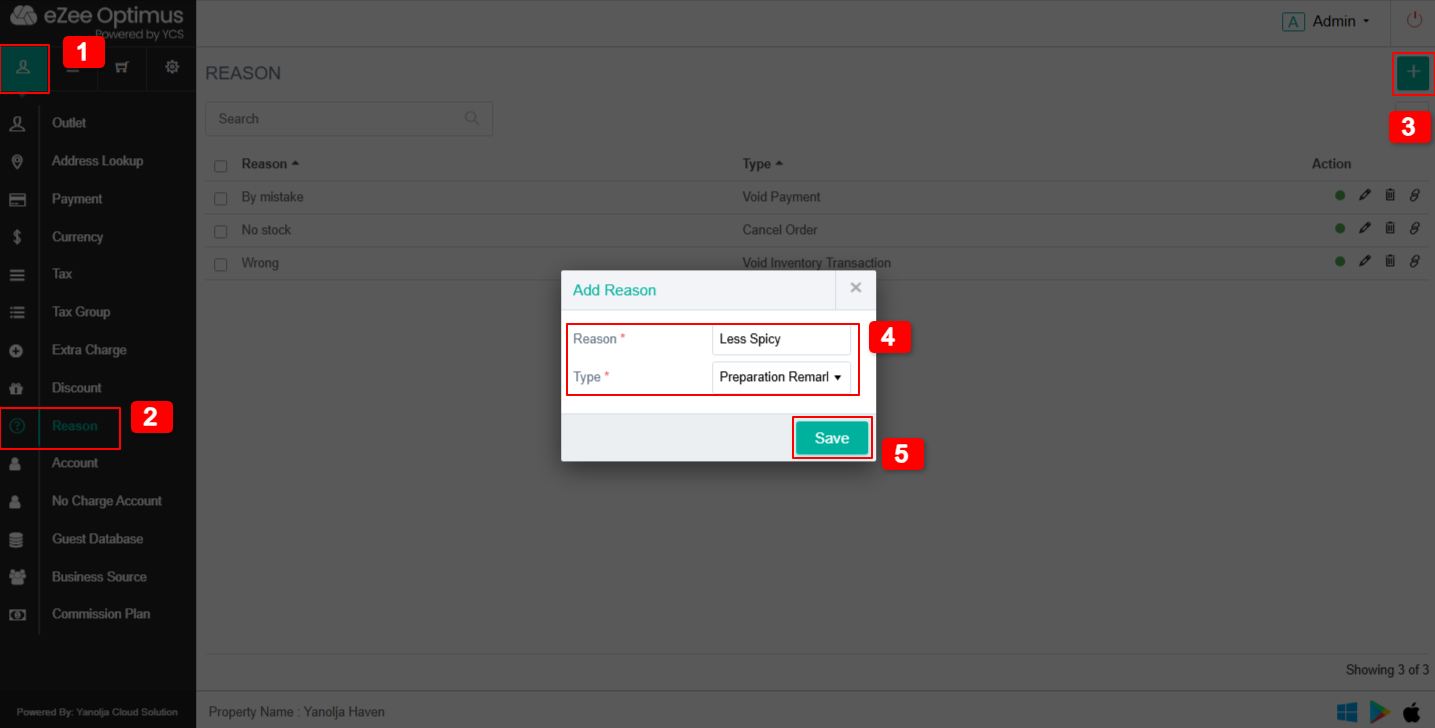
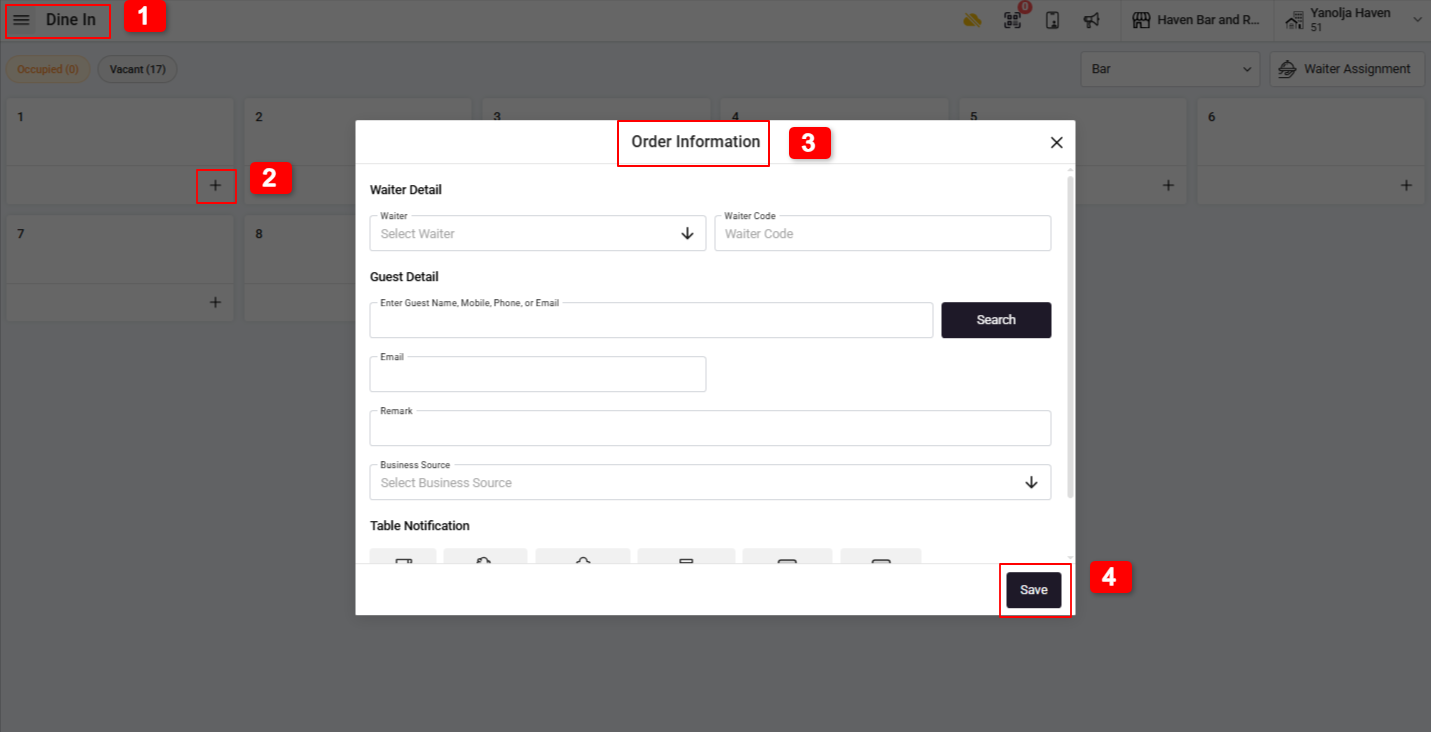
Step 4: Select the Item :
1. Navigate to the Order Taking screen.
2. Select the required outlet/table.
3. Filled the guest details.
4. Click on Save to proceed.
Step 5: Open the Prep. Remark Option :
1. Choose the item ordered by the guest.
2. Click on the item to add a Prep. Remark.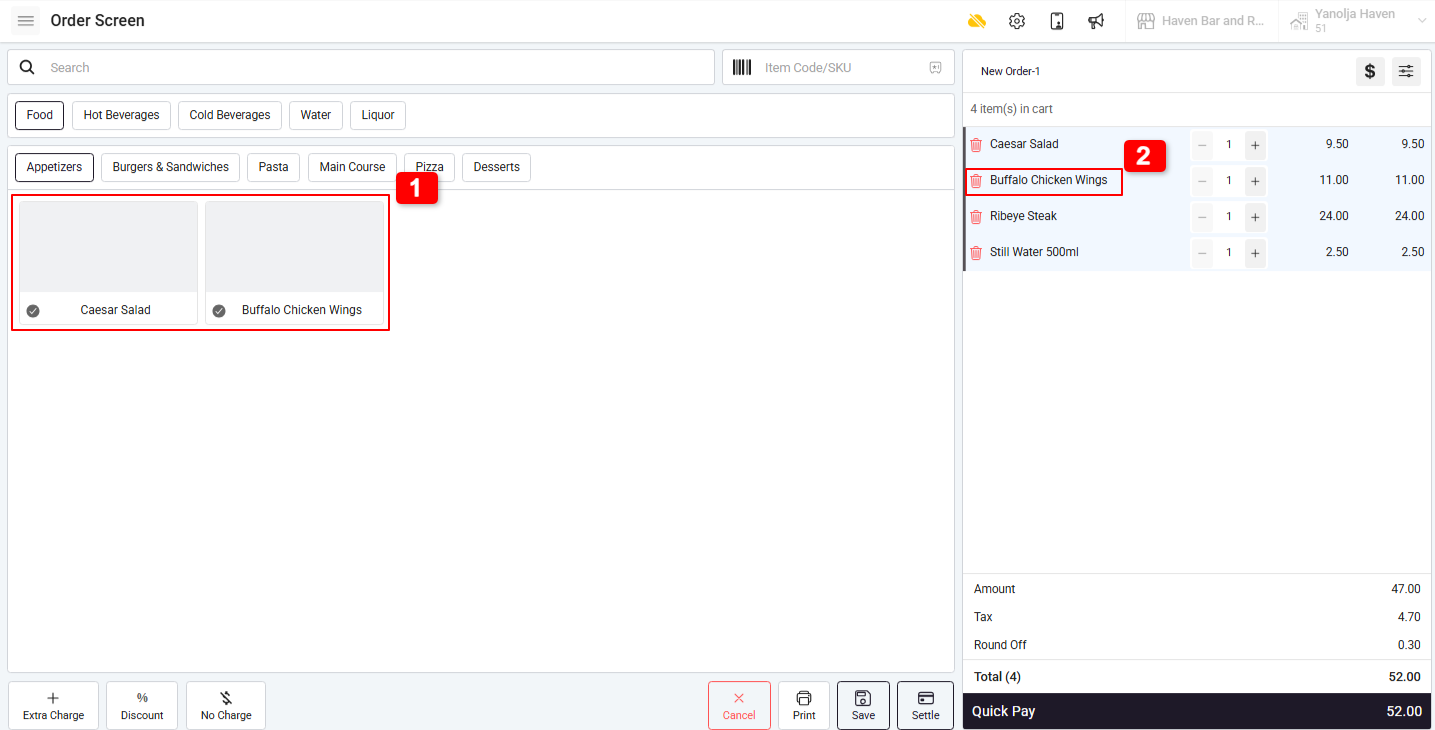
Step 3: Open the Prep. Remark Option :
1. After selecting the item, click on the Prep. Remark option available on the item action panel.
2. The list of predefined preparation remarks will be displayed.
3. Select the appropriate remark as requested by the guest (e.g., Less Spicy, No Onion, Extra Cheese, etc.).
4. Click on add to attach the remark to the item.
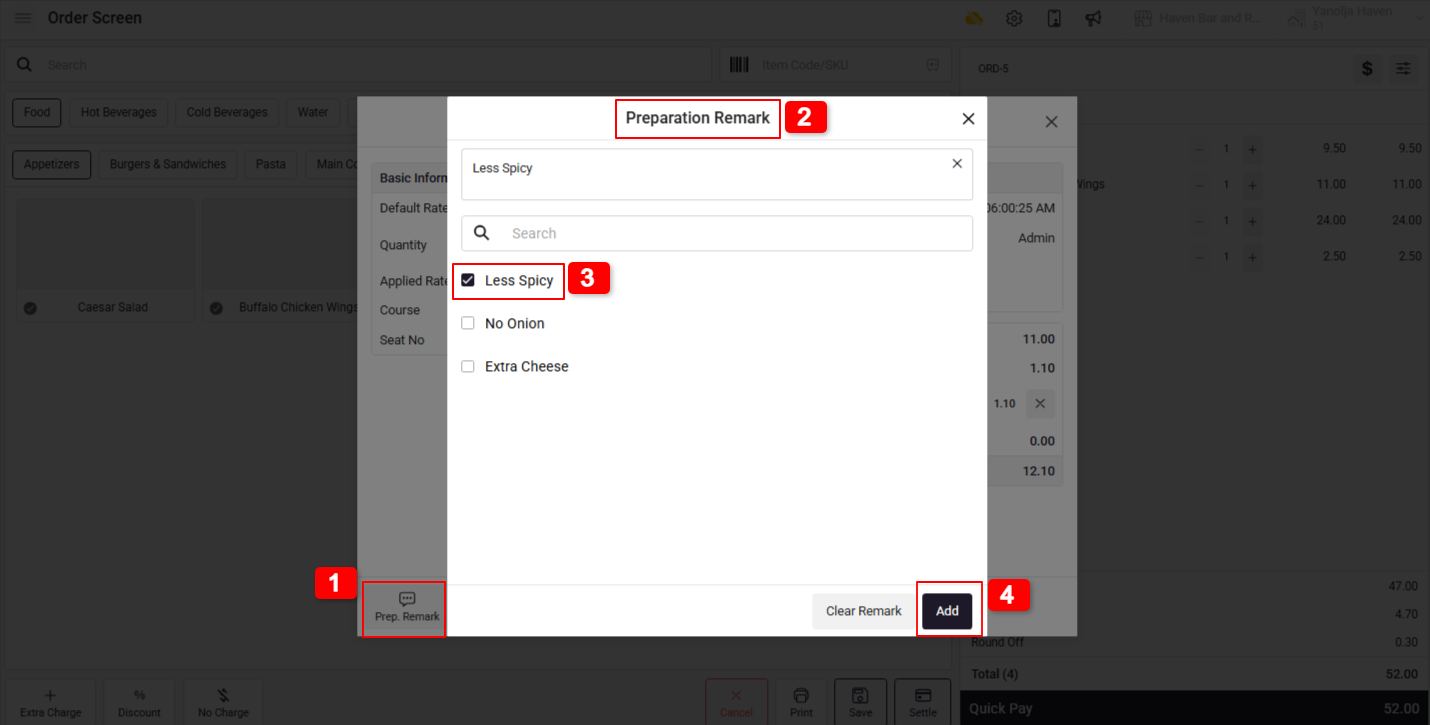
After completing the order and generating the KOT, the selected preparation remark will automatically print along with the item, ensuring the chef prepares the dish as per the guest’s instruction.
Was this article helpful?
That’s Great!
Thank you for your feedback
Sorry! We couldn't be helpful
Thank you for your feedback
Feedback sent
We appreciate your effort and will try to fix the article