What is a Hold Item?
In eZee Optimus, the Hold Item feature allows the restaurant staff to temporarily prevent certain items from being sent to the kitchen.
When an item is placed on Hold, it will not appear in the KOT (Kitchen Order Ticket). As a result, the kitchen staff will not start preparing that item until it is released.
This feature is commonly used to control the sequence in which dishes are served.
What is a Fire Item?
- The Fire Item feature is used to release previously held items.
- When an item is Fired:
- The system generates a KOT for that item
- The item is sent to the kitchen for preparation
- The kitchen staff can begin preparing the dish
Example Scenario
Suppose a guest orders:
- Noodles
- Chicken
- Dessert
The guest requests the dishes in the following order:
- Serve Noodles first
- Then Chicken
- Then Dessert
In this case:
- Chicken and Dessert will be placed on Hold
- After the noodles are served, the staff will Fire Chicken
- Once chicken is served, the staff will Fire Dessert
- This helps coordinate service timing between the restaurant staff and the kitchen.
How do I Hold an Item?
Follow these steps:
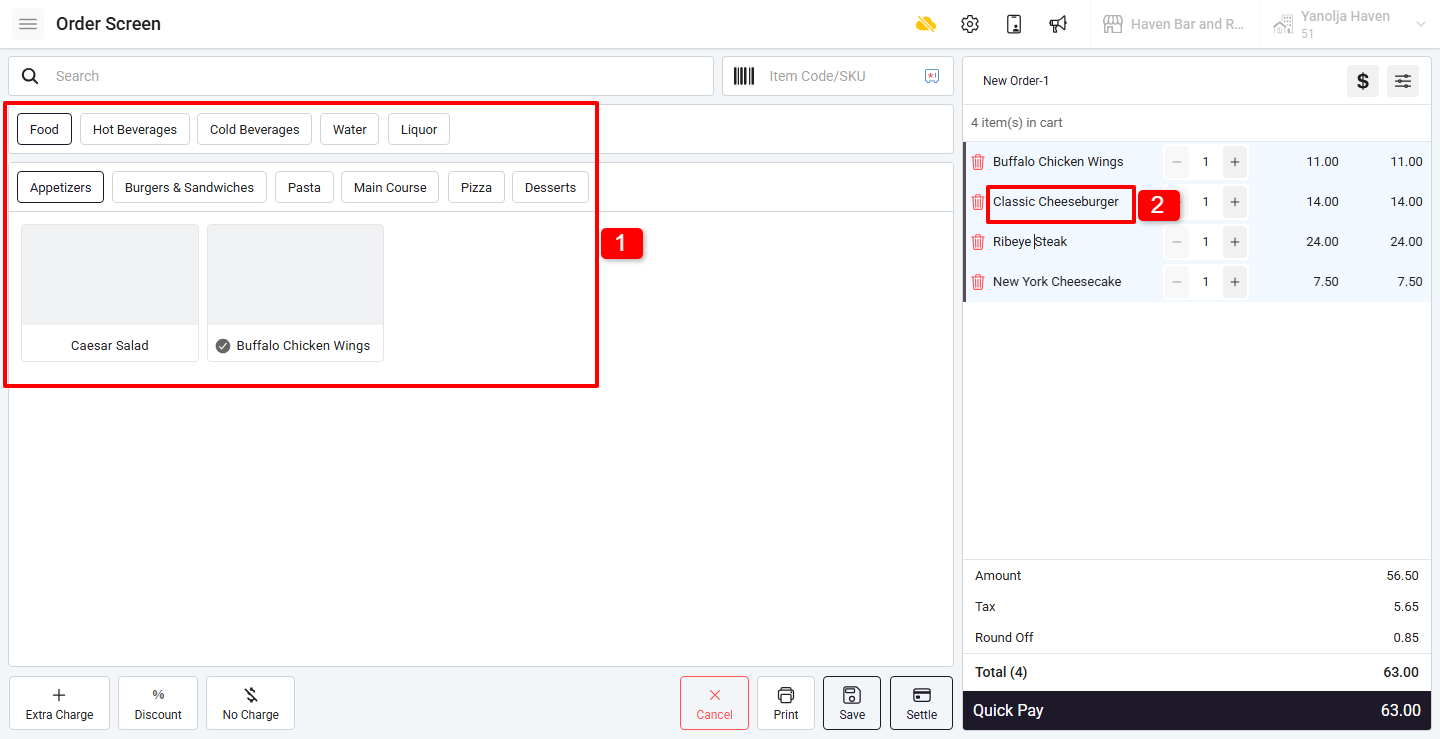
1. Punch the items on the Ordering Page.
2. Click on the item you want to hold.
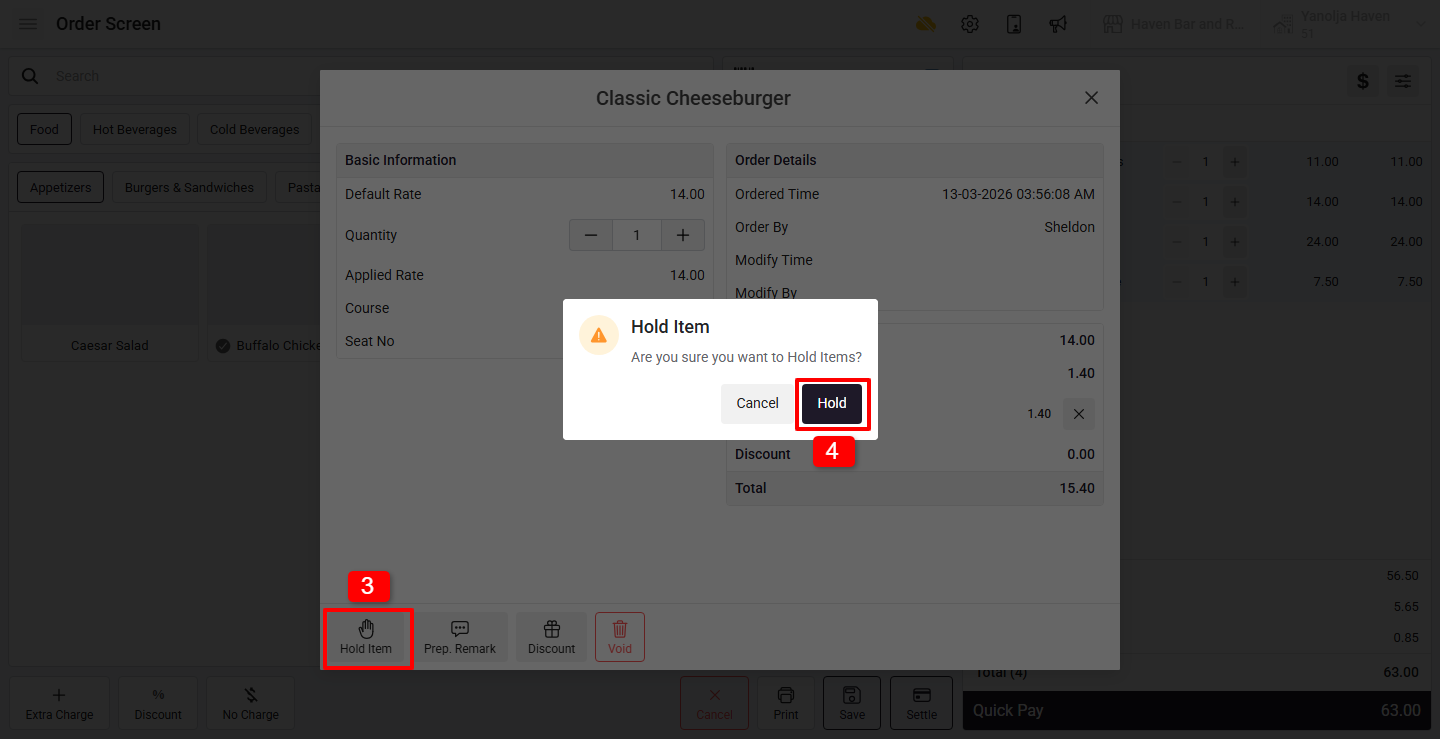
3. Click on the Hold Item button.
4. Click Hold to confirm.
The held item will not be included in the KOT.
How do I Fire a Held Item?
To release the item for preparation:
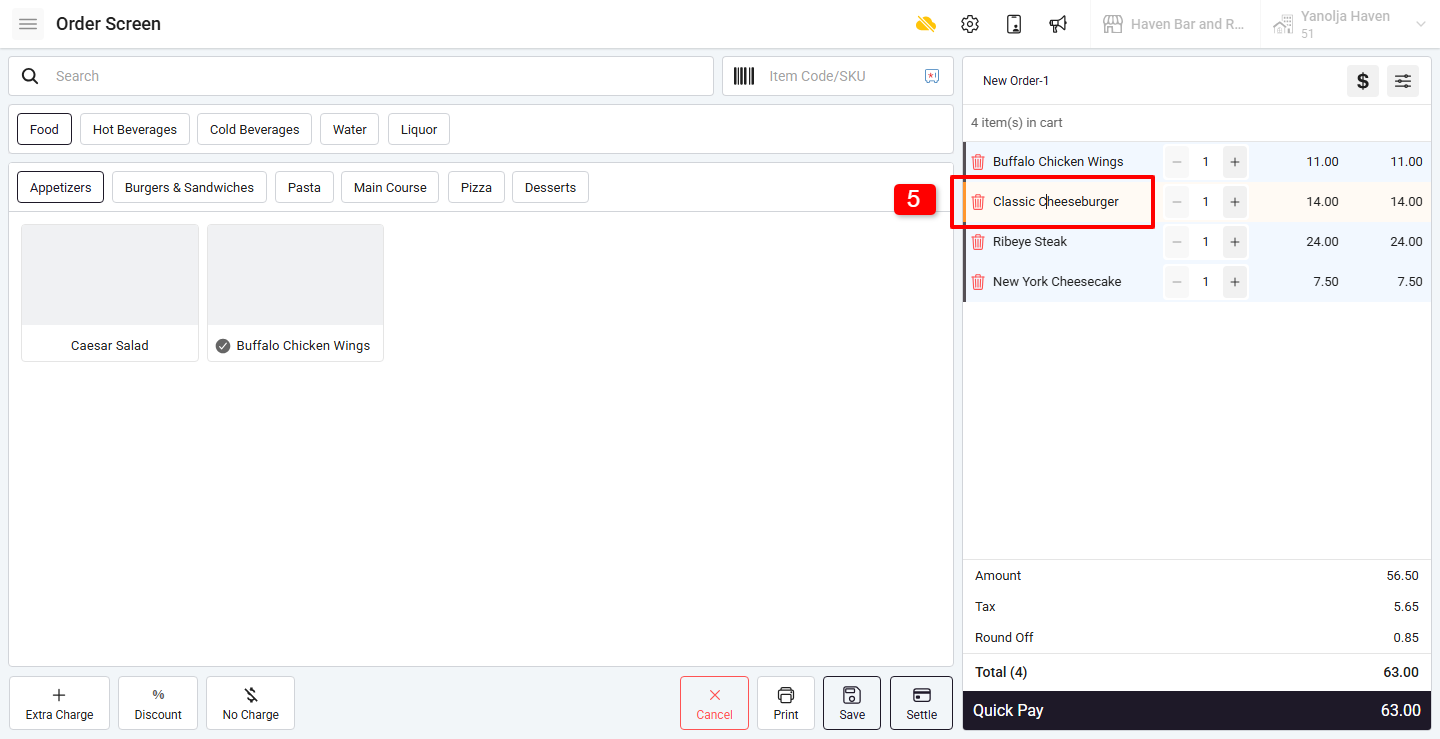
5. Click on the held item.
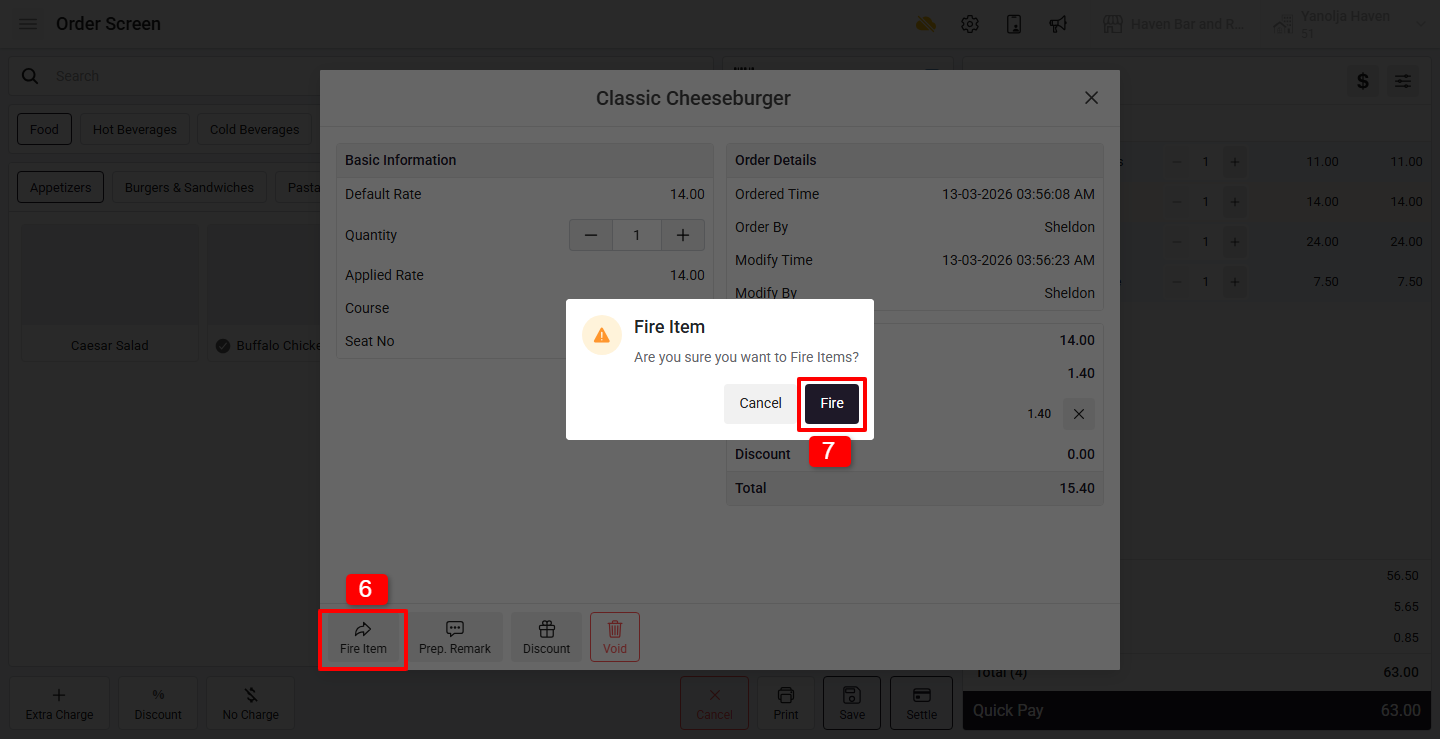
6. Click Fire Item to send it to the kitchen.
7. Click Fire to confirm.
Once fired, a KOT will be generated for that item.
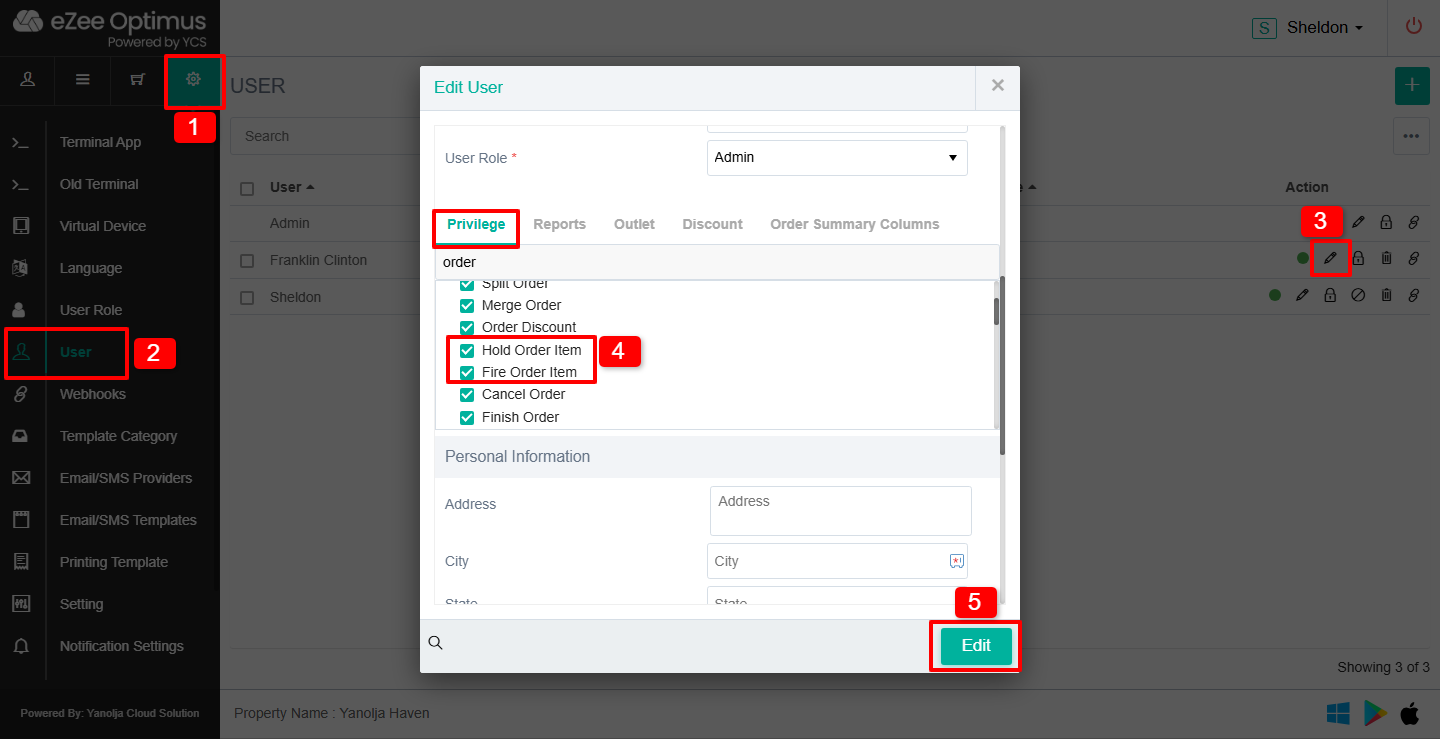
What user privileges are required for Hold and Fire items?
To allow users to hold or fire items, the following privileges must be enabled:
Steps to Assign Privileges
1. Click on Settings
2. Click on User
3. Click on the Pen/Pencil (Edit) icon for the user
4. Enable the following privileges:
- Hold Order Item
- Fire Order Item
5. Click on the Edit button to save the changes
Was this article helpful?
That’s Great!
Thank you for your feedback
Sorry! We couldn't be helpful
Thank you for your feedback
Feedback sent
We appreciate your effort and will try to fix the article