Many times, situations arise where guests request cancellation of an item from their order, or a server accidentally adds an incorrect item. To handle such requests and operational errors, the item must be voided from the order.
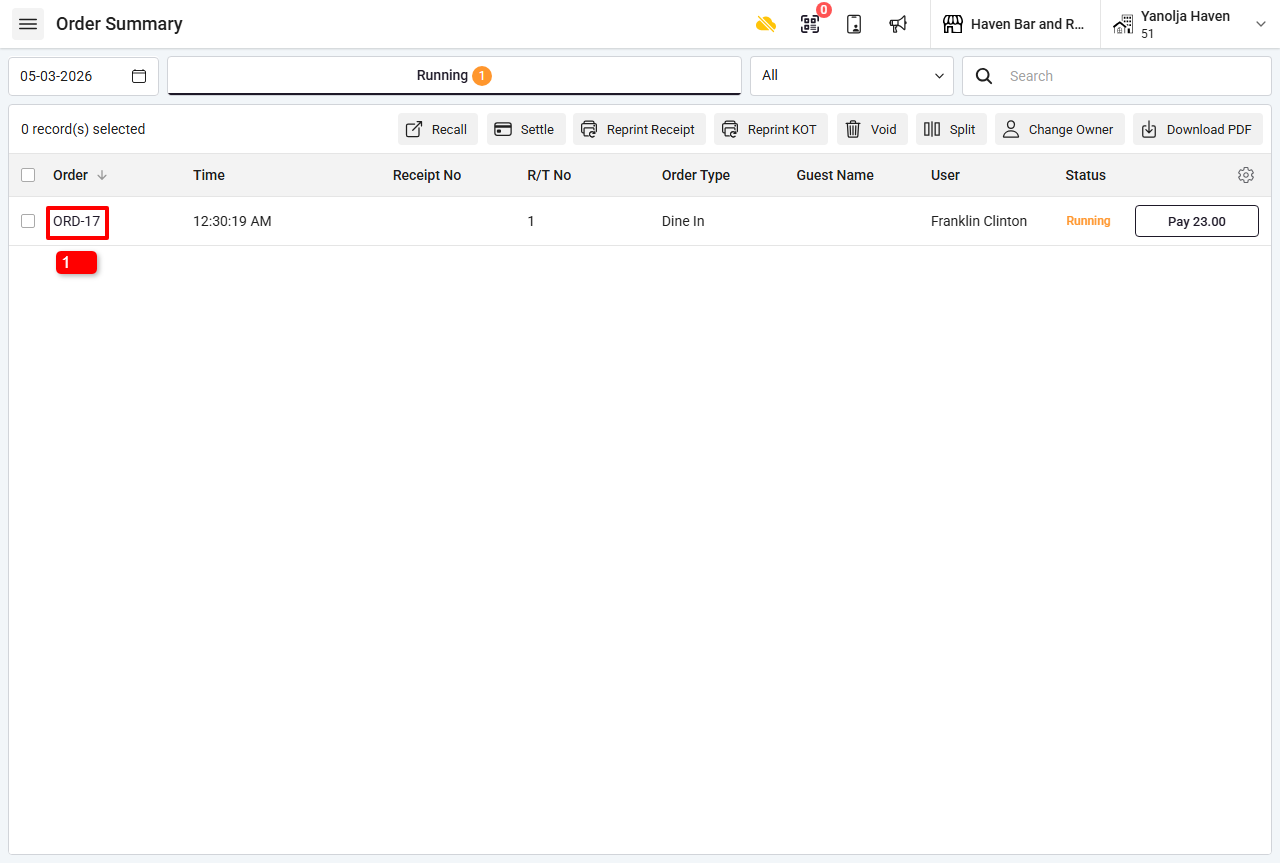
Step 1 : Open Restaurant POS and select the required order from the Order Summary screen.
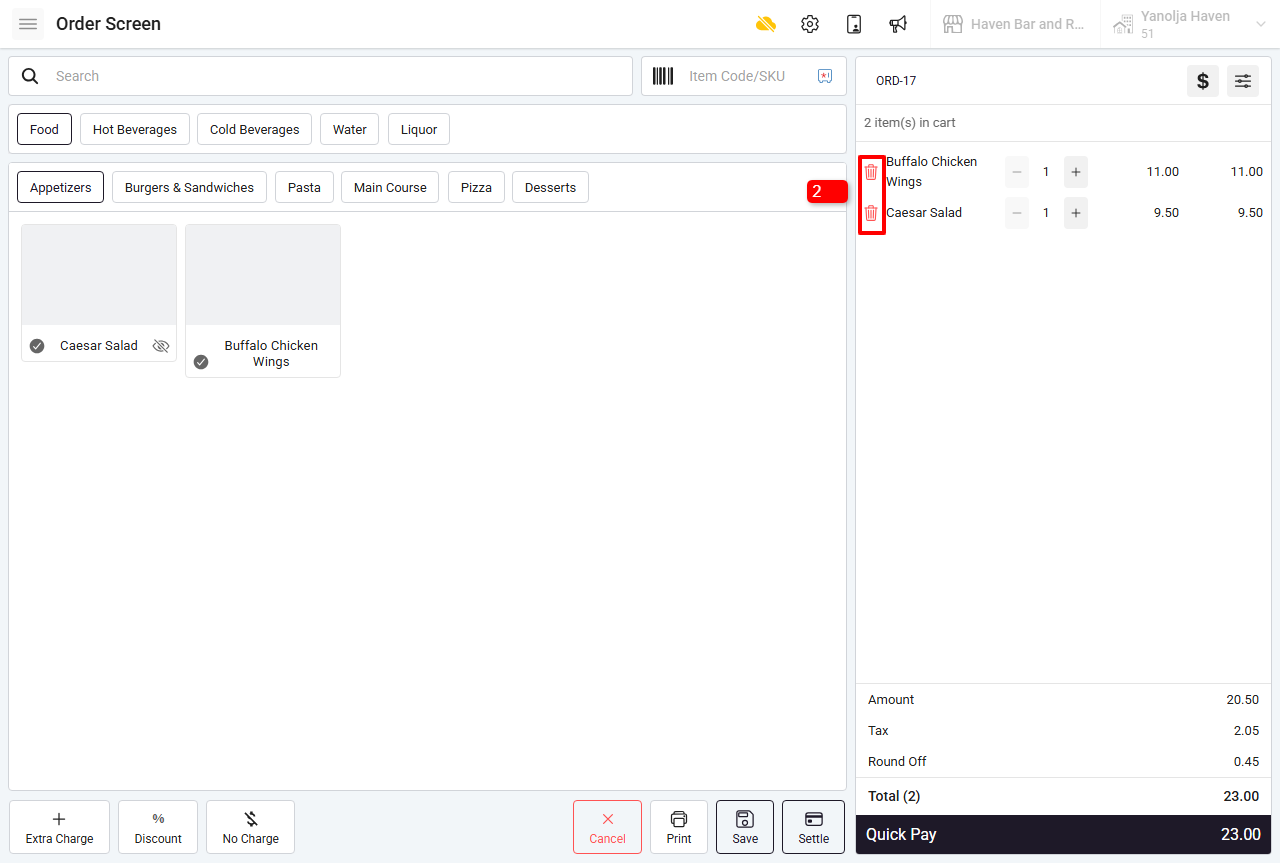
Step 2 : Click on the VOID icon displayed before the menu item you want to remove.
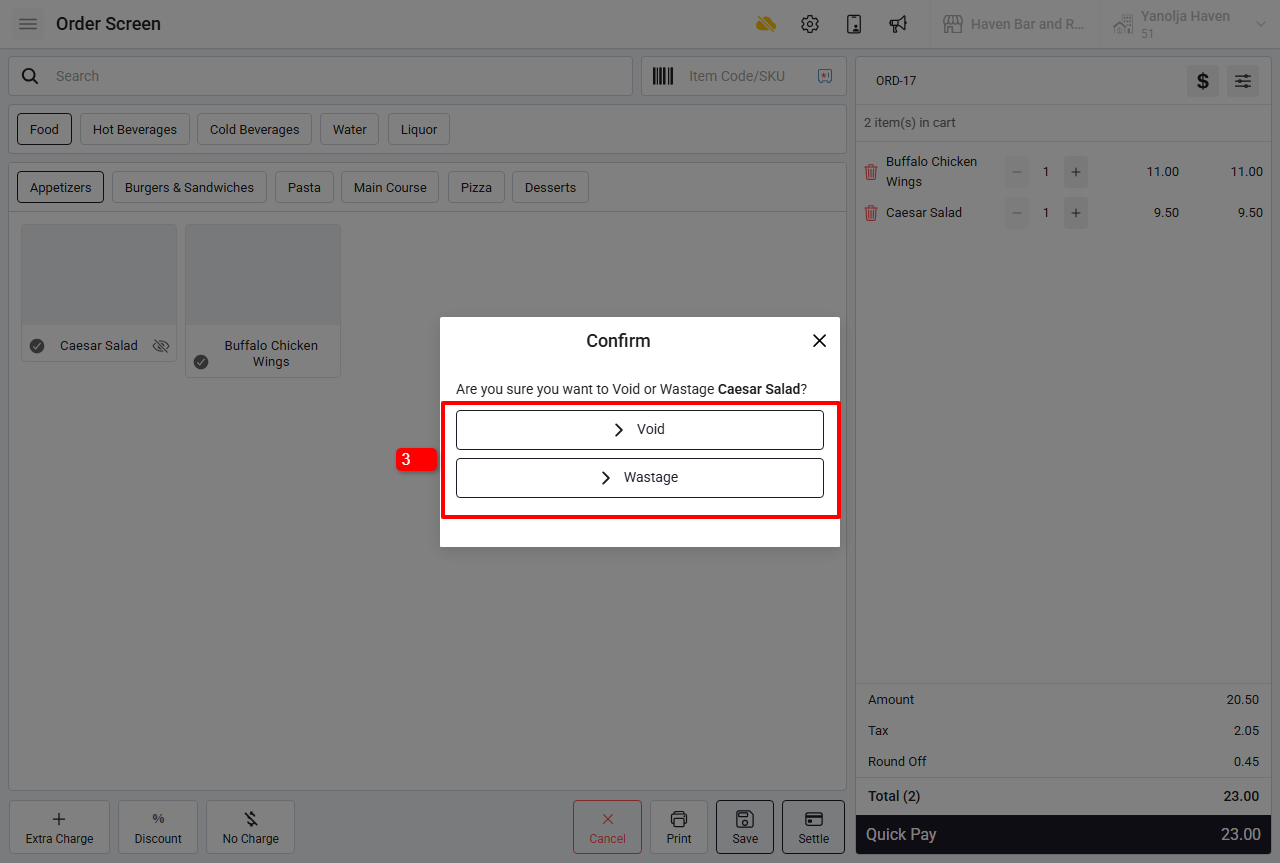
Step 3 : Select one of the following options:
Void – Select this option if the item has not been prepared.
Wastage – Select this option if the item has already been prepared.
Note: When you select Wastage, the stock will be deducted based on the BOM (Bill of Materials) defined for that menu item.
Pre-Requisite: Grant Access to User to Void an Item
Before voiding items, ensure that the user has the required permission enabled.
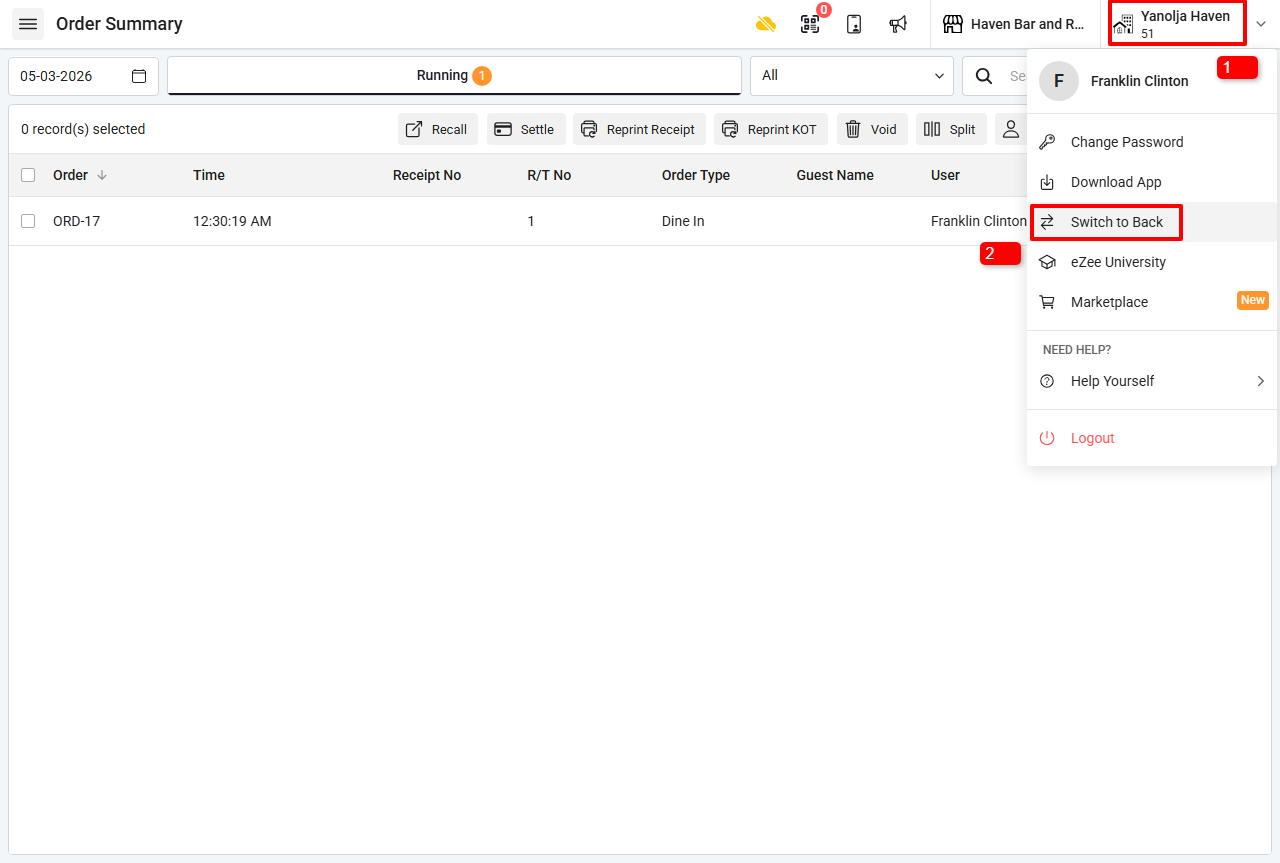
1. Open Restaurant POS.
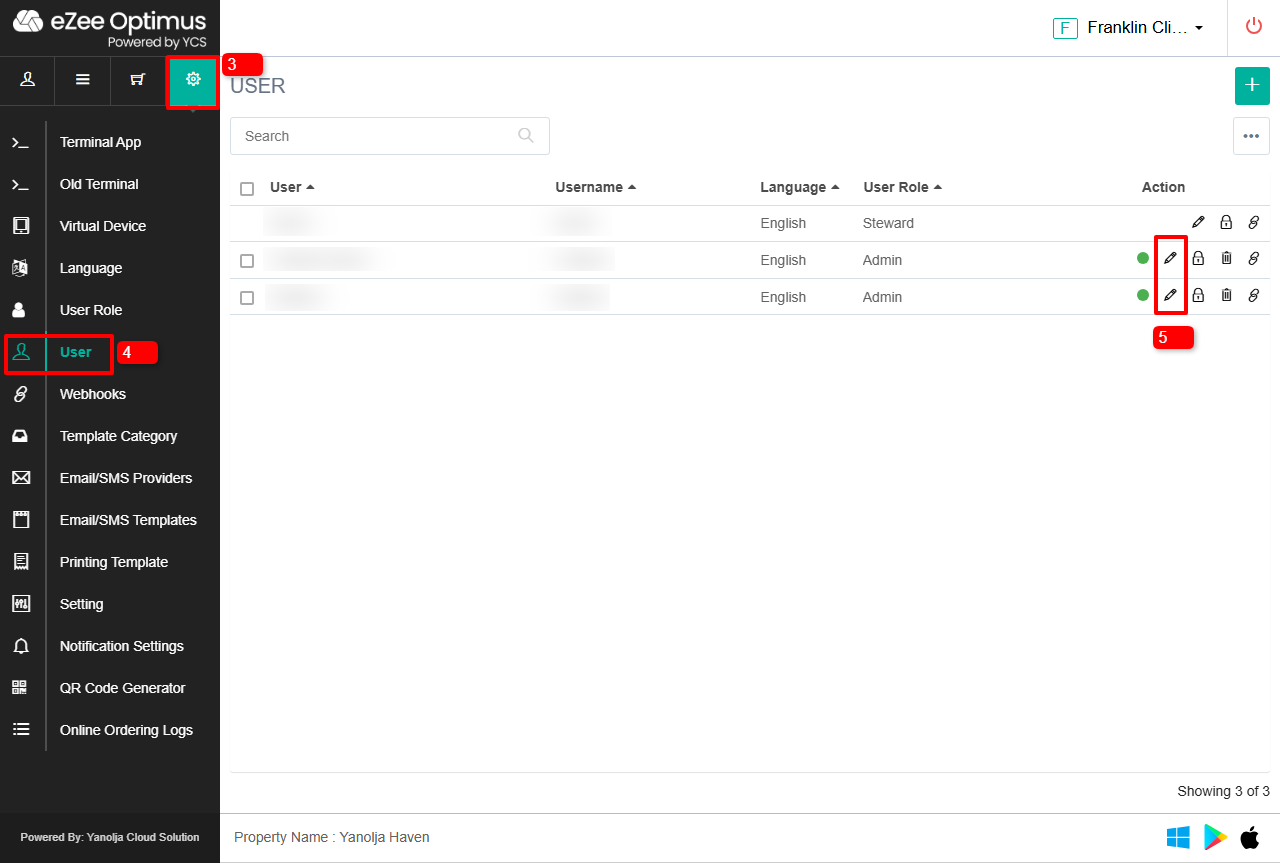
2. Click on Switch to Back.
 3. Go to Settings.
4. Select User.
5. Click on Edit User.
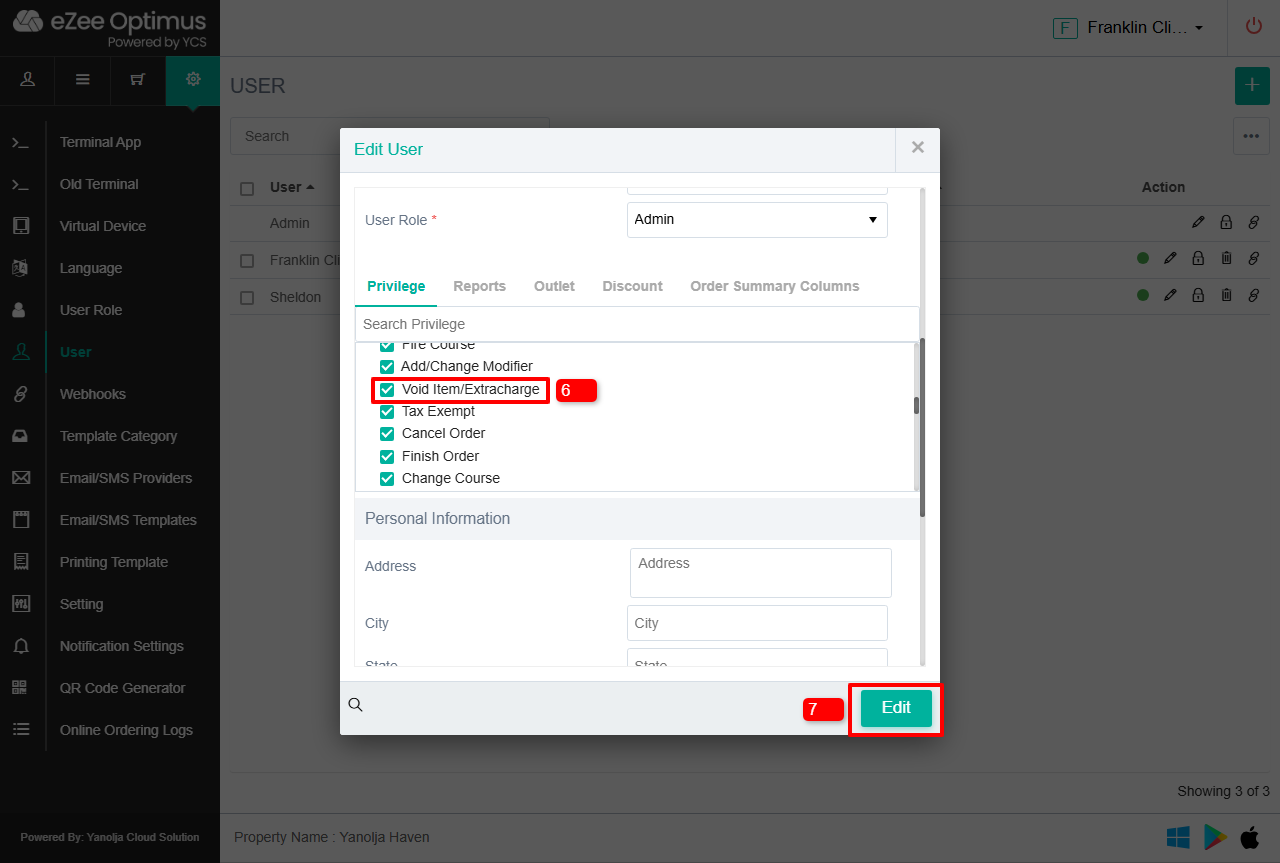
 6. Enable the checkbox for “Void Item / Extra Charge”.
7. Click Save.
Was this article helpful?
That’s Great!
Thank you for your feedback
Sorry! We couldn't be helpful
Thank you for your feedback
Feedback sent
We appreciate your effort and will try to fix the article