Physical stock: Physical Stock is used for recording the actual stock which is verified or counted, By adding physical stock we can get to know the discrepancy between actual stock and computer stock.
We can also enter Opening stock with adding physical stocks.
Steps:
1.Open the Store and click on the physical stock to which you want to add the physical stock.
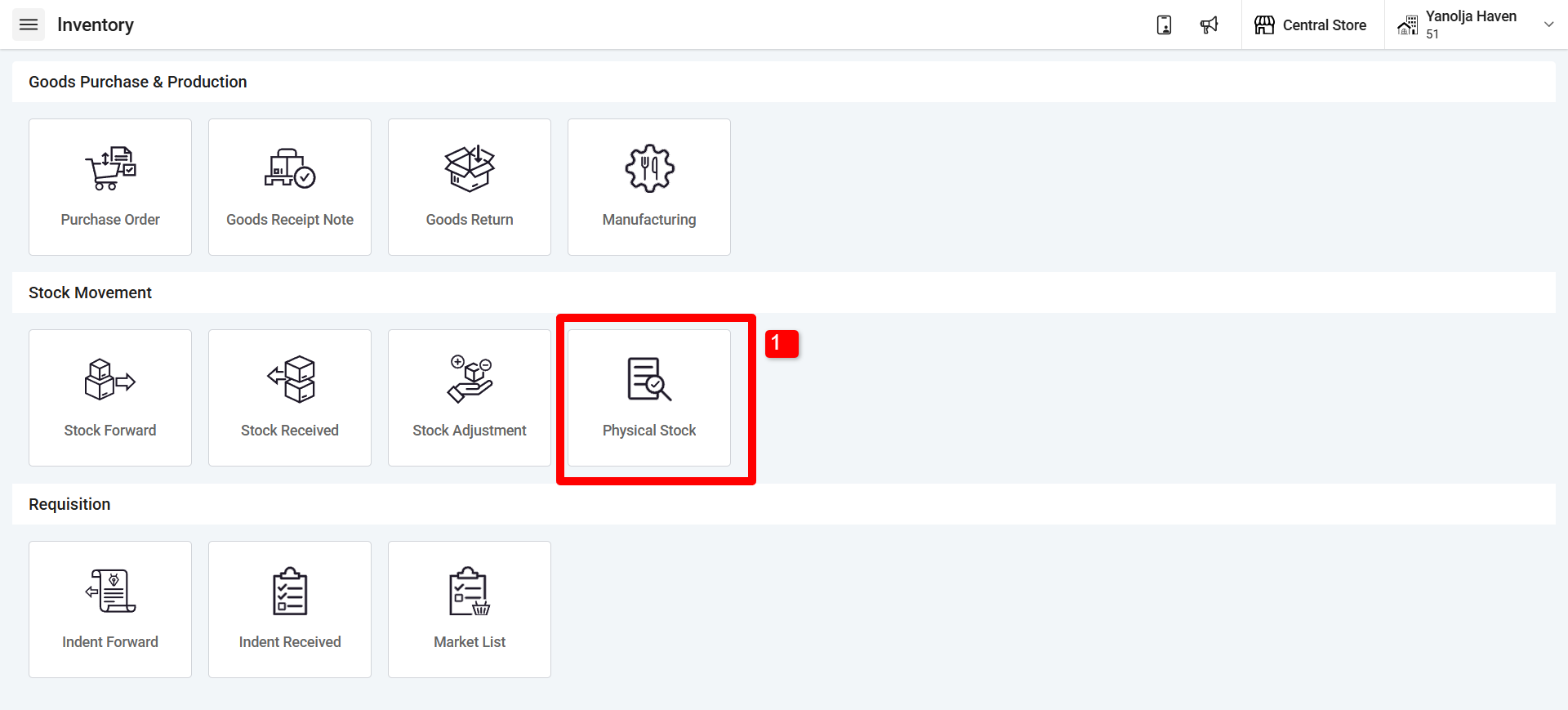
2. Click on Add button.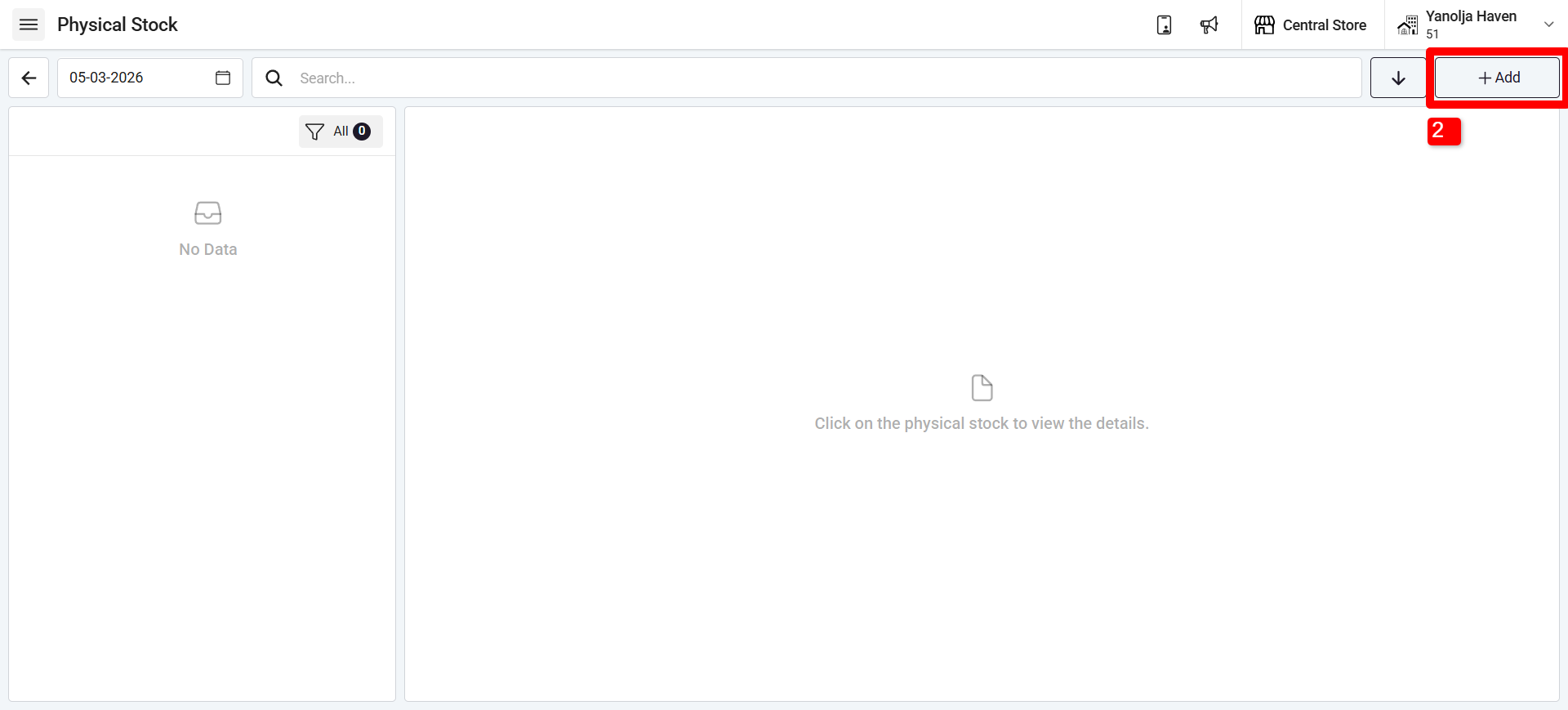
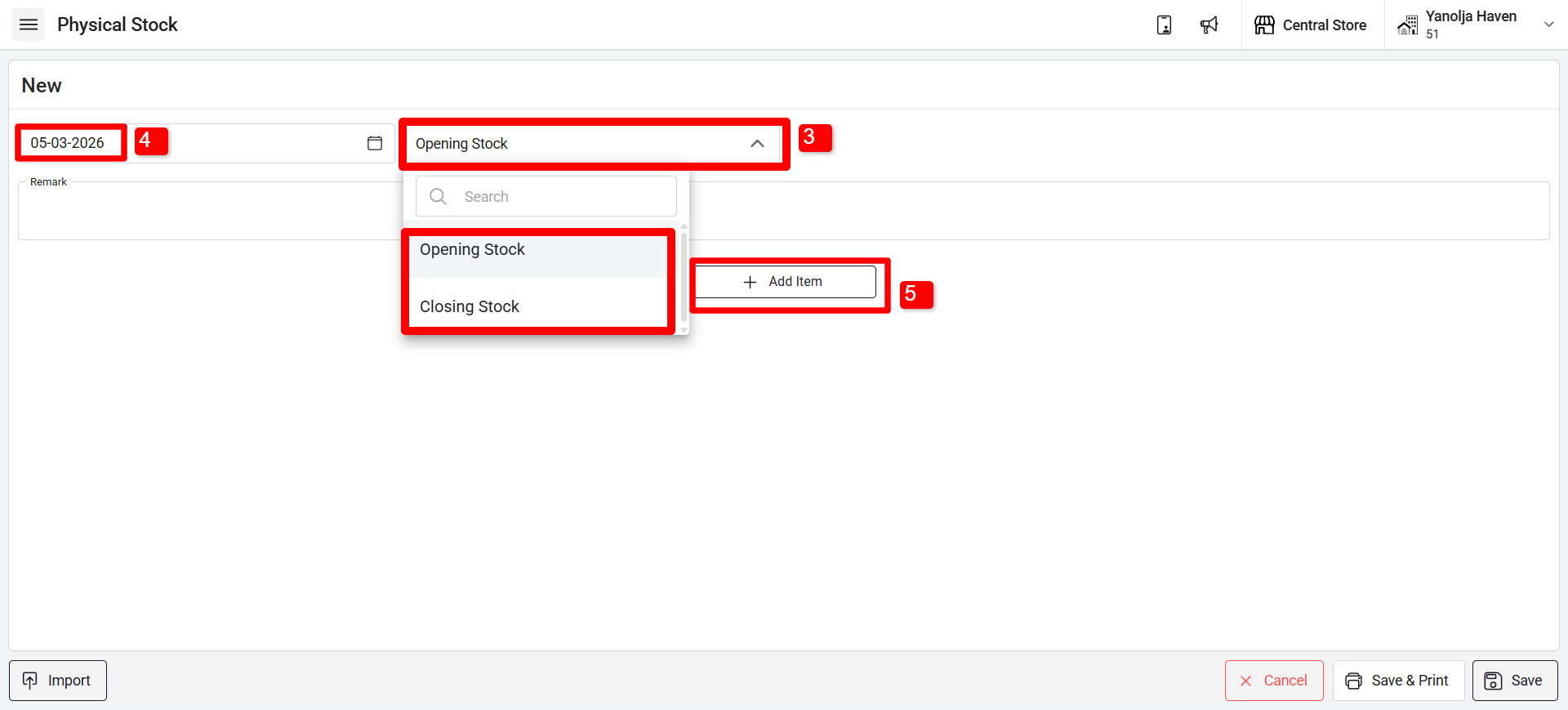
3. Now we have two options to add the physical stock.
Opening Stock: The quantity and value of items or materials available for sale or consumption by a restaurant at the start of a transaction can be entered here.
Closing Stock: The number of unsold items that remain with the restaurant on a specific day can be entered here.
Select accordingly.
4. Select the Date.
5. Click on Add item
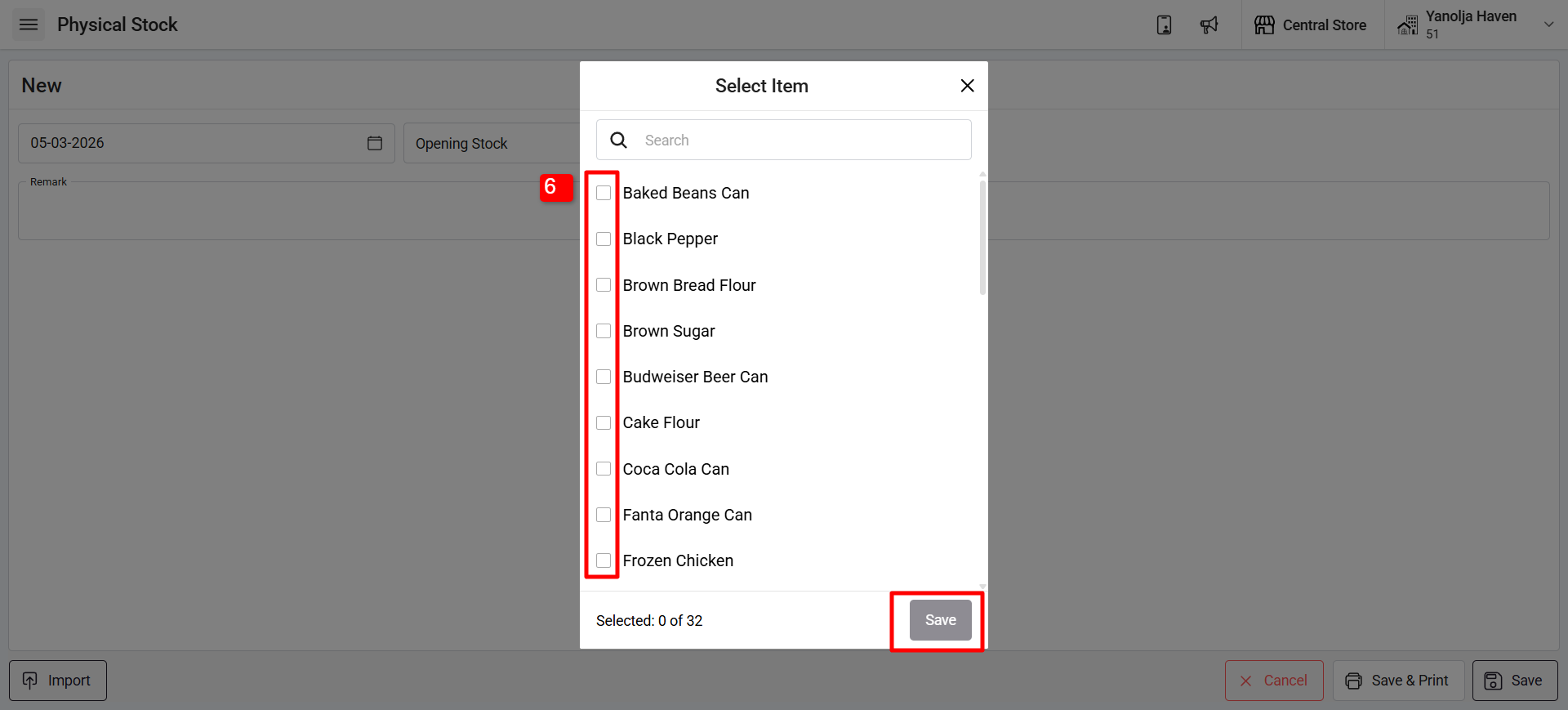
6. Select the items and click on "Save"
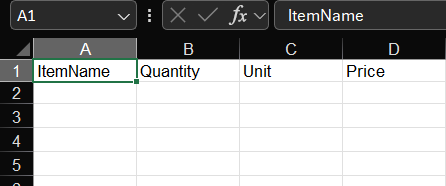
6.1 You can also Import the items in specific format as per below screen shot.
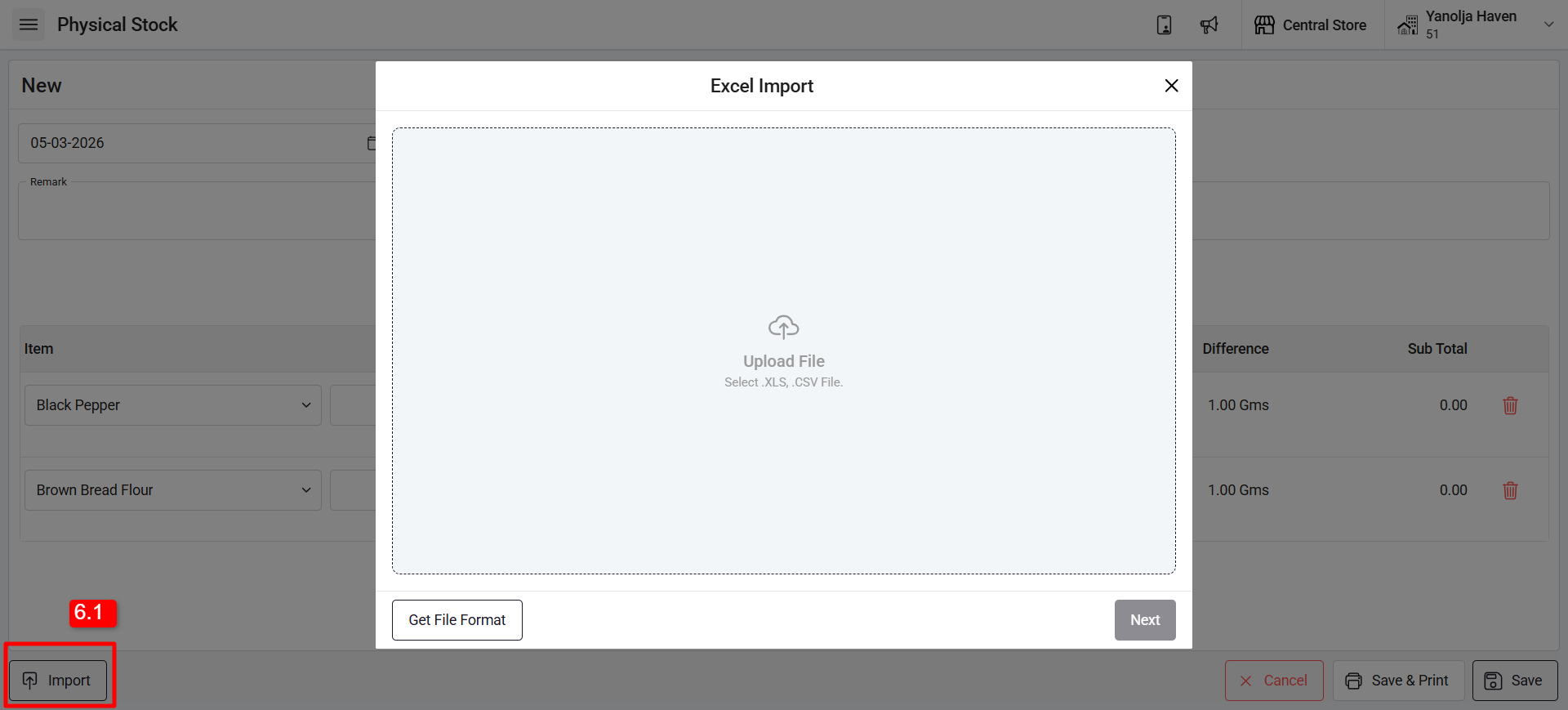
6.1 Format
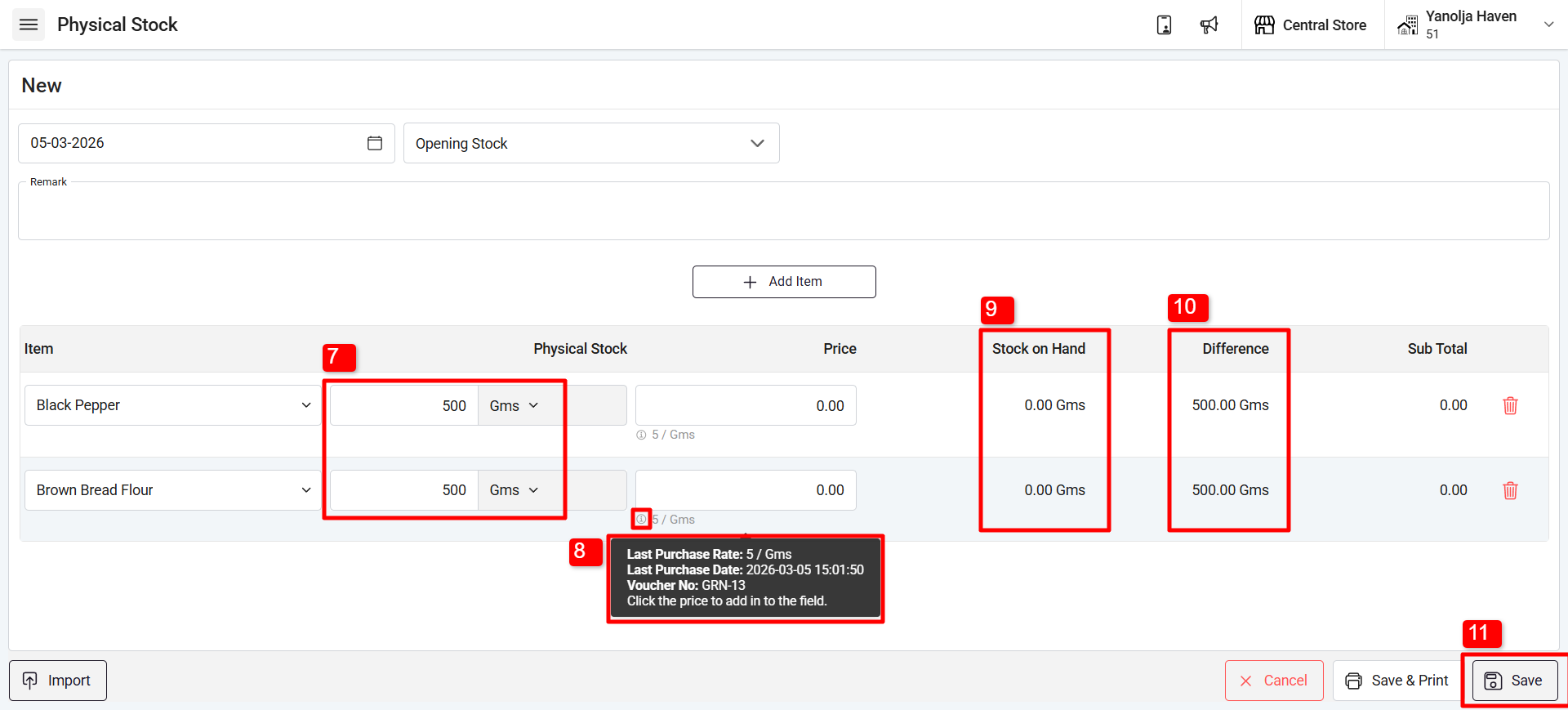
7. Add the Verified physical Stock with unit
8. Enter the price.
(by clicking on "i" button you can view last purchased price of the item)
9. You can view the Stock on Hand details for that item.
10. A difference will be shown between computer stock and physical stock.
11. Once these all things has been verified click on "Save"
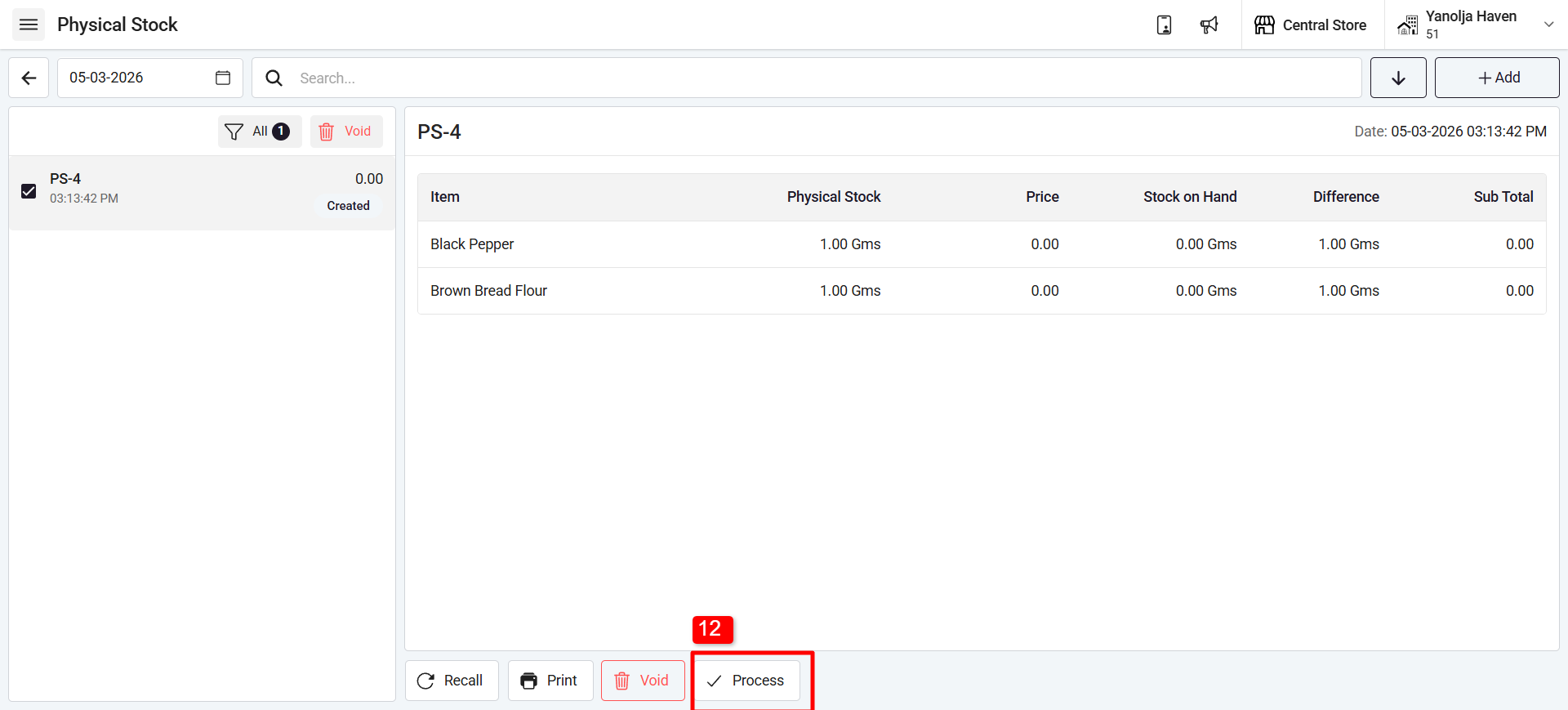
12. Once it is added, you can click on save and process the same. Or you can click on the Physical Stock you created and click on "Process' So item stock will be updated.
Was this article helpful?
That’s Great!
Thank you for your feedback
Sorry! We couldn't be helpful
Thank you for your feedback
Feedback sent
We appreciate your effort and will try to fix the article