Steps to Transfer or Issue Stock:
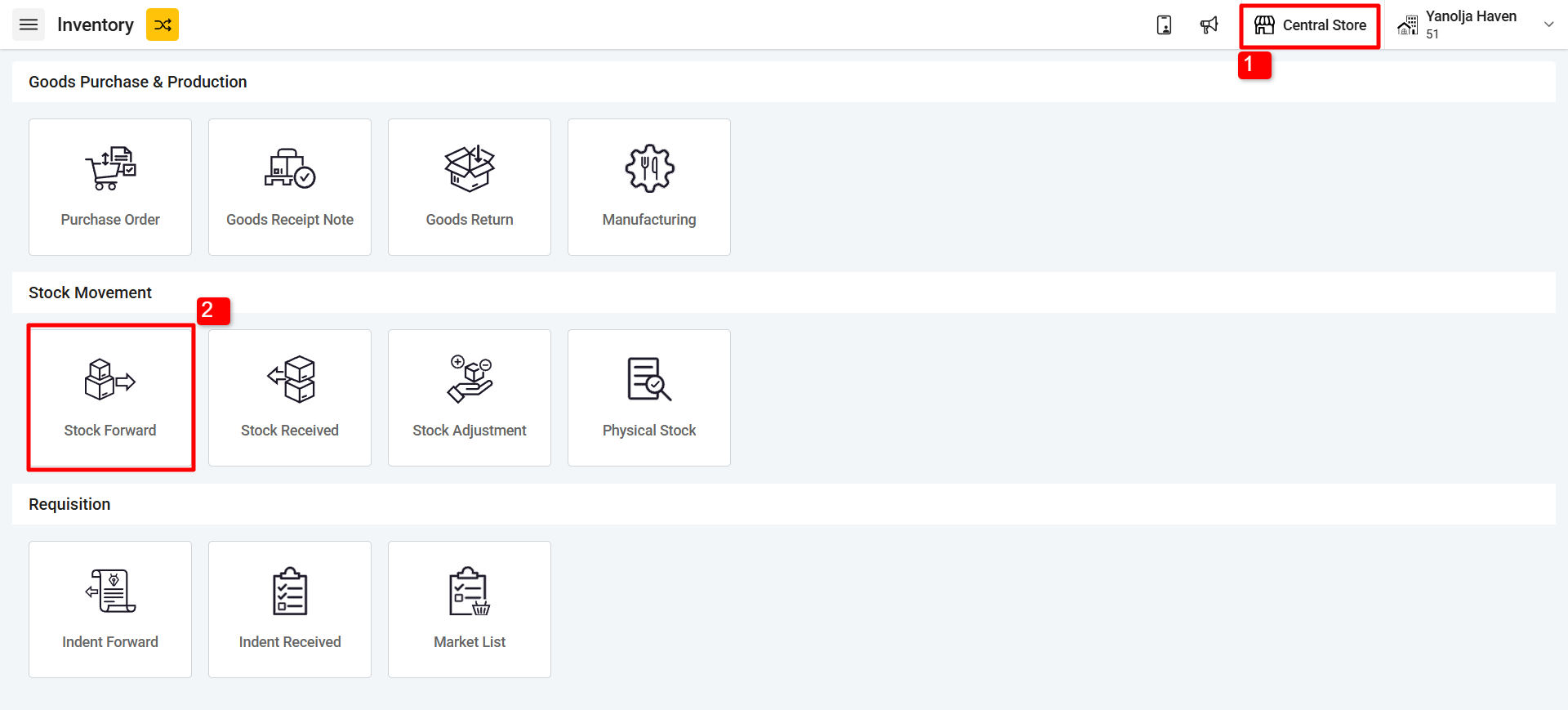
1. Open the Store from where you will be transferring the stock
2. Click on “Stock Forward” option in Inventory Module
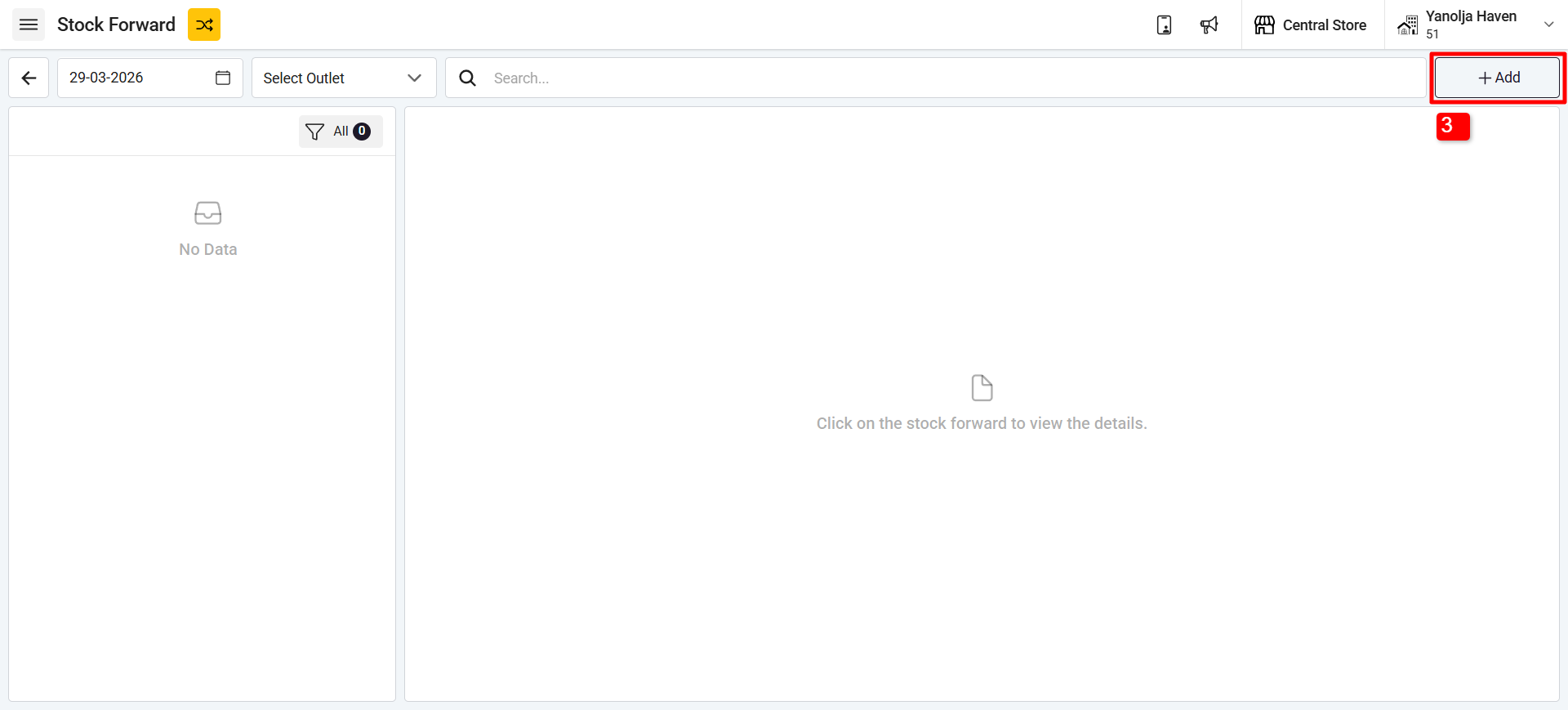
3. Click on the (+Add) button at the top to create a new stock transfer.
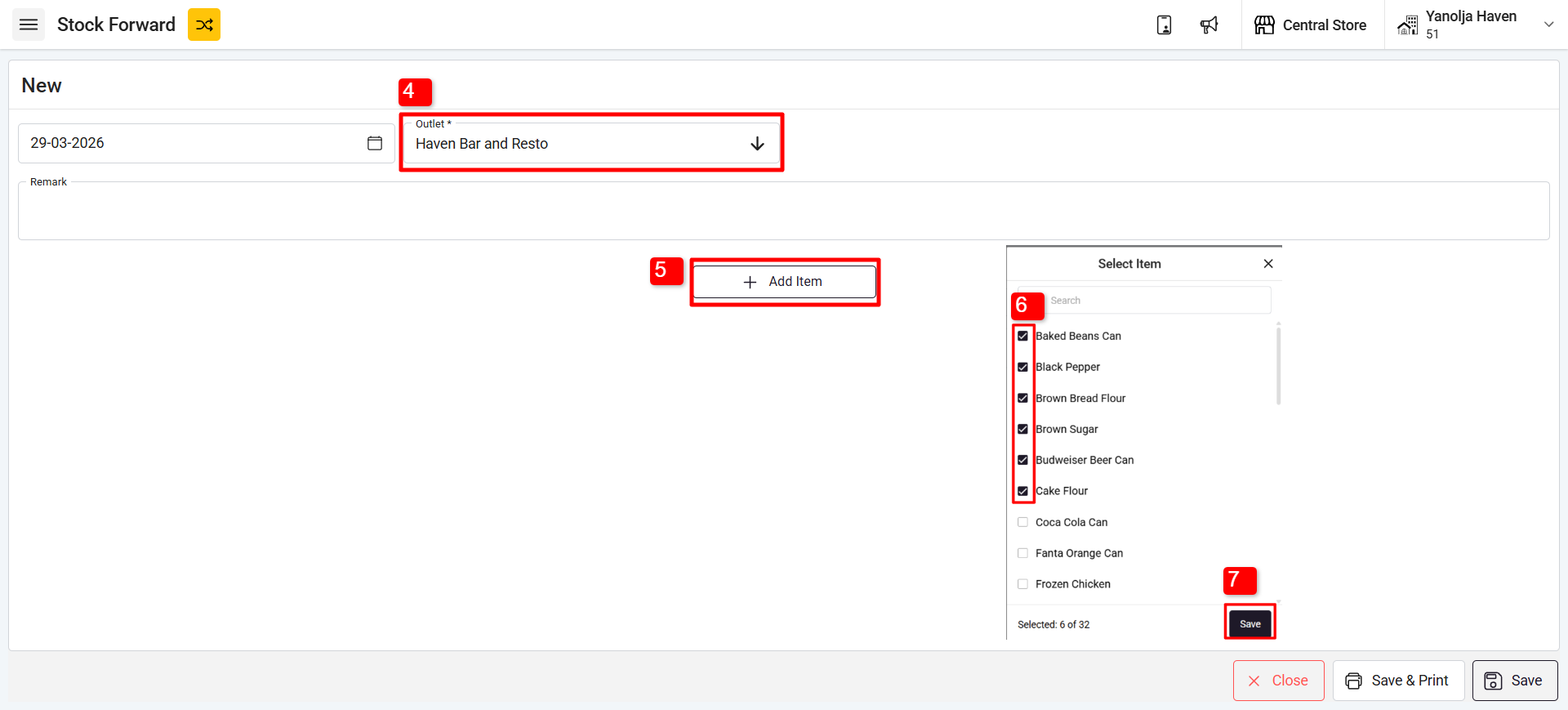
4. From the dropdown list, select the store/outlet to which you want to transfer the stock.
5. Click on Add Item.
6. Select the Items.
7. Click on Save
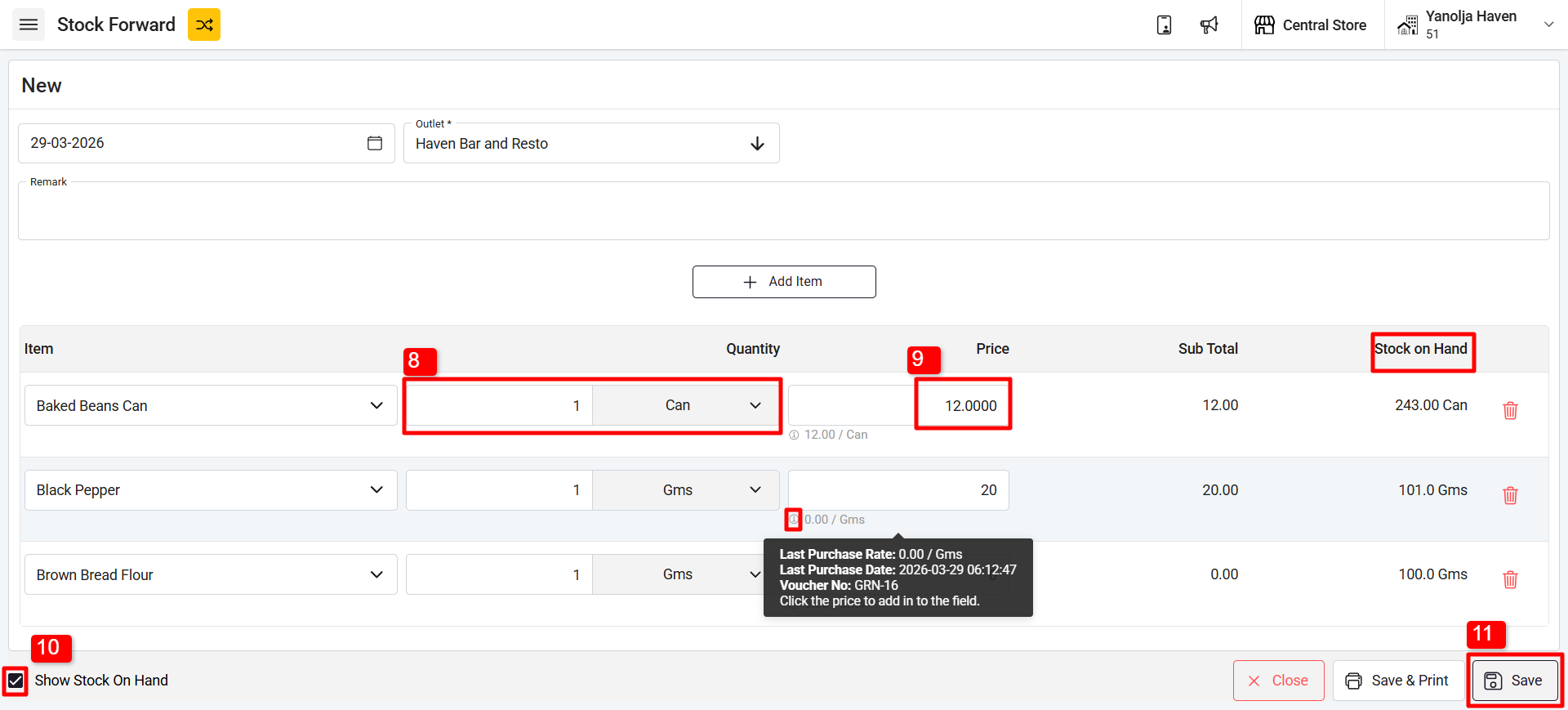
8. Enter the quantity of each item you want to transfer, select the appropriate unit.
9. Add the Prices of the stock
Note: The last purchase rate (if available) will be automatically fetched, and you can edit the price if needed.
10. You can also click on Show Stock On Hand to view the current stock.
11.Once the item details and quantities are updated, click on Save to complete the stock transfer.
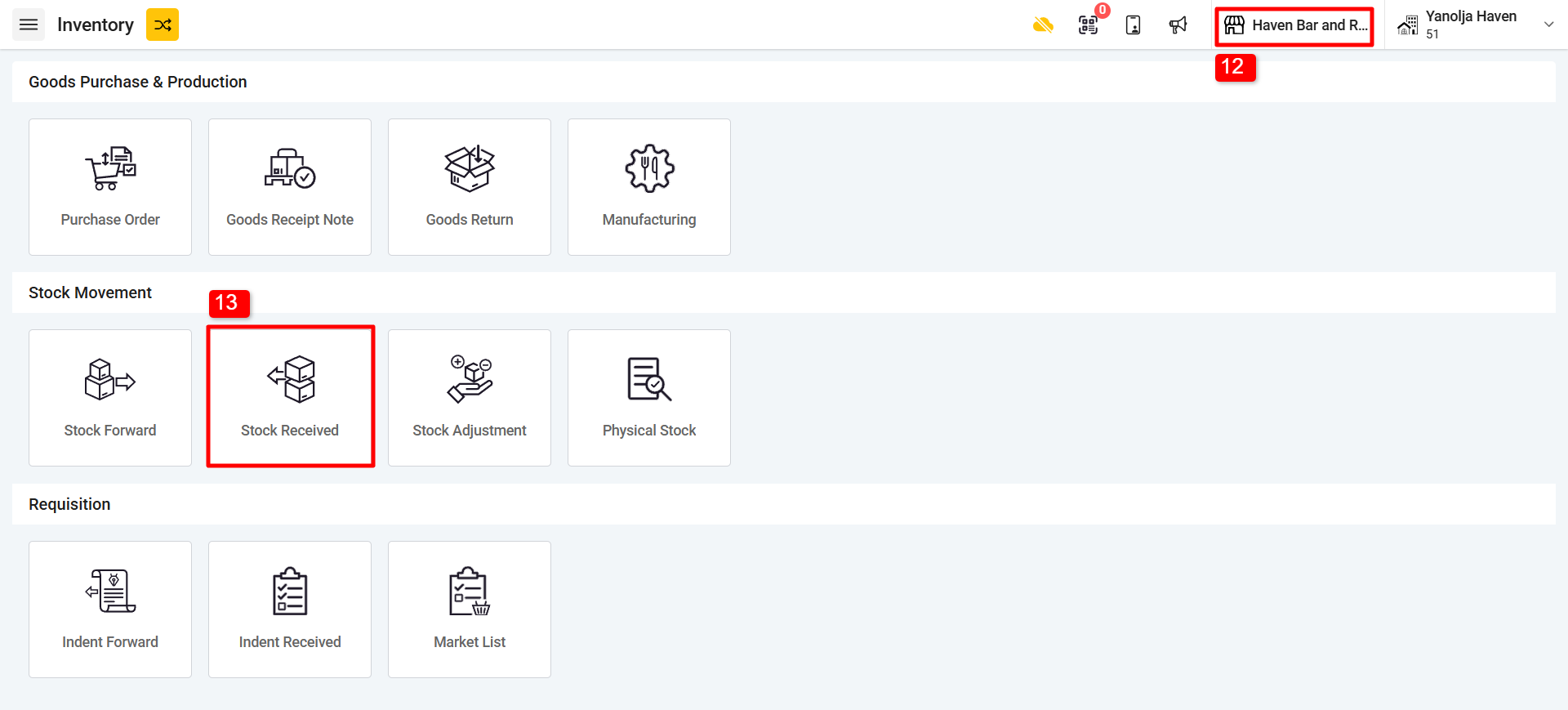
12. Switch back to the outlet where you have transferred the Stock
13. Click on “Stock Received”.
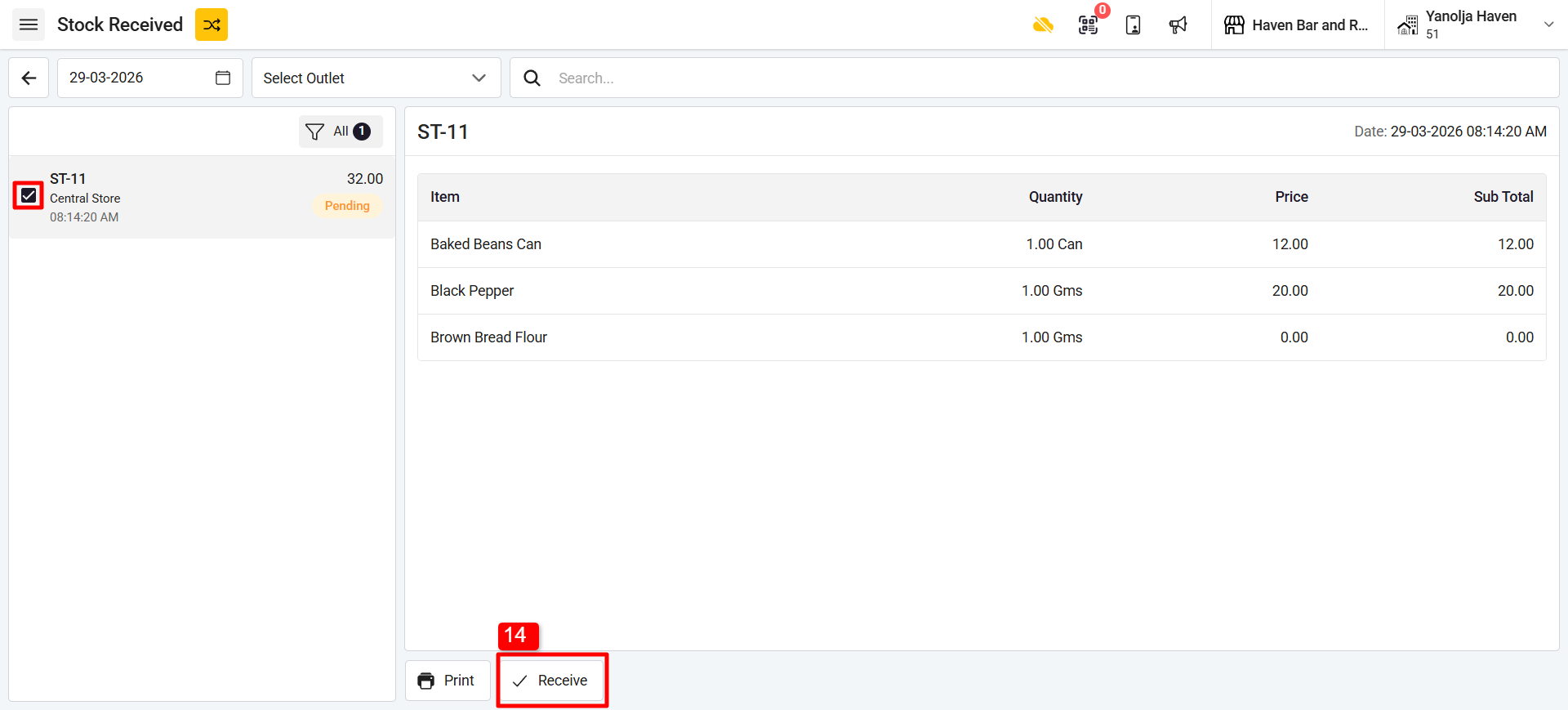
14. Select on Receive and the stock transfer will be completed.
Was this article helpful?
That’s Great!
Thank you for your feedback
Sorry! We couldn't be helpful
Thank you for your feedback
Feedback sent
We appreciate your effort and will try to fix the article