Indent:
An indent is a list created by employees of a main store to request materials that are available in the store. Any employee can raise an indent when they require items from the store.
Steps on Creating an Indent and Approving it.
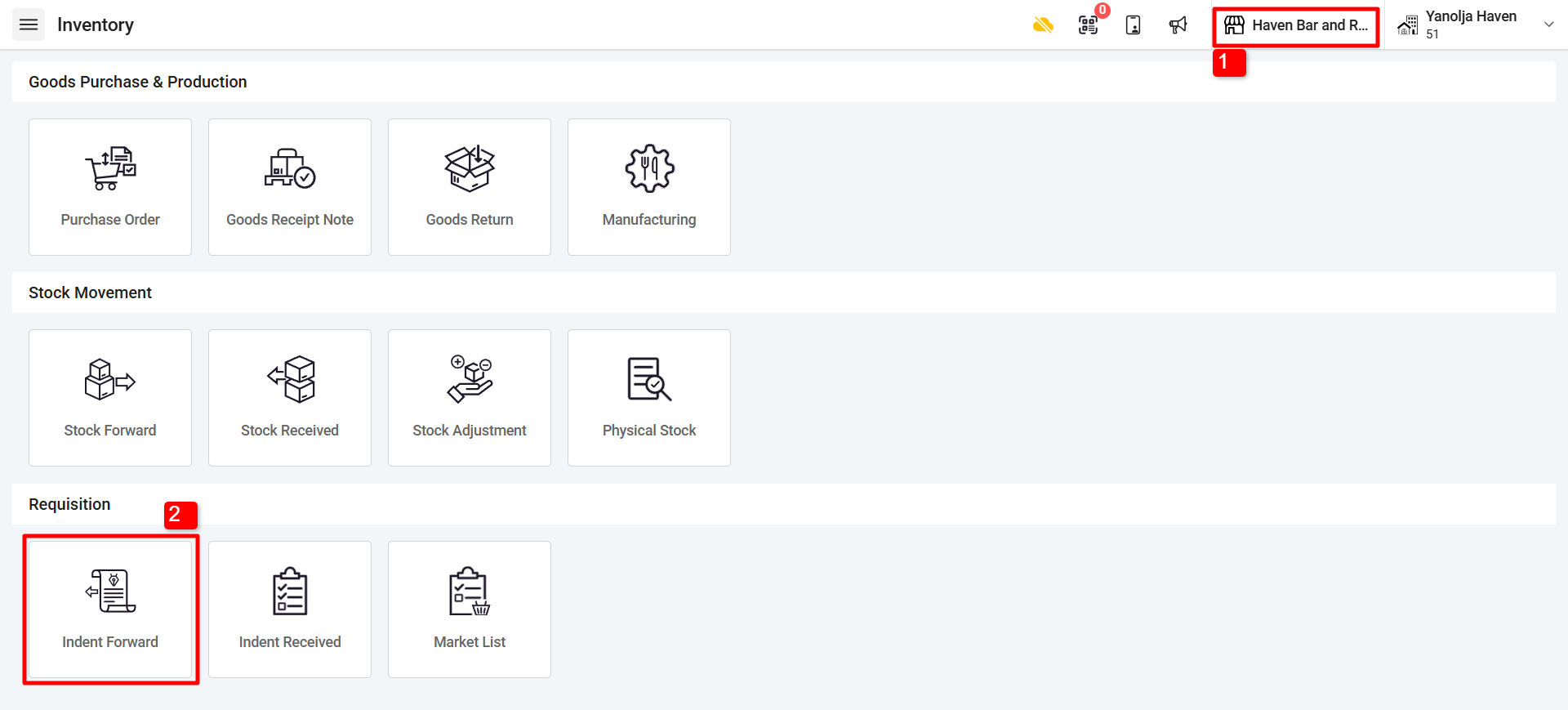
1. Be on the outlet/store from where you want to request an Indent.
2. Go to Inventory and select on “Indent Forward”
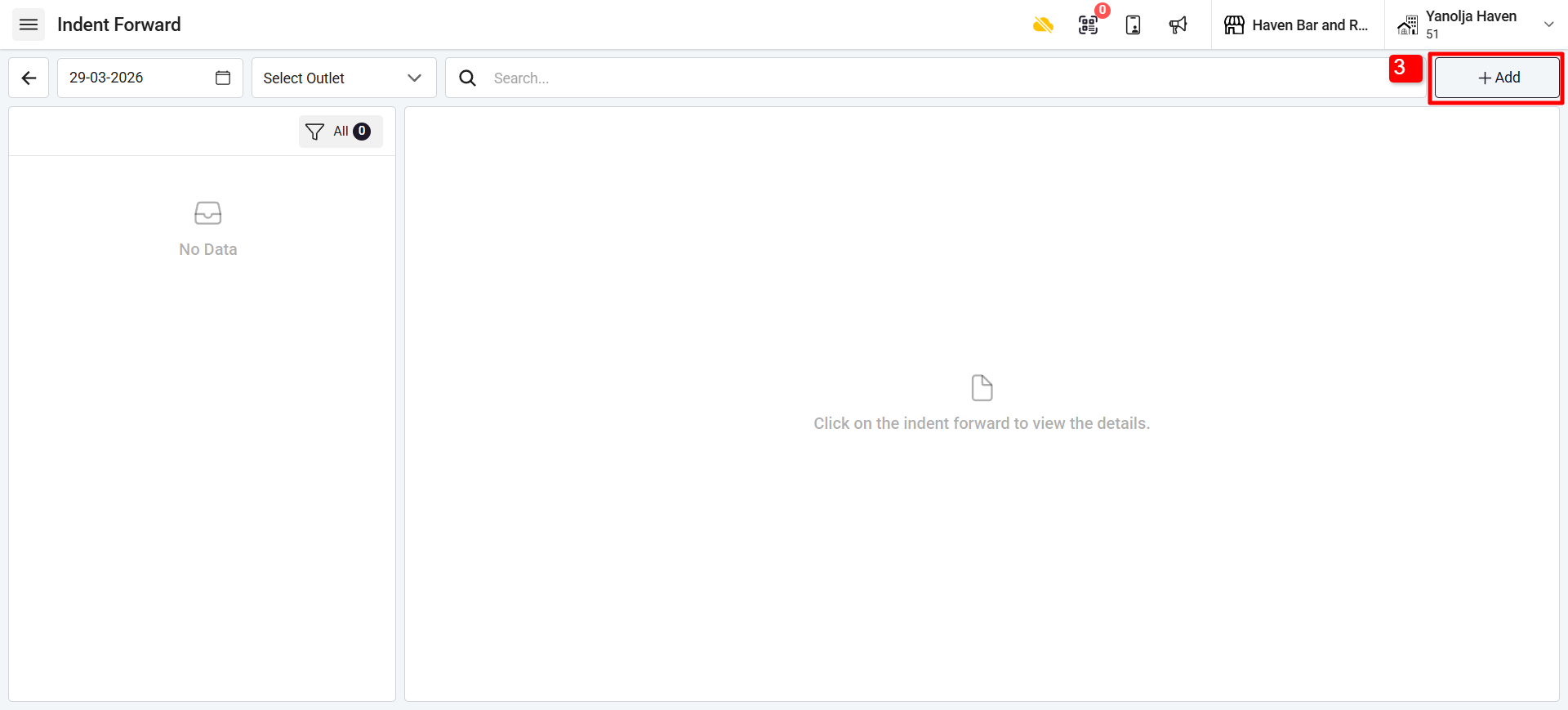
3. Click on “+Add” button to create an Indent request.
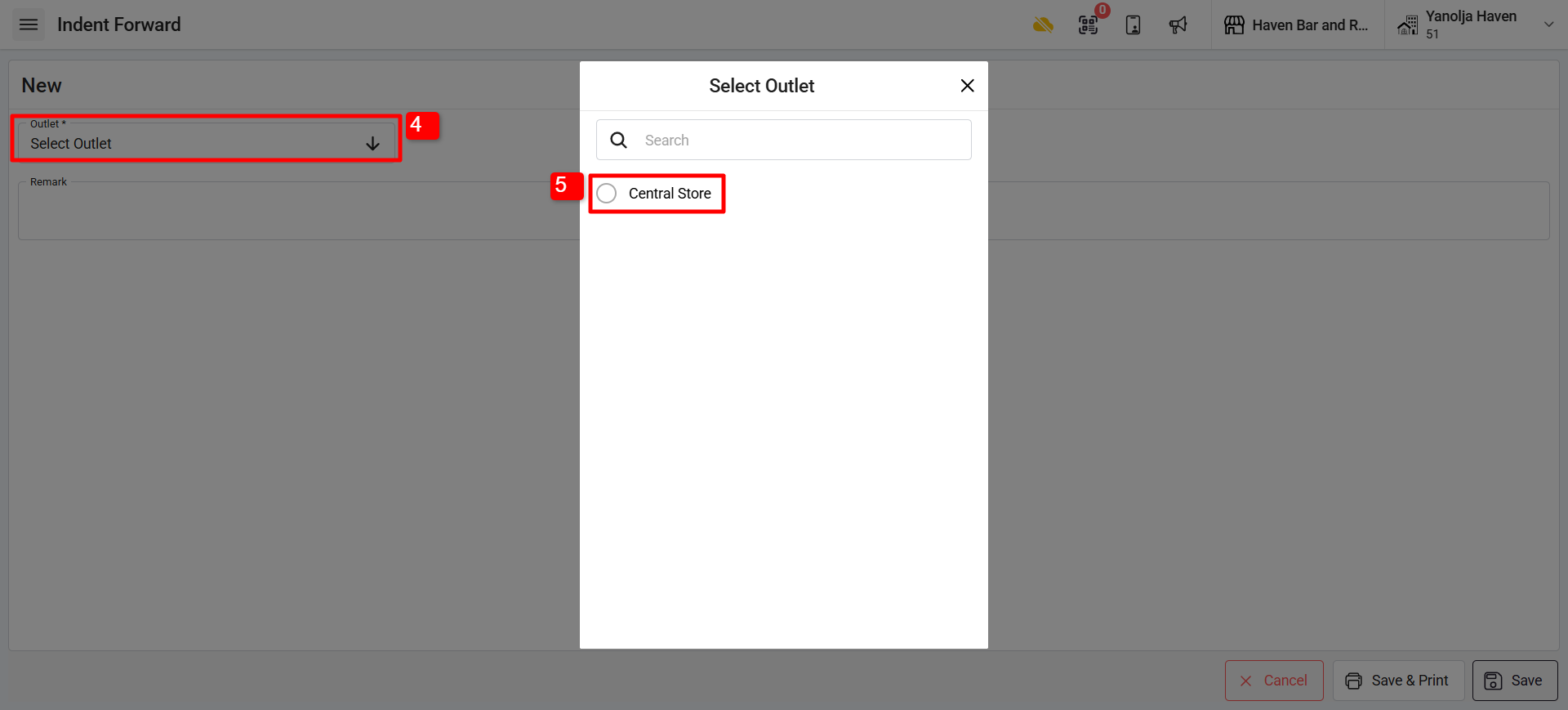
4. Select the Outlet/Store from where you want the items.
5. Select your store/outlet.
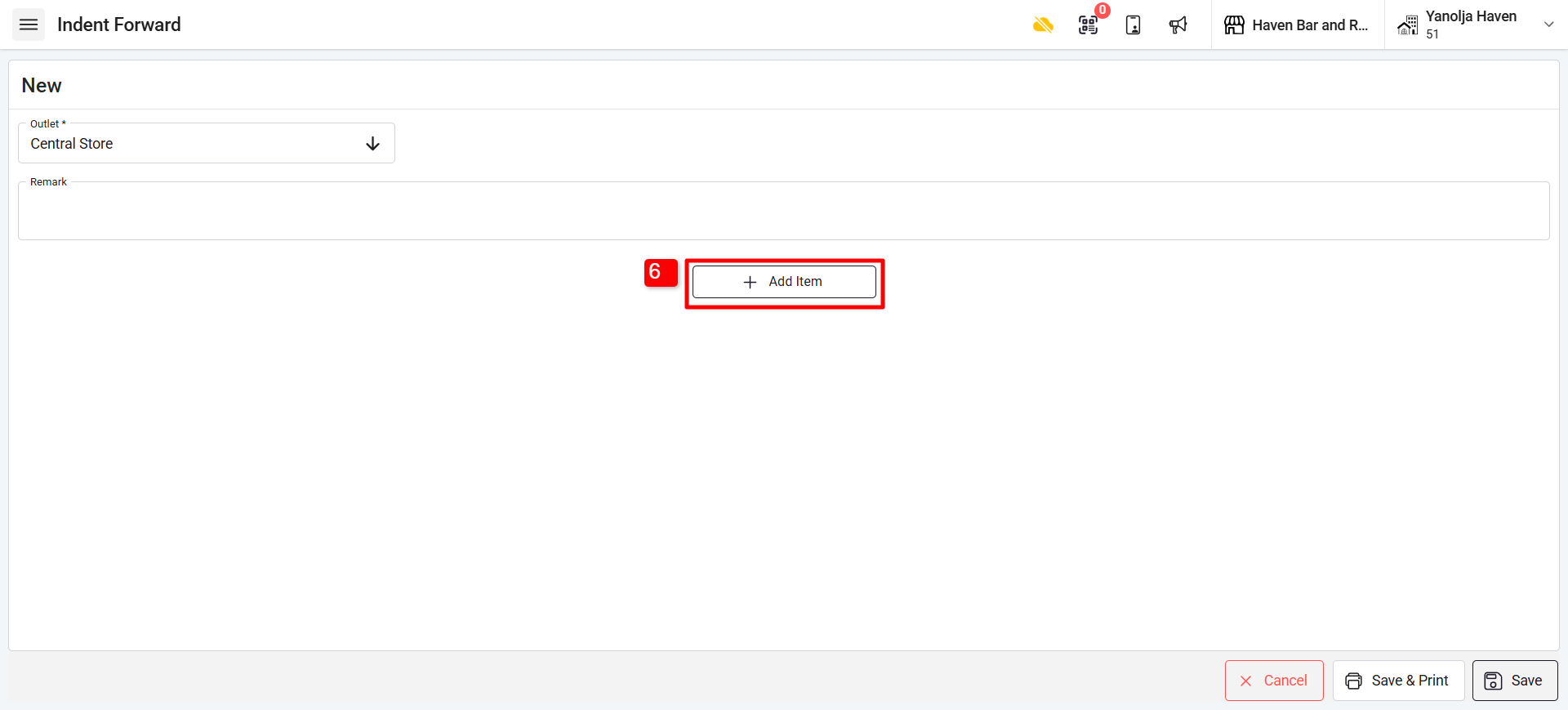
6. Click on “+Add Item”.
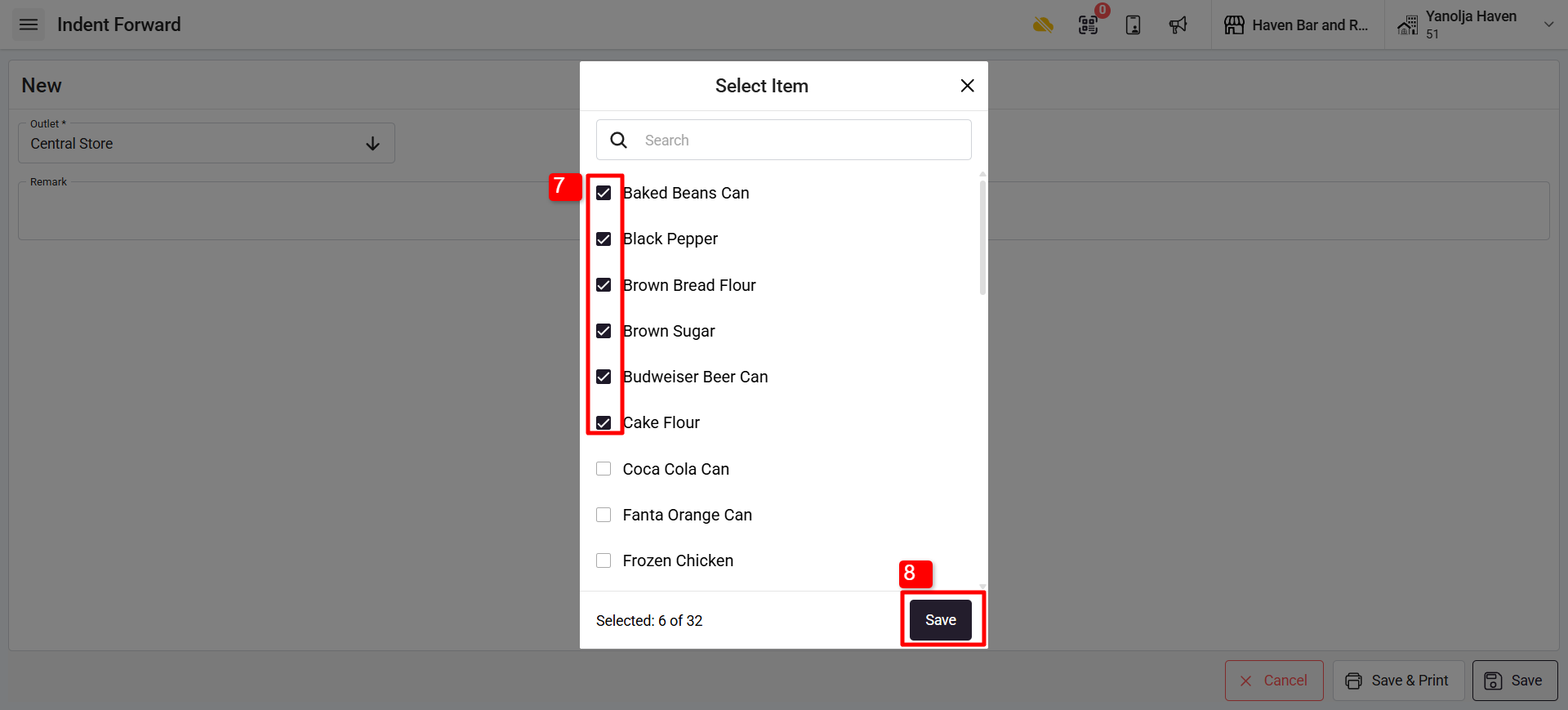
7. Select the items you want to request.
8. Click on save to add them.
9. Once the item has been reflected add the quantity you want to request and Click on Save.

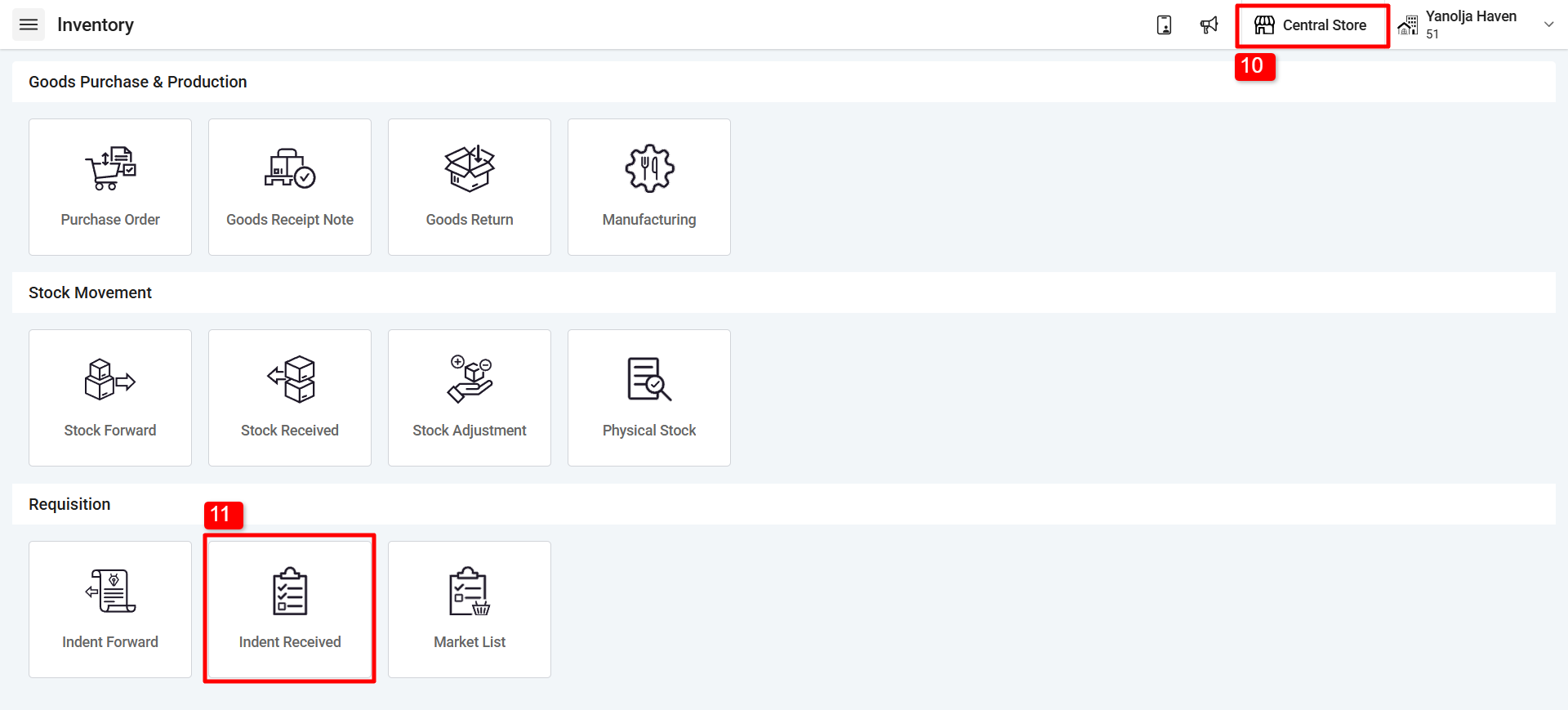
10. Switch the Central Store/Main Store (From where you will be approving the items)
11. Click on “Indent Received” in order to check the request created from the Stores.
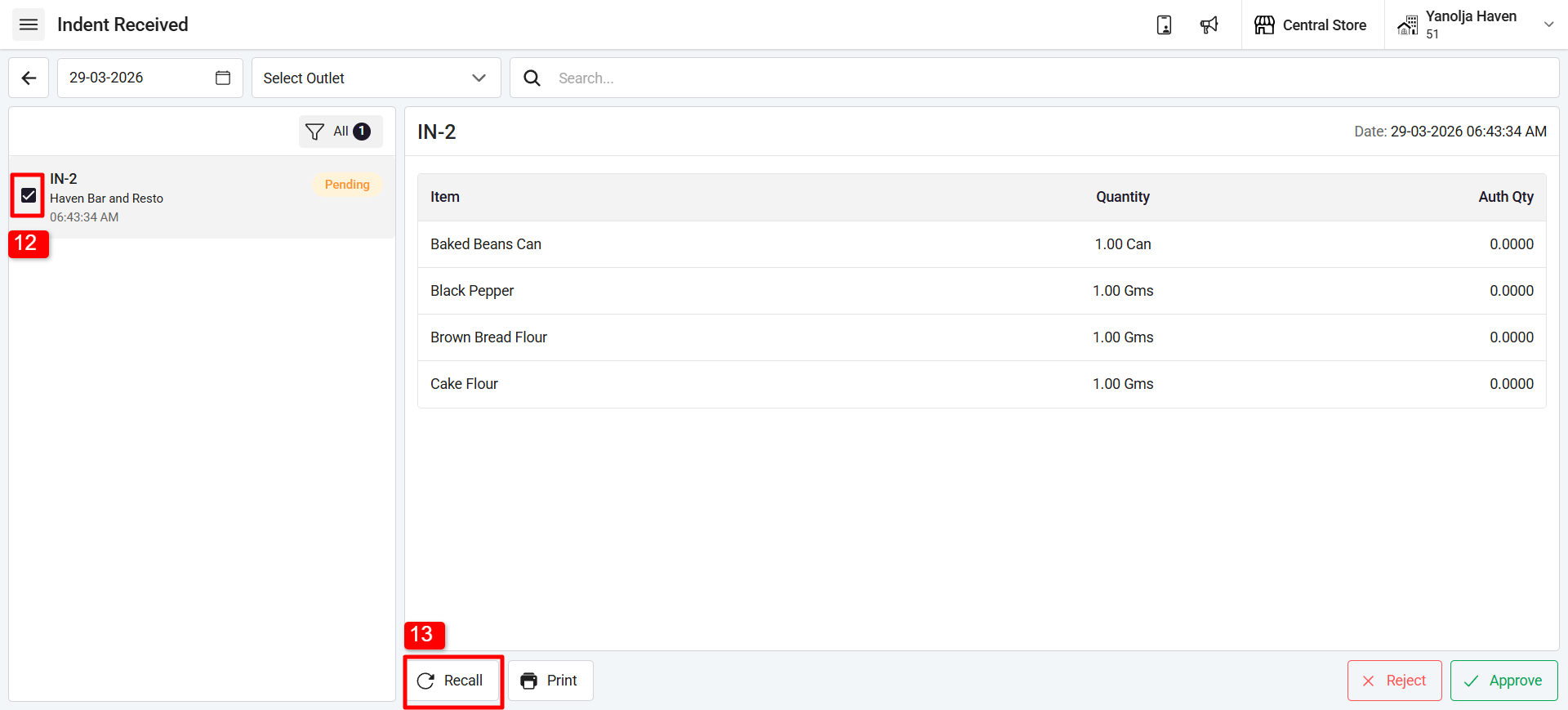
12. Select the Indent.
13. Click on “Recall”.
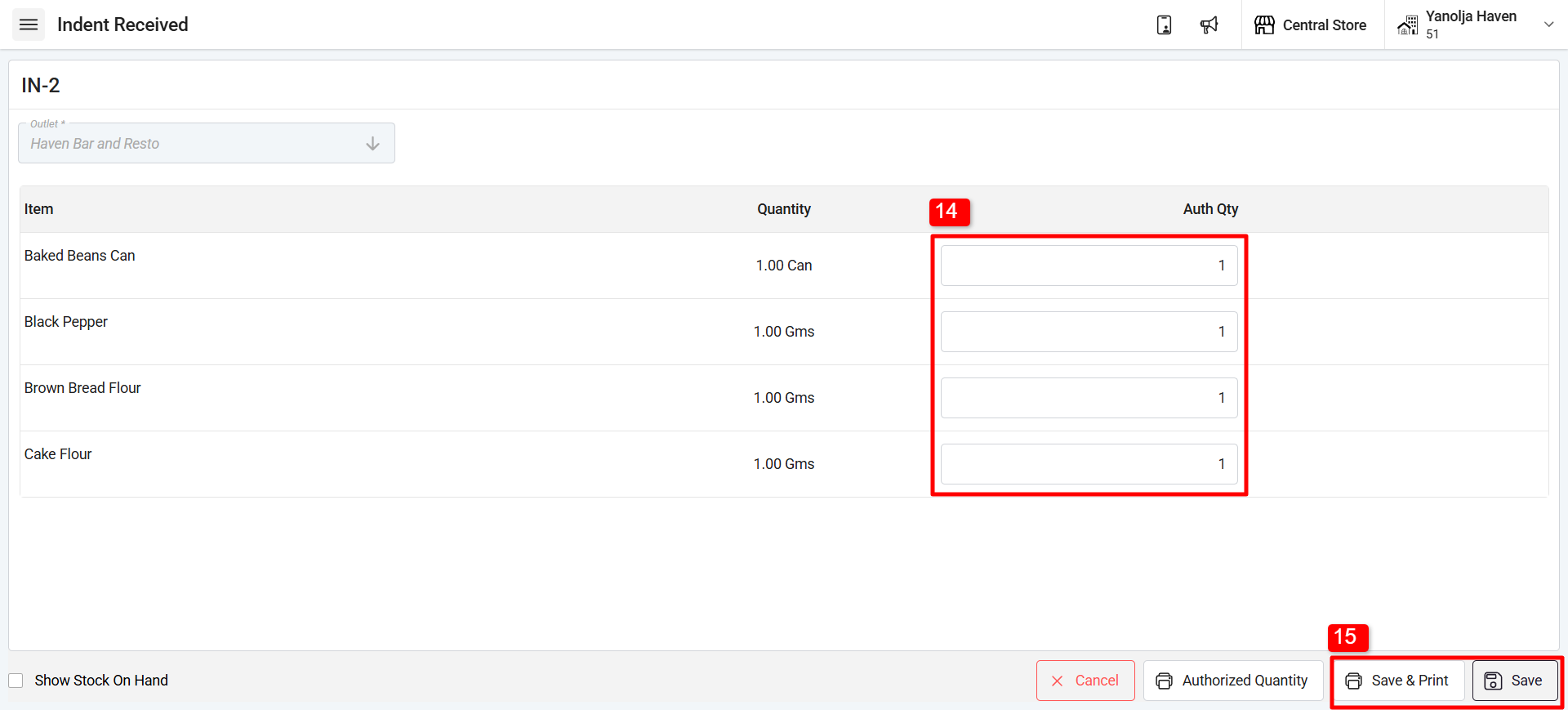
14. Authorised the requested quantity.
15. Click on Save.
16. Once saved, you will see an option to Approve the Indent. Click on Approve to approve the Indent.
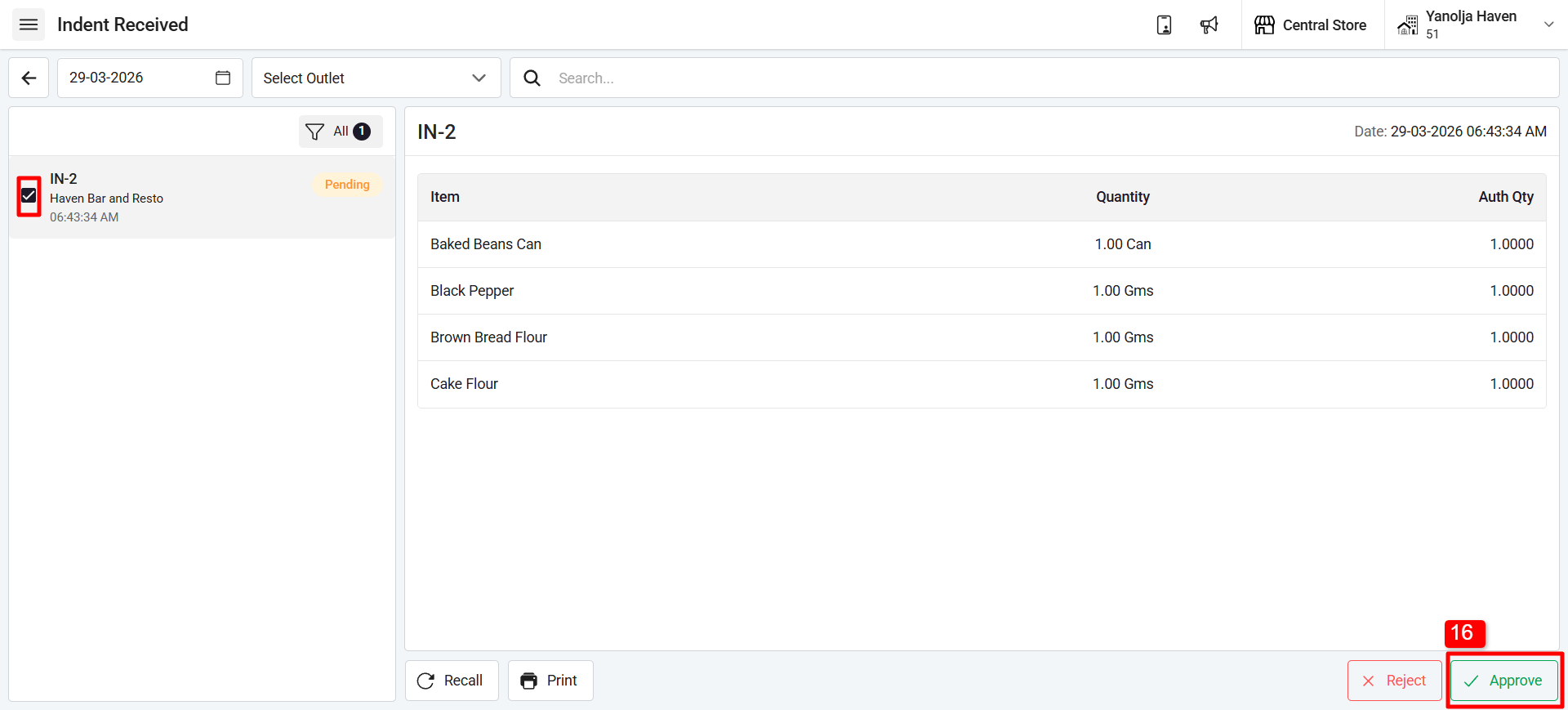
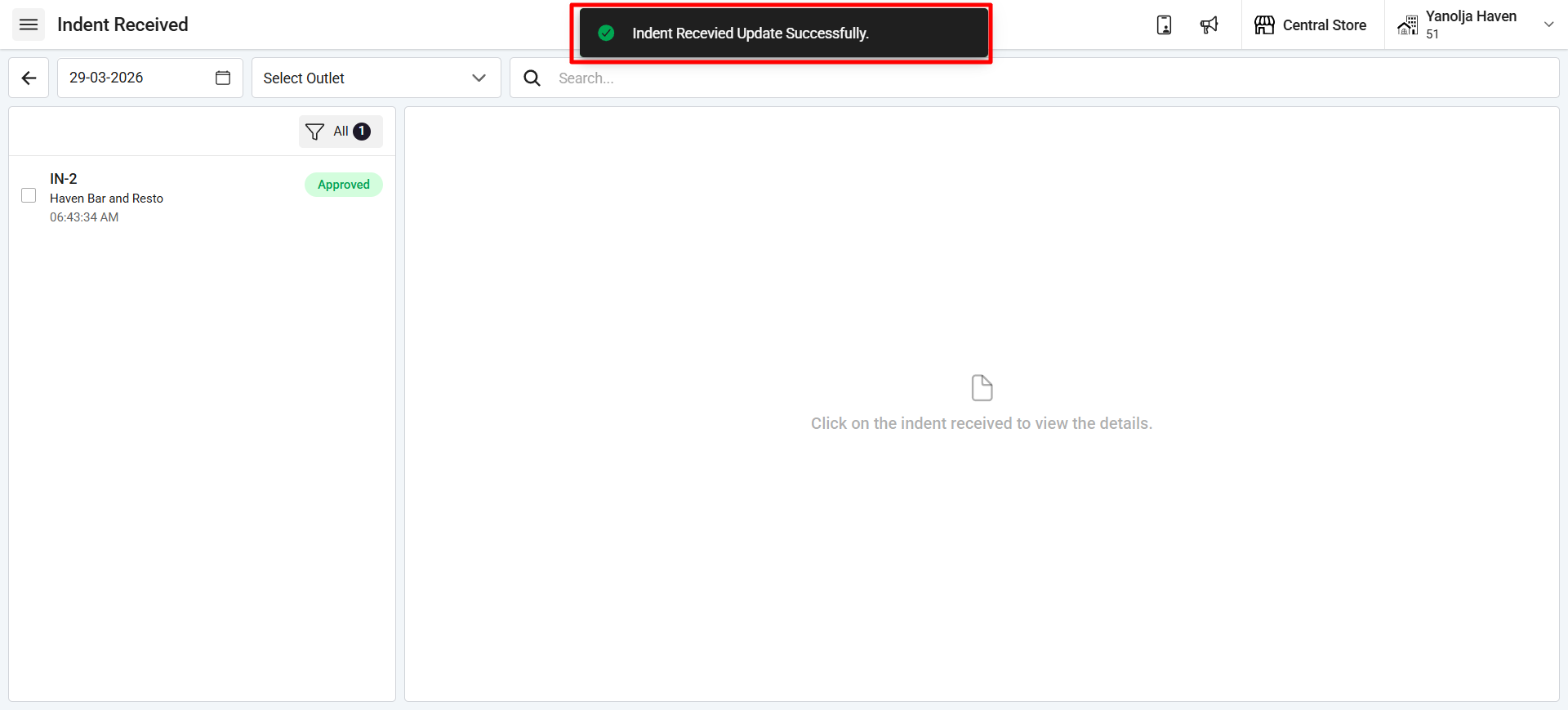
After approval, the Issue option will be available, allowing you to issue the stock from this store to the requested store.
Was this article helpful?
That’s Great!
Thank you for your feedback
Sorry! We couldn't be helpful
Thank you for your feedback
Feedback sent
We appreciate your effort and will try to fix the article