A Customer Display System (CDS) App is a customer-facing application used to display information during a transaction.
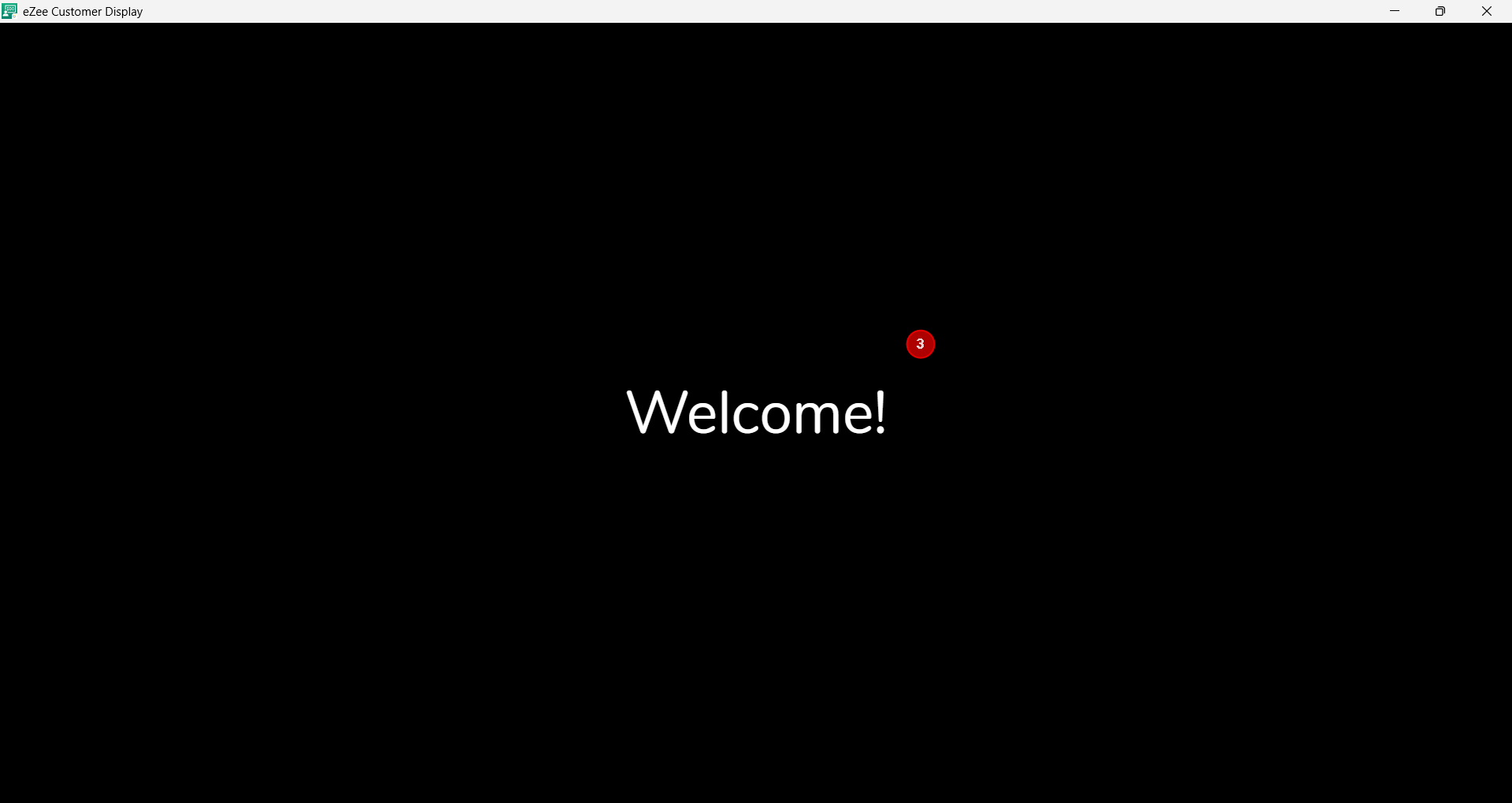
The Home Screen (welcome screen) is the main screen of the CDS App. It shows a welcome message along with a slideshow of images when no order is open in the Restaurant POS App.
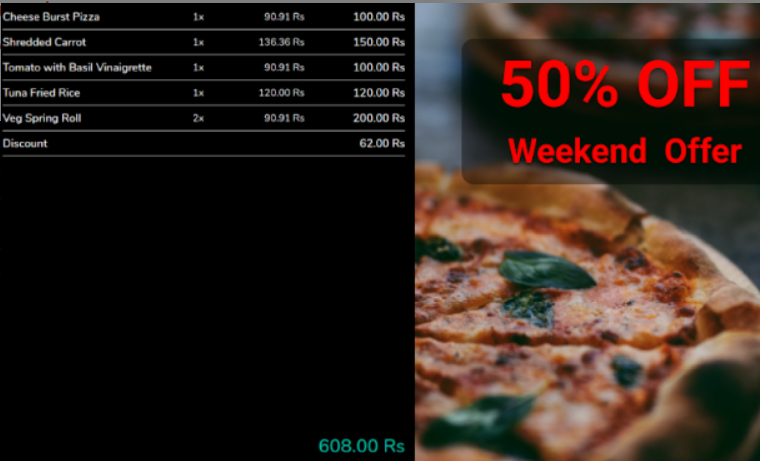
When an order is opened in the Restaurant POS App, the CDS App displays the details of the current order along with promotional images, if configured.
Once the order is settled, a thank you message is displayed.
Steps on downloading the CDS application for windows and Android.
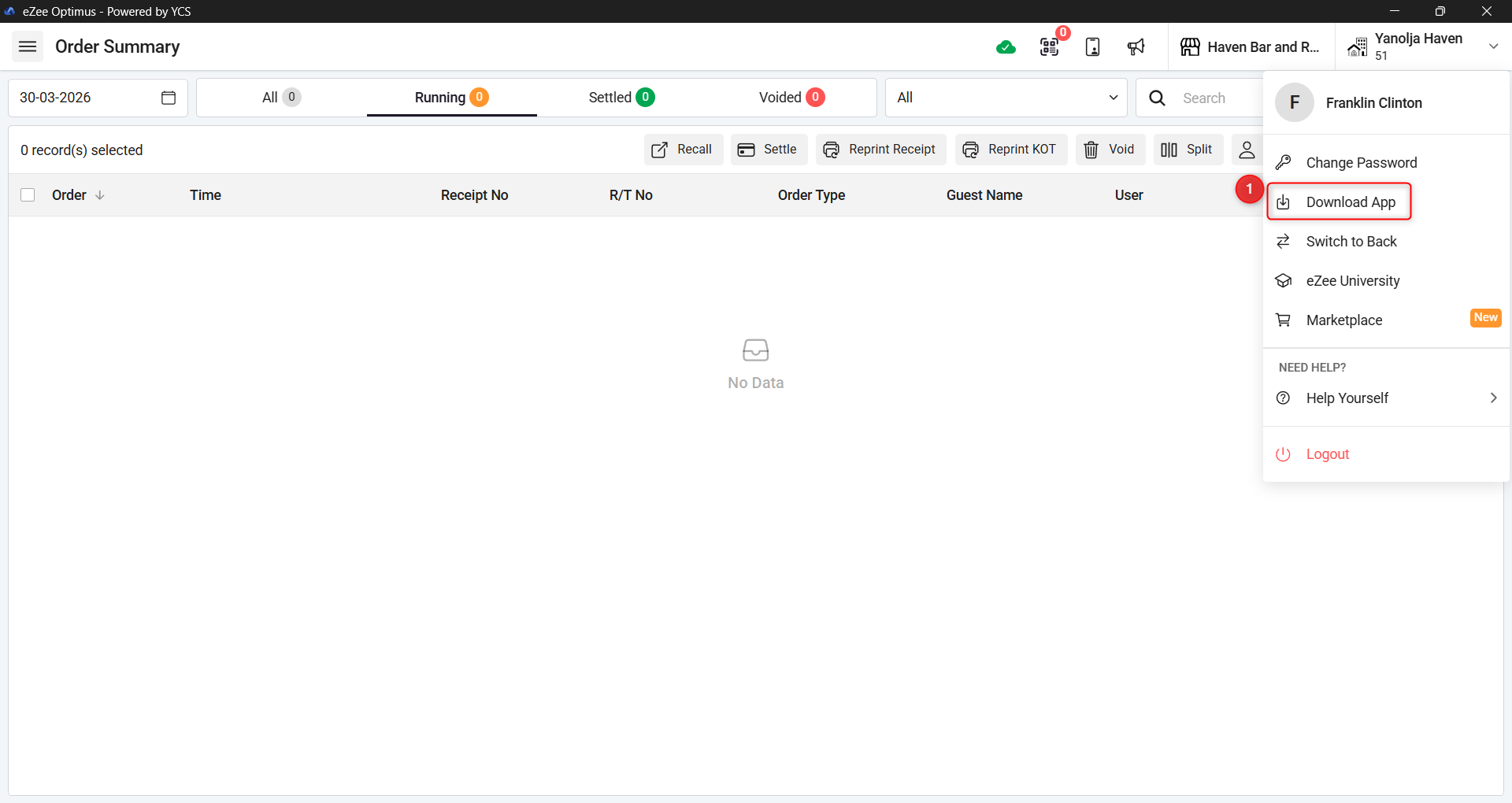
1. Login in the Restaurant POS and click on Download Apps.
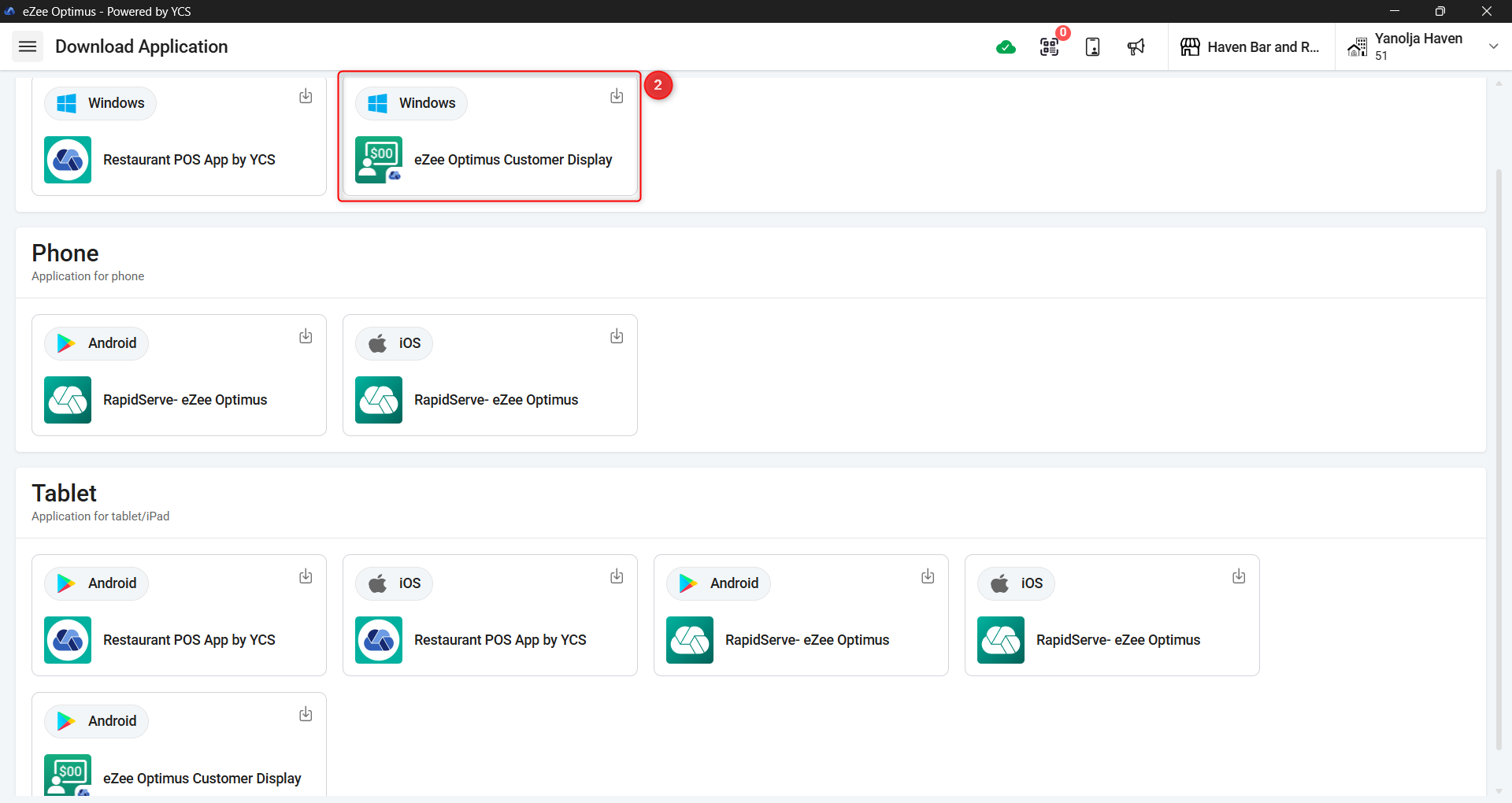
2. Select the CDS for Windows and it will start downloading.
3. Once Downloaded open the application and it will display a “Welcome” Message.
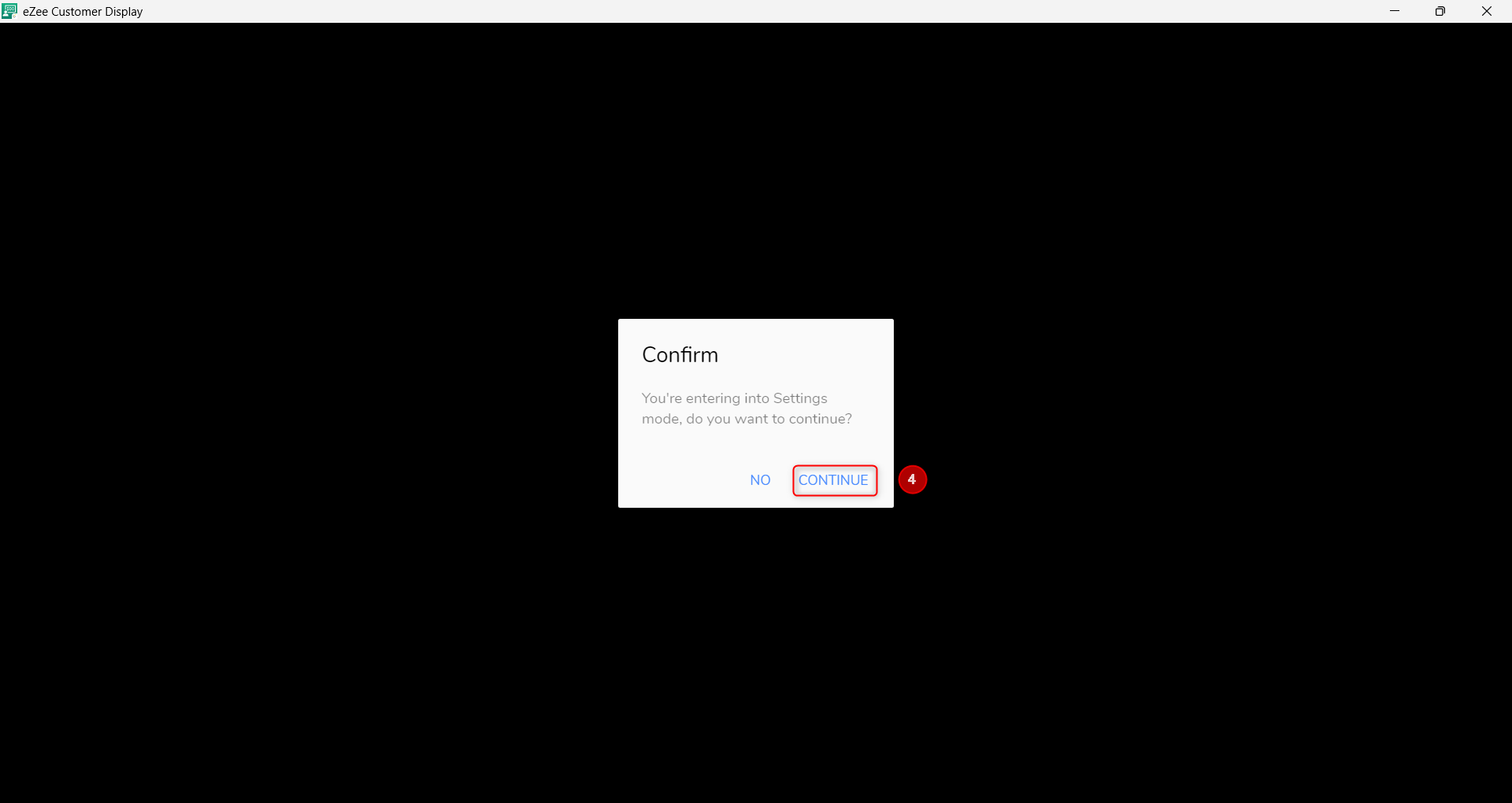
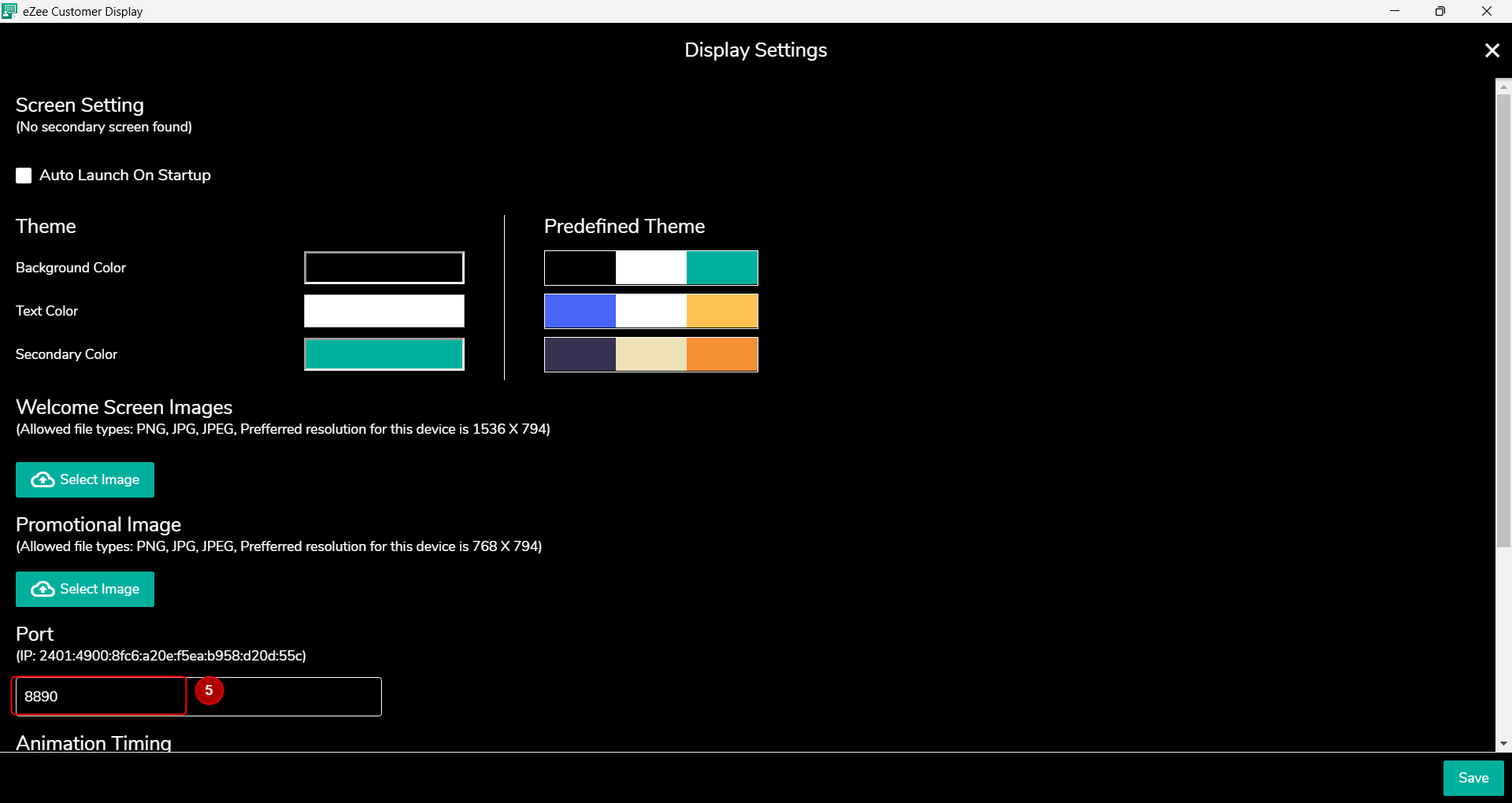
4. To setup the CDS, click 5 times in the empty space on the screen. After that Click on “Continue” to enter the setup.
5. Here you will be able to set this up and you can get the Port ID as well.
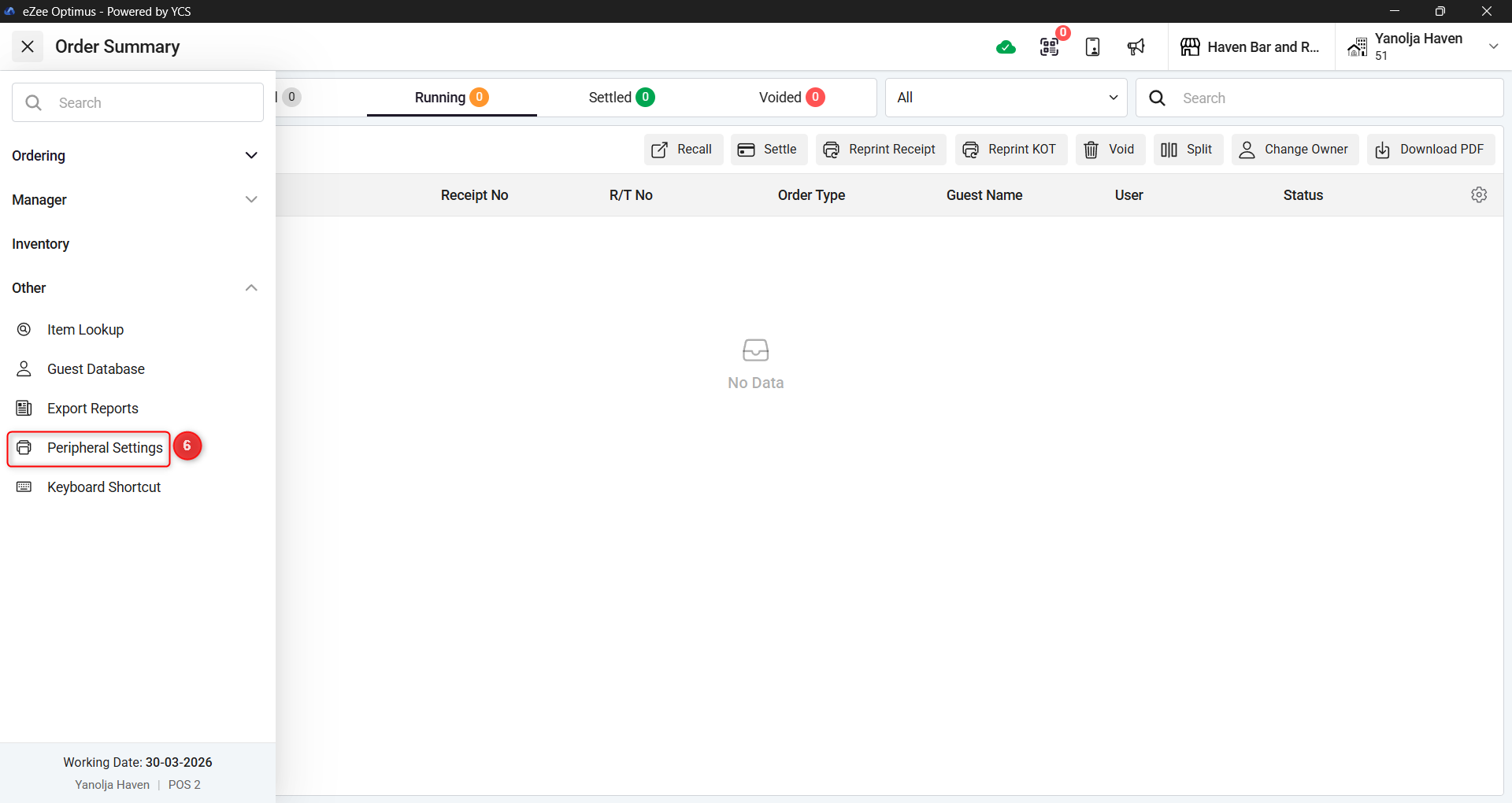
6. Go to peripheral settings.
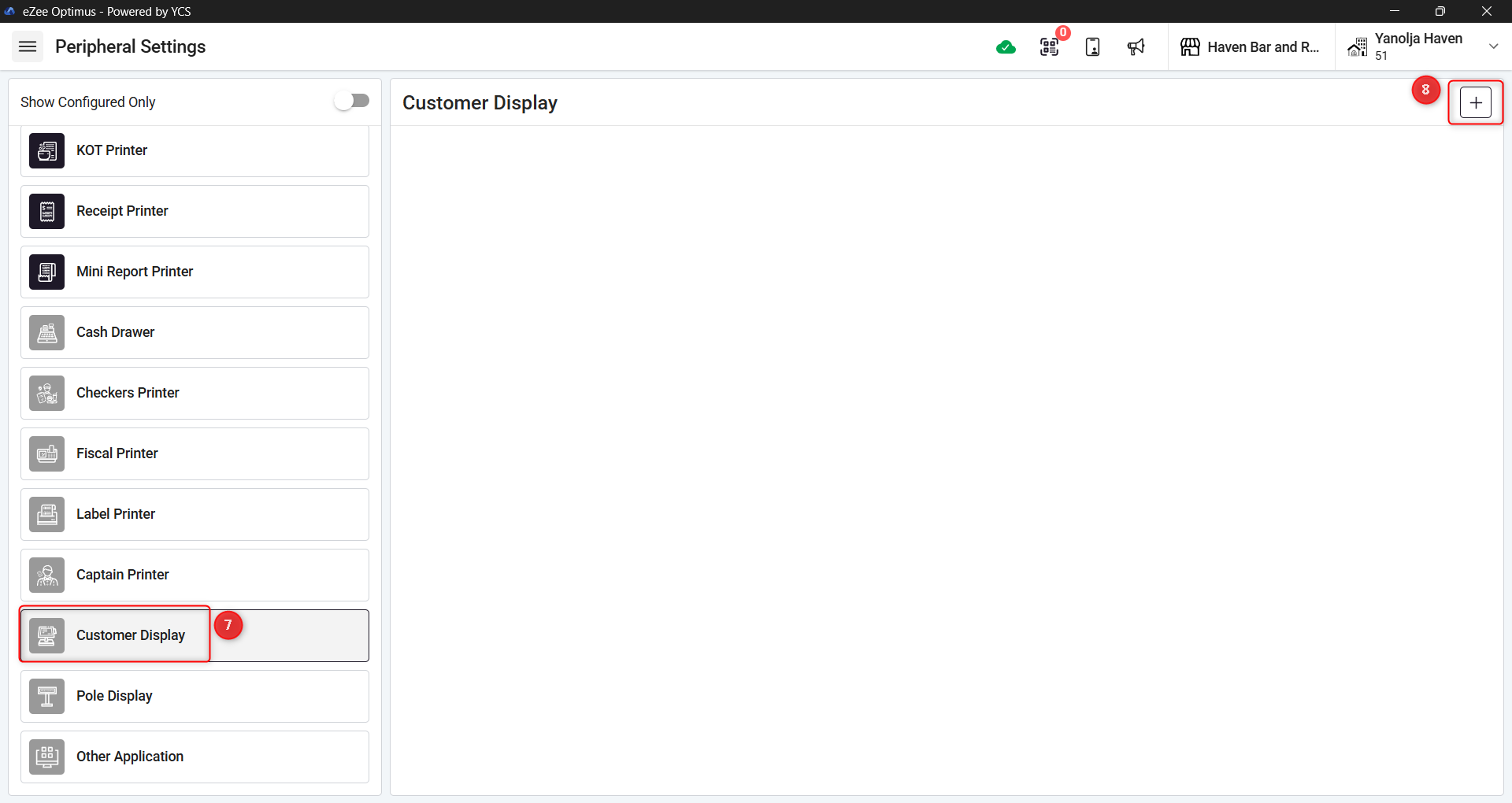
7. Click on “Customer Display”
8. Click on “+” Icon to add the Customer Display.
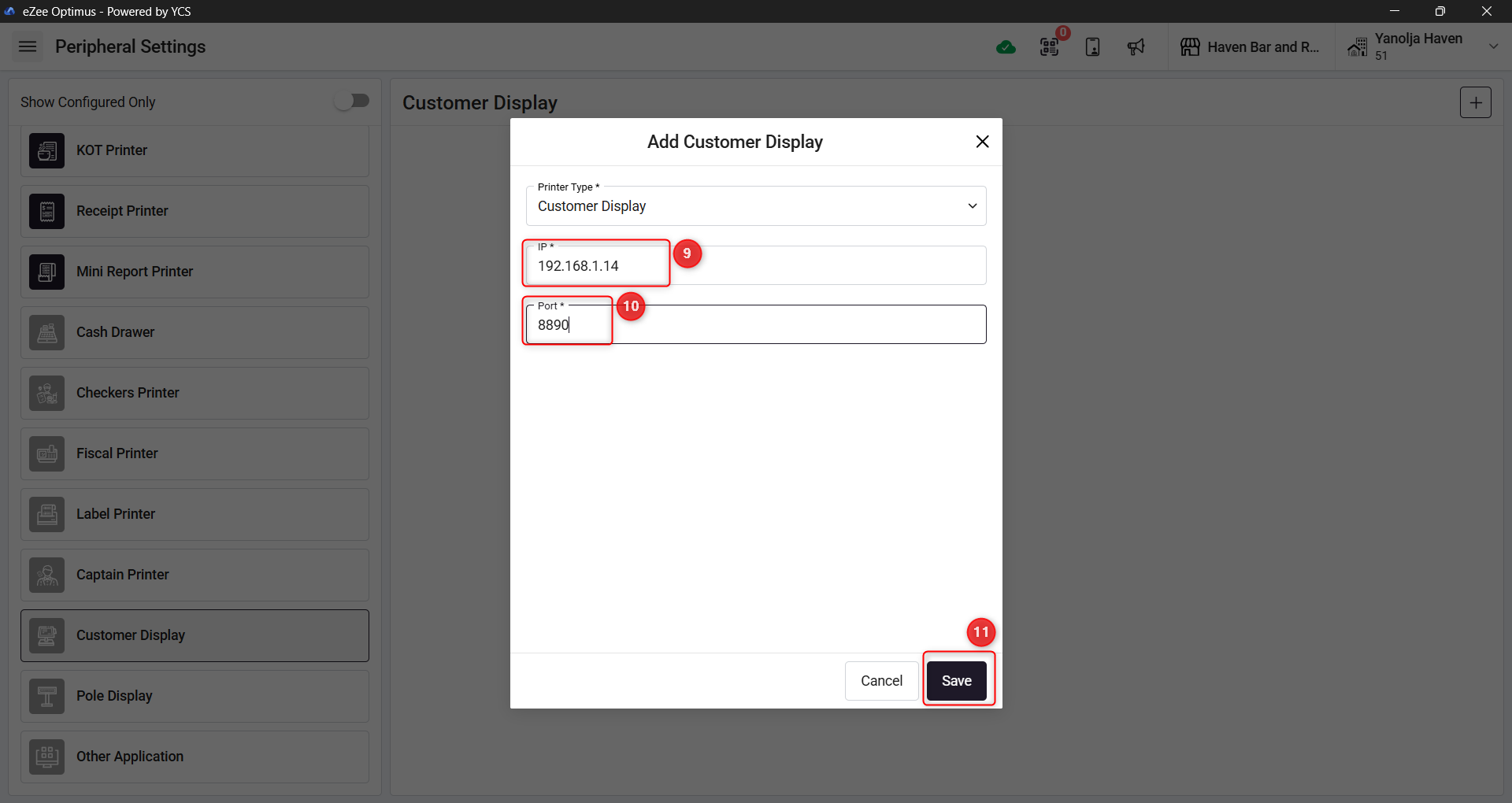
9. Enter the IP address of the system where the CDS has been installed.
10. Enter the Port ID as “8890”
11. Click on Save and your CDS has been setup.
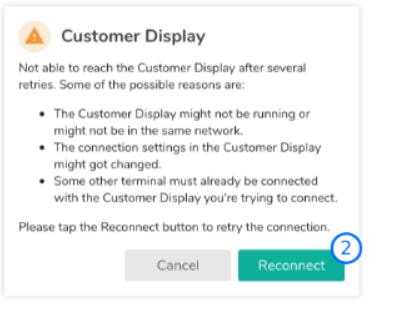
12. In case the Application is unable to reach the CDS it will display a Pop-up and will retry to connect
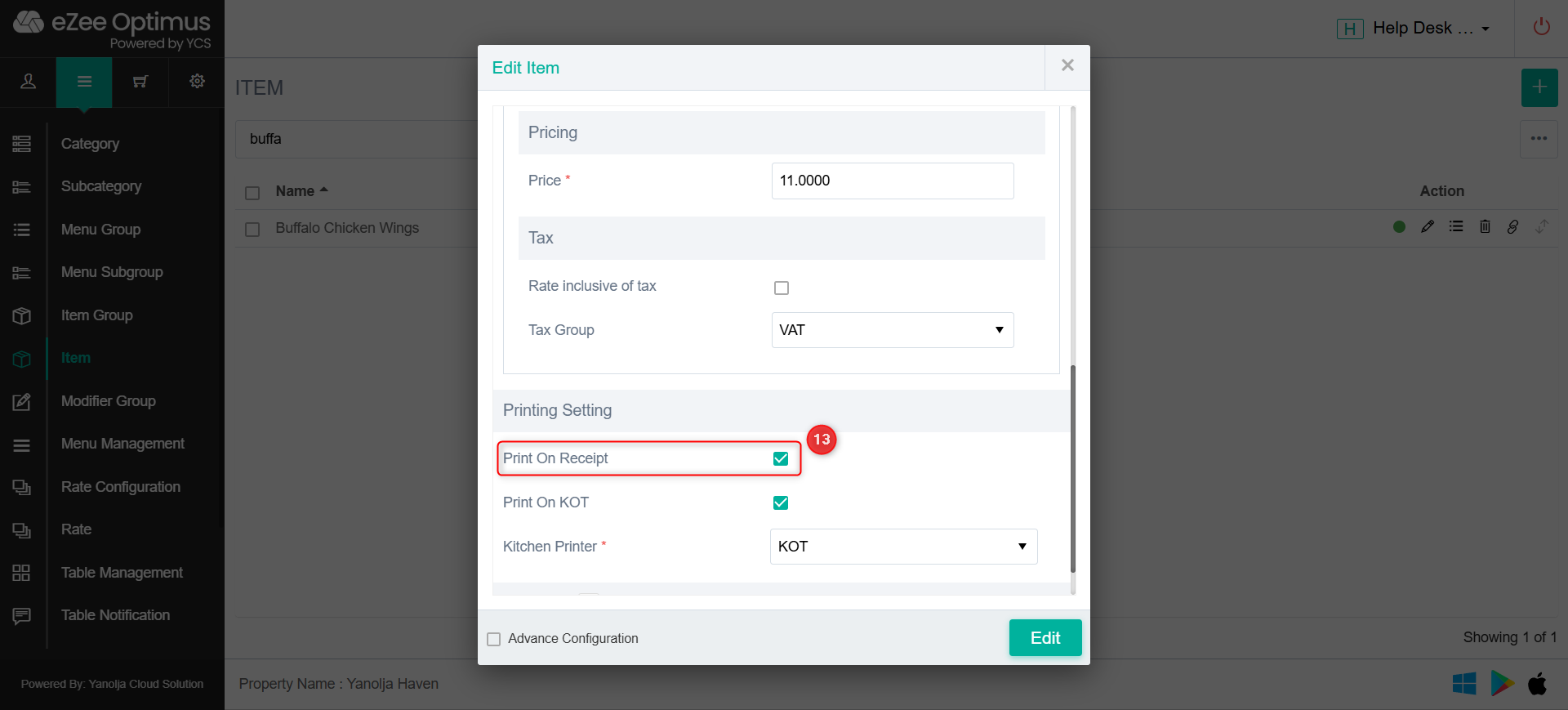
13. Items that you are looking to display should have “print on receipt” option enable.
NOTE:
Both the devices in which the Restaurant POS App and the CDS App is running must be in the same network.
The customer display will only work with the Restaurant POS Desktop App.
When the user logs out of the Restaurant POS App, then the app also disconnects from the CDS App
Final Output once everything is properly set up.
Was this article helpful?
That’s Great!
Thank you for your feedback
Sorry! We couldn't be helpful
Thank you for your feedback
Feedback sent
We appreciate your effort and will try to fix the article