Cloud printing is only available through the Restaurant POS Desktop application. The first step is to make the system a server on which all printers are installed.
Steps:
1. Go to Peripheral Settings
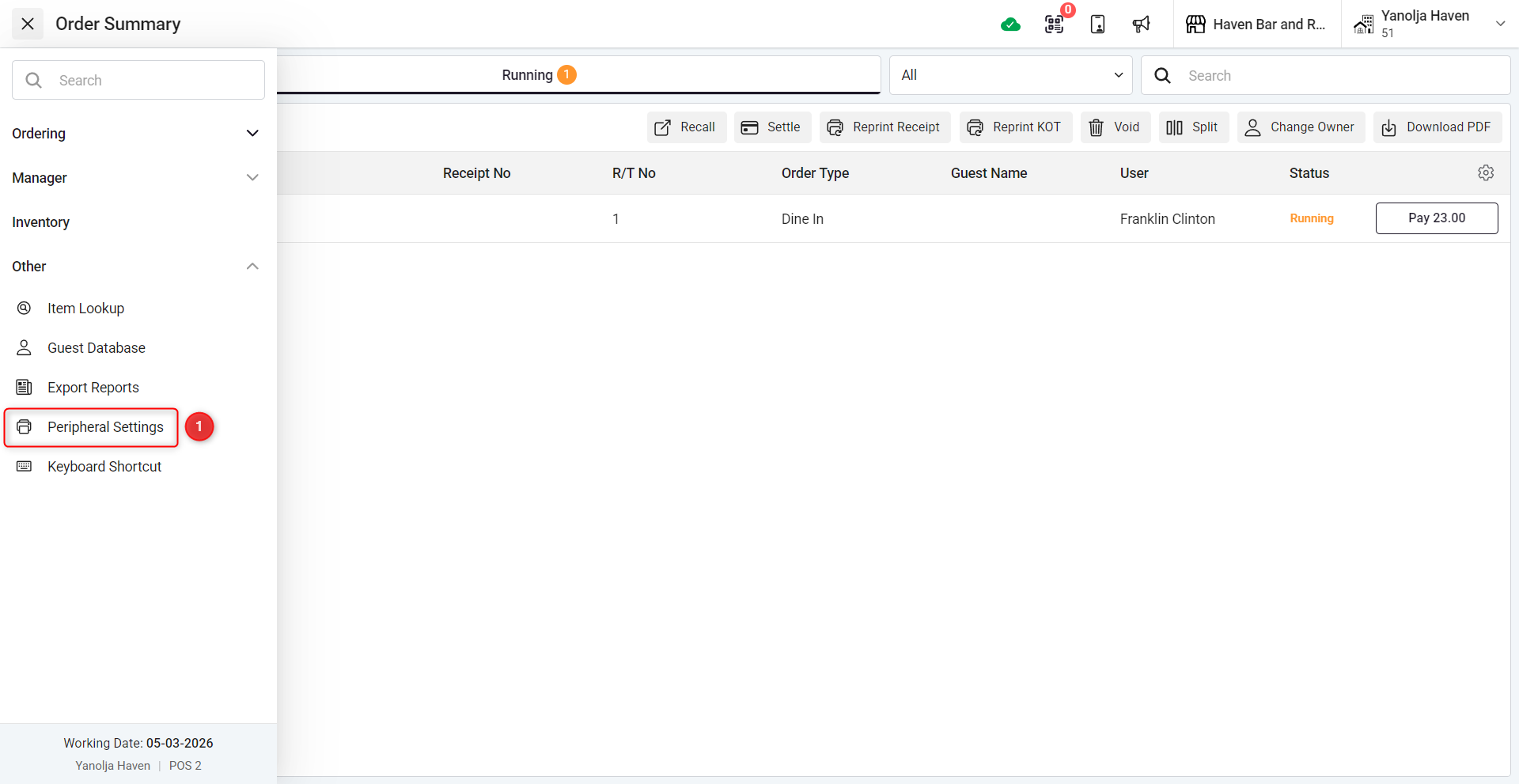
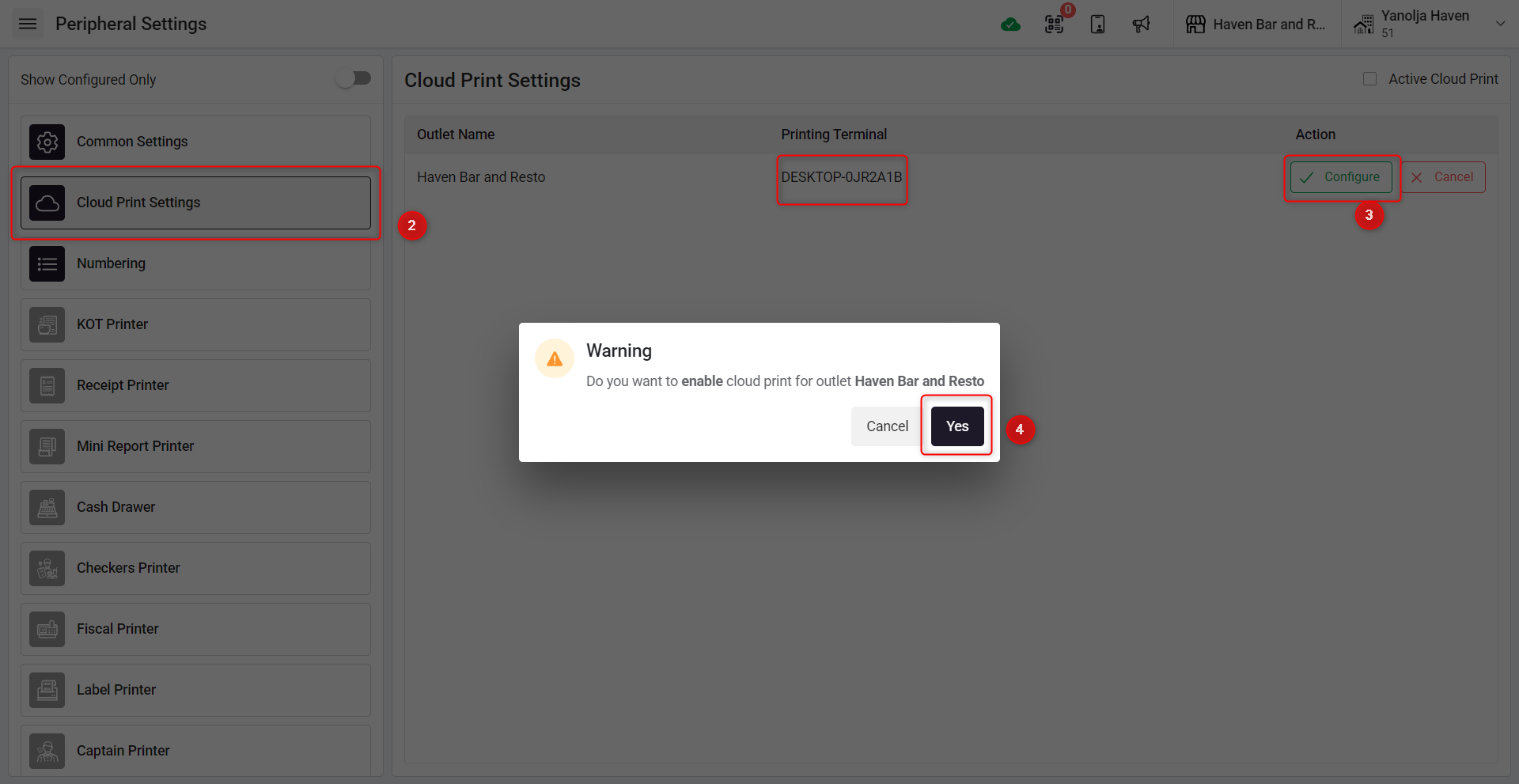
2. Click on "Cloud print settings'.
3. Select the system that you want to configure as main server, Click on Configure.
4. Click on enable and your terminal/PC will be main server.
Once you have configured the Main server, you will have to setup the KOT and Receipt printer.
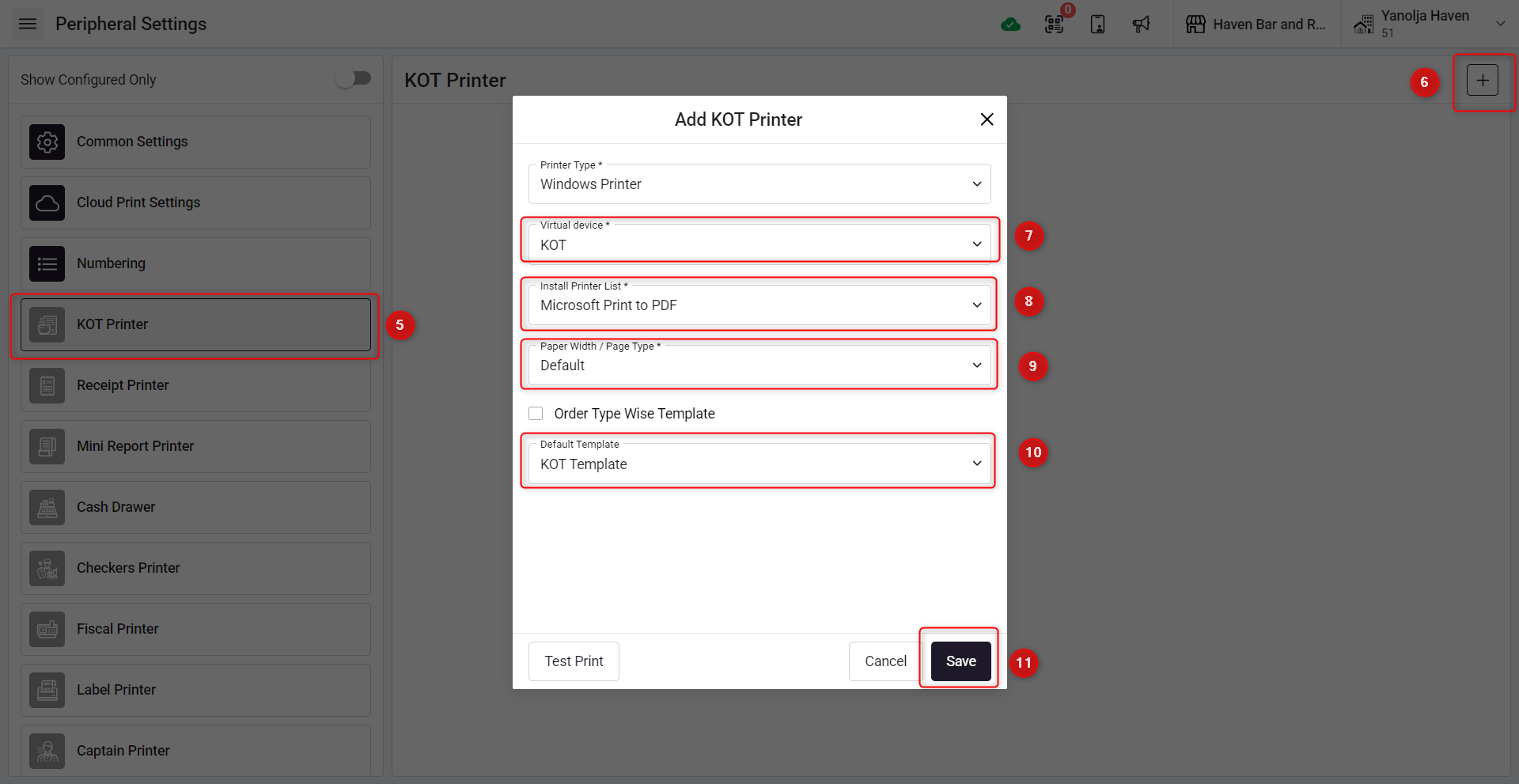
5. Select KOT printer option
6. Click on "+" icon to add a new KOT printer.
7. Select Virtual device as "KOT" Or "BOT"
8. Select the printer from your available Printer list's
9. Select Page Width
10. Select the KOT template that you use.
11. lick on Save and your KOT printer will be setup
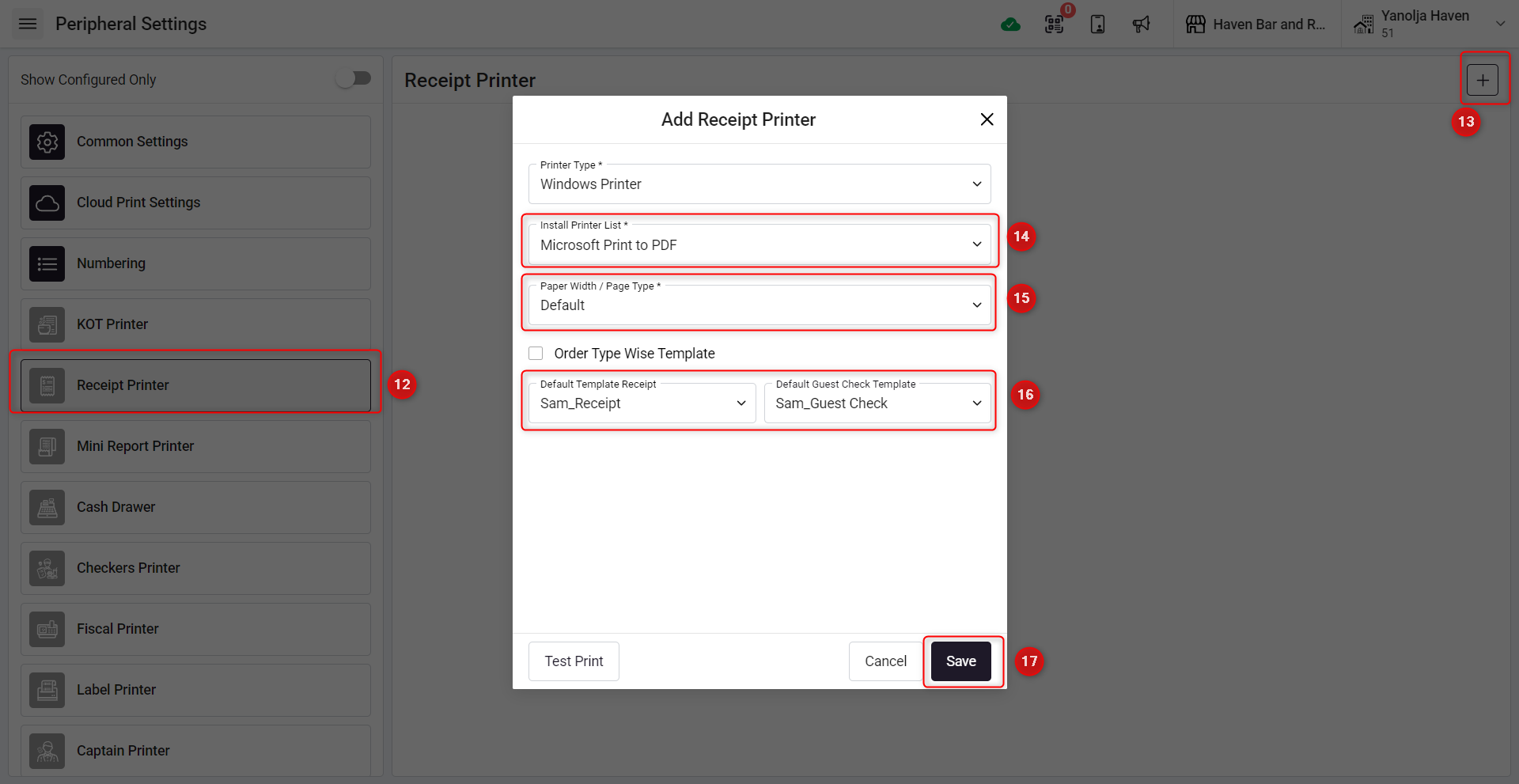
12. Select Receipt printer option
13. Click on "+" icon to add a new receipt printer.
14. Select the printer from your available Printer list's
15. Select Page Width
16. Select the receipt and guest check template that you use.
17. Click on Save and your Receipt printer will be set up
Once the above steps are completed the configuration in server machine is completed you will able to print KOT and Receipt from the Restaurant POS. Now we need to login in same outlet from other machine so they will also able to print KOT and Receipt.
How to activate printing from the client PC, Mobiles/TAB’s.
Login in Client PC or TAB
For Client PC follow below steps:
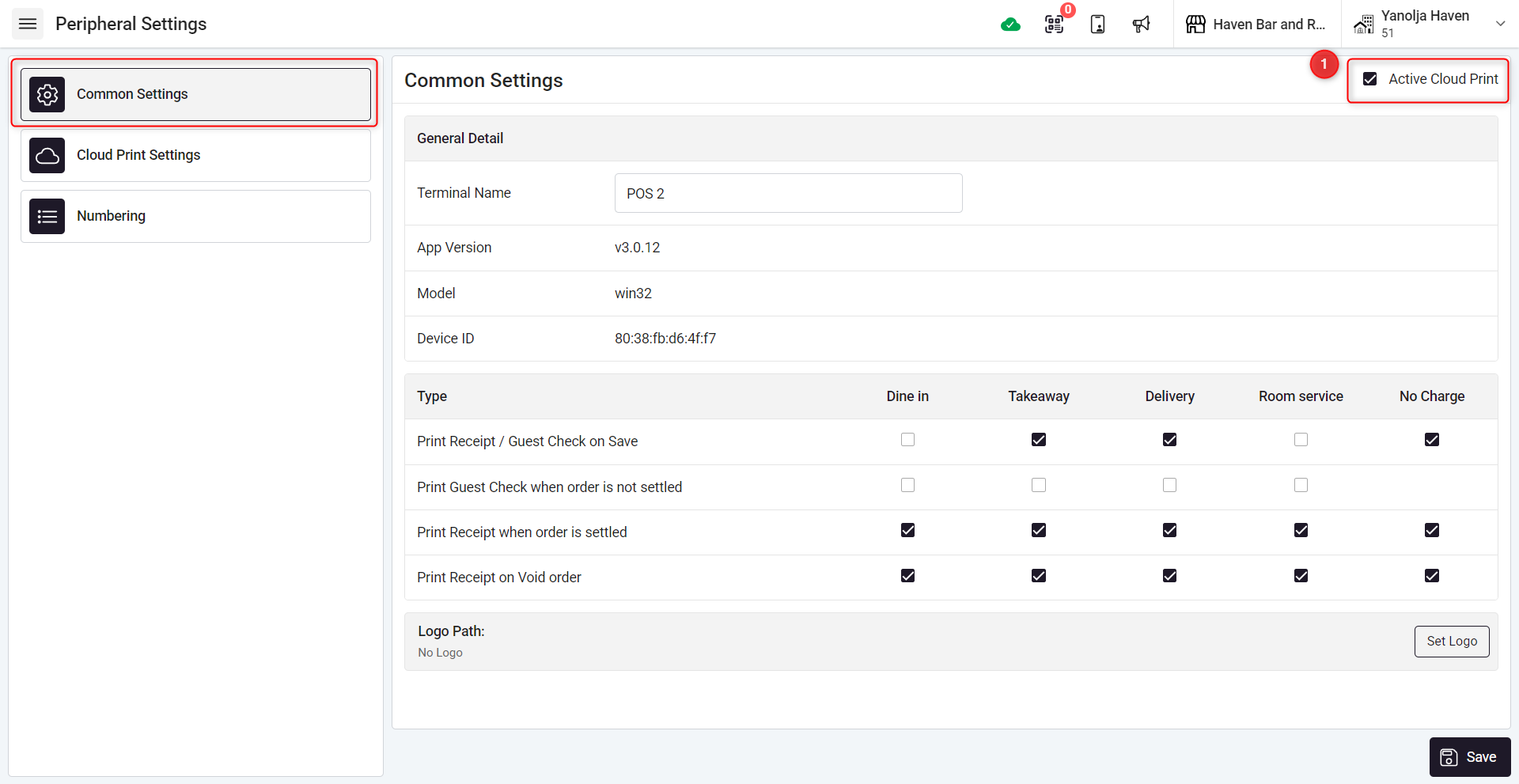
1. Go to peripheral settings and enable "Active Cloud Print" option
For Mobile application.
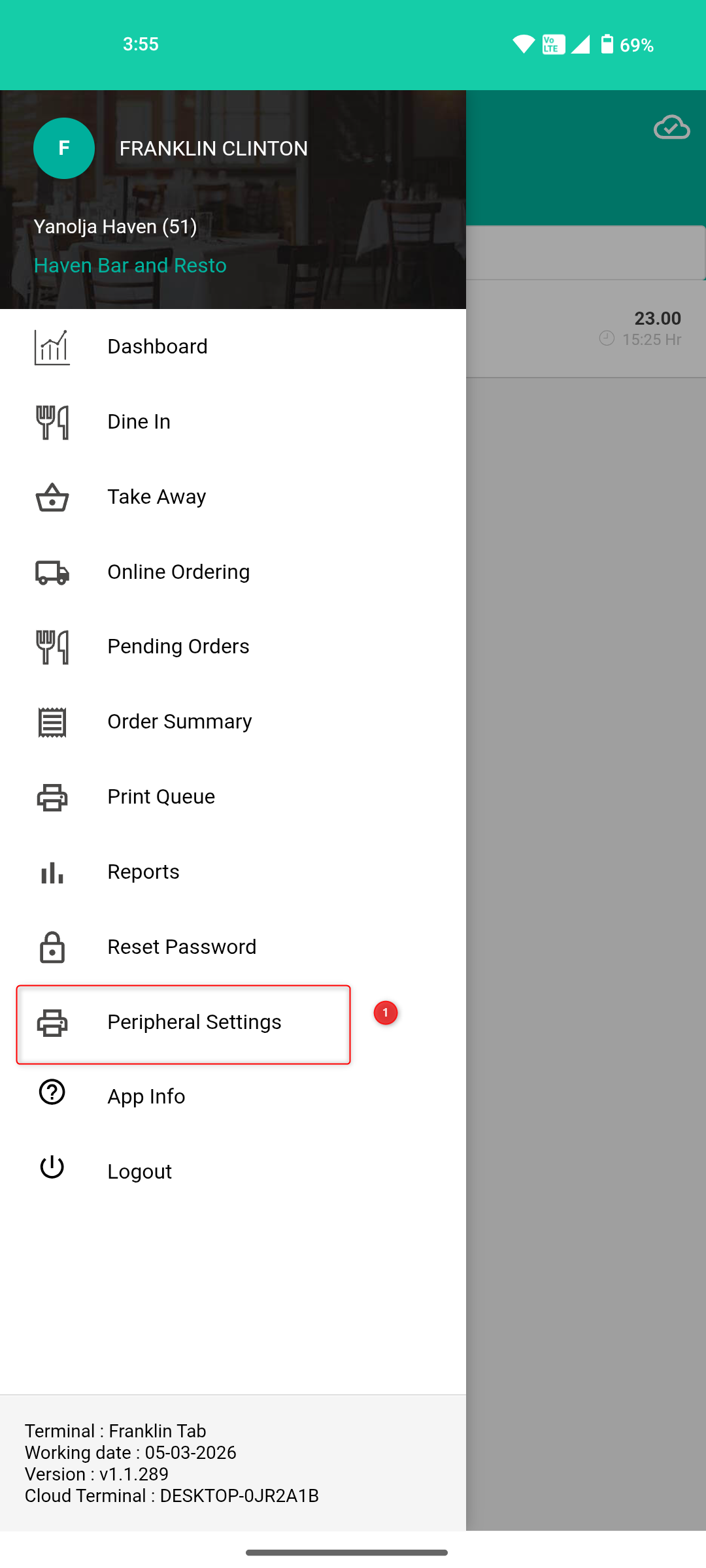
1. Go to Peripheral Settings (by clicking on top left Hamburger Menu Icon)
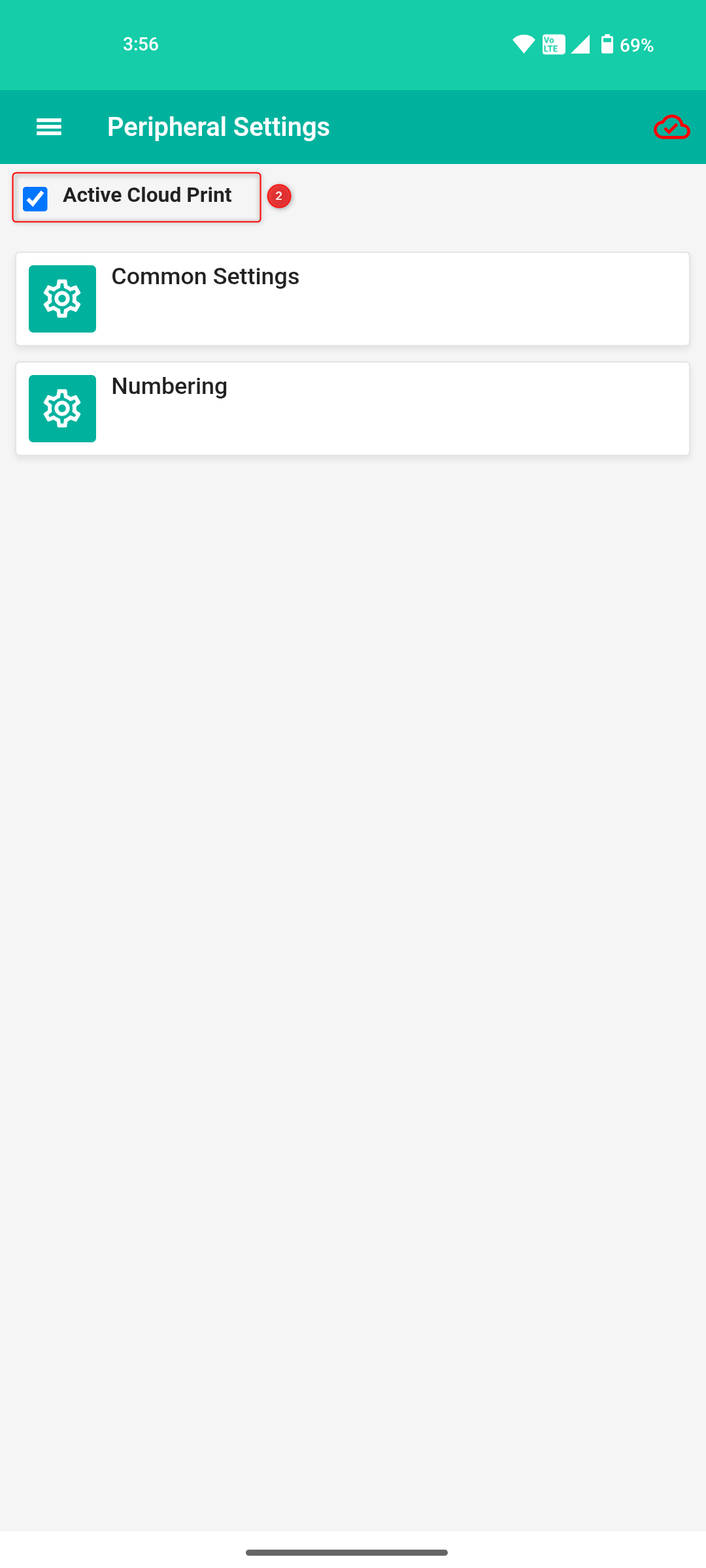
2. Enable "Active Cloud Print" option
NOTE :
1)Ensure the Server machine remains powered on at all times. Do not switch it off.
2)Always remain logged in to the Desktop app on the Server machine.
3)Maintain a stable internet connection on the Main machine at all times.
Was this article helpful?
That’s Great!
Thank you for your feedback
Sorry! We couldn't be helpful
Thank you for your feedback
Feedback sent
We appreciate your effort and will try to fix the article