Restaurant POS facilitates shift management. Using shift management efficiently makes the cashier’s tasks easier, as at the end of the shift, they can view the total amount collected along with a breakdown of payments received through different payment modes.
We will have to first enable the Shift Operation for the Users.
1. Switch to back and click on Setting Icon.
2. Click on User.
3. Click on Pencil icon and edit the user.
4. Enable the “Manage operations by shift”
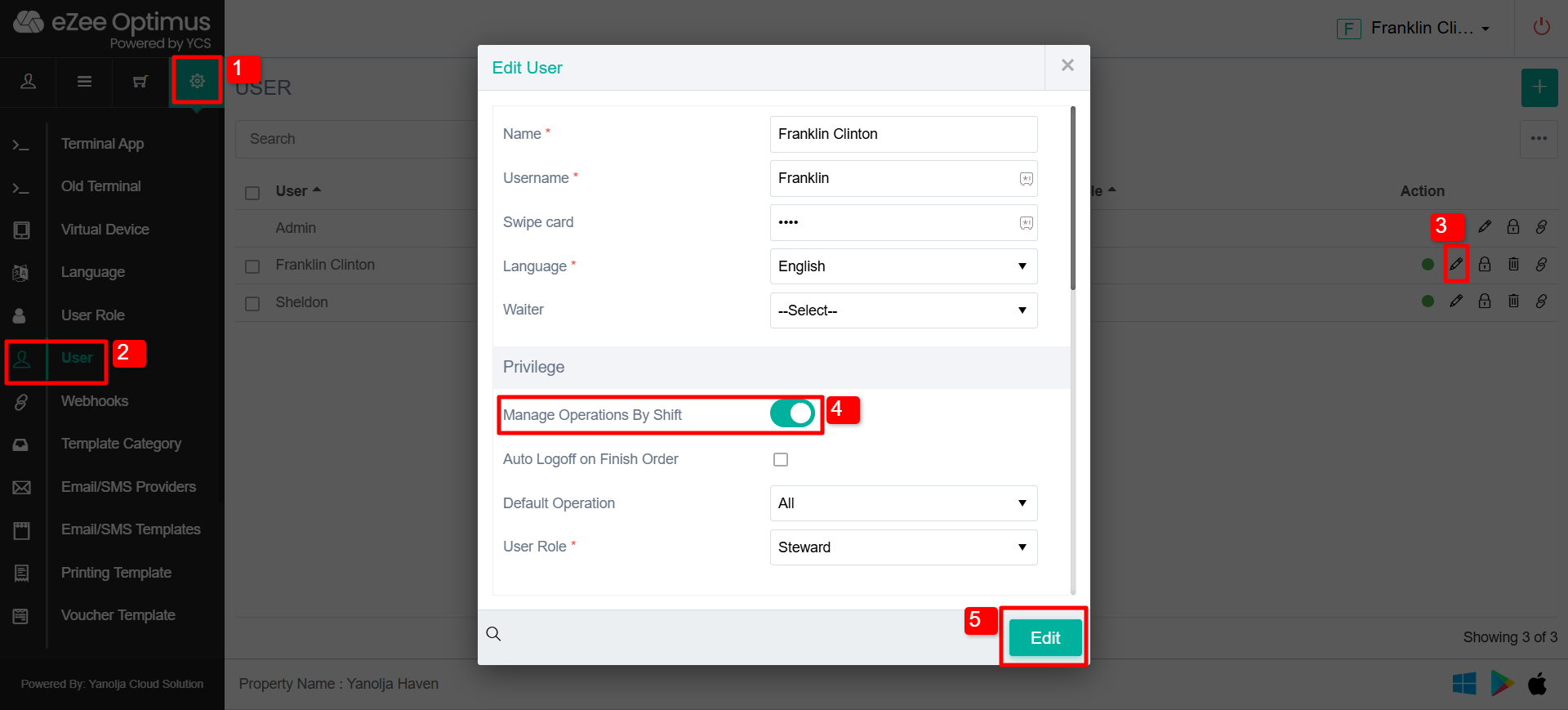
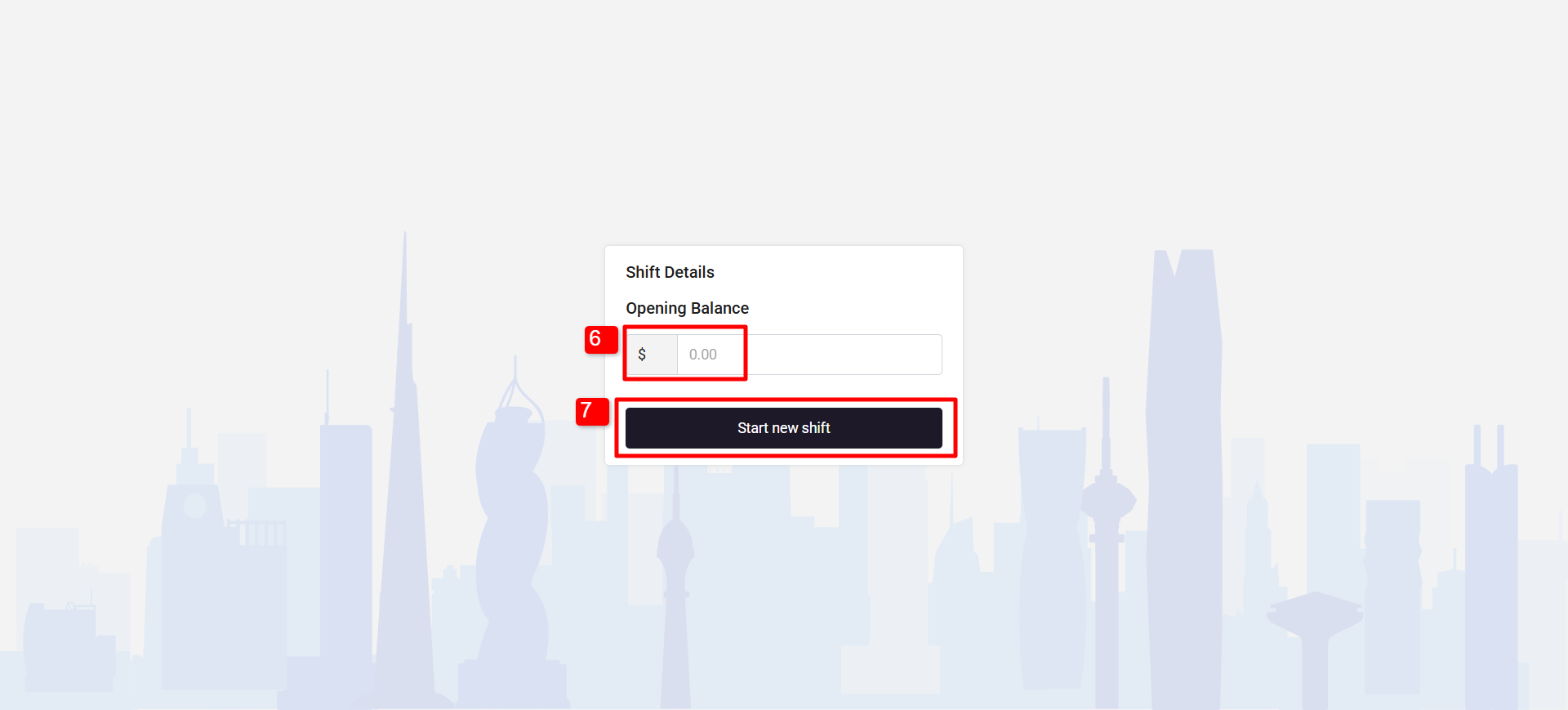
Once enable re-login in the system. Once you have re-logged in system will pop-up an Opening Balance screen.
6. Enter the amount you have in starting of your shift.
7. Start the New Shift
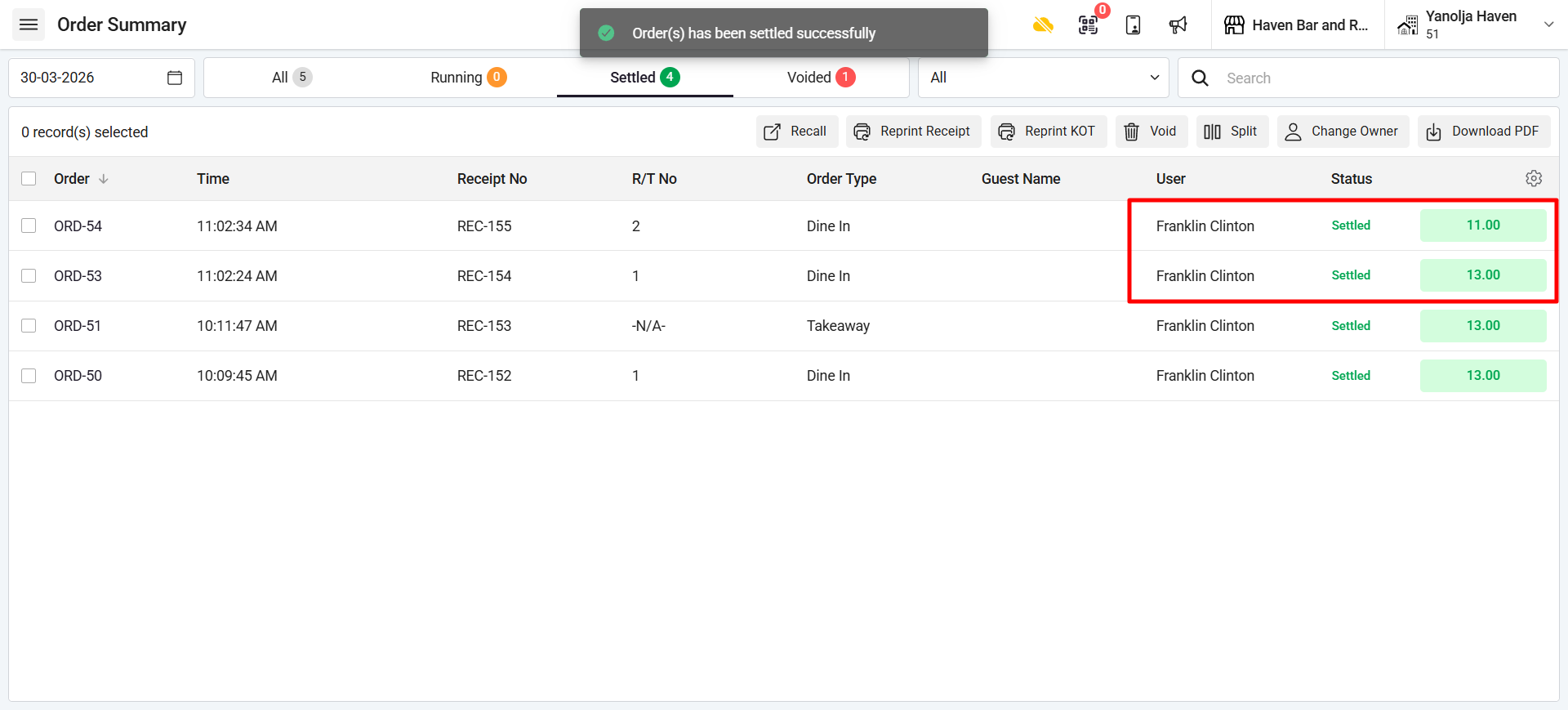
When a user will user will takes an order and settle it, It will automatically reflects be added to their shift balance.
8. Click on “Shift Management” Under Manager section to open the Shift Summary.
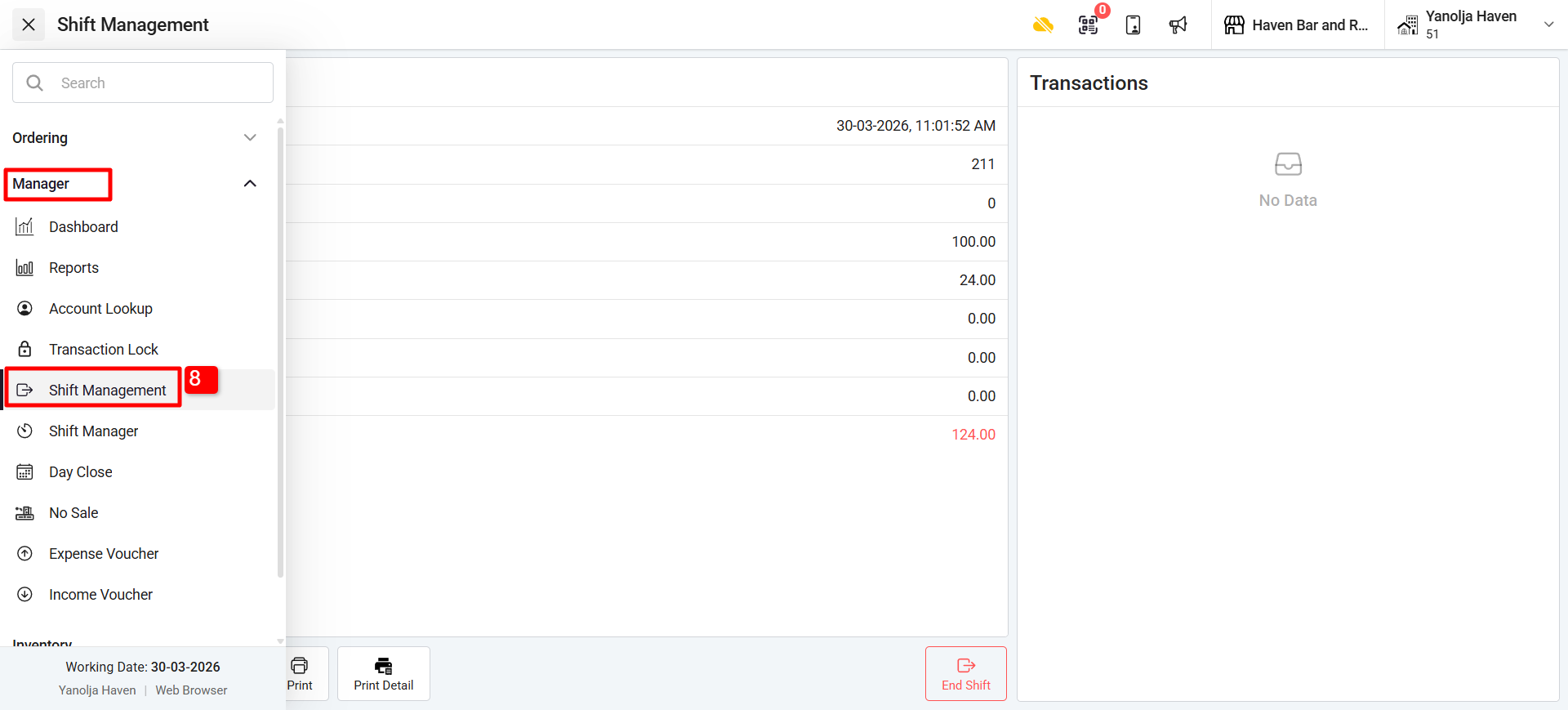
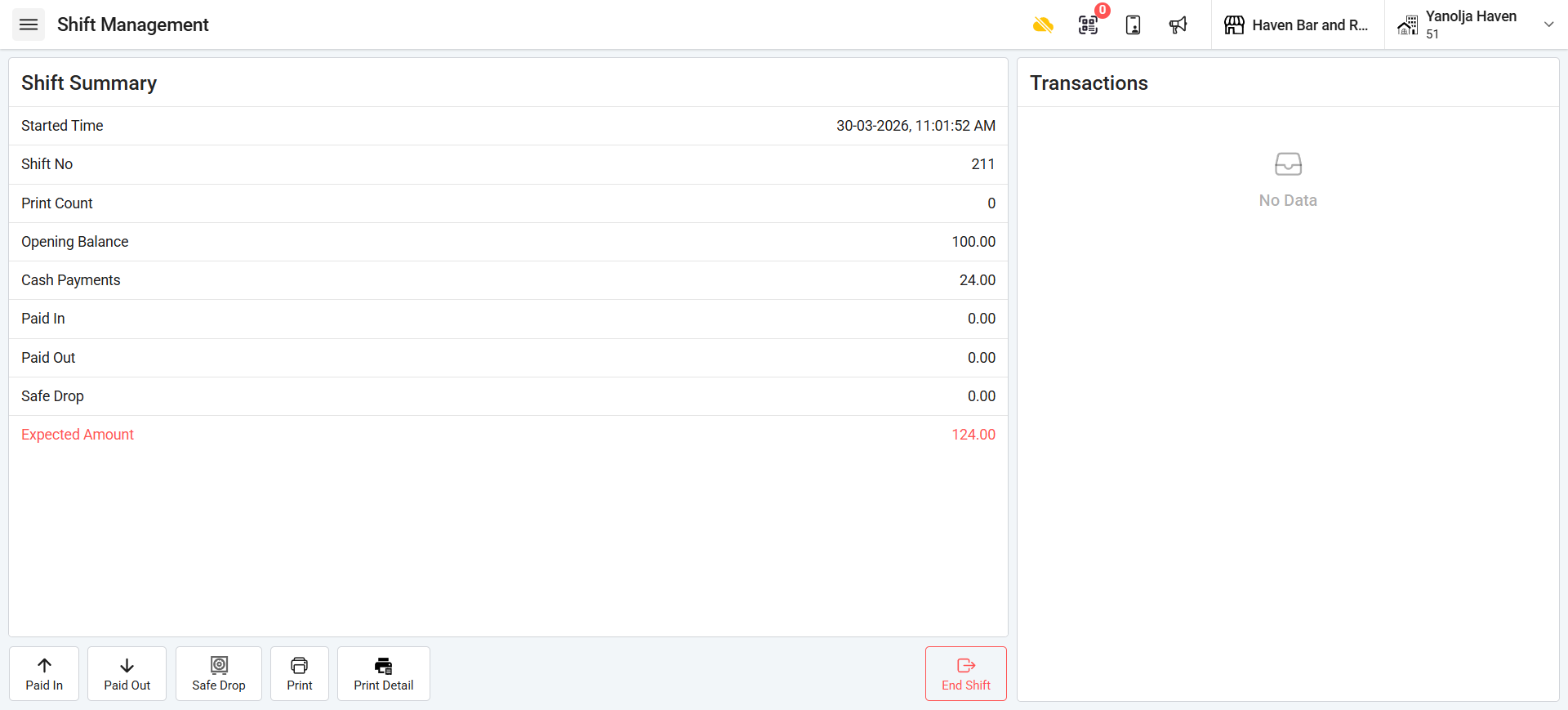
Once entered in the Shift Management, You will have multiple options like Paid-in, Paid-out, Safe Drop and End shift.
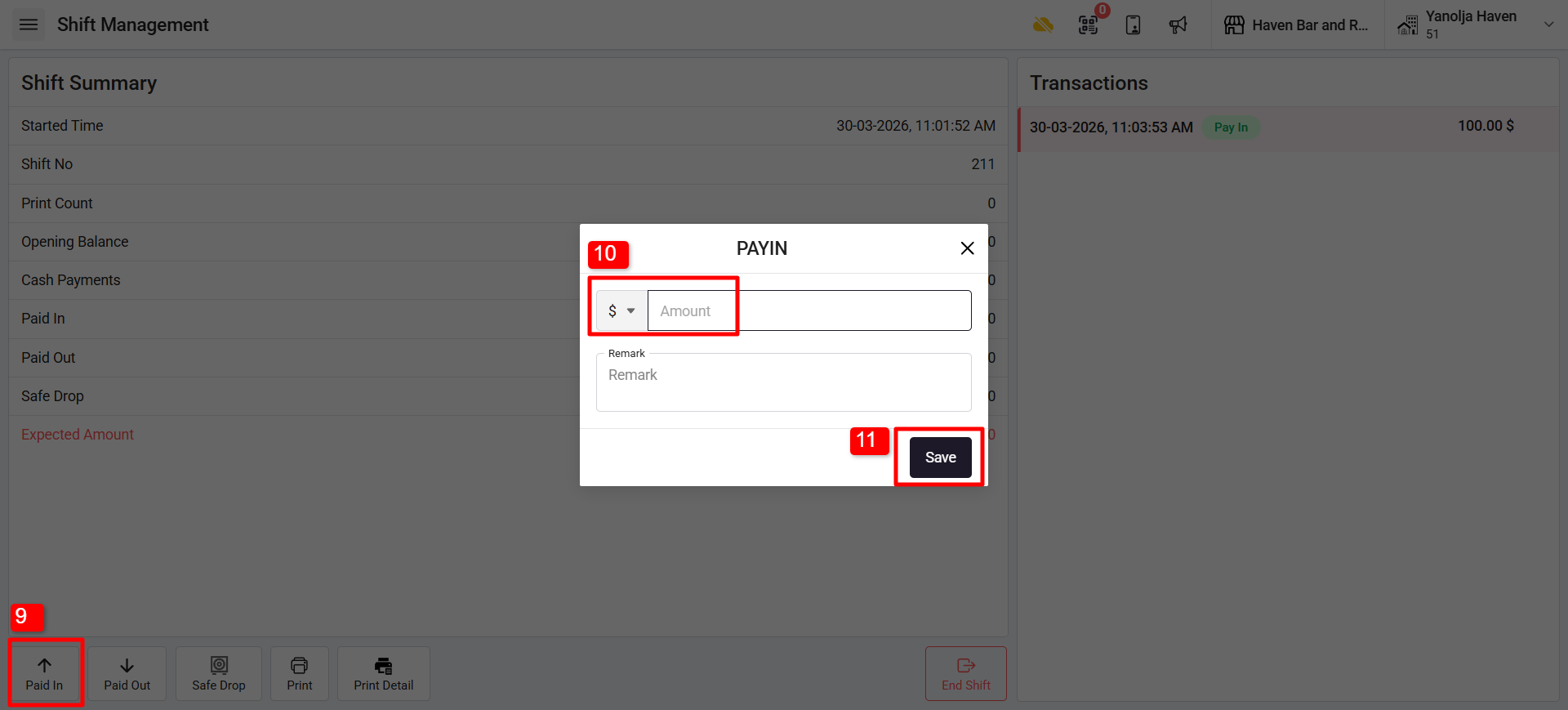
9. Paid In:
In Restaurant POS, "paid in" refers to adding money to the cash register or cashier’s float at the beginning of a shift to ensure sufficient funds are available for providing change during transactions.
10. Enter the amount.
11. Click on Save.
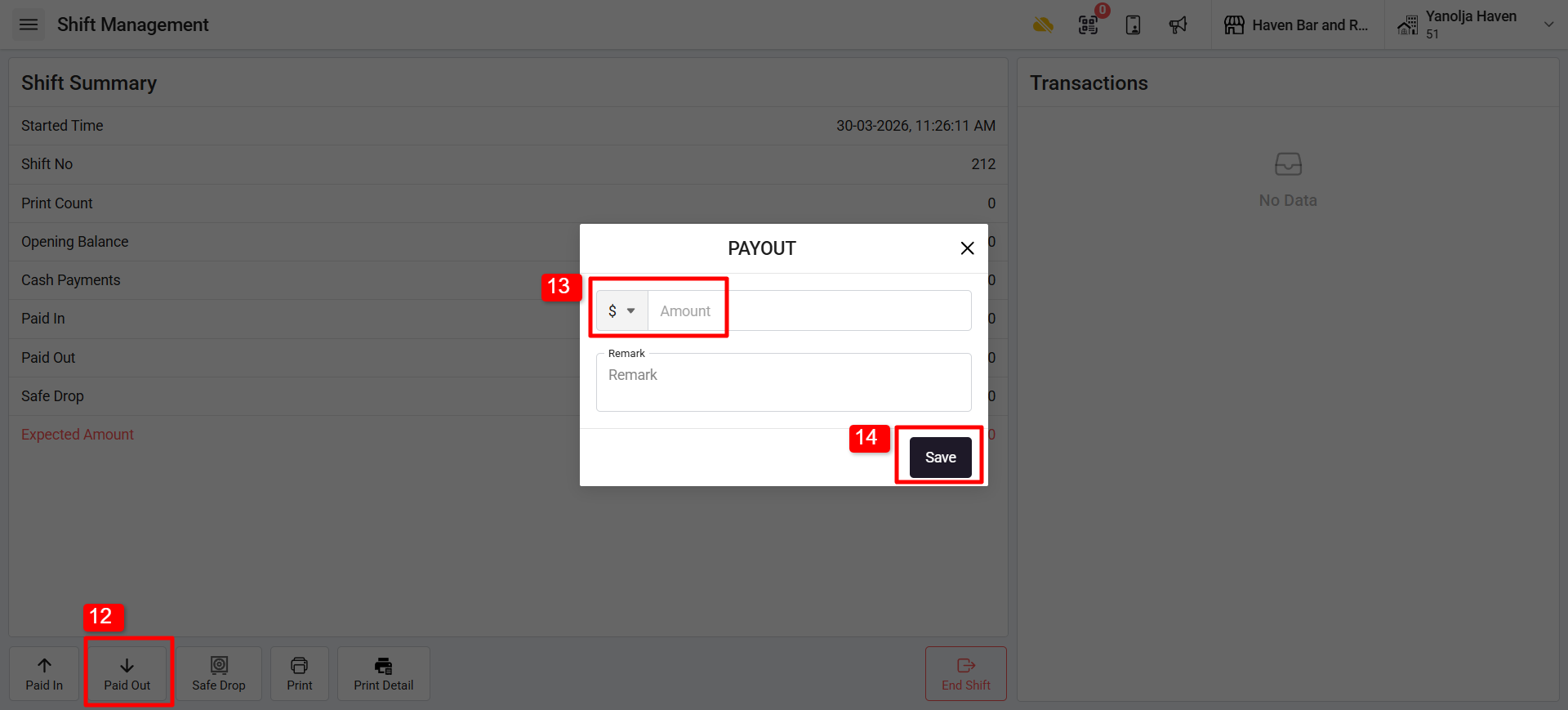
12. Paid Out:
In Restaurant POS, "Paid out" refers to withdrawing money from the cash register during a shift to reimburse expenses or handle small purchases. This helps track and record the cash taken out for accounting purposes.
13. Enter the Amount.
14. Click on Save.
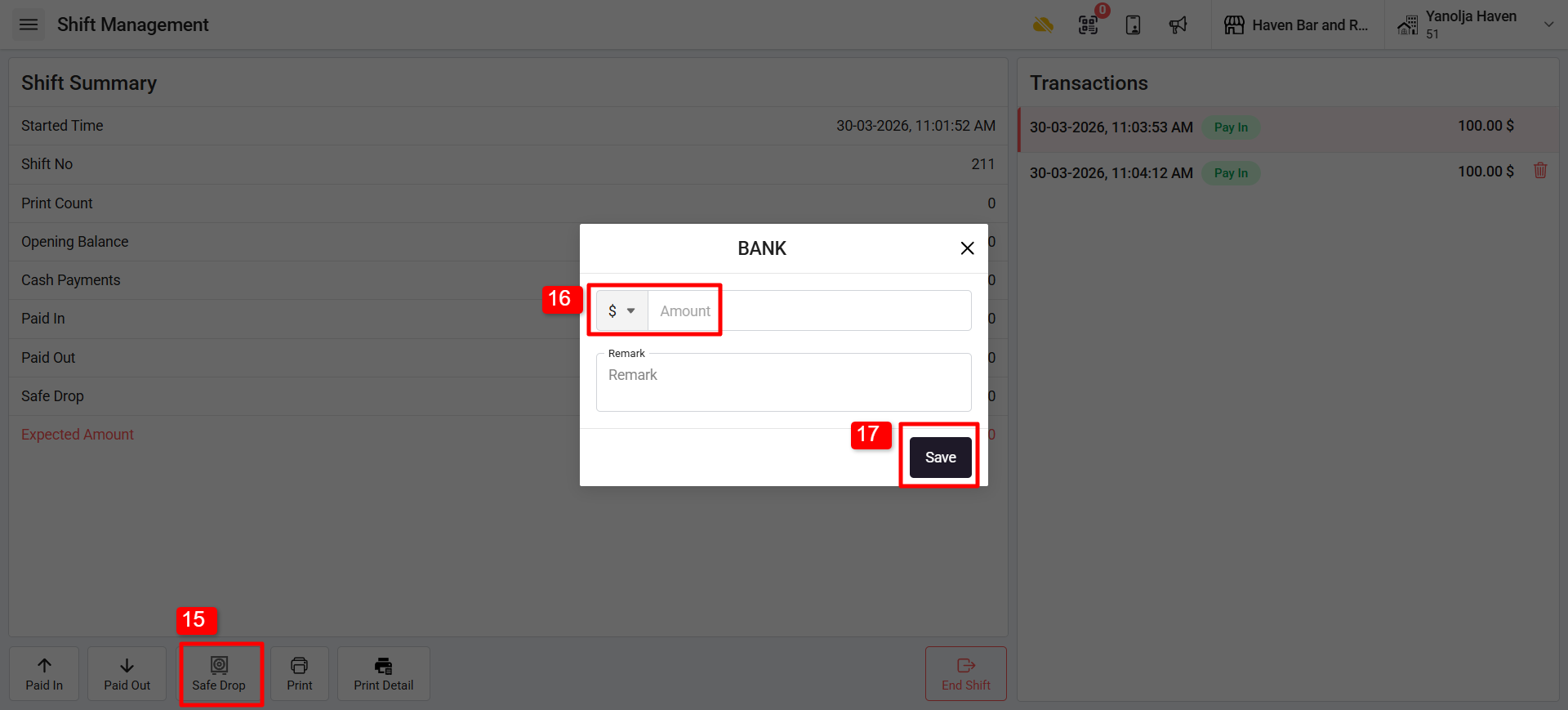
15. SAFE DROP:
In Restaurant POS, "Safe Drop" allows users to remove excess cash from the register and store it securely in a safe or drop box, reducing risk and improving security.
16. Enter the Amount.
17. Click on Save.
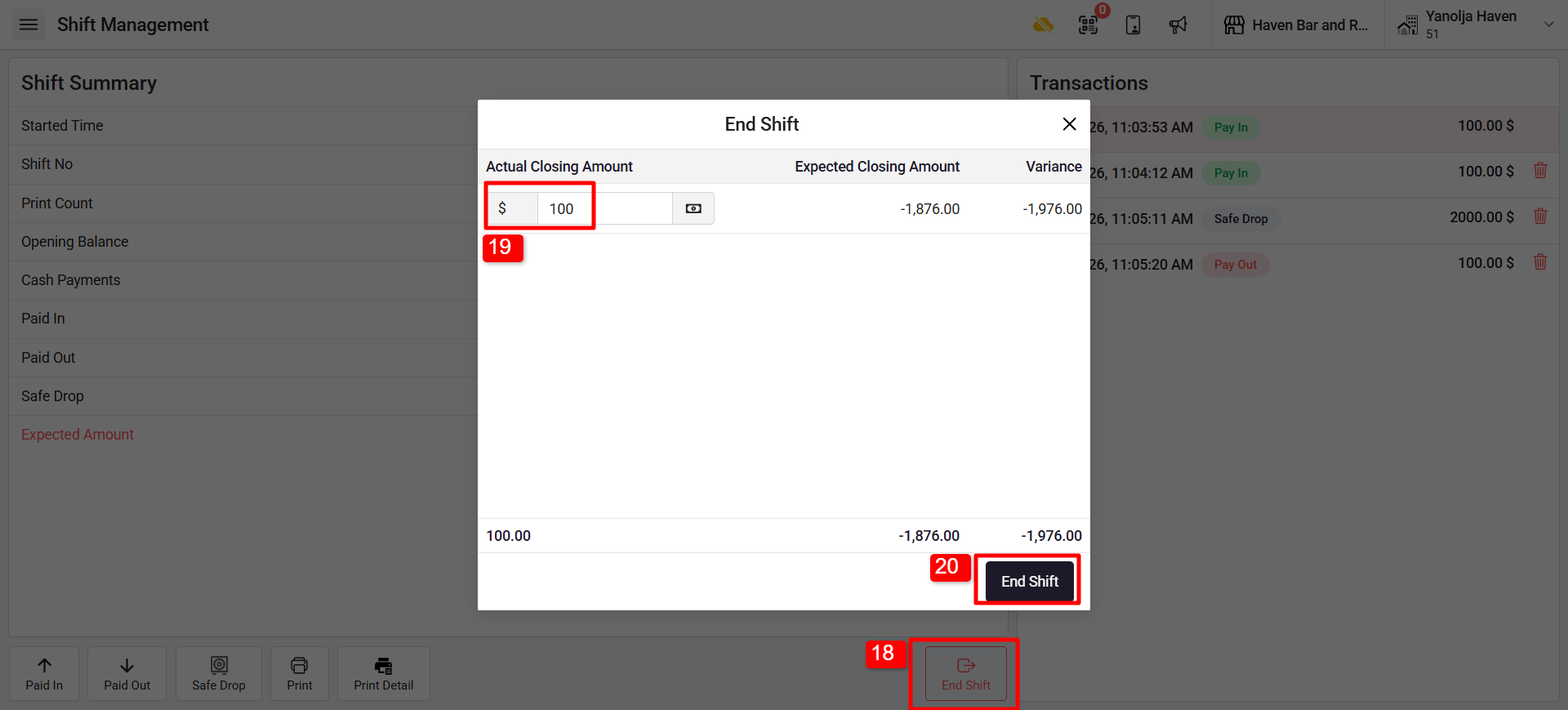
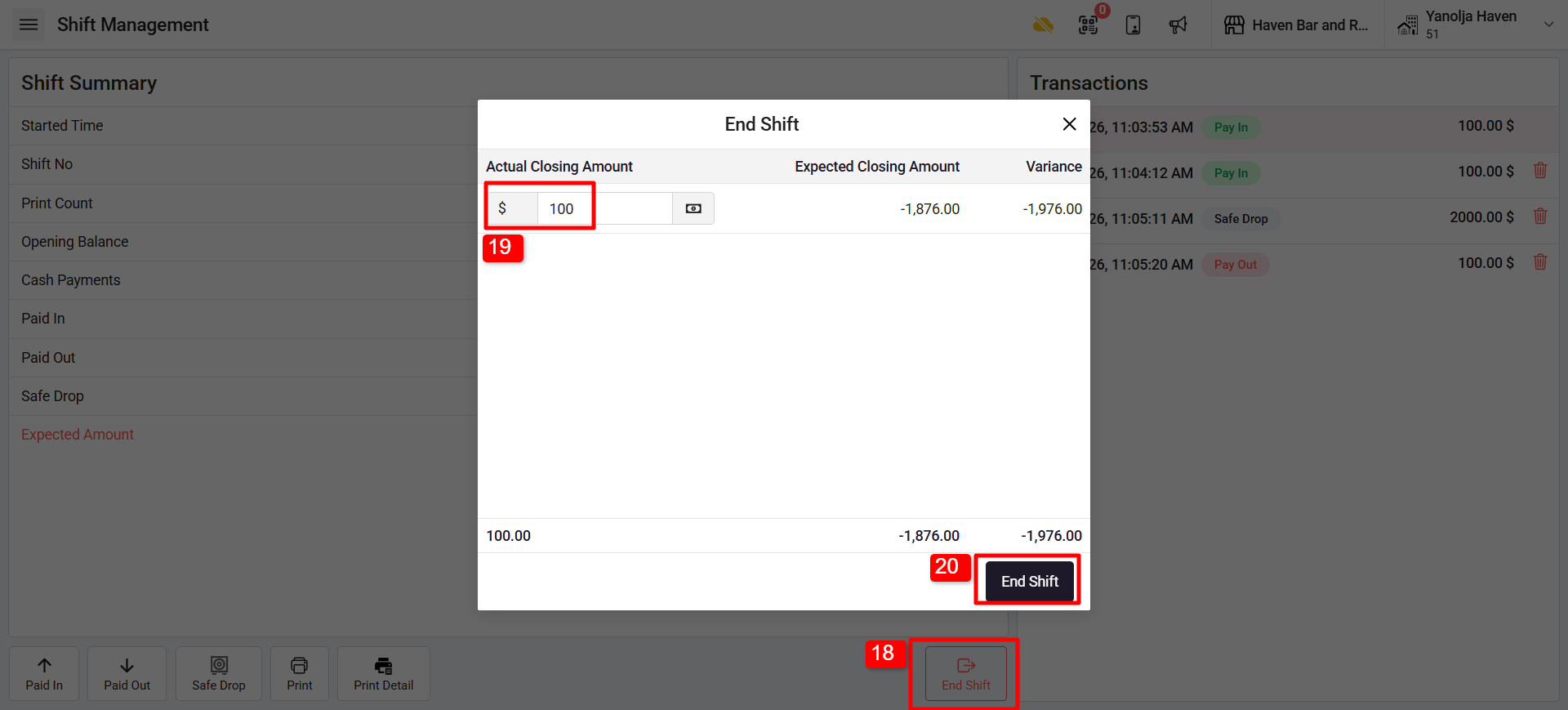
18. When the shift is over, the user must close it by clicking on End Shift.
19. Enter the actual closing amount
20. Click on End the shift.
21. Once shift is ended a Shift Summary will be available, which user can print.
22. Click on Logout and the shift will be ended fully.
Was this article helpful?
That’s Great!
Thank you for your feedback
Sorry! We couldn't be helpful
Thank you for your feedback
Feedback sent
We appreciate your effort and will try to fix the article