What is Day Close?
Restaurant operations need to settle up at the end of day (or shift). This means making sure all reported revenue reports for the day match payments, credit, refunds, cash, etc and floating cash sums. Variances have to be noted. Settlement accounting or reports need to be generated and saved for historical review.
How to Access:
In the Restaurant POS system, Day close can be performed in 2 ways.
(1) Single outlet wise.
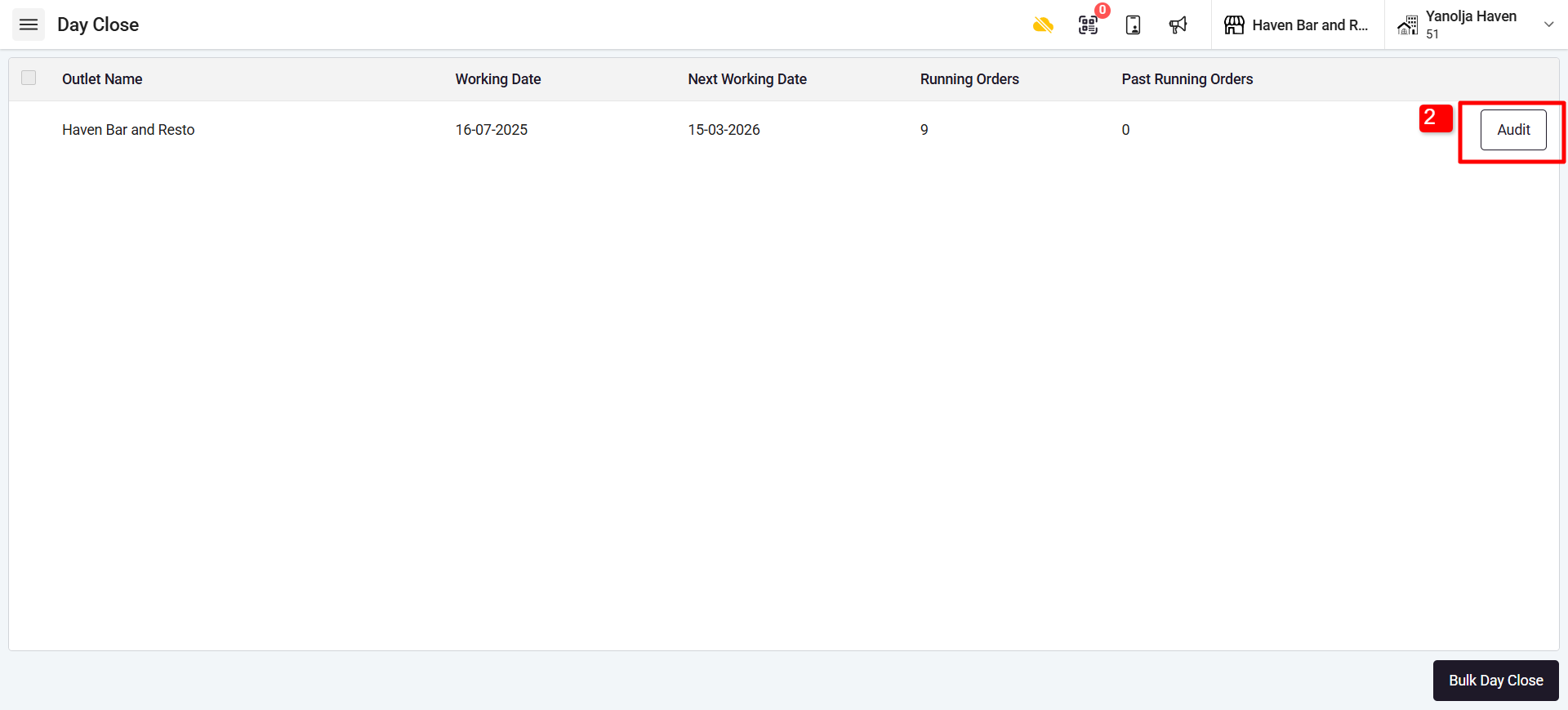
(2) Multiple Outlet day close at one time.
Day close operation is optional and depends on the property if they would like to do the day close process.
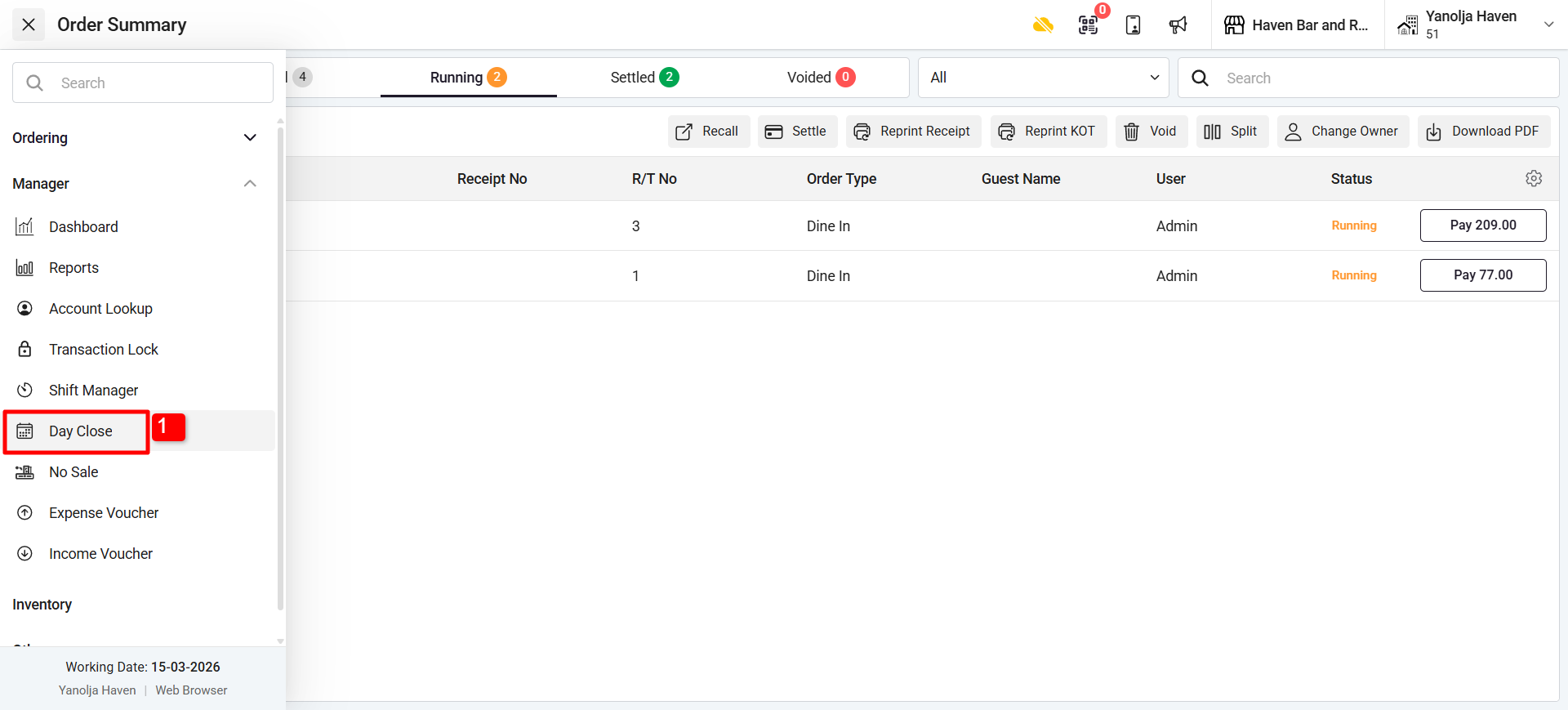
Here are the below screenshot to perform the day close & to change the software date
1. Navigate to the Day Close option Under Manager TAB
2. Select the Outlet that you want to audit and click on Audit. (In Case of Multiple outlet you can click on Bulk Day Close and it will be done for Multiple Outlet)
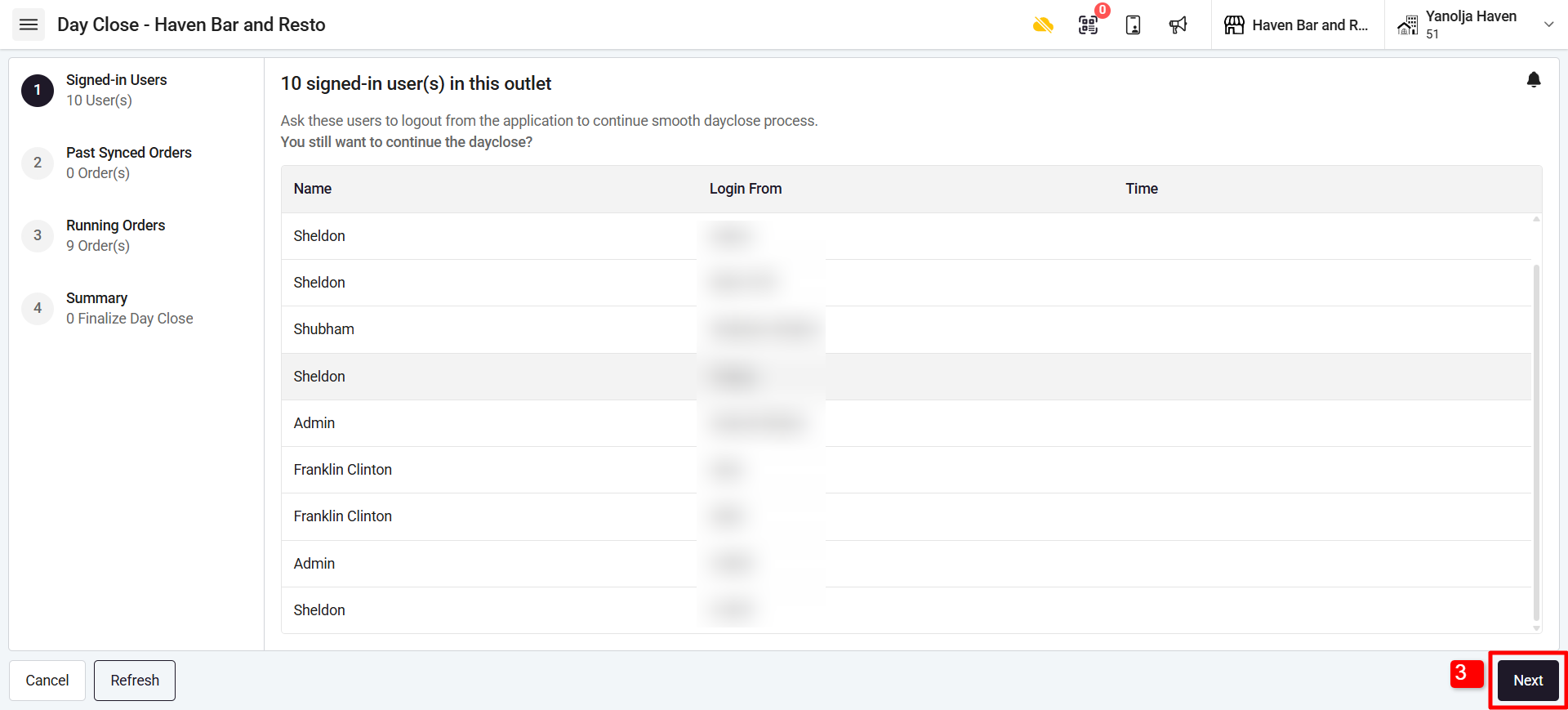
3. You can see the User which are logged in, Once checked click on “Next”
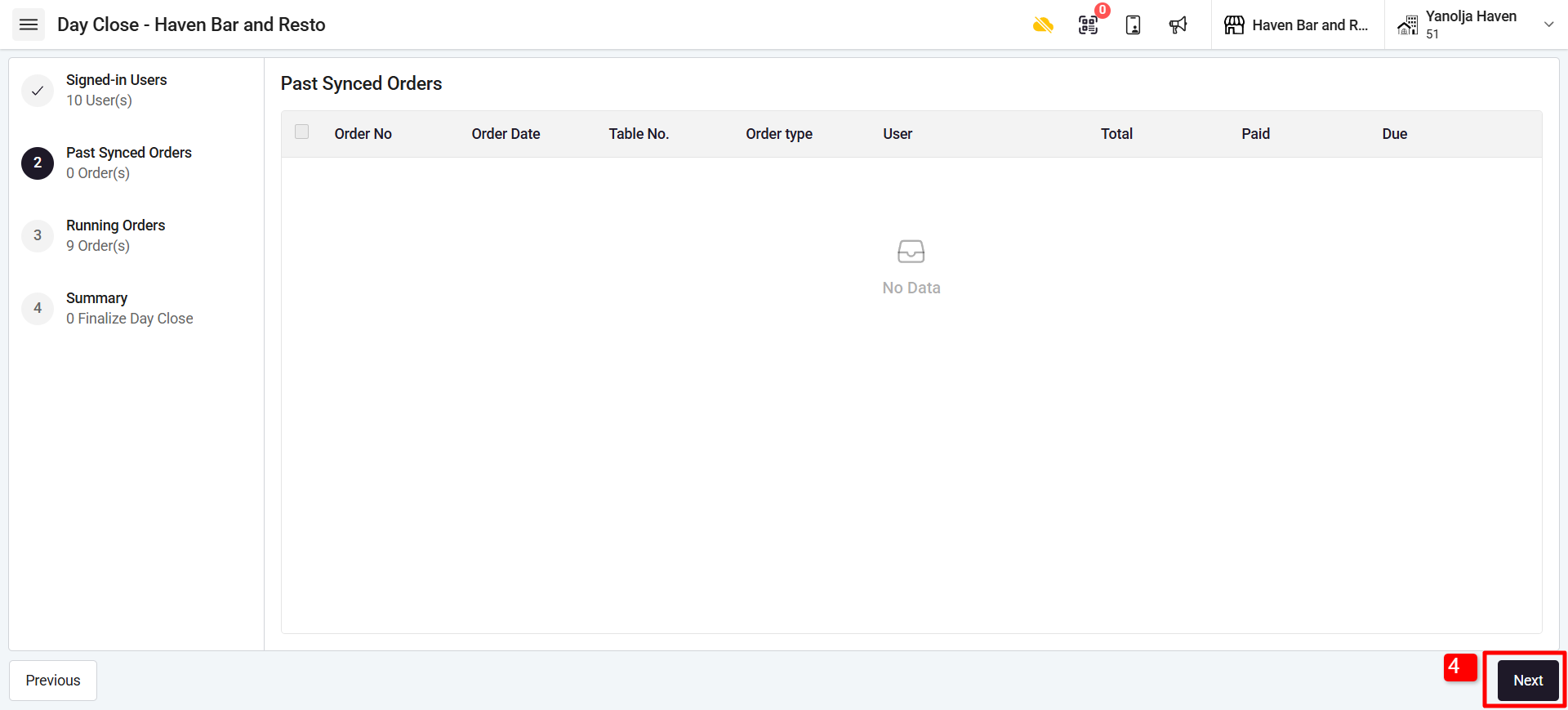
4. You can view your Past Synced Order and click on “Next”
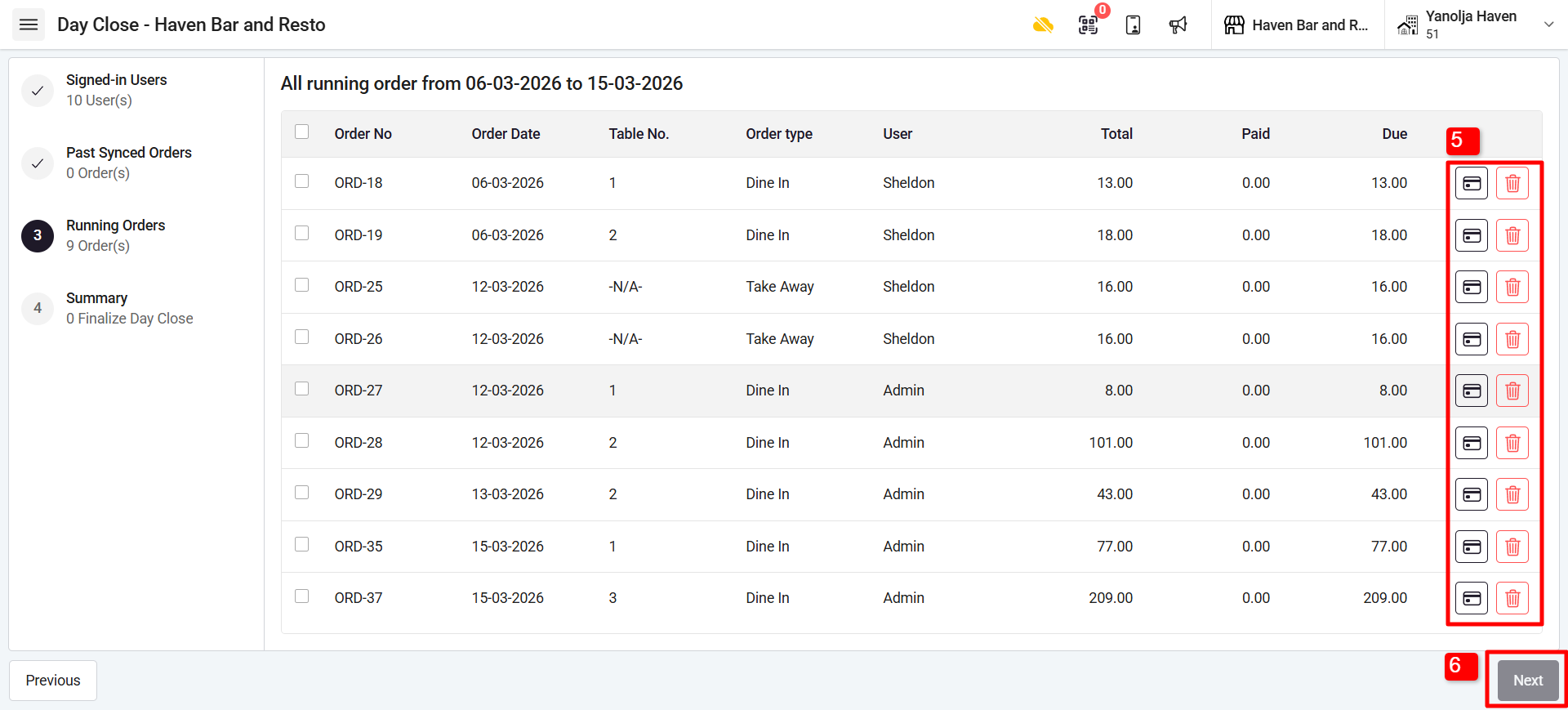
5. You can view the Running orders which you will have to Settle or Void in order to complete the Day Close.
6. Click on “Next” Once all running order has been completed.
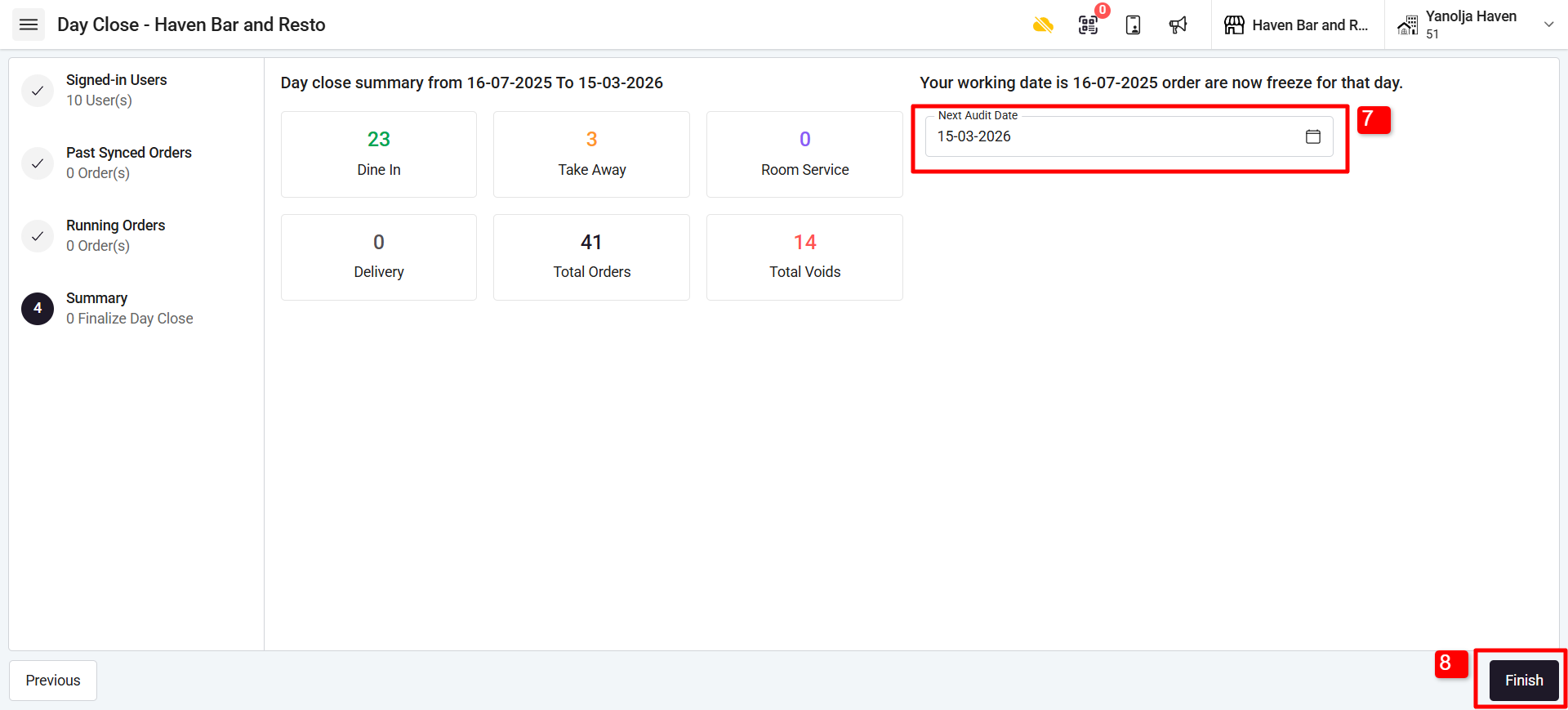
7. Make sure to check the dates of your Next Audit and the Day Close Summary
8. Click on “Finish” and you day close has been completed.
Once completed you will get logout from the software automatically. The Date will get changed after the process.
Was this article helpful?
That’s Great!
Thank you for your feedback
Sorry! We couldn't be helpful
Thank you for your feedback
Feedback sent
We appreciate your effort and will try to fix the article