Dine-In Order in POS
In this type of service, guests enter the dining area and take their seats. The waiter welcomes them, offers water, and provides the menu. Guests place their orders with the waiter, and the order is served at the table.
Let’s look at how the Dine-In order type works in POS and how it can be used by the restaurant.
Steps to Create a Dine-In Order
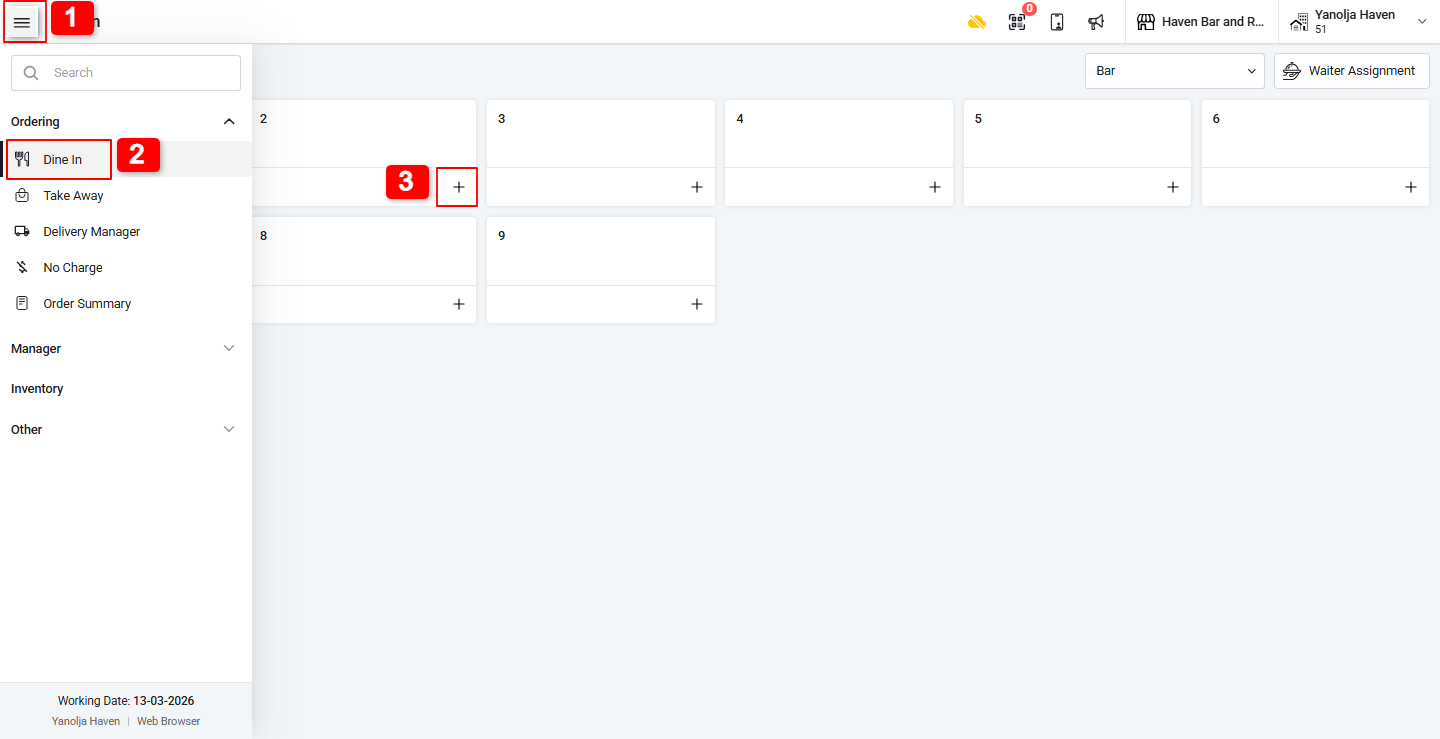
Step 1: Create a New Dine-In Order
Go to Menu (three blocks) in the top-left corner.
Click on Dine-In.
Select the Table for which you want to create the order.
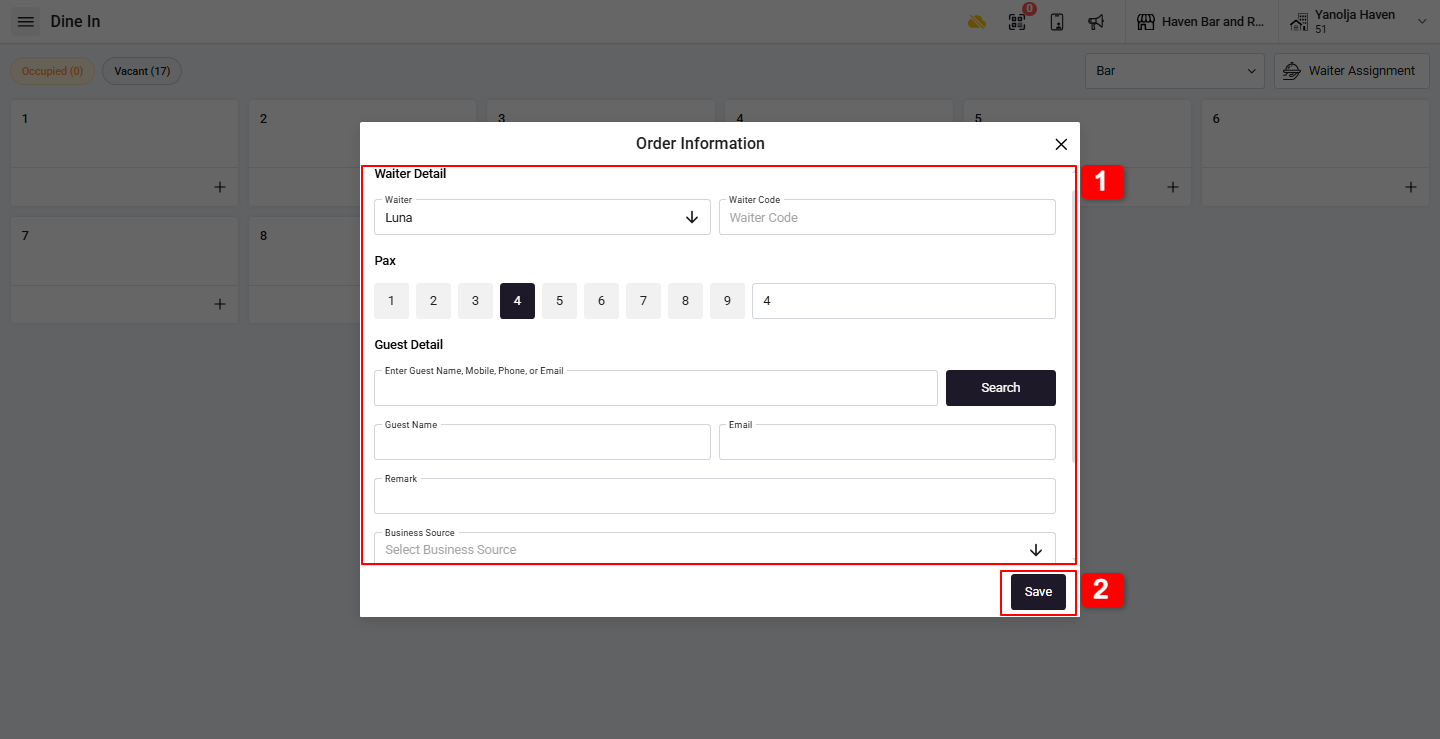
Step 2: Enter Order Information
Fill in the required details in Order Information, such as:
Waiter
Number of PAX
Guest Name
Email
Remark
Business Source
Other basic details if required.
Click Save.
The system will redirect you to the Order Screen.
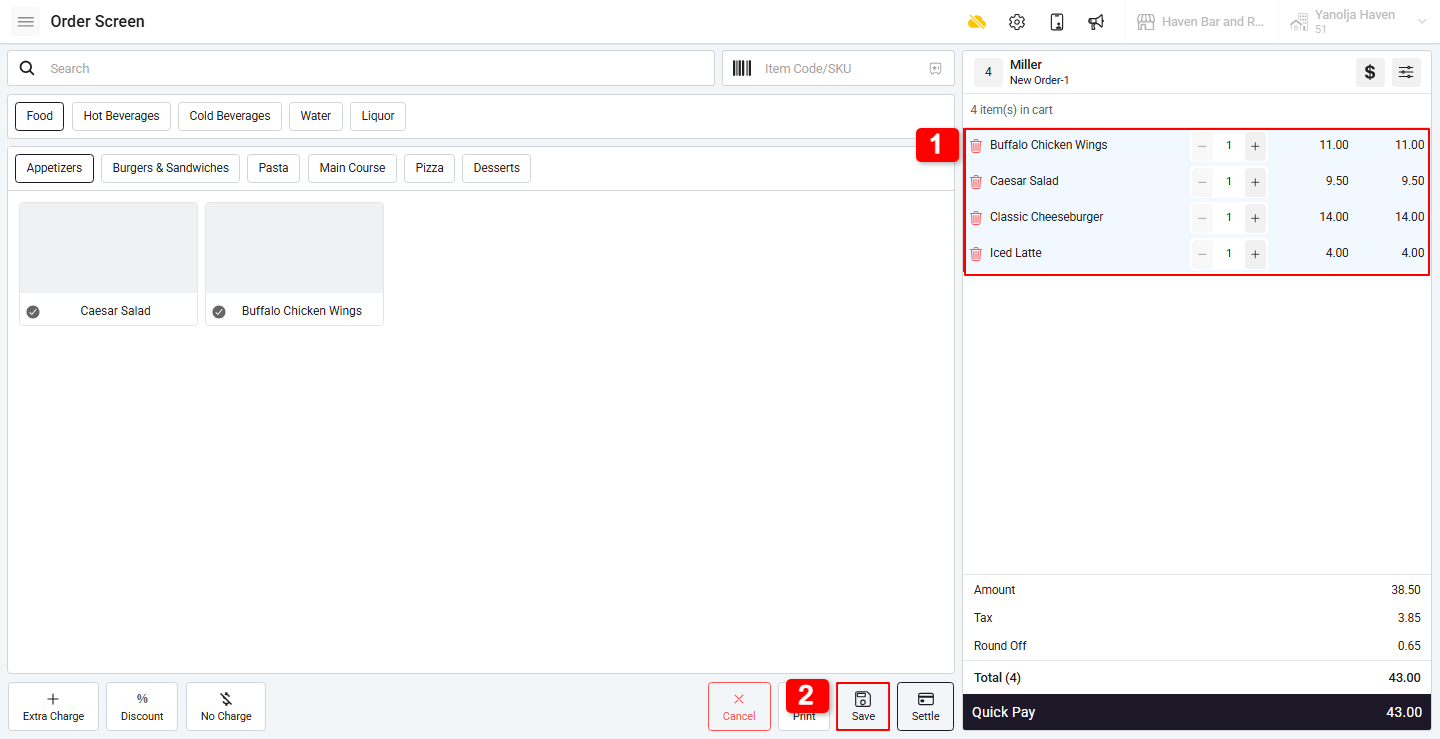
Step 3: Add Items and Place the Order
Add the items requested by the guest.
Click the Save button to generate and print the KOT (Kitchen Order Ticket) in the kitchen.
Verify the Order
You can verify the placed order in two ways:
From the Order Summary → Running Tab
Directly from the Table View
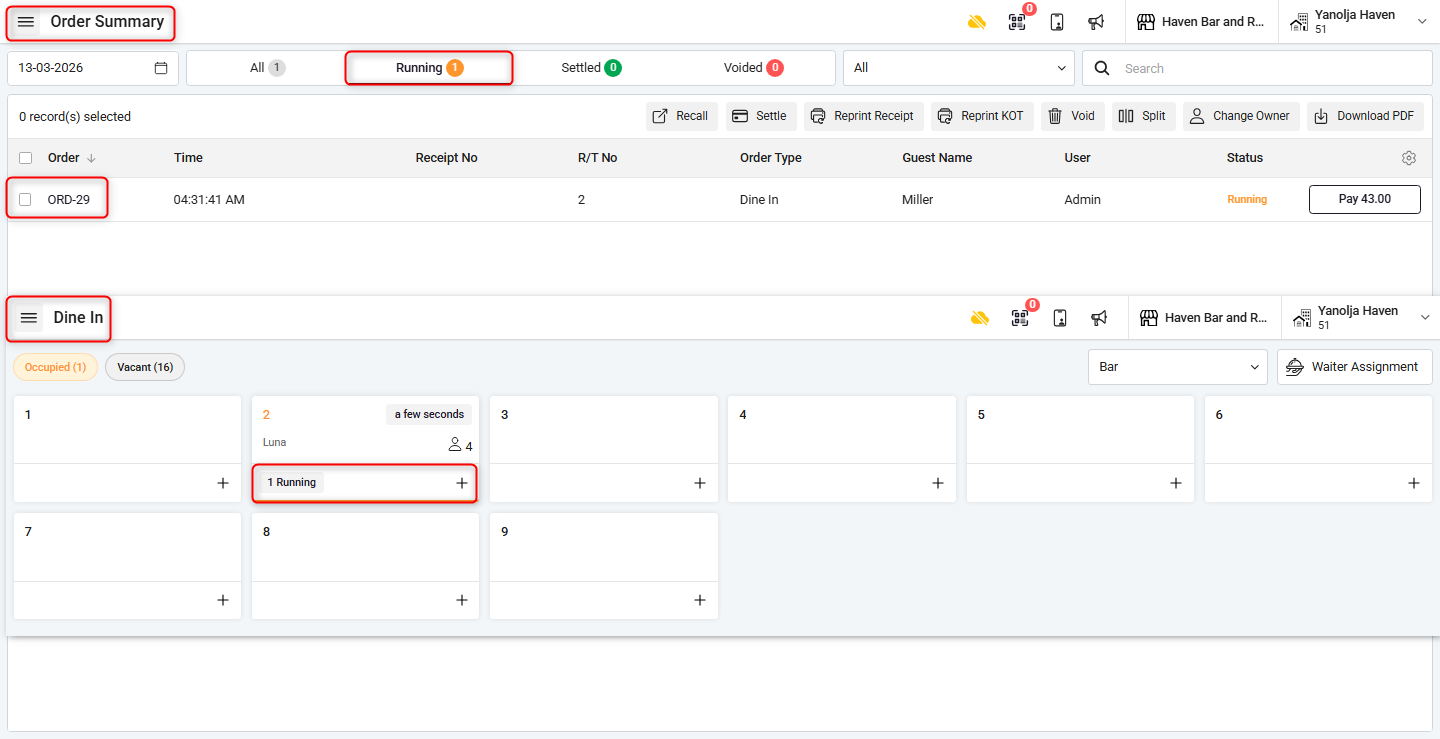
This confirms that the order has been successfully placed.
Was this article helpful?
That’s Great!
Thank you for your feedback
Sorry! We couldn't be helpful
Thank you for your feedback
Feedback sent
We appreciate your effort and will try to fix the article