Merge Option in POS.
The Merge Option in Optimus allows you to combine multiple orders into a single order. This is useful when a guest places multiple orders and you want to consolidate them for billing or printing purposes.
How to Perform the Merge Operation :
Step 1: Merge from Order Summary :
1. Click on Menu.
2. Go to Order Summary.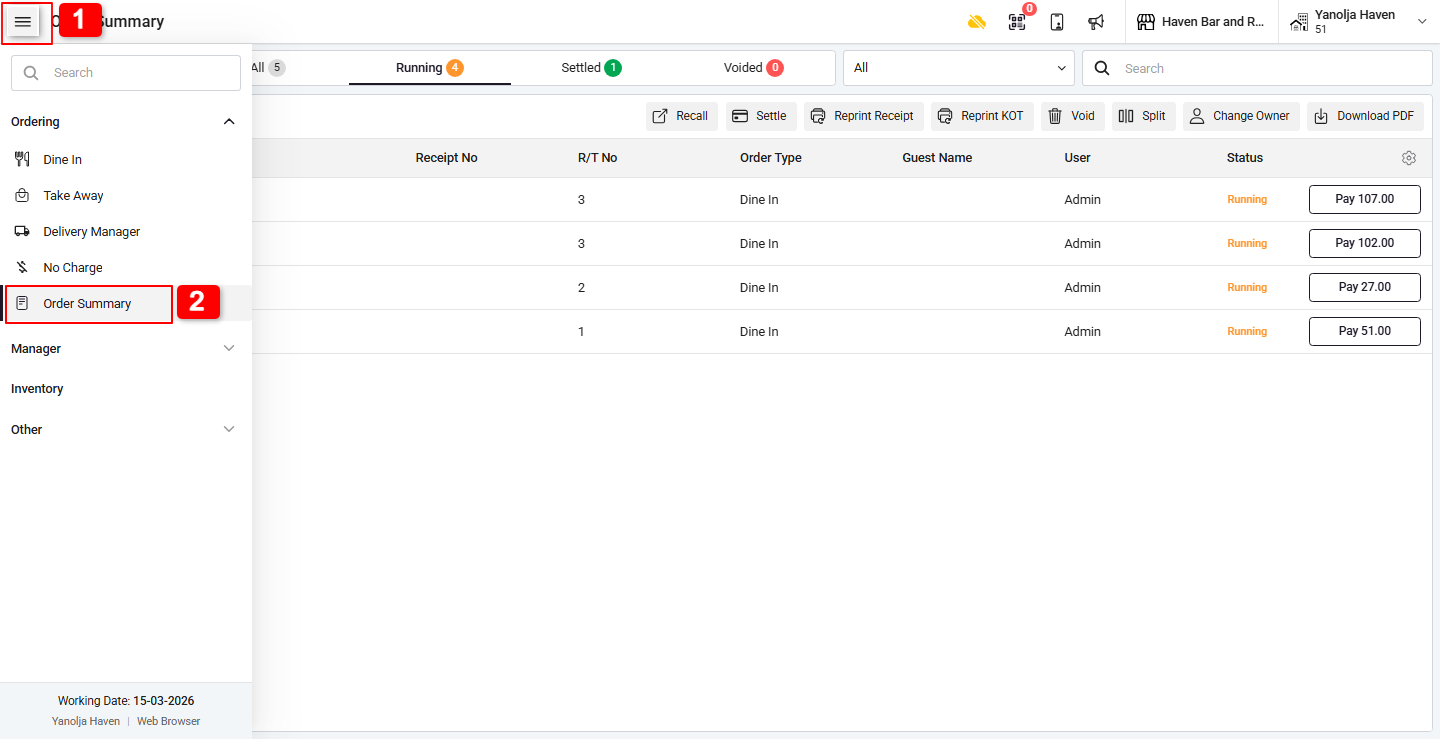
3. Select the orders you want to merge.
4. Click on the Merge option.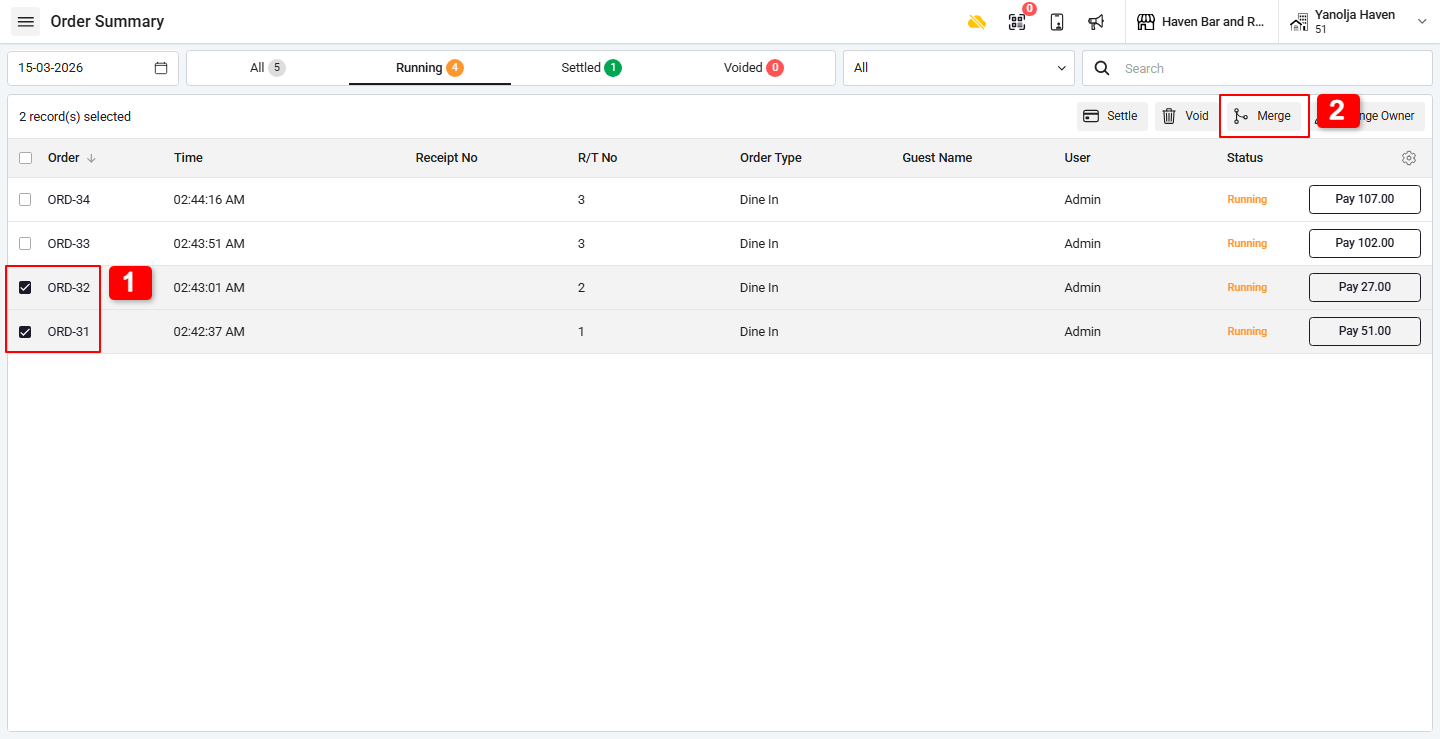
5. Click On Merge.
Note: Any applied discounts or extra charges will be discarded during the merge.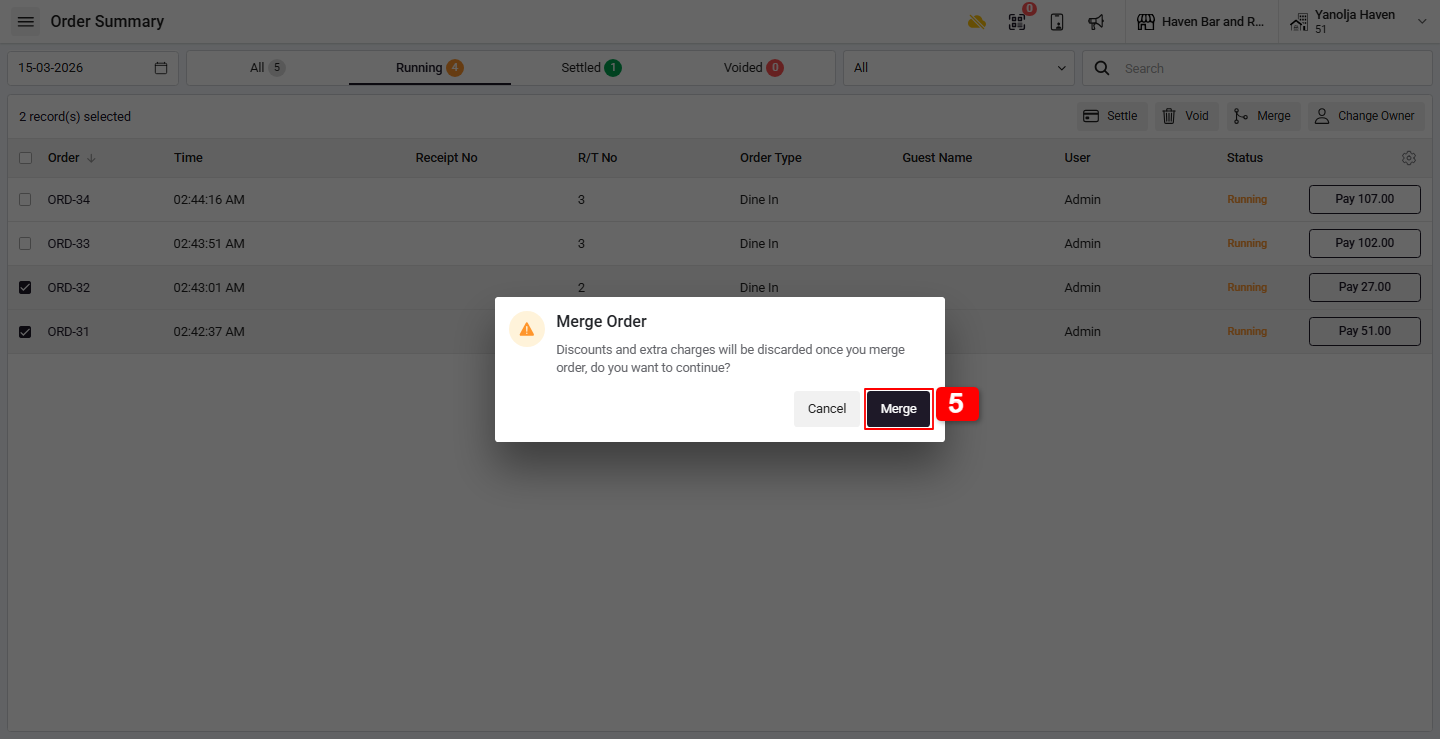
6. You will be prompted to select a Parent Order.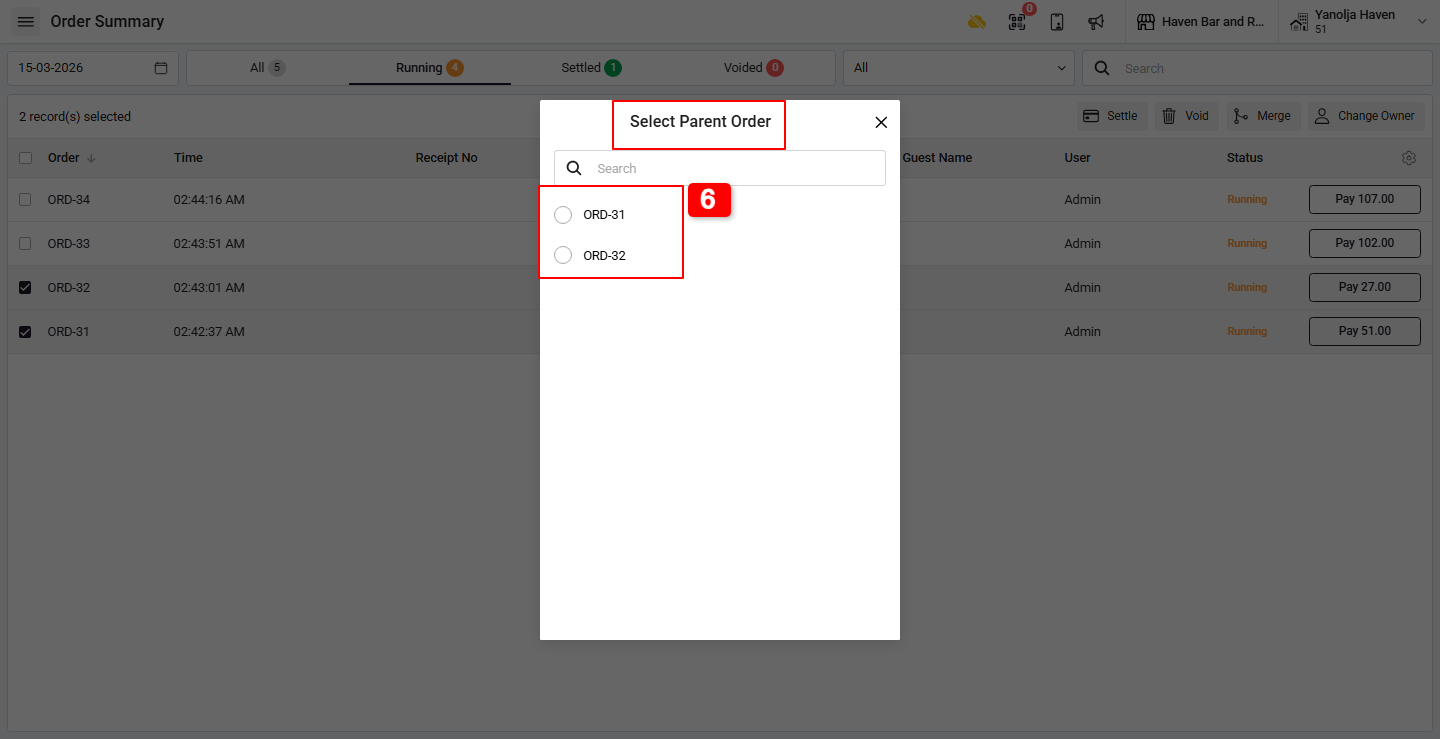
7. Once confirmed, the system will merge the selected orders, delete the previous orders, and create a new consolidated order.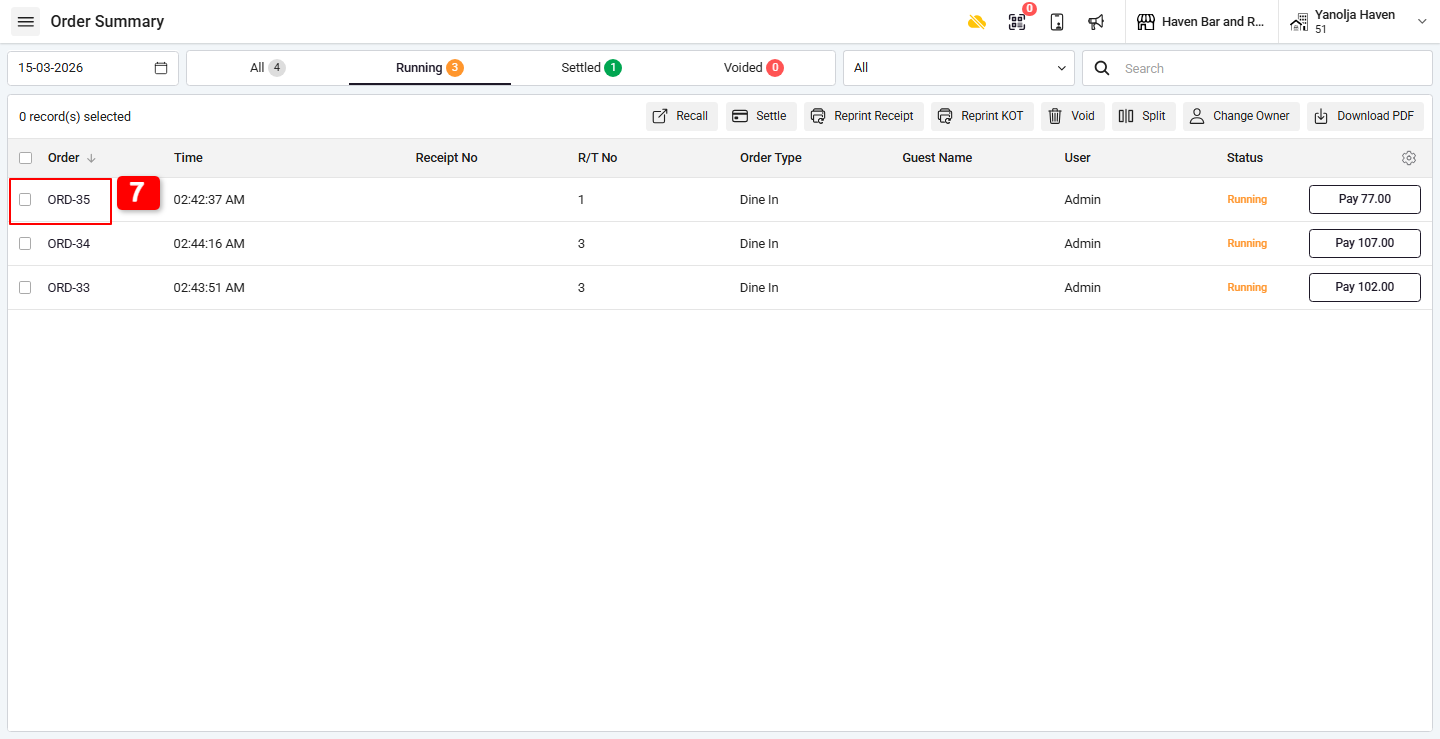
Step 2: Merge from Dine-In (for orders from the same table) :
1. Go to Menu.
2. Click on Dine-In.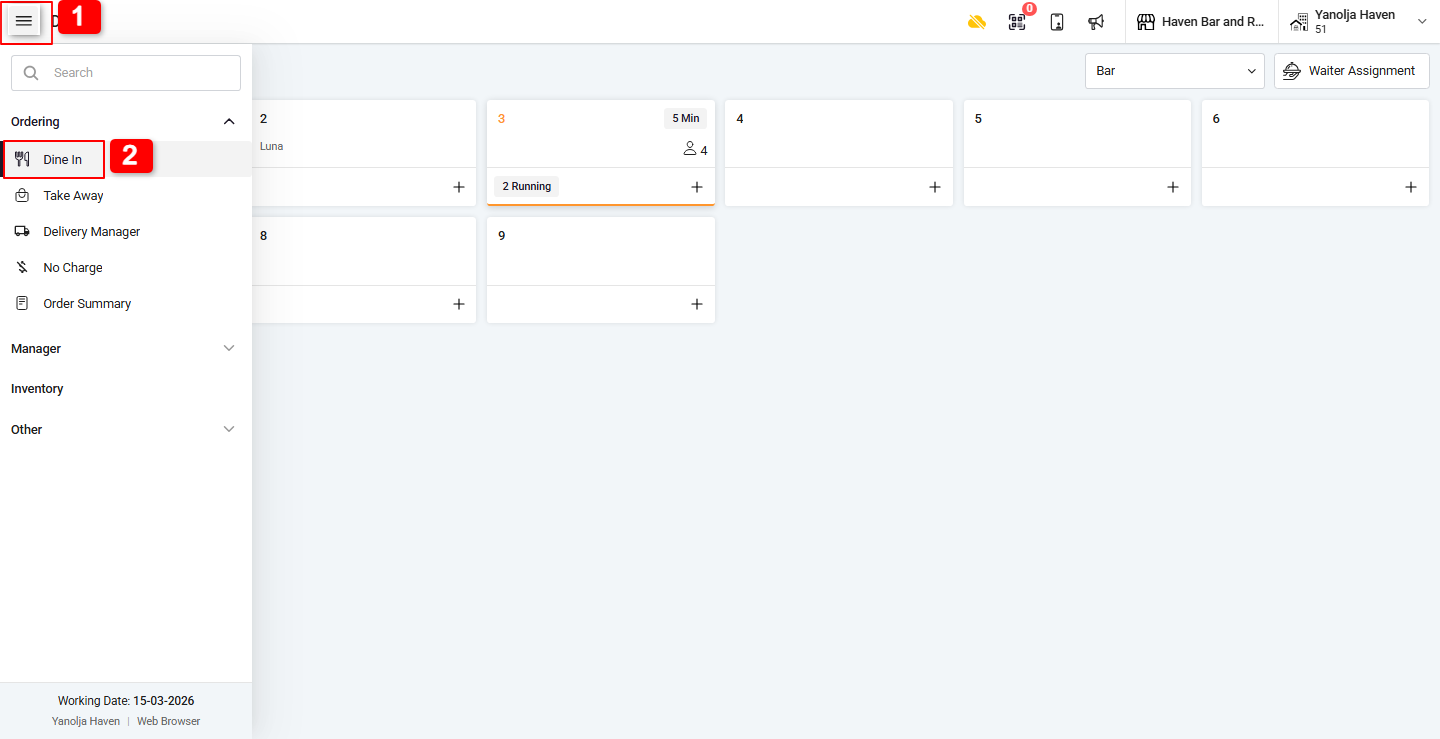
3. Click the running from same table.
4. Click on Select All Or Click individually on the order you want to merge.
5. You can choose to:
Merge only,
Merge and settle, or
Merge and print.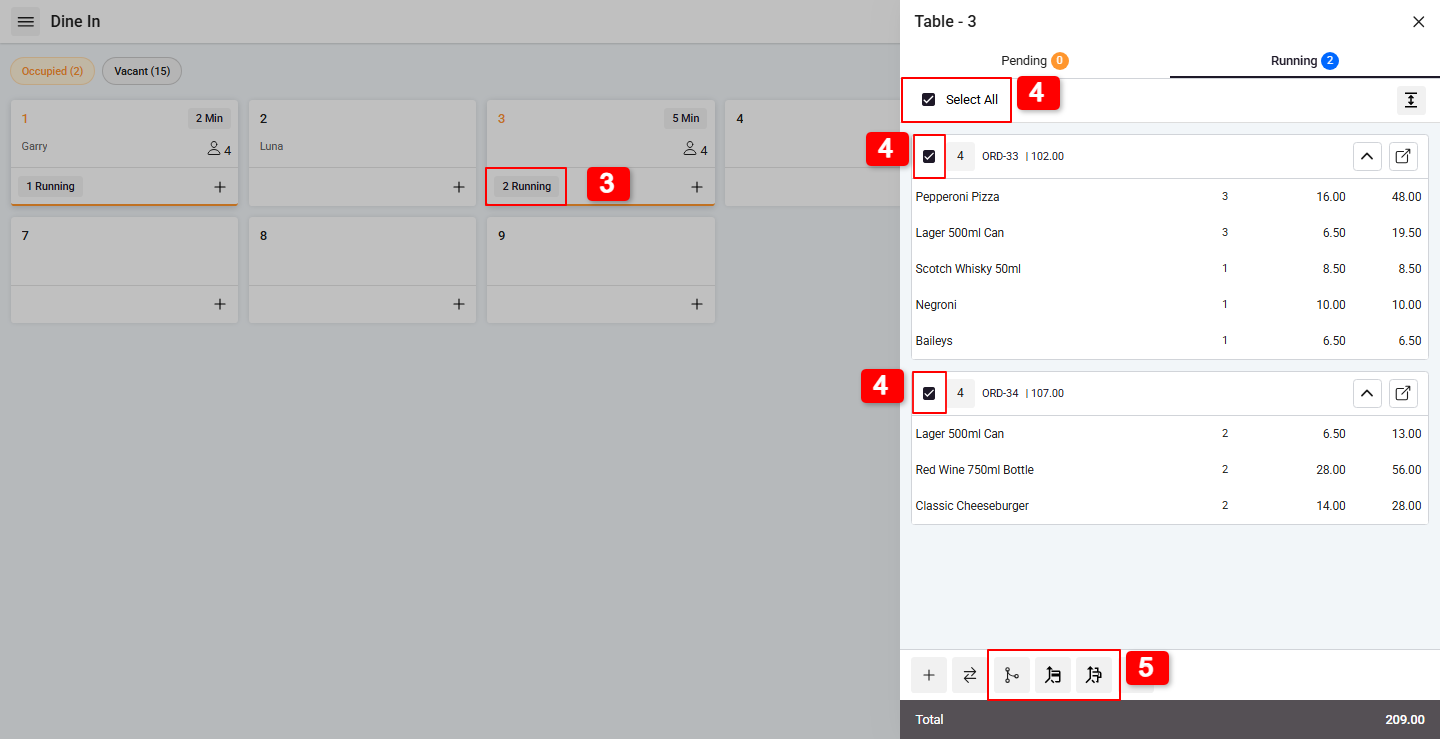
After selecting the desired option, the orders will be merged successfully.
Was this article helpful?
That’s Great!
Thank you for your feedback
Sorry! We couldn't be helpful
Thank you for your feedback
Feedback sent
We appreciate your effort and will try to fix the article