Delivery Manager Module.
Overview
Food Delivery is a service where a restaurant or store delivers food orders directly to customers through a delivery driver and manage the orders through Delivery Manager.
Steps to Create and Process a Delivery Order :
Step 1 - Create a Delivery Order :
1. Go to the Menu.
2. Select Delivery Manager.
3. Click on the “+” icon to create a new delivery order.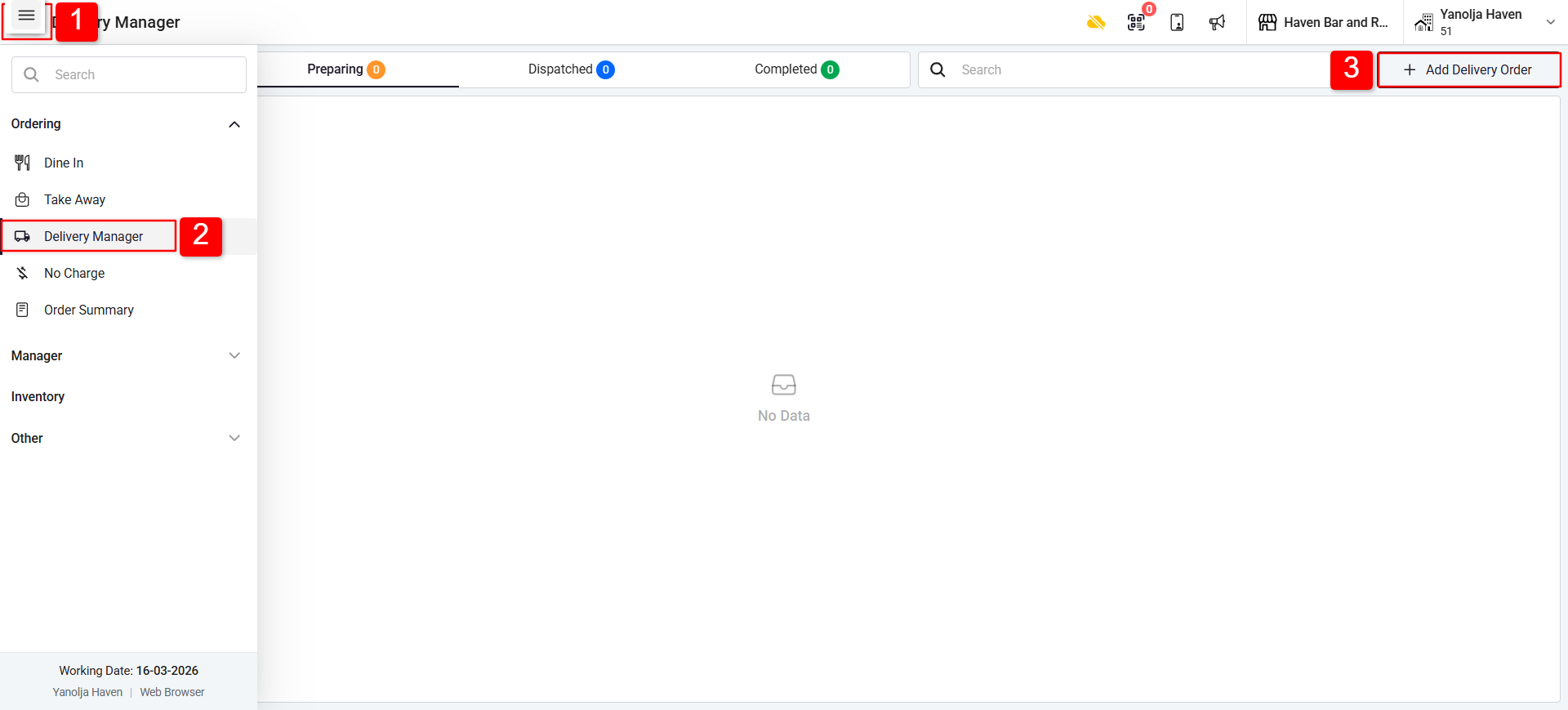
4. Click on Add New Guest.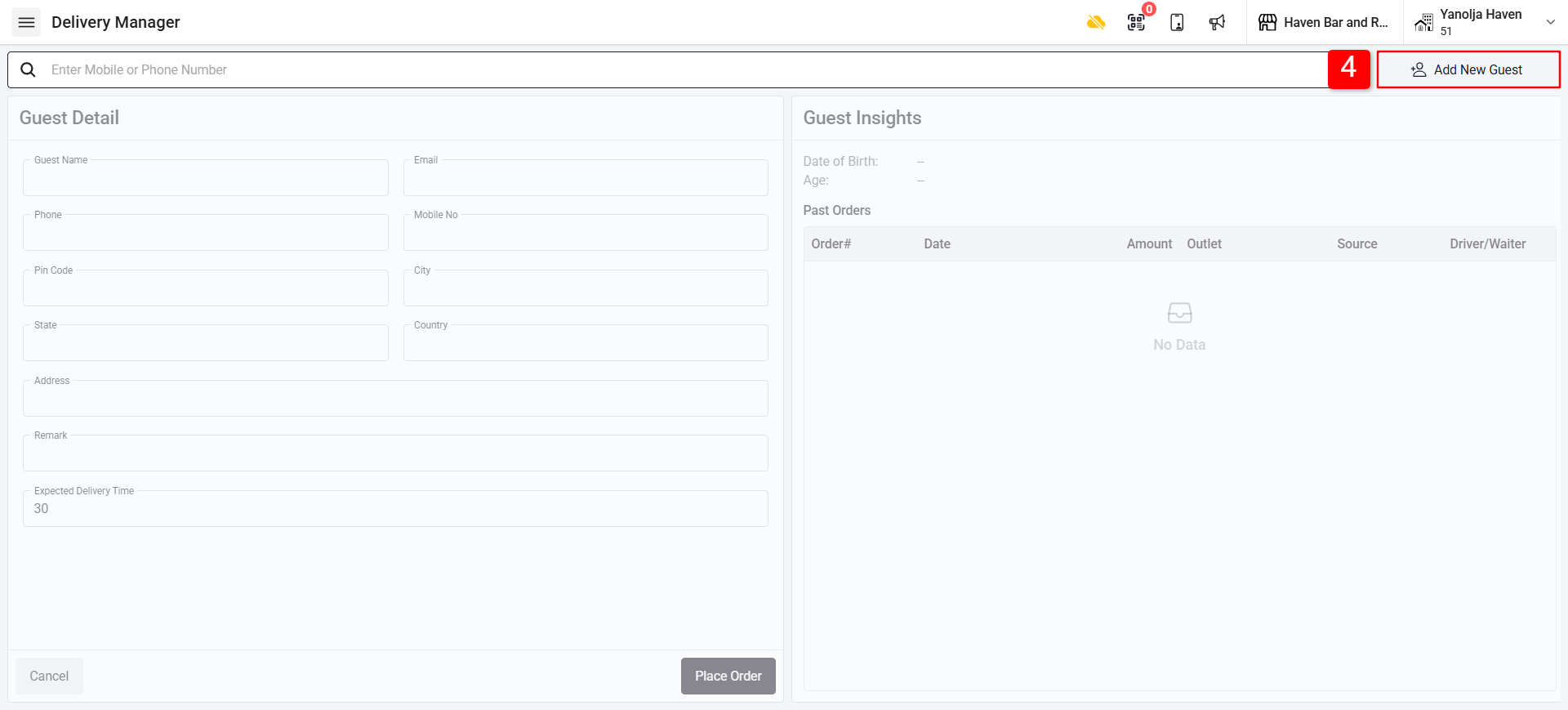
5. Enter the required details:
Guest Name.
Mobile Number.
Address.
6. Fill in the order information and click Place Order.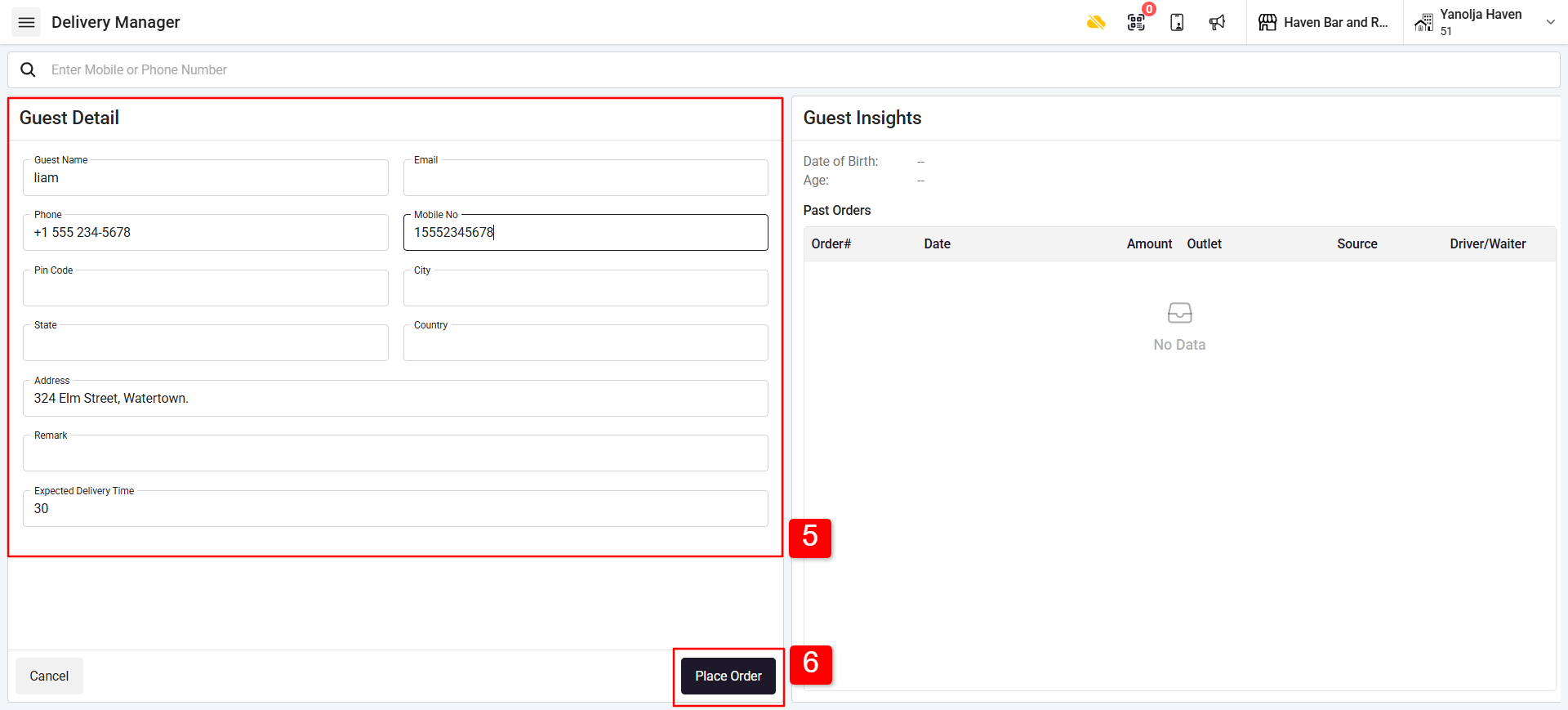
Step 2 - Add Order Items :
1. Punch the order items for delivery.
2. Click Save.Once you click Save, the KOT (Kitchen Order Ticket) will be printed.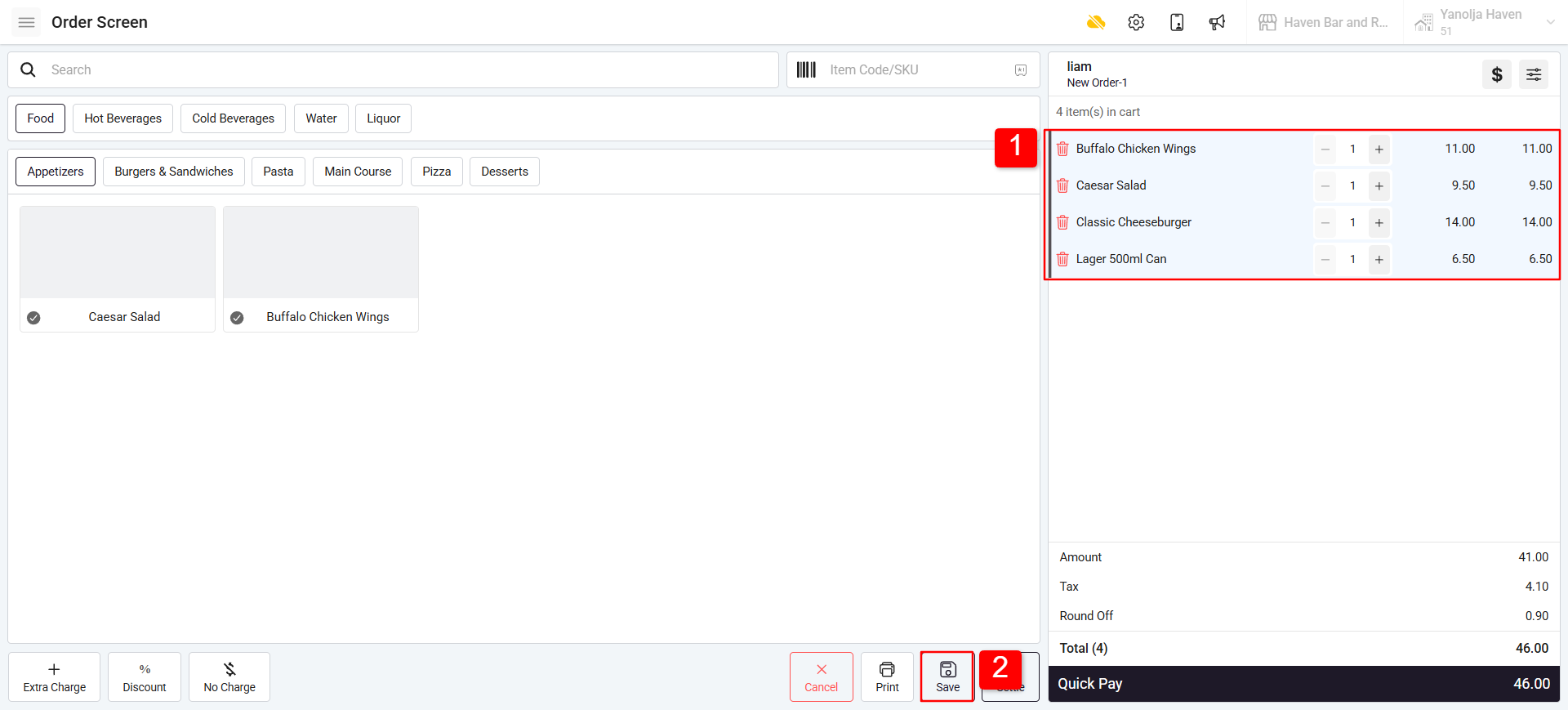
Step 3 - Assign Delivery Driver :
1. After the order is prepared, go to Delivery Manager.
2. Click on the Preparing/All section.
3. Click Assign Driver. The order will be dispatched.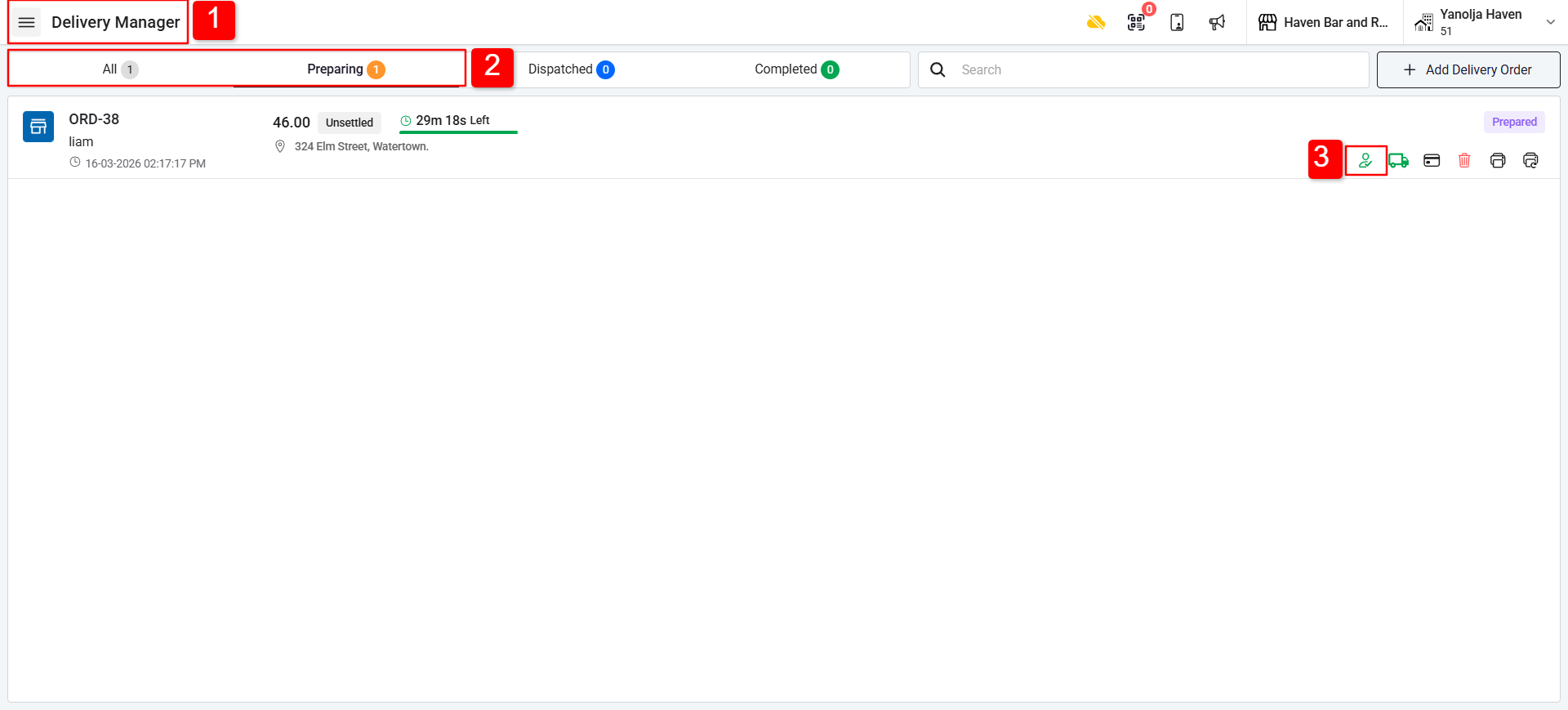
Step 4 - Dispatch Status :
1. Go to the Dispatched/All section.
2. Orders that are out for delivery will appear here. This means the order has been dispatched.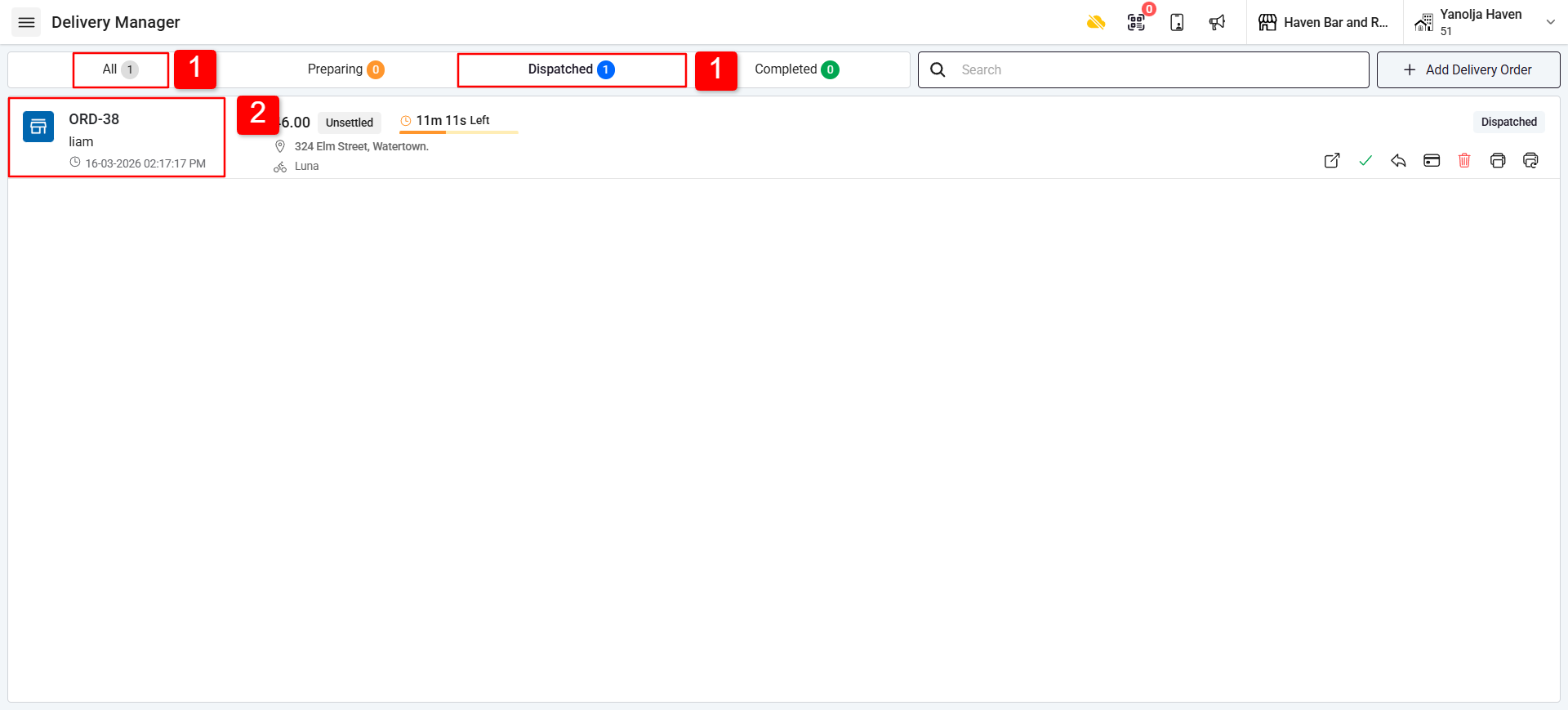
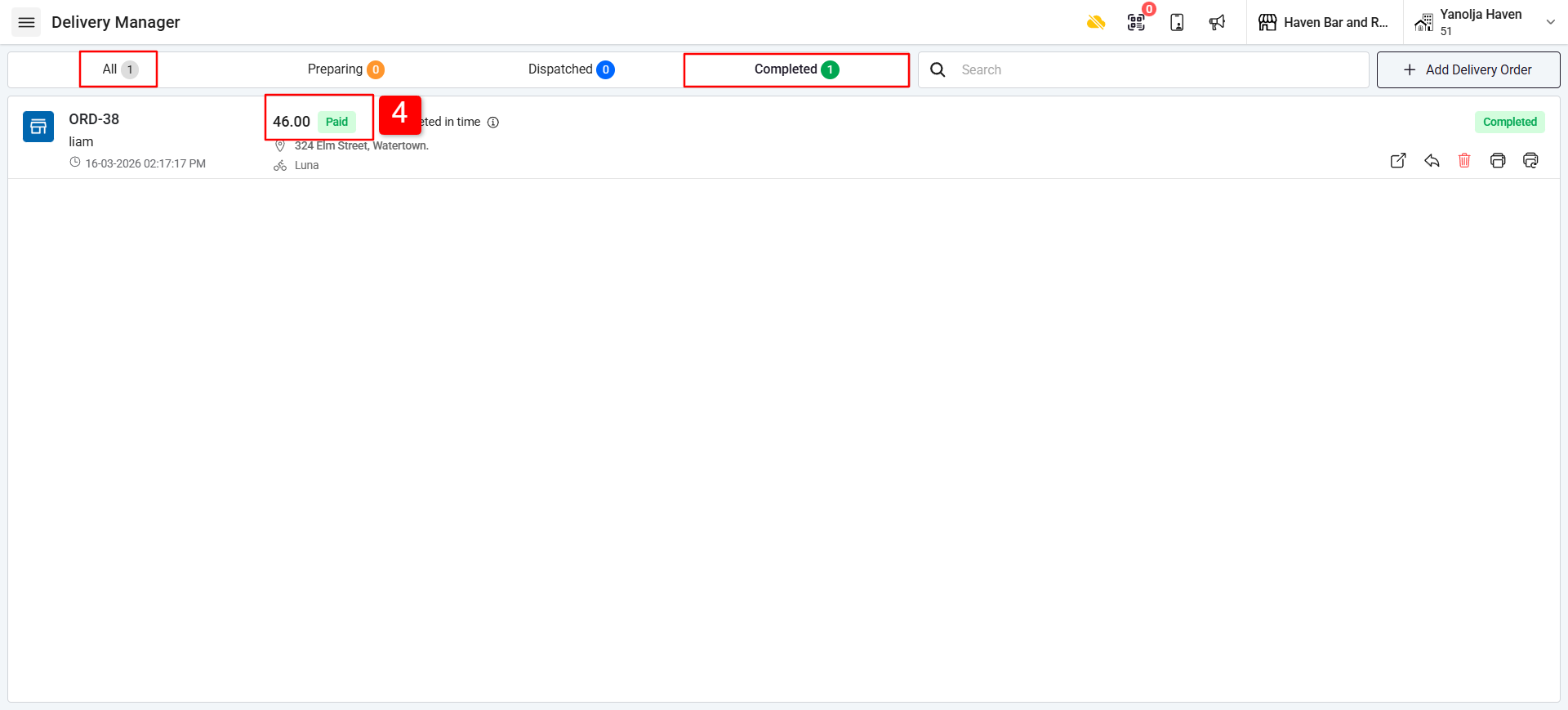
1. Once the driver delivers the order, click Complete.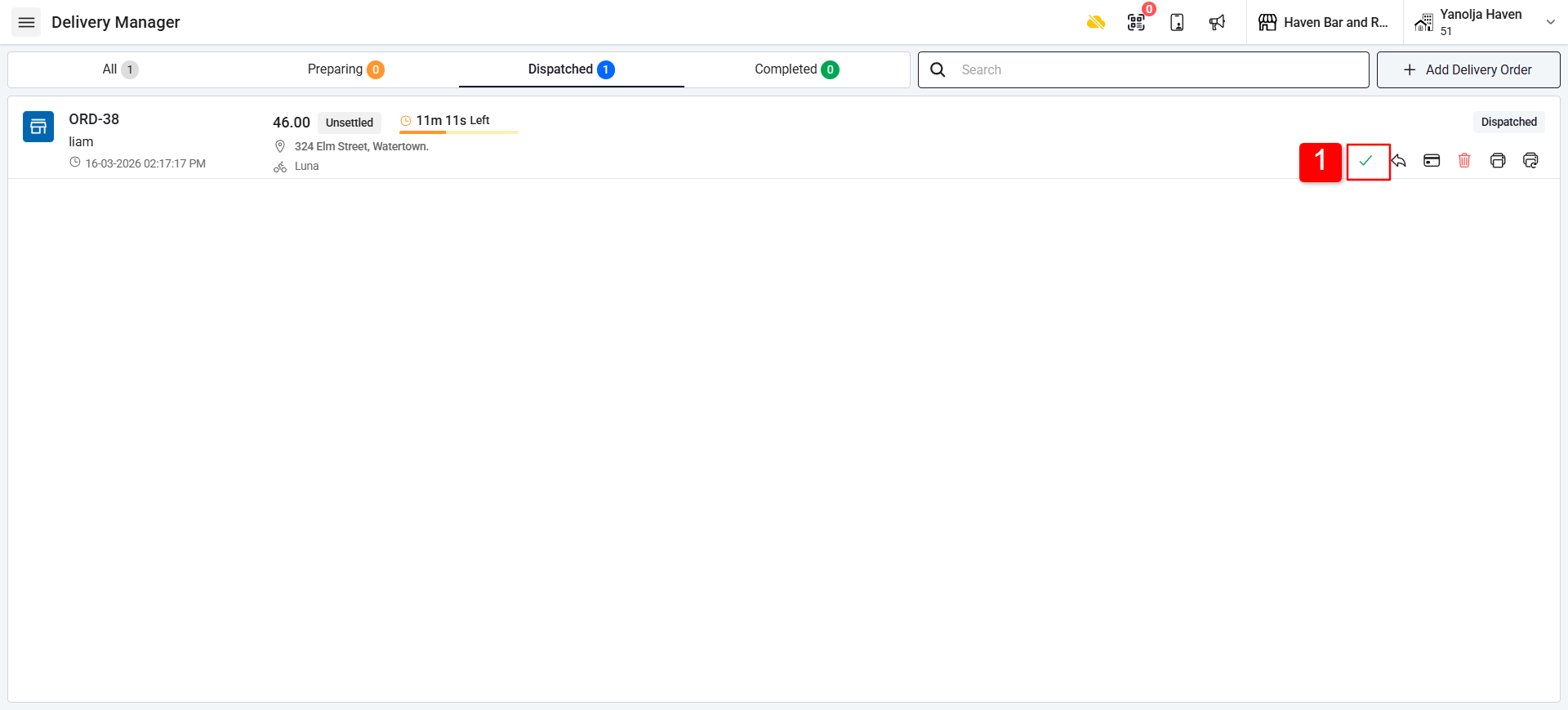
2. The order will move to the Completed/All section.
3. Click on Settle to settle the order.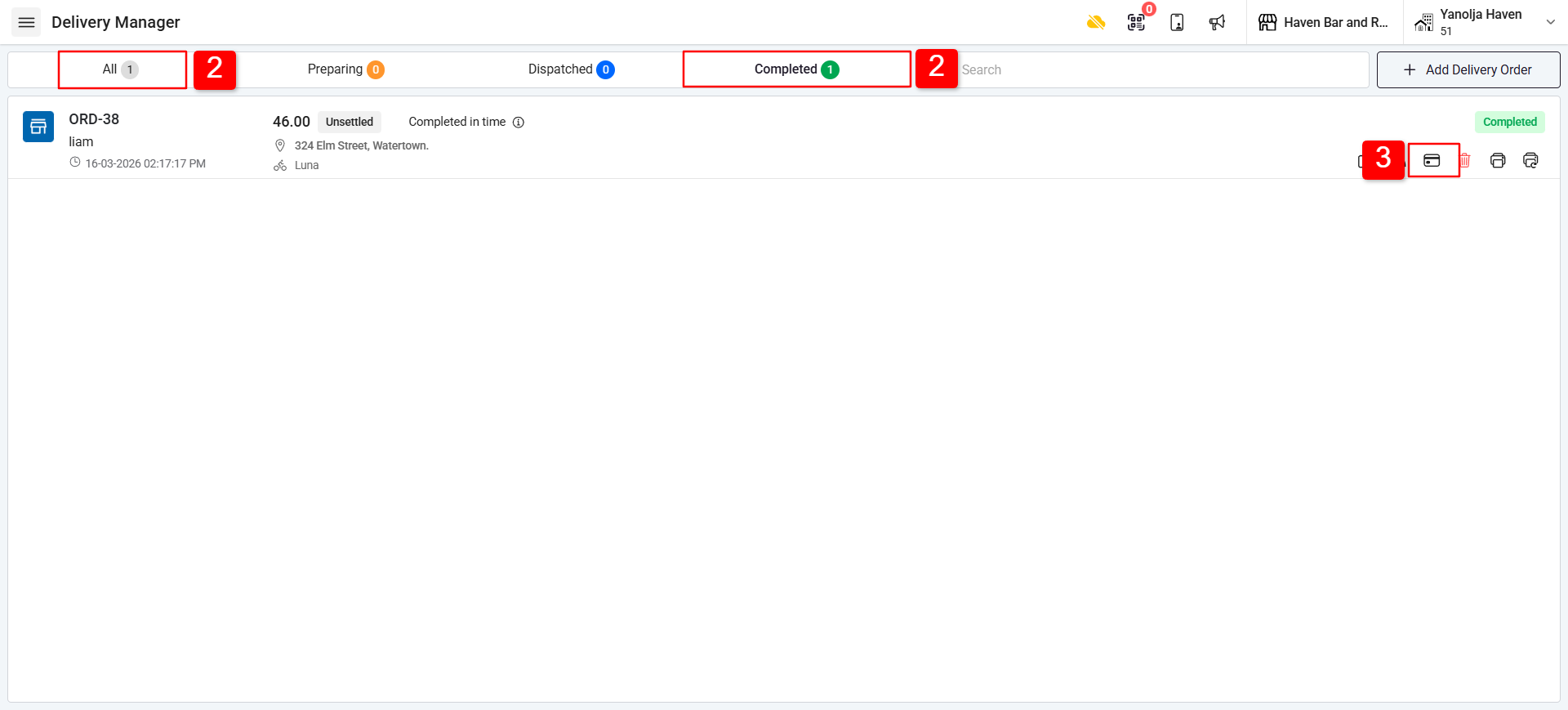
4. After settlement, the order status will appear as Paid in the Completed section.
Was this article helpful?
That’s Great!
Thank you for your feedback
Sorry! We couldn't be helpful
Thank you for your feedback
Feedback sent
We appreciate your effort and will try to fix the article