Business Source in POS
A Business Source refers to a third-party partner or platform that sends business to the restaurant on a commission basis (for example: corporate partners, aggregators, or referral partners).
In POS, business sources can be defined and mapped to outlets so that orders coming from these sources can be tracked and the commission can be calculated automatically.
Steps to Define Business Source in POS
Step 1: Create a Commission Plan
First, create a Commission Plan that defines the commission percentage or rules for the business source.
1. Go to Master.
2. Select Commission Plan.
3. Click the Plus (+) icon to create a new commission plan.
4. Enter the required details:
Name
Type (Percentage)
Max Order Value
Commission Percentage
5. Click Save.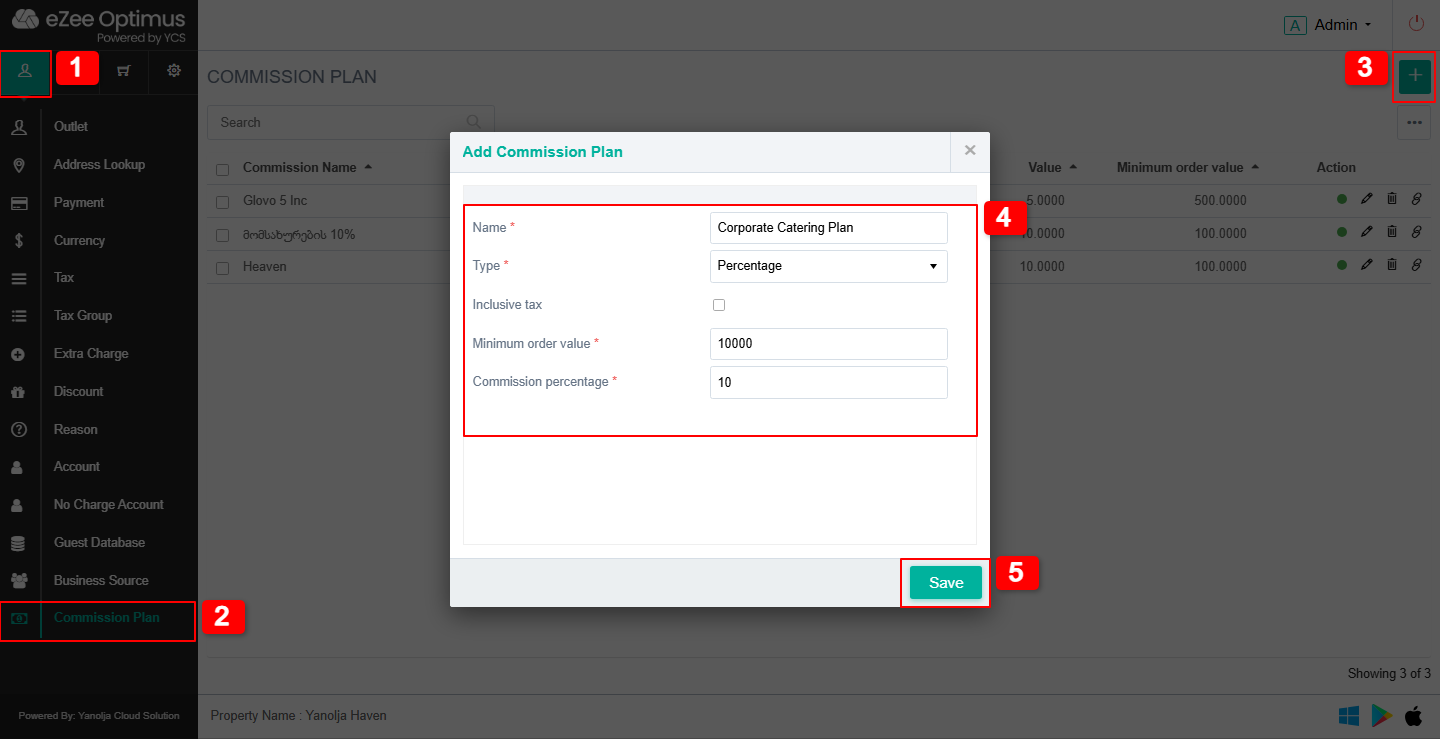
Step 2: Define Business Source
Create a new Business Source and assign the required details along with the commission plan.
1. Go to Master.
2. Select Business Source.
3. Click the Plus (+) icon to create a new business source.
4. Enter the required details:
Business Source Name
Registration Number
Commission Plan (select the commission plan created earlier)
5. Click Save.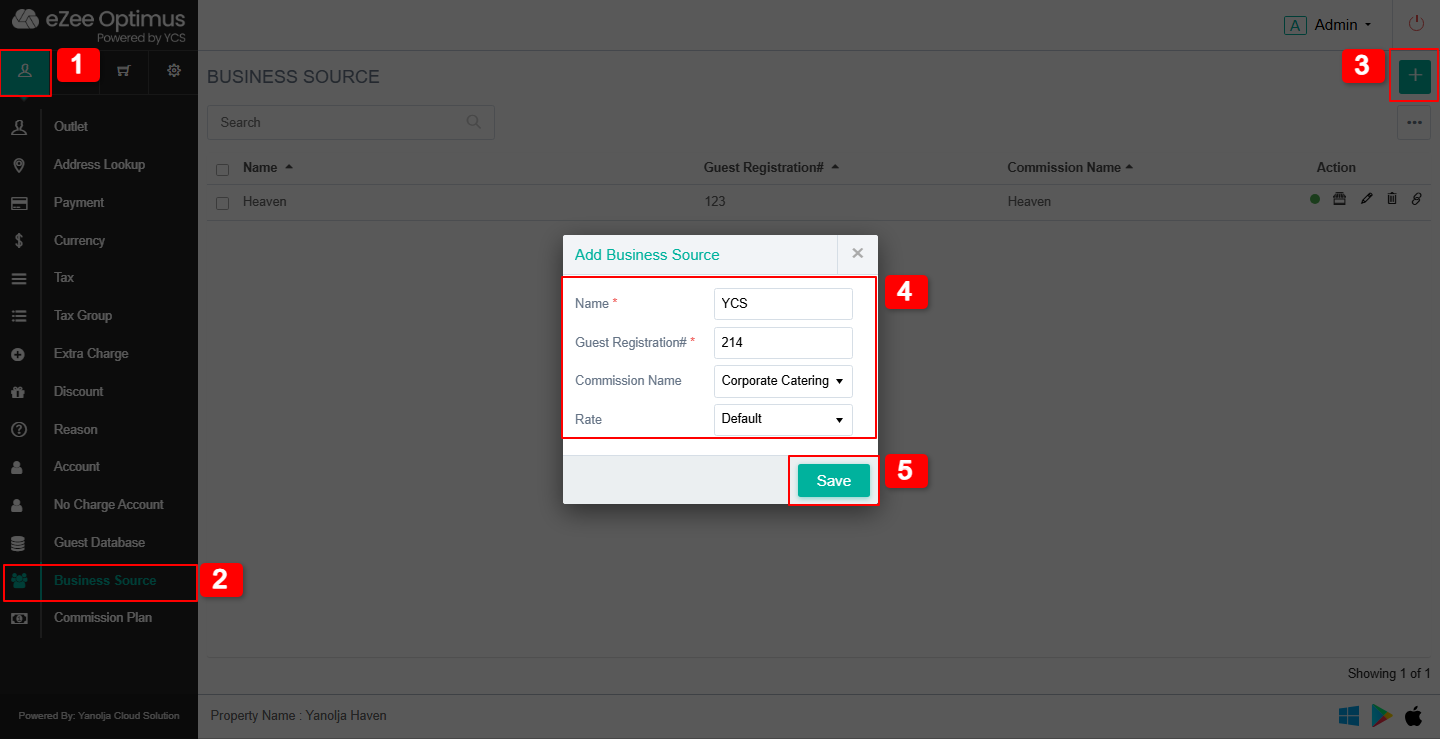
Step 3: Map Business Source with Outlet
Map the created business source to the outlet where it will be used.
1. Go to Business Source.
2. Click Outlet Mapping.
3. Select the required Outlet.
4. Click Add to save the mapping.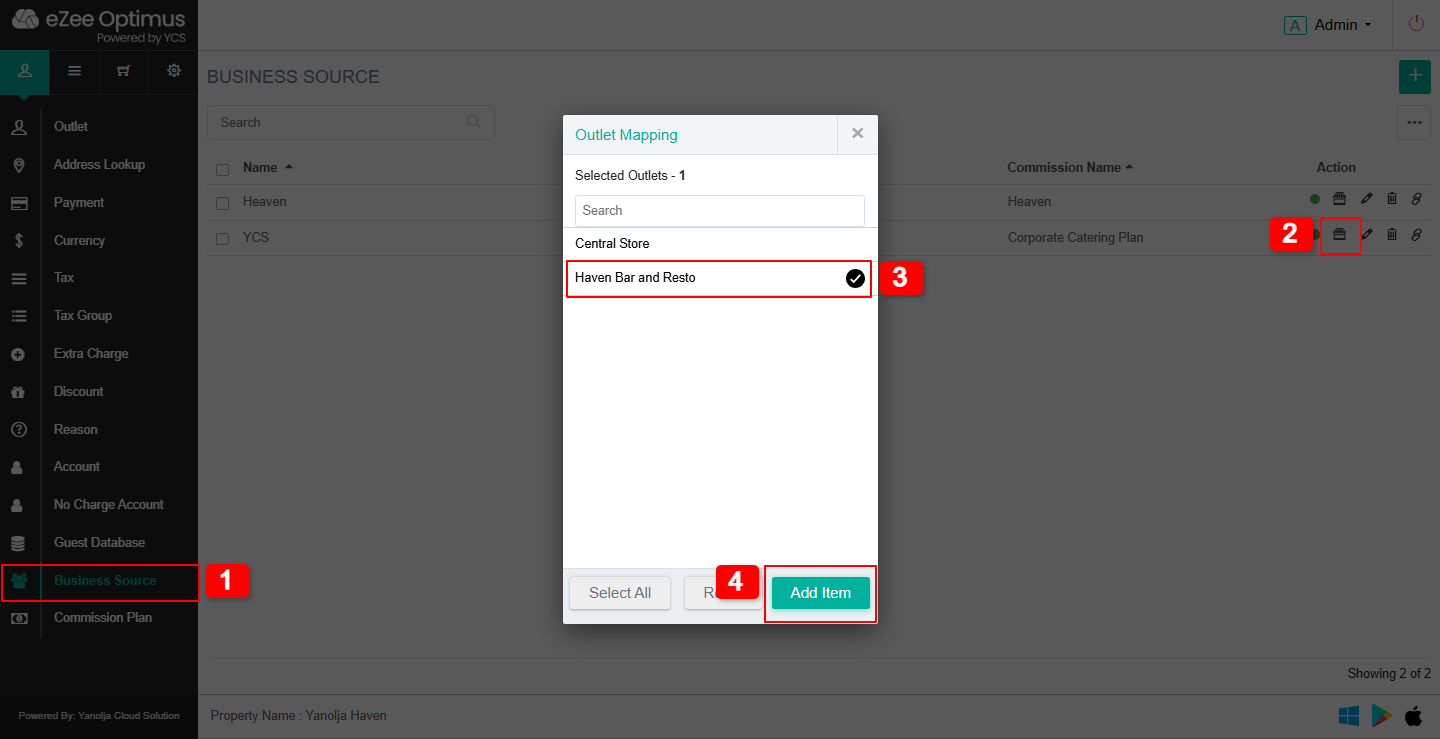
Step 4: Enable Business Source in Order Types
Enable the business source for the required Order Types, such as:
Dine-In
Takeaway
Delivery
1. Go to Master.
2. Select Outlet.
3. Click Edit for the required outlet.
4. Go to Order Type Settings.
5. Select Dine-In.
6. Scroll down and enable Business Source.
7. Click on Edit to save the changes.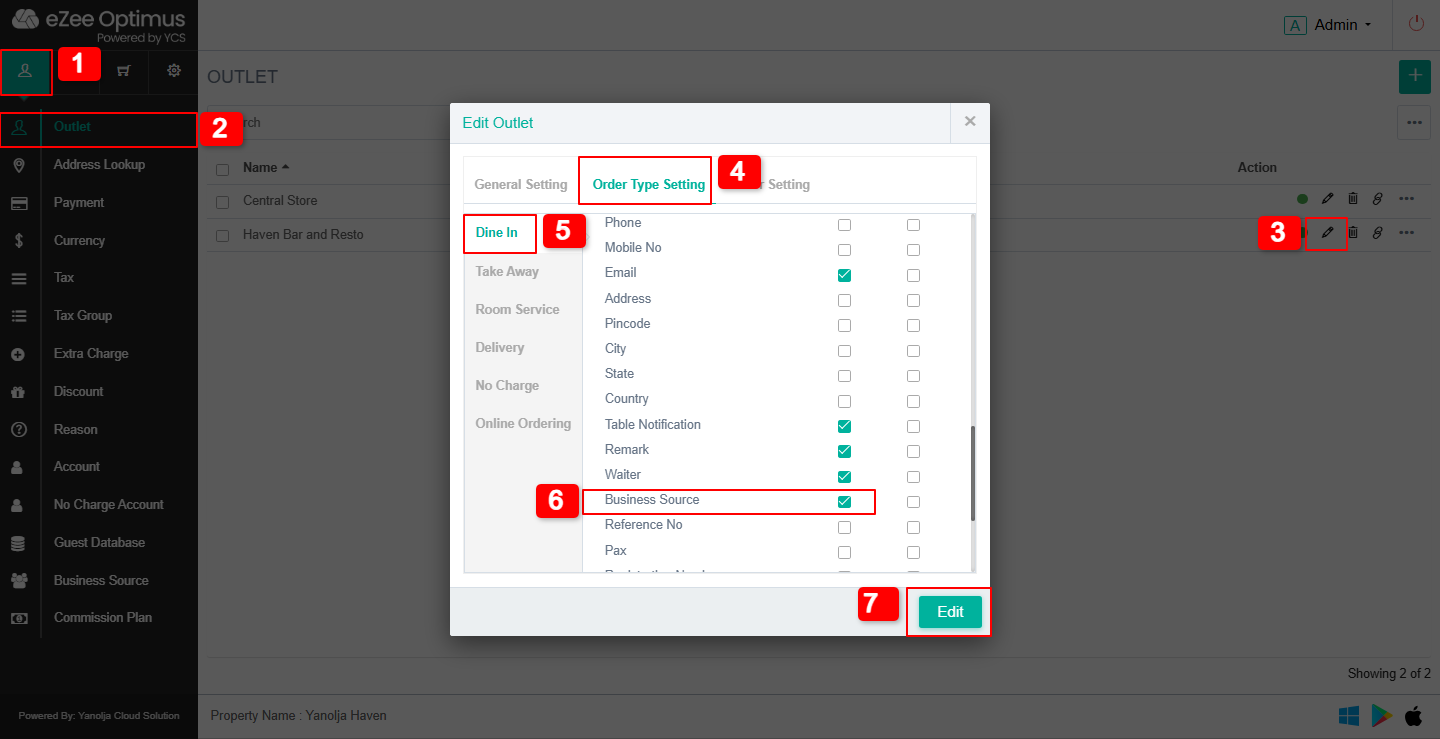
Note:
Repeat the same process for other order types if required.
Step 5: Select Business Source While Taking Orders
While creating an order in POS, the user can select the business source.
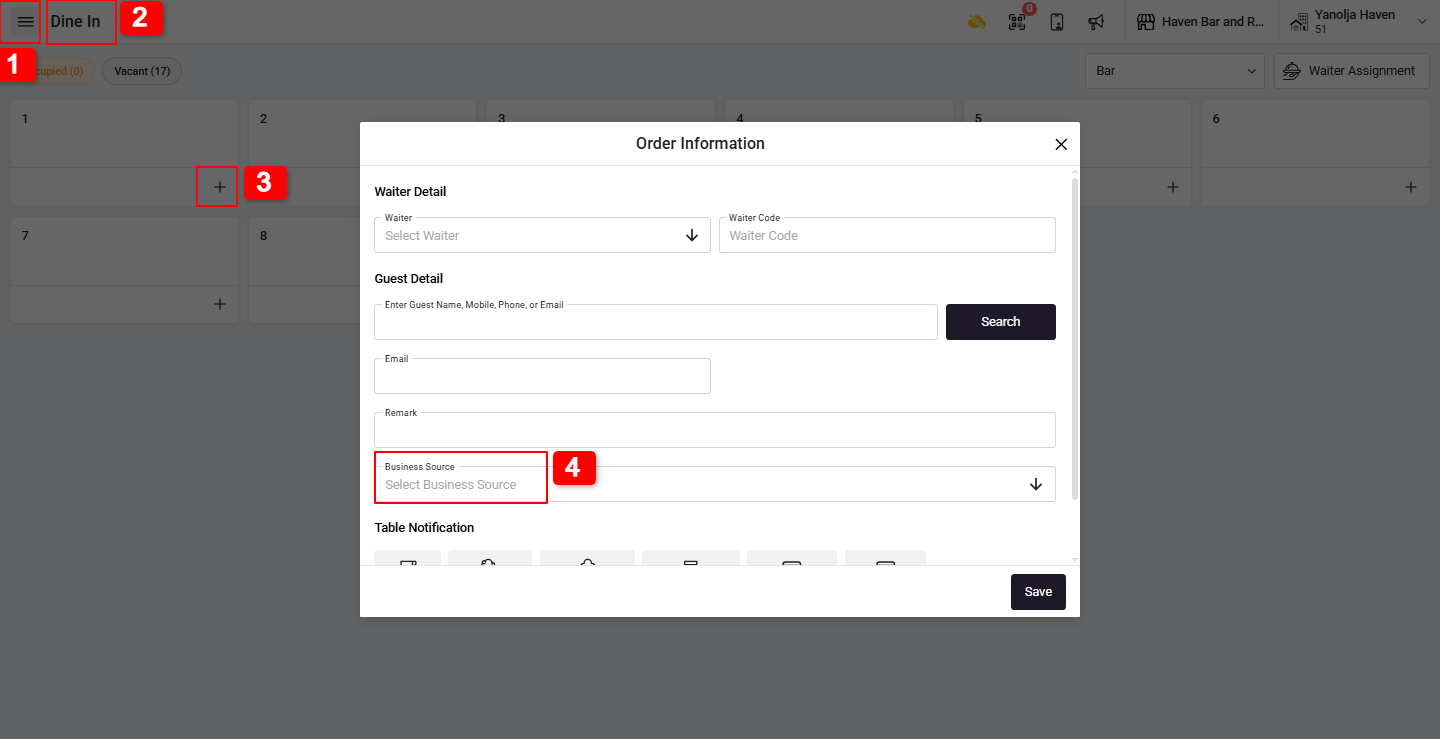
1. Go to Menu.
2. Select Dine-In.
3. Click New Table.
4. In Order Information, click Business Source.
5. Select the required Business Source.
6. Save the order information.
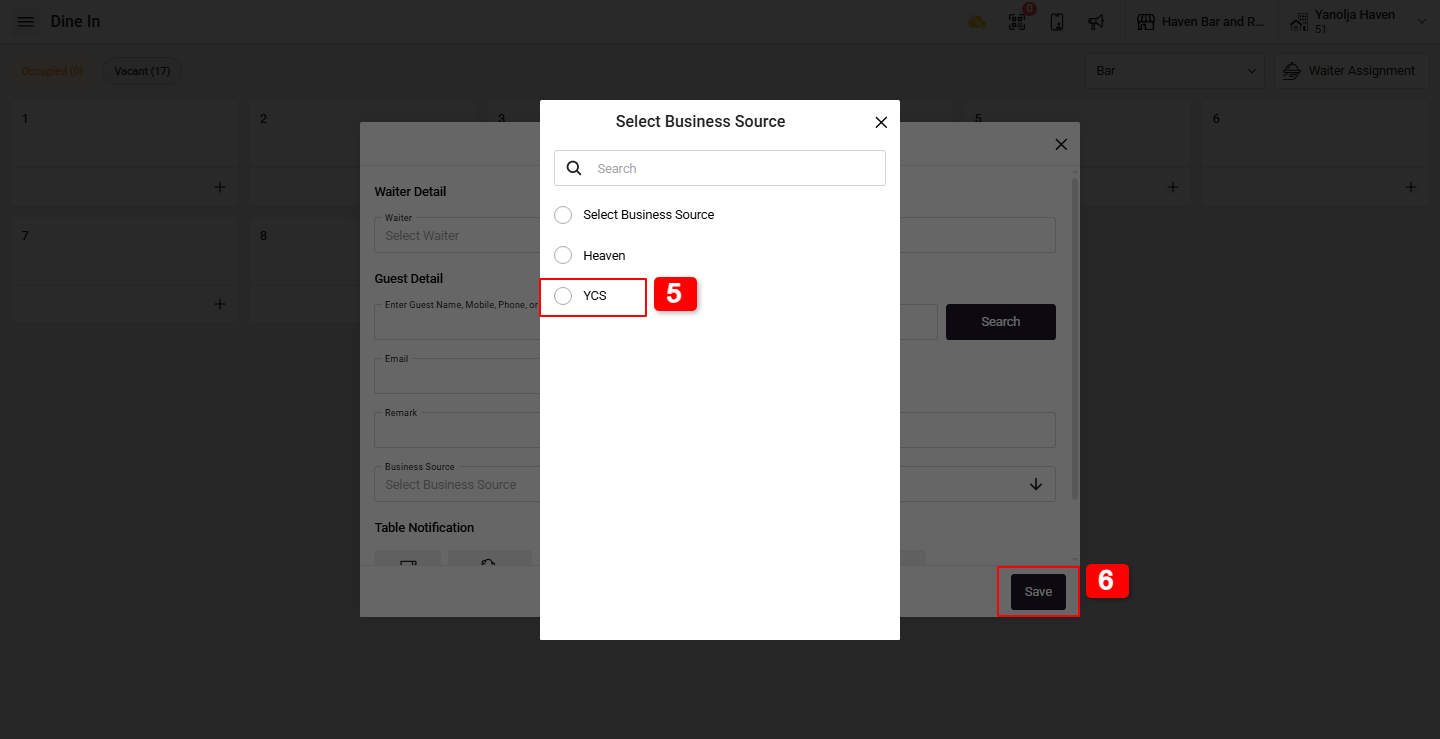
Once a Business Source is selected while creating an order, the order will be recorded under that specific source. allowing accurate commission tracking and reporting.
Was this article helpful?
That’s Great!
Thank you for your feedback
Sorry! We couldn't be helpful
Thank you for your feedback
Feedback sent
We appreciate your effort and will try to fix the article