The Split Receipt feature allows multiple customers on a single table to divide their bill based on their preference. This is especially useful when each guest wants to pay only for the items they consumed or share the total amount. The POS system provides multiple methods to split receipts efficiently and accurately.
What is Split Receipt?
Split Receipt is a functionality that enables dividing a single bill into multiple receipts. This can be done in different ways depending on customer requirements, such as equal distribution, item-based division, seat-wise billing, or category-based splitting.
Available Split Methods:
1. Split Equally
2. Split By Quantity
3. Split By Seats
4. Split By Category
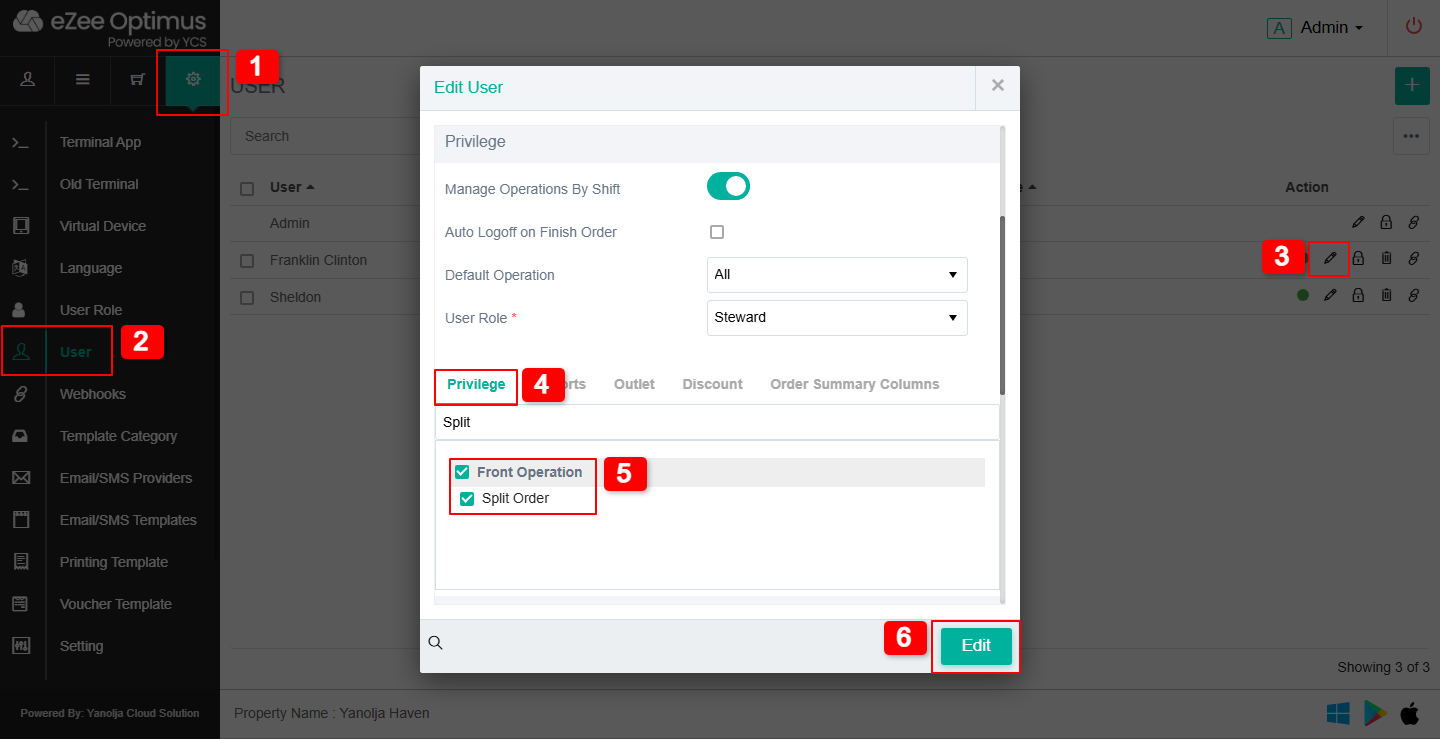
User Privilege Setup
To enable split receipt functionality for a user:
1. Go to Setting.
2. Select User.
3. Click Edit User.
4. Navigate to Privilege.
5. Select Front Operation, Enable Split Order.
6. Click on Edit to save changes.
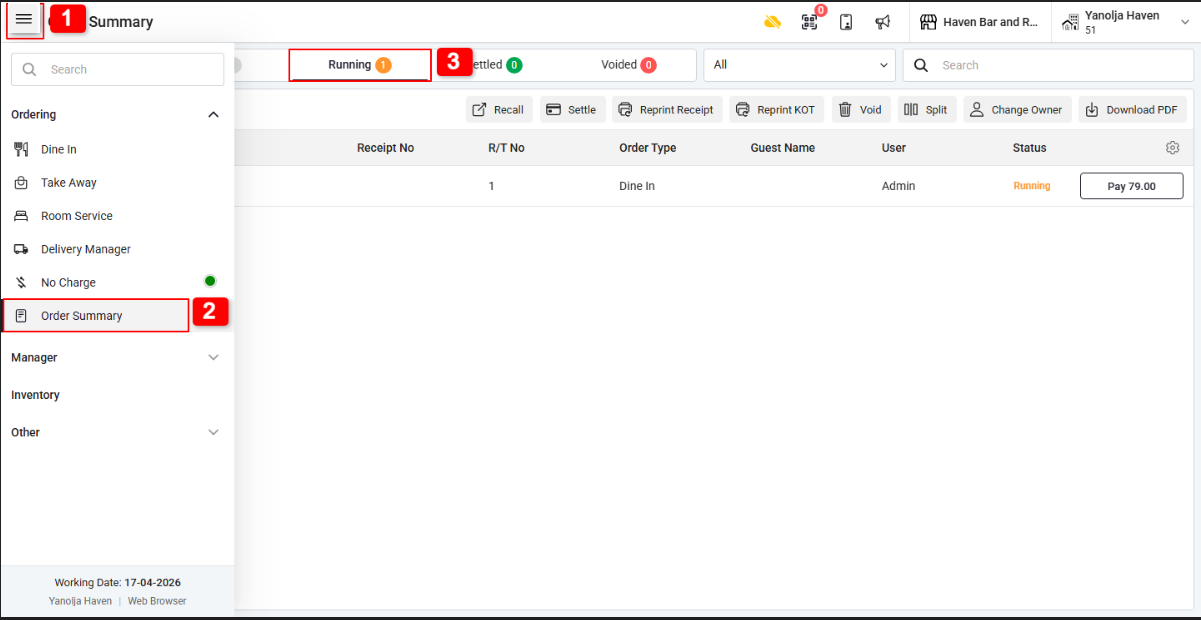
How to Access Split Receipt :
1. Go to Menu.
2. Select Order Summary.
3. Choose the Running Order.
4. Click Split Order.
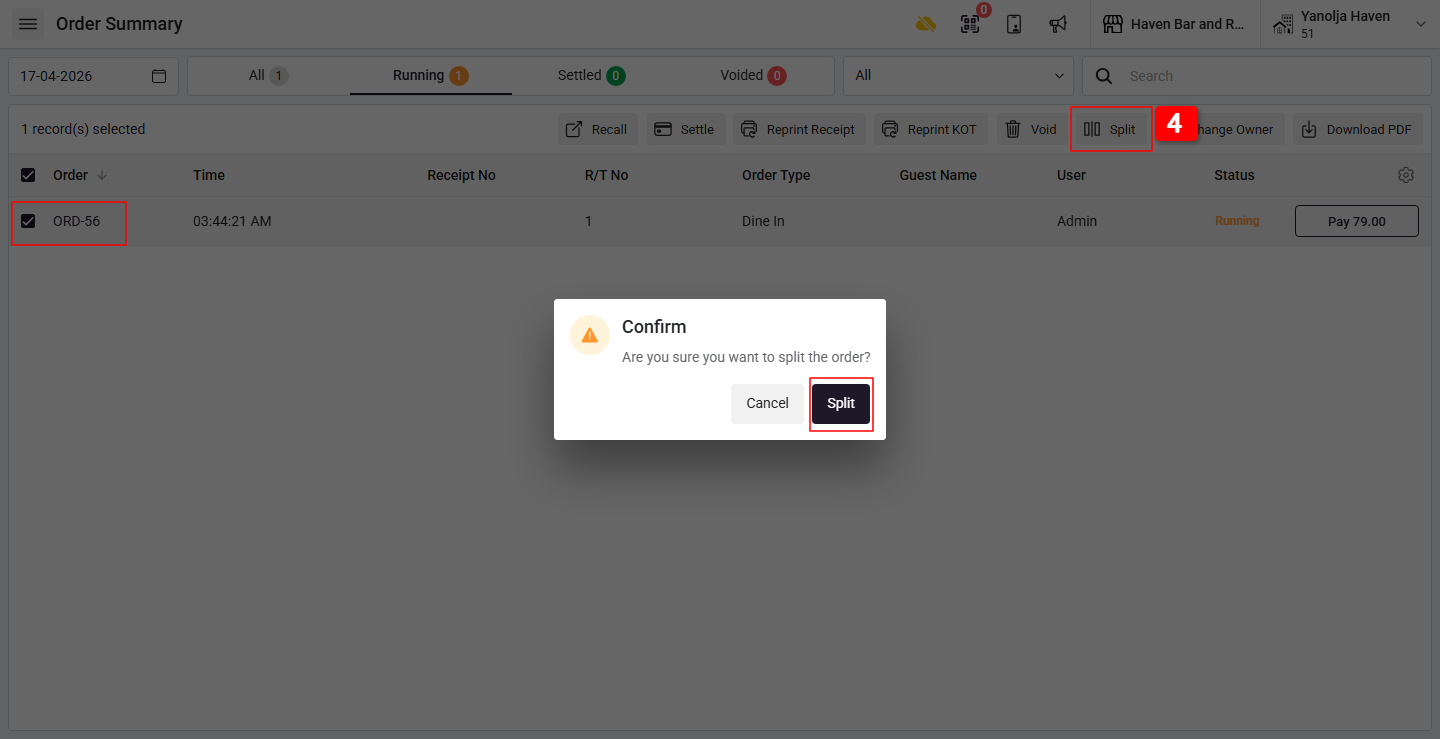
Split Methods :
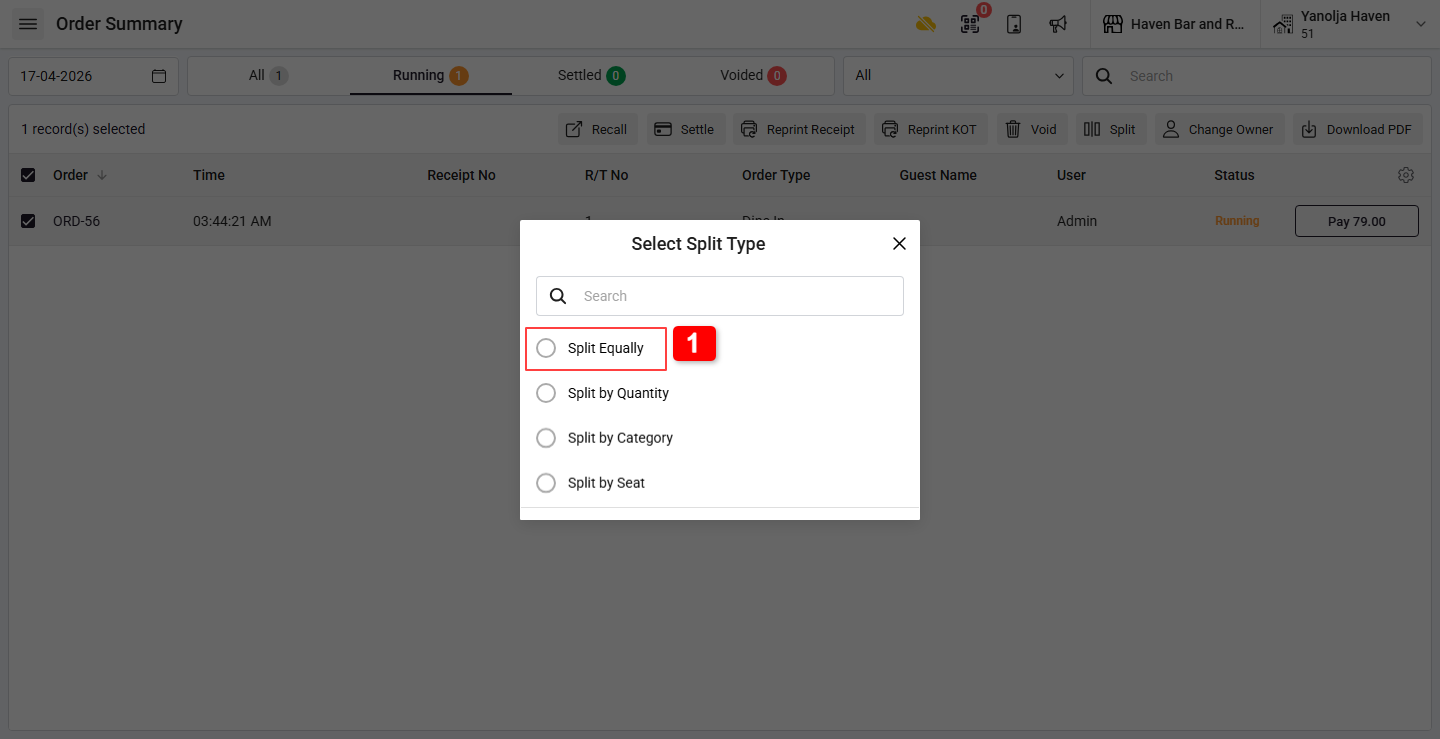
Method 1: Split Equally :
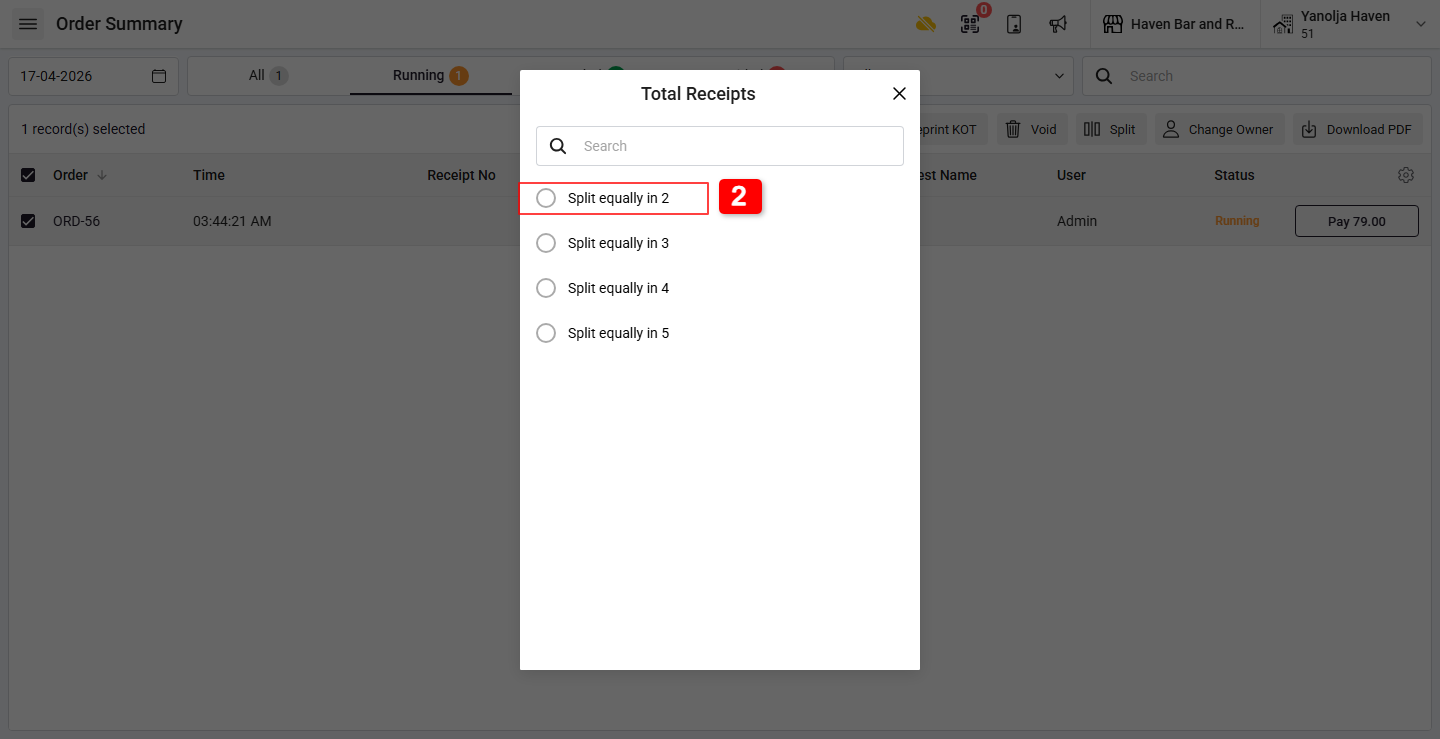
1. Click on Split Equally.
2. Select the number of receipts.
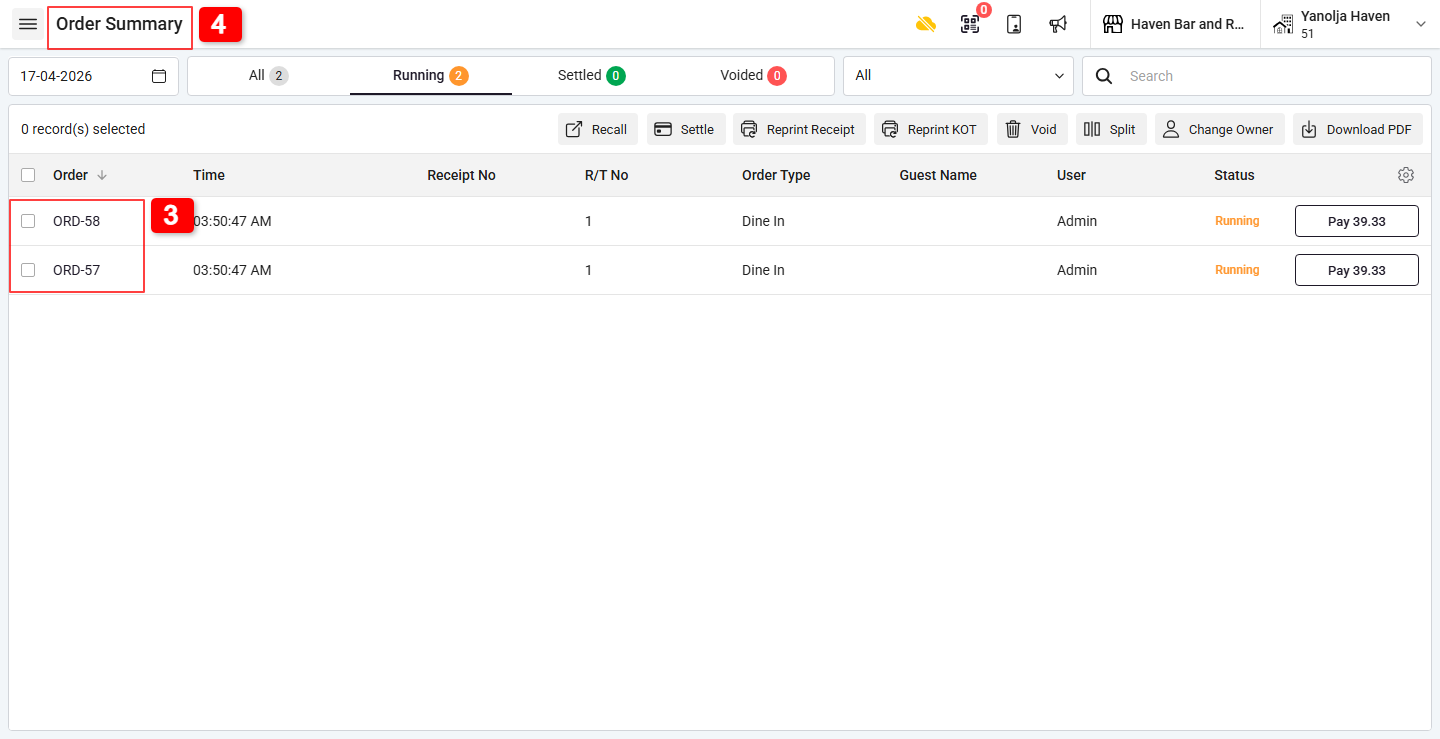
3. The system will divide the total bill into equal parts.
4. View the split receipts in Order Summary.
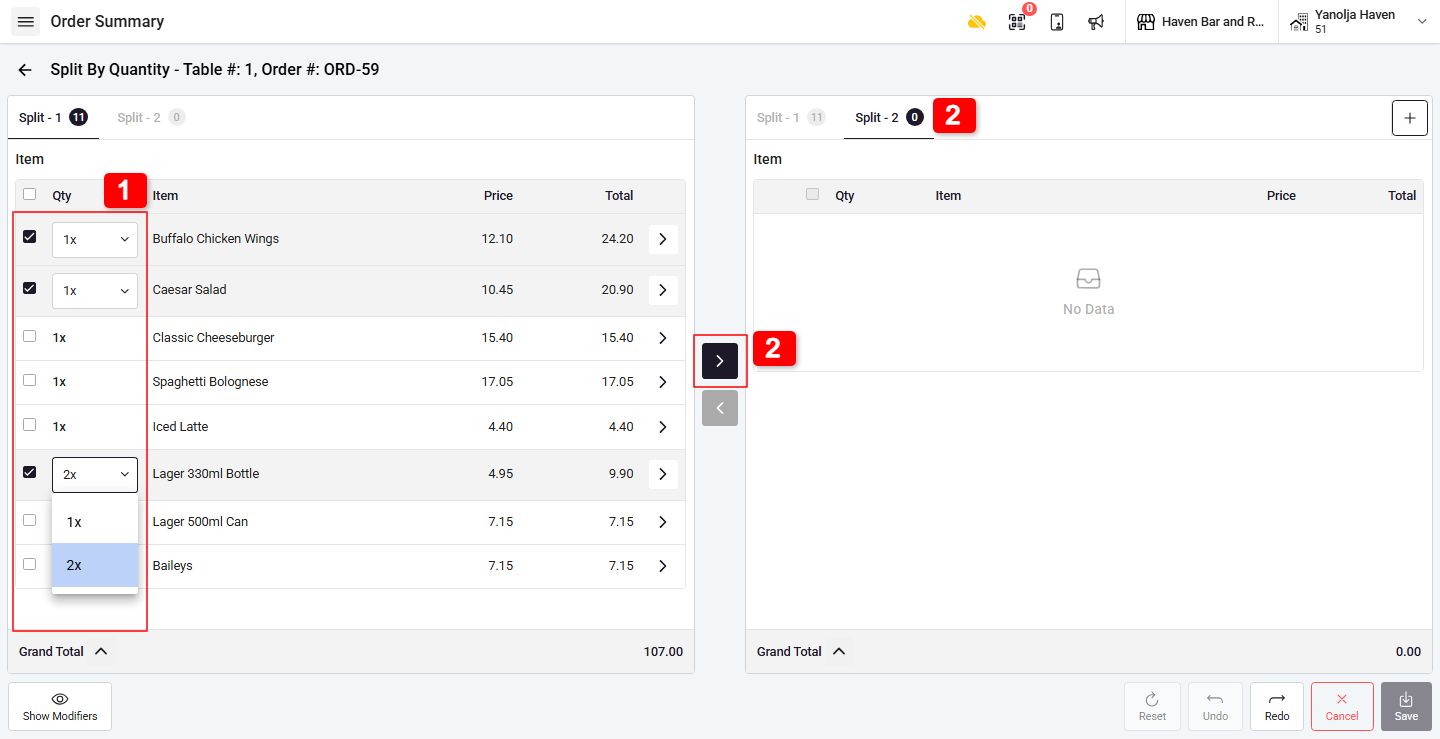
Method 2: Split By Quantity :
This method allows customers to pay only for the items they consumed.
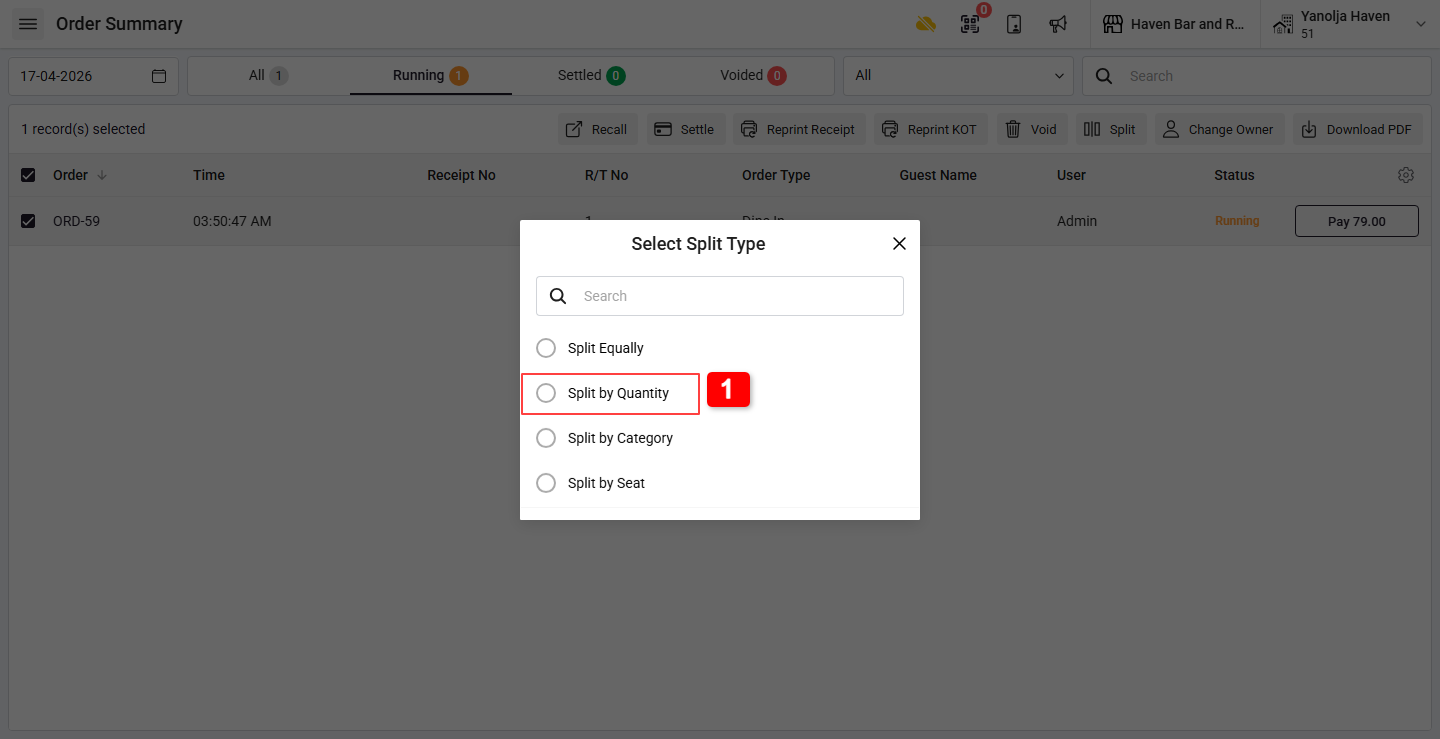
Step 1:
1. Select Split by Quantity.
Step 2:
1. Click on Plus (+) to add the number of bills to be generated.
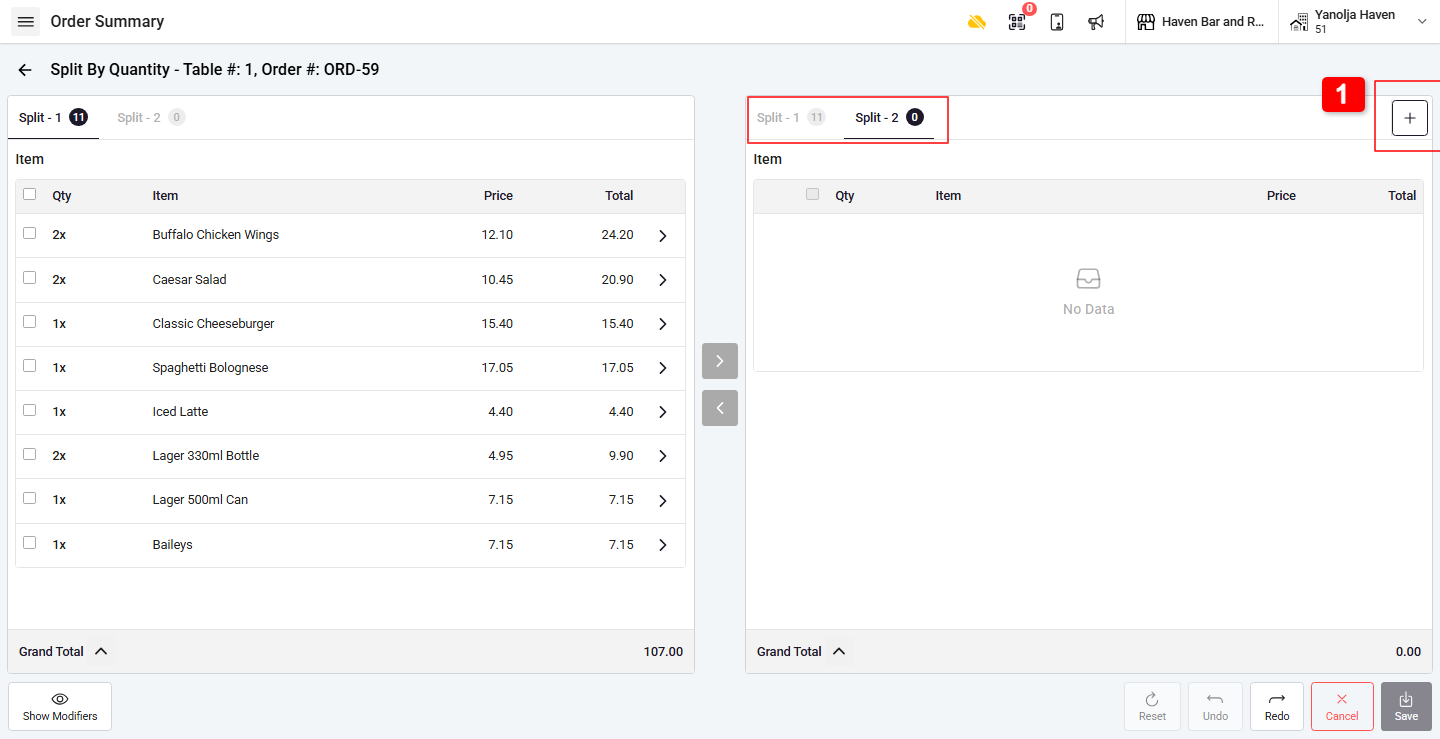
Step 3:
1. Select the Quantity to move to another order.
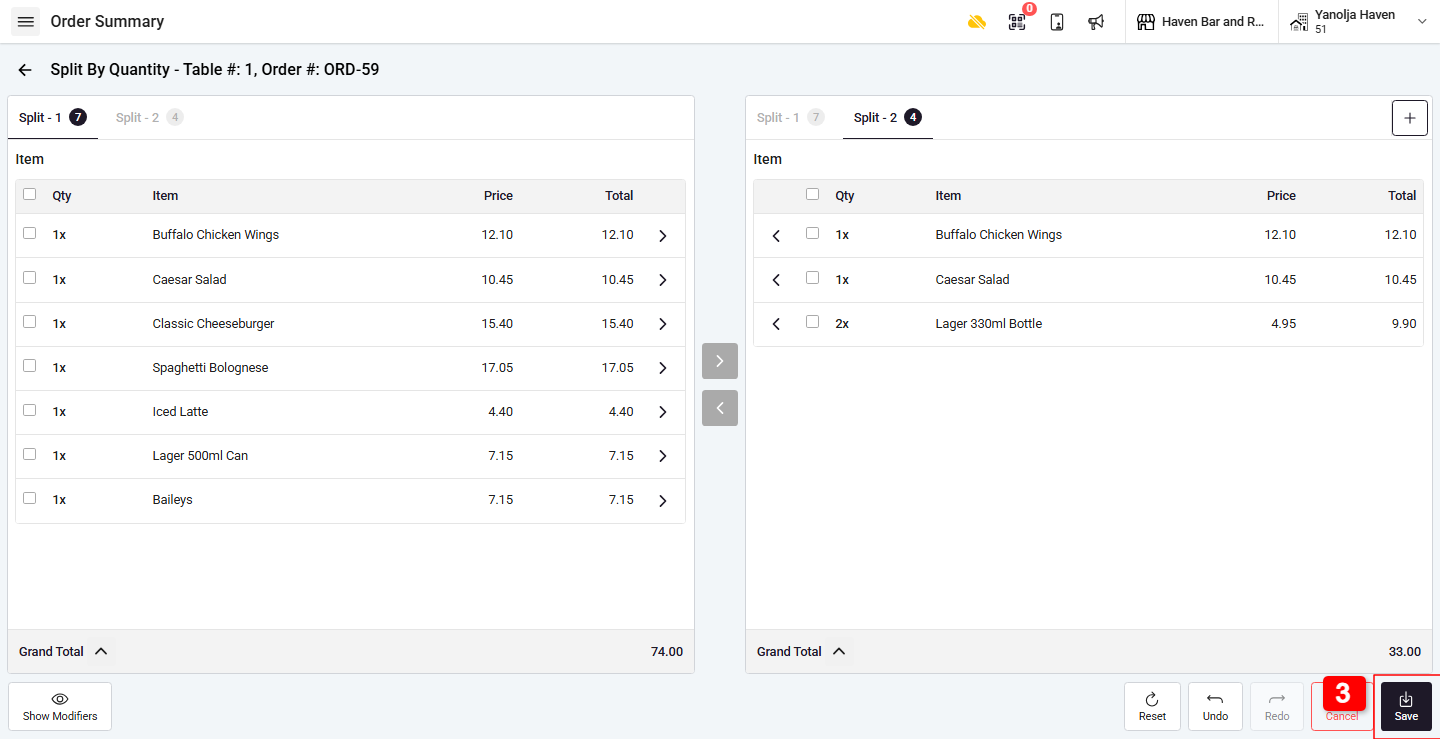
2. Choose the items to move to the required receipt.
3. Click Save.
Step 4:
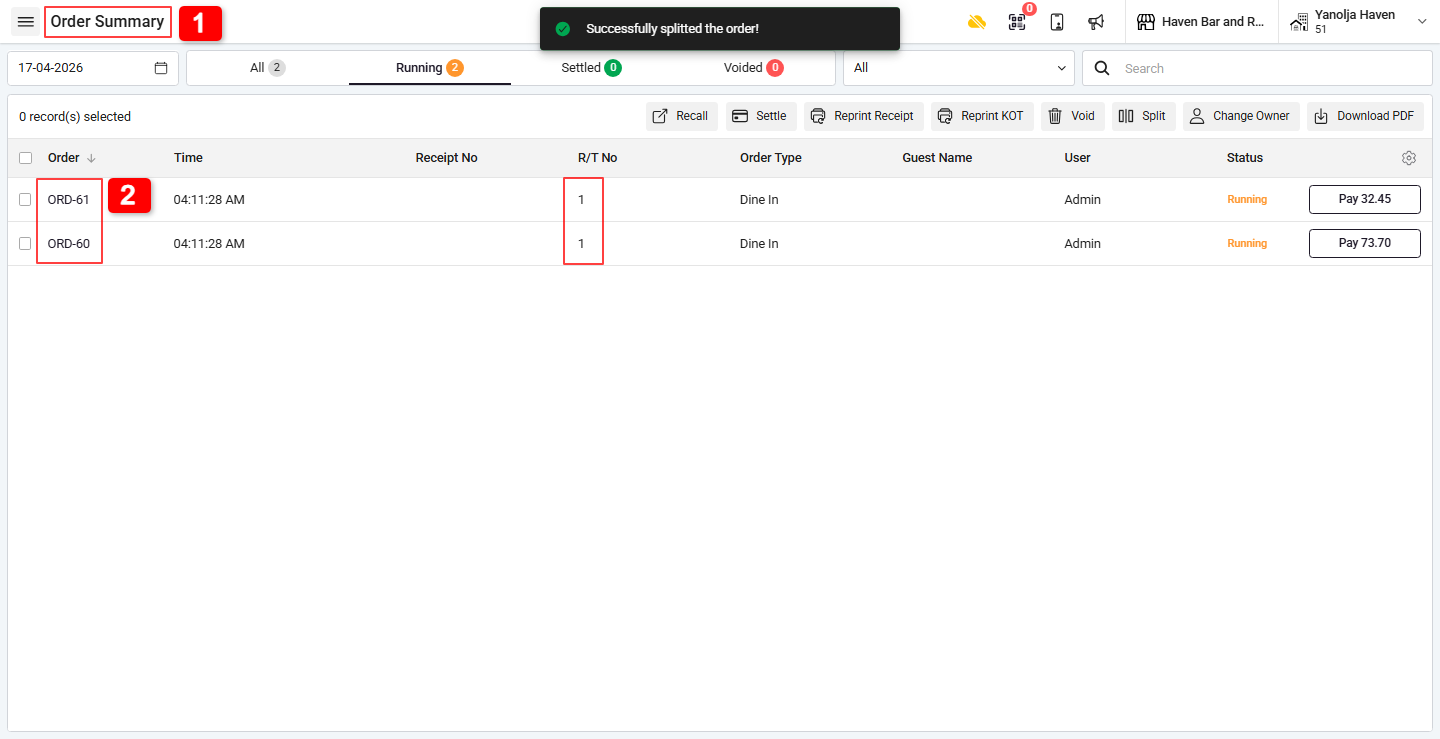
1. Go to Order Summary.
2. Multiple receipts will be generated after completion.
Method 3: Split By Seats :
Used when guests want bills based on their seat positions.
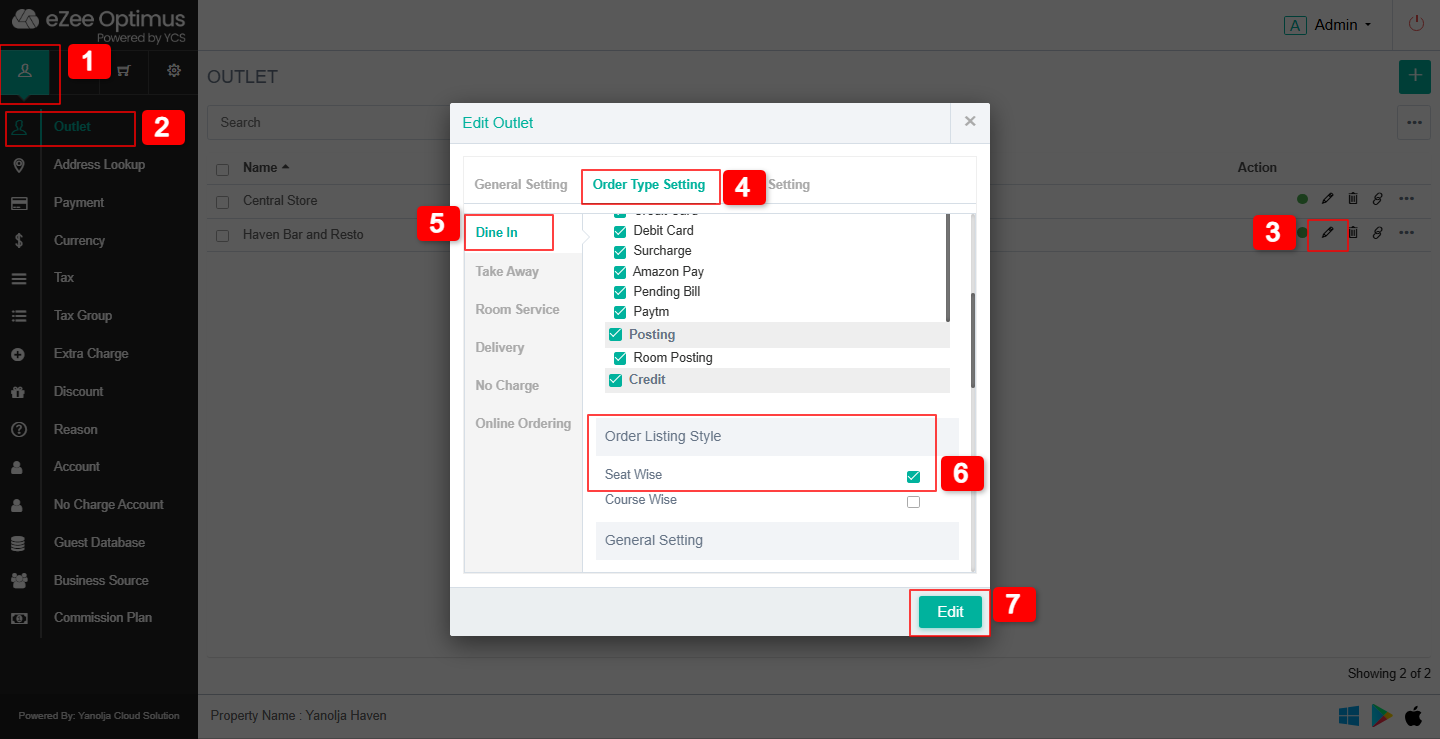
Activate Seat Wise Order :
1. Go to Master.
2. Select Outlet.
3. Click Edit Outlet.
4. Open Order Type Setting.
5. Select Dine-in.
6. Choose Order Listing Style, Enable Seat Wise.
7. Click on Edit to save changes.
Steps 1:
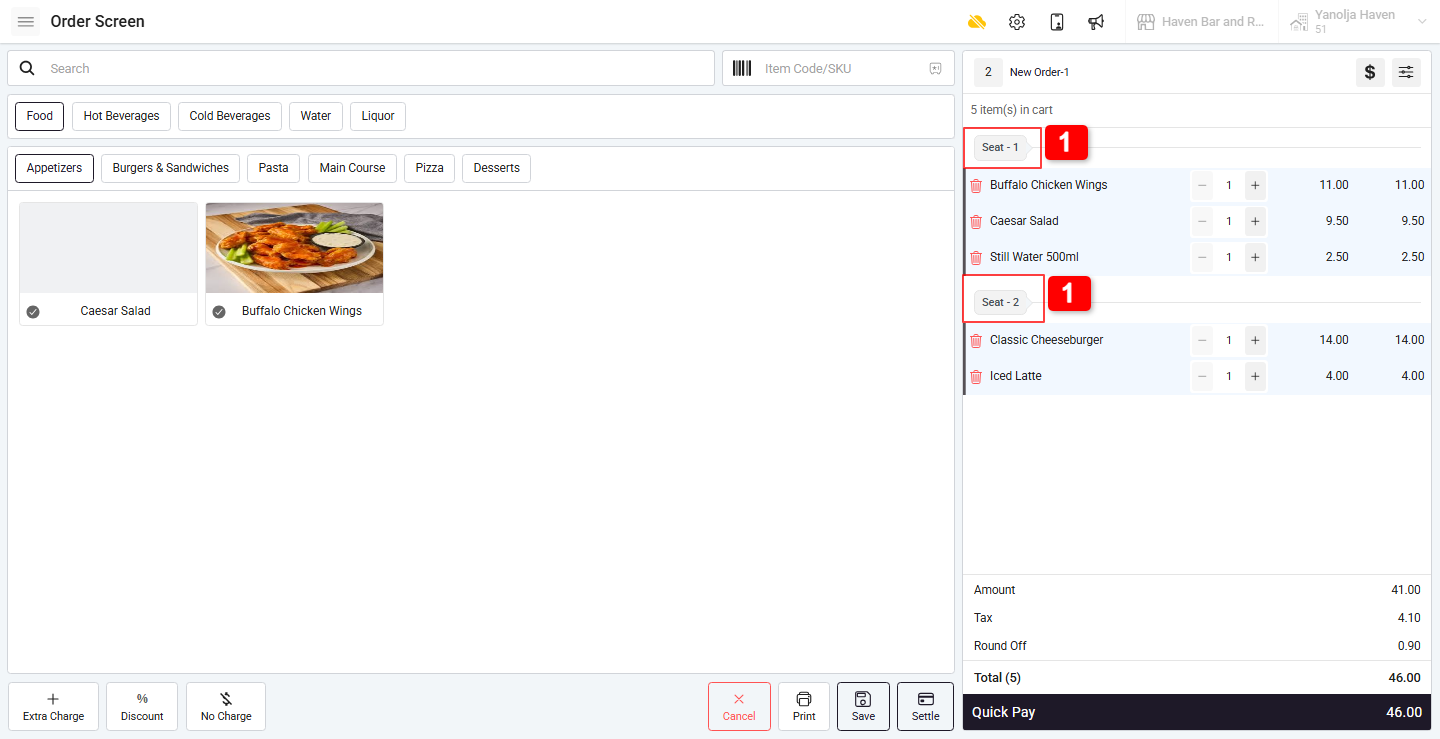
1. Select items and assign Seat Number.
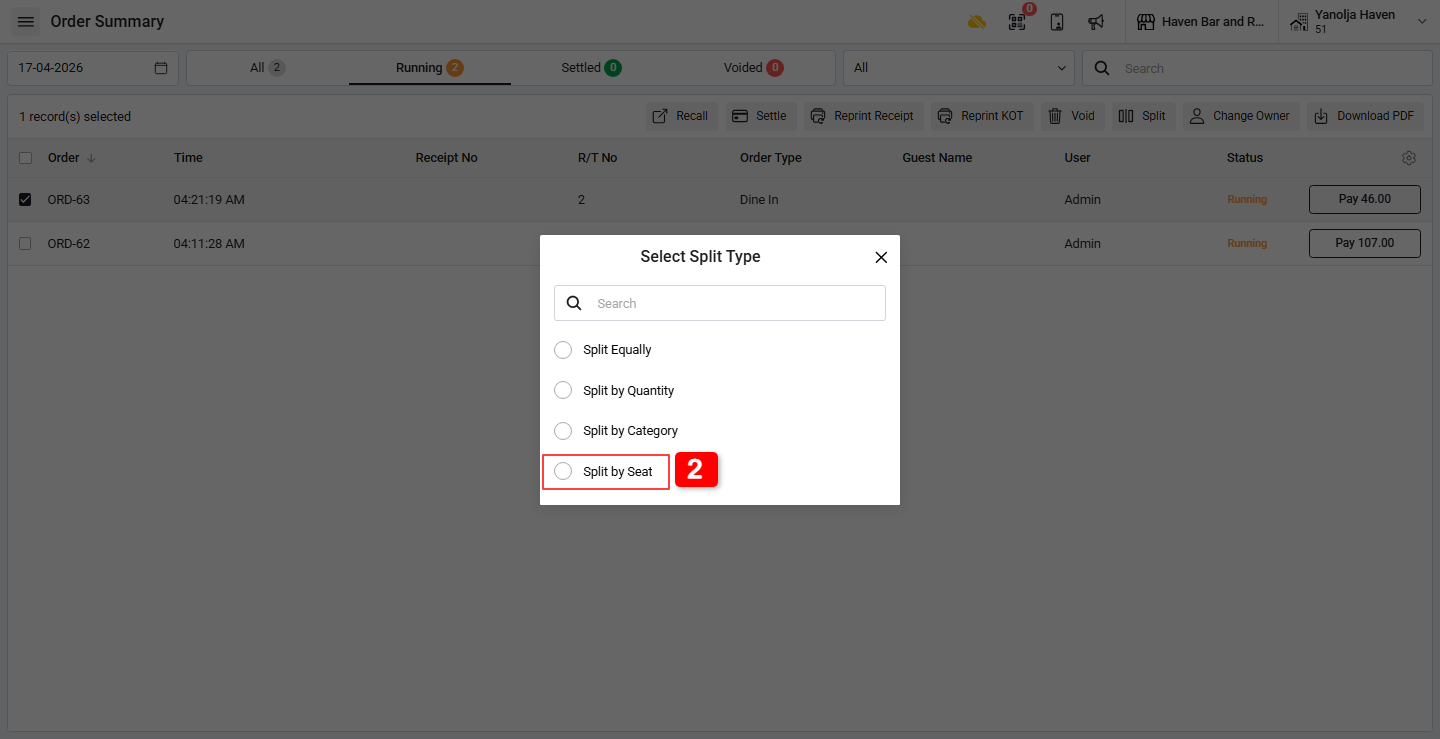
2. Choose Split By Seat.
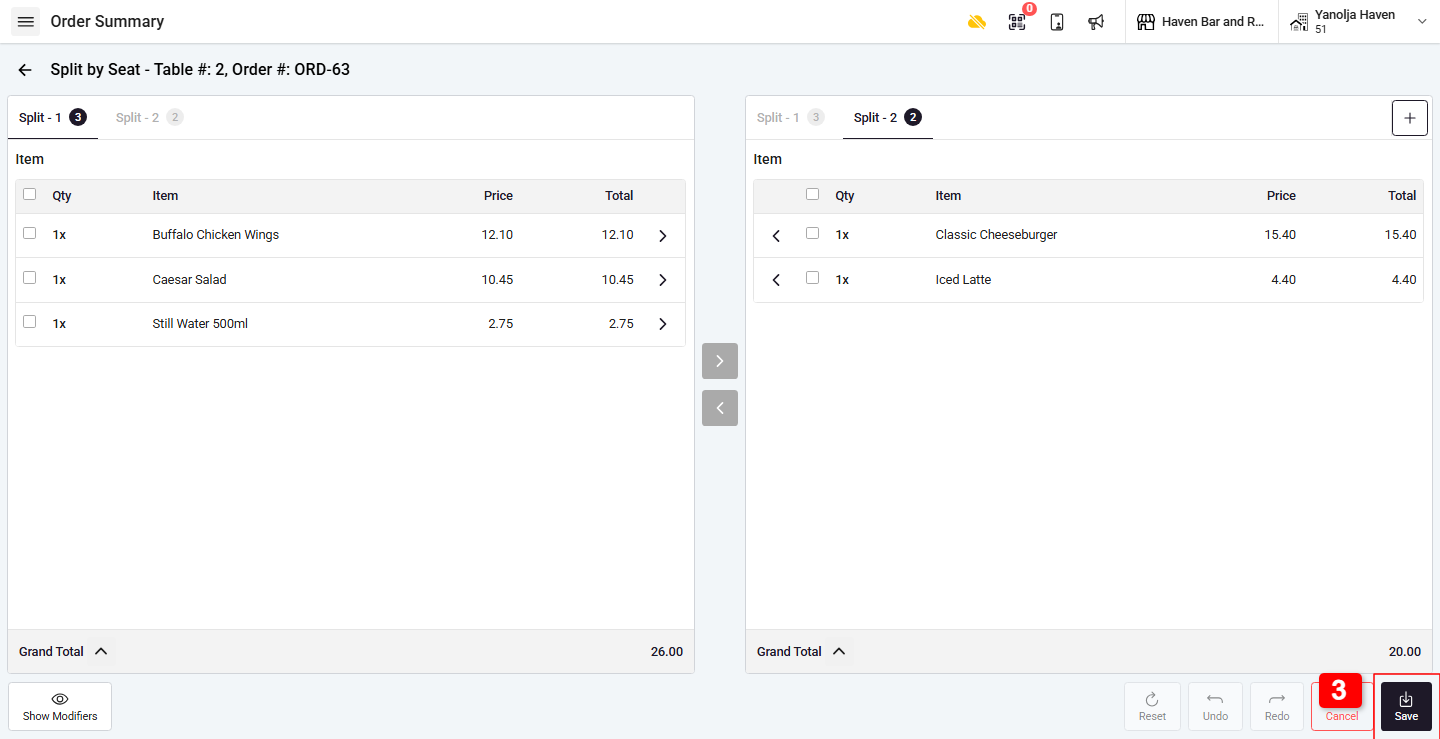
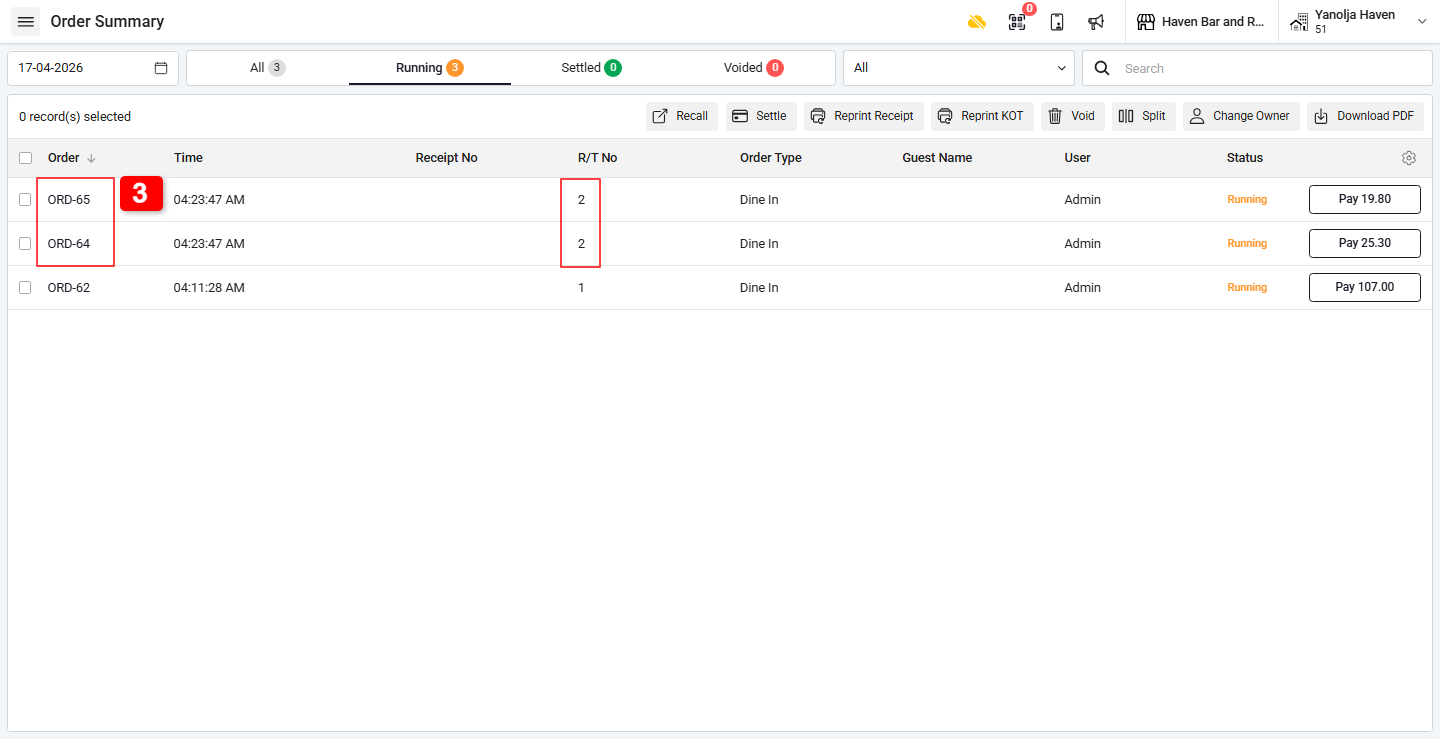
3. Click on Save and Multiple Receipts will be generated.
Method 4: Split By Category :
Used when customers want separate bills based on item categories (e.g., Food and Liquor).
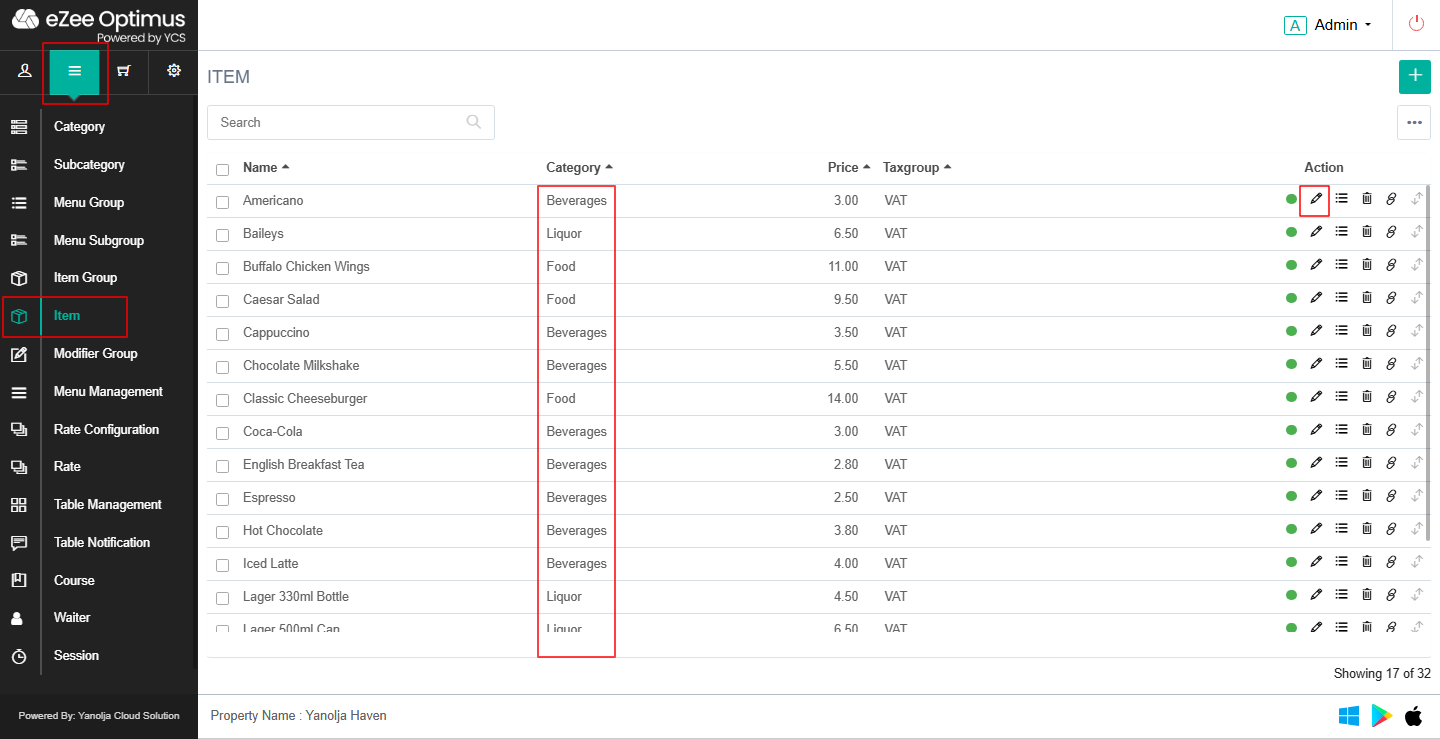
Important: Ensure items are configured with categories.
Assigning Category to Menu Items:
Items must be pre-configured with a category for this method to work.
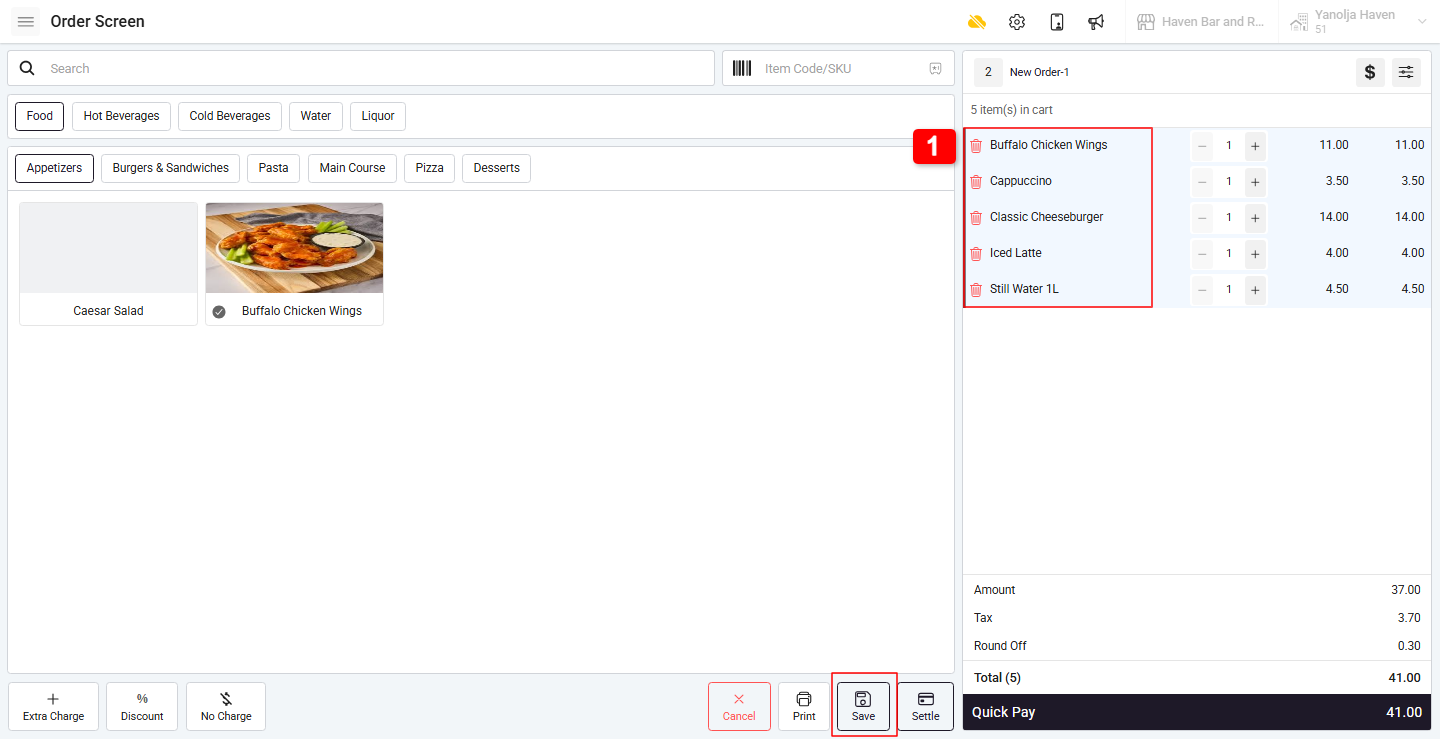
Steps 1:
1. Go to Ordering and take an order with different category items.
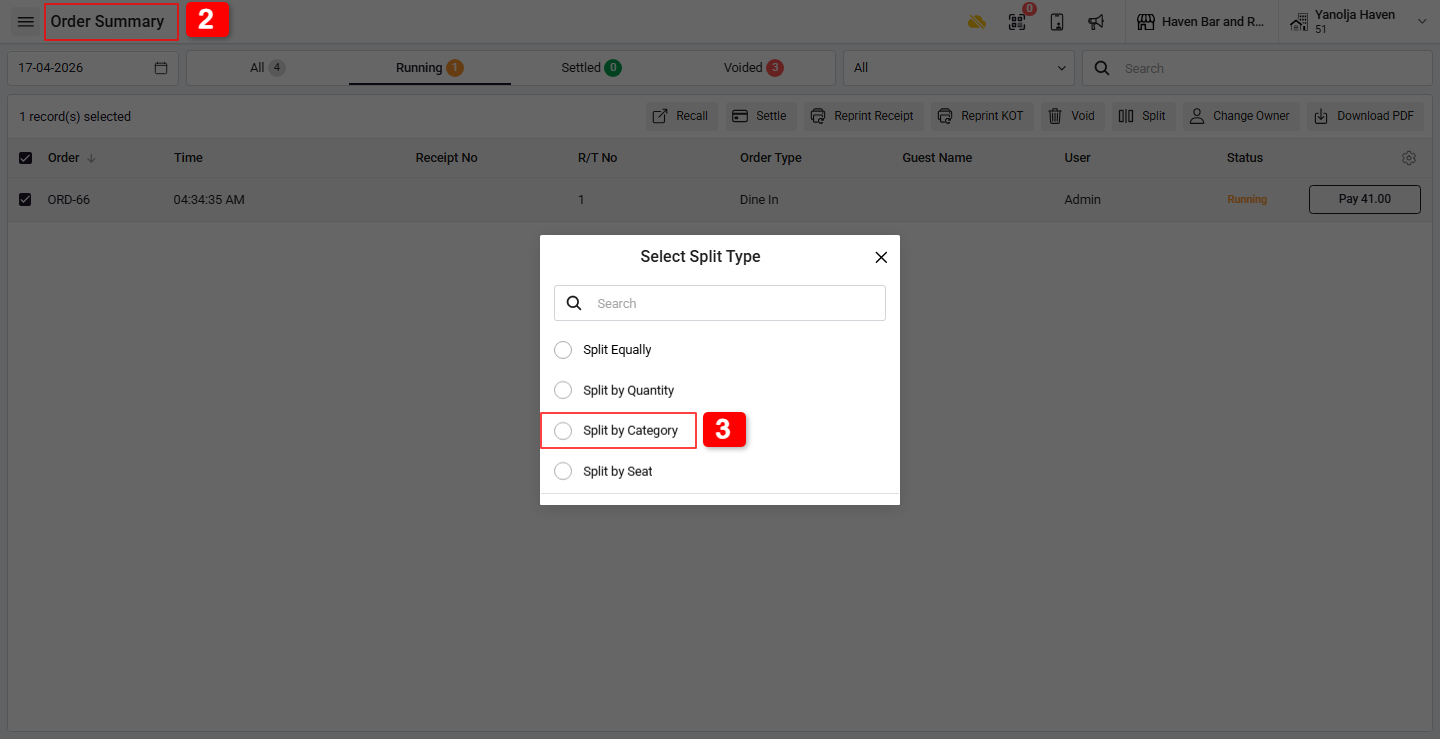
2. Go to Order Summary.
3. Select the order and choose Split By Category.
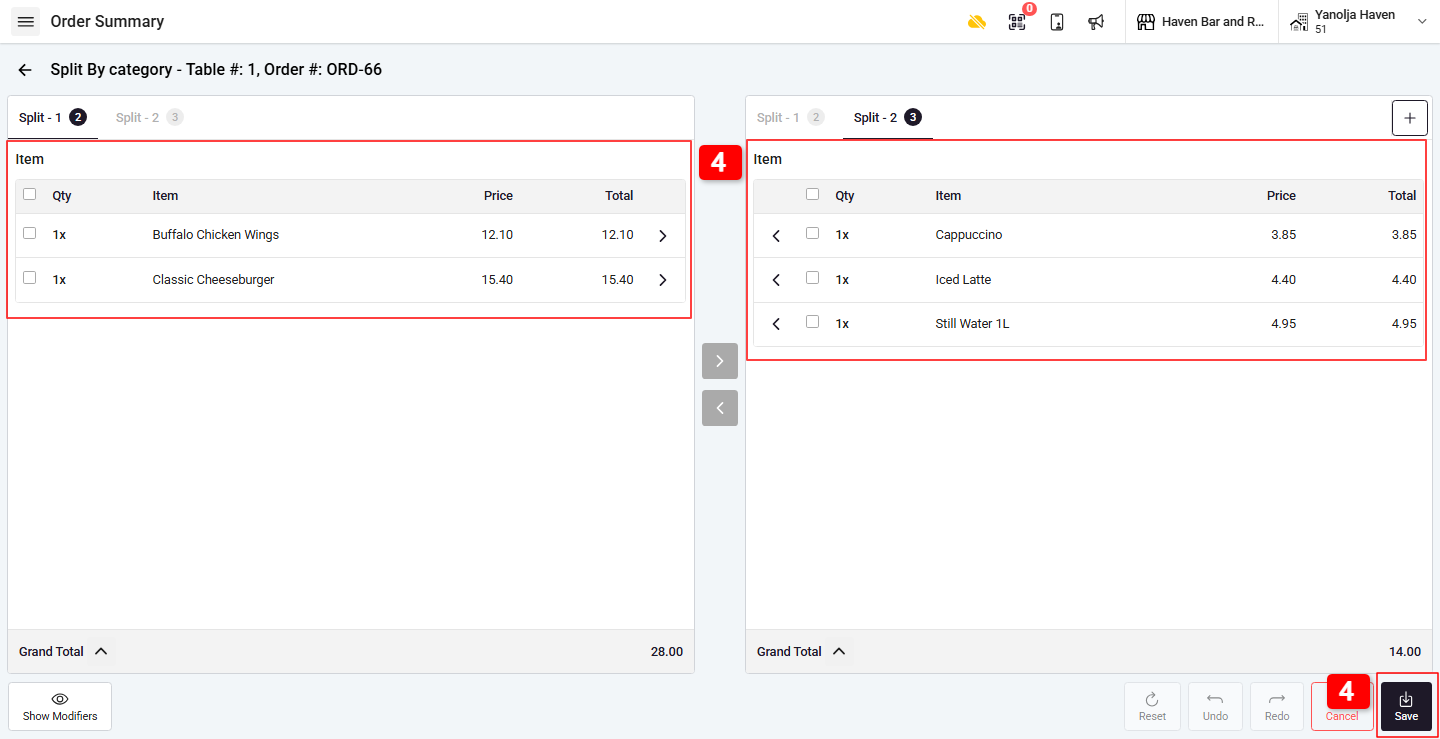
4. Verify Items Category and click on Save to split receipts.
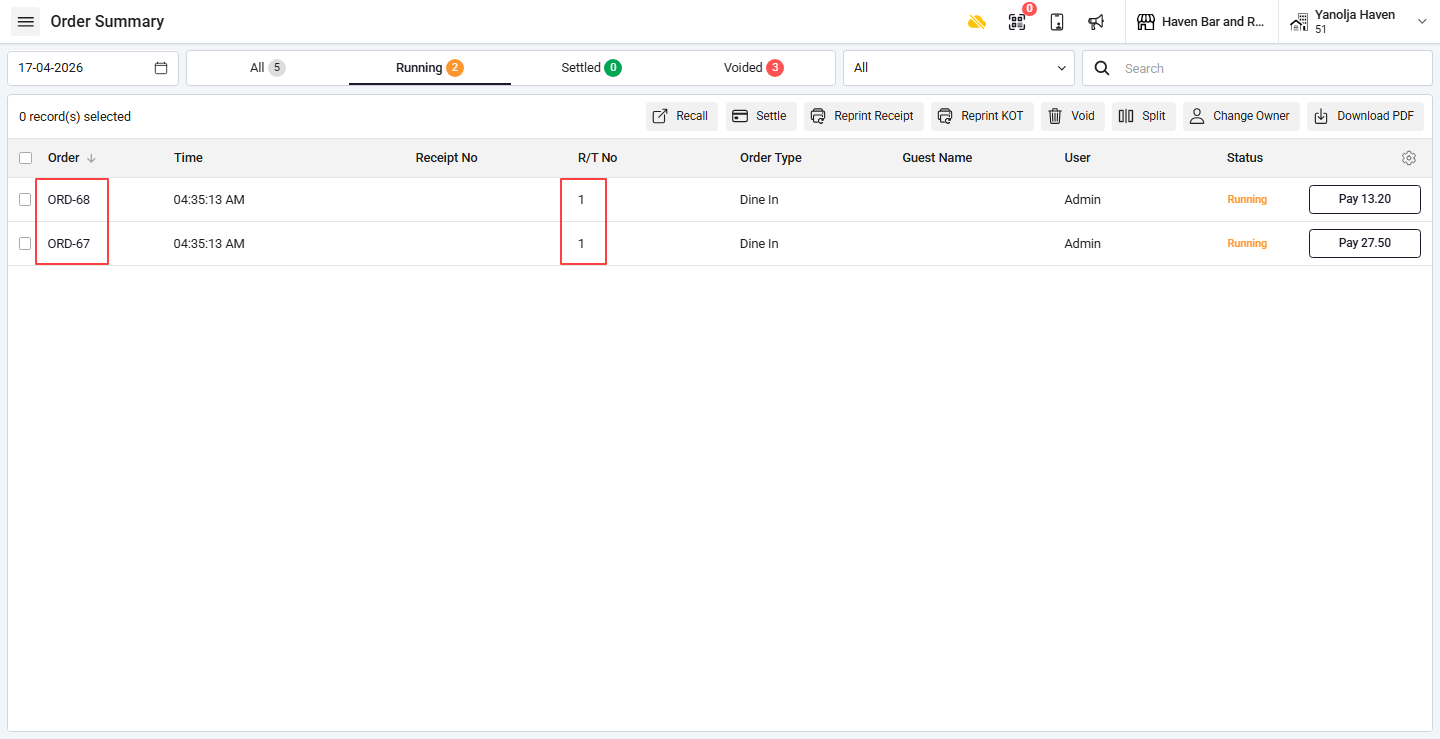
Report Information :
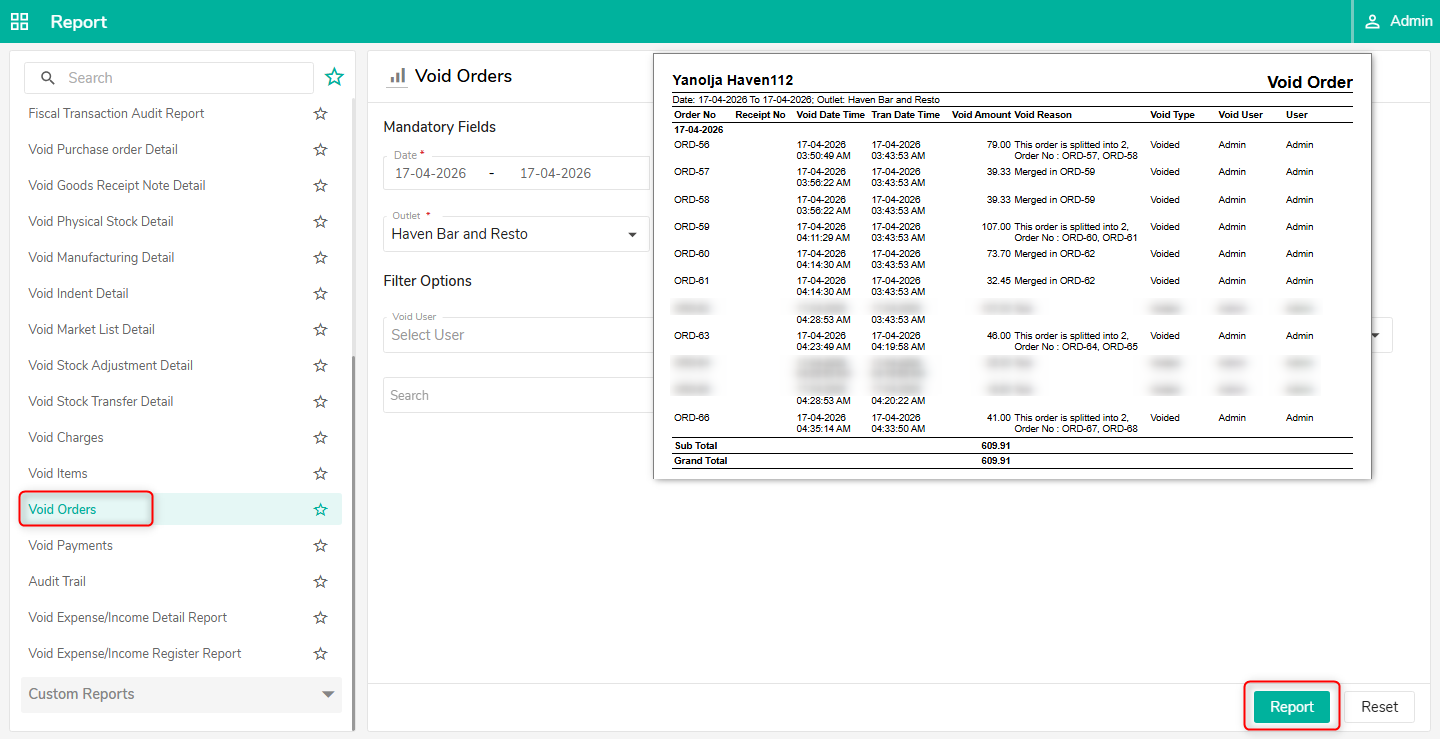
When a split is performed, a new order number is generated.
The original order is marked as Void.
You can view this in the Void Order Report.
Was this article helpful?
That’s Great!
Thank you for your feedback
Sorry! We couldn't be helpful
Thank you for your feedback
Feedback sent
We appreciate your effort and will try to fix the article