1. Navigate to Rates & Availability
2. Click on Packages & Promotion.
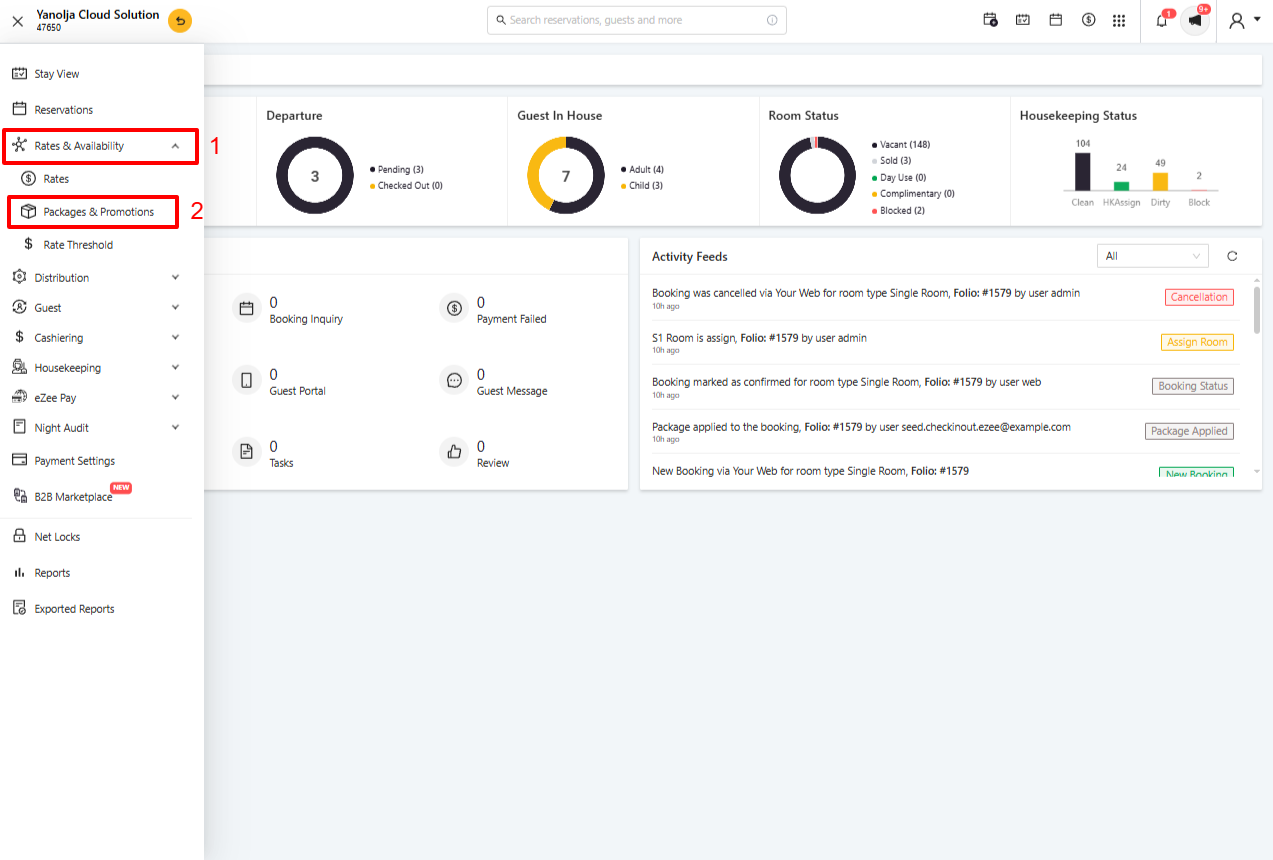
3. Click the "+ Create button".
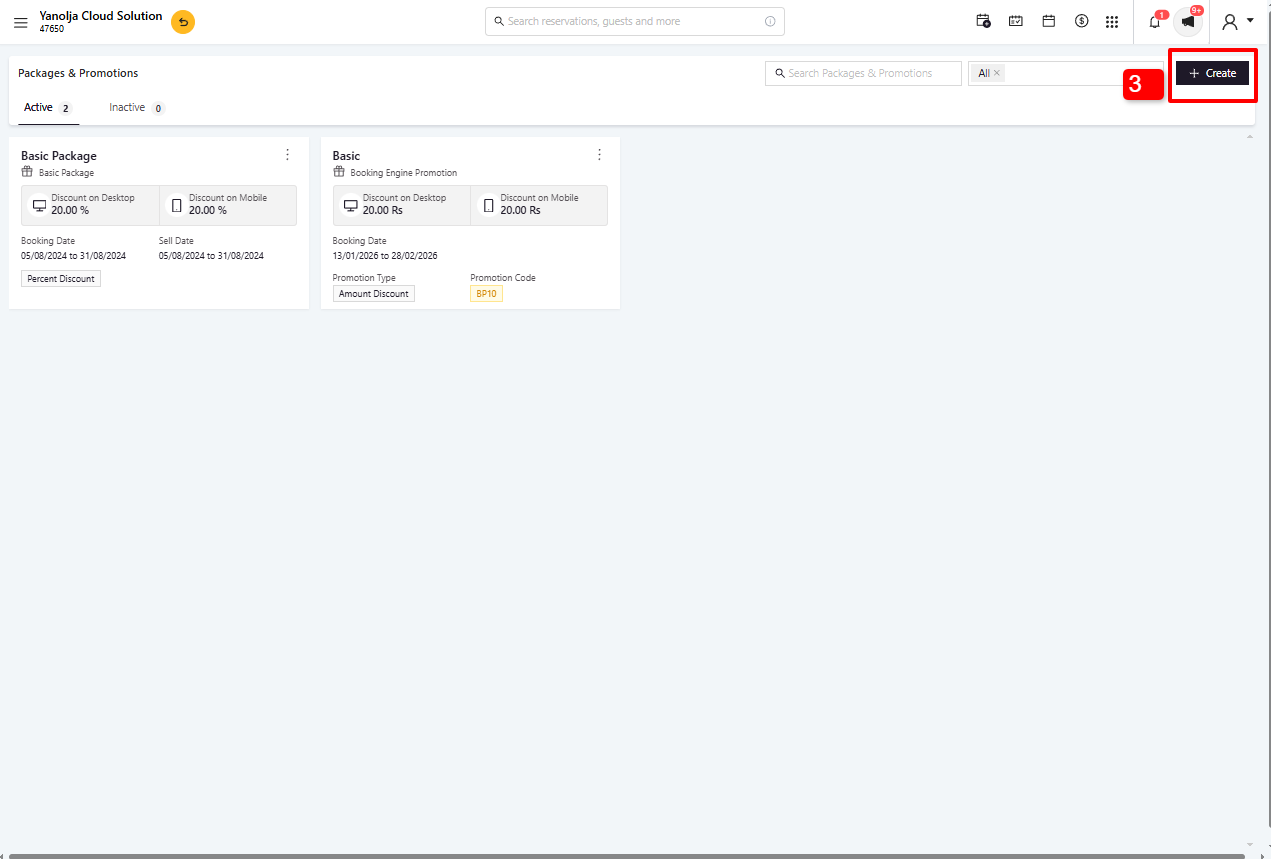
4. Select Create Package.
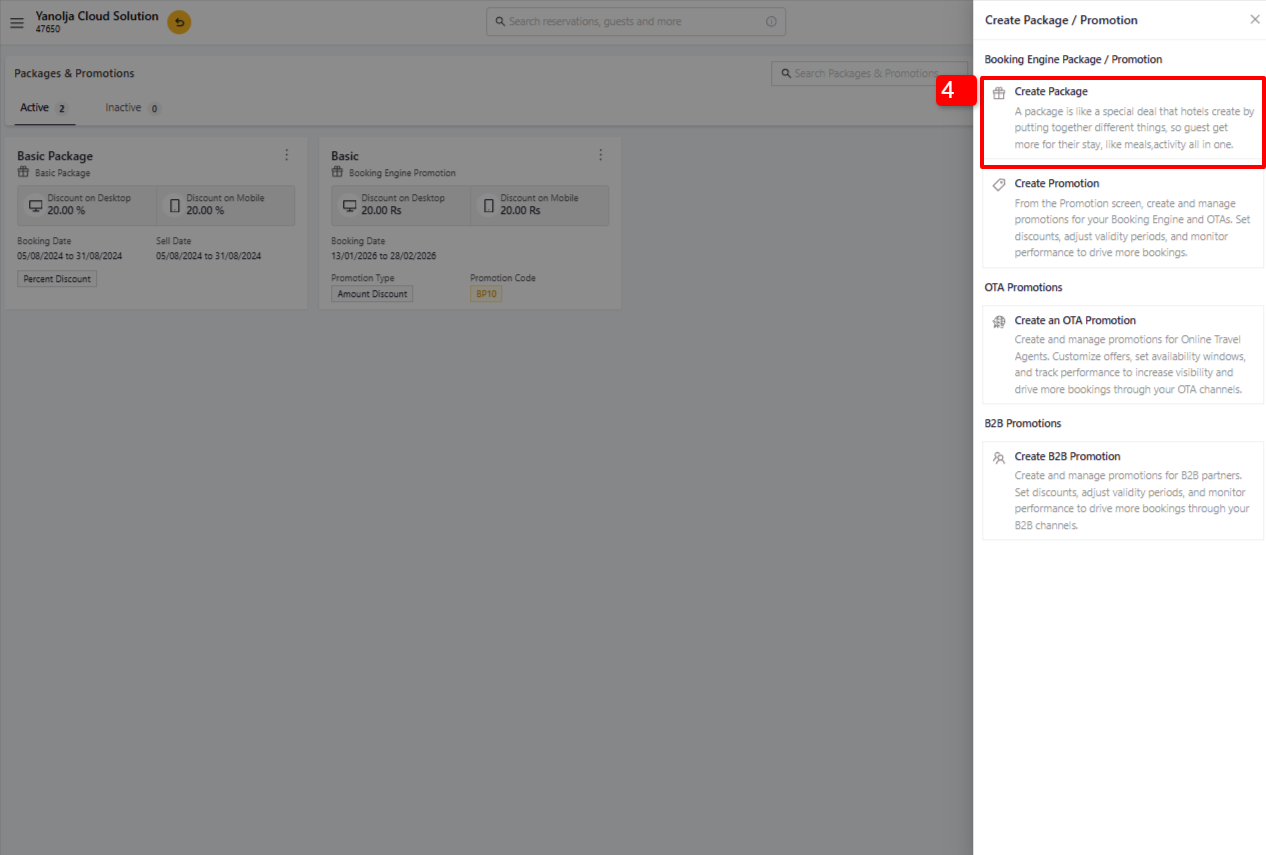
5. Click Basic Package.
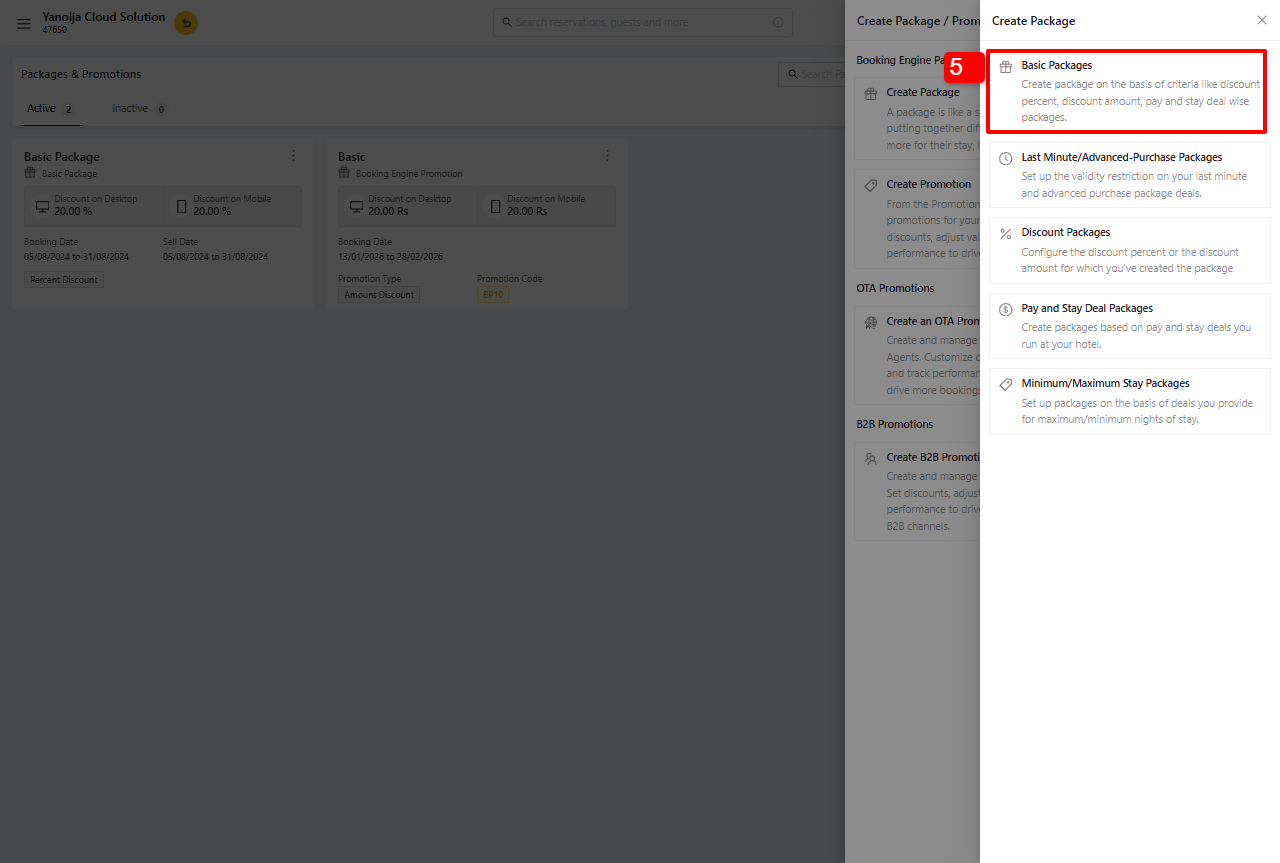
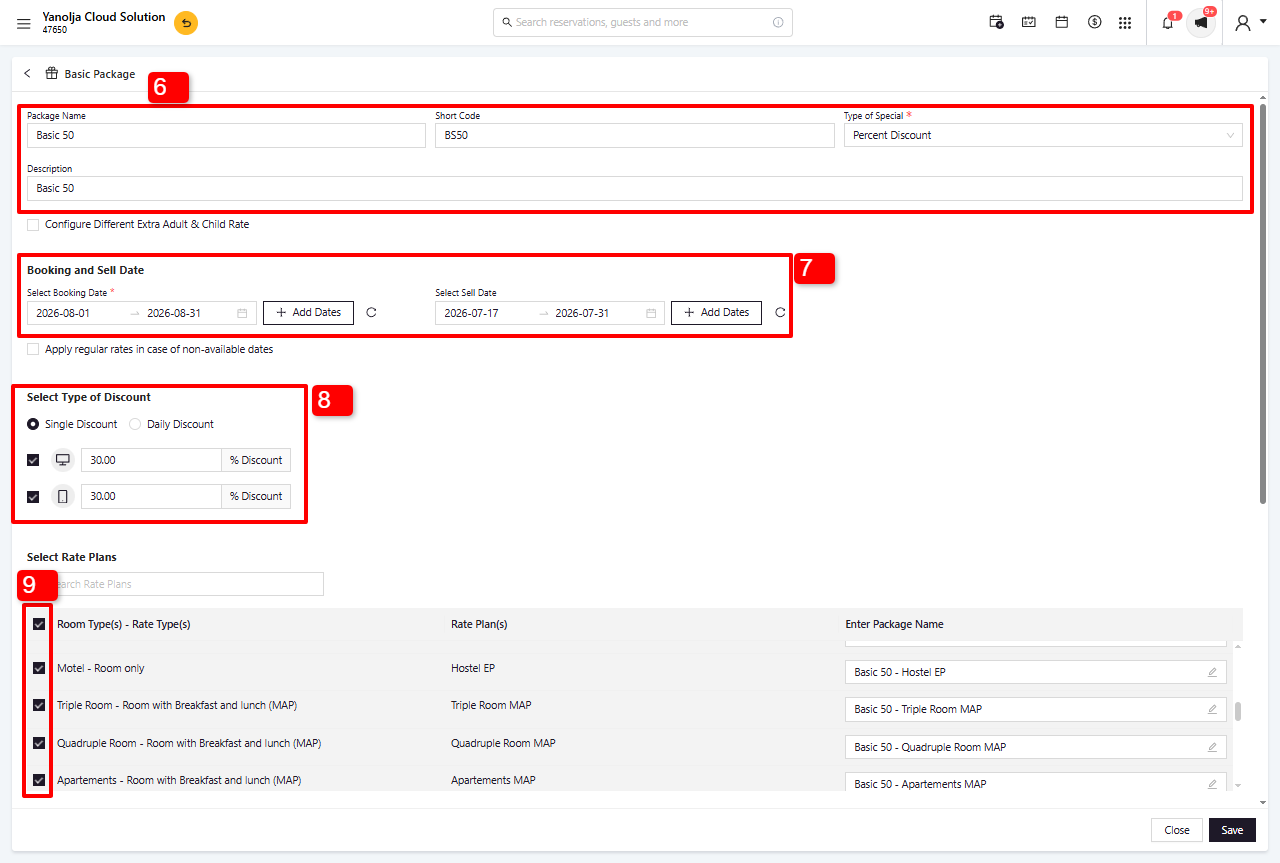
6. Enter the package details, including:
- Package Name
- Short Code
- Discount Type
- Description
7. Enter the Booking Date for the period during which you want this package to be available. Select the Sell Date, which determines the date from which guests can start booking this package.
8. Select the Discount Type. Based on your selection, you can configure:
- Discount Amount
- Discount Percentage
- Pay & Stay Deal
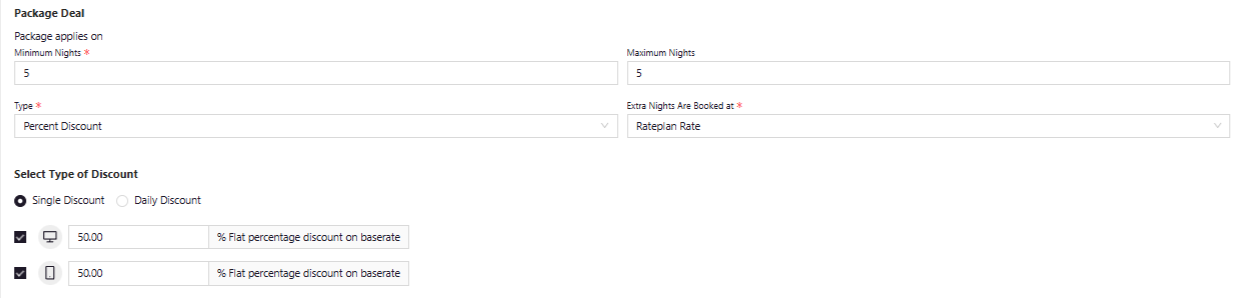
- Package Deal (Minimum Nights / Maximum Nights)
9. Select the Rate Plan(s) for which you want this package to be available.
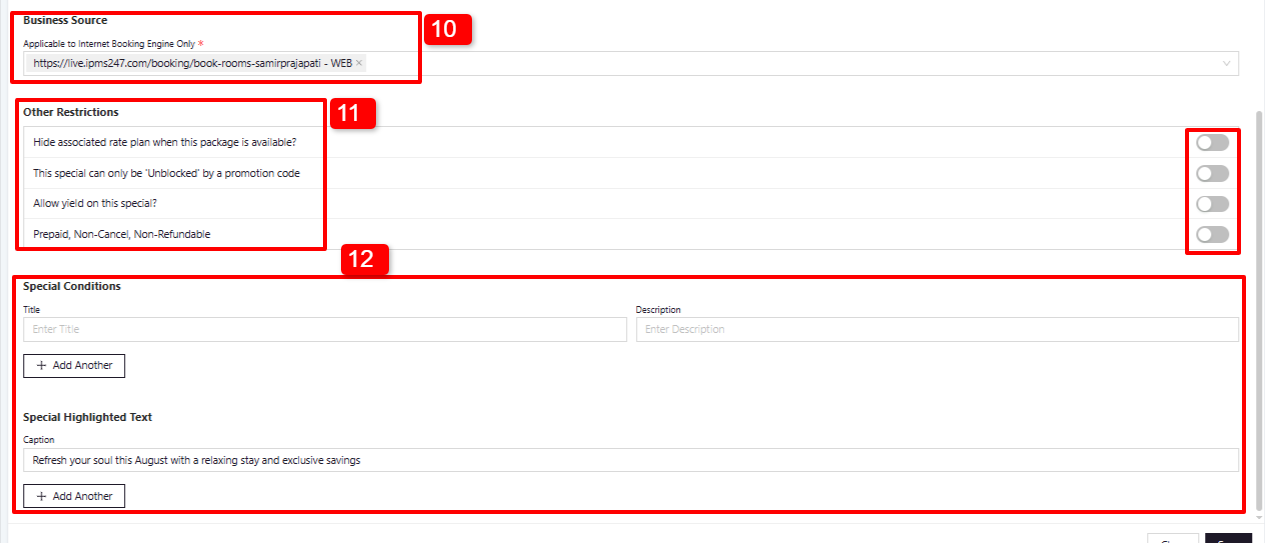
10. Select the Business Source
- Choose Web to make the package available on your Booking Engine.
- If the package is intended for a specific travel agent, select the corresponding Travel Agent.
11. You can configure the following package restrictions:
- Hide associated Rate Plan when this package is available?
When enabled, the associated rate plan will not be displayed on the Booking Engine while this package is available. - This Special can only be 'Unblocked' by a Promotion Code
Enable this option if you want the package to be accessible only when guests enter a valid promotion code. - Allow Yield on this Special?
Enable this option if you want your yield management rules to apply to this package. - Prepaid, Non-Cancel, Non-Refundable
Enable this option to display the corresponding caption on the Booking Engine.
12. You can add Special Conditions and Highlighted Text that will be displayed on the Booking Engine.
Other Package Types
The package creation process remains the same for all package types. The primary difference is the specific conditions and settings available for each package type.
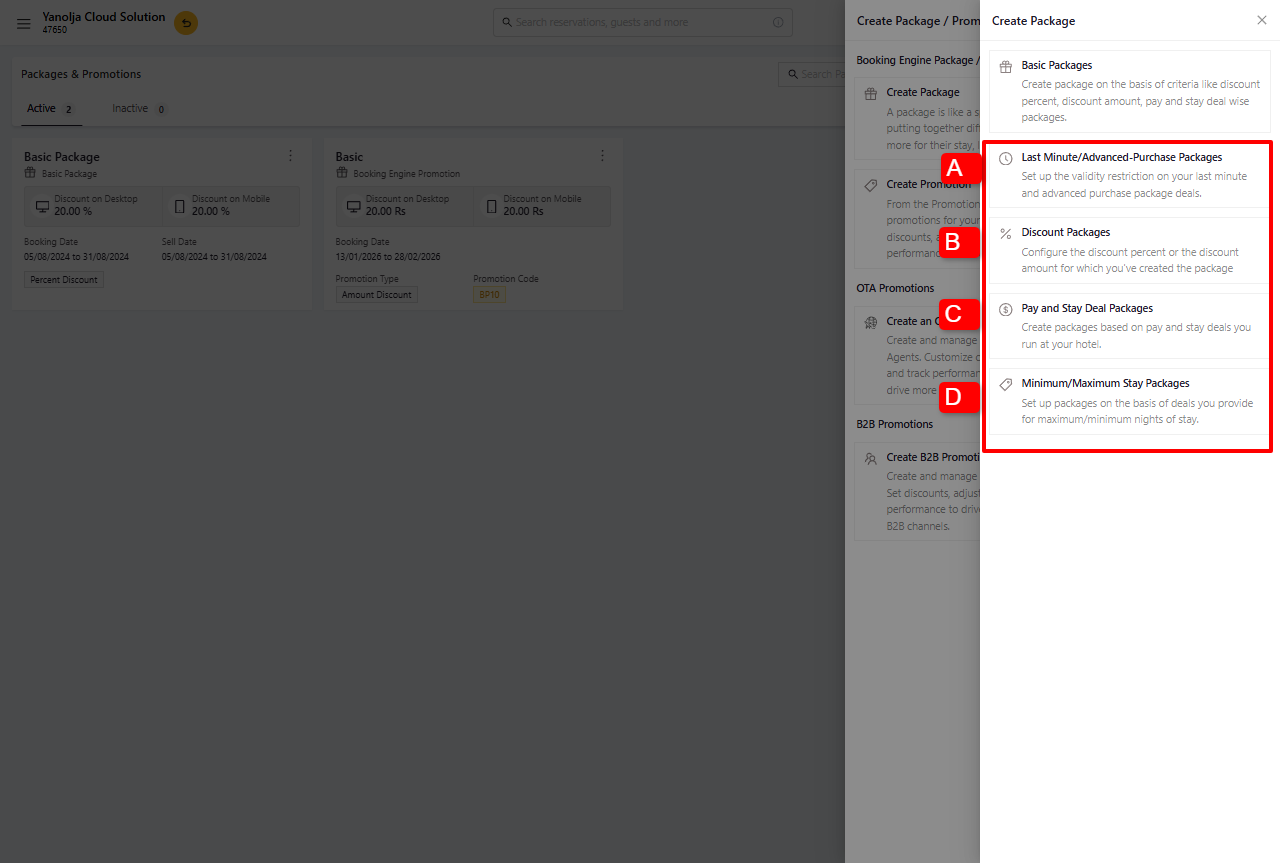
A. Last Minute / Advance Purchase:
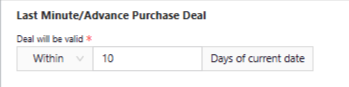
The package will be available for 300 days after 10 days. For example, if the package is configured with 10 days, it will be displayed only when the calendar date is greater than 10 days from the package creation date.

Within :
The package will be displayed on the Booking Engine only when the guest's arrival date falls within 10 days.
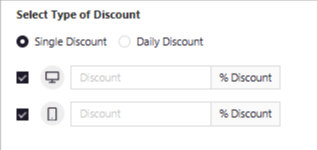
B. Discount Packages
Configure the discount that you want to offer through this package.
You can apply either:
- A Percentage Discount, or
- A Flat Amount Discount.
The selected discount will be applied to the package based on your configuration.
C. Pay & Stay Deal Packages
Create packages based on the Pay & Stay deals offered by your property.
For example, if you want guests to stay for 4 nights and pay for only 3 nights, you can configure the package accordingly.
In this package, you can define:
- The number of nights the guest pays for.
- The number of nights the guest stays.
- The minimum stay requirement, if applicable.

D. Minimum / Maximum Stay Packages
Create packages based on the minimum and maximum length of stay.
In this package, you can configure the Minimum Nights and Maximum Nights criteria.
Was this article helpful?
That’s Great!
Thank you for your feedback
Sorry! We couldn't be helpful
Thank you for your feedback
Feedback sent
We appreciate your effort and will try to fix the article