Where do I find the option to update it?
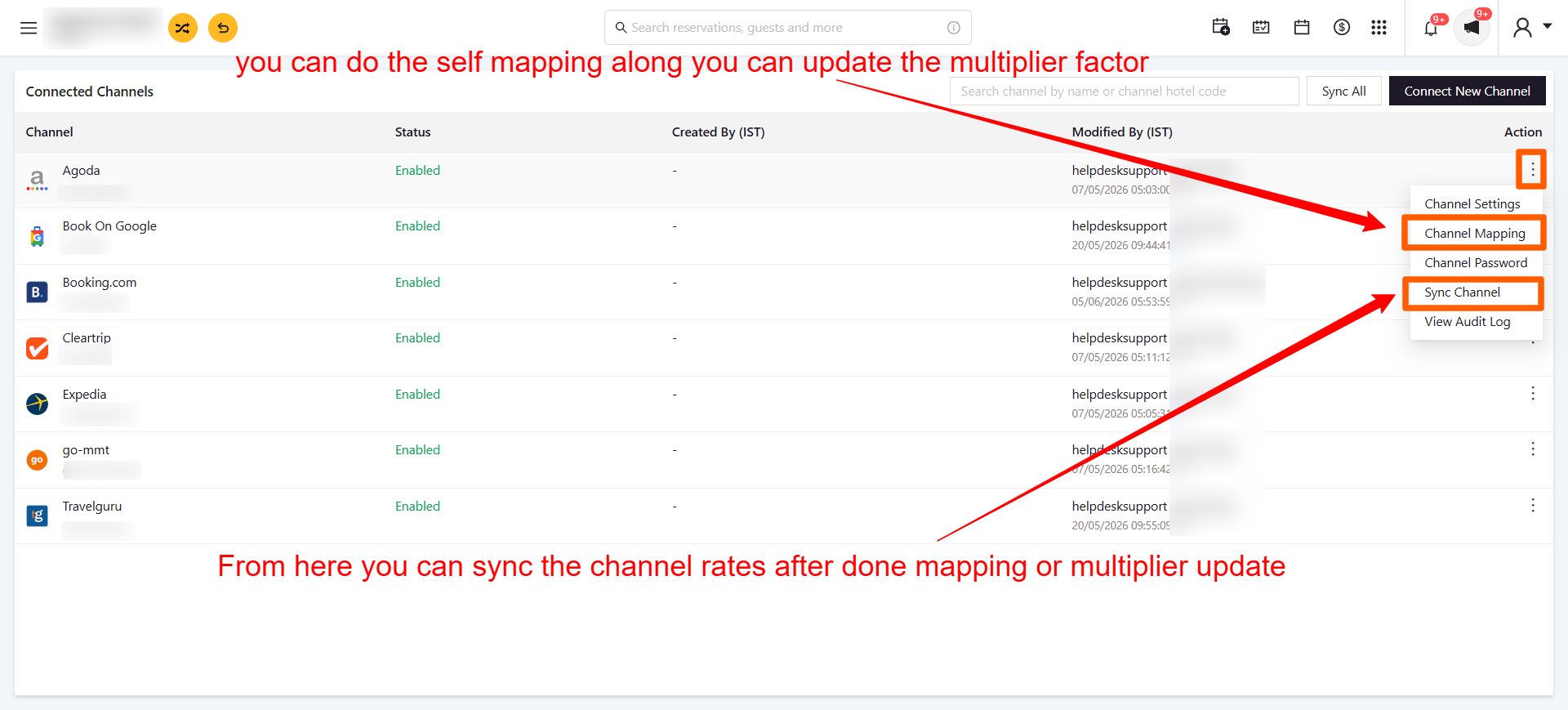
- Go to Connected Channels.
- Locate the OTA you want to update (e.g. Agoda, Booking.com, Expedia).
- Click the three-dot menu (⋮) under the Action column for that channel.
- Select Channel Mapping from the dropdown (options also include Channel Settings, Channel Password, Sync Channel, and View Audit Log).
How do I actually change the multiplier value?
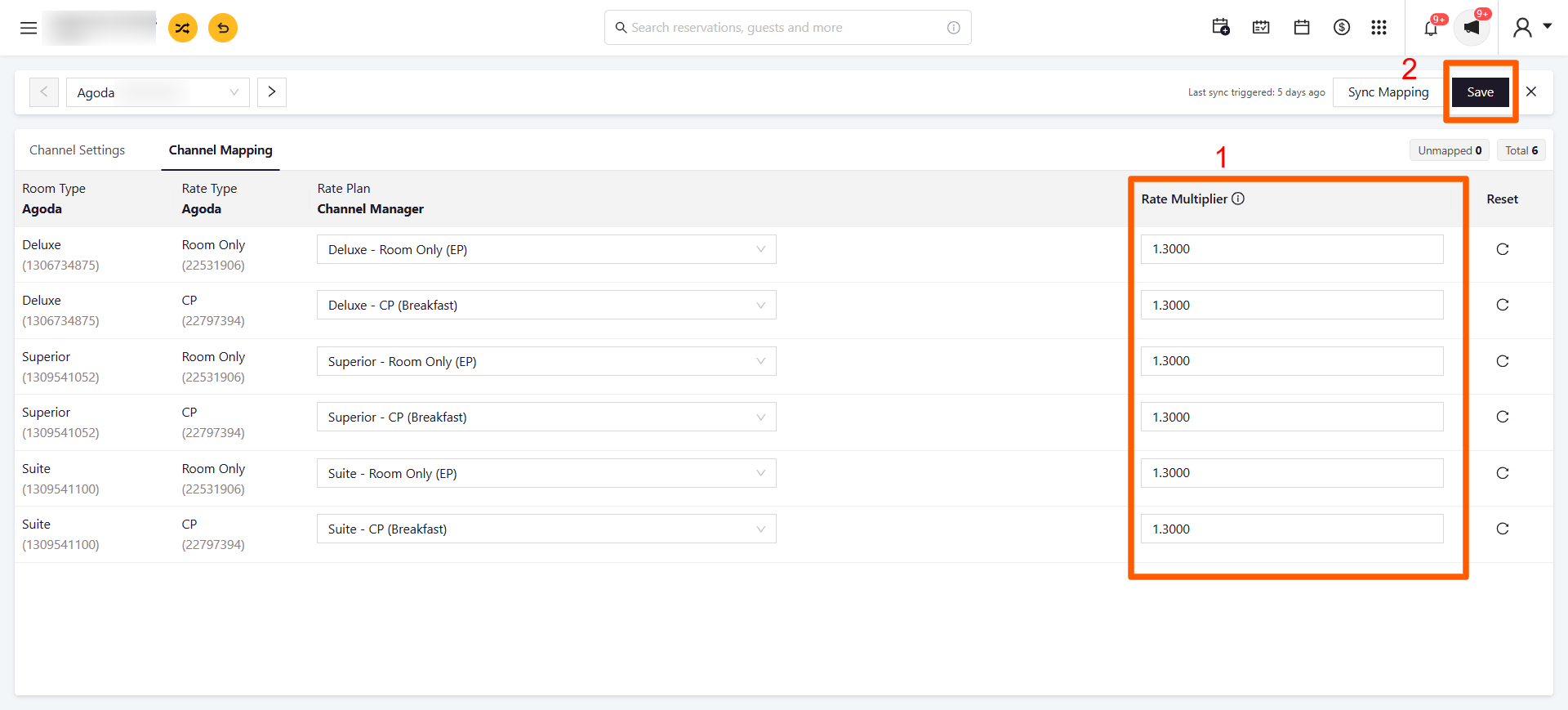
- On the Channel Mapping screen, each row shows the Room Type, Rate Type, and Rate Plan mapped between the OTA and the Channel Manager.
- On the right, under Rate Multiplier, enter or edit the value for the relevant row.
- Click Save in the top-right corner once you're done.
What does the Reset icon (⟳) next to each row do?
It resets that specific row's multiplier back to its previous/default value, in case you want to undo a manual change without affecting other mapped rows.
Do I need to sync after updating the multiplier?
Yes. Saving the multiplier value updates the mapping configuration, but you still need to trigger a sync (via Sync Channel) to push the updated rates out to the OTA.
Was this article helpful?
That’s Great!
Thank you for your feedback
Sorry! We couldn't be helpful
Thank you for your feedback
Feedback sent
We appreciate your effort and will try to fix the article