Yes, you can update the room tariff or charges for an in-house guest in eZee Absolute.
This feature is useful in cases where a reservation was made using a standard rate instead of a special rate, such as a corporate booking. Adjusting the room charges after check-in ensures accurate billing.
To perform this action, the user must have the privilege “Change Room Rate after Check-In” enabled.
How to Enable the Required Privilege
Step 1: Login and Open Configuration
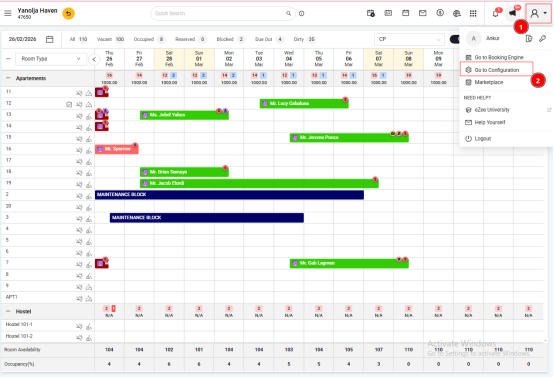
Log in to your eZee Absolute account.
Click on your username (top-right corner).
Select Configuration to open the Configuration Panel.
Step 2: Edit User Privileges
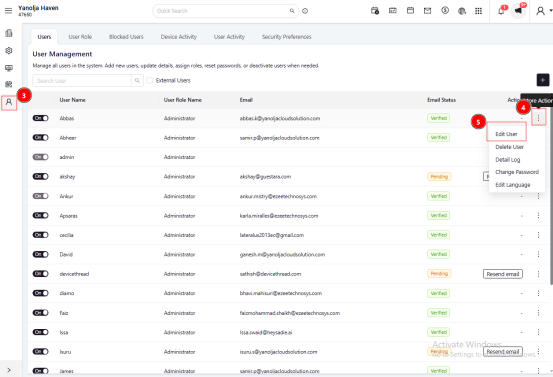
Click on your User Management Option.
Select User.
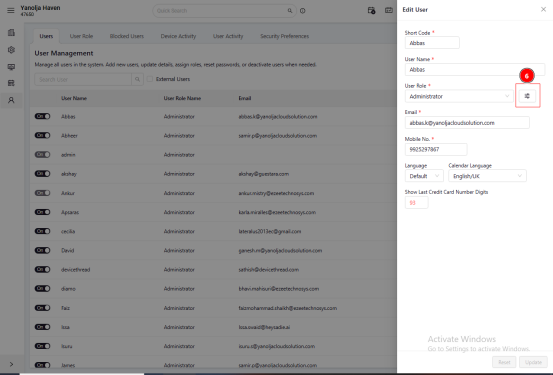
Click Edit for the respective user.
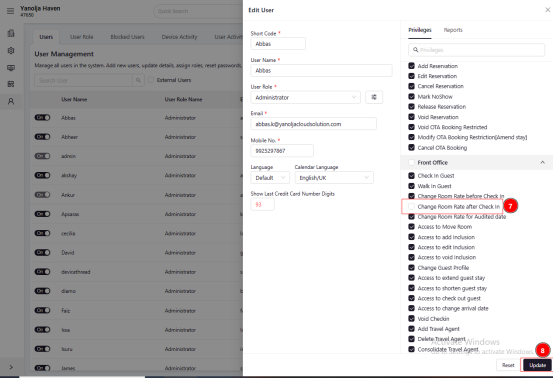
Locate and enable the privilege “Change Room Rate after Check-In.”
Click Save to apply the changes.
Steps to Update Room Tariff for an In-House Guest
Step 1: Access the Reservation
Go to Stay View and select the relevant reservation.
ORNavigate to Front Office > Reservations and open the guest’s booking.
Step 2: Edit the Reservation
Click on Edit Reservation.
Step 3: Update Room Charges
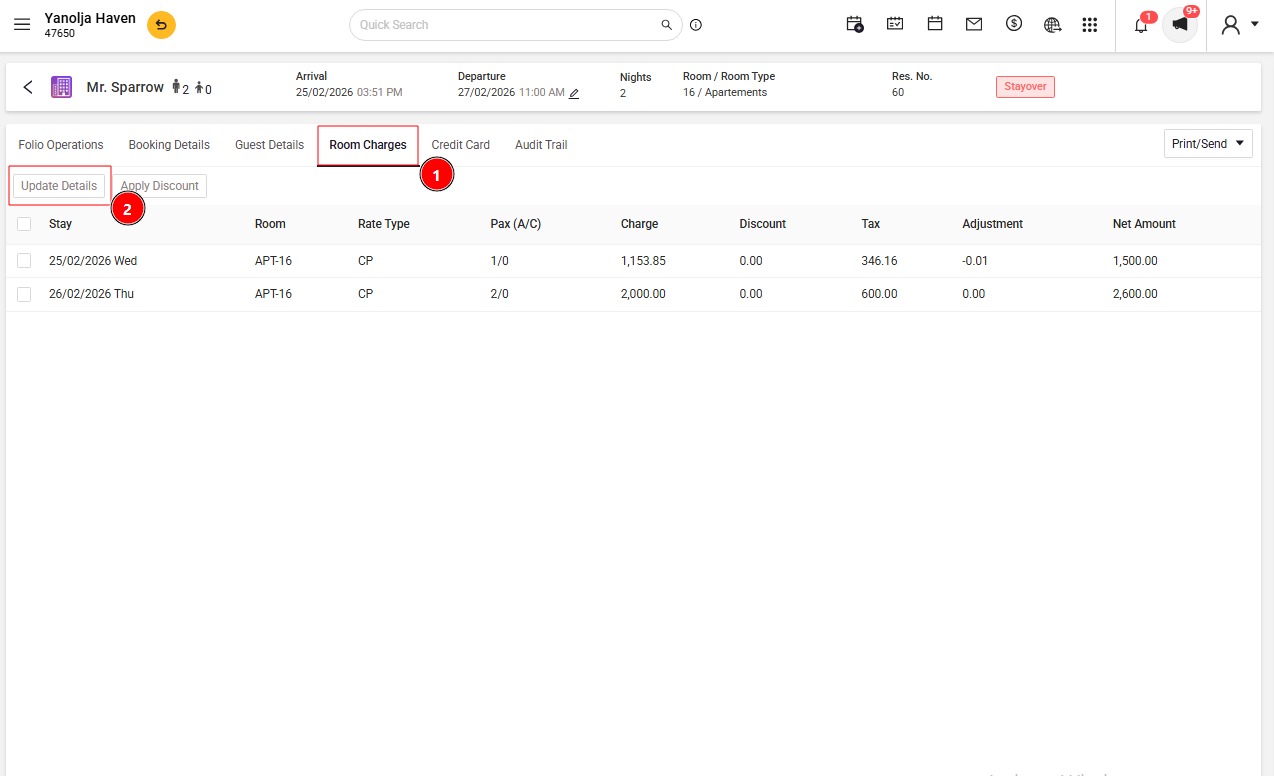
Open the Room Charges tab.
Click on Update Details.
Step 4: Enter the New Rates
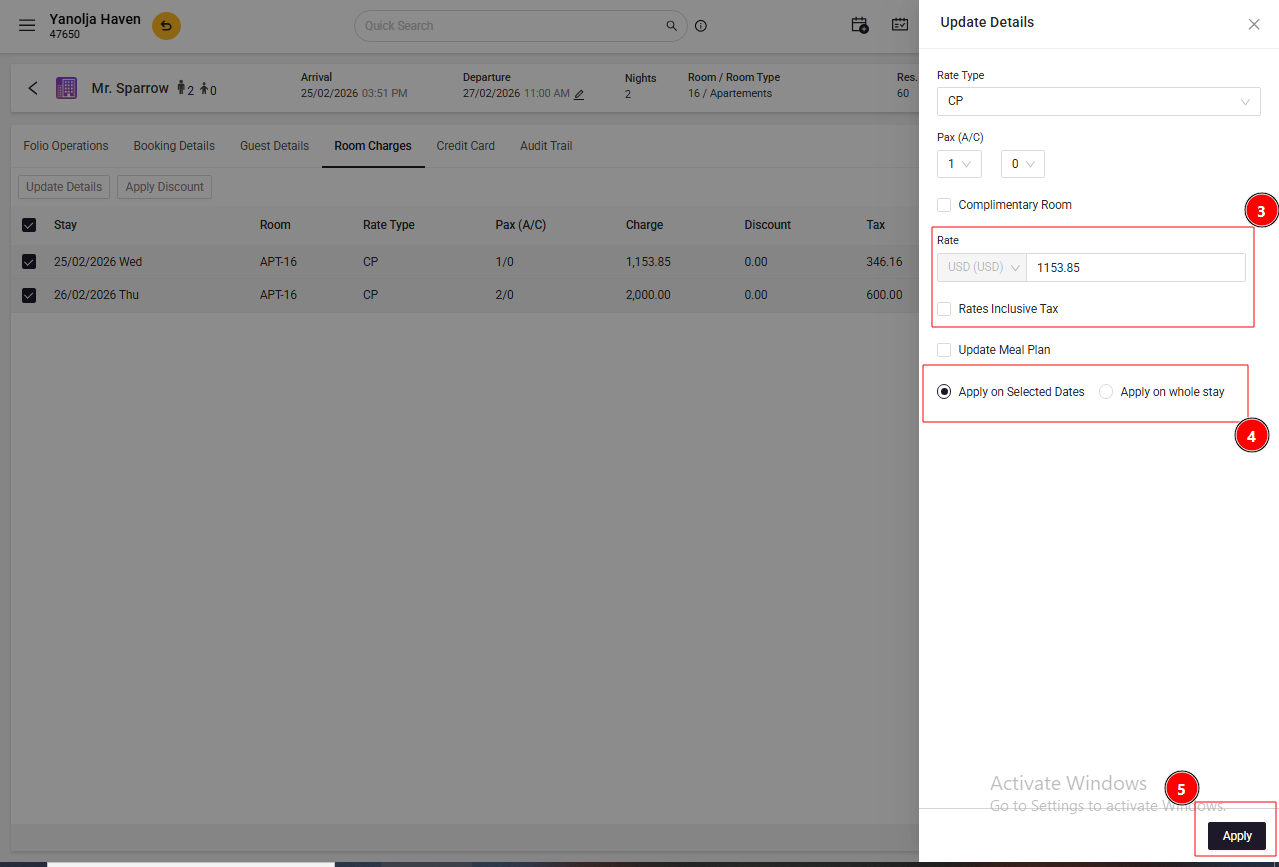
Enter the revised rate in the rate field.
If the updated rate includes taxes, enable the Rates Inclusive Tax option.
Choose whether to apply the new rate for specific dates or the entire stay by selecting Apply To Selected Dates or Apply To Whole Stay.
Click Apply to save the changes.
Required User Privileges
Ensure the user has the following permissions enabled:
Go to Configuration > User > Edit User > Privileges.
Under Front Office, enable:
Change Room Rate after Check-In
Change Room Rate for Audited Date
Updating Other Reservation Details
Similarly, you can update the following by selecting the respective entry in the reservation:
Pax (Number of Guests)
Room Type
Meal Plan
Report Reference
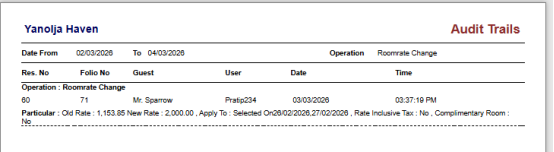
After updating the room charges, you can verify the changes in the Audit Trails Report.
In this report, check the operation Roommate Change to review the old rates and the updated rates.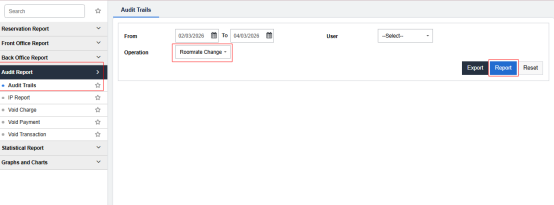
Was this article helpful?
That’s Great!
Thank you for your feedback
Sorry! We couldn't be helpful
Thank you for your feedback
Feedback sent
We appreciate your effort and will try to fix the article