Split Reservation
In eZee Absolute, you can split a reservation when a guest requests to change rooms during their stay. This feature provides flexibility to assign a different room during the stay, upgrade guests to a higher-category room, or manage inventory more efficiently.
It also allows users to assign multiple rooms to a guest before arrival, helping the front office prepare room allocations in advance. This improves operational efficiency and ensures a smoother check-in experience for guests.
Note:
After splitting the reservation and moving the guest to another room, you must select the reservation and click “Move Guest” under More Options. This step ensures that further operations on the reservation function correctly.
Steps to Split a Reservation
1. Open the Reservation
Log in to eZee Absolute.
Go to Front Office > Reservations.
Search for and open the reservation that needs to be split.
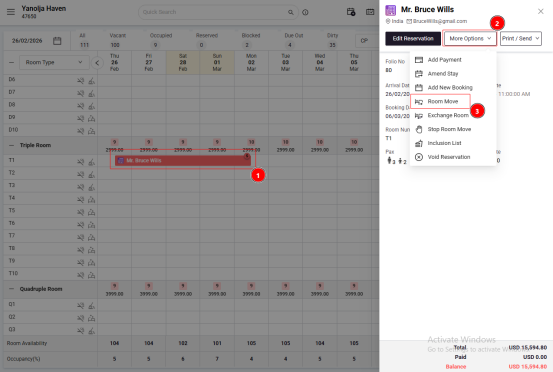
2. Select the Split Option
Click on the More Actions dropdown.
Select Room Move.
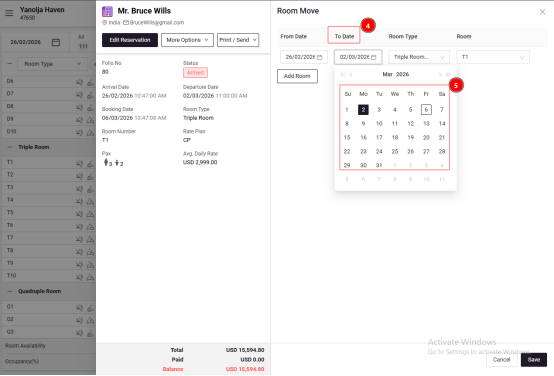
3. Enter Split Details
Select the new check-in and check-out dates for the next room.
Choose the new room type where the guest will be moved.
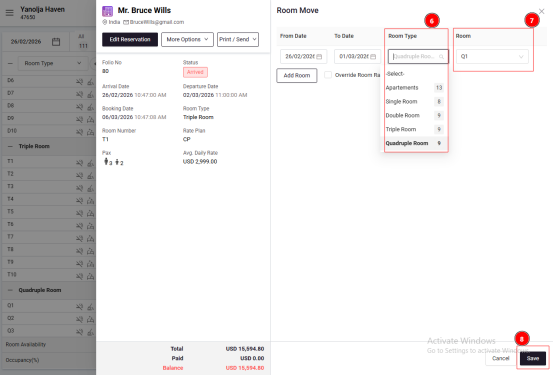
4. Confirm and Save
Review the reservation details.
Click Save to complete the split.
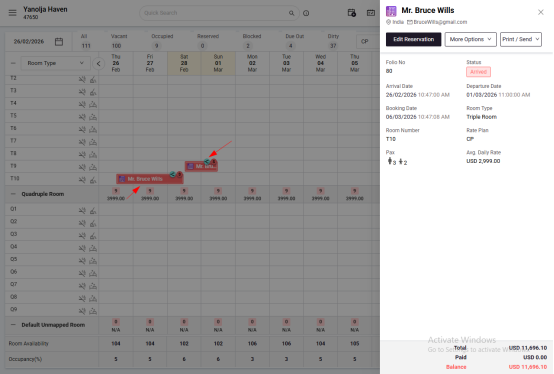
The reservation will now appear in two separate room entries with a Split icon.
How to Undo a Split Reservation in eZee Absolute
If you want to revert the split and keep the reservation in a single room again, follow these steps:
1. Open the Reservation
Log in to eZee Absolute.
Go to Front Office > Reservations.
Open the split reservation.
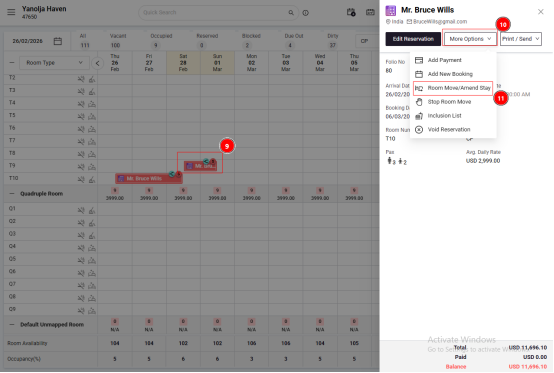
2. Select Room Move
Click More Actions.
Select Room Move.
3. Enter Details
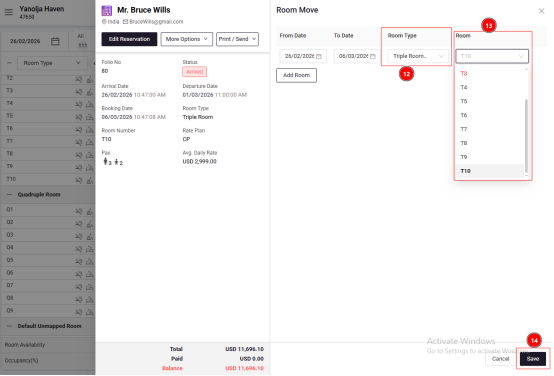
Select the original room type where the reservation was previously assigned.
If required, enable Override Room Rate to apply the room charges of the selected room.
4. Confirm and Save
Review the details.
Click Save to finalize the changes.
After completing these steps, the reservation will be merged back into a single room entry.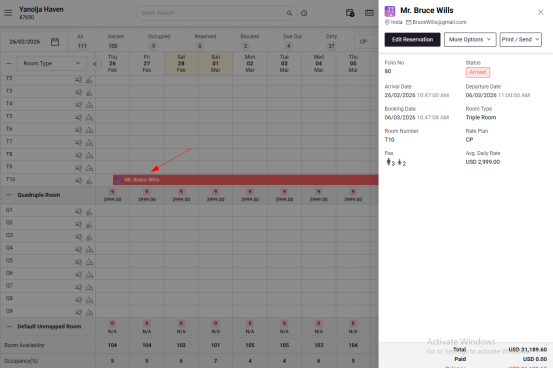
Was this article helpful?
That’s Great!
Thank you for your feedback
Sorry! We couldn't be helpful
Thank you for your feedback
Feedback sent
We appreciate your effort and will try to fix the article