This FAQ explains how to split a folio in PMS (Property Management System) to separate Room Charges from Extra Charges for a booking:
Step 1:
1. Click on the Reservation.
2. Click on Edit Reservation.
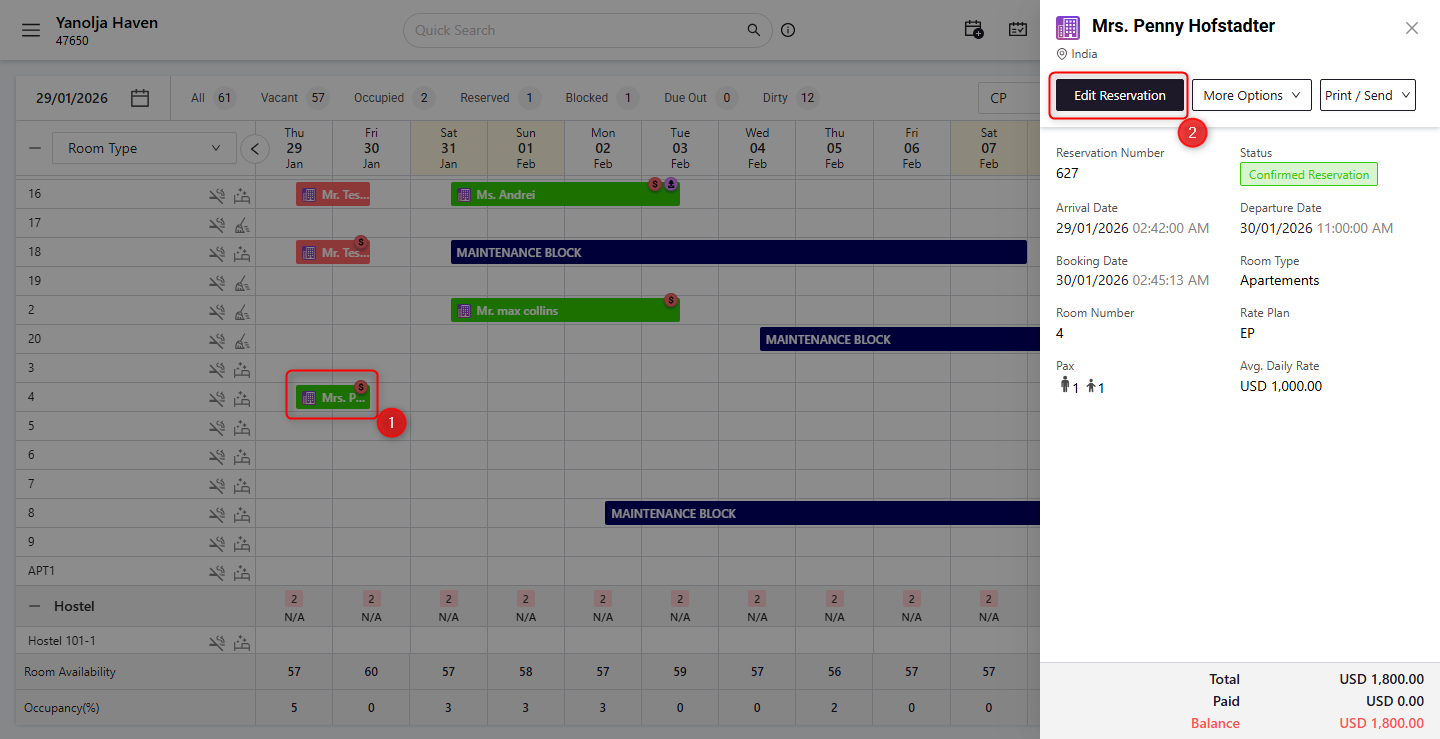
Step 2:
3. Click on the Folio Operations tab.
4. Click on the + (Add) icon to create a new folio.
5. Click Save.
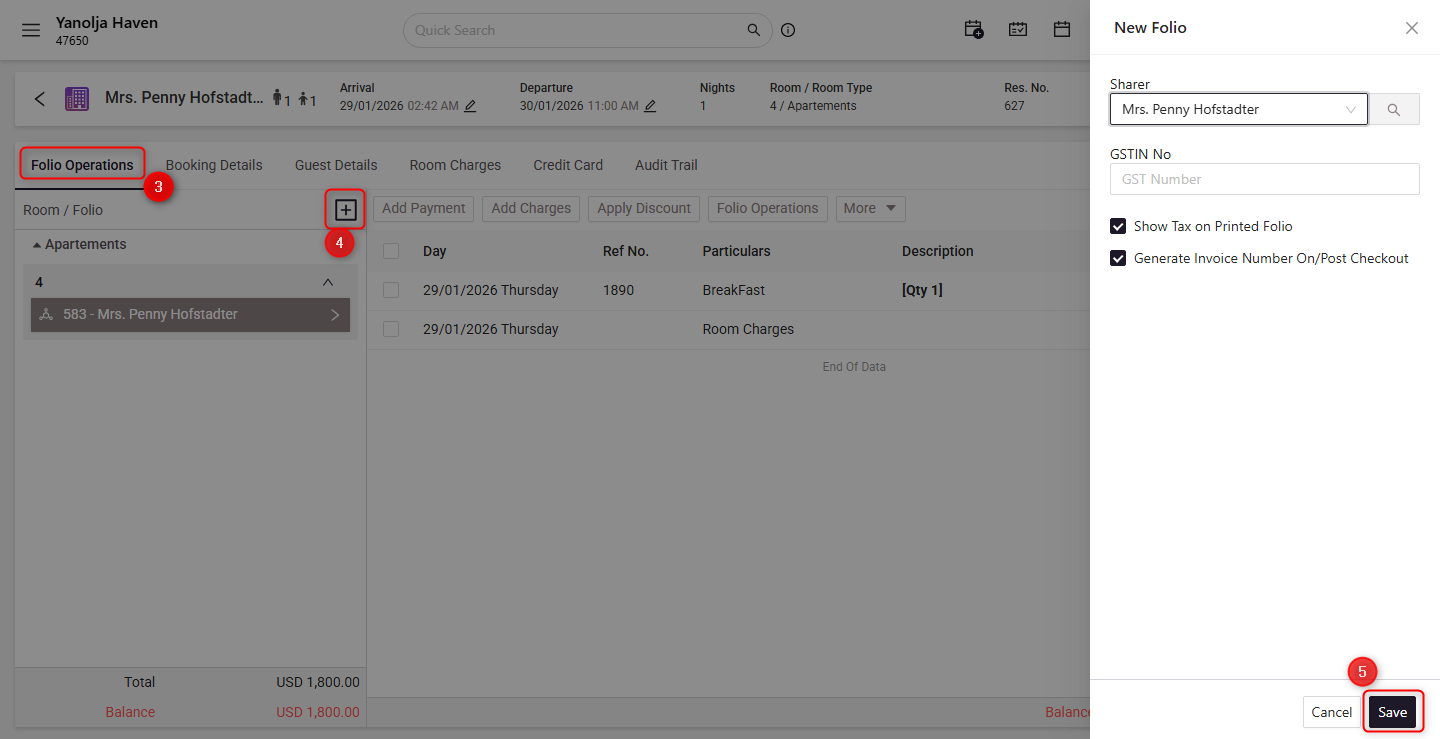
Step 3:
6. Select the new folio.
7. Click on More.
8. Select Split Folio.
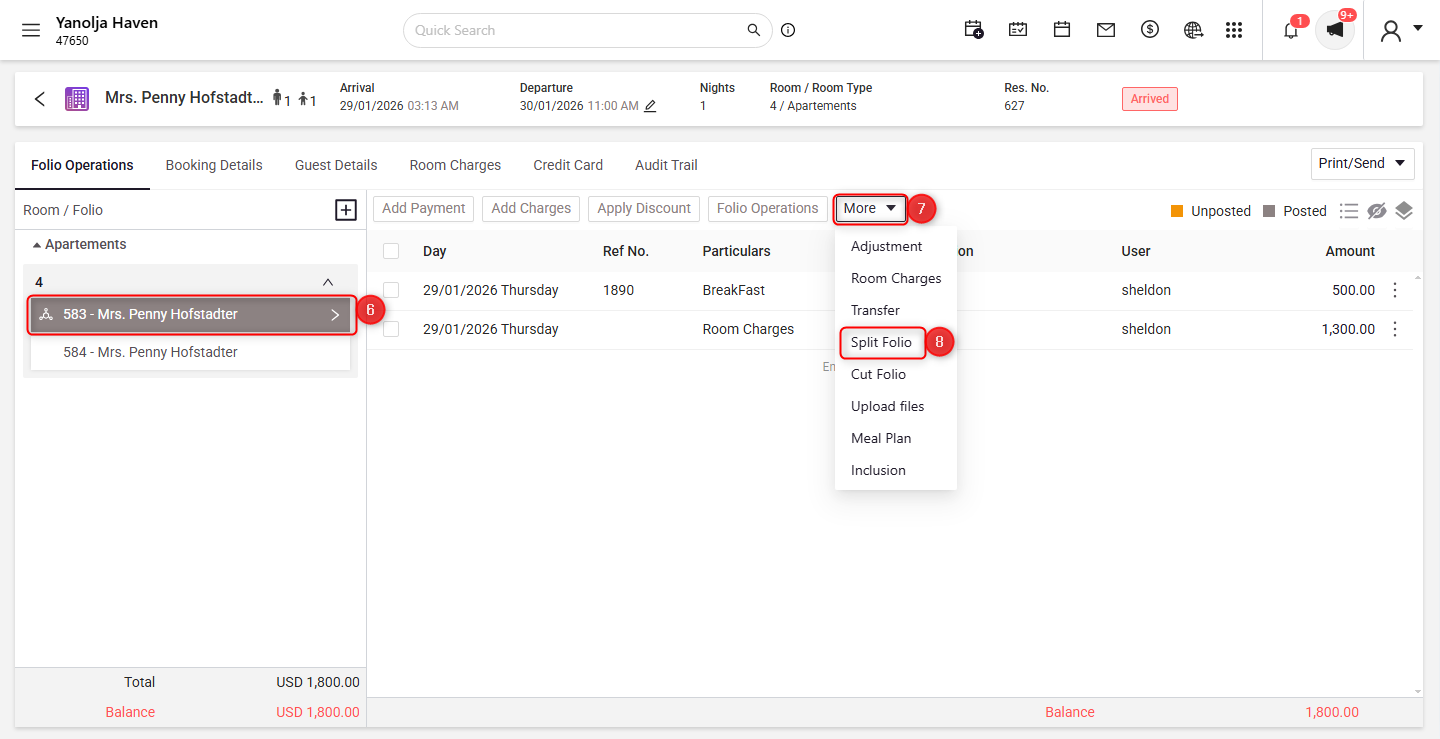
Step 4:
9. Click on the Search button.
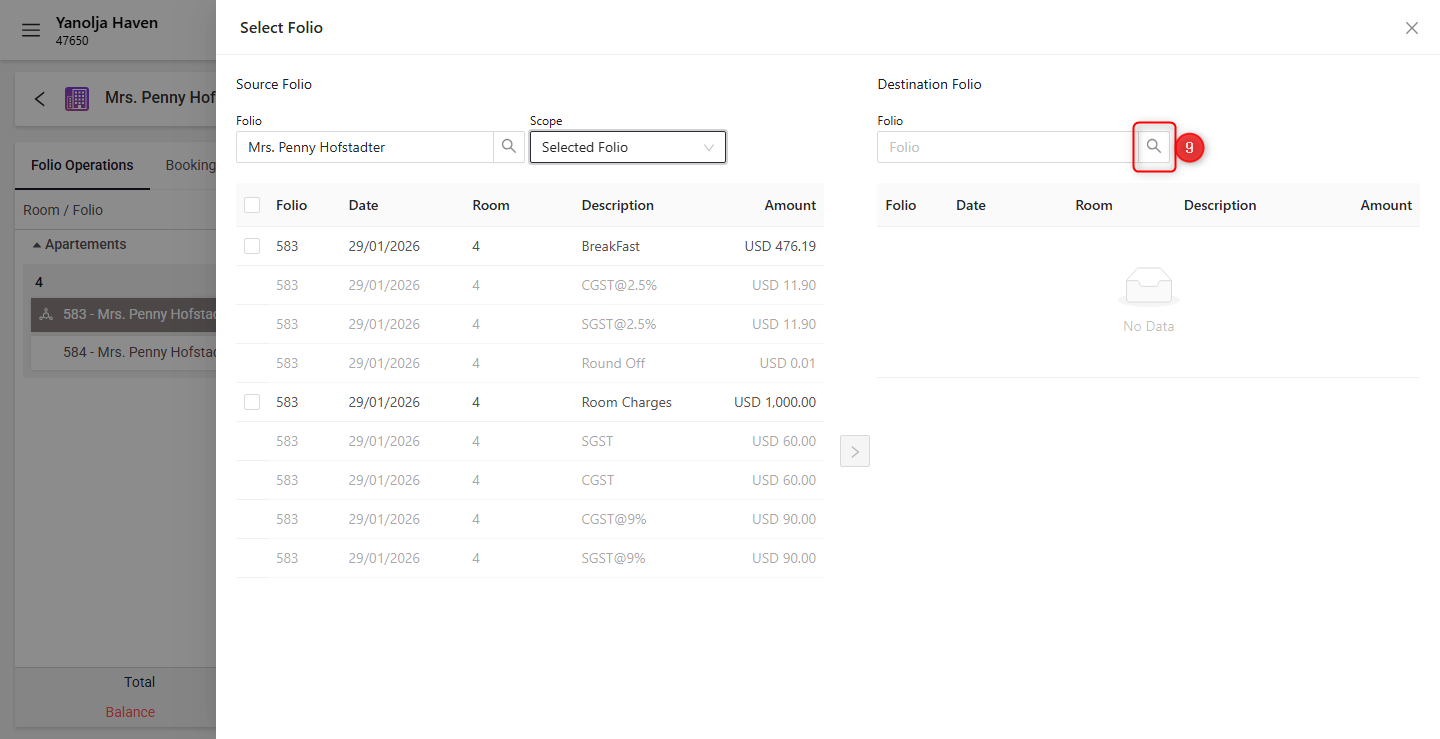
Step 5:
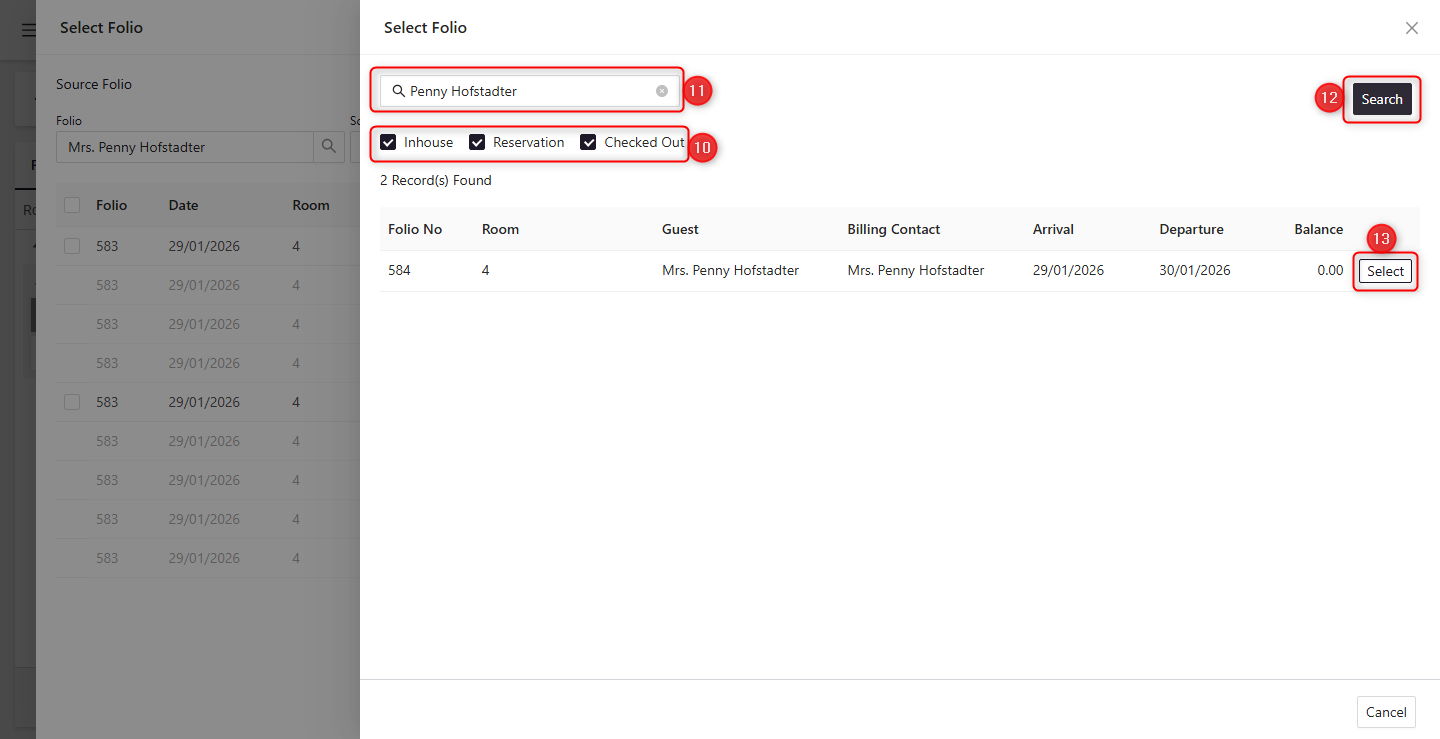
10. Select the Reservation Status you want to search by.
11. Search using either Guest Folio or Guest Name.
12. Click Search.
13. From the results, click Select on the destination folio.
Step 6:
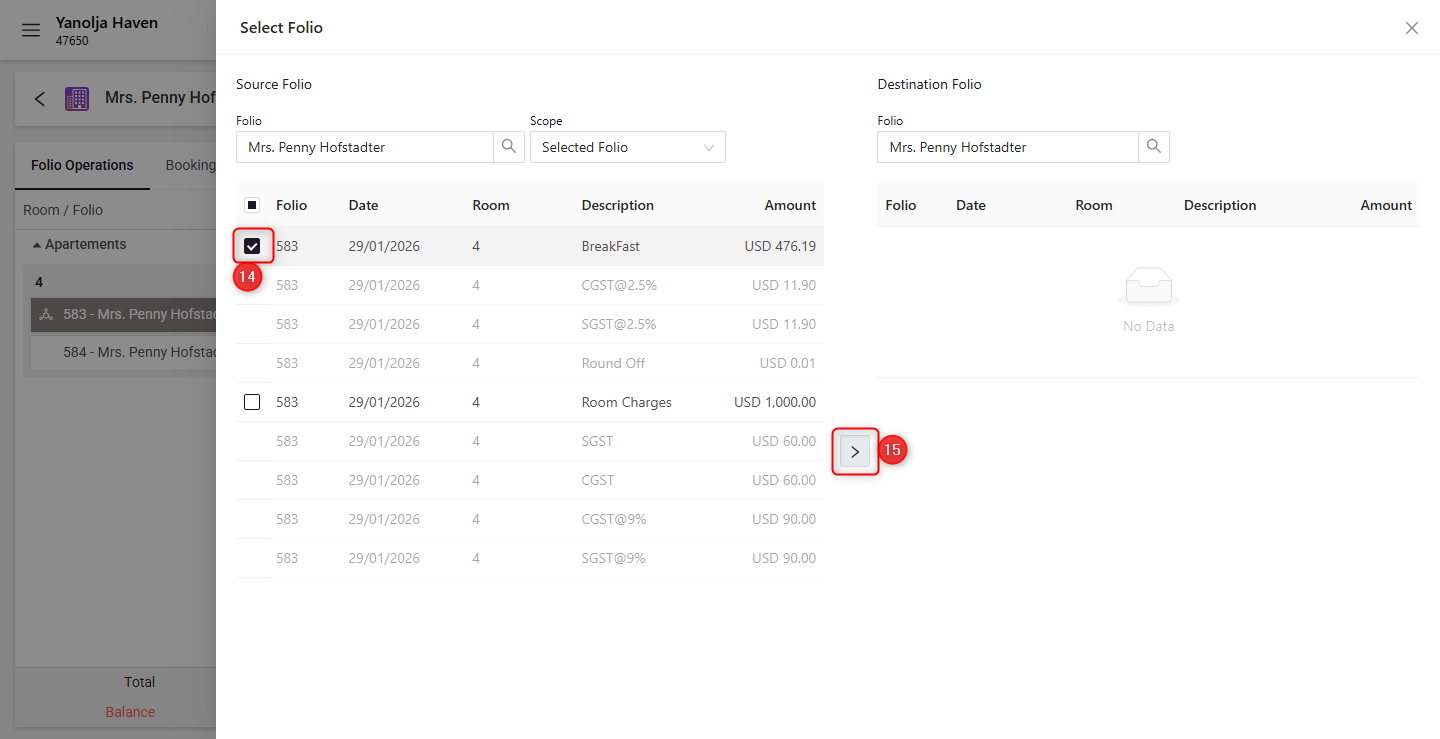
14. Choose the charges you want to move (for example, Extra Charges).
15. Click on the ">" button to move the selected charges to the new folio.
Step 7:
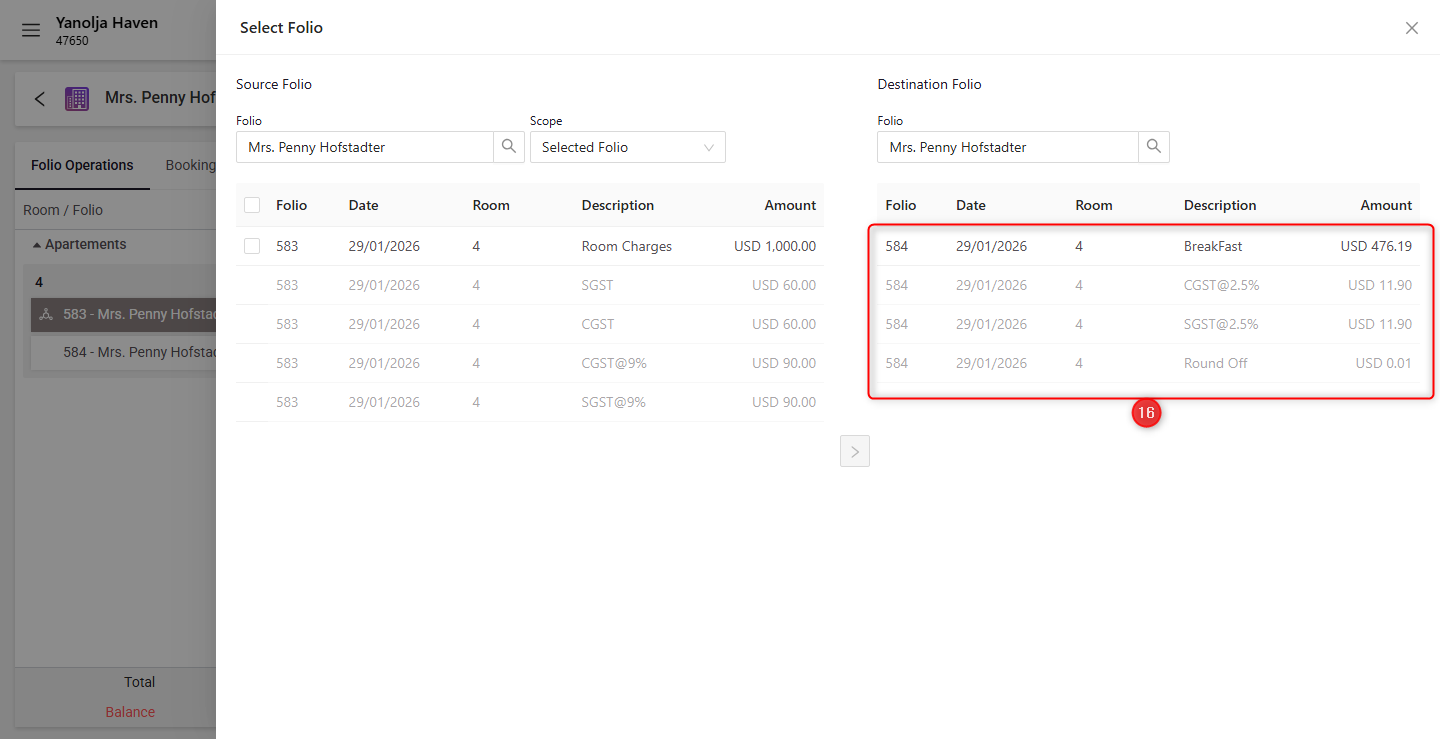
16. Review both folios. Ensure Room Charges and Extra Charges are separated correctly.
How to Check the List of Generated Folios
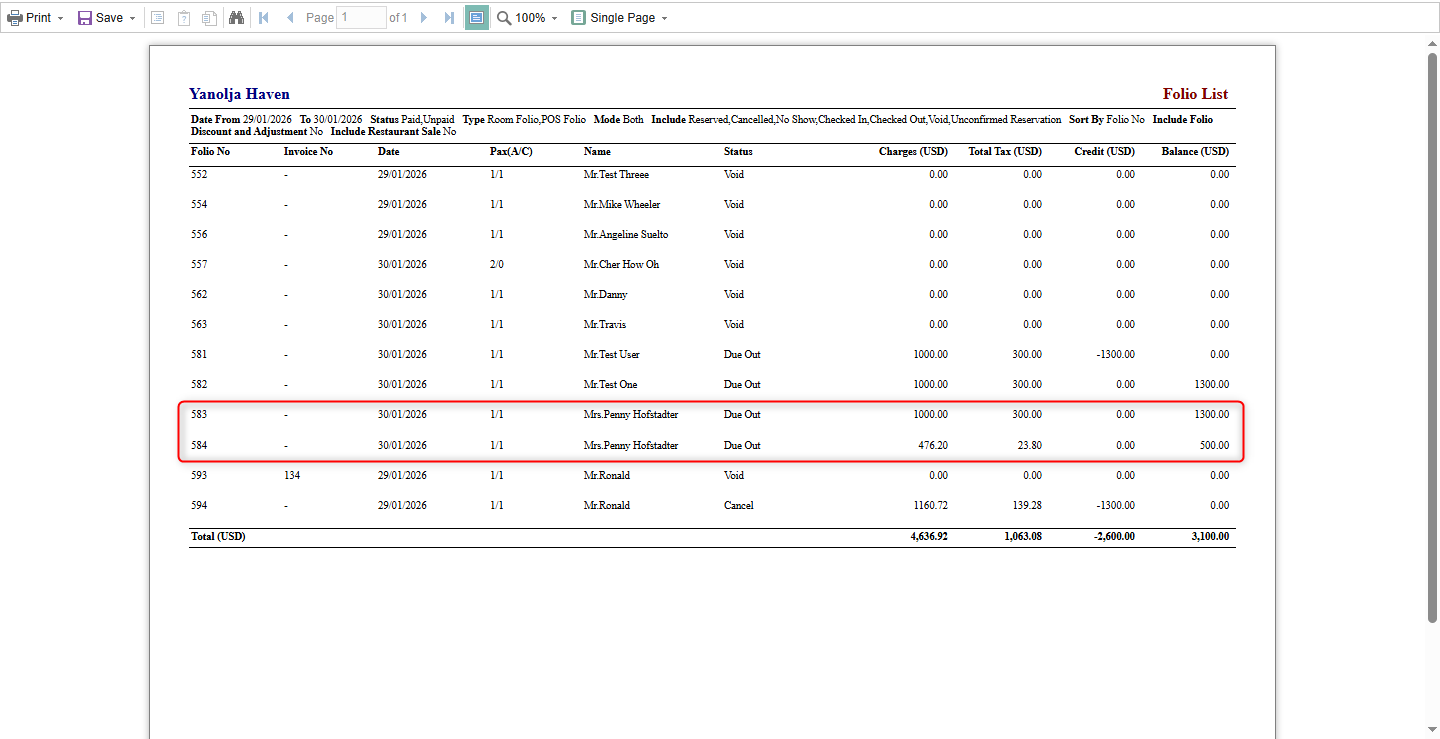
You can view all generated folios using the Folio List Report in eZee Absolute.
Steps to Access the Folio List Report:
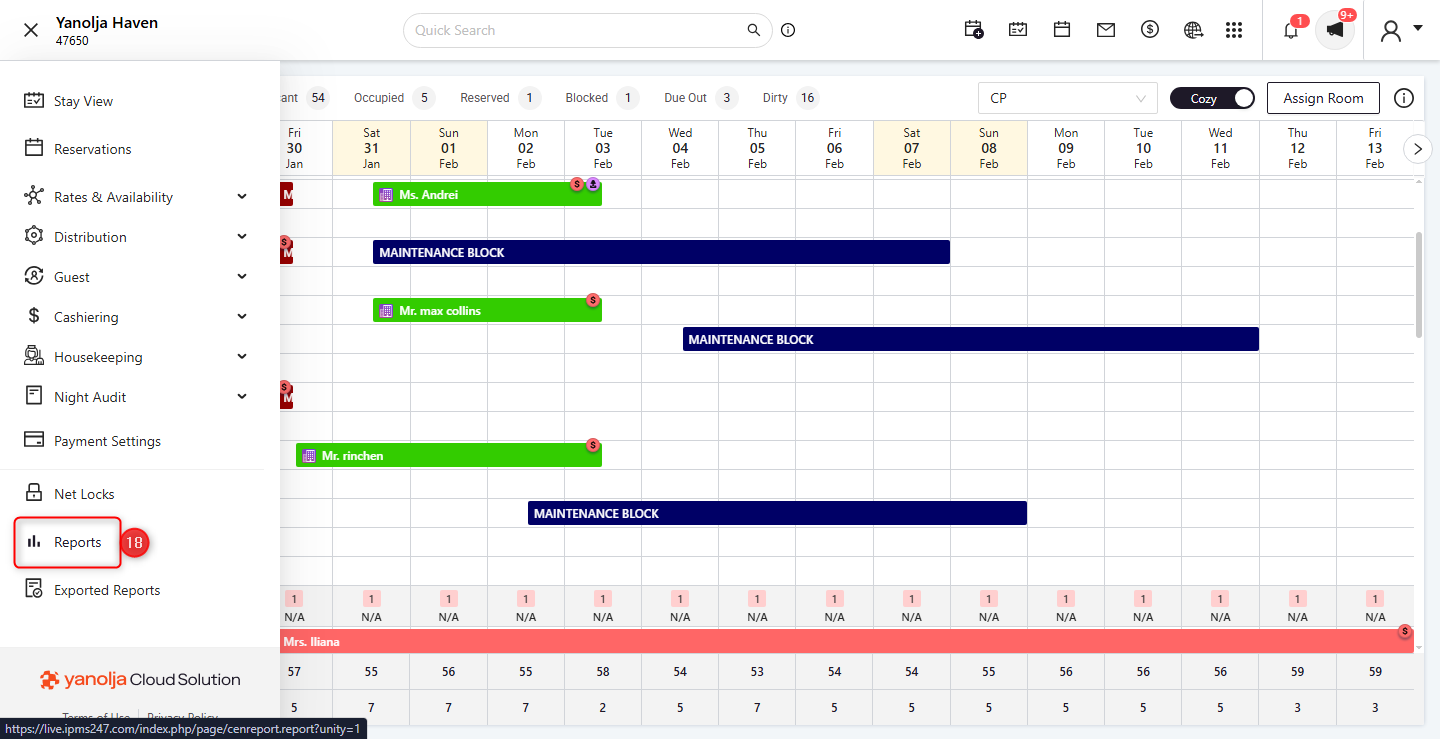
Step 8:
17. Click on the Hamburger Menu (☰) in the top-left corner.
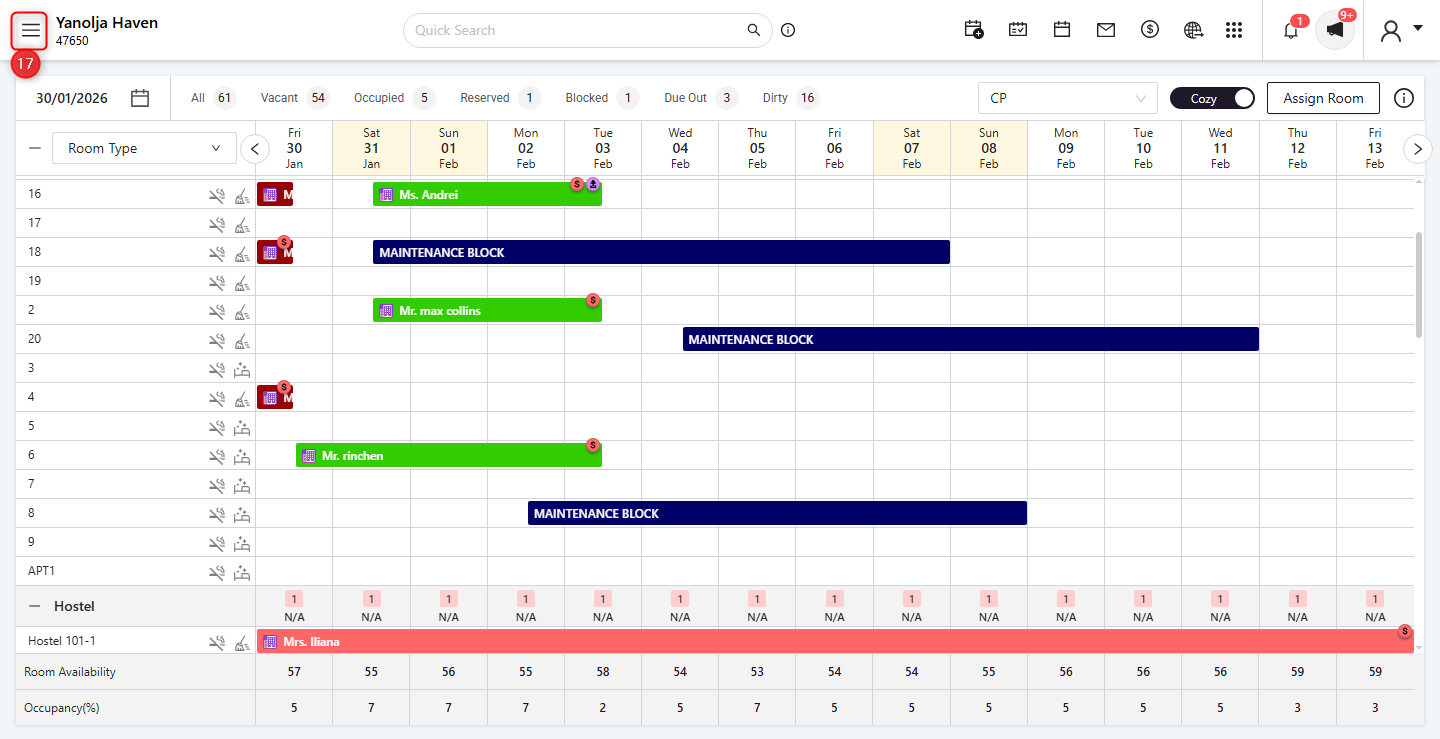
18. Select Reports.
Step 9:
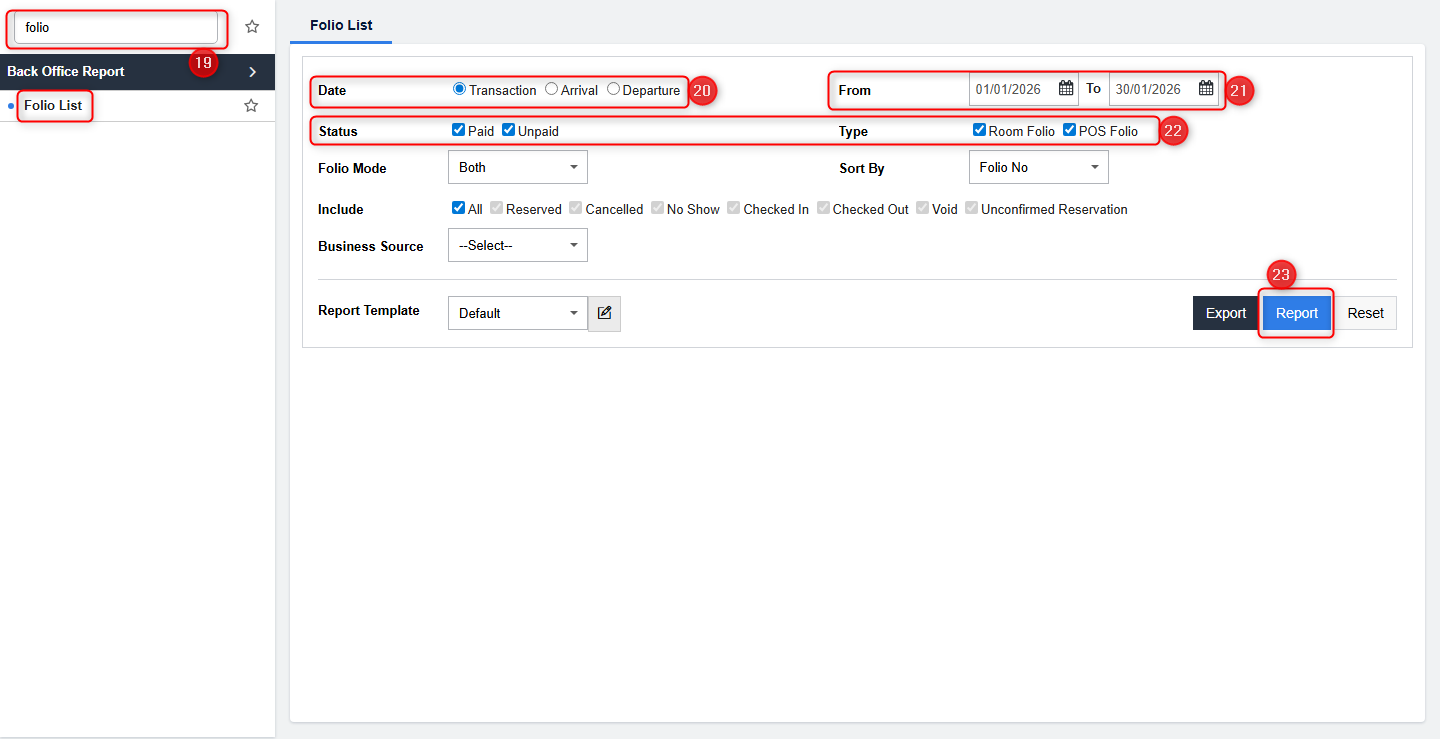
19. Search for Folio List Report in the report search bar.
20. Select the Date Type (Transaction Date / Arrival Date / Departure Date).
21. Choose the required Date Range.
22. Apply filters as needed:
- Paid / Unpaid Folios
- Room Folios / POS Folios
23. Click Generate Report.
The system will display a list of folios based on your selected criteria.
Was this article helpful?
That’s Great!
Thank you for your feedback
Sorry! We couldn't be helpful
Thank you for your feedback
Feedback sent
We appreciate your effort and will try to fix the article