This FAQ explains how to manage salesperson records in the PMS, including adding, editing, deleting, and deactivating a salesperson. It also covers the user privileges required to perform these actions.
Steps to Add a Salesperson :
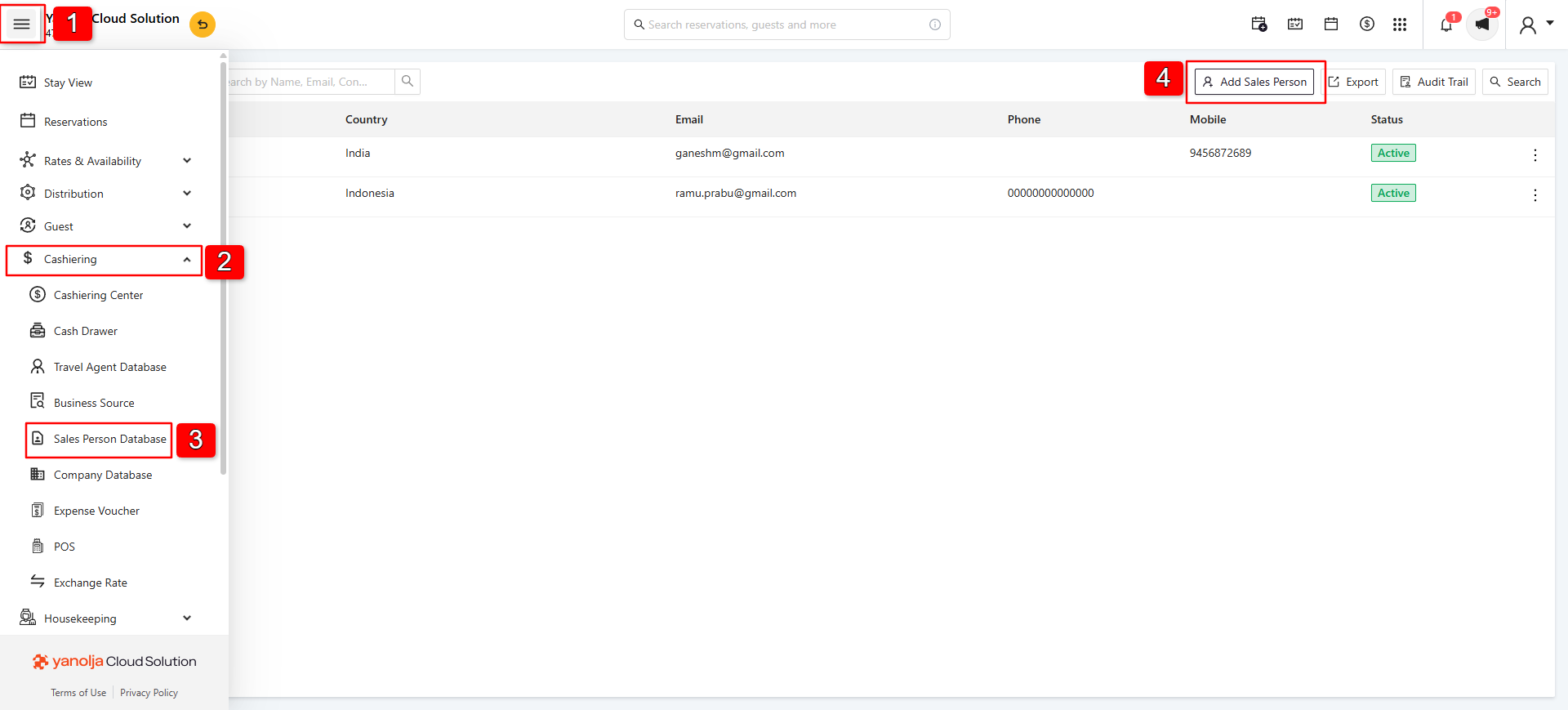
1. Click on Menu.
2. Navigate to Cashiering Centre.
3. Click Salesperson Database.
4. Click Add Salesperson.
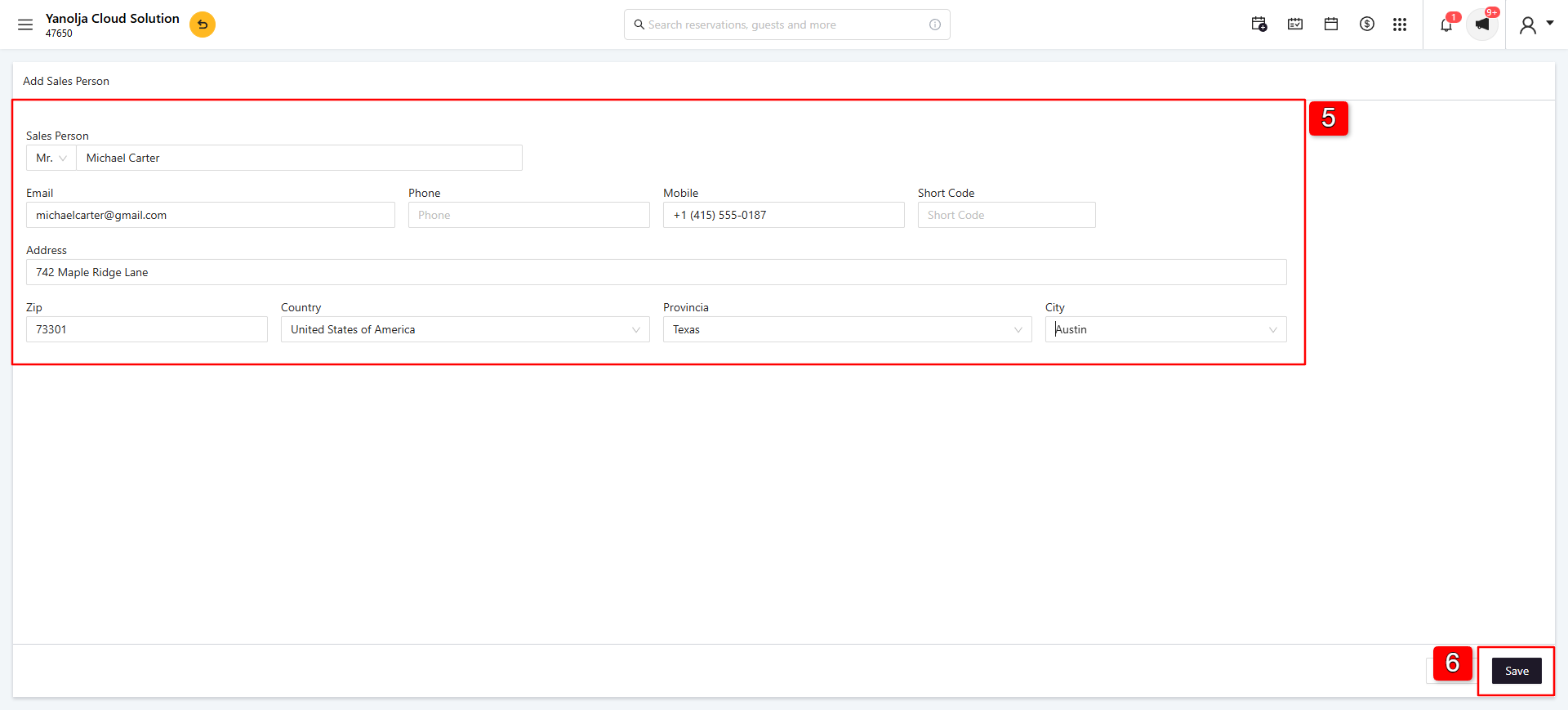
5. Enter the required details, such as:
Name, Email, Mobile Number, Address.
6. Click Save to add the salesperson.
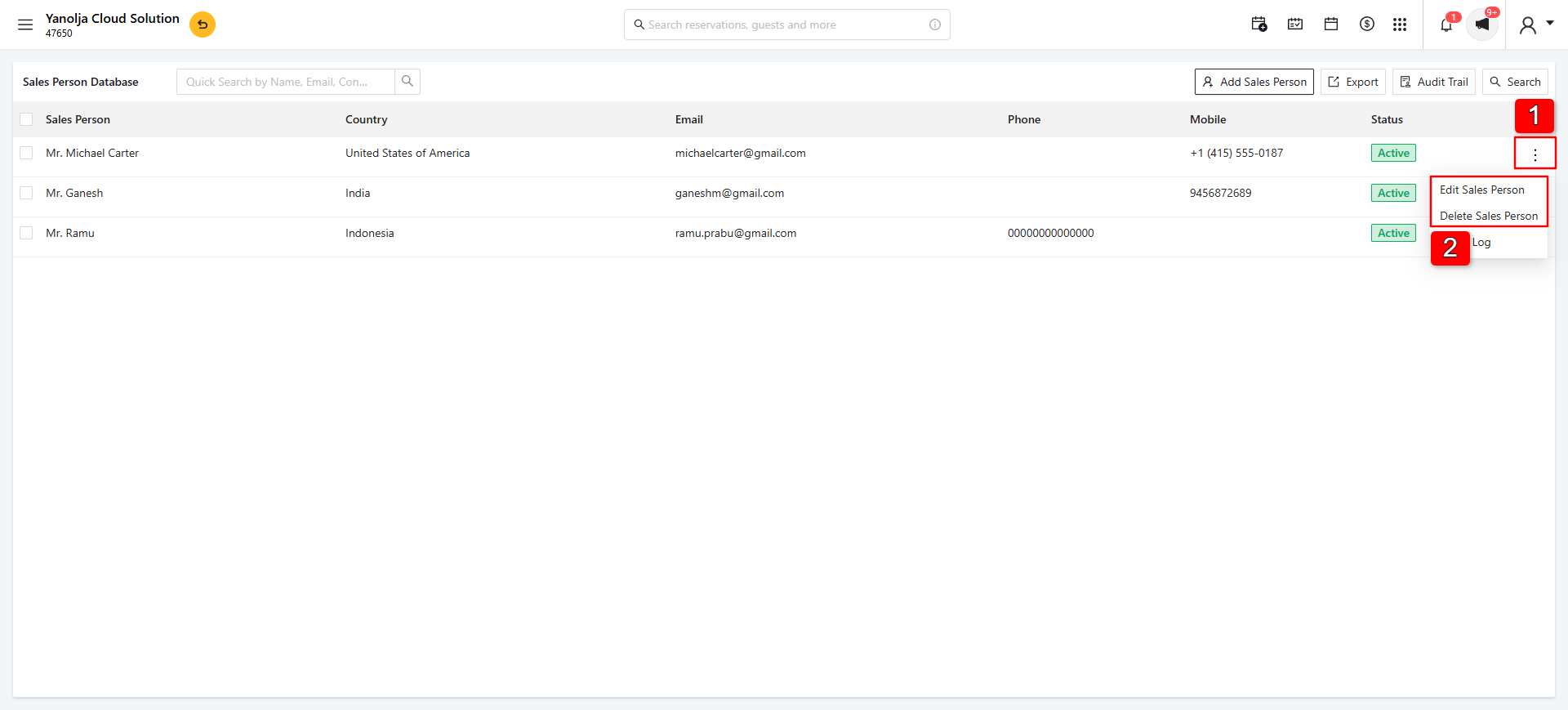
Steps to Edit or Delete a Salesperson :
1. Click the three-dot (⋮) menu next to the required salesperson.
2. Select Edit to update the salesperson details, or Delete to remove the salesperson.
Deactivating a Salesperson :
If a salesperson already has transactions or existing records associated with them, the system will not allow the salesperson to be deleted.
1. Hover over the Active status. Select Deactivate.
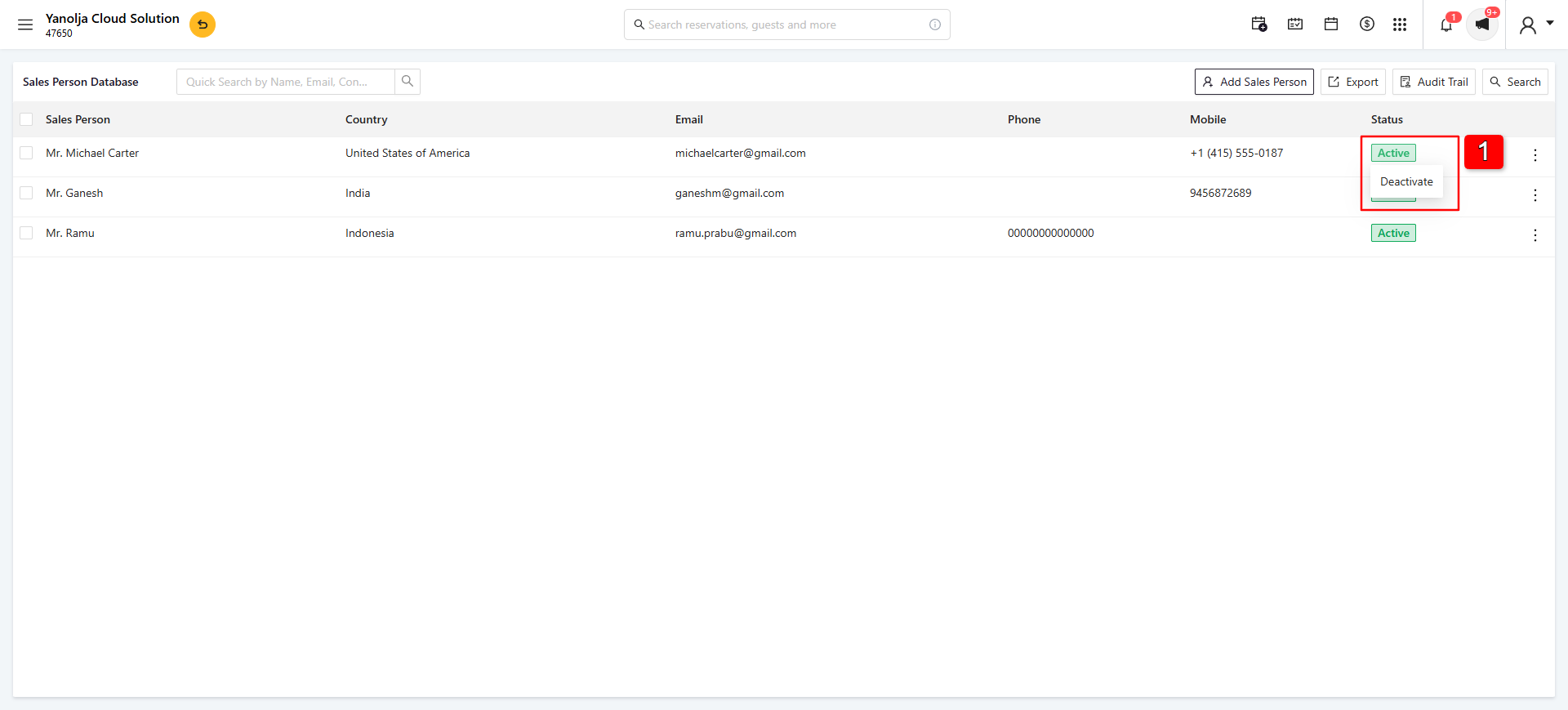
Once deactivated, the salesperson will no longer be available for future transactions while preserving historical records.
Note: A salesperson can only be deleted if no existing data or transactions are linked to that record.
Required User Privileges :
Users must have the appropriate permissions to add, edit, delete, or deactivate a salesperson.
Steps to Assign Salesperson Management Privileges
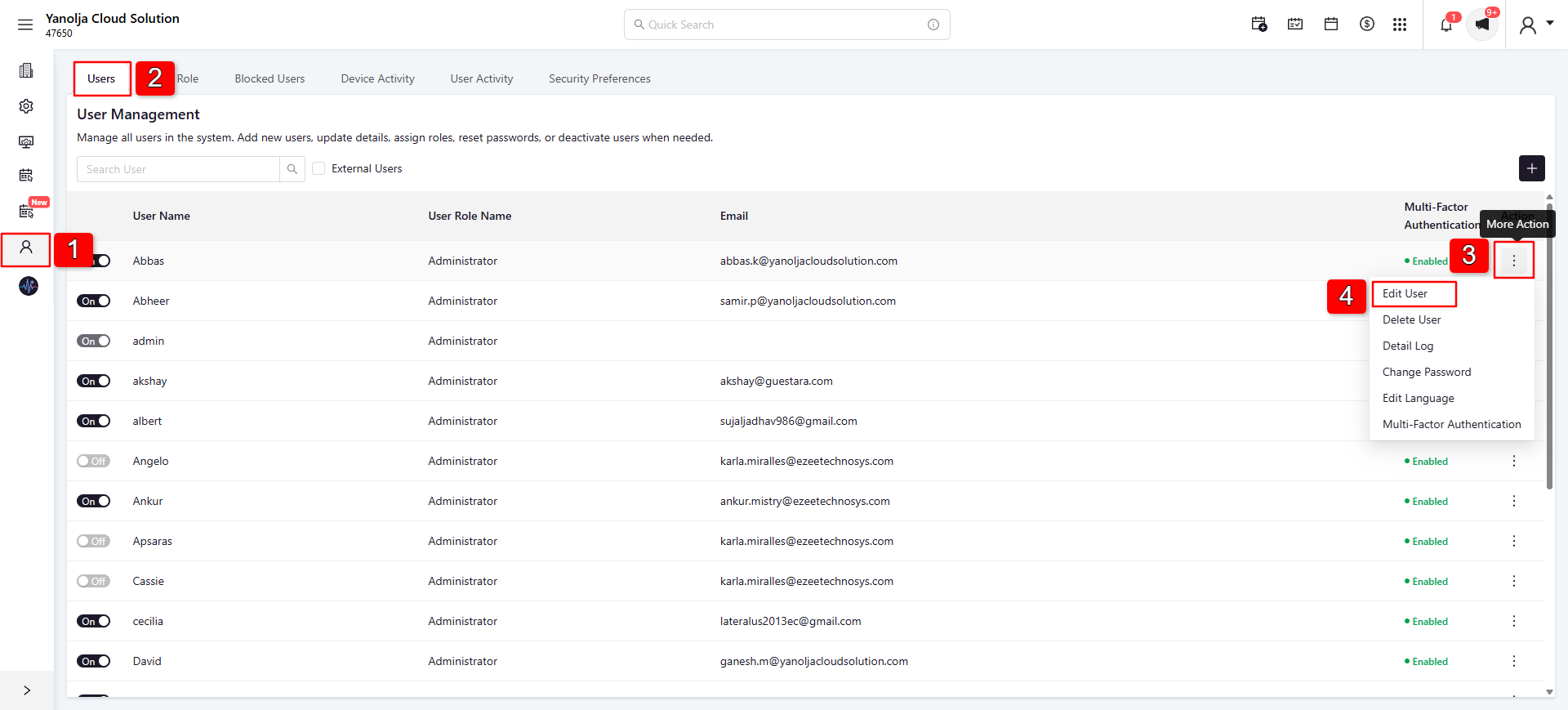
1. Go to Configuration. Click User Management.
2. Select Users.
3. Click the three-dot (⋮) of the required user.
4. Edit User.
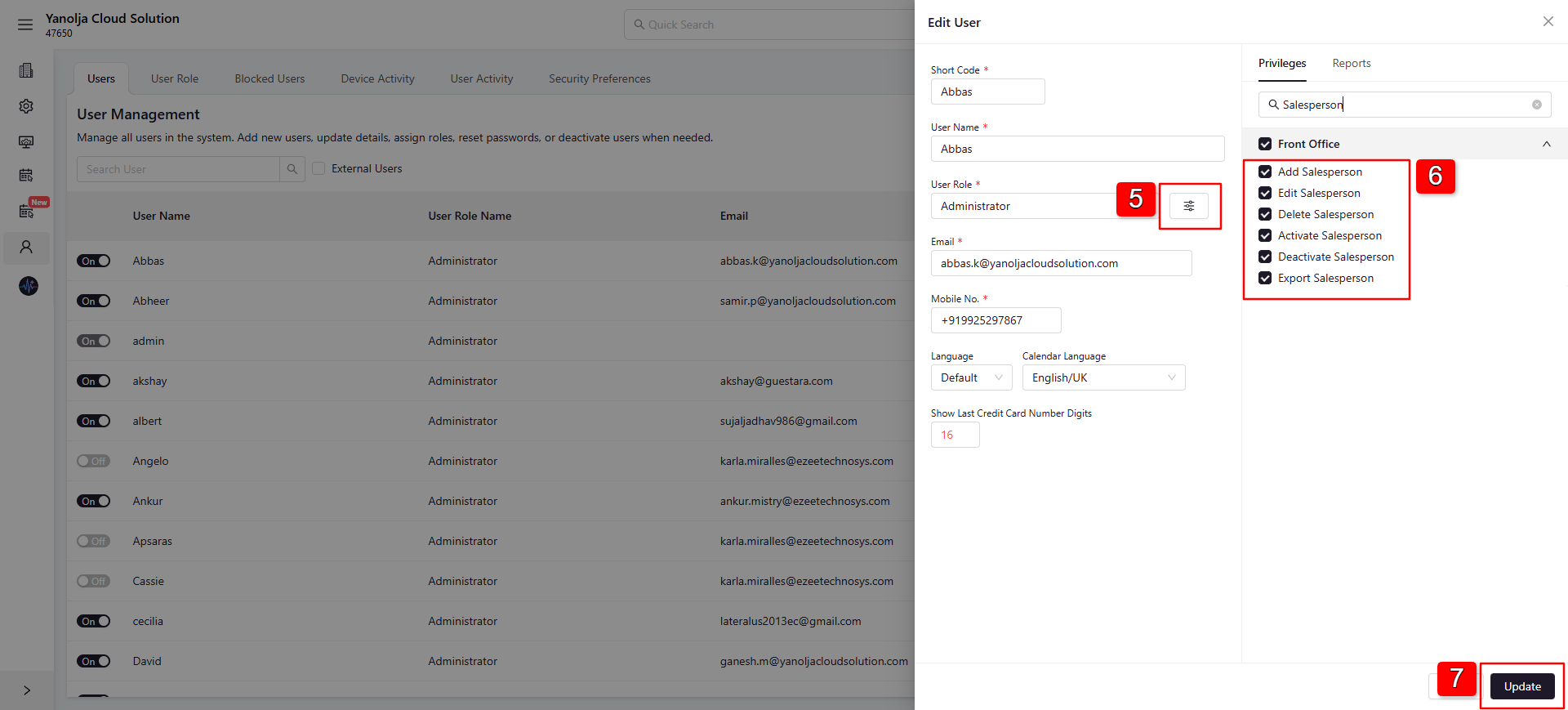
5. Click on Filter.
6. Enable the required salesperson management privileges.
7. Click on Update to Save the changes.
Note: Only users with the appropriate privileges can perform salesperson management operations in the PMS.
Was this article helpful?
That’s Great!
Thank you for your feedback
Sorry! We couldn't be helpful
Thank you for your feedback
Feedback sent
We appreciate your effort and will try to fix the article