In order to create Tasks, Messages, and Preferences in the PMS, follow the steps below.
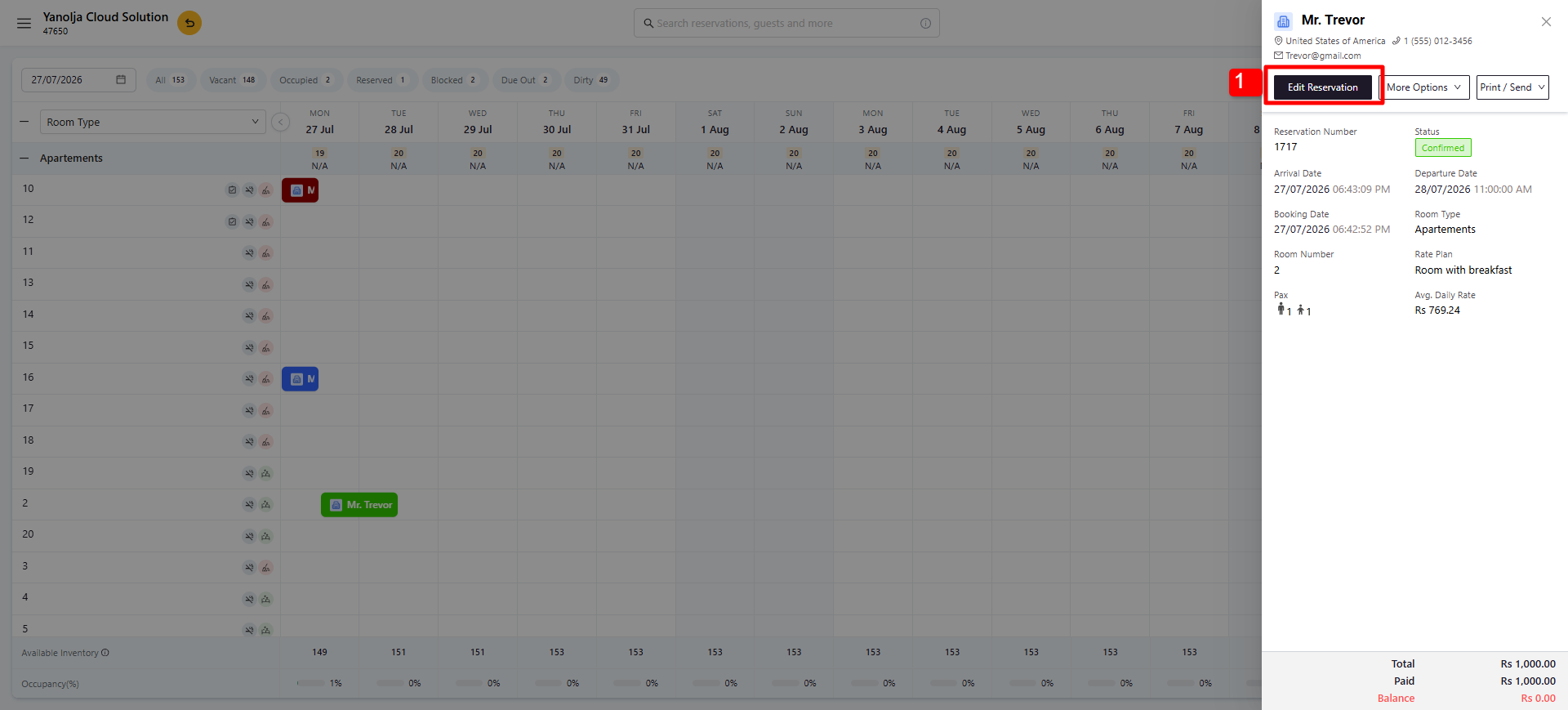
1. Navigate to the reservation for which you want to create a task and click Edit Reservation.
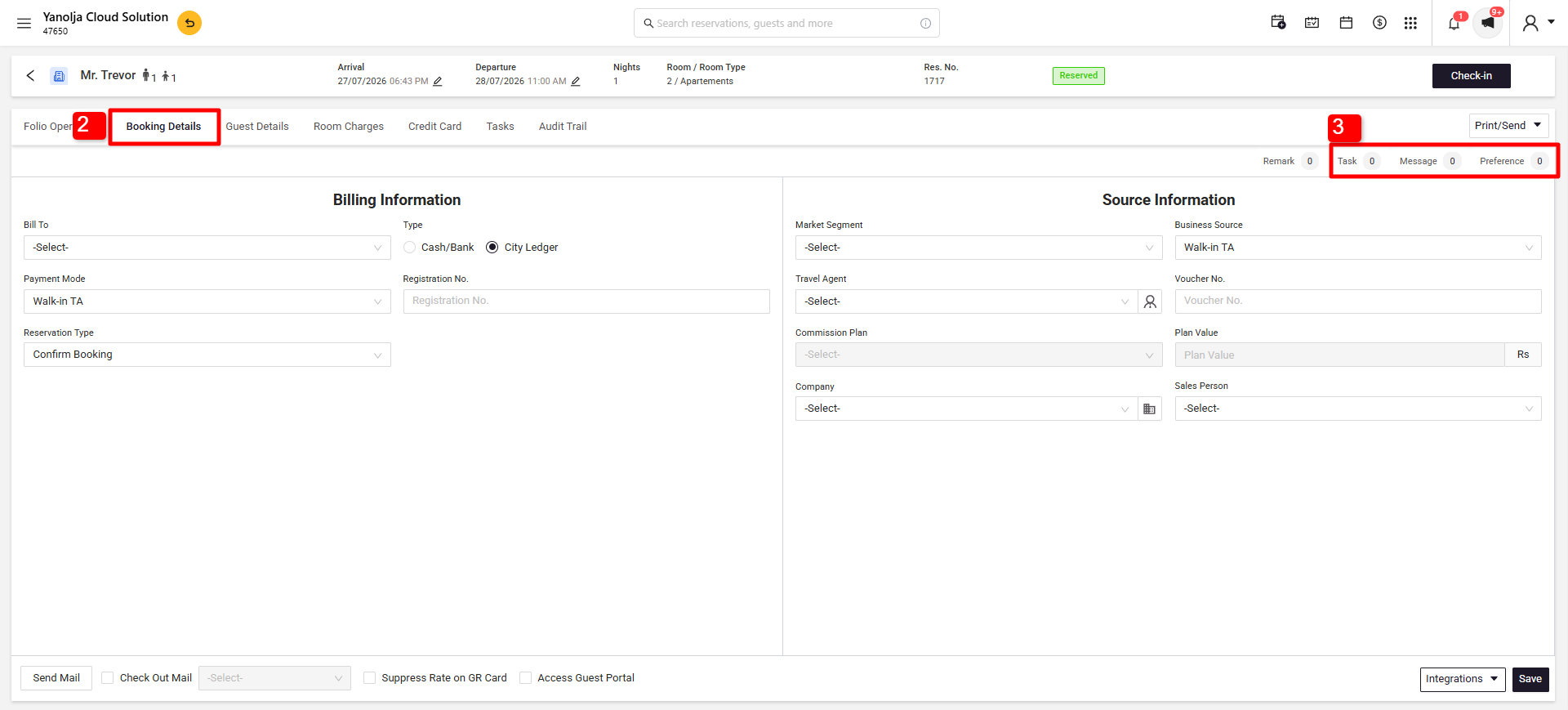
2. Click on Booking Details.
3. Select one of the following options: Task, Messages, or Preference.
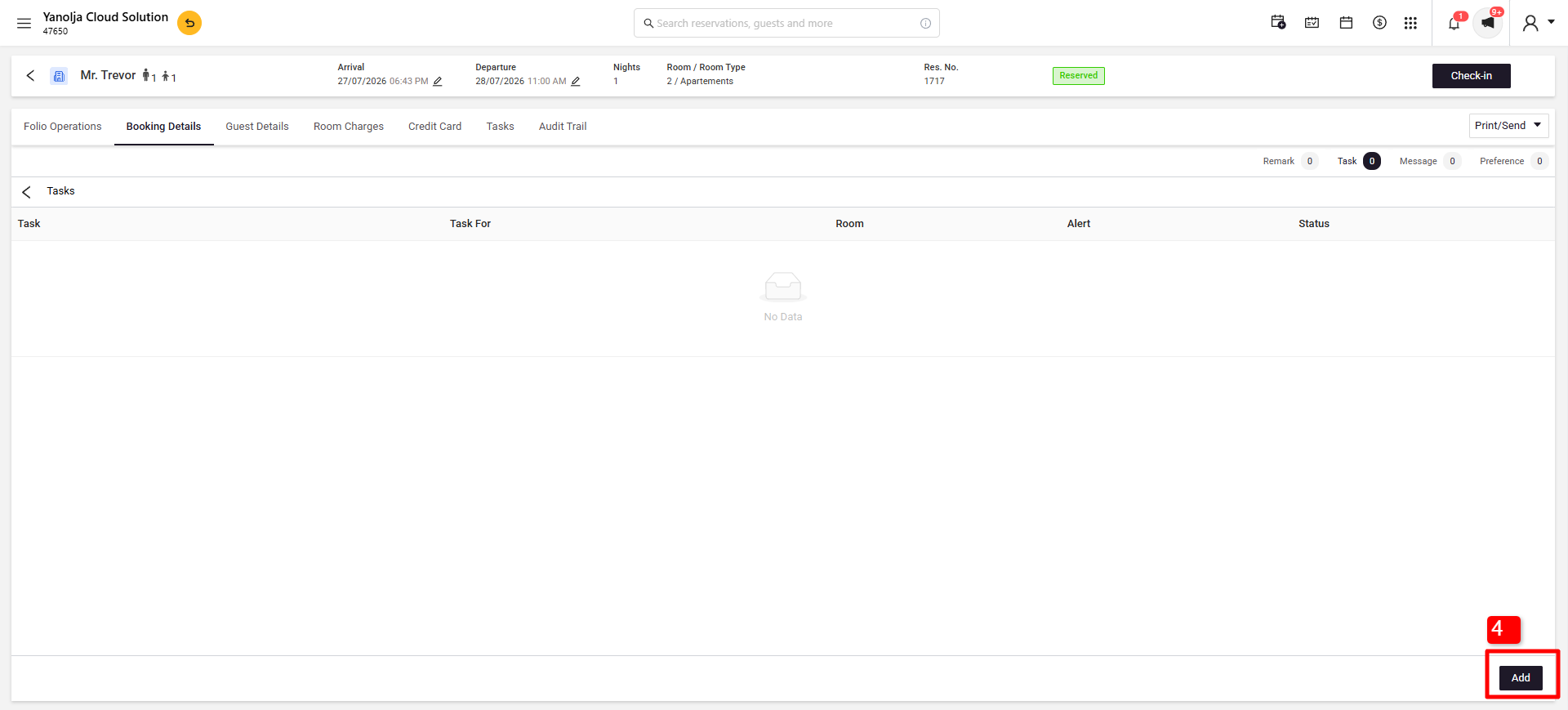
4. Once you have selected Task, click Add.
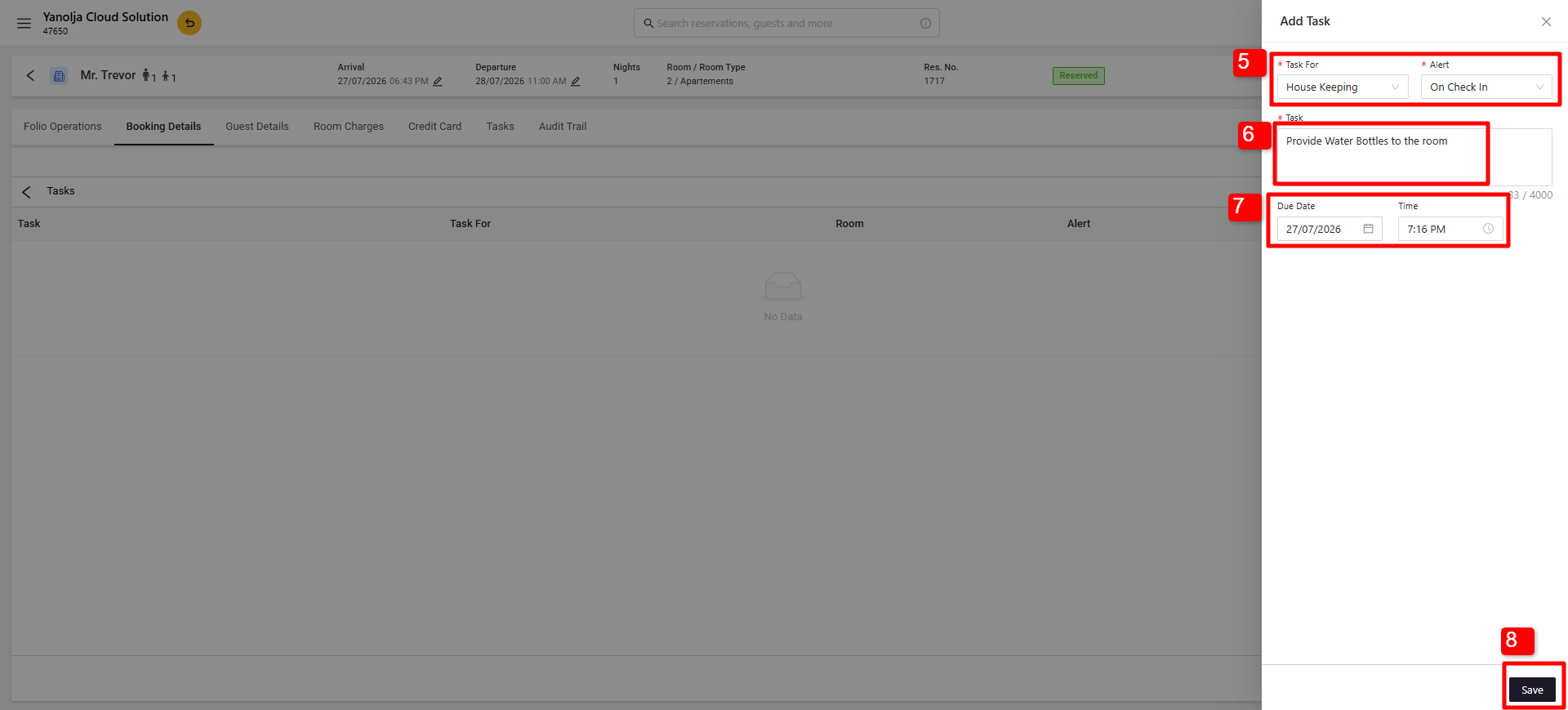
5. Select whether the task is for a Front Office user or a Housekeeper, and choose when the task should be alerted to the assigned user.
6. Enter a description for the task.
7. Select a due date and time, if required.
8. Click Save, and the task will be added to the reservation.
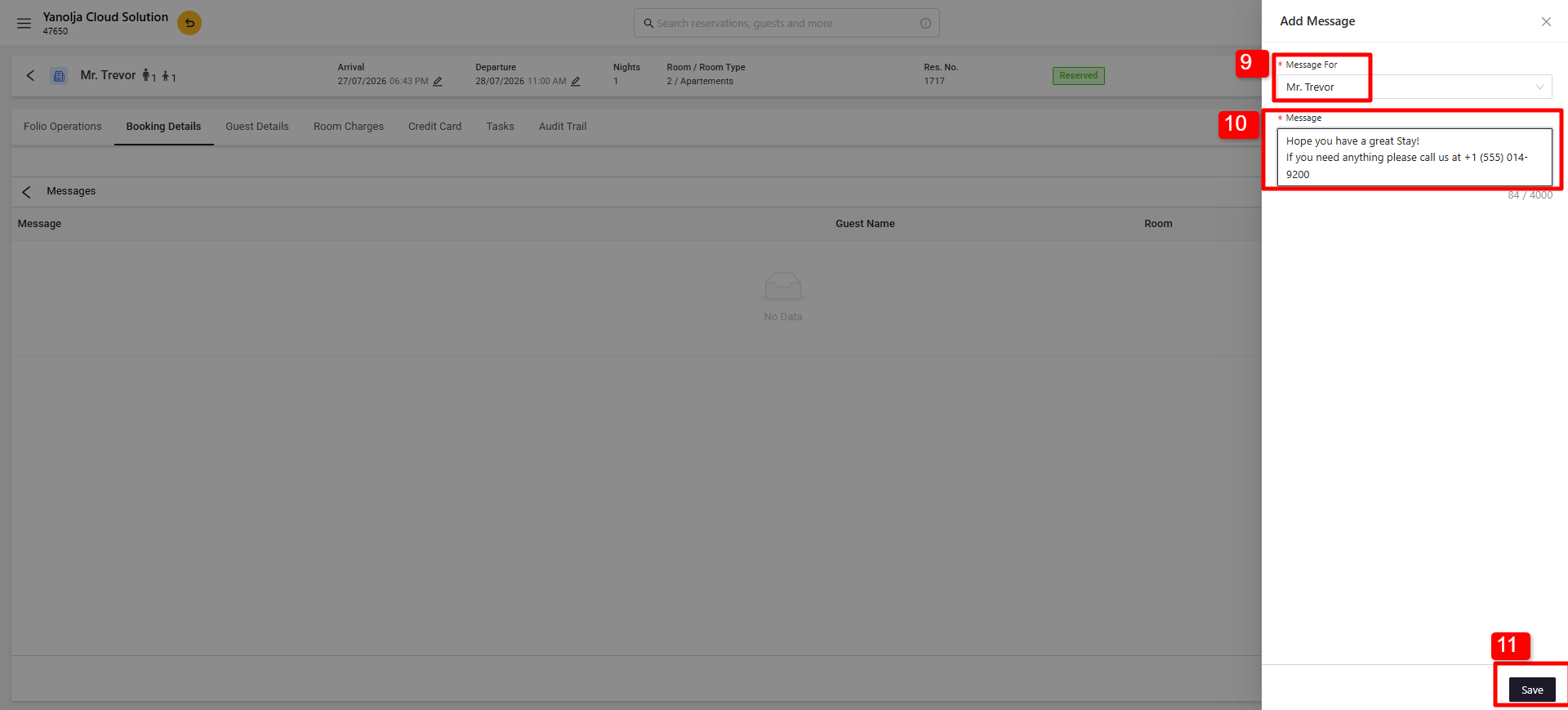
9. To create a message for the guest, click the Messages option (as shown in Step 3) and then click Add. Select the guest to whom the message should be delivered.
10. Enter the message description.
11. Click Save, and the message will be saved in the reservation.
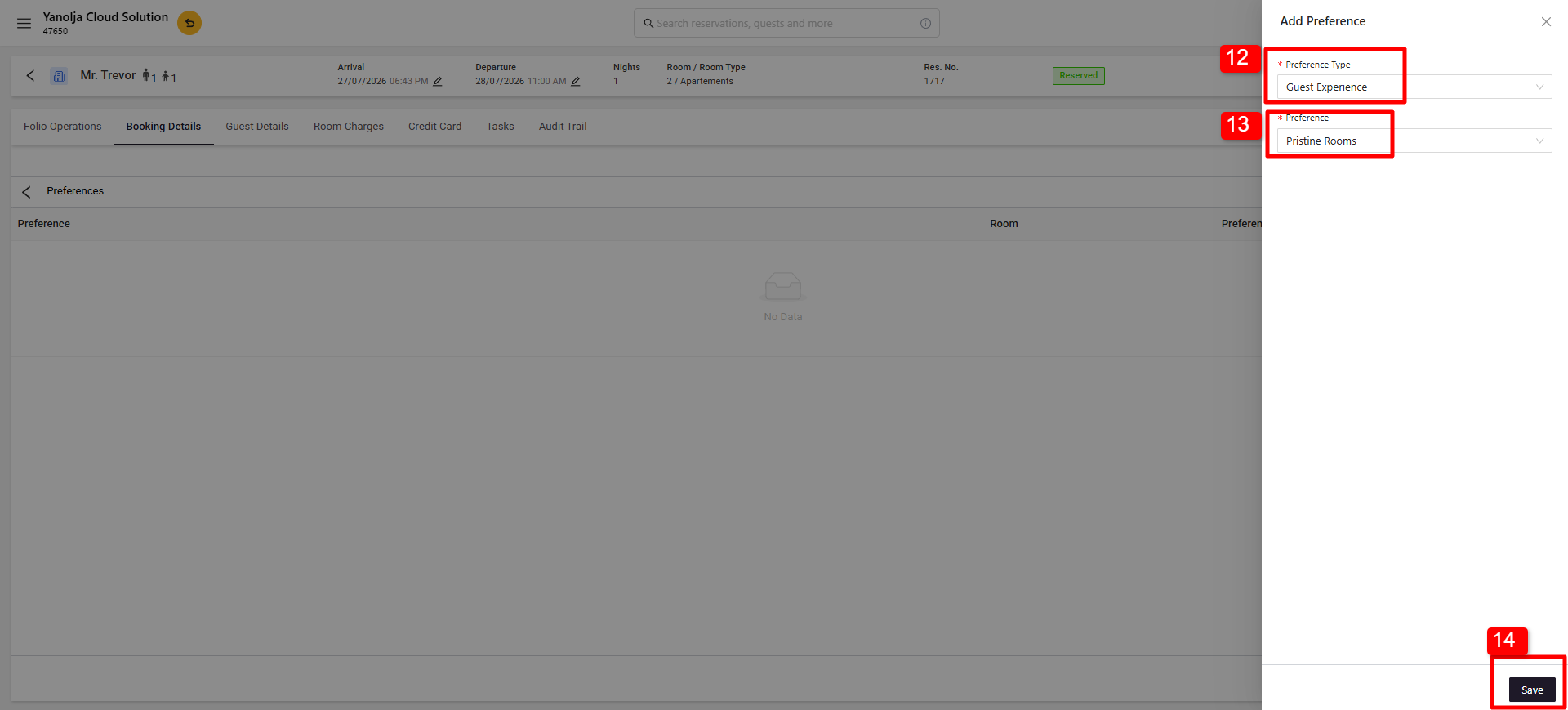
12. To add a preference, click the Preference option (as shown in Step 3) and then click Add. Select the preference type.
13. Select the required preference.
14. Click Save, and the preference will be saved in the reservation.
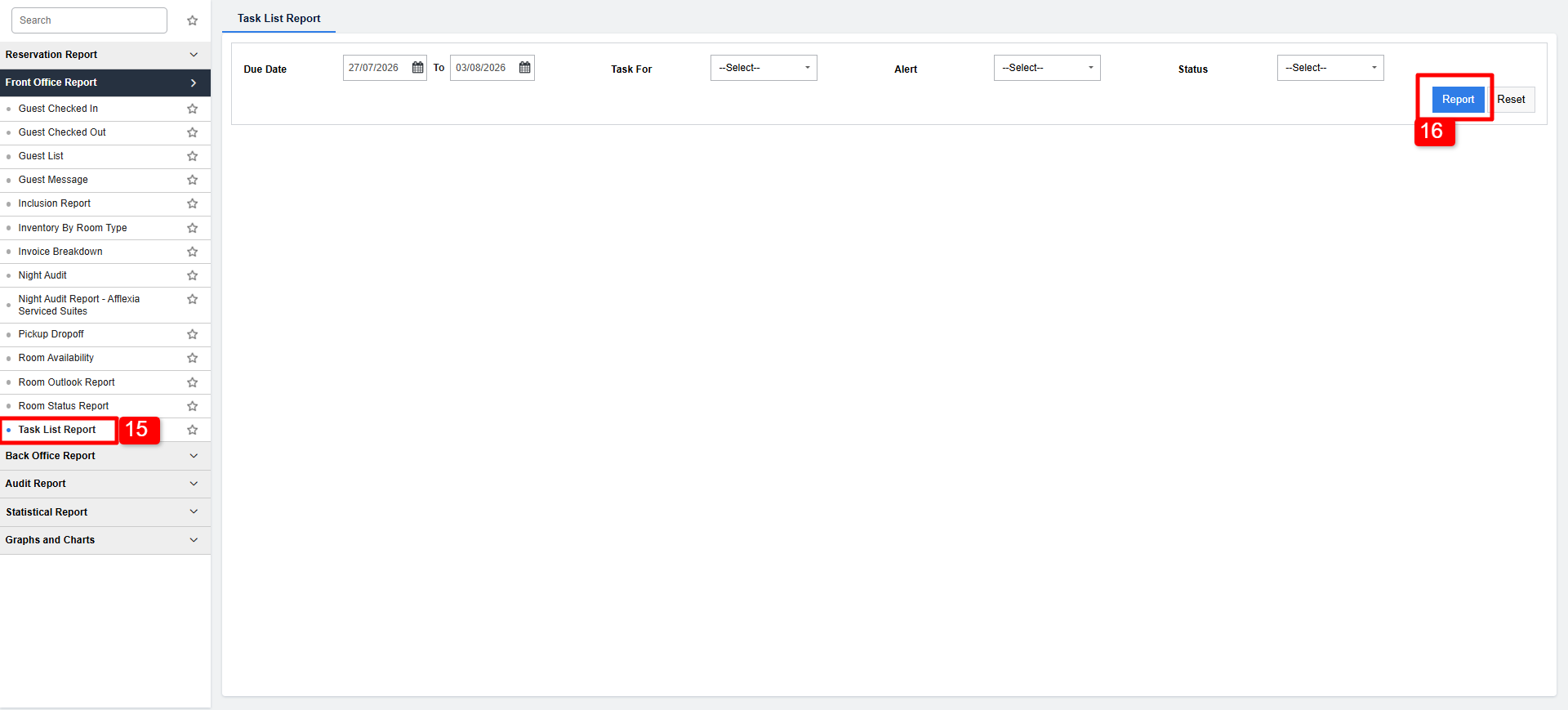
15. You can track all your tasks in one place by generating the Task List Report.
Was this article helpful?
That’s Great!
Thank you for your feedback
Sorry! We couldn't be helpful
Thank you for your feedback
Feedback sent
We appreciate your effort and will try to fix the article