This article is not available in Thai, view it in English
Access the Reservation:
- Navigate to Stay View or reservation page.
- Locate and click on the reservation associated with the extra charge you wish to edit.
Edit the Transaction:
- Within the reservation details, click on the "Edit Transaction" option.
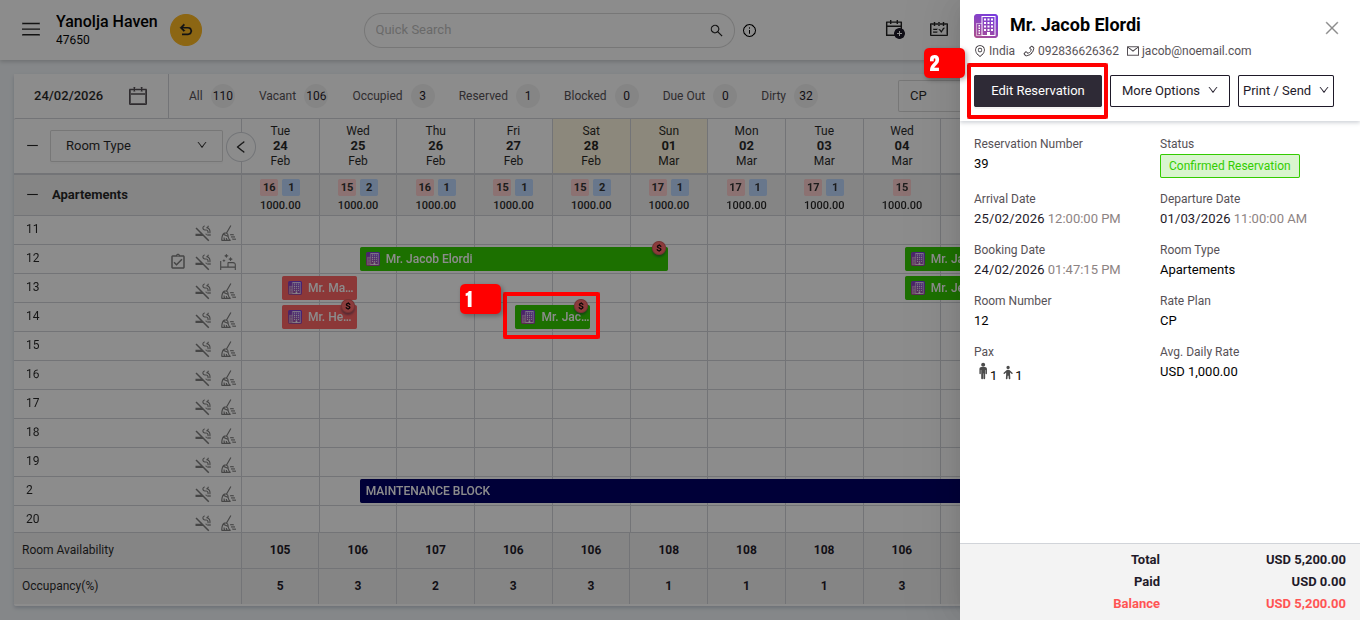
- Within the reservation details, click on the "Edit Transaction" option.
- Navigate to the Folio Details:
- Select the "Folio Operations" tab to view all charges which are posted to the reservation.
- Locate the Extra Charge:
- In the list of charges, find the specific extra charge that needs modification.
- In the list of charges, find the specific extra charge that needs modification.
- Edit the Extra Charge:
- Hover over the three dots (options menu) next to the extra charge.
- Click on the "Edit" button that appears.
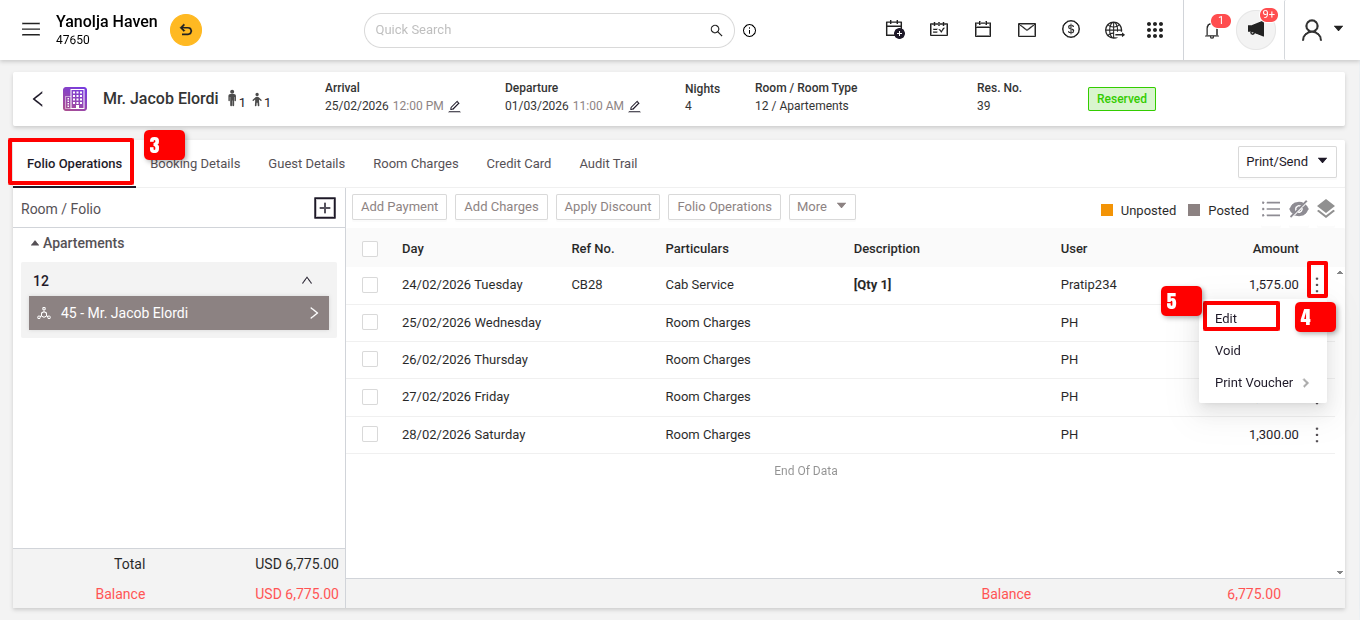
- Update :
- Update the necessary details, such as the amount or quantity
- Click on the "Edit" button that appears.
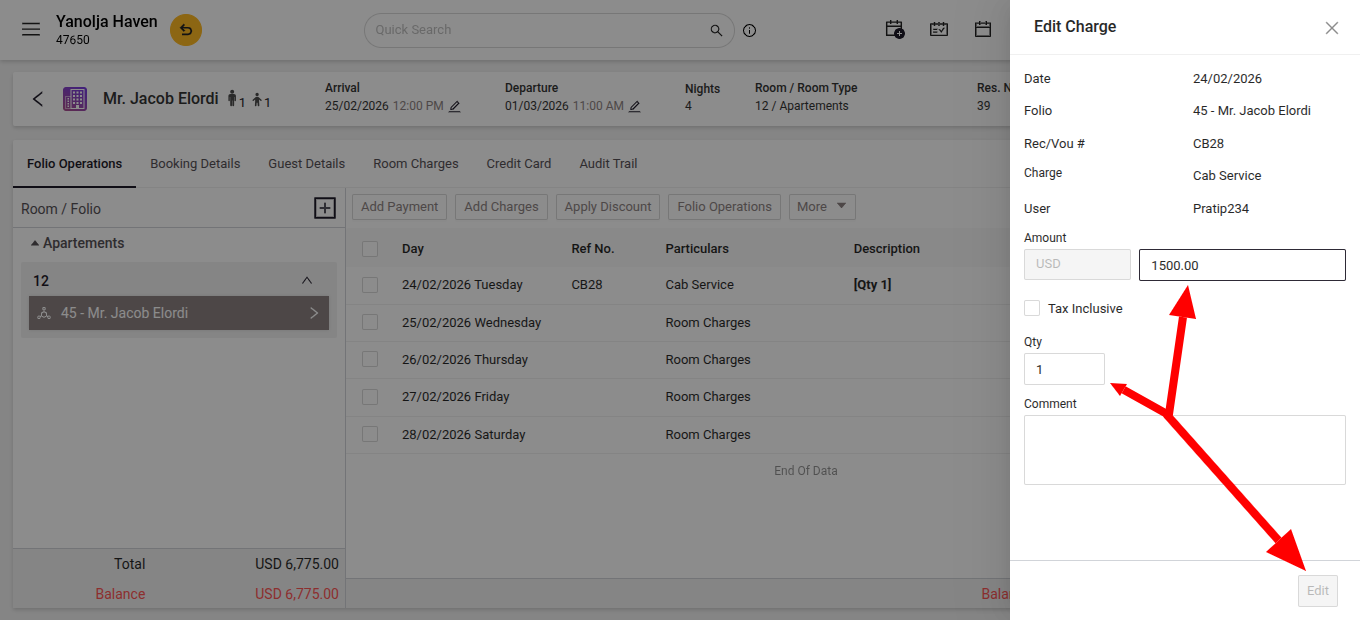
User Privileges:
Ensure that your user account has the necessary privileges to edit Extra Charges:
- Go to Configuration > User > Edit User > Privileges > Front Office.
- Verify that "Access to edit Inclusion" is enabled.
Was this article helpful?
That’s Great!
Thank you for your feedback
Sorry! We couldn't be helpful
Thank you for your feedback
Feedback sent
We appreciate your effort and will try to fix the article