Credit Settlement / City Ledger Accounts
Overview
A City Ledger Account is used to manage credit transactions for companies, travel agents, corporate clients, or individual guests who are approved for direct billing.
The city ledger may include:
Corporate direct billing accounts
Credit card settlement accounts
Travel agent accounts
Outstanding balances of past guests (e.g., restaurant or accommodation dues)
When a bill is posted to a company or approved account, it is treated as a credit transaction. The balance remains in the city ledger until payment is received. Once payment is made by the guest or company, the amount is posted against the respective city ledger account, and the outstanding charges are reconciled (mapped).
Creating a City Ledger Account
Navigation Path
1. Open Ozone.
2. Click on Property Name.
3. Select Switch to back.
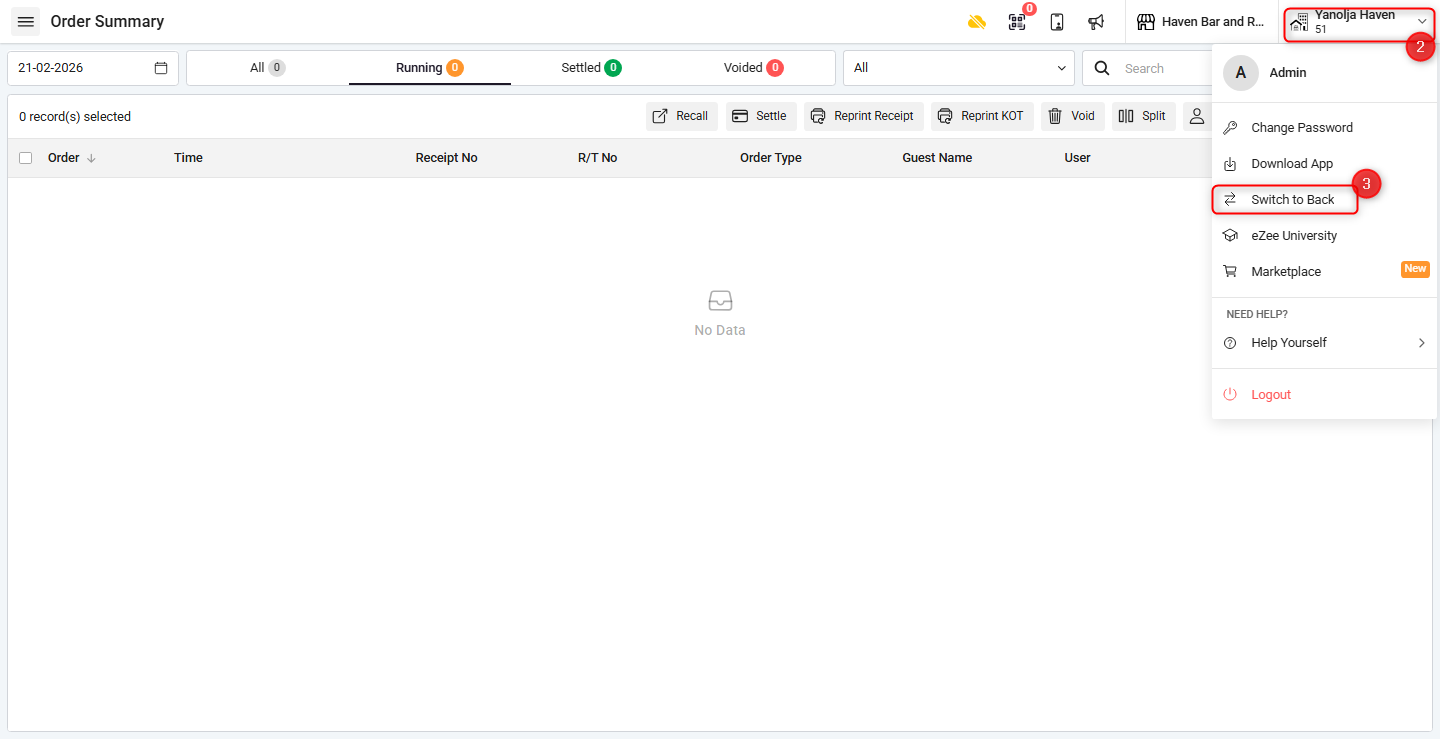
4. Go to Master.
5. Select Account.
6. Click on Add New Account.
7. Enter the Account Name: Enter the company or client name.
8. Contact Person: Name of the authorized contact person.
9. Opening Balance:
Enter the opening balance if applicable.
Ensure the correct selection of Dr. (Debit) or Cr. (Credit) is made.
10. Make sure to select the City ledger.
11. Save the updates.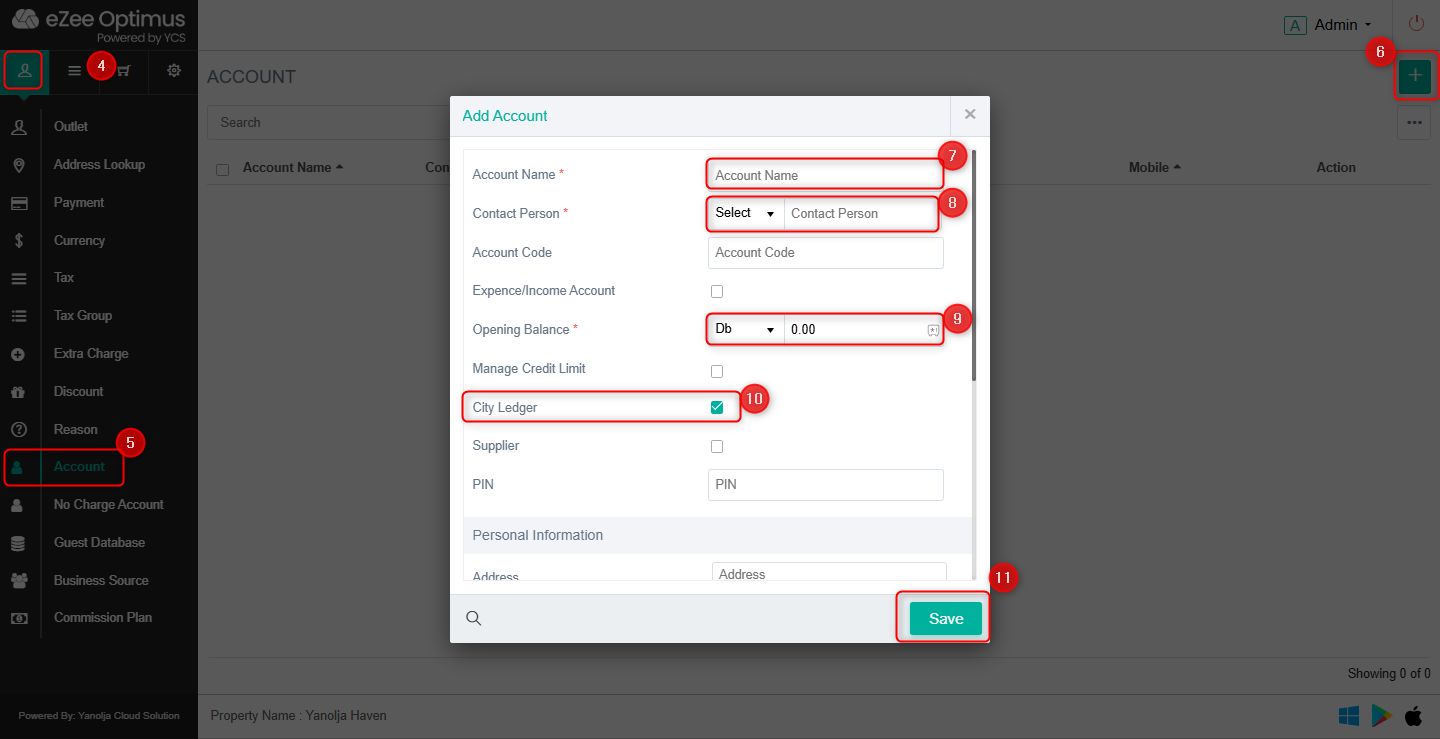
Credit Configuration
Manage Credit Limit:
Set the approved credit limit for the account to control bill postings.
Account Type Selection
City Ledger:
Enable this option to use the account for credit settlement and direct billing.Supplier:
Select this option if the account will be used as a vendor account for managing inventory transactions such as:
Purchase Orders
Goods Receipt Notes
Security Settings
PIN:
Configure a PIN if the account will be used as a settlement mode during billing.
Personal / Company Information
Enter complete company details including:
Address
Email Address
Registration Number
City
State
Any other relevant information
Save the account after entering all required information.
Posting a Credit Settlement to a City Ledger Account
Step 2: Select Order Type
1. Click on Order Summary and choose the appropriate order type as required.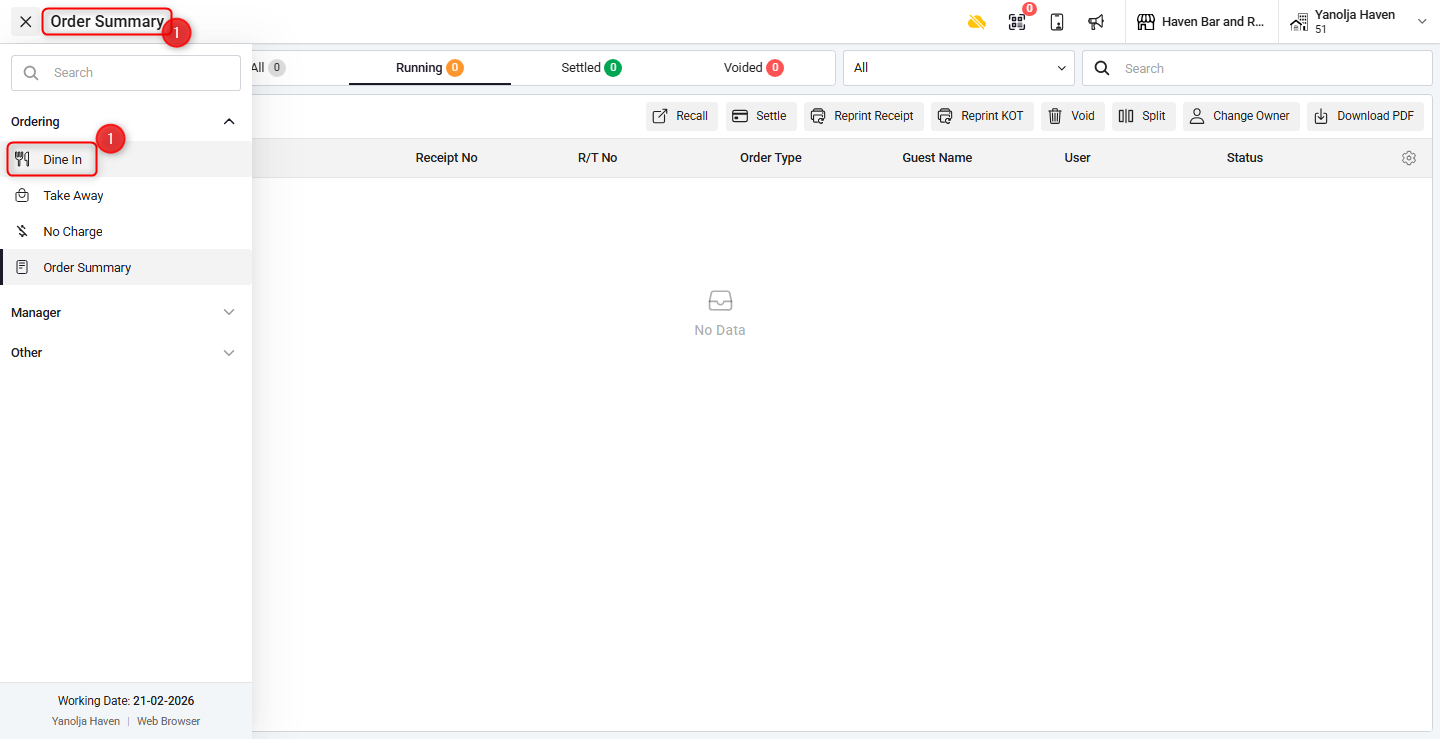
Step 3: Enter Order Information
2. Fill in all necessary order details.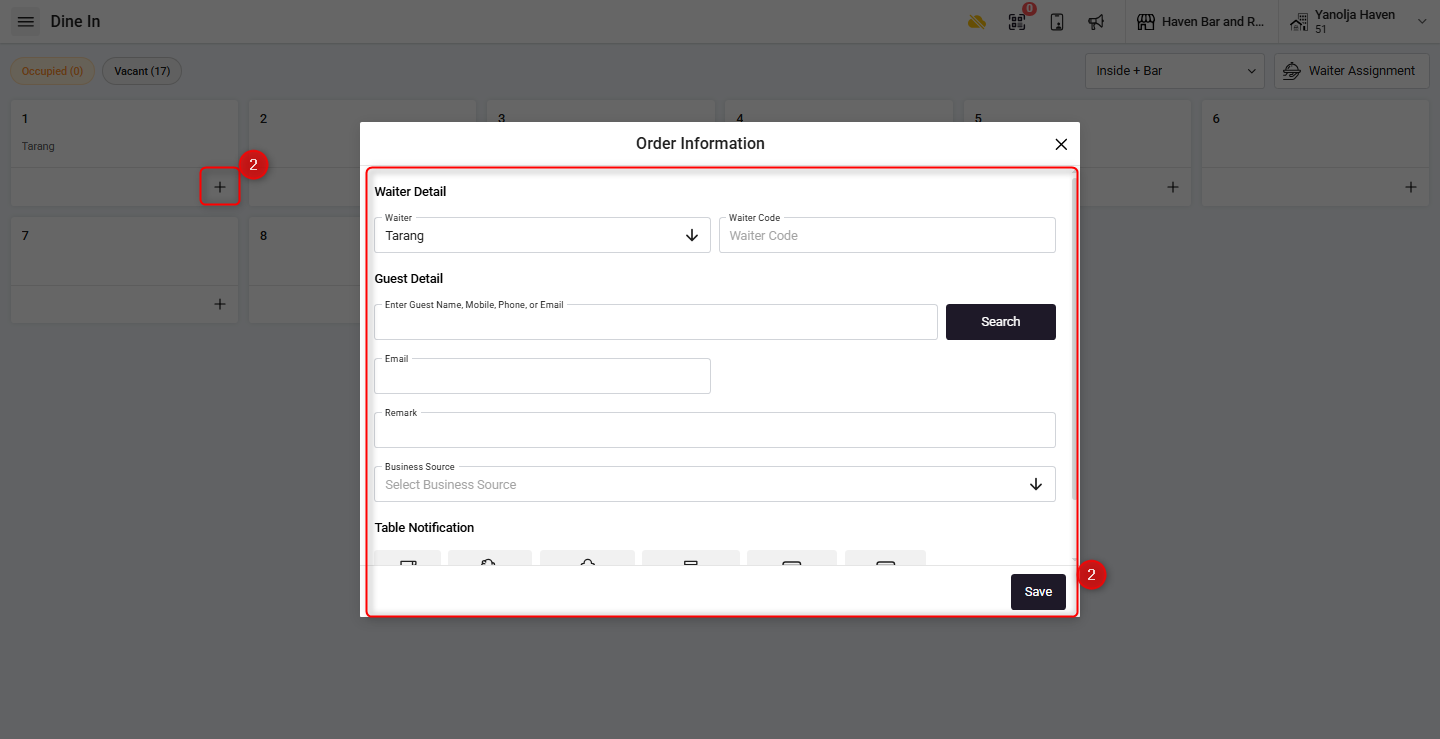
Step 4: Add Order Items
3. Add the required items to the order.
4. click Save to confirm.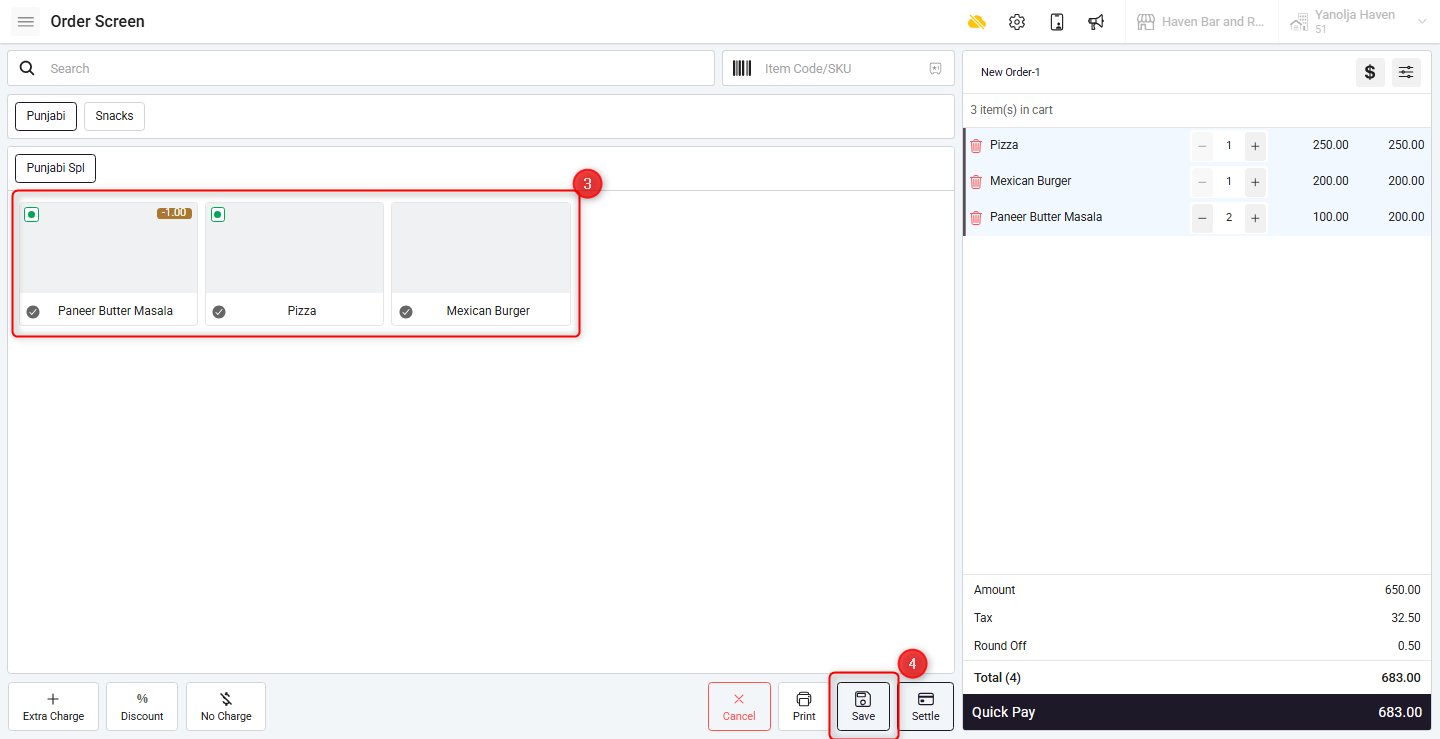
Step 5: Access Order Summary
5. Go to Order Summary.
6. Select the relevant order, and click Settle.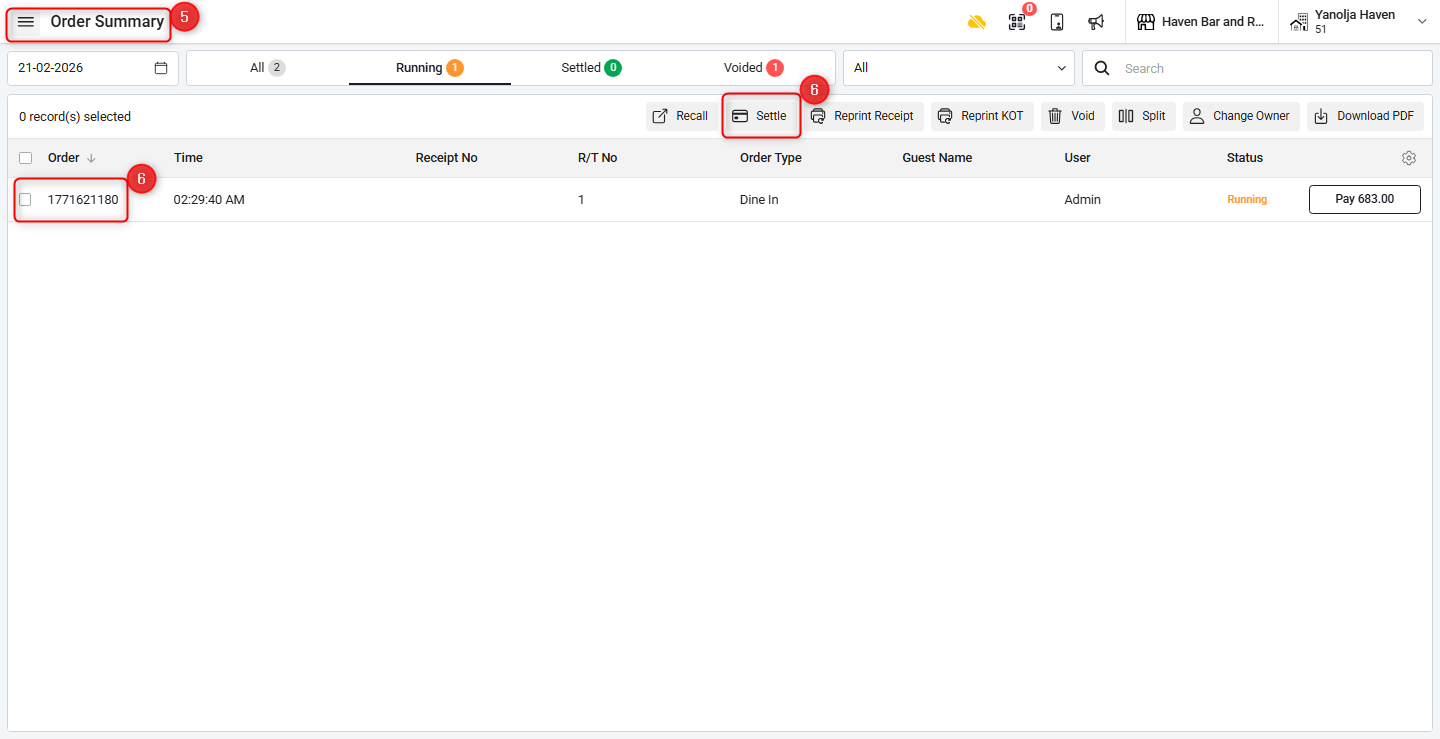
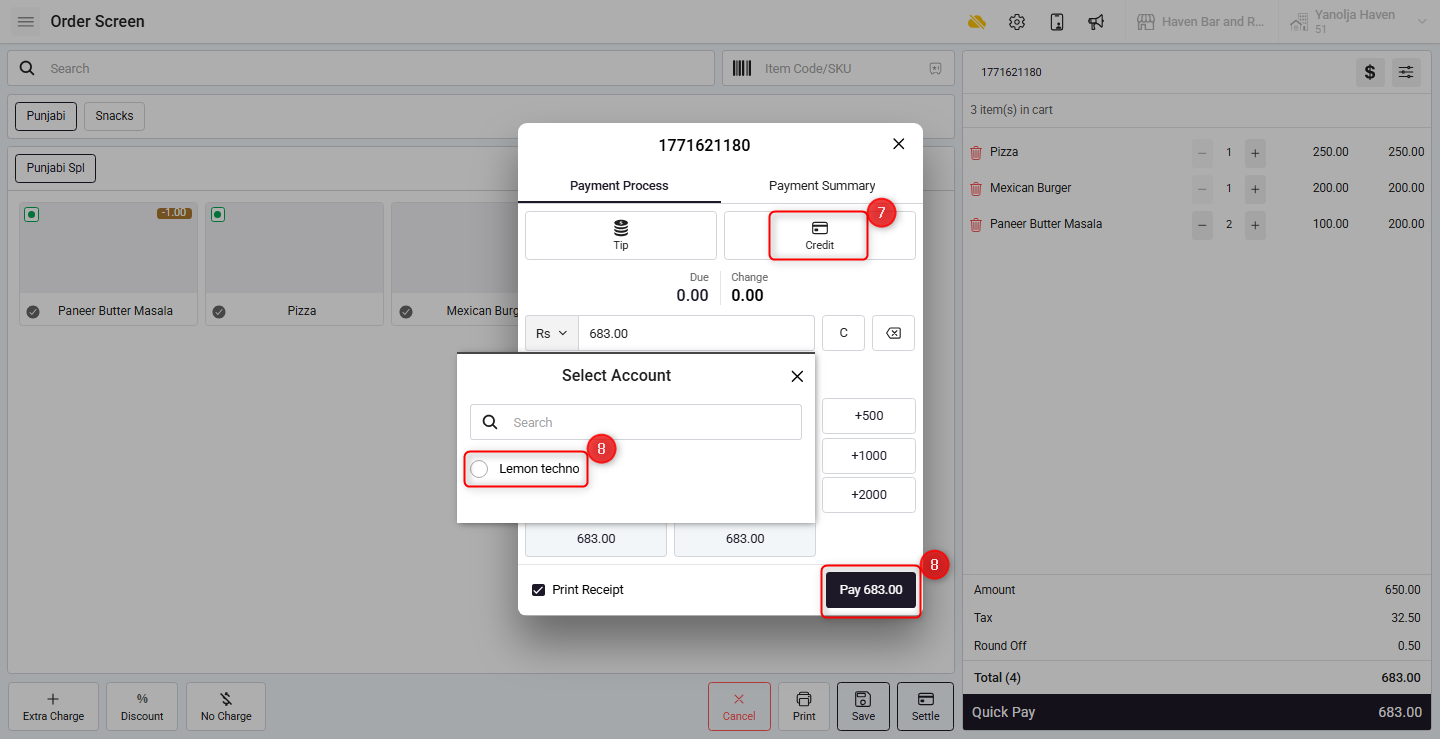
Step 6: Select Credit Settlement
7. Choose Credit as the settlement mode.
8. Select the appropriate City Ledger Account to post the transaction.
The amount will now be transferred to the selected city ledger account as a credit transaction.
Was this article helpful?
That’s Great!
Thank you for your feedback
Sorry! We couldn't be helpful
Thank you for your feedback
Feedback sent
We appreciate your effort and will try to fix the article