A Meal Plan defines the type of meals that are included in a guest’s stay. It helps hotels standardize meal offerings across different rate plans and bookings.
Common meal plan types include:
EP (European Plan) – No meals included
CP (Continental Plan) – Breakfast only
MAP (Modified American Plan) – Breakfast and one major meal (lunch or dinner)
AP (American Plan) – All three meals included (breakfast, lunch, and dinner)
Log in to PMS and Go to Configuration.
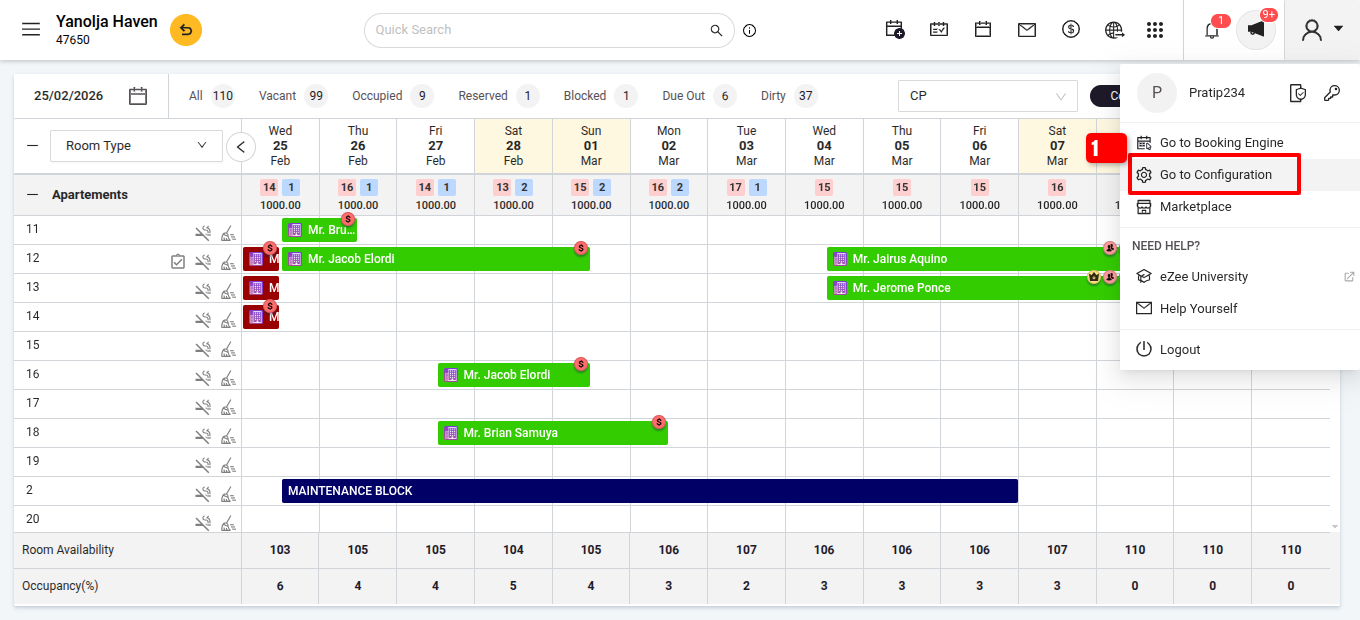
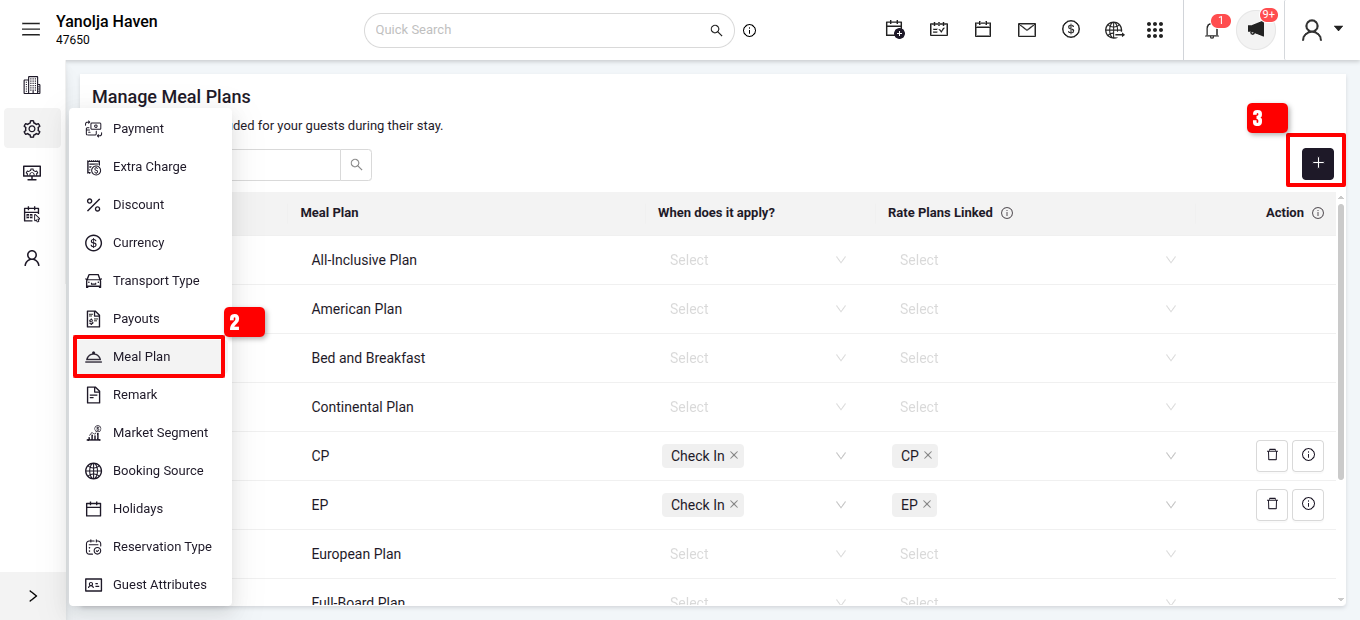
Go to the Settings section under that Select Meal Plan.
- Click on Add Meal Plan.
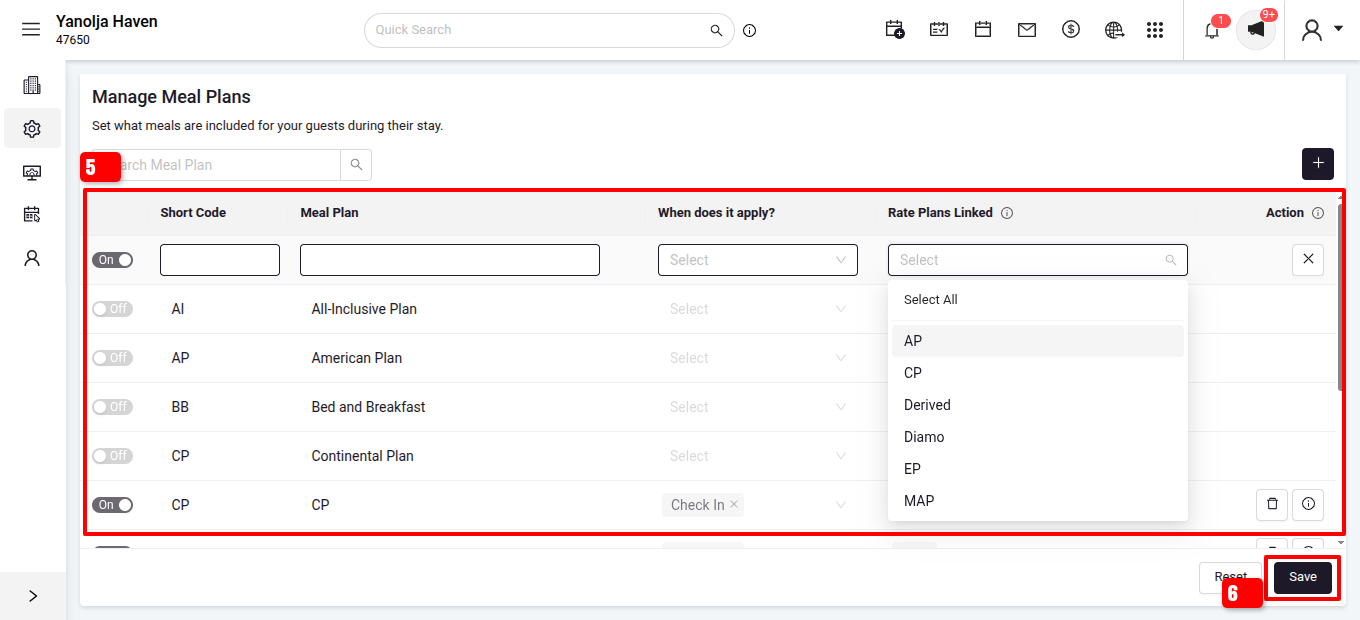
- Fill in the required details like Short Code, Meal Plan Name, and Assign meal plan on(Check in,Check out, Stay over).
- Select the Rate Types (EP, CP, MAP, AP) that should be connected with this meal plan.
- Click Save.
Example: Setting up a Continental Plan (Breakfast Only)
Meal Plan Name: Continental Plan
Mapped Rate Type: CP (Continental Plan)
Meals Included: Breakfast
Assign Meal On: Stay over and Check-out
The meal plan will now be available and linked with the selected rate types for use in rate and reservation configurations.
Was this article helpful?
That’s Great!
Thank you for your feedback
Sorry! We couldn't be helpful
Thank you for your feedback
Feedback sent
We appreciate your effort and will try to fix the article