Adding an Expense Voucher in PMS System
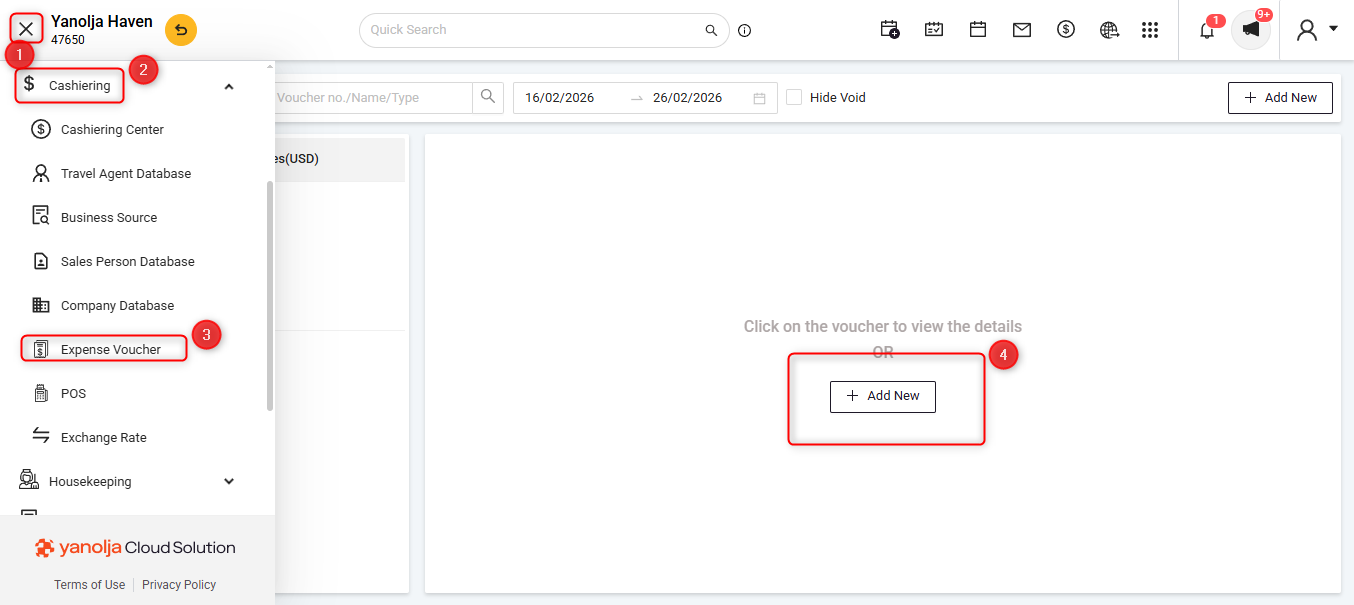
Navigate to:
Log in to PMS System
.
Click on the ≡ (three lines) menu.
Click on the Cashiering tab.
Click on Expense Voucher.
Click on Add New to create an Expense Voucher.
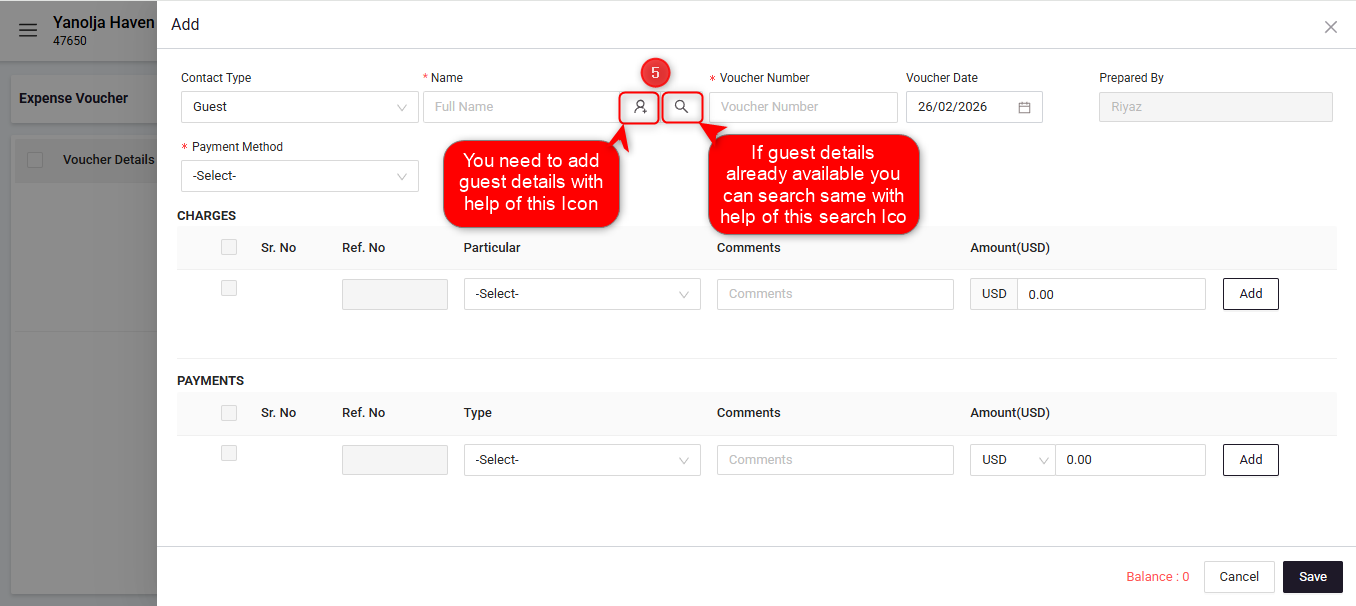
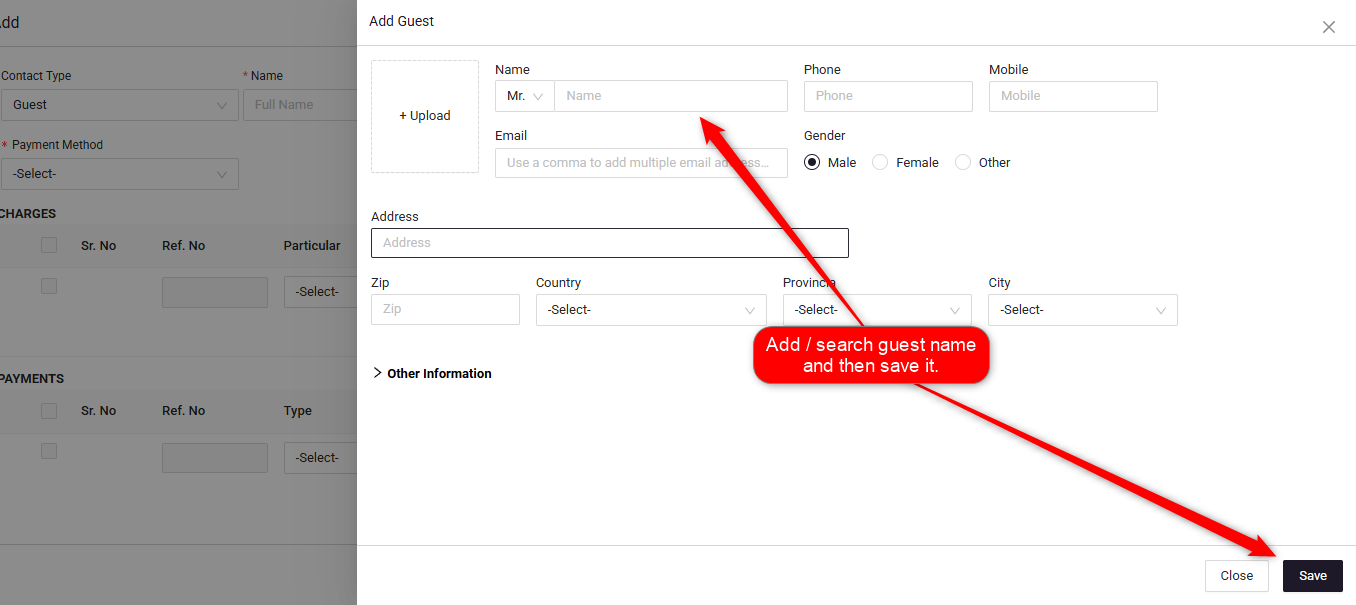
Add guest details (either by searching for an existing guest or entering a new name).
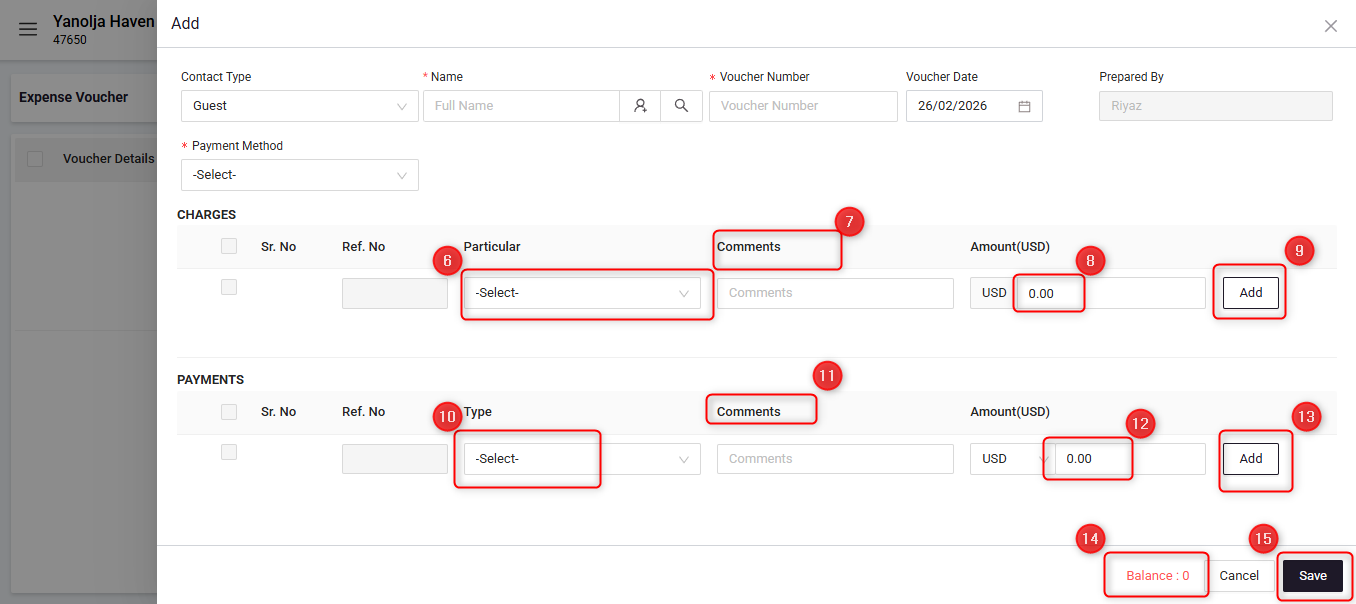
Enter Voucher Details:
6. Select the charges.
7. Add comments (if required).
8. Insert the amount.
9. You can add multiple charges by clicking the Add button.
Add Payment Details:
10. Select the payment type.
11. Enter the payment amount.
12. Add comments (if required).
13. You can add different payment types by clicking the Add button.
14. Ensure the voucher balance updates to zero after adding payments.
15. Click on Save to complete the transaction.
User Privileges Required
Ensure that the user performing this action has the appropriate privileges.
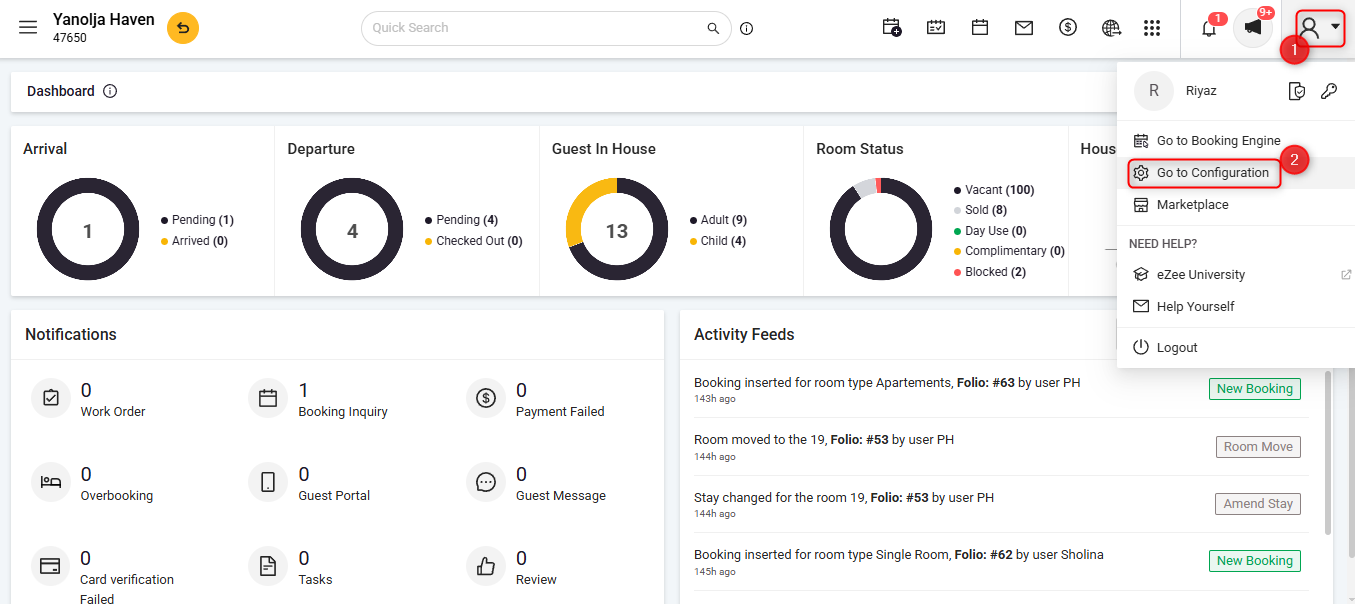
To Access Configuration Panel:
Click on the User Icon.
Click on Go To Configuration.
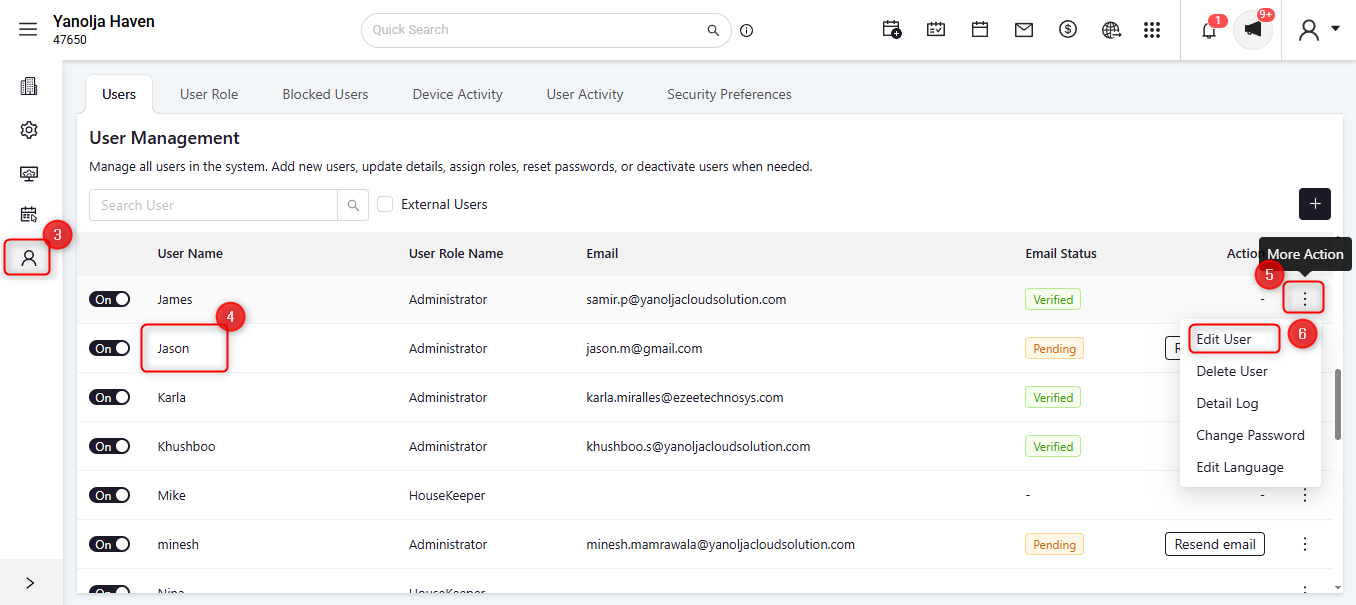
Click on User Management.
Select the required User.
Click on the three-dot menu (More Options).
Click on Edit User.
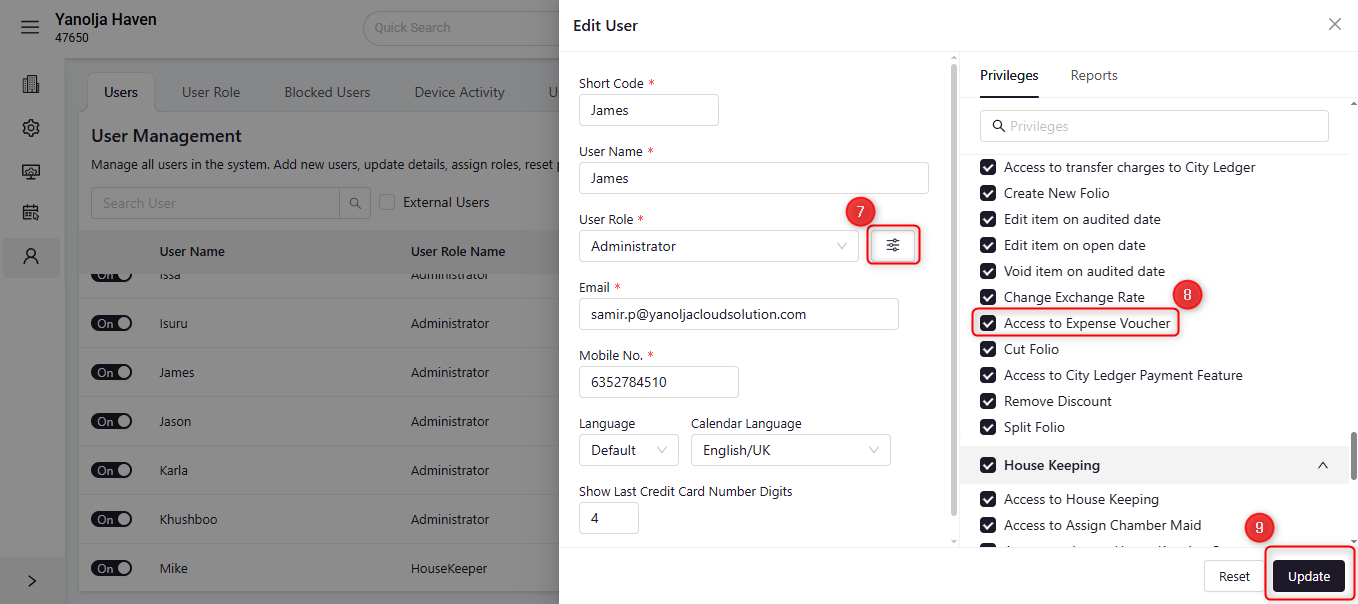
Under User Role:
Click on the ≡ (three lines) menu.
Under Front Office Privileges, enable the Access to Expense Voucher privilege.
Save the changes by clicking on Update.
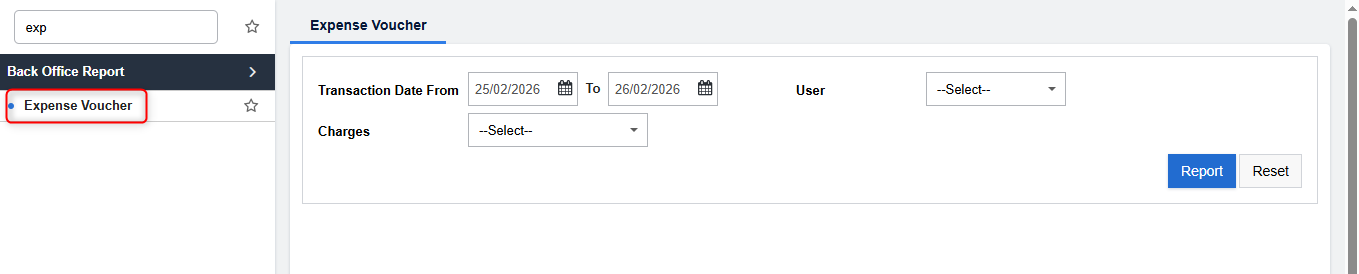
Report:
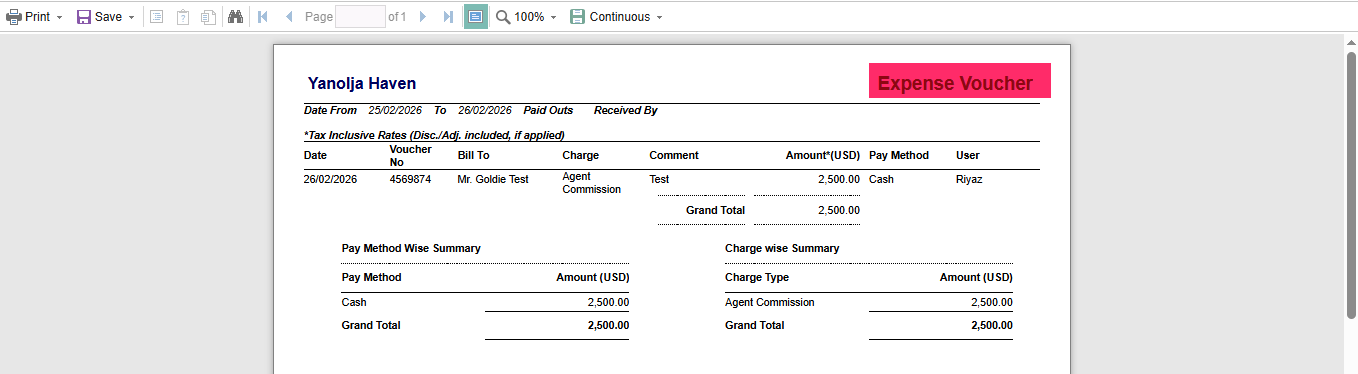
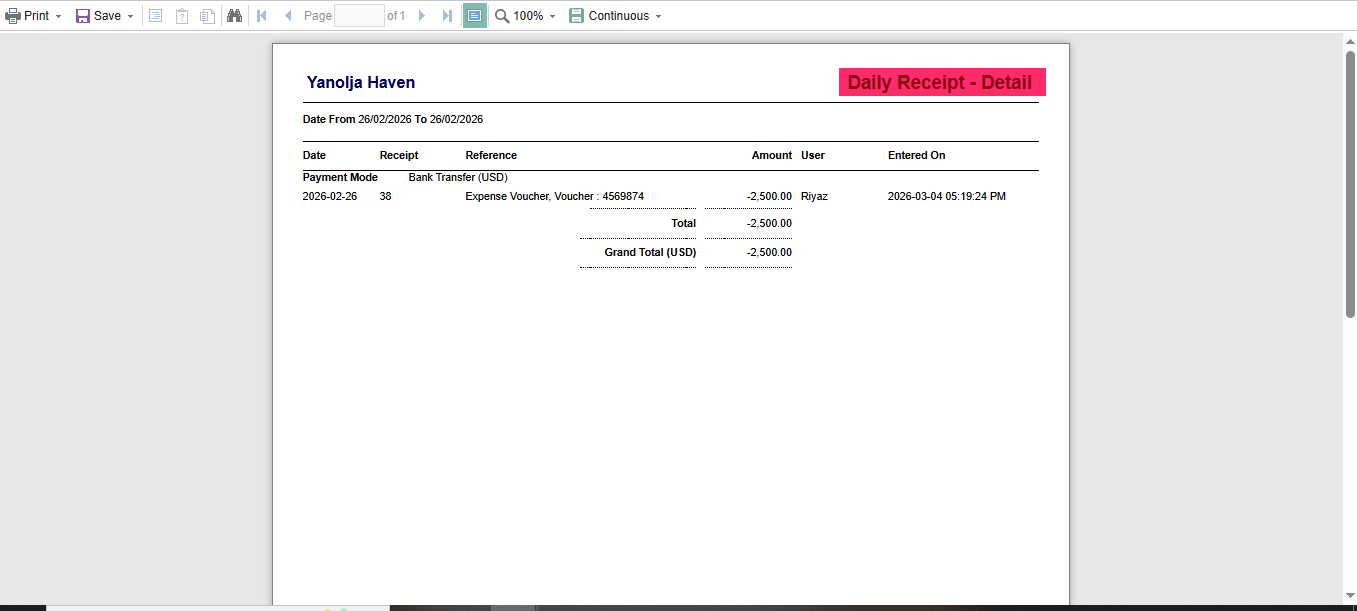
In the Expense Voucher Report and Daily Receipt Detail Report, you can view the details of the recorded expenses.
Was this article helpful?
That’s Great!
Thank you for your feedback
Sorry! We couldn't be helpful
Thank you for your feedback
Feedback sent
We appreciate your effort and will try to fix the article