How to Cancel a Reservation in PMS System?
A reservation cancellation means informing the hotelier that the guest will not be arriving as per the scheduled arrival date. There may be several reasons for cancelling future reservations.
Cancelling a reservation in the PMS System can be done in a few simple steps. You can cancel reservations directly from Stay View or the Reservation List.
Methods to Cancel a Reservation
1. Cancel from Stay View
Log in to PMS System.
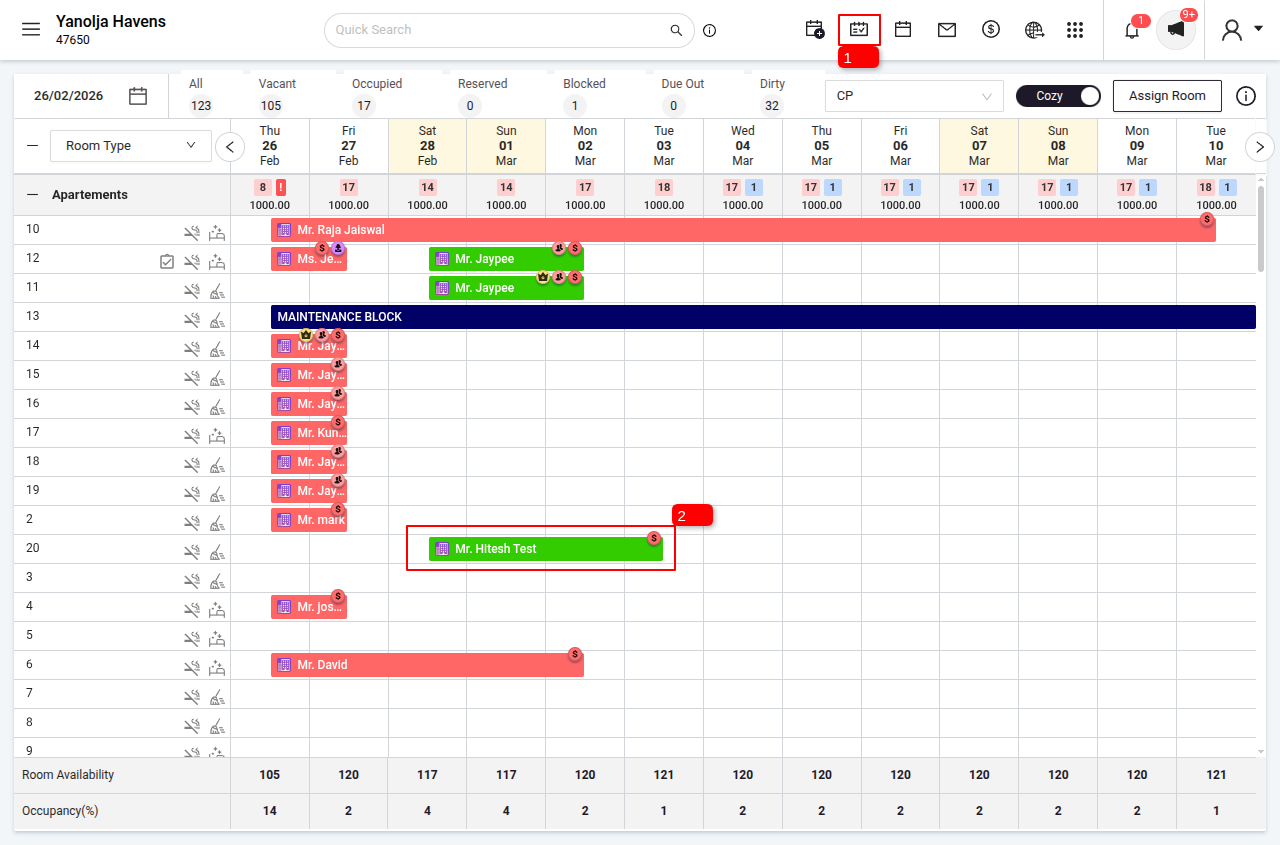
1 Go to Stay View.
2 Click on the reservation you want to cancel.
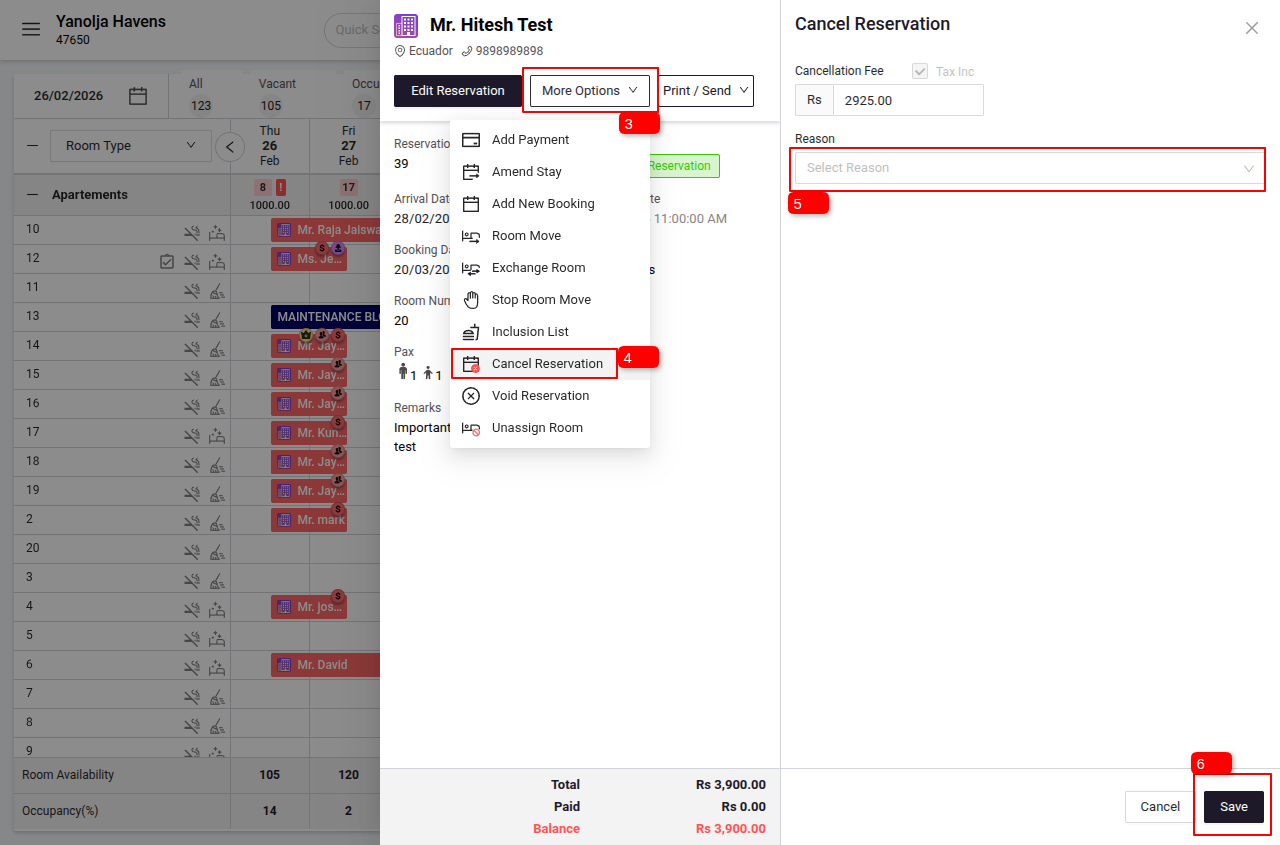
3 Click on the More Option.
4 Click Cancel Reservation.
5 Select a cancellation reason.
6 Click Save to confirm.
Note : You can also add cancellation charges if applicable. These charges can be settled later.
2. Cancel from the Reservation List
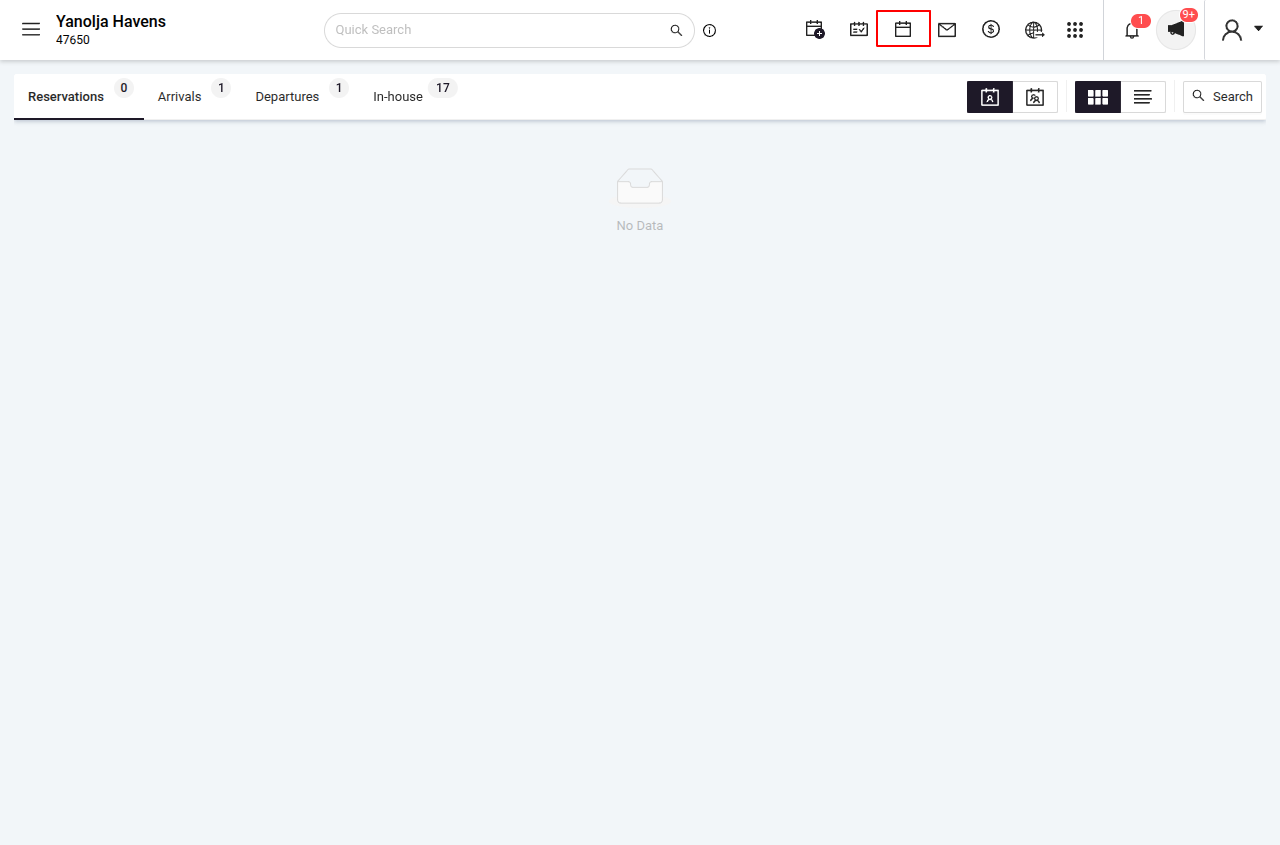
Log in to PMS System. > Click on the Reservations section.
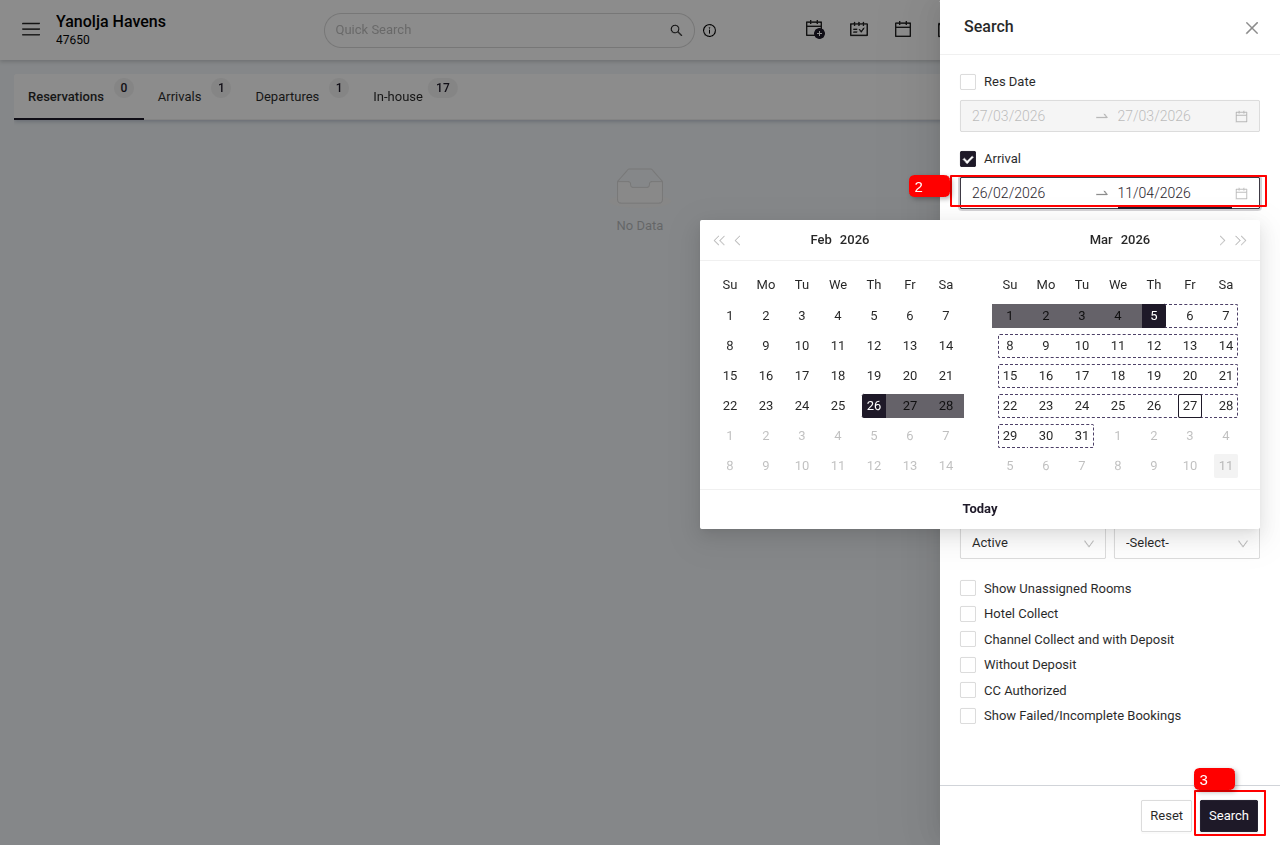
Search for the Reservation Using Filters
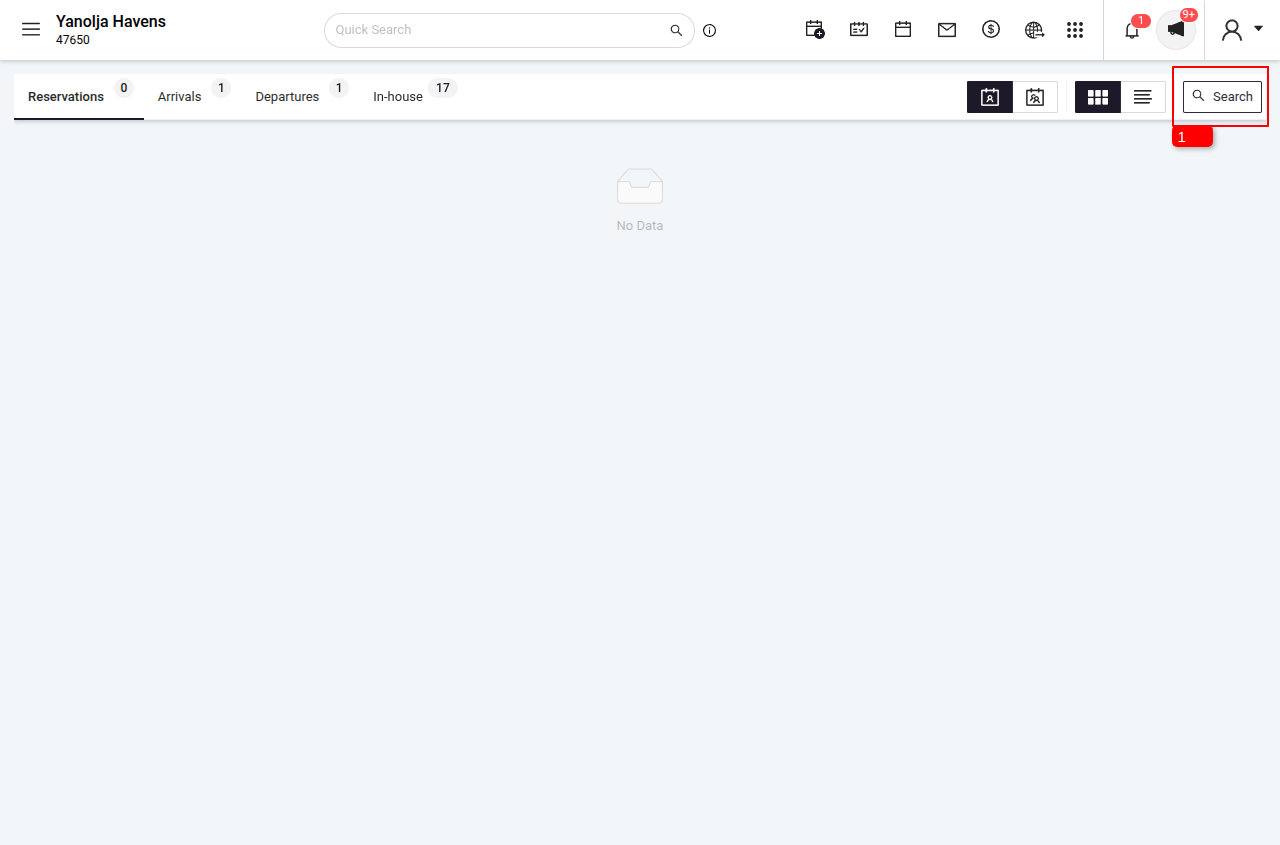
1 Click on the Search Option.
2 Select the date range of the booking.
3 Click on Search.
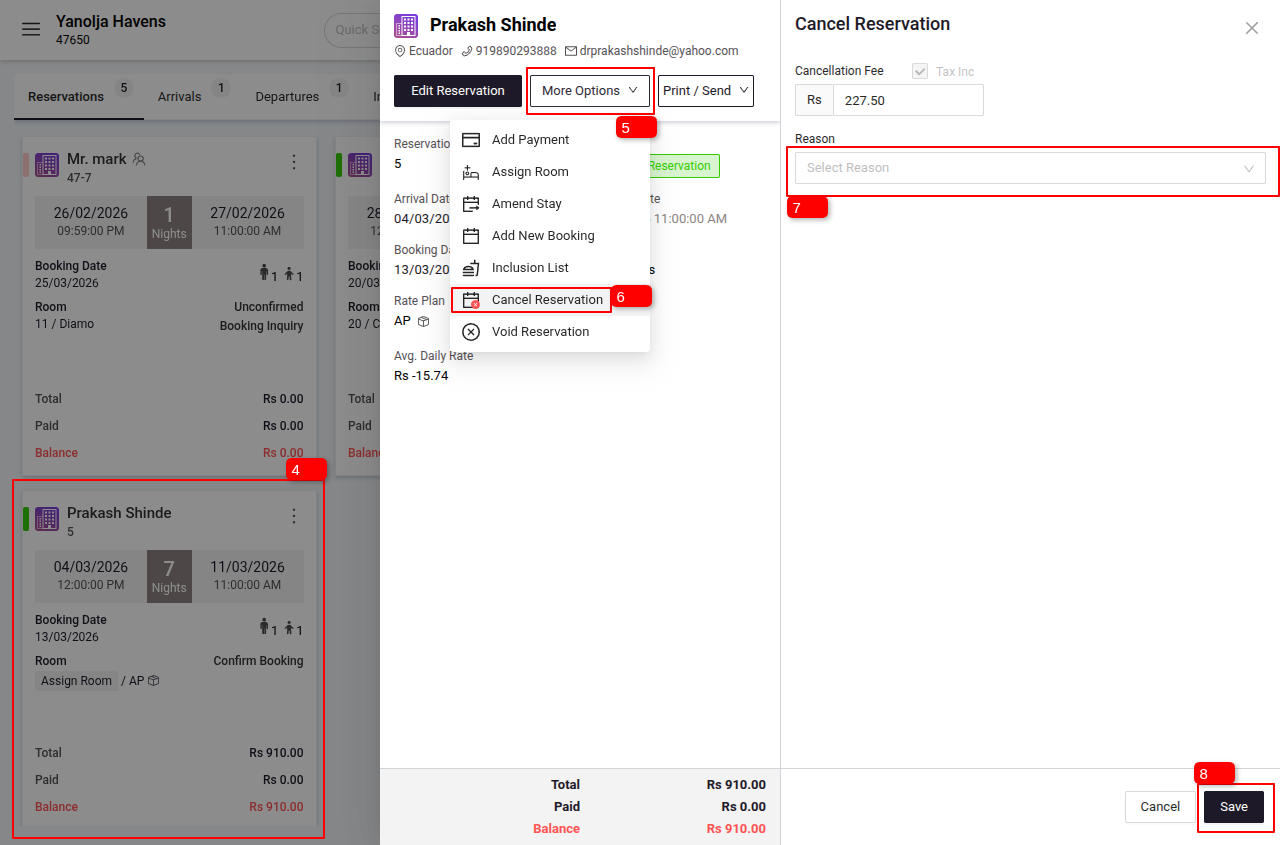
4 Select the reservation.
5 Click on the More Option.
6 Click Cancel Reservation.
7 Select a cancellation reason.
8 Click Save to confirm.
Note : You can also add cancellation charges if applicable. These charges can be settled later.
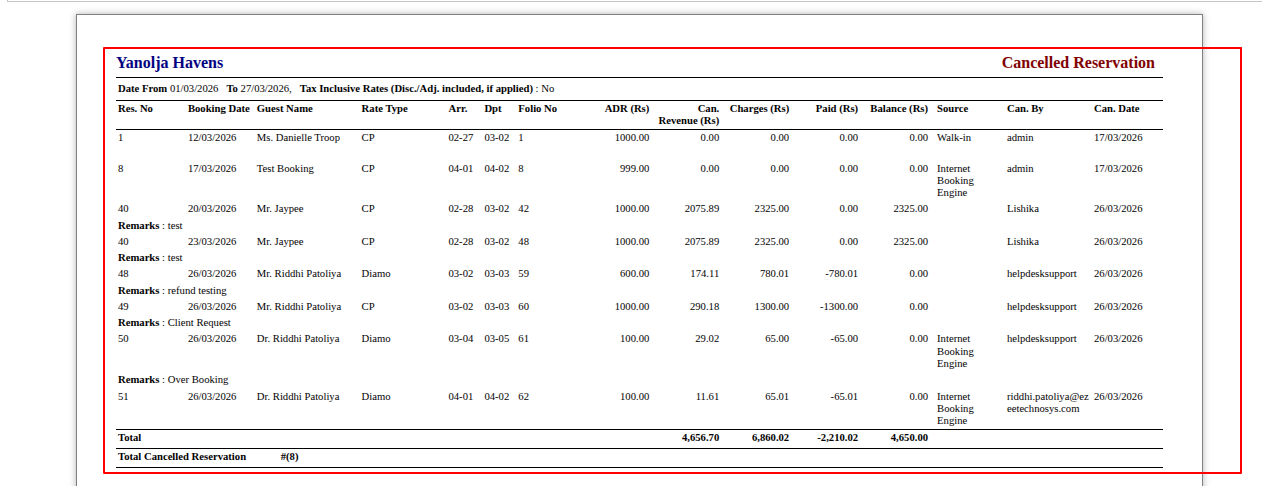
Report: Cancelled Reservations
For cancelled reservations, you can refer to the Cancelled Reservation Report in the Reports section.
Steps to Access the Report
1 Click on the Menu Option.
2 Click on Reports.
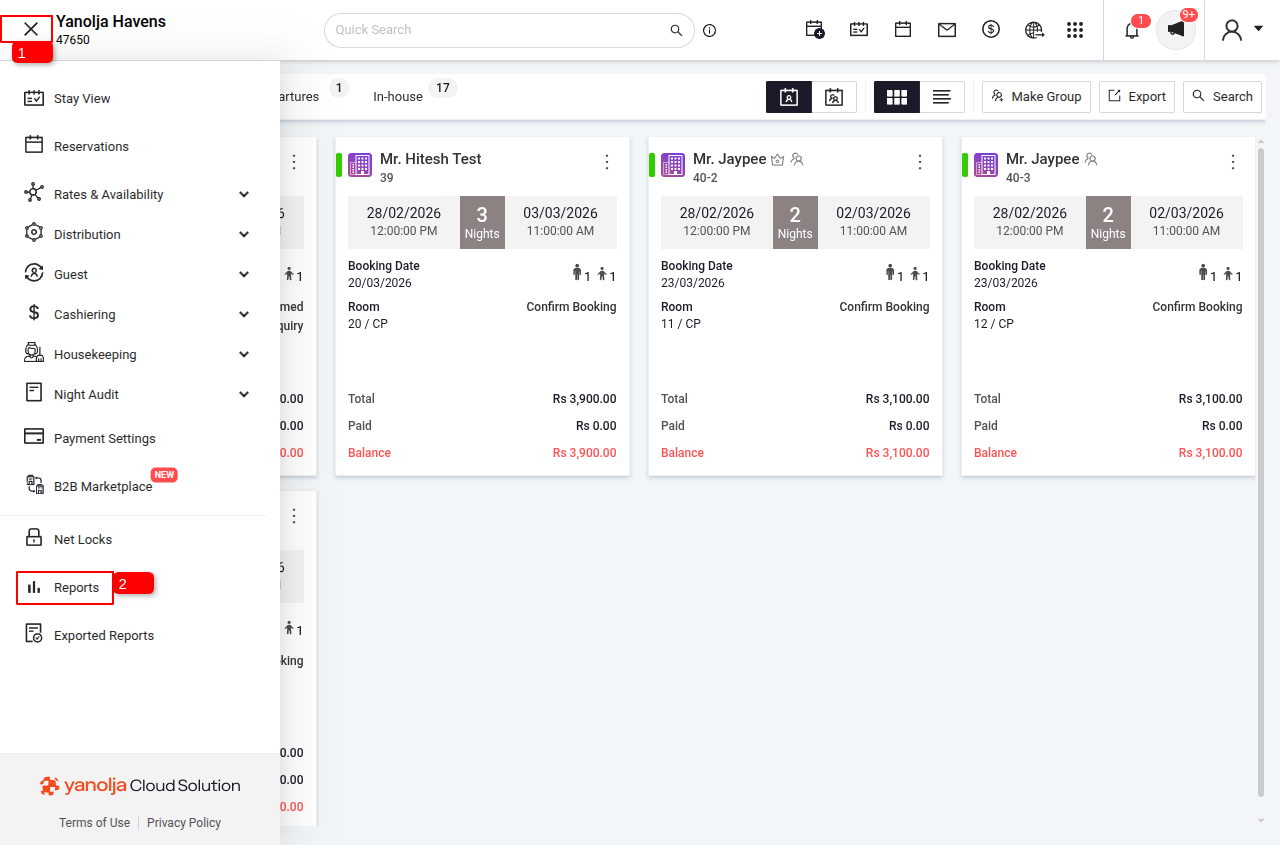
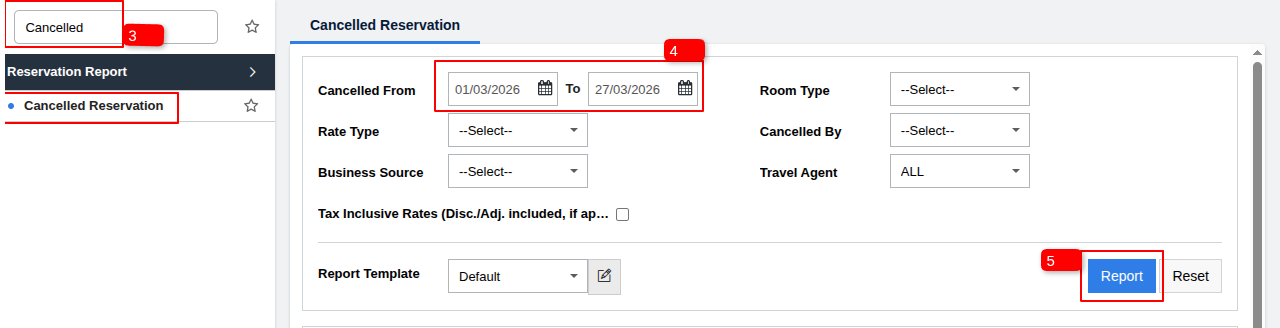
3 Search for the Cancelled Reservation Report and Select it.
4 Select the date range for which you want to check cancelled reservations
5 click on Report.
Prerequisite: User Privileges
Ensure that the user performing this action has the appropriate privileges.
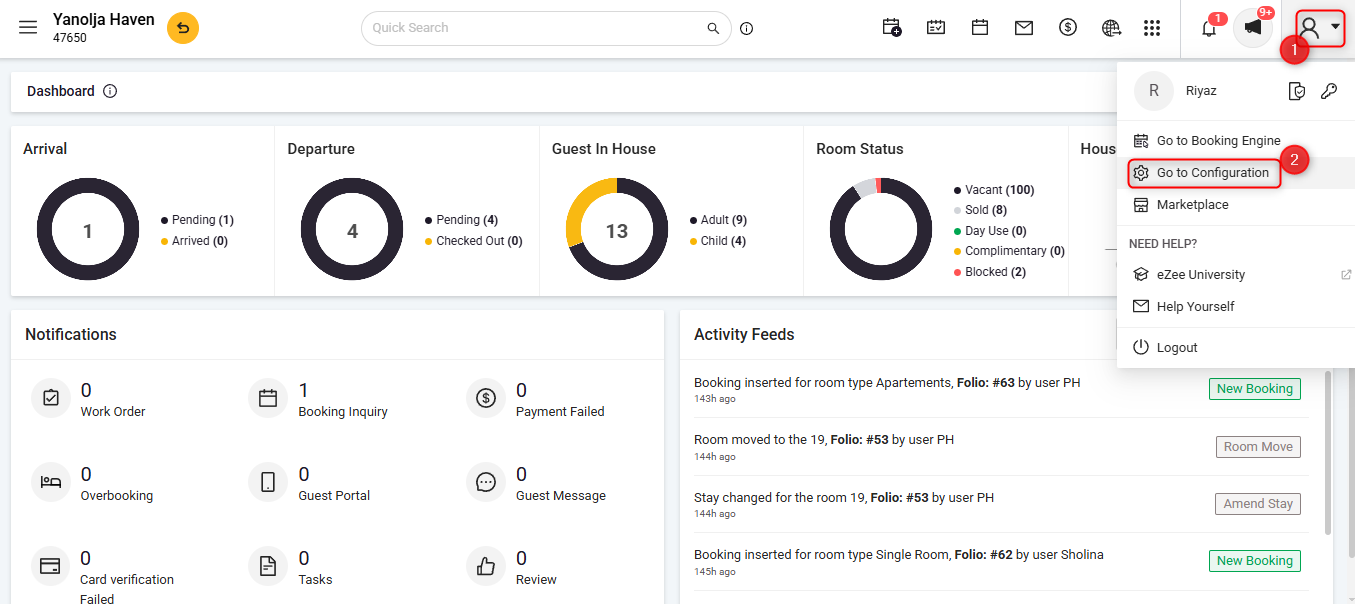
To Access Configuration Panel:
Click on the User Icon.
Click on Go To Configuration.
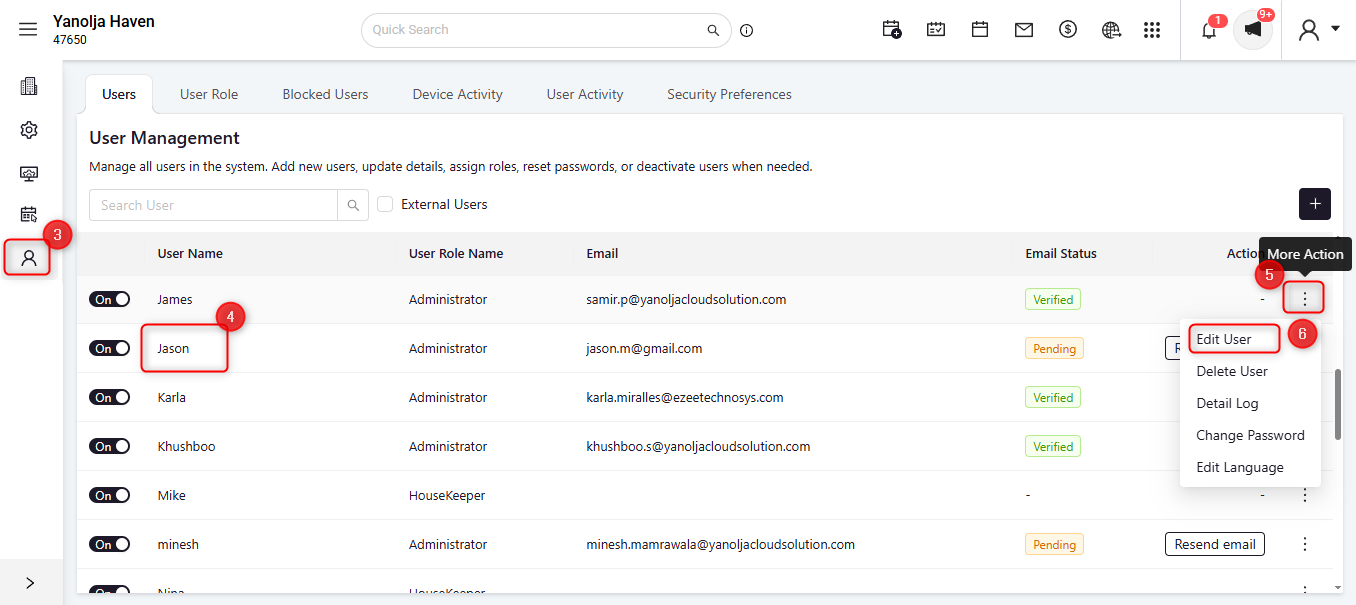
Click on User Management.
Select the required User.
Click on the three-dot menu (More Options).
Click on Edit User.
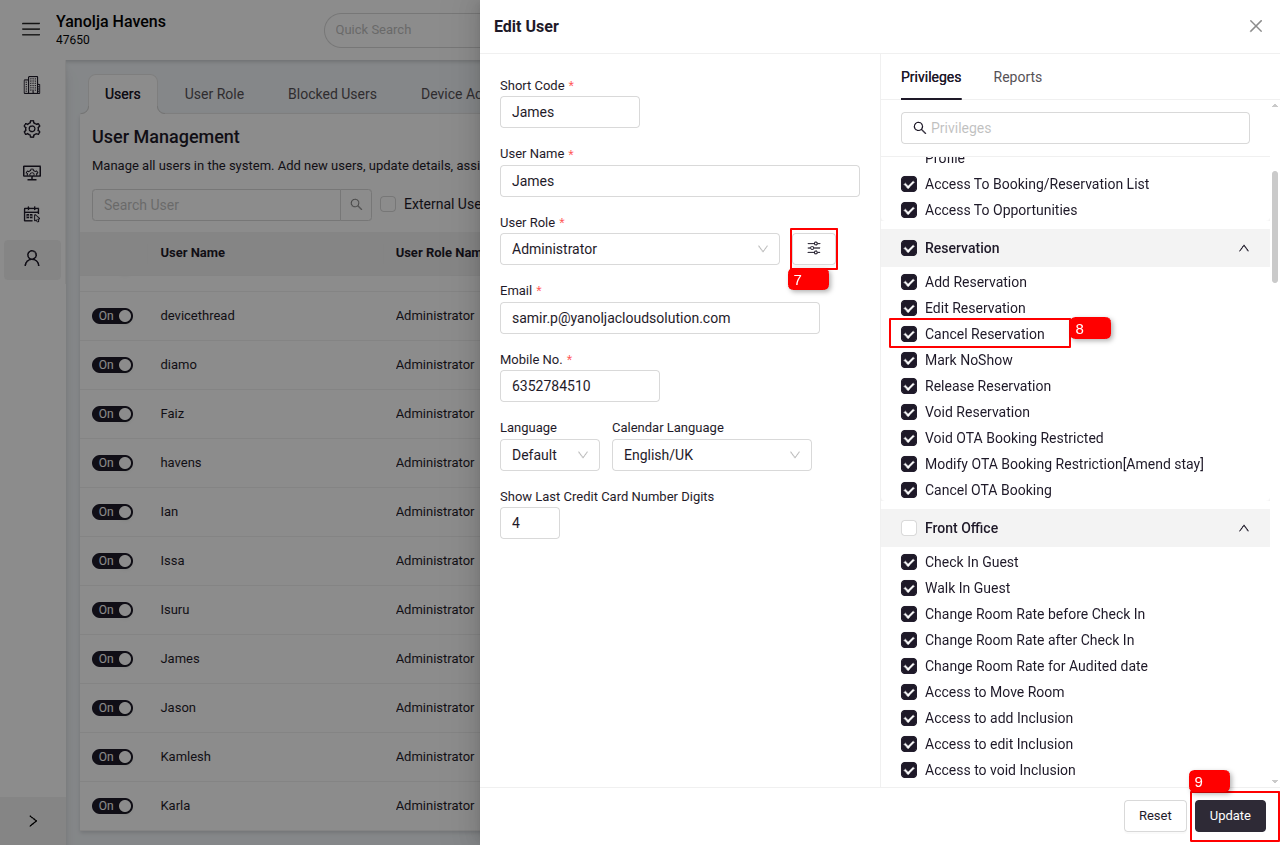
Under User Role:
Click on the ≡ (three lines) menu.
Under Reservation Privileges, enable the Cancel Reservation privilege.
Save the changes by clicking on Update.
Was this article helpful?
That’s Great!
Thank you for your feedback
Sorry! We couldn't be helpful
Thank you for your feedback
Feedback sent
We appreciate your effort and will try to fix the article