Sometimes, you may need to cancel the entire group reservation or just a few rooms within the group. In PMS, this can be done by following steps mentioned below.
Steps to Cancel a Group Reservation
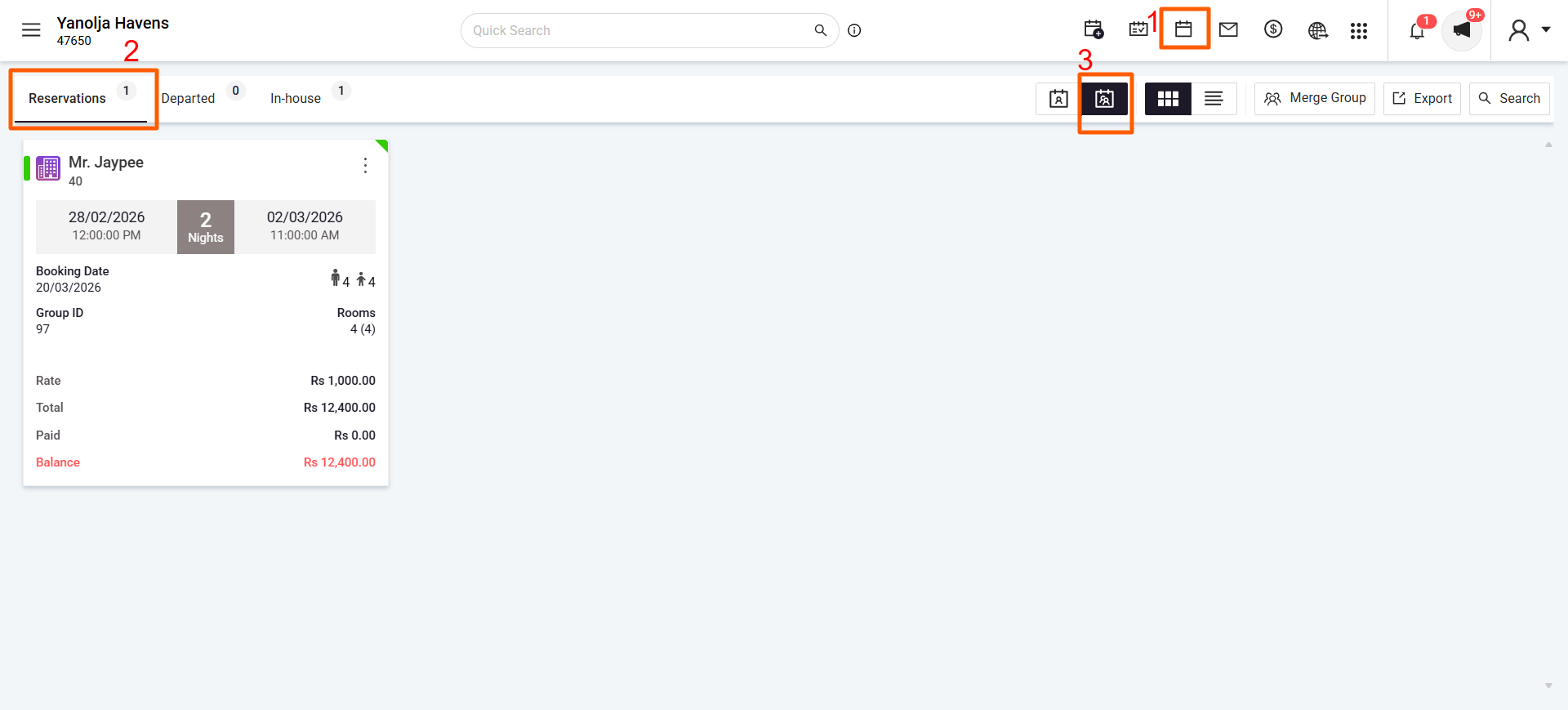
1. Access Group Reservations
- Log in to PMS.
- Go to the Reservaton Section.
- Select Group Reservations tab.
Edit the Group Booking
- Find the group reservation you want to cancel.
- Click on Edit Reservation to open the reservation details.
Select Rooms for Cancellation
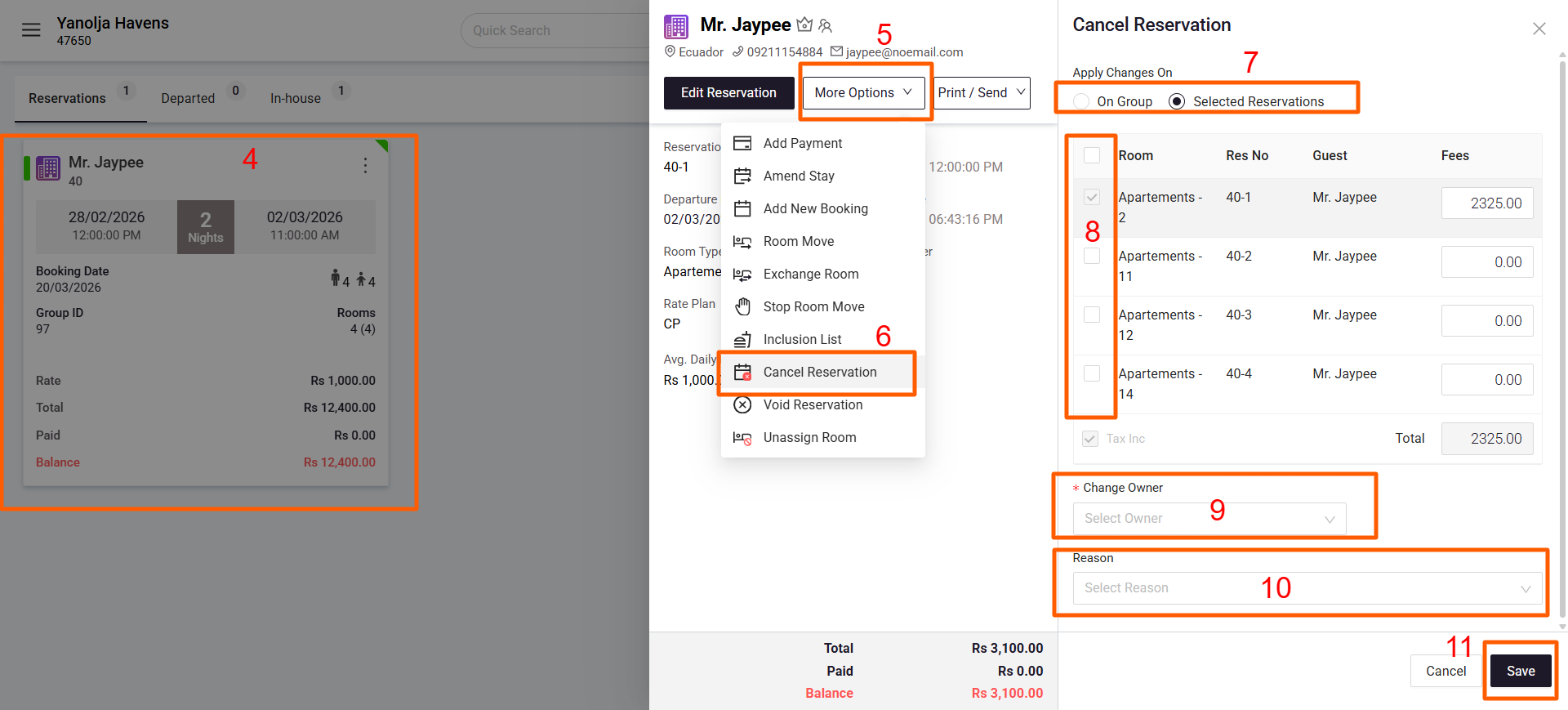
- Go to the Room Information tab.
- Check the boxes next to the rooms you want to cancel.
- To cancel the entire group, select all rooms.
- Click on the More dropdown menu.
- Choose Group Cancellation.
Confirm Cancellation
- Select a cancellation reason from the list or add a new reason you can also add cancellation charges.
- Click Save to confirm.
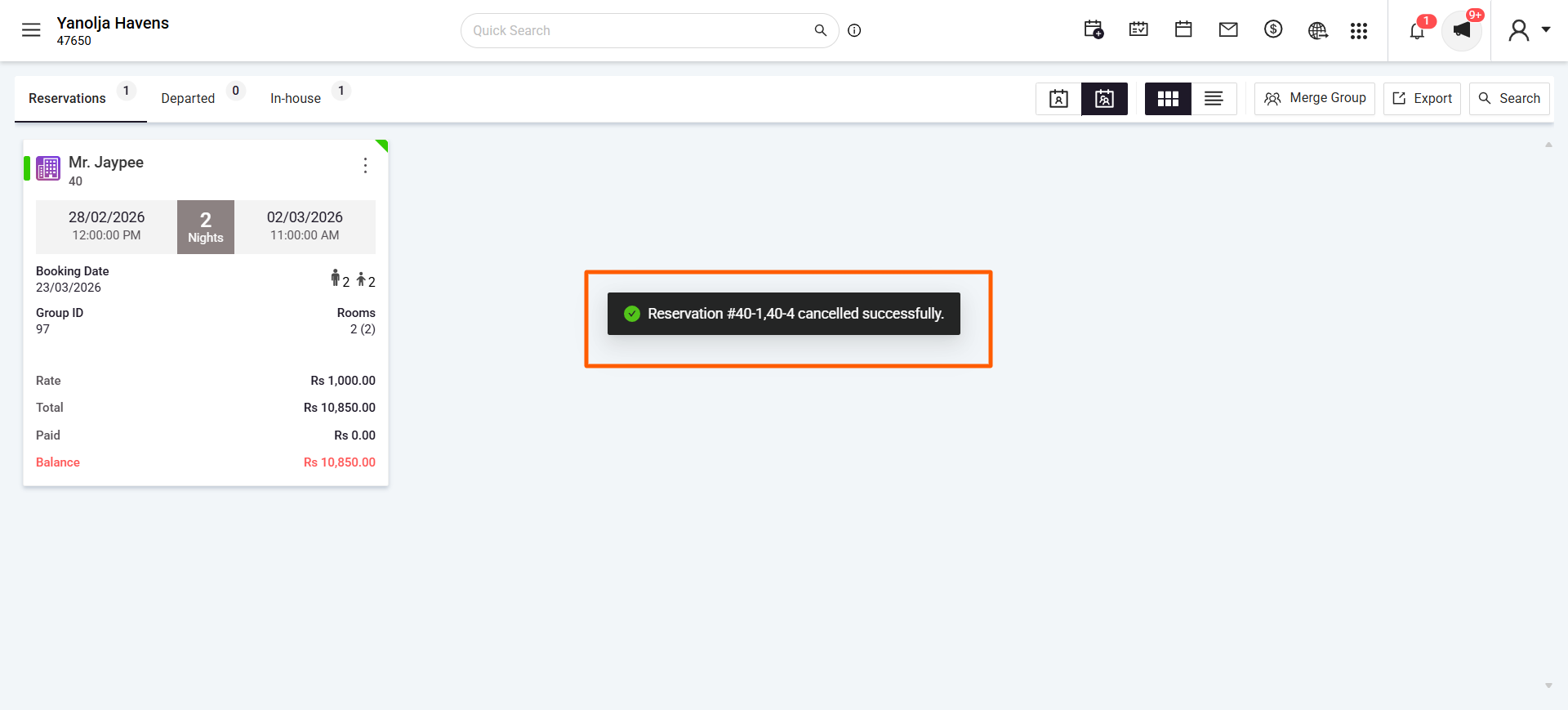
- Once you click on the save button you will get a confirmation notification.
What Happens After Cancellation?
- The selected rooms (or the entire group) will be canceled.
- The system will update the inventory accordingly & the rooms will be available to book after the cancellation is done
Prerequisite: User Privileges
Ensure your user account has the necessary privileges to cancel group reservations:
- Go to Unified Solution.
- Navigate to User settings.
- Edit the desired user profile.
- Enable Reservation > Cancel Reservation.
Was this article helpful?
That’s Great!
Thank you for your feedback
Sorry! We couldn't be helpful
Thank you for your feedback
Feedback sent
We appreciate your effort and will try to fix the article