Once the guest arrives at the hotel, you can perform check-in for an existing reservation in the PMS System, provided the arrival date matches the current system date.
This means the Night Audit must be up to date to process the check-in.
Check-In from the Stay View
Access Stay View
1 Login to PMS System and navigate to the Stay View.
Select Reservation
2 Locate and select the reservation you wish to check in.
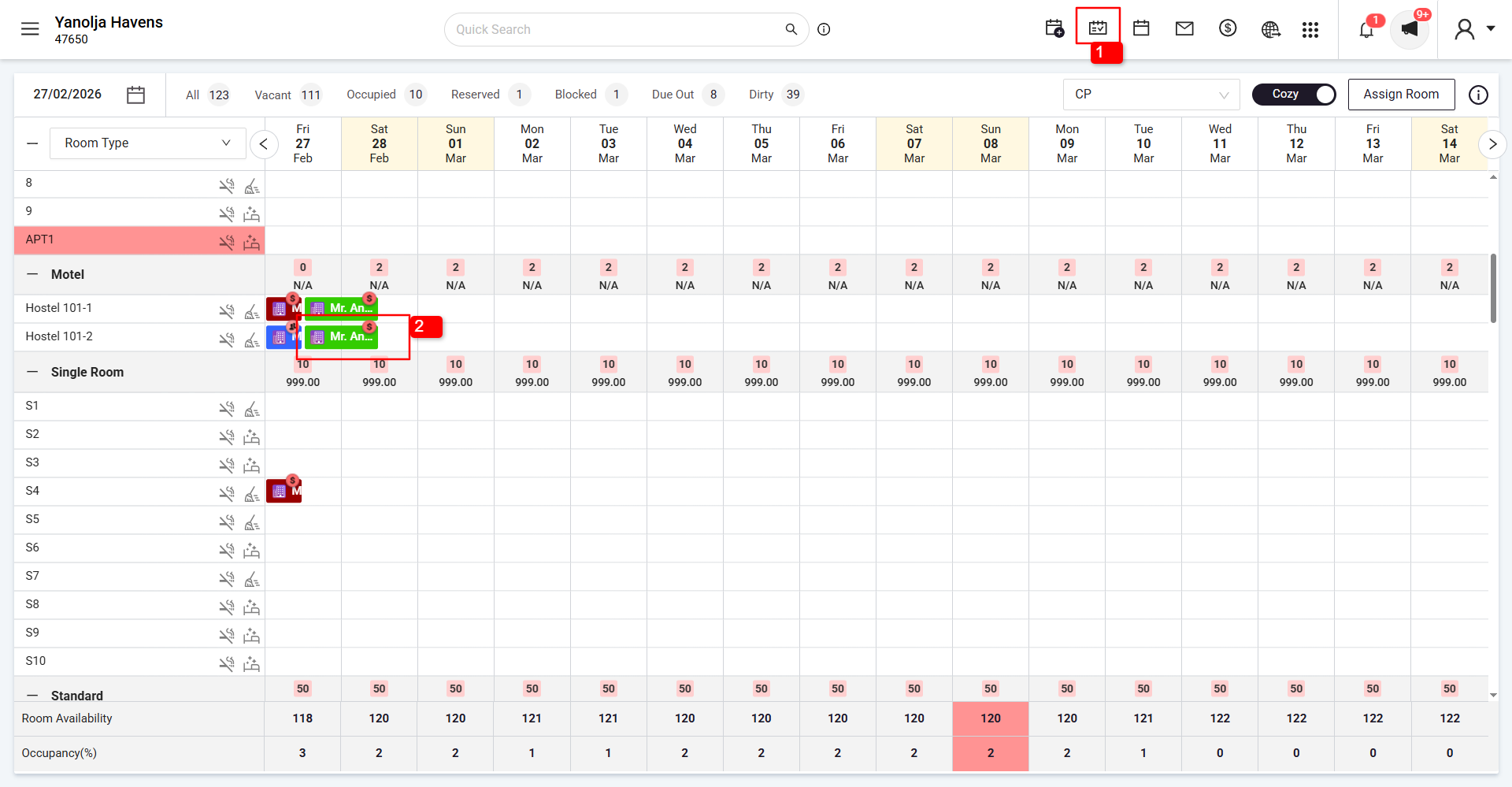
Initiate Check-In
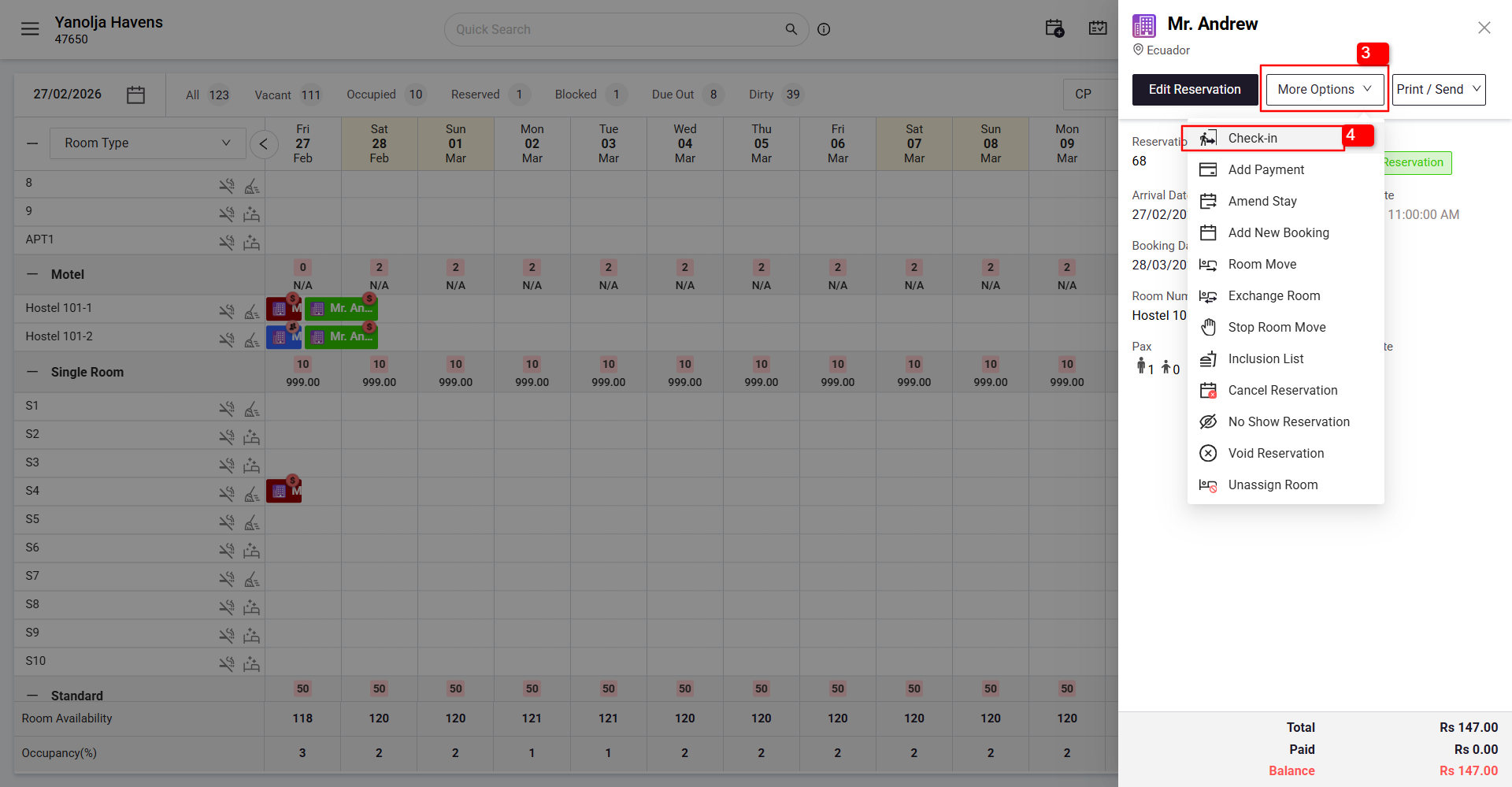
3 Click on More Options >
4 Click on the Check-In button to proceed.
Check-In via Quick Search
Open Quick Search
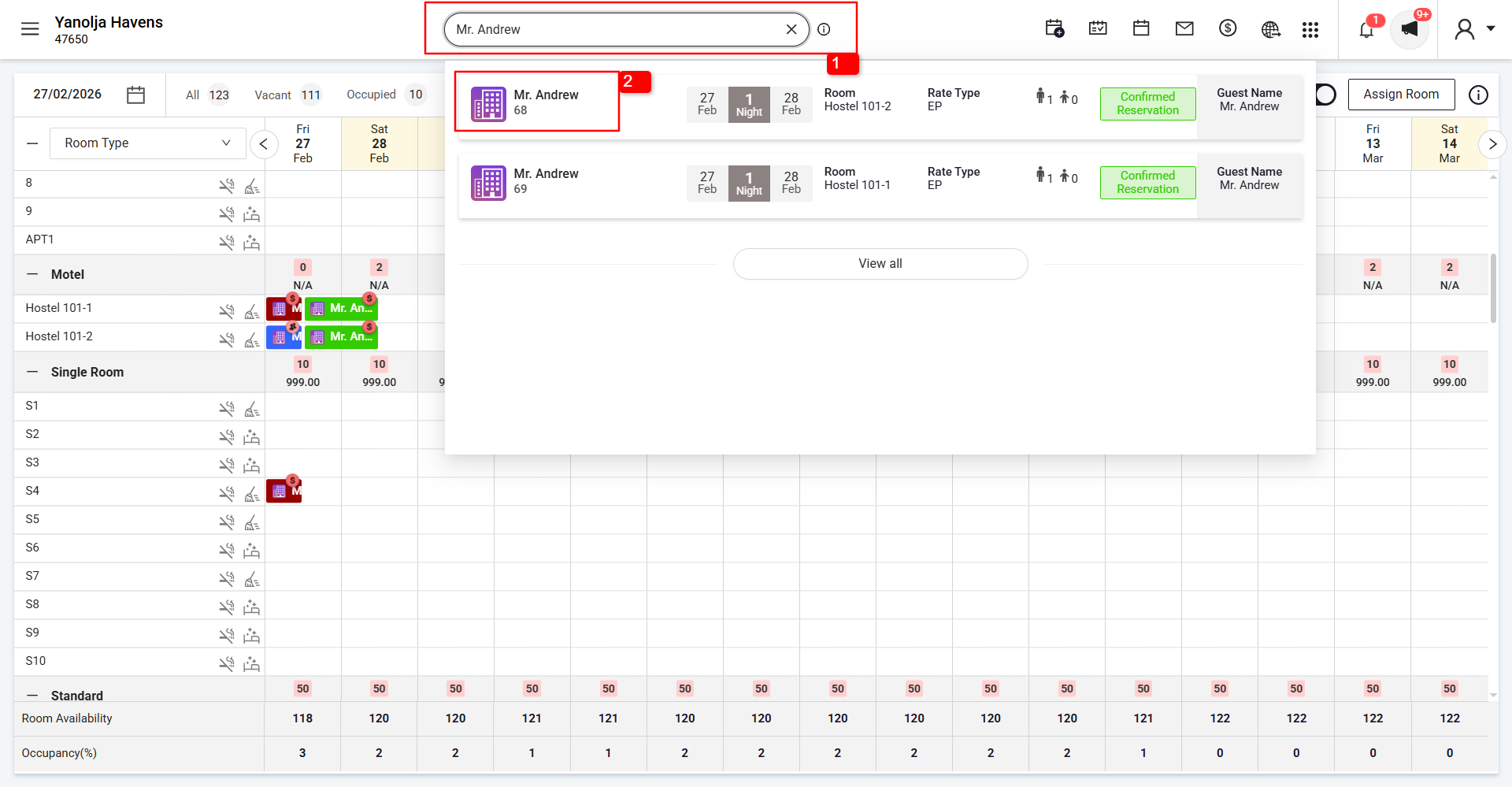
1 Click on the Search icon at the top.
Find Reservation
2 Enter the guest's details in the search box and select the correct reservation.
Proceed to Check-In
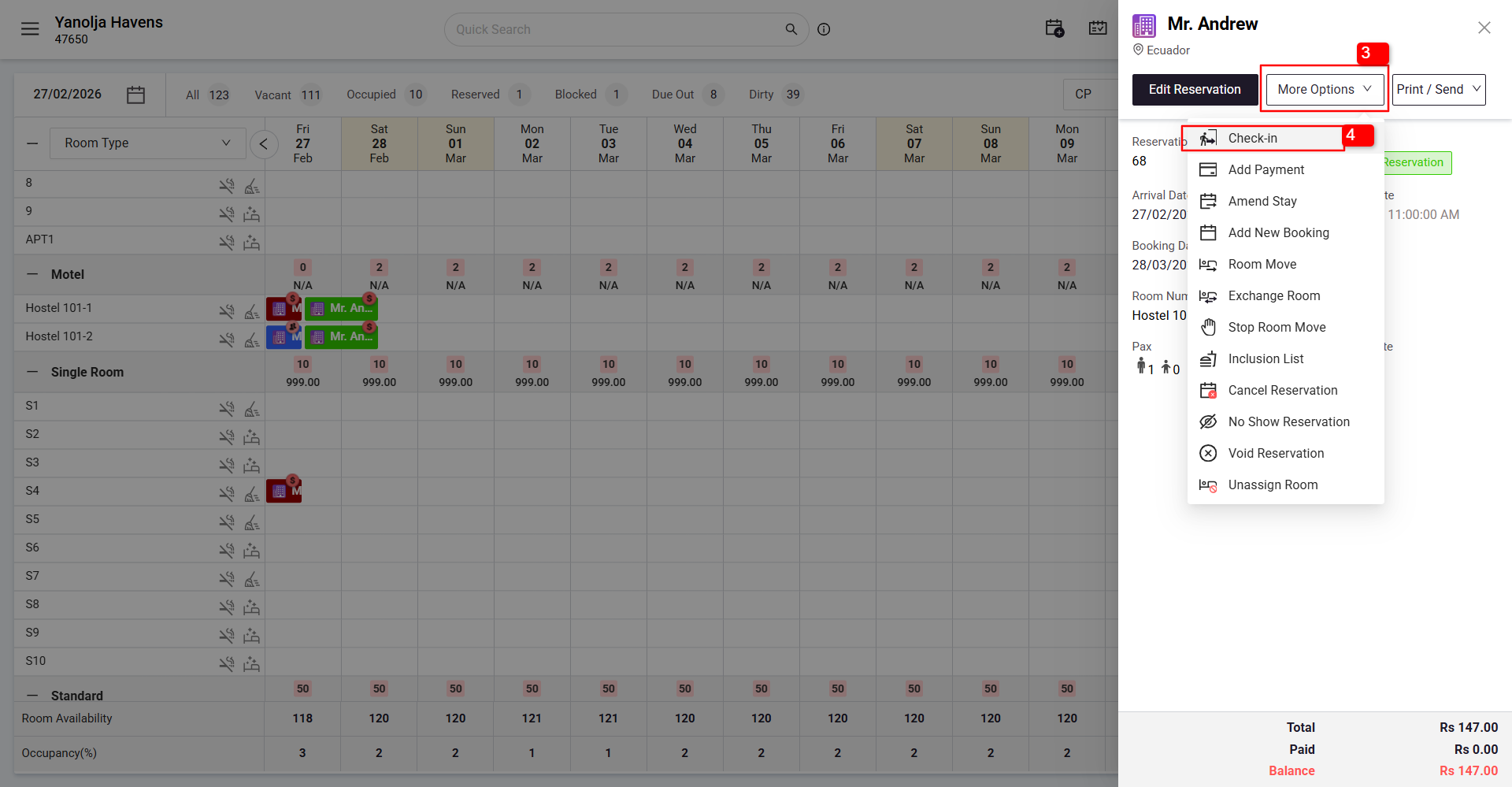
3 Click on More Options >
4 Select Check-In.
Through Edit Reservation
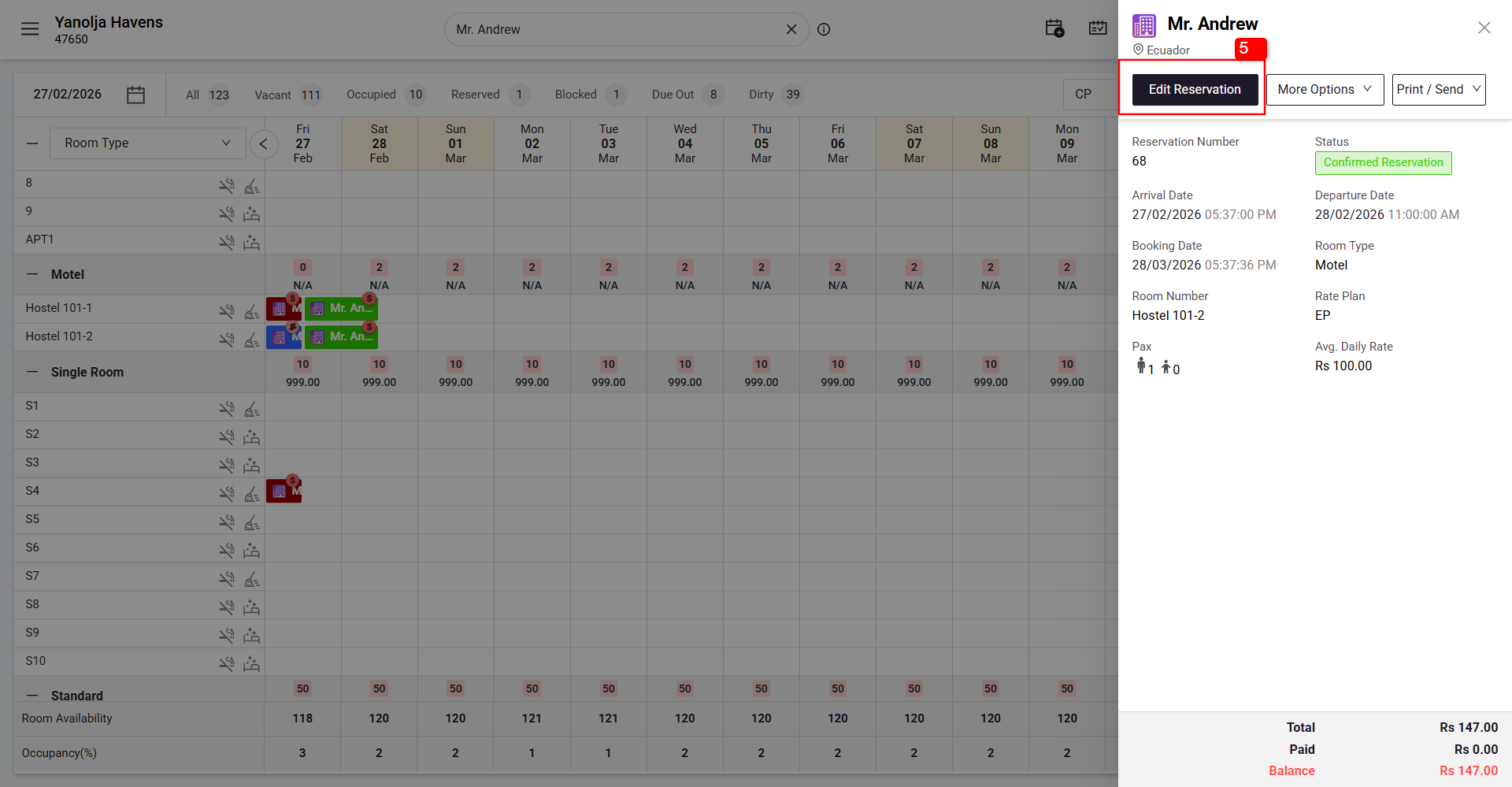
5 Click on Edit Reservation for the specific reservation.
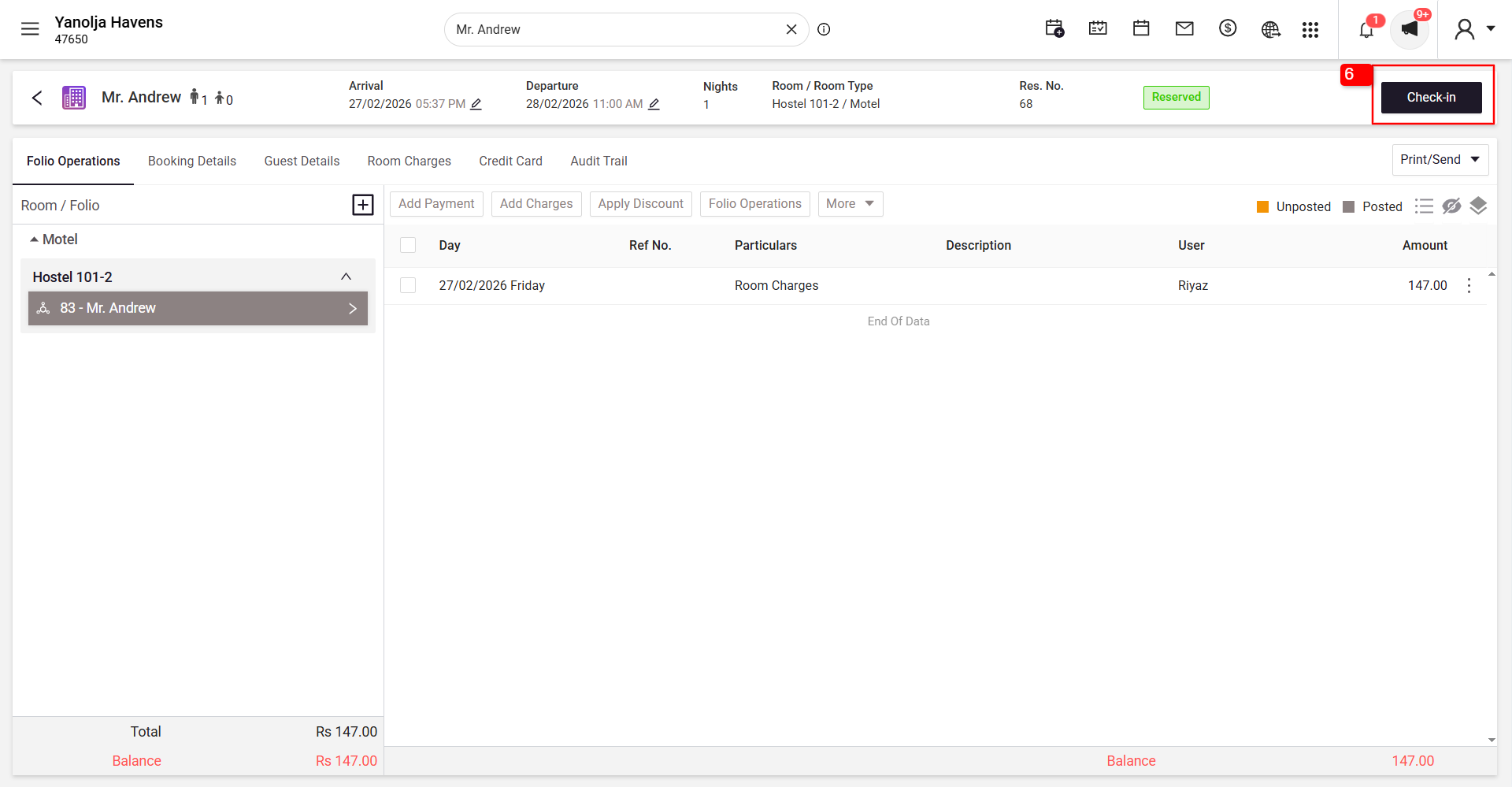
6 Locate and click the Check-In button at the top right corner.
From the Arrival List
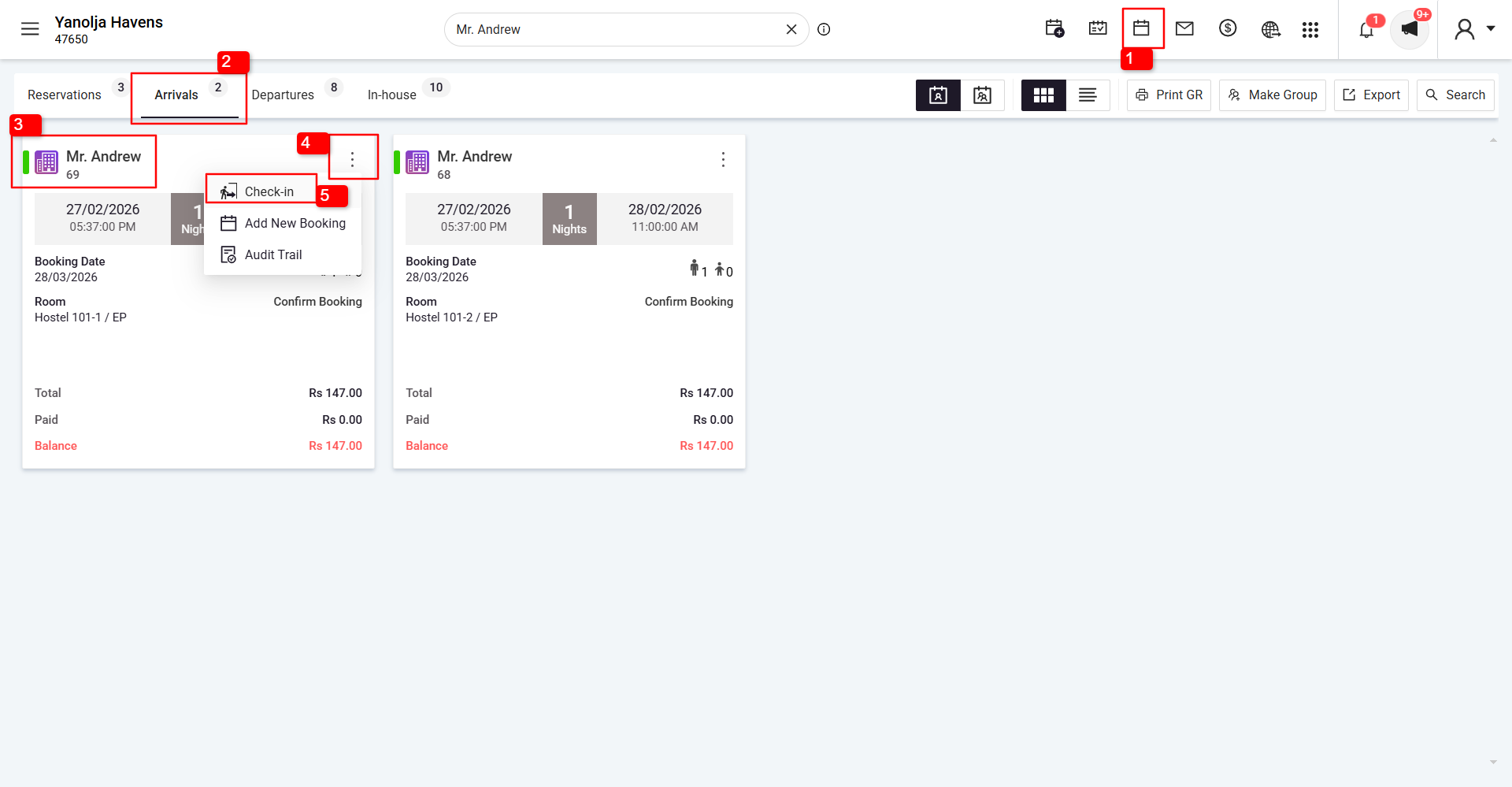
1 Click and go to the Reservations section.
2 Select Arrivals.
3 Find the booking you wish to check in.
4 Click on the three dots (More Options).
5 Click on the Check-In button.
Report
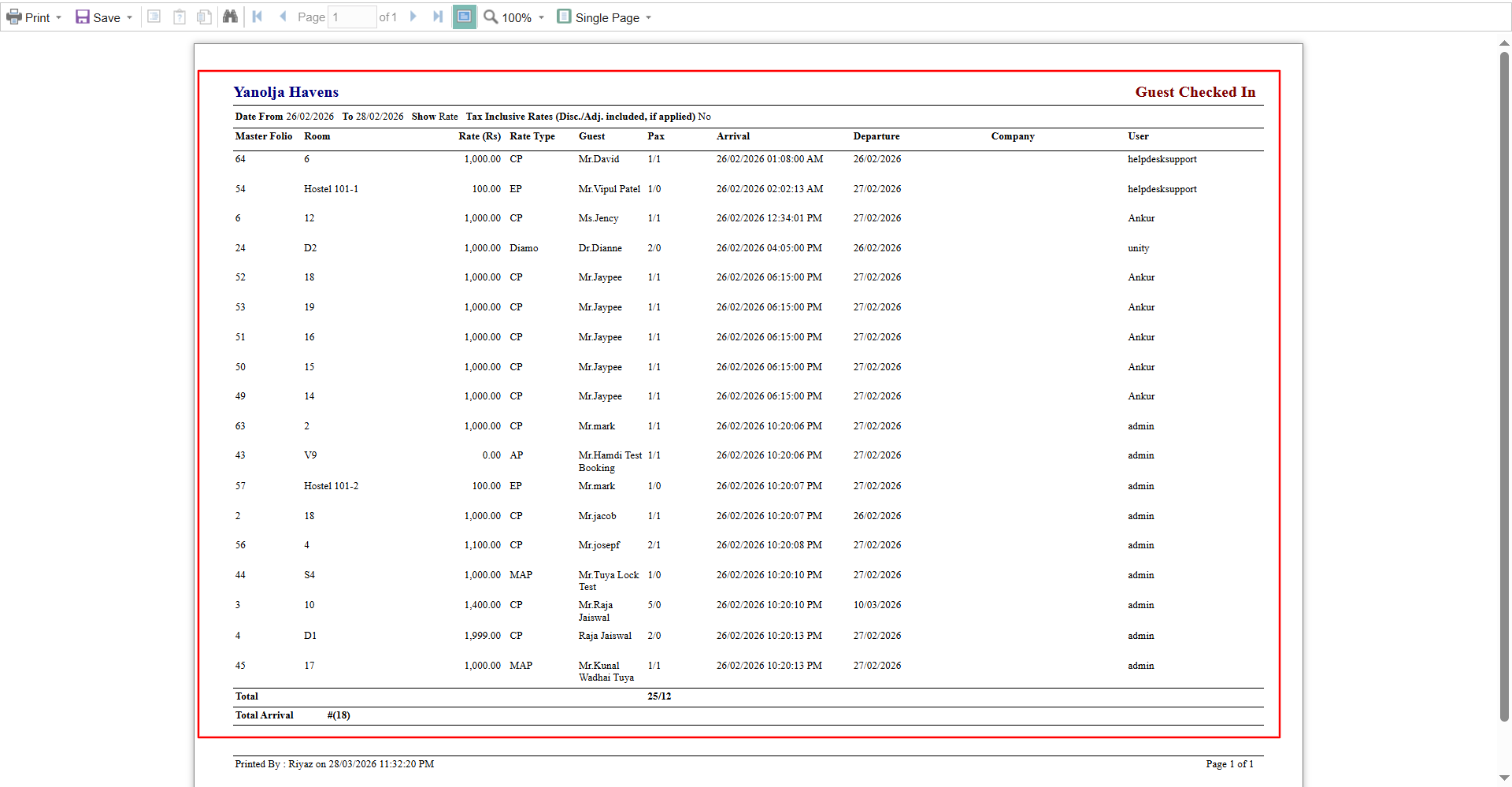
For checked-in reservations, you can refer to the Guest Checked-In Report in the Reports section.
Steps to Access the Report
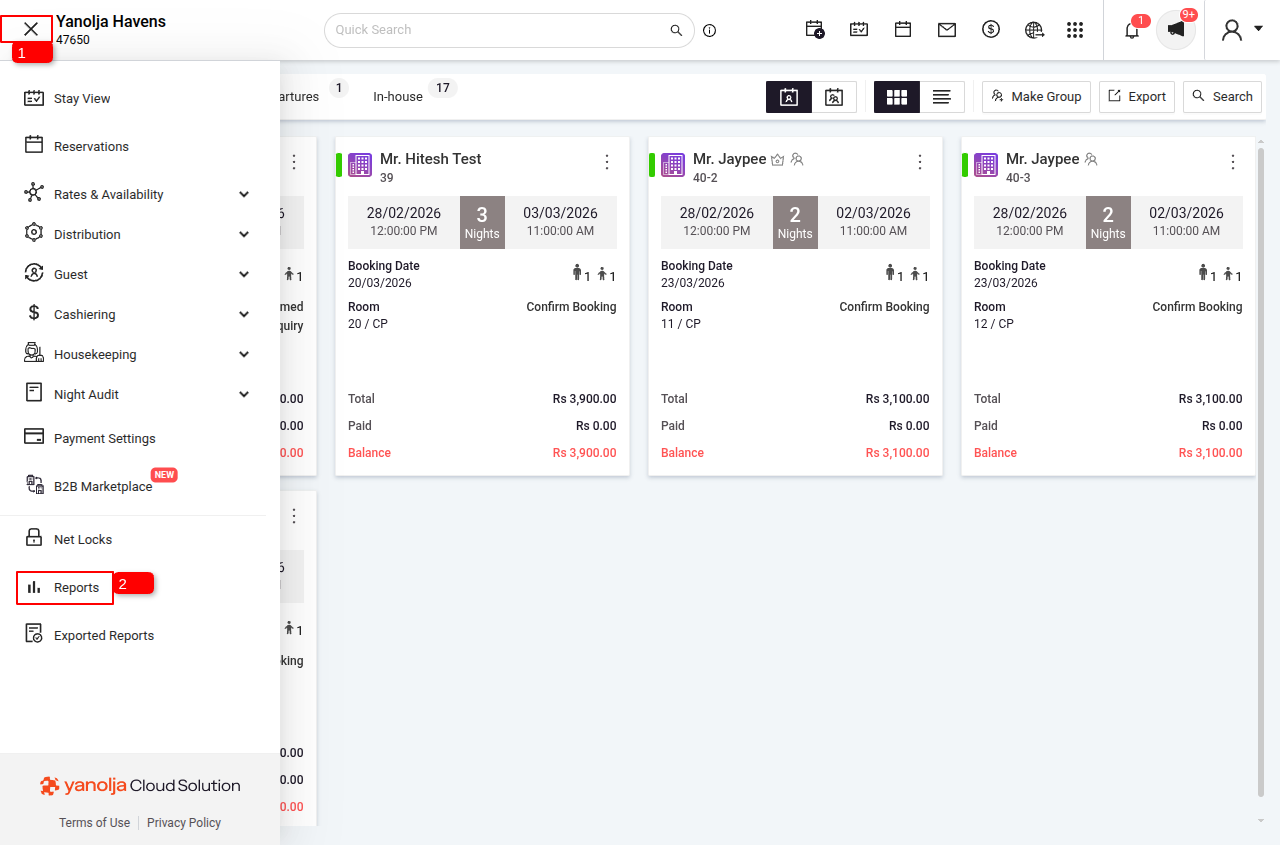
1 Click on the Menu Option.
2 Click on Reports.
3 Search for Guest Checked-In Report and select it.
4 Select the date range for which you want to check checked-in reservations.
5 Click on Report to generate the report.

Important Notes
- Ensure the Night Audit is completed before performing check-in.
- The system date must match the guest’s arrival date.
- If the date does not match, the system will not allow check-in.
Was this article helpful?
That’s Great!
Thank you for your feedback
Sorry! We couldn't be helpful
Thank you for your feedback
Feedback sent
We appreciate your effort and will try to fix the article