Follow these steps to create and manage user accounts:
Step 1:
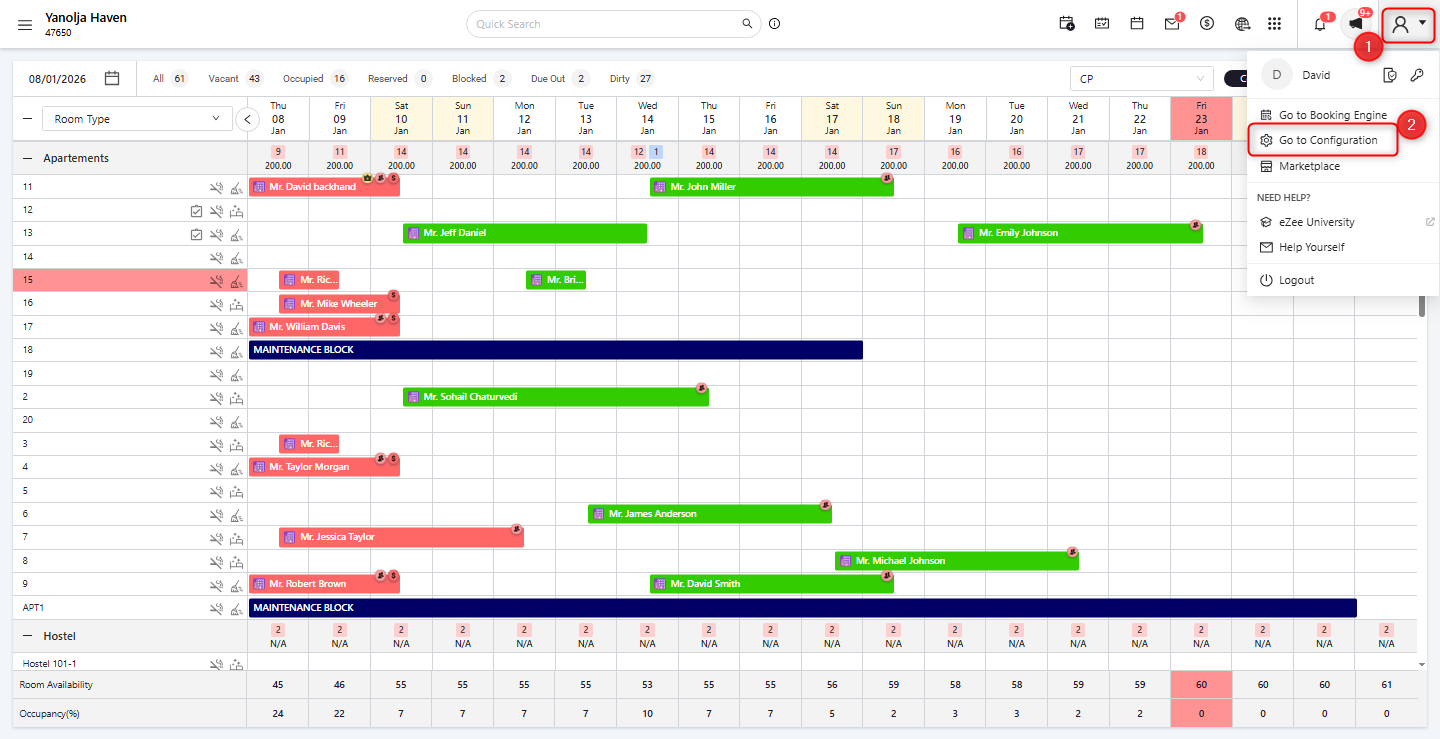
Click on the User dropdown located at the top-right corner.
Select Configuration.
Step 2:
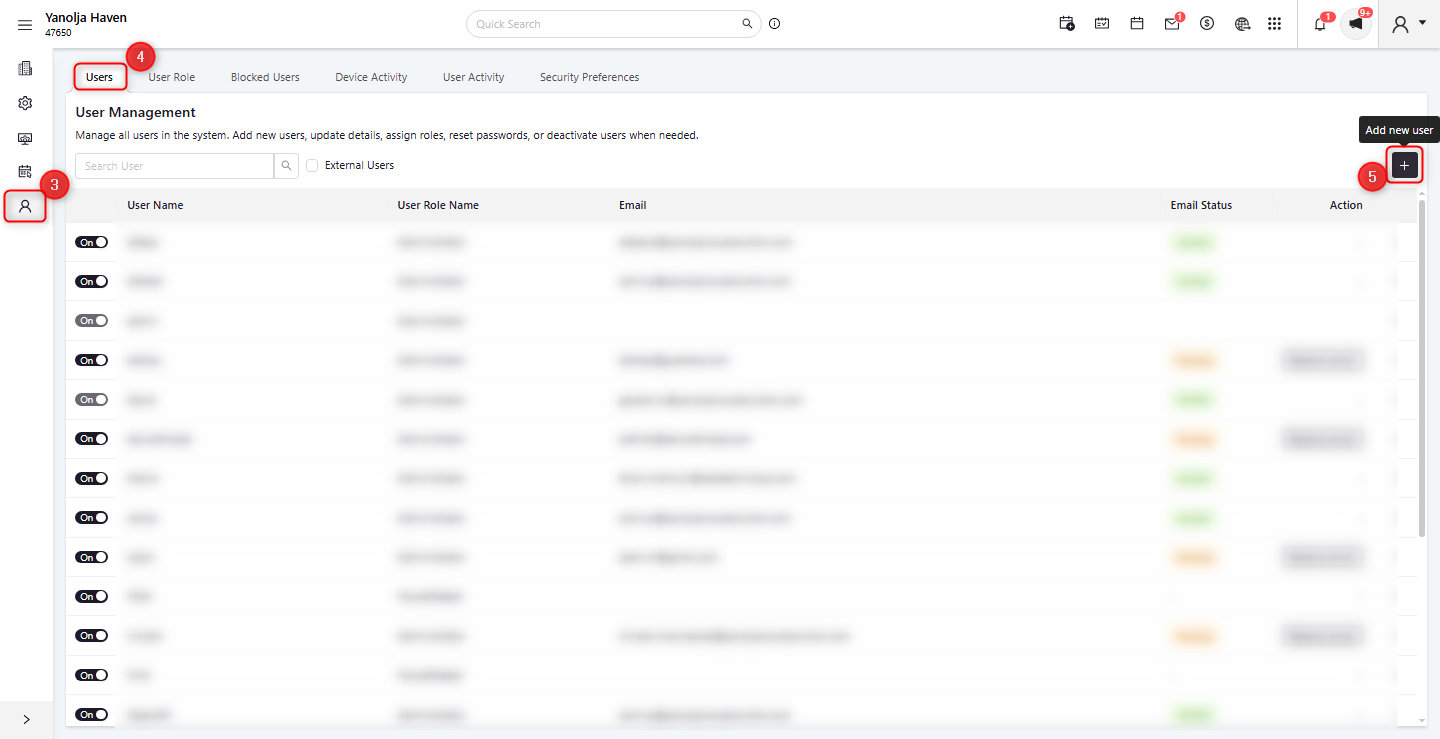
Under the Configuration section Select User Management.
Select Users.
Click on Add New User to create a new user account.
Step 3:
Enter the required user details, including:
User Name and Password
User Role (e.g., Night Auditor, Front Desk)
Email address (the user will receive a password reset link on this email)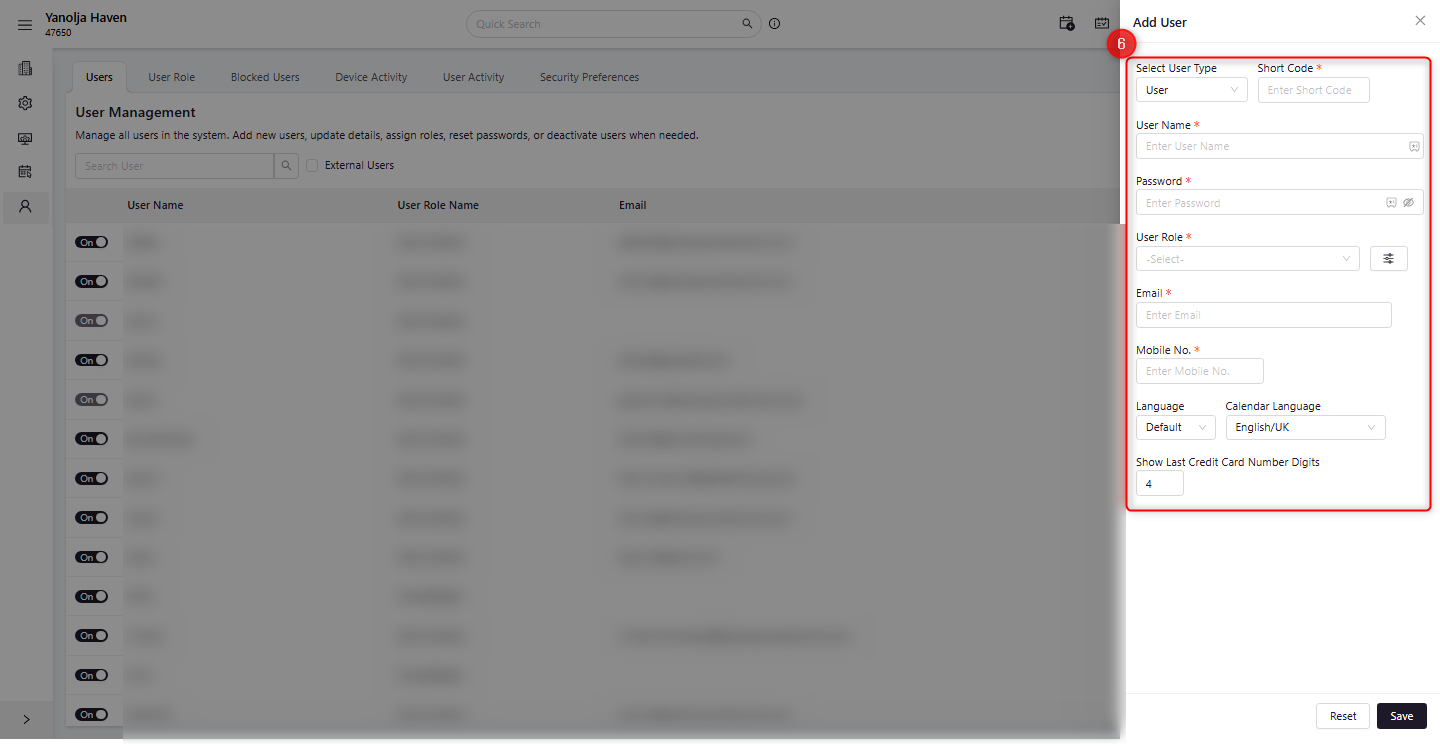
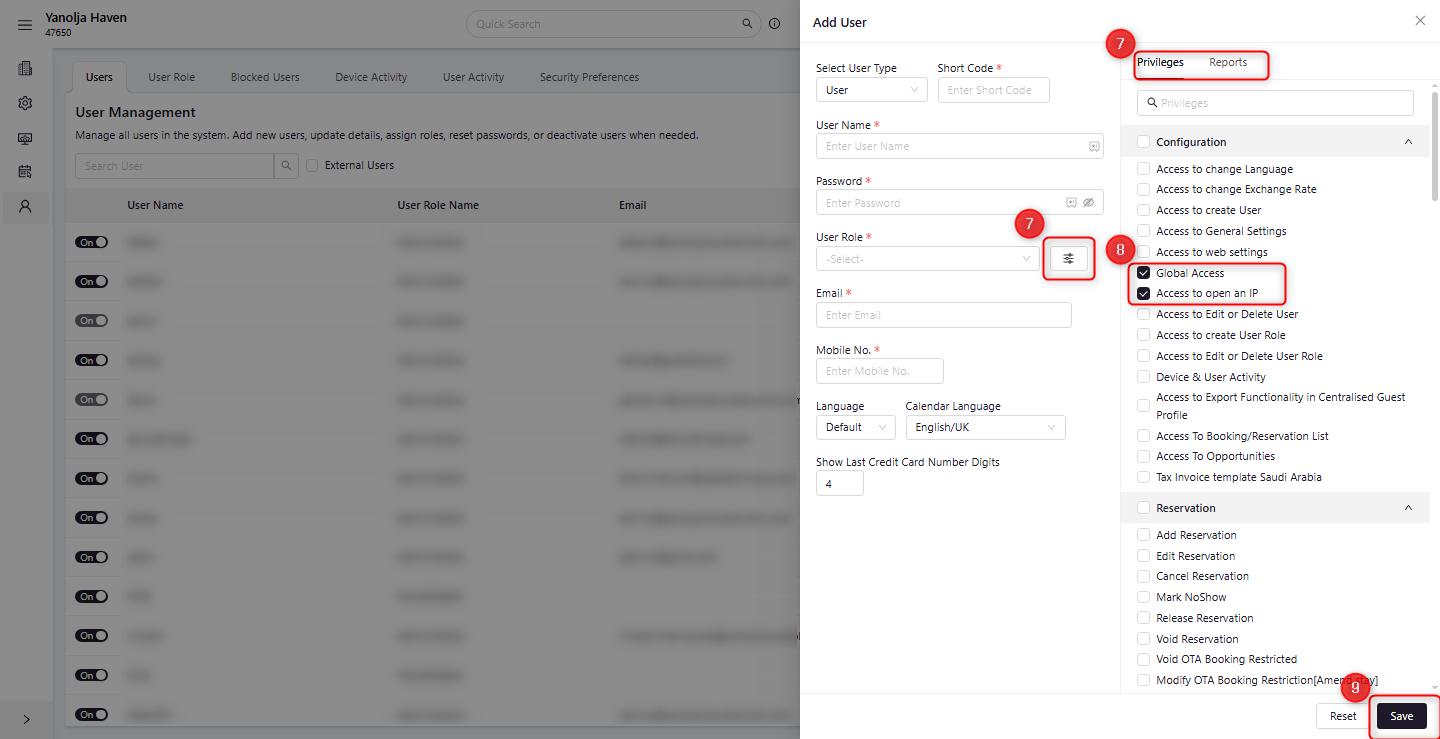
Click on Privilege's tab Under the Privileges and Report section, select the required permissions for configurations, modules, operations and reports the user should have access to.
Enable Global Access or Access to Open IP, if required, to allow the user to log in from external networks. Ensure the assigned role and privileges align with the user’s job responsibilities.
Click Save to complete the user account creation and share the login credentials with the user for accessing.
Once completed, the newly created user can log in to Unity with the assigned role and privileges, ensuring proper access control and security.
Was this article helpful?
That’s Great!
Thank you for your feedback
Sorry! We couldn't be helpful
Thank you for your feedback
Feedback sent
We appreciate your effort and will try to fix the article