This article explains the different ways to securely save a guest’s credit card in Property Management Software (PMS) under Yanolja Cloud Solution.
You can save a Credit/Debit card:
While making a reservation
Already on an existing reservation
Under a Company profile
Save a Credit Card Upon Making a Reservation
You can save a guest’s card while creating a reservation or at the time of check-in.
Steps:
Log in to Property Management Software (PMS).
Navigate to Front Office > Go to Stay View.
Click on New Reservation.
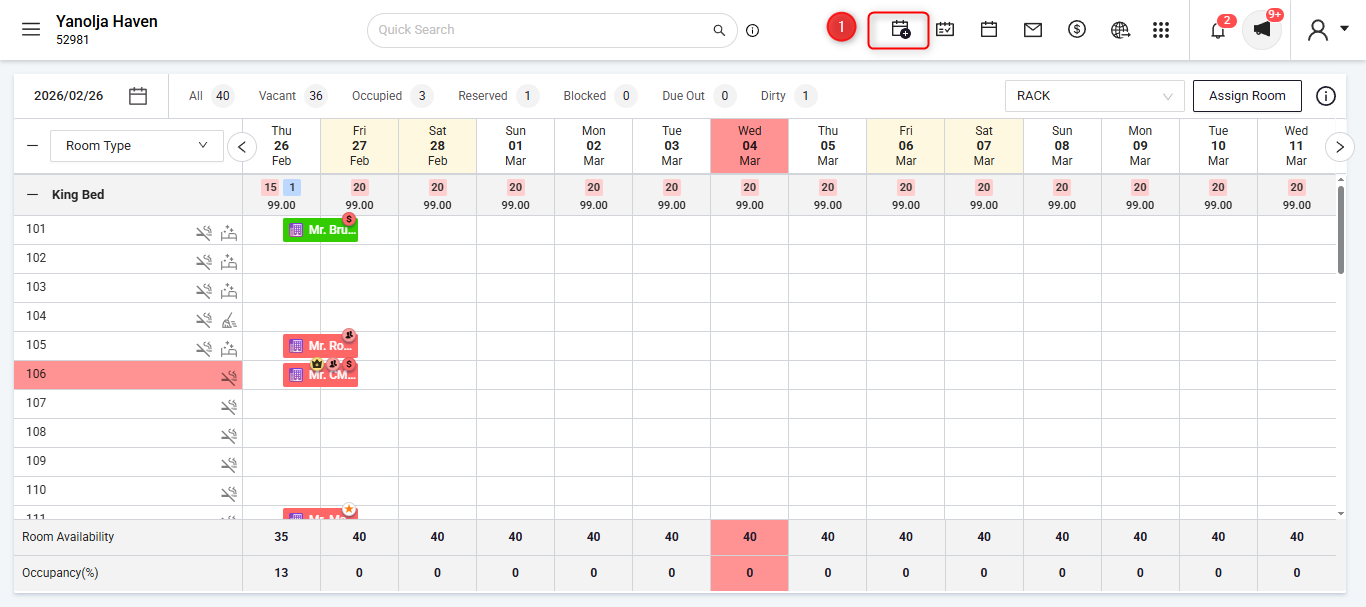
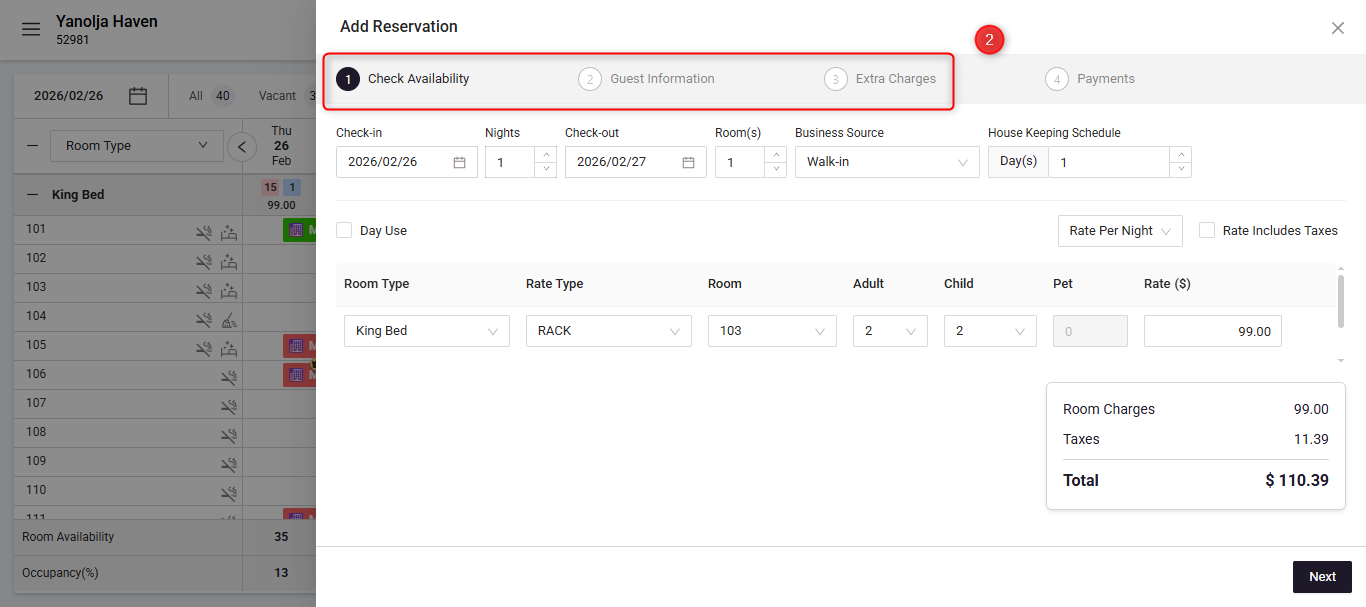
Complete steps 1 to 3
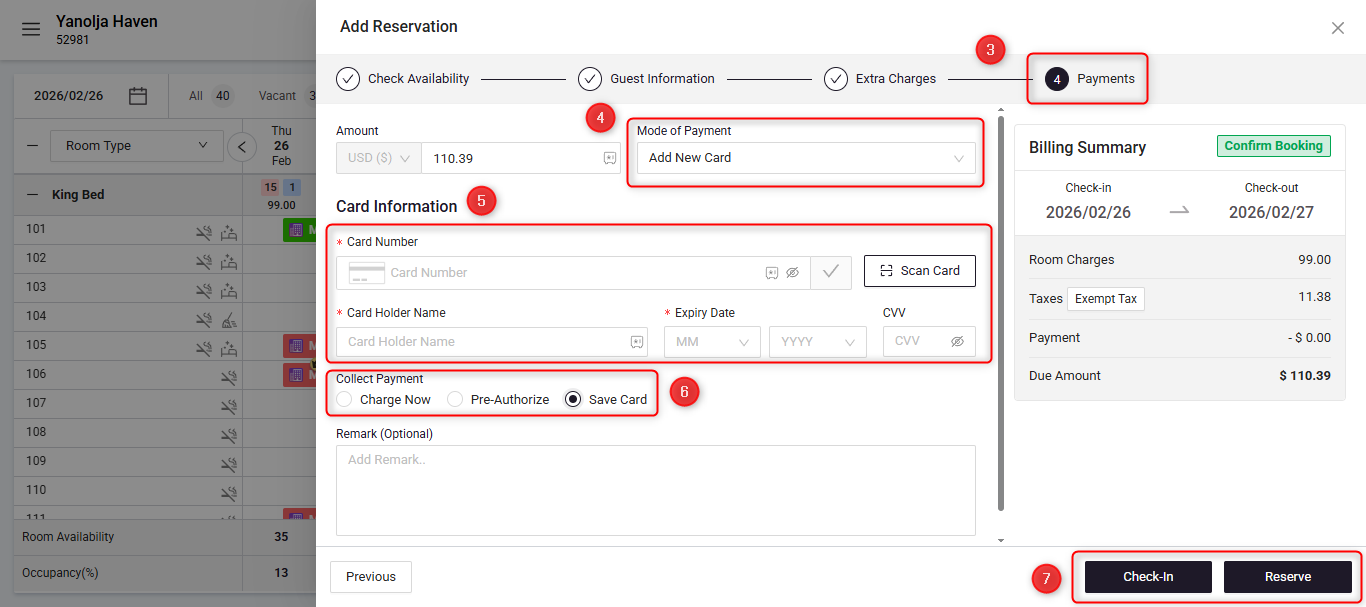
Navigate to the Payment Screen.
In mode of payment Select: Add New Card.
Enter the card details: (Cardholder Name, Card Number, Expiry Date, CVV)
Select the Save Card option.
Click Check-In or Reserve depending on the type of guest.
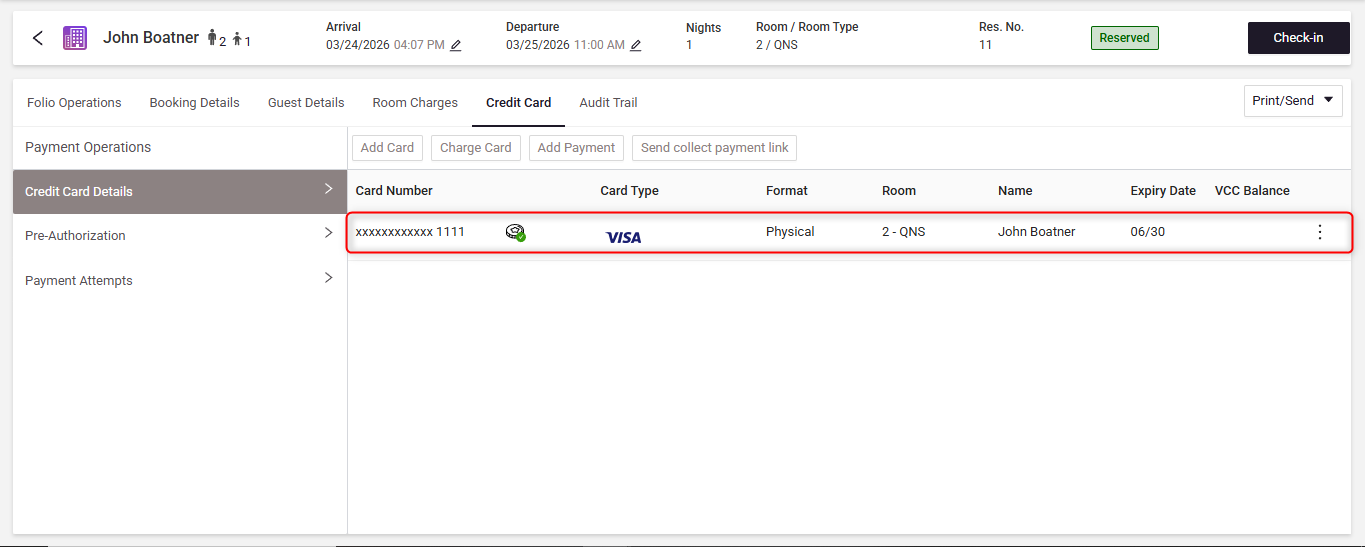
The credit card will now be securely saved against the reservation.
2: Save a Credit Card After Making a Reservation
If the reservation is already created, you can still add a card later.
Steps:
1. Go to Stay View → Select the reservation.
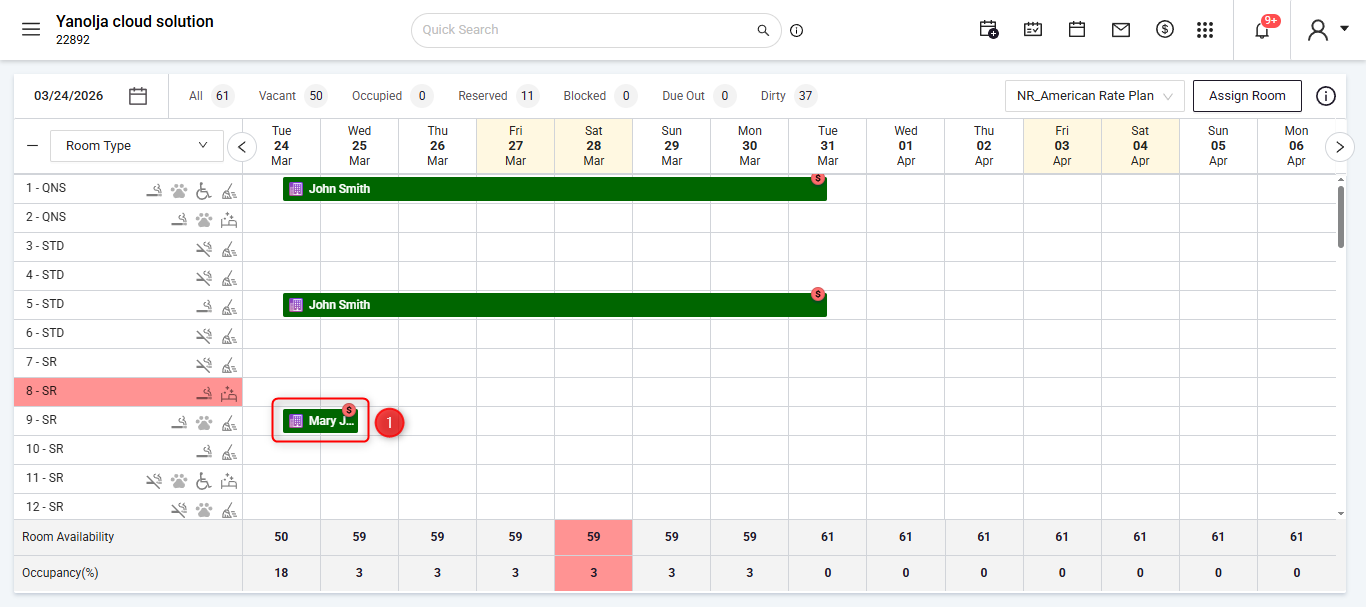
2. Open the required reservation and click on more options.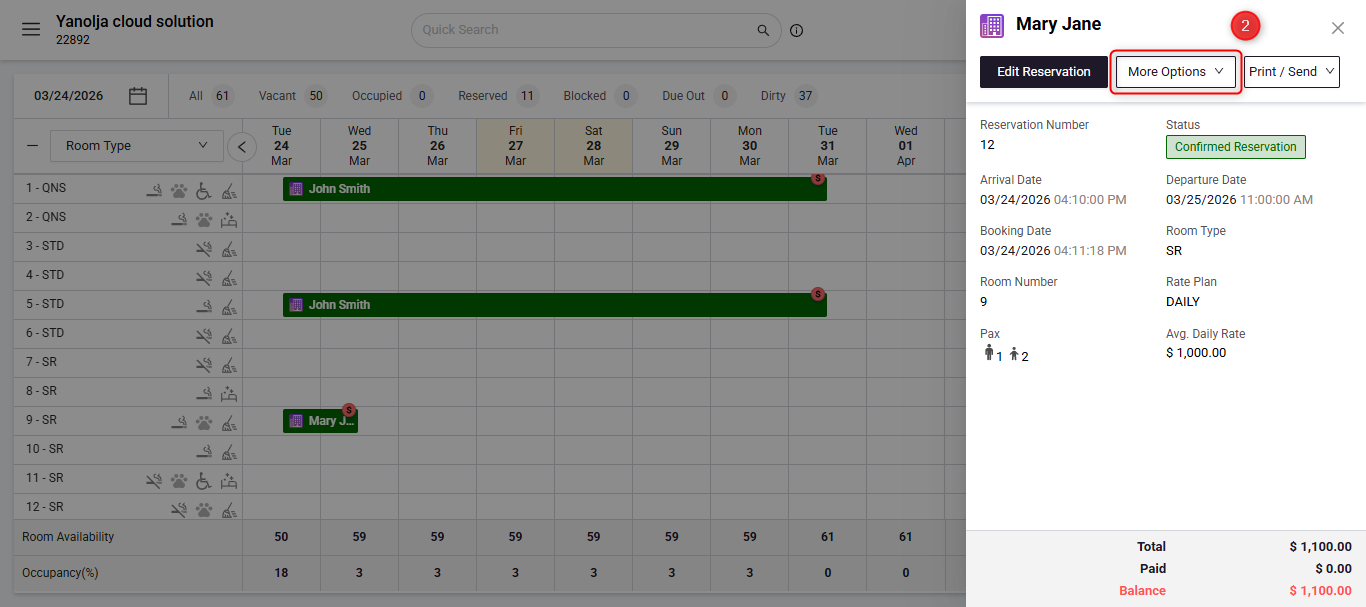
3. Once you click more options a menu should appear. Once the menu opens select Add Payment.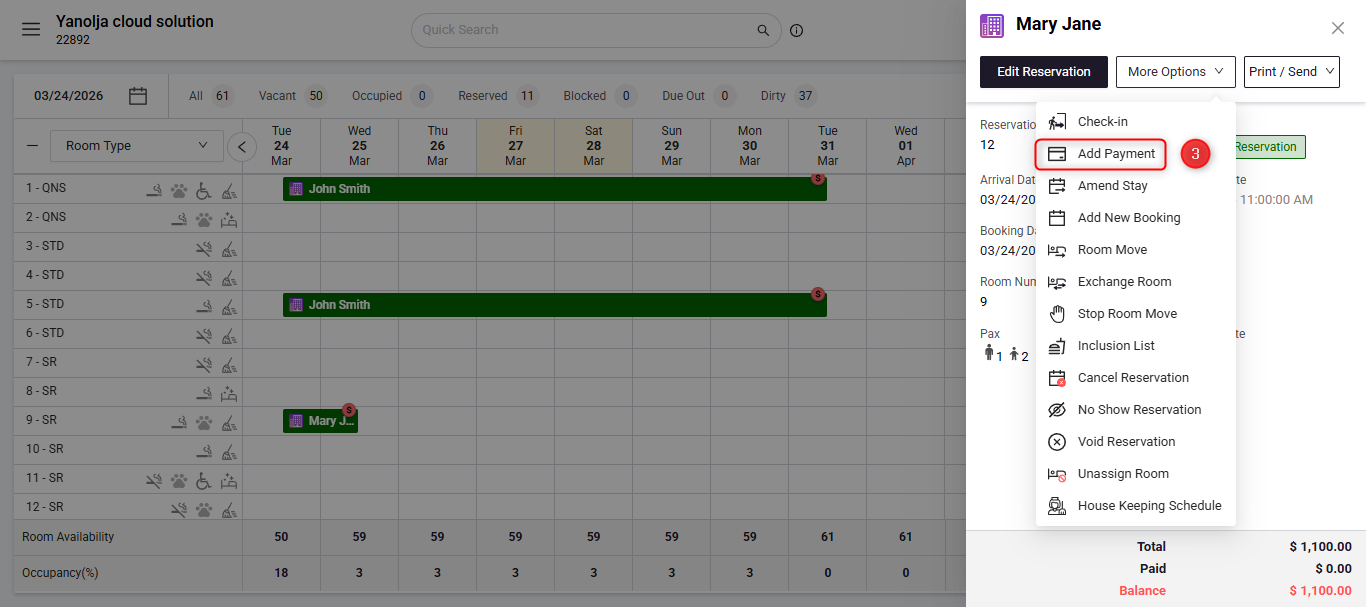
4. In mode of payment you will find Add new card as default.
5. Fill out the card information that you would like to save
6. Lastly use the Save card option to have it saved.
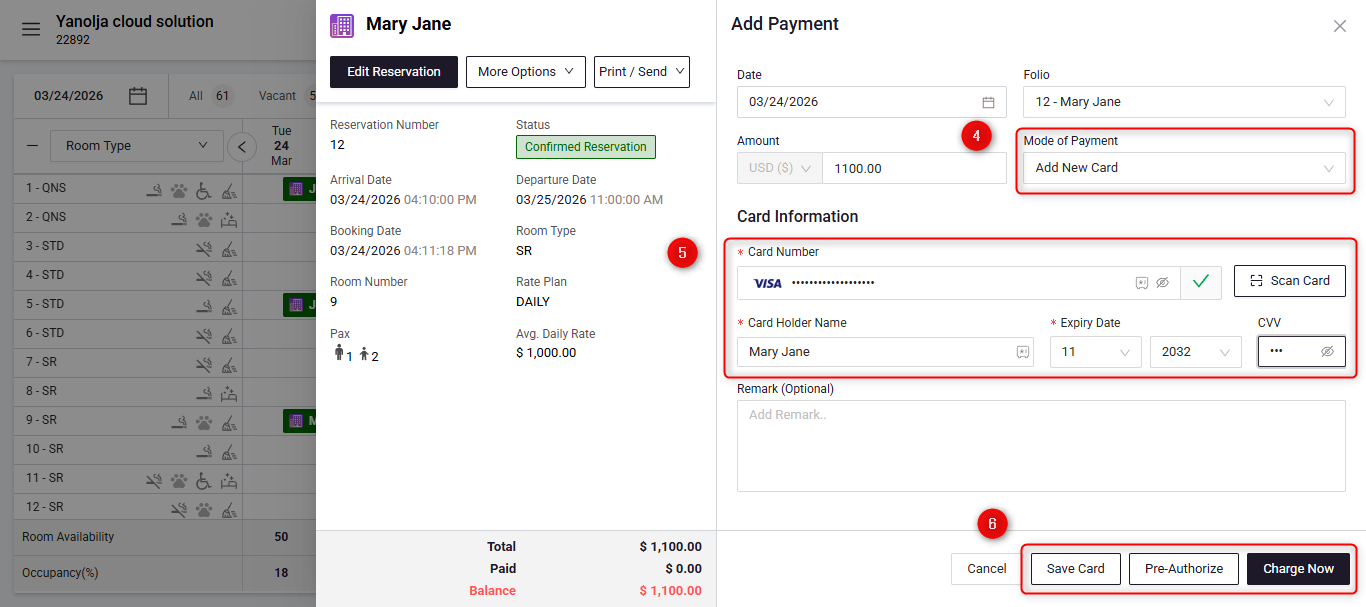
The saved card can now be used when you click add payment again.
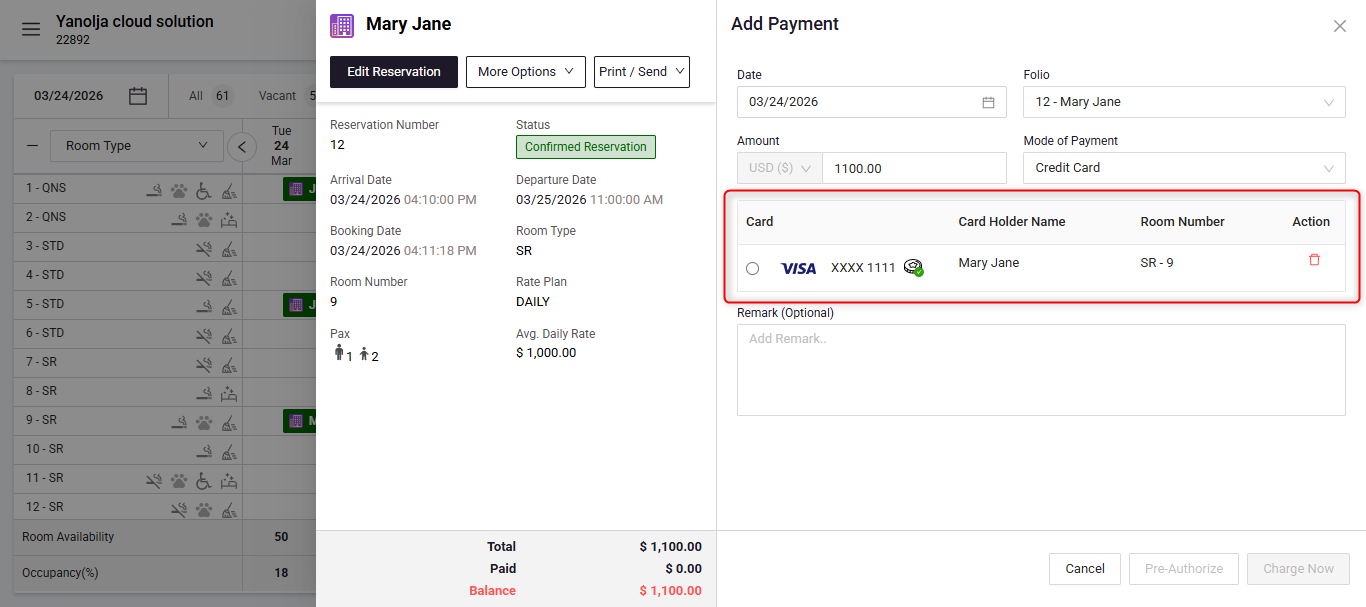
3: Save a Credit Card Under a Company Profile
If the booking is associated with a company, you can save the company’s credit card for future use.
Steps:
Click on the 3 bars to open up Menu
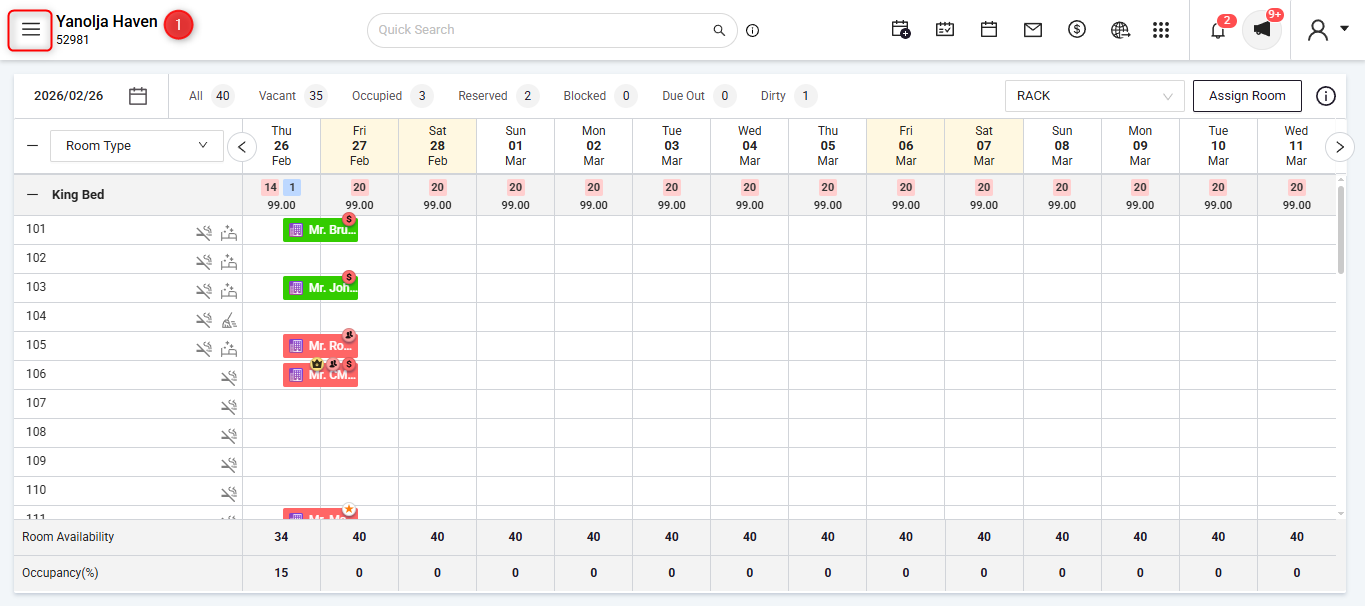
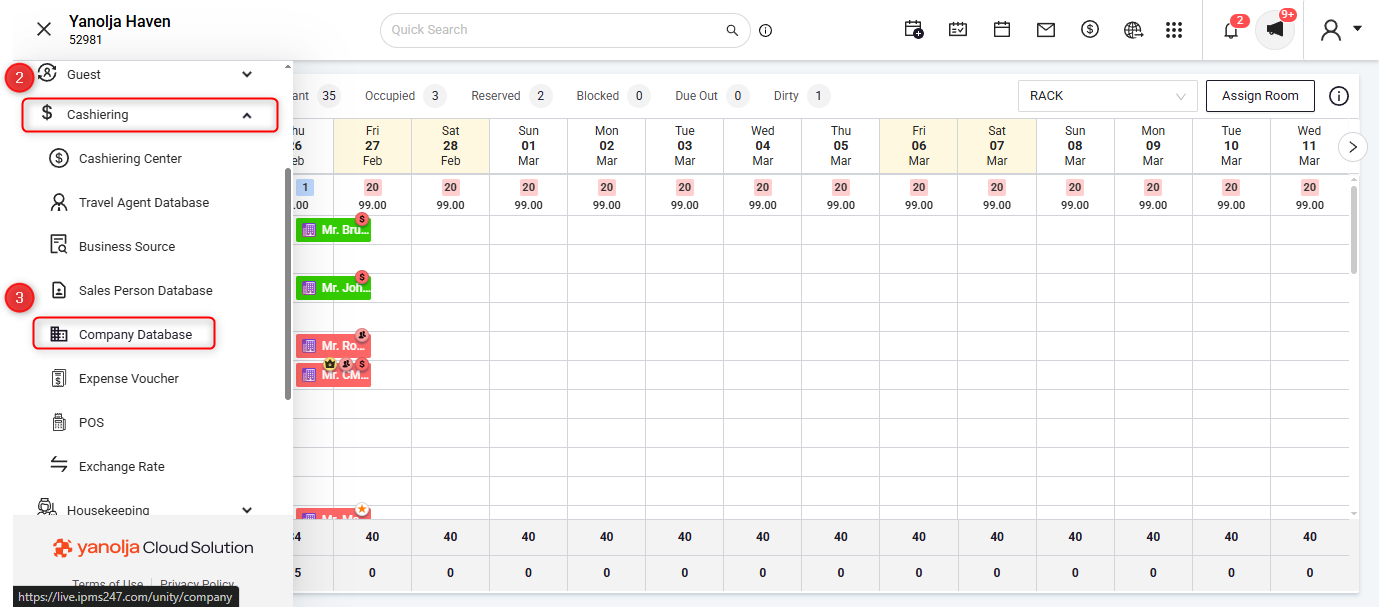
Navigate to Cashiering →
Click on Company Database. You should find all the company profiles.
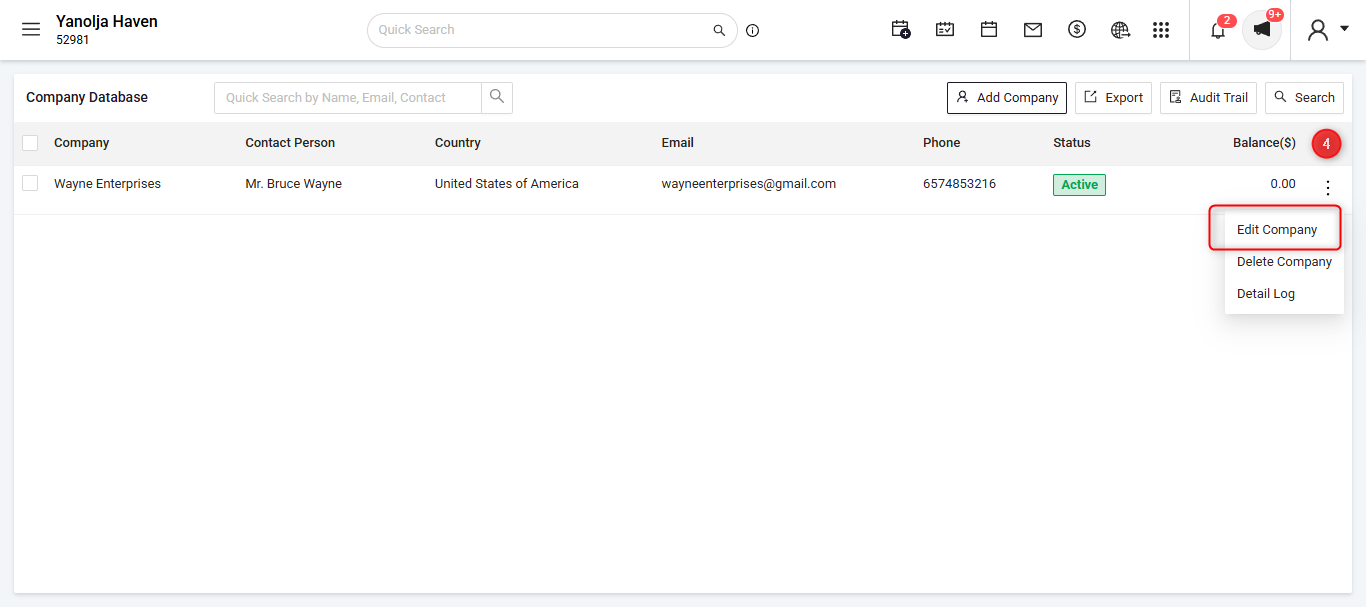
Click on the 3 dots at the end and select Edit Company.
Fill out the Credit card Details.
Lastly hit save and the card should be saved under that company and can be used for payments going forward.
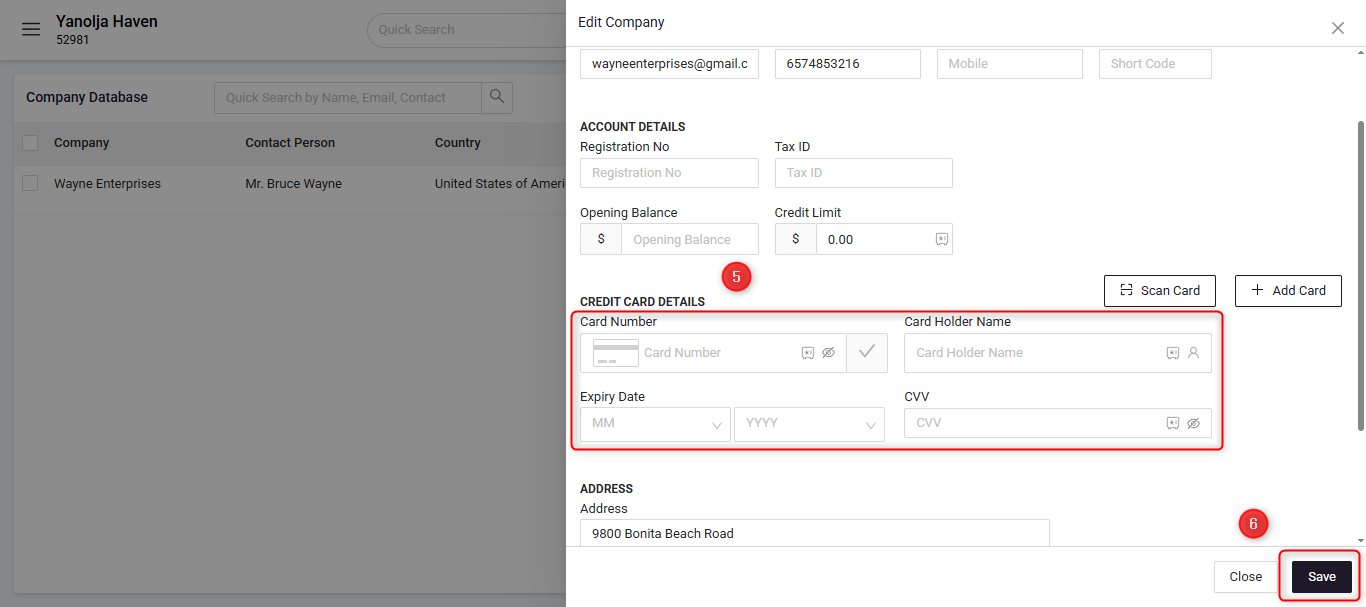
The card will now be available for reservations linked to that company.
Was this article helpful?
That’s Great!
Thank you for your feedback
Sorry! We couldn't be helpful
Thank you for your feedback
Feedback sent
We appreciate your effort and will try to fix the article