This article explains the different methods available to add payments for a group reservation in the Property Management System (PMS) under Yanolja Cloud Solution.
You can record a payment for a group reservation using:
Cash / Business Source
Credit / Debit Card via Payment Gateway (PG)
Note: Payments collected via Credit/Debit Card through a Payment Gateway cannot be split among individual folios. To divide payments across multiple folios, please use Cash / Business Source.
A. Adding the Group Payment on a Group with Cash / Business Source
Steps:
Log in to Property Management Software (PMS).
Navigate to Front Office > Go to Stay View.
Go to Stay View → Select the reservation.
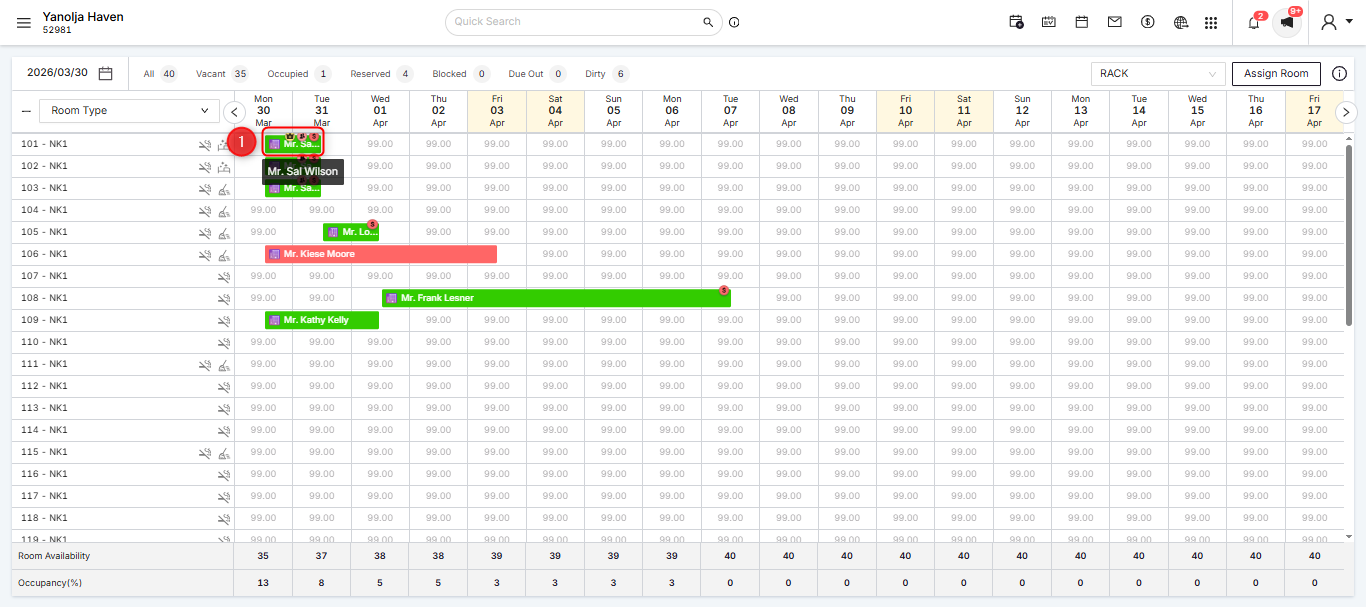
Open the required reservation and click on more options and then click on add payment.
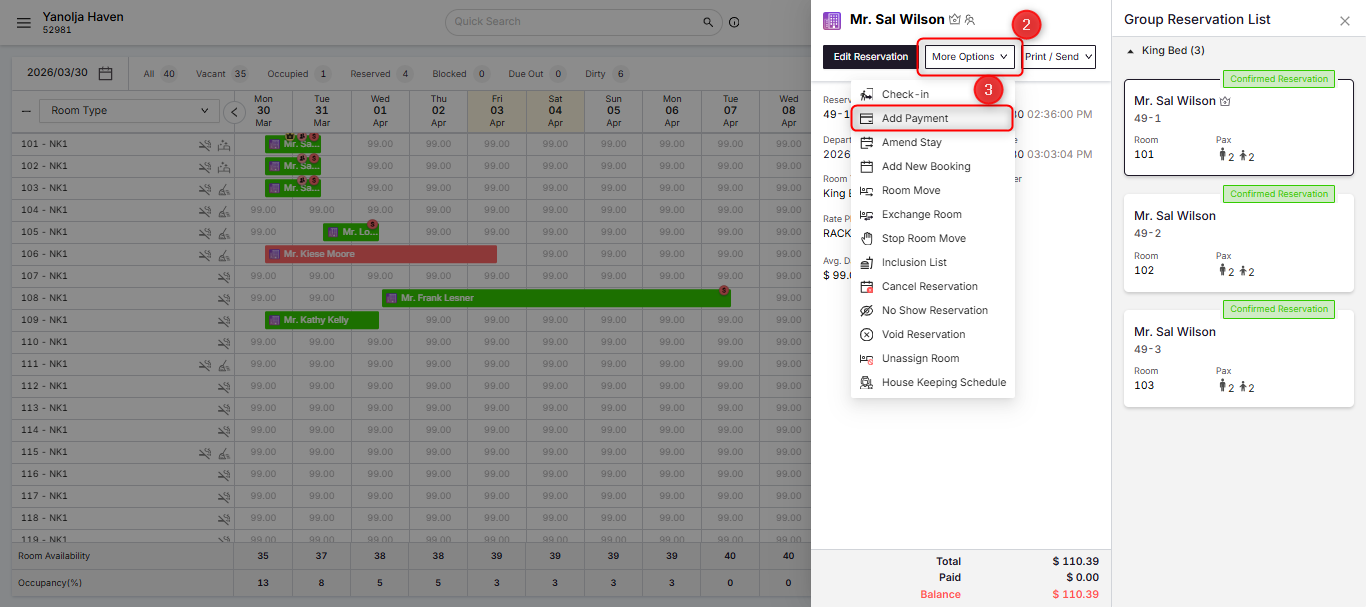
Select either the the Group payment option or an individual folio from the "Folio" tab.
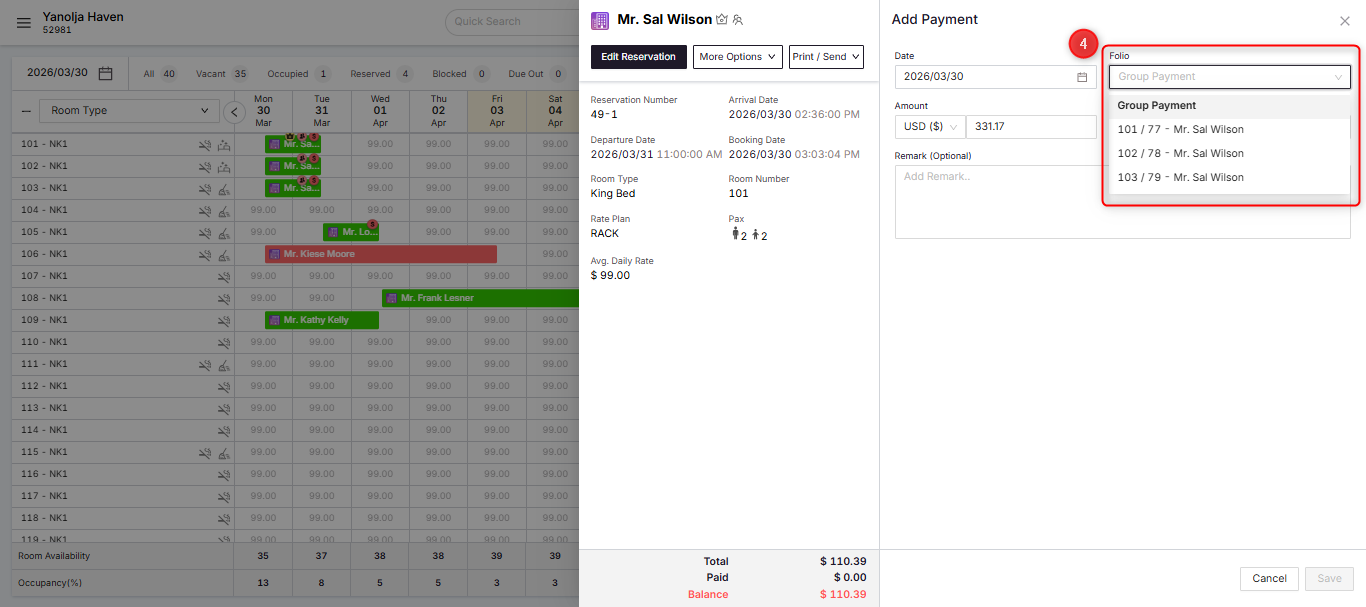
If you select the Group payment option, you can collected the payment only with Cash / Business Source.
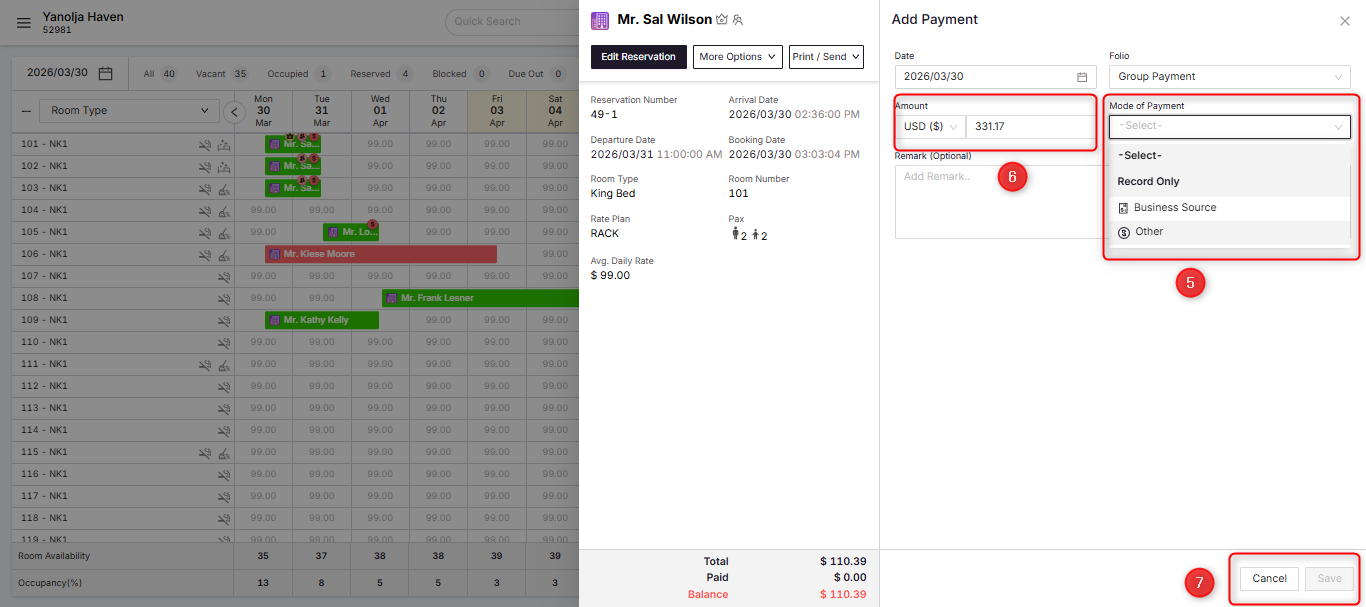 After saving, it will take you to the page where you manage how you want to distribute the balance among each folio:
There are three ways you can post this amount:- Balance: This will clear the folio balances sequentially from top to bottom.
- Proportional: This will distribute the total amount collected proportionally across all folios.
- Manual: This allows you to enter a custom amount for each folio individually.
After doing the necessary please click on save.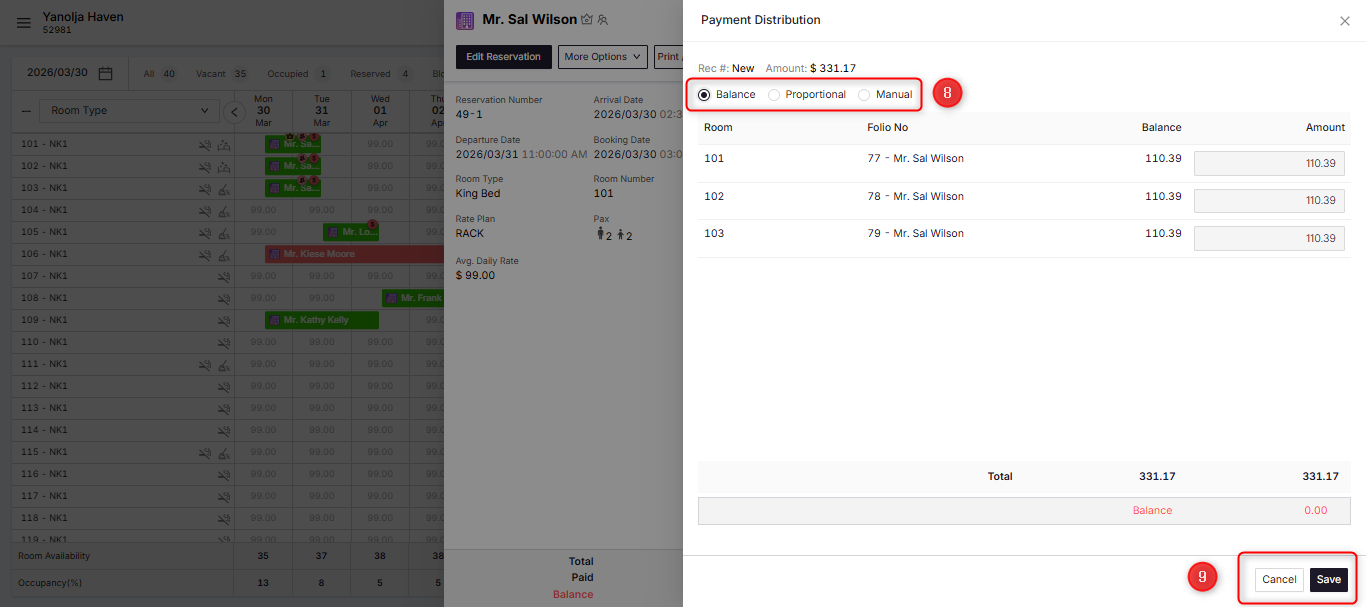
B. Adding the Group Payment on a Group with Credit / Debit Card via Payment Gateway (PG)
Select the Group owners reservation and then click on edit reservation.
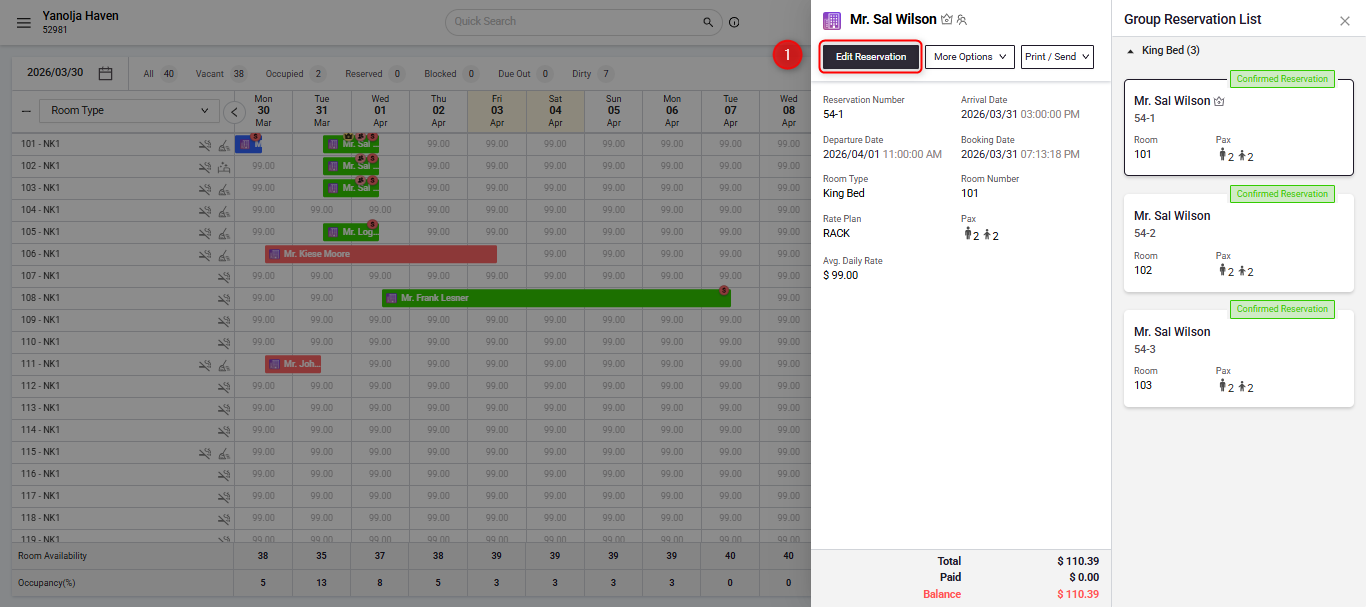
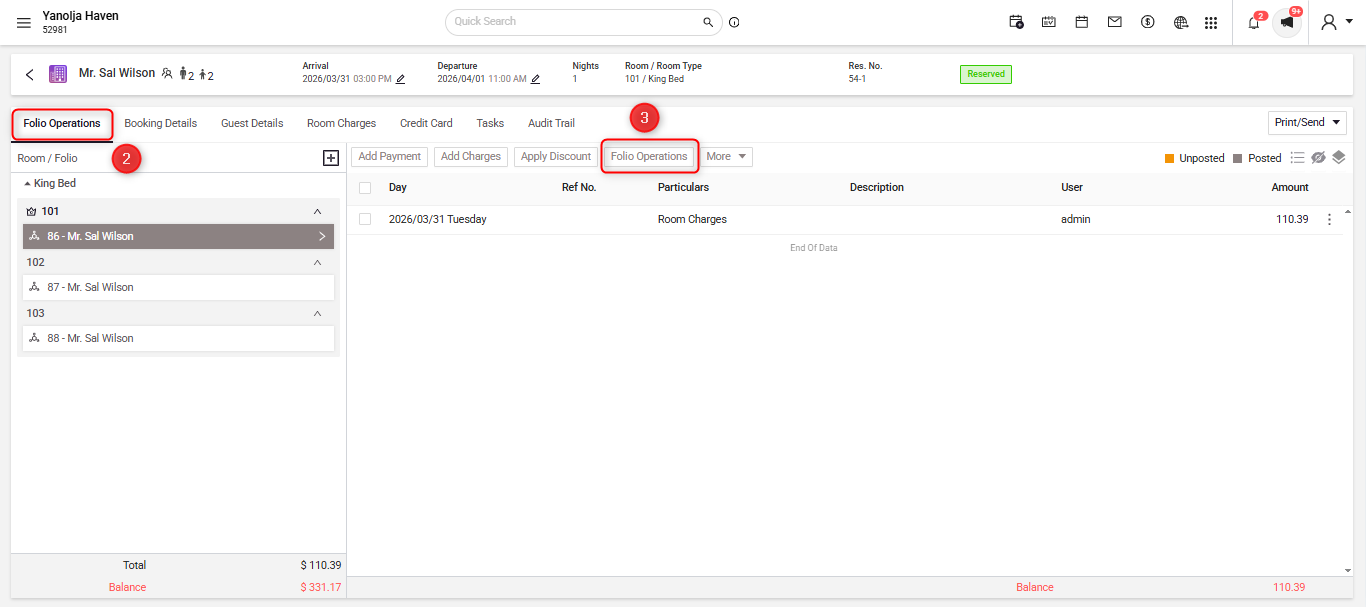
In the Folios Operations screen go to "Folio Operations"
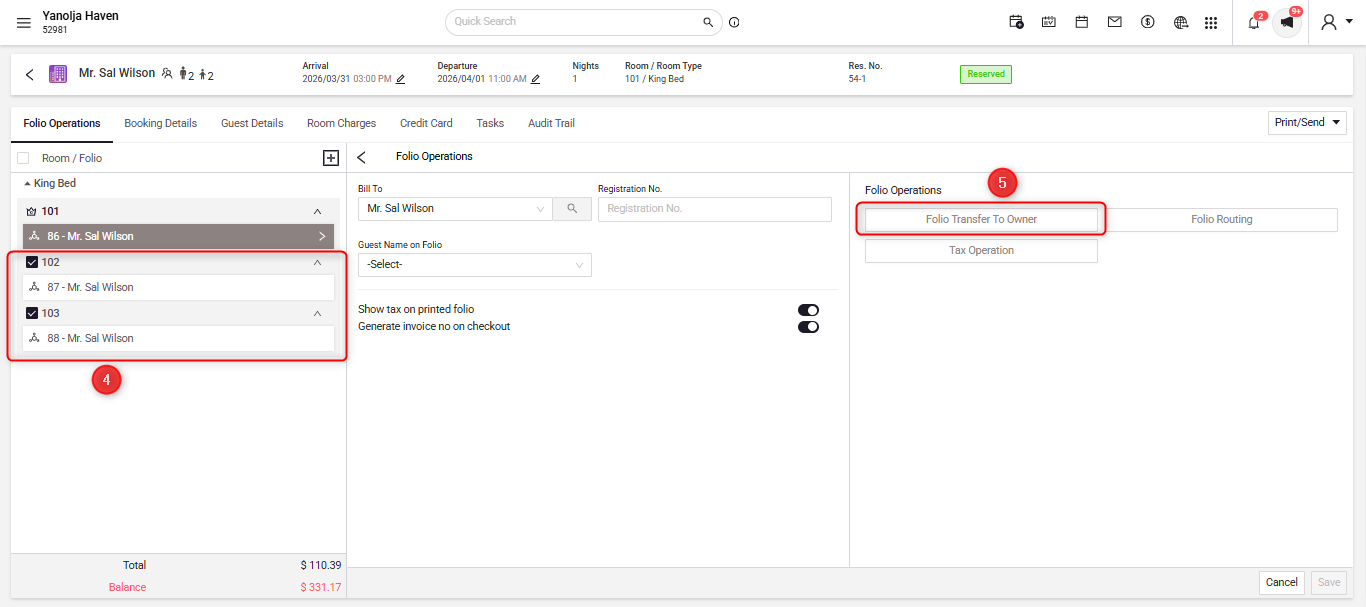
Select all the other folios so you can move their charges to the folio of the group owner.
Once the transfer is successful you will see a notification.
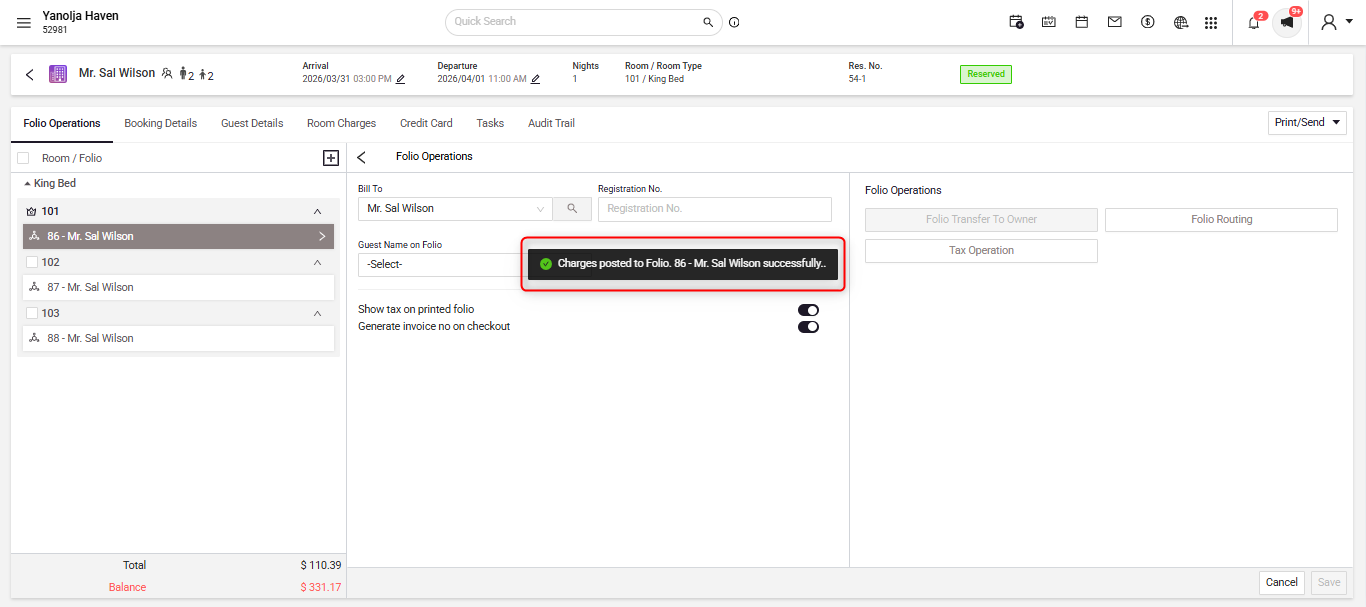
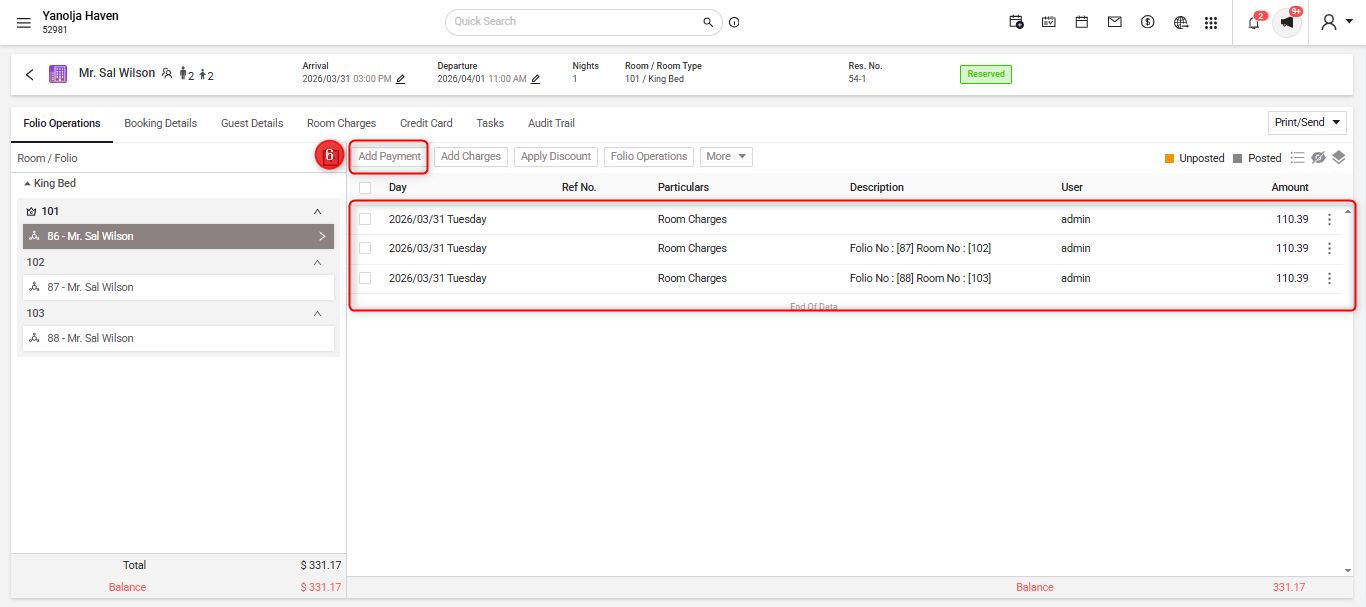
You can also confirm that the charges of the selected folios have been moved to the group owner and then to collect the payment, click on add payment.
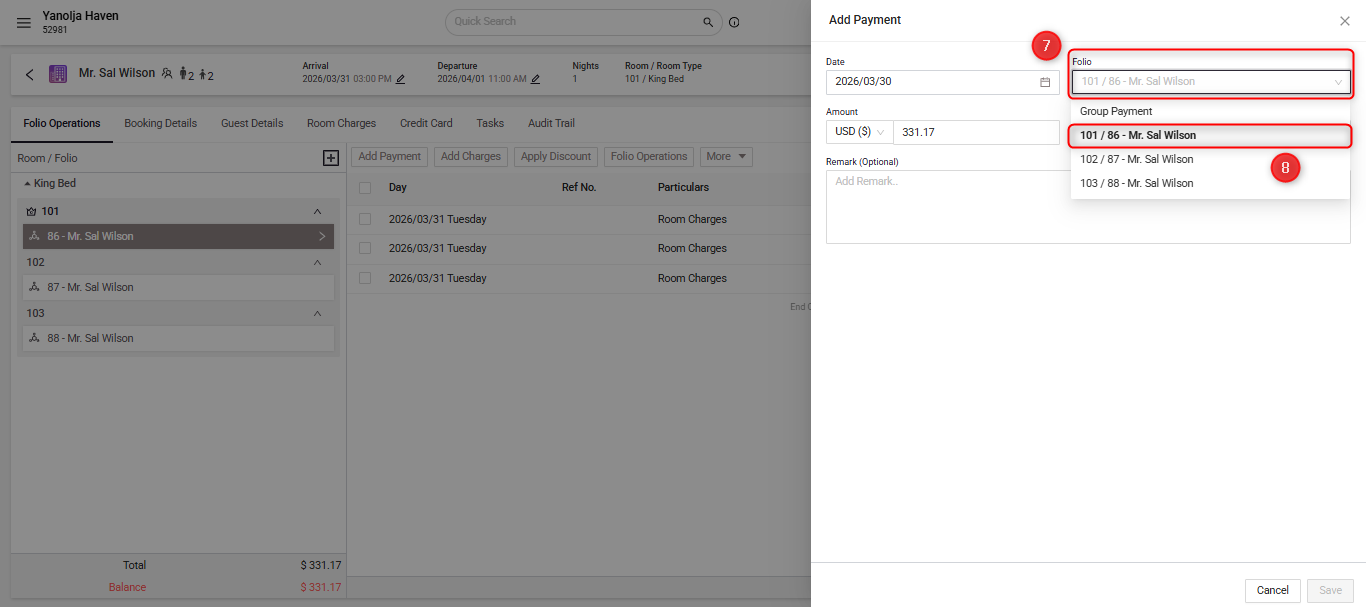
Then select the mode of payment and go for the group owner. This will populate the amount automatically which will the total pending of the whole group.
Then you can just add the card details or select to take the payment via the terminal (if applicable) and then select to authorize or charge them.
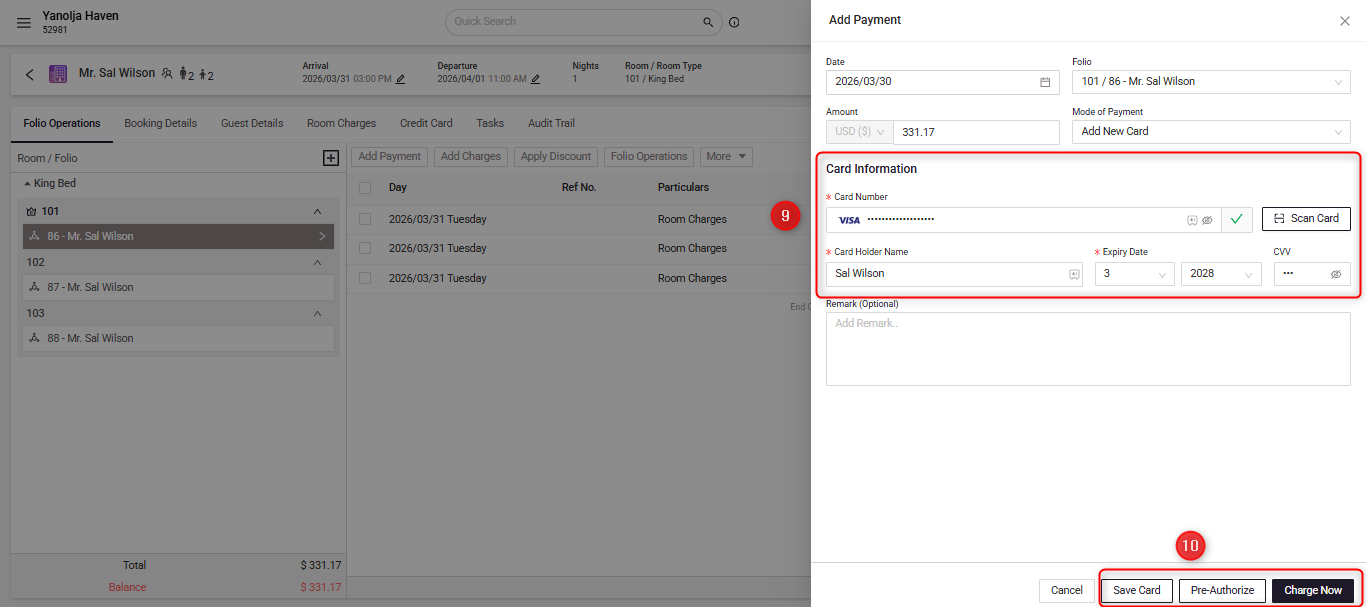
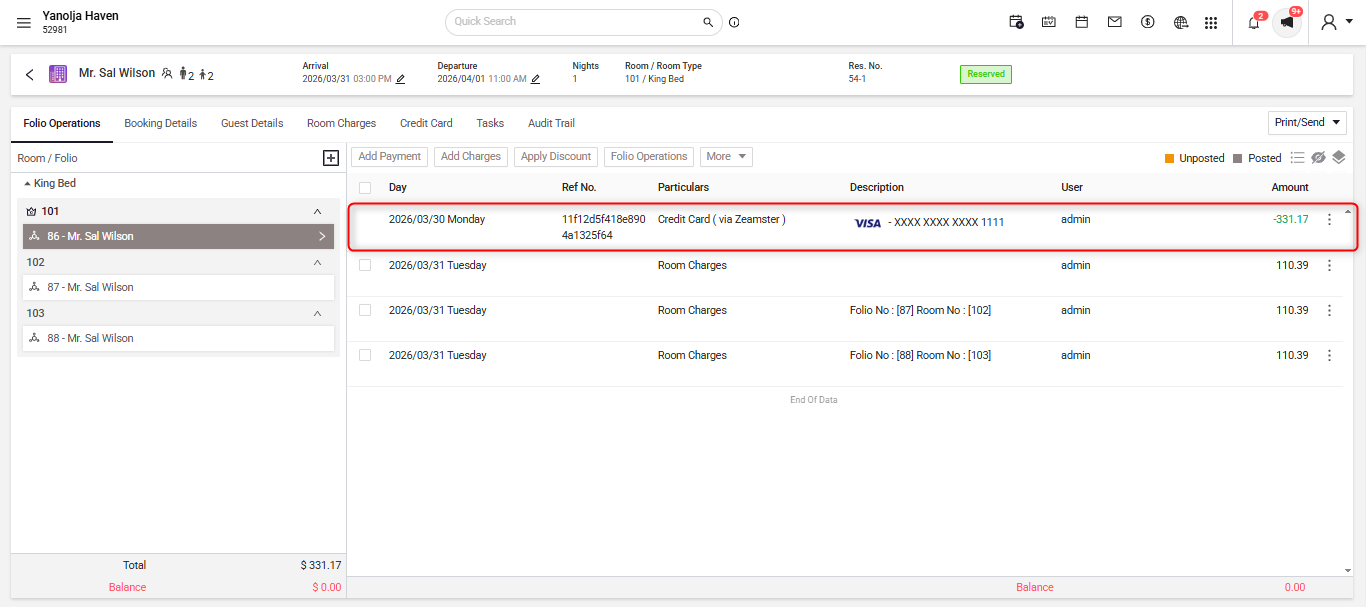
You can see the payment in the folio.
B. Where can this be seen in the reports.
The system logs all transactions in reports, which can be reviewed daily for revenue monitoring.
To check Click (☰) menu. Then navigate to reports section.
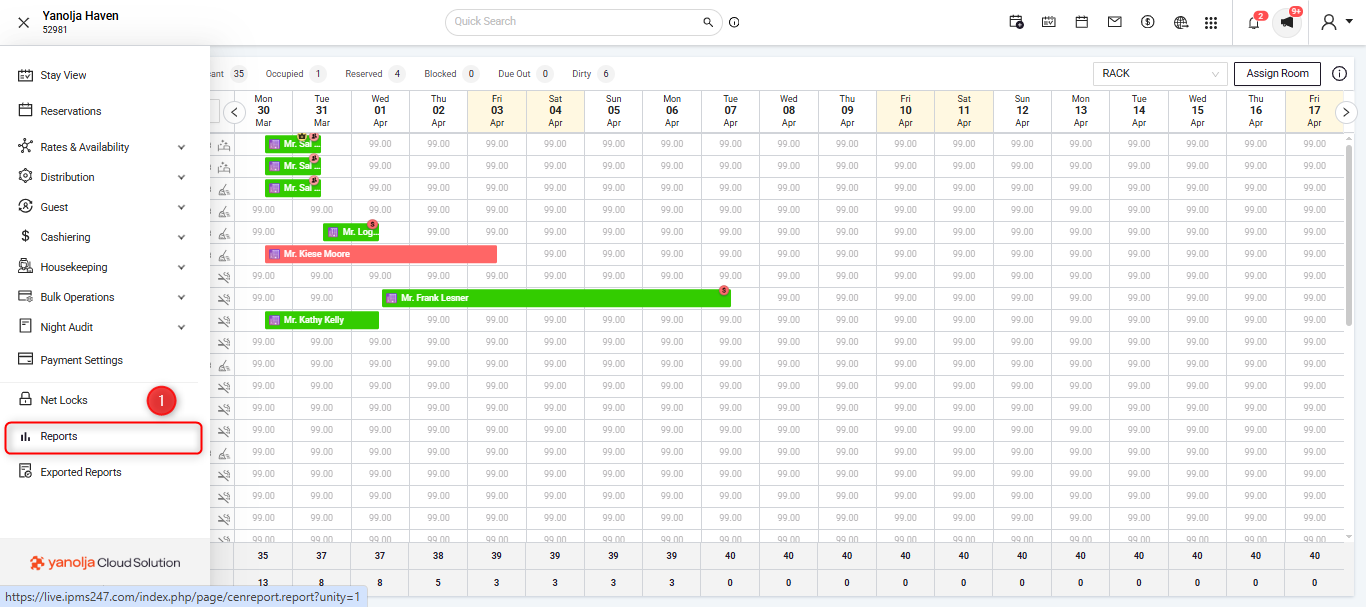
- A new window will open displaying all available reports. Search for Daily Receipt – Detail.
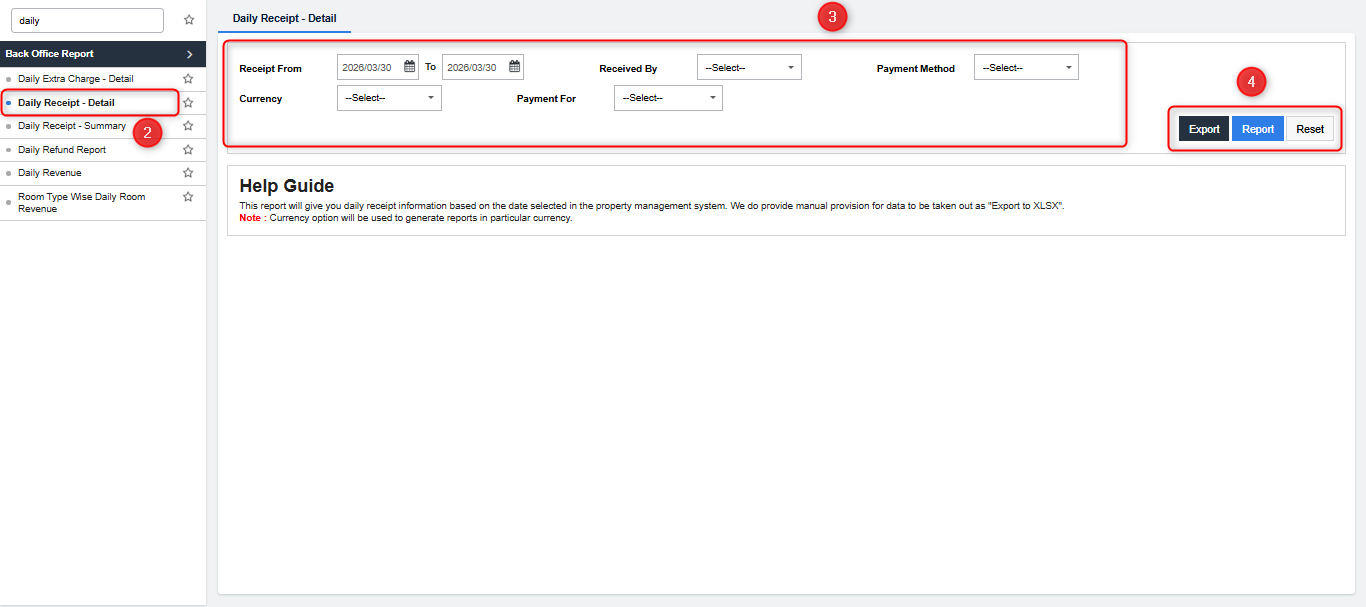
- Select the Daily Receipt – Detail report from the list.
- In the Filters section, the current working date will auto-populate. You can adjust other filters as required.
- Click Report to generate the report in PDF format, or select Export to Excel to download the data in Excel format.
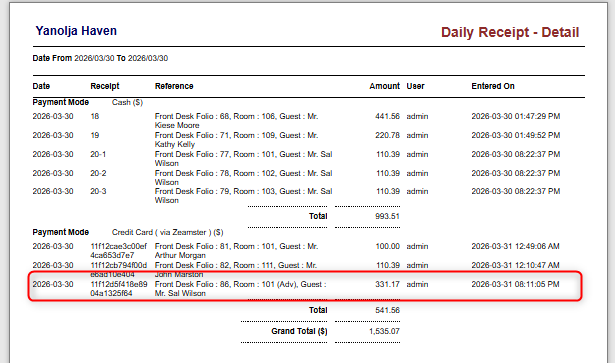
- A new window will open displaying the report, where you can view the transactions, categorized according to the payment mode.
Was this article helpful?
That’s Great!
Thank you for your feedback
Sorry! We couldn't be helpful
Thank you for your feedback
Feedback sent
We appreciate your effort and will try to fix the article