Sometimes it is necessary to change the room type of a reservation for various reasons, such as when a guest requests an upgrade to a higher category room or when a room becomes unavailable due to maintenance.
You can update the room type using either of the following methods:
Access Stay View
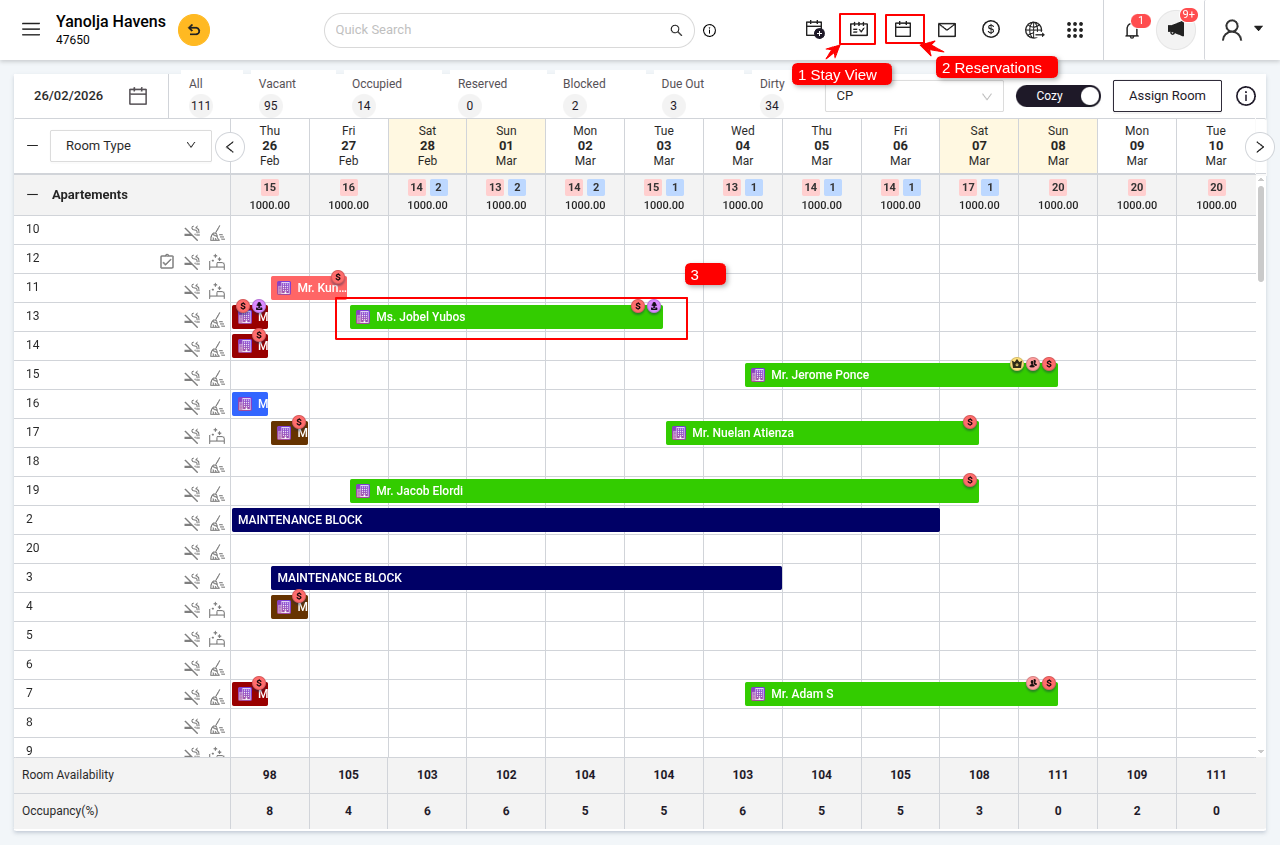
Login to Front Office > 1 Stay View or 2 Reservation Section.
Select the Reservation
3 Click on the reservation that needs a room type change.
Initiate Room Move
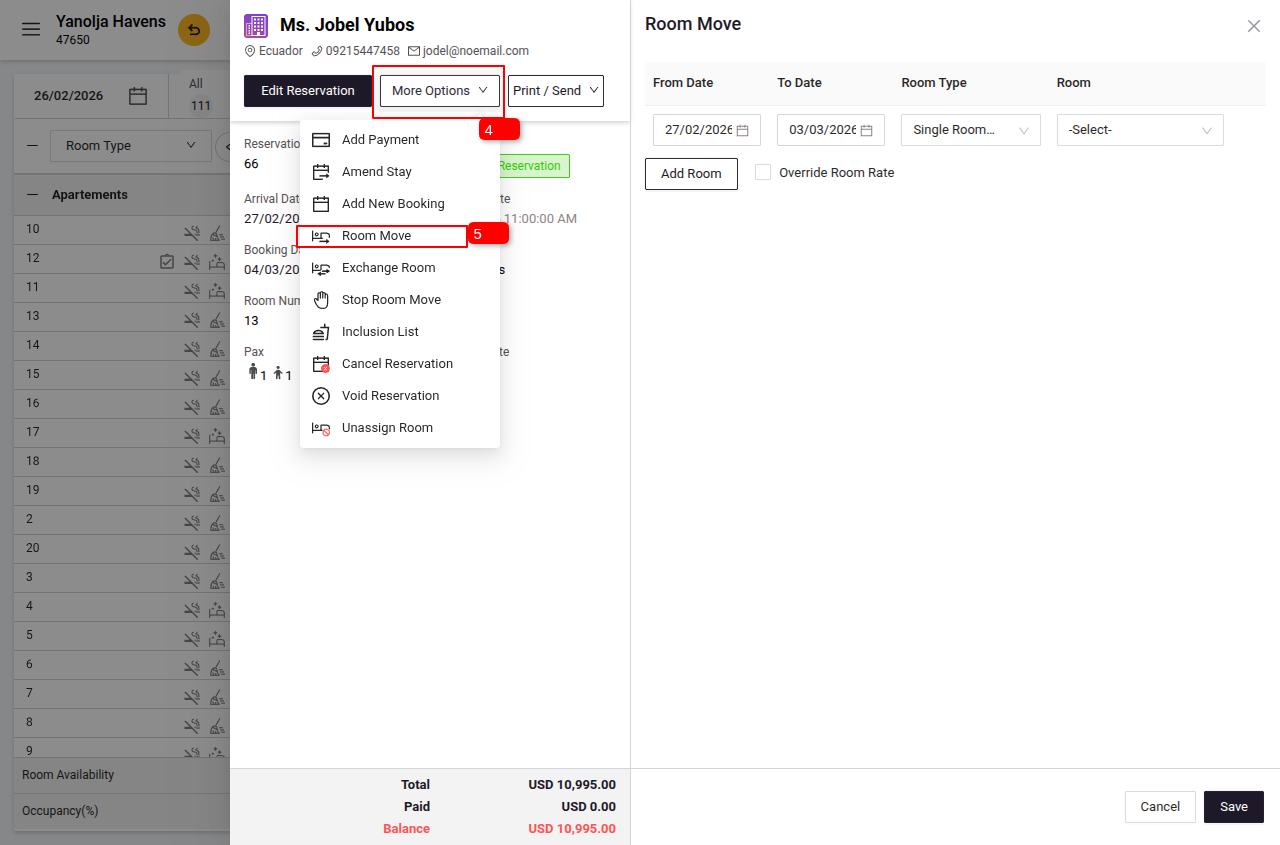
4 Click on More Options and
5 Select Room Move.
Choose New Room Type and Number
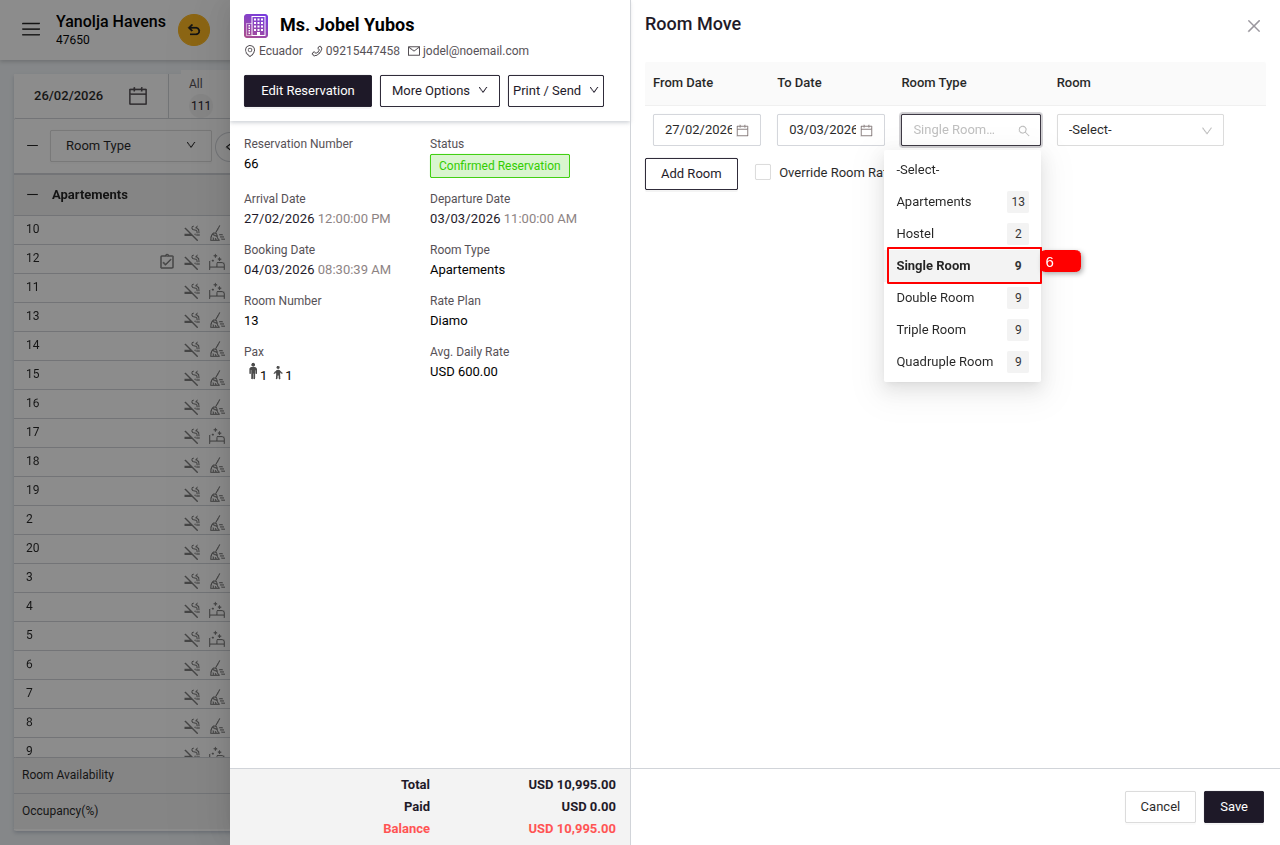
6 Select the desired Room Type and
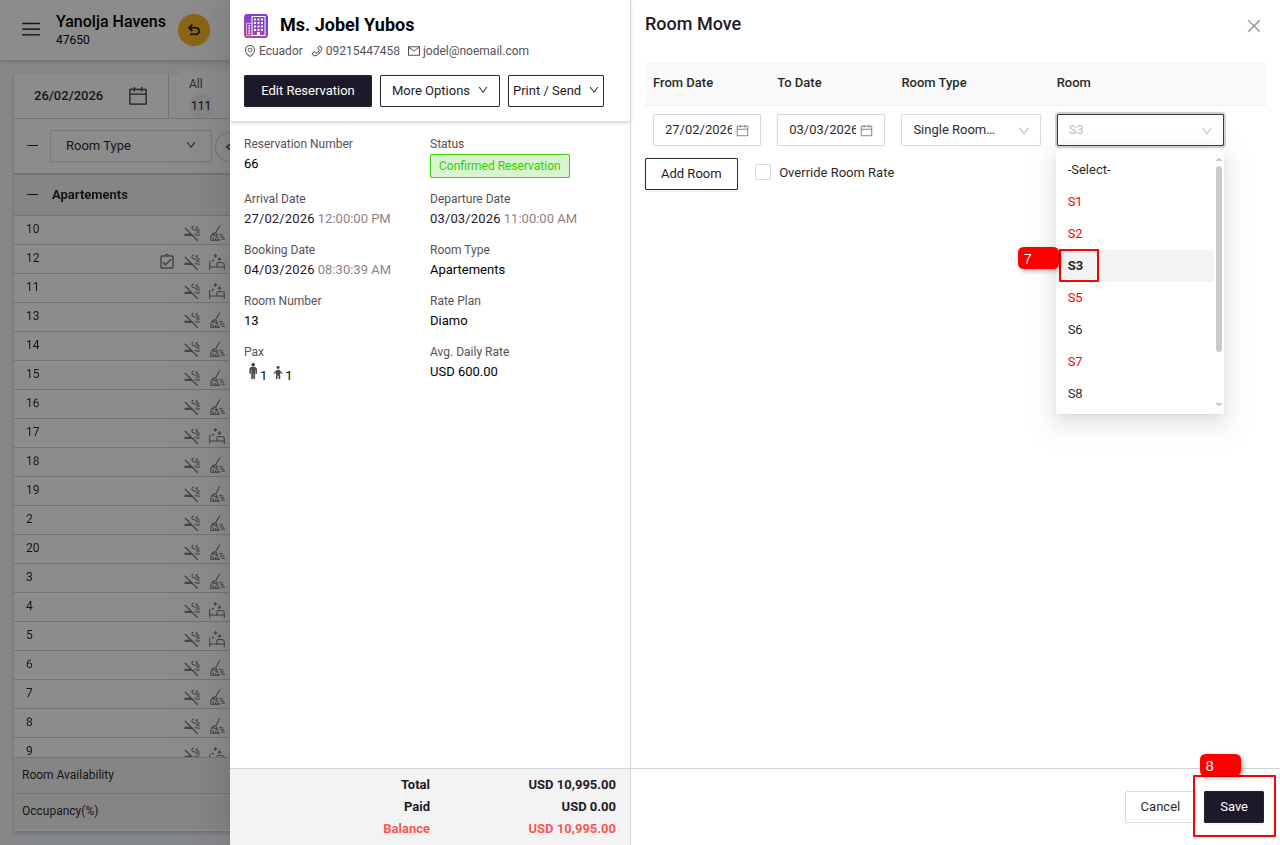
7 Select the Room Number from the available options.
Save Changes
8 Click Save to update the room assignment.
Option 2: Unassign and Reassign Room to Change Room Type
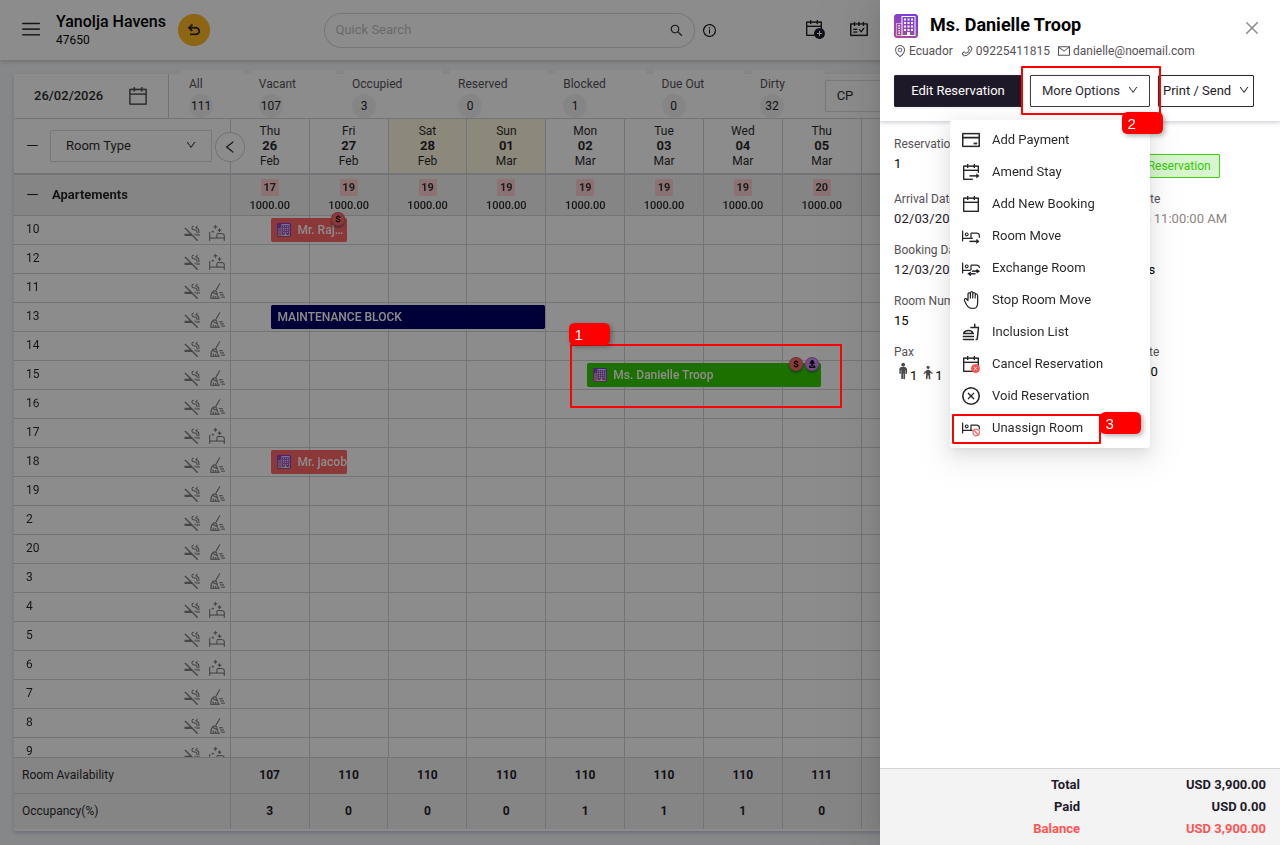
Unassign the Current Room
1 From Stay View, select the reservation.
2 Click on More Options.
3 Click Unassign Room.
Note
After unassigning the room from the reservation, you need to assign a new room type and room number to the reservation.
If a room was not assigned to the reservation from the beginning, you can directly perform the Assign Room operation and assign a new room type and room number to the reservation.
Assign a New Room
4 We can find Unassigned Room Bookings from the below-mentioned options:
Either from the Unassigned Bookings option at the top-right corner or from the Inventory Header highlighted in blue. Click on any one of these options.
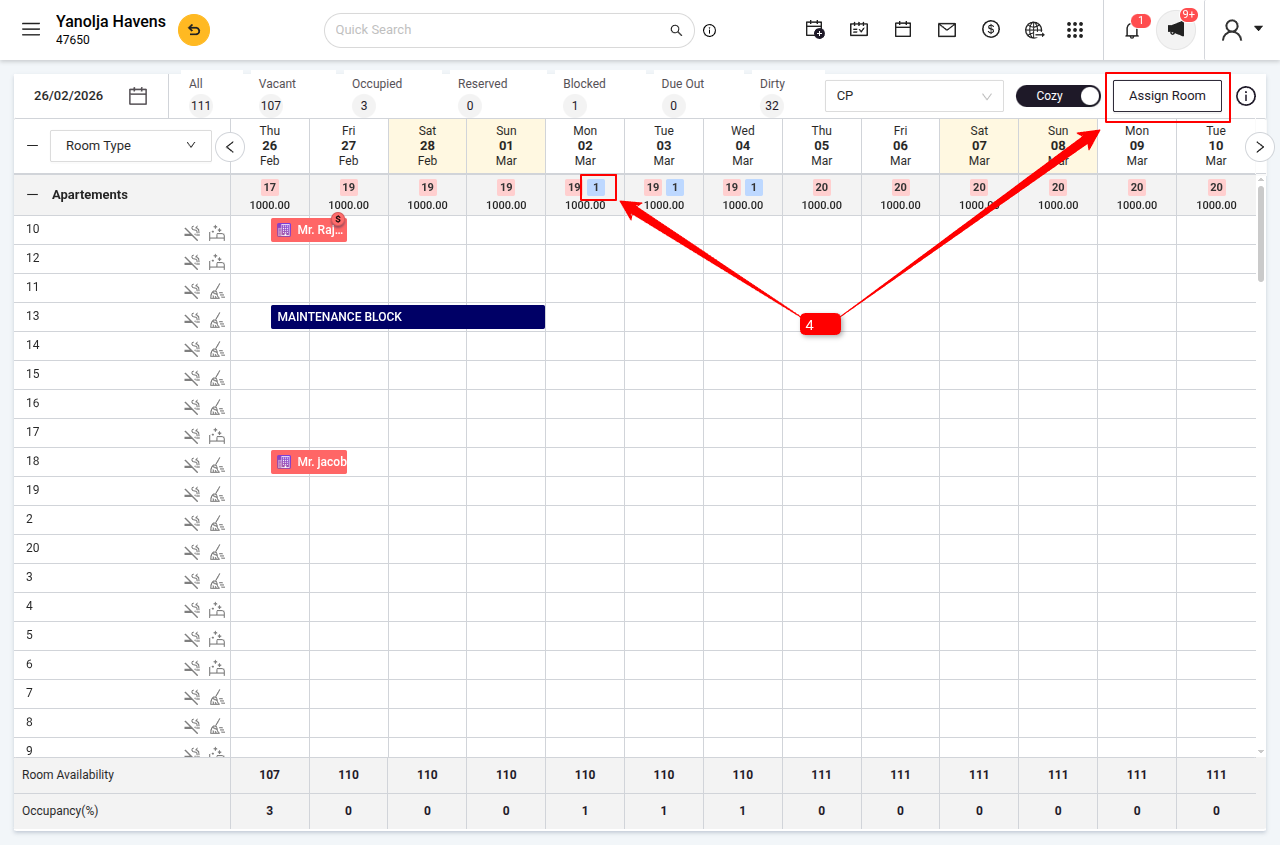
5 After unassigning, click on the reservation again.
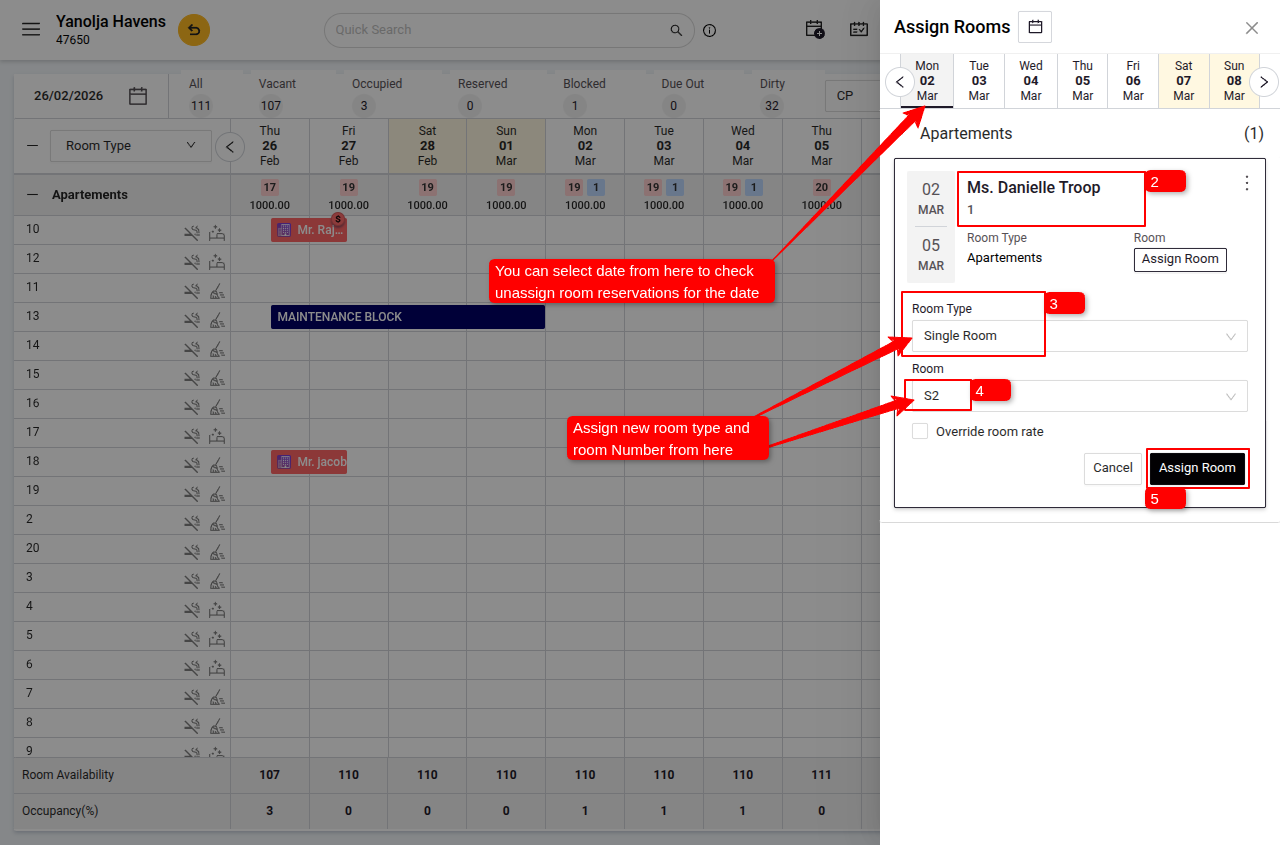
6 Select Assign Room and choose the new Room Type.
7 Select Room Number.
8 Click Assign Room to finalize the change.
Was this article helpful?
That’s Great!
Thank you for your feedback
Sorry! We couldn't be helpful
Thank you for your feedback
Feedback sent
We appreciate your effort and will try to fix the article