Voiding a payment allows you to cancel a transaction; for Payment Gateway (PG) transactions, this can only be done on the same day before settlement, while cash and other payment types can be voided at any time.
This guide explains how to:
- Void Payment of a Guest Folio
- Void Payments Posted to the City Ledger
1. Void Payment of a Guest Folio
Use this option to void payments added in a reservation.
Steps:
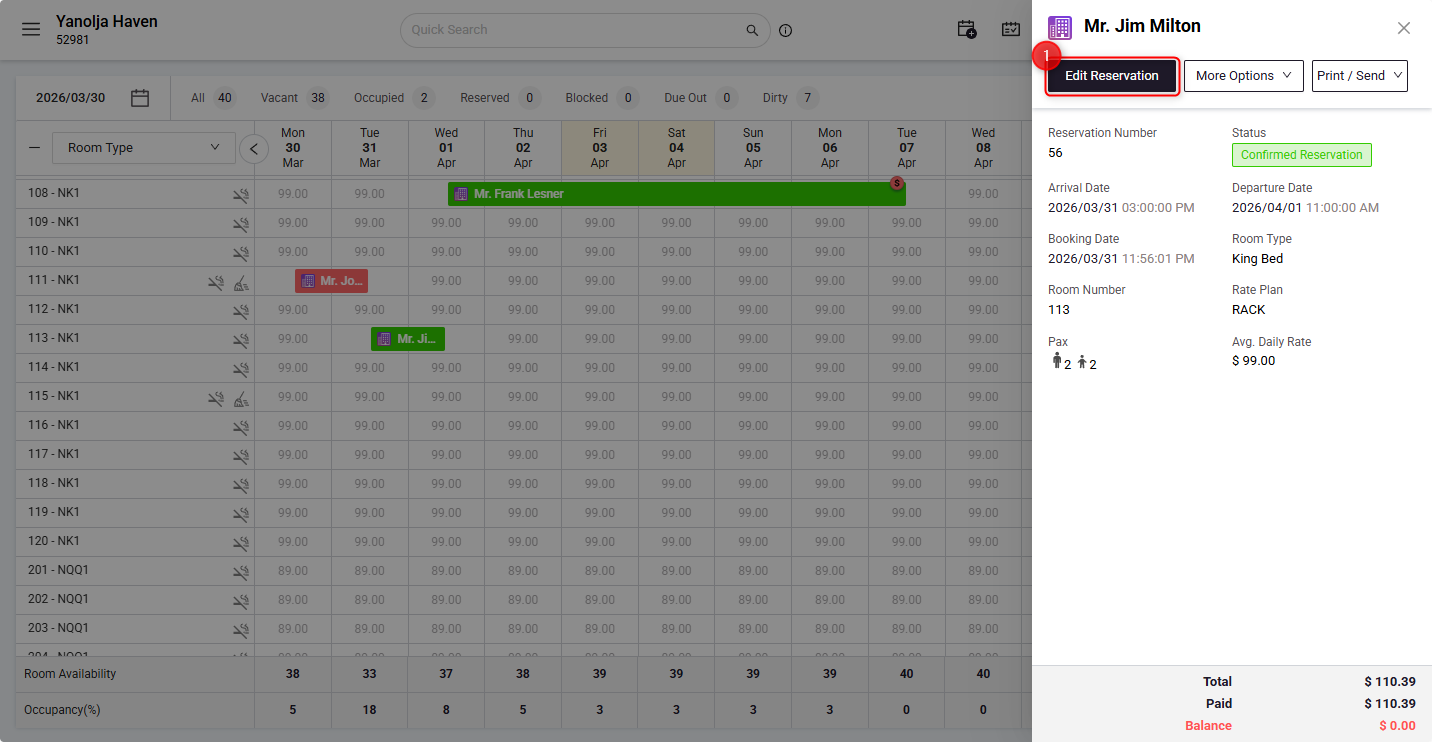
- Open the Guest Folio and click on Edit Reservation.
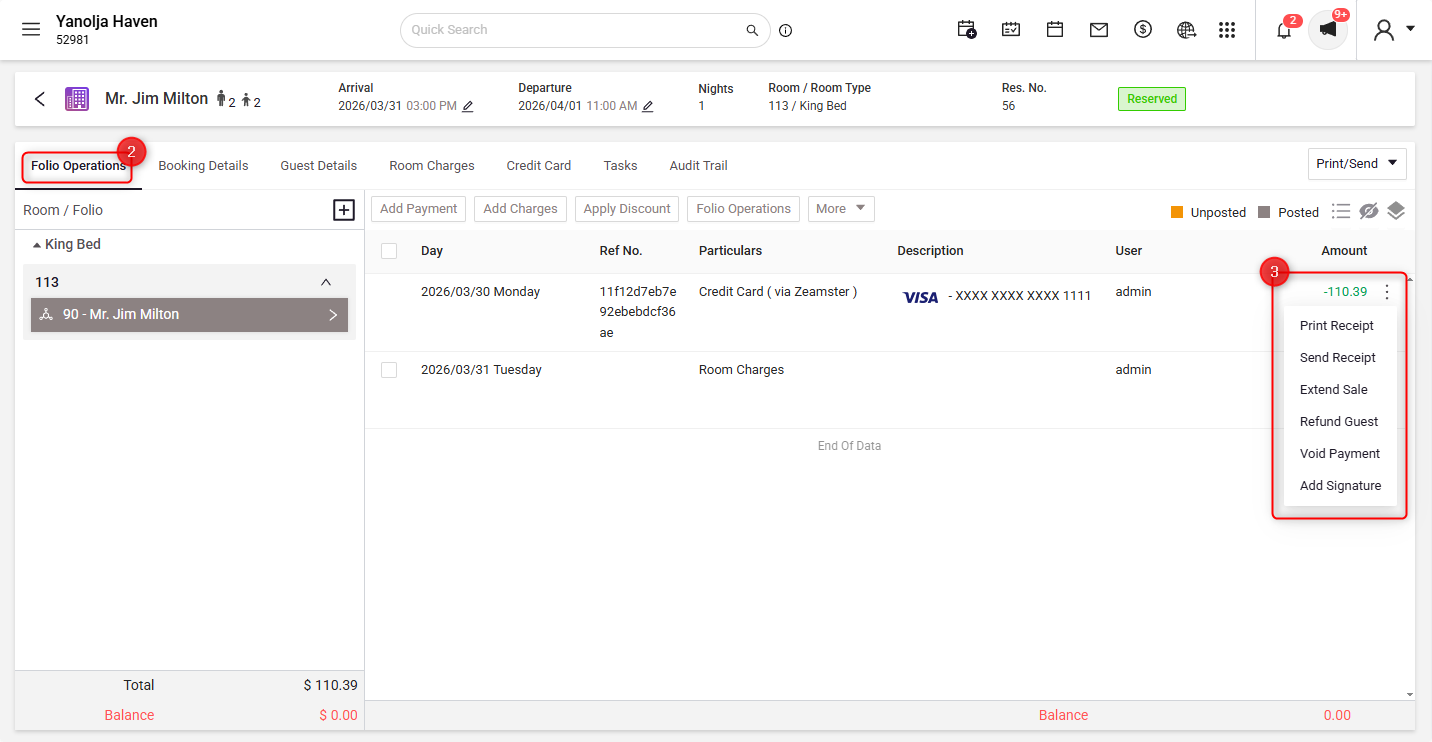
- Navigate to Folio Operations and locate the payment transaction.
- Click on the three dots (⋮) next to the transaction to open the menu, then, Select Void Payment.
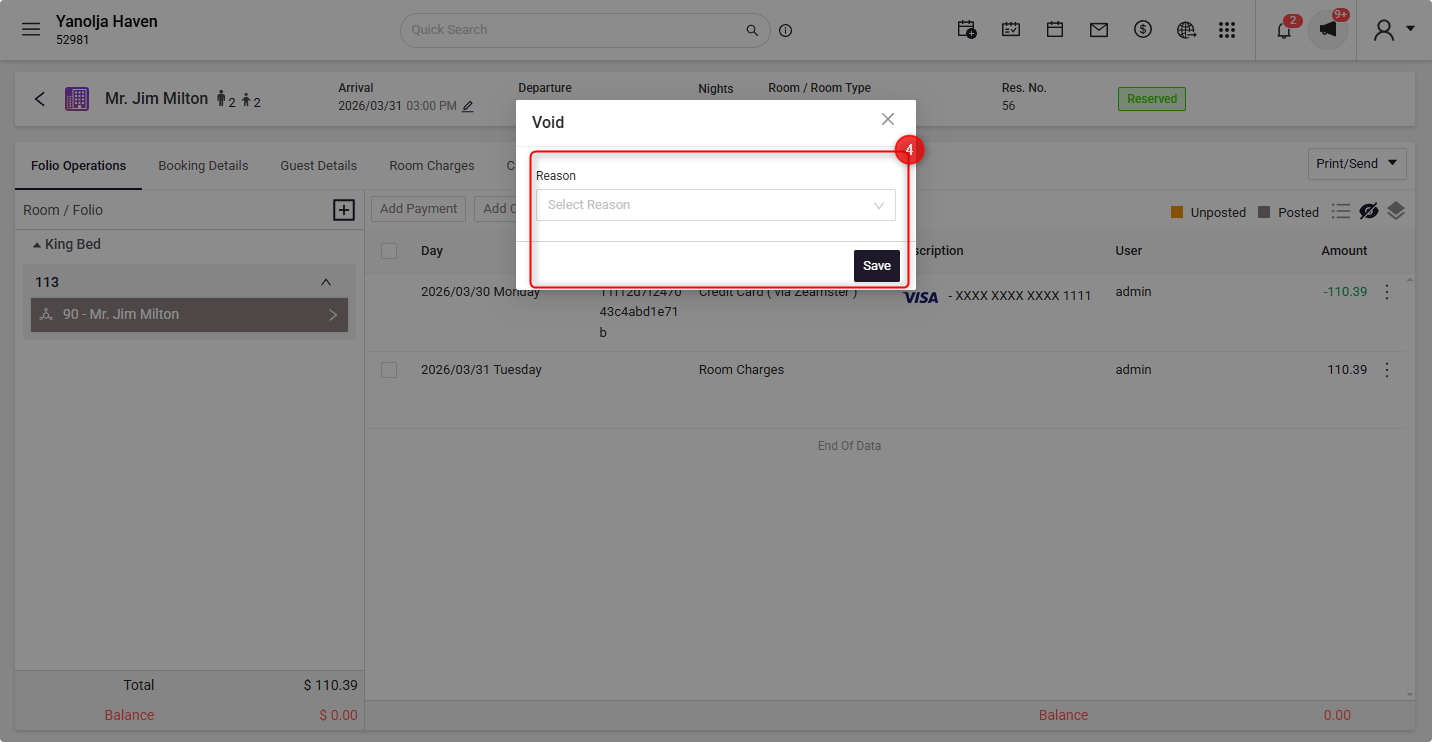
- Choose a reason from the dropdown and click Save to complete the void.
Note:
- The process is the same for all payment types.
- Payment Gateway (PG) transactions can only be voided on the same day (before batch settlement). Once the batch is settled, a refund must be processed instead of a void.
- Cash and other payment types can be voided at any time.
2. Void Payments Posted to the City Ledger
Use this option to void payments posted to a company (City Ledger).
Steps:
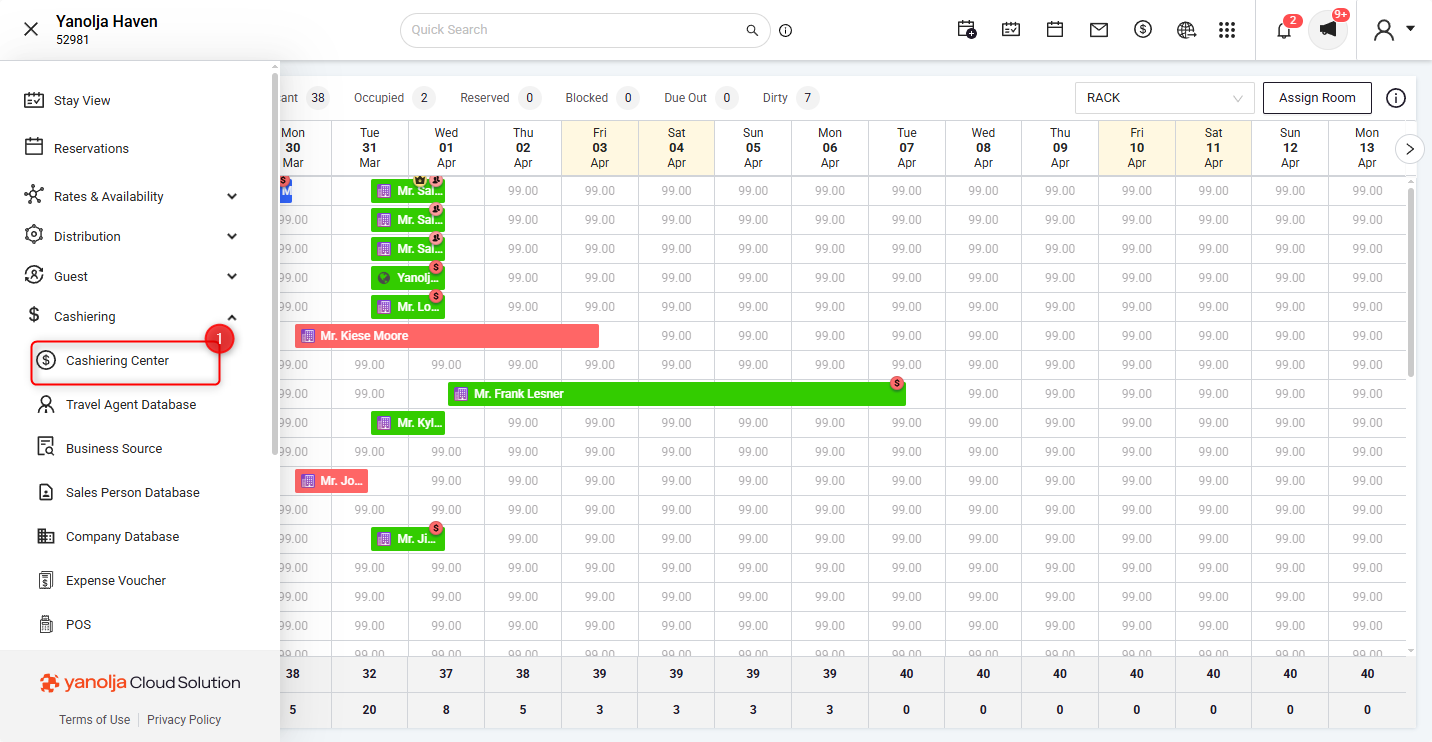
- Navigate to the Cashiering Center in the PMS.
- Select the Company and the Posting Date of the transaction.
- Locate the transaction and click on the three dots (⋮) next to it, then, Select Void Payment.
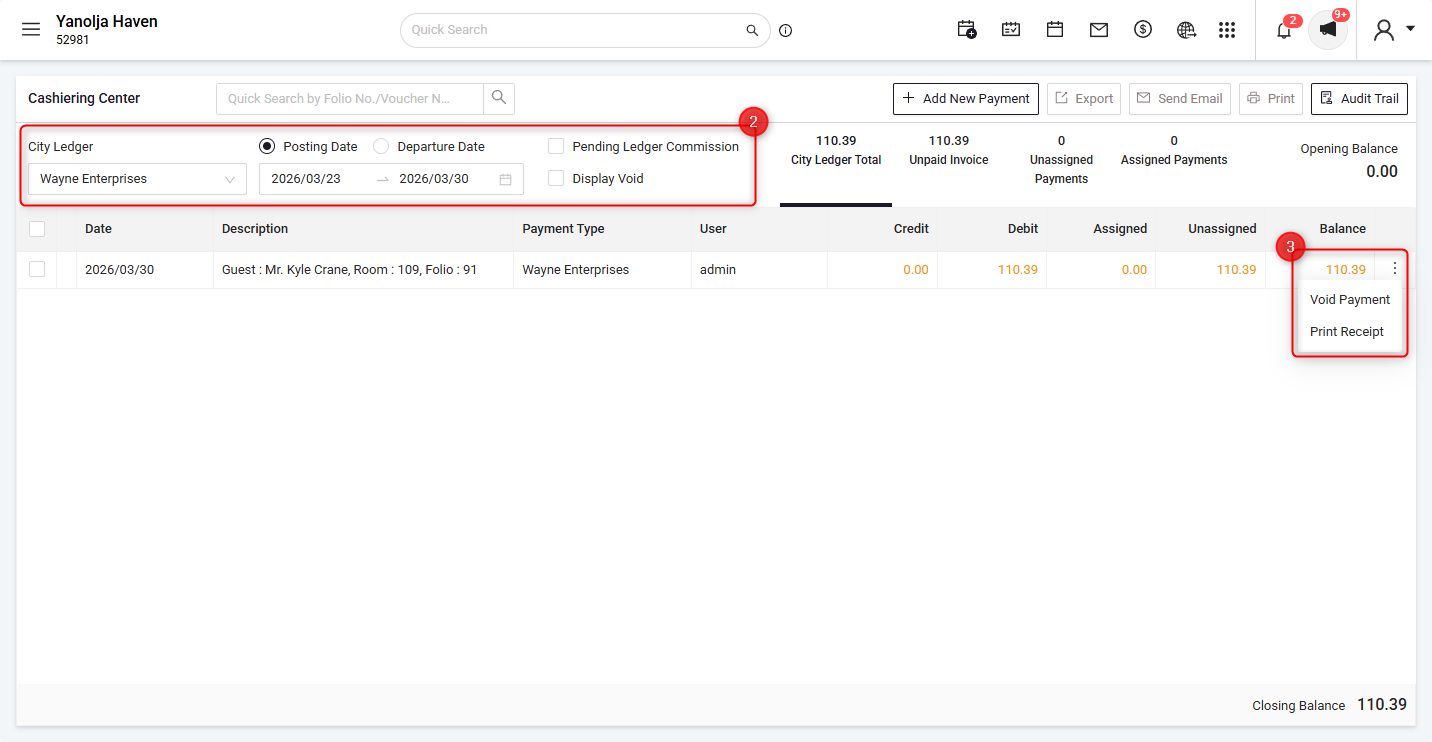
- Choose a reason and click Save to complete the void.
View Voided Payments in Reports
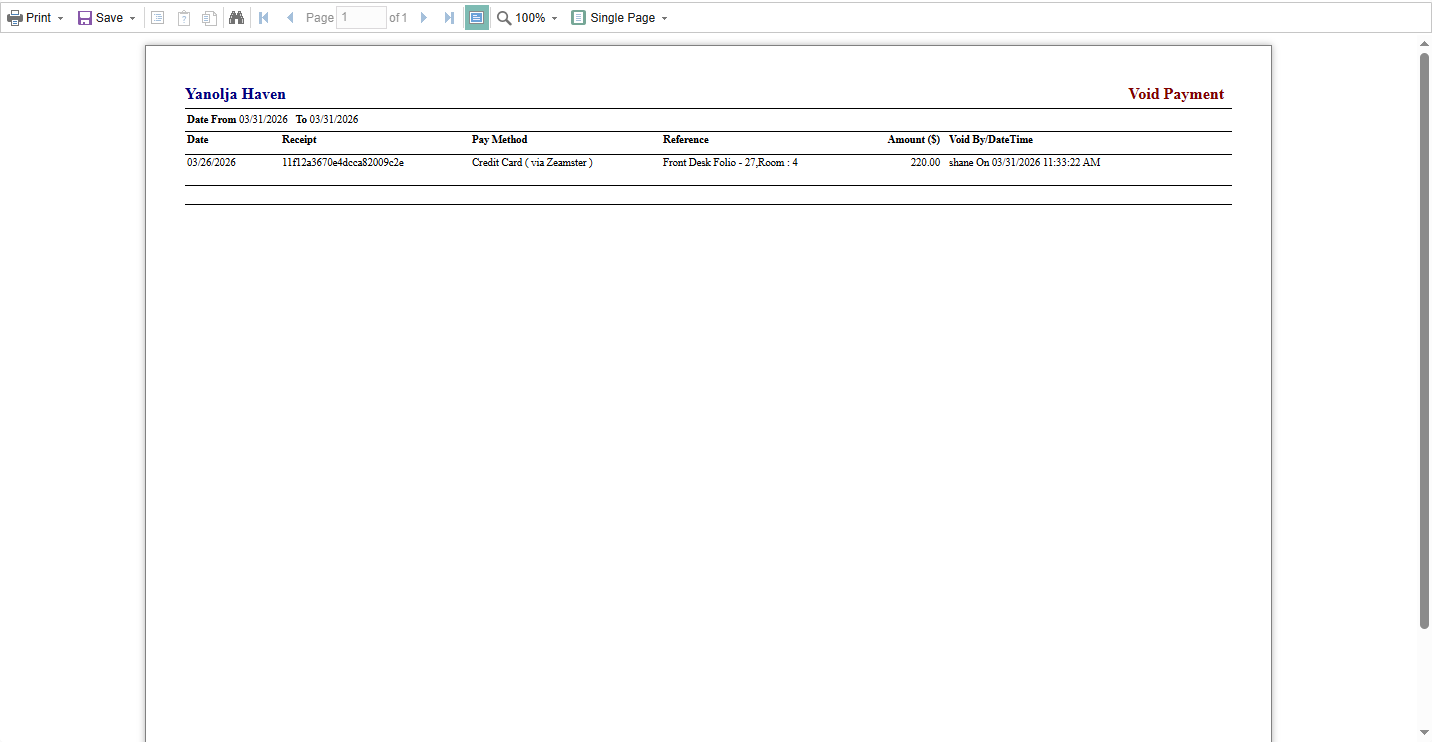
All voided payment transactions are recorded and can be tracked in the Void Payment Report for audit and reconciliation purposes.
Steps:
- Navigate to Reports in the PMS.
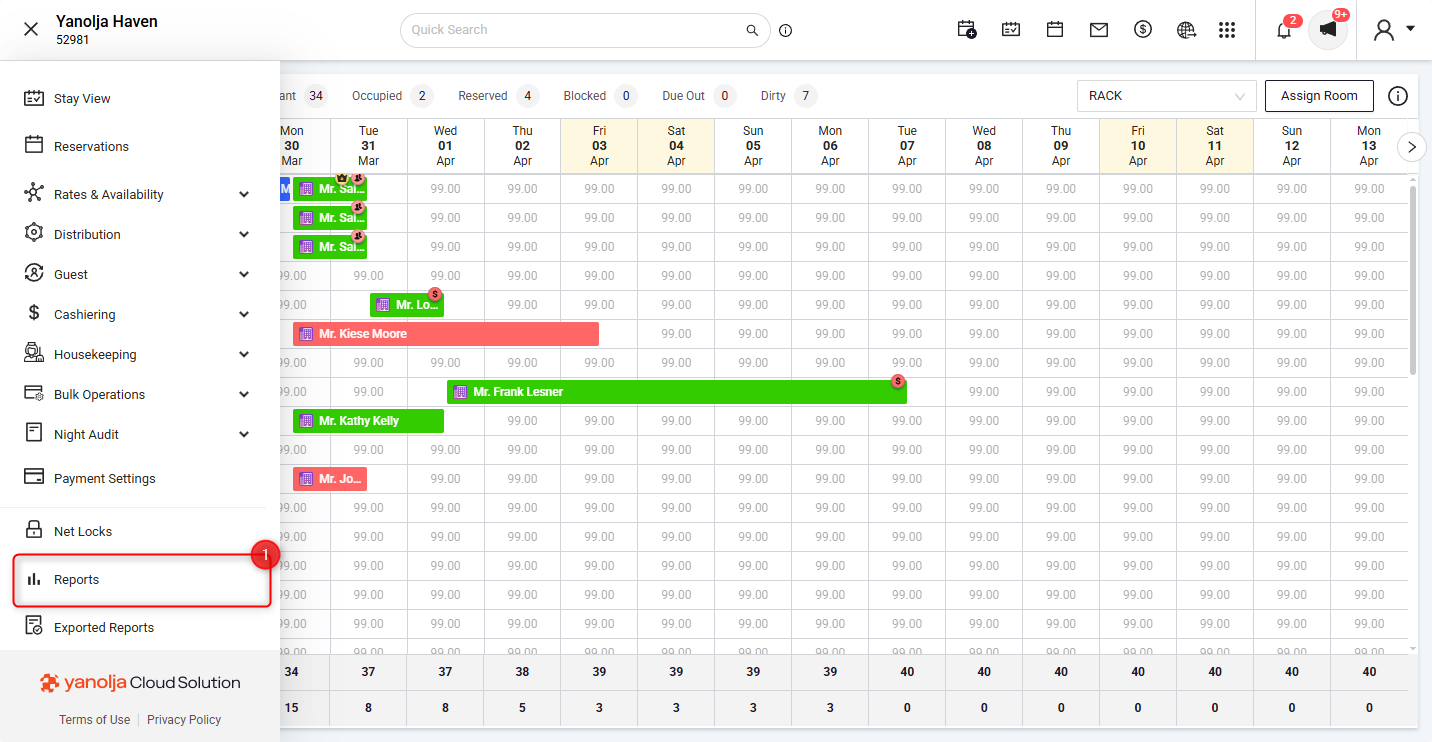
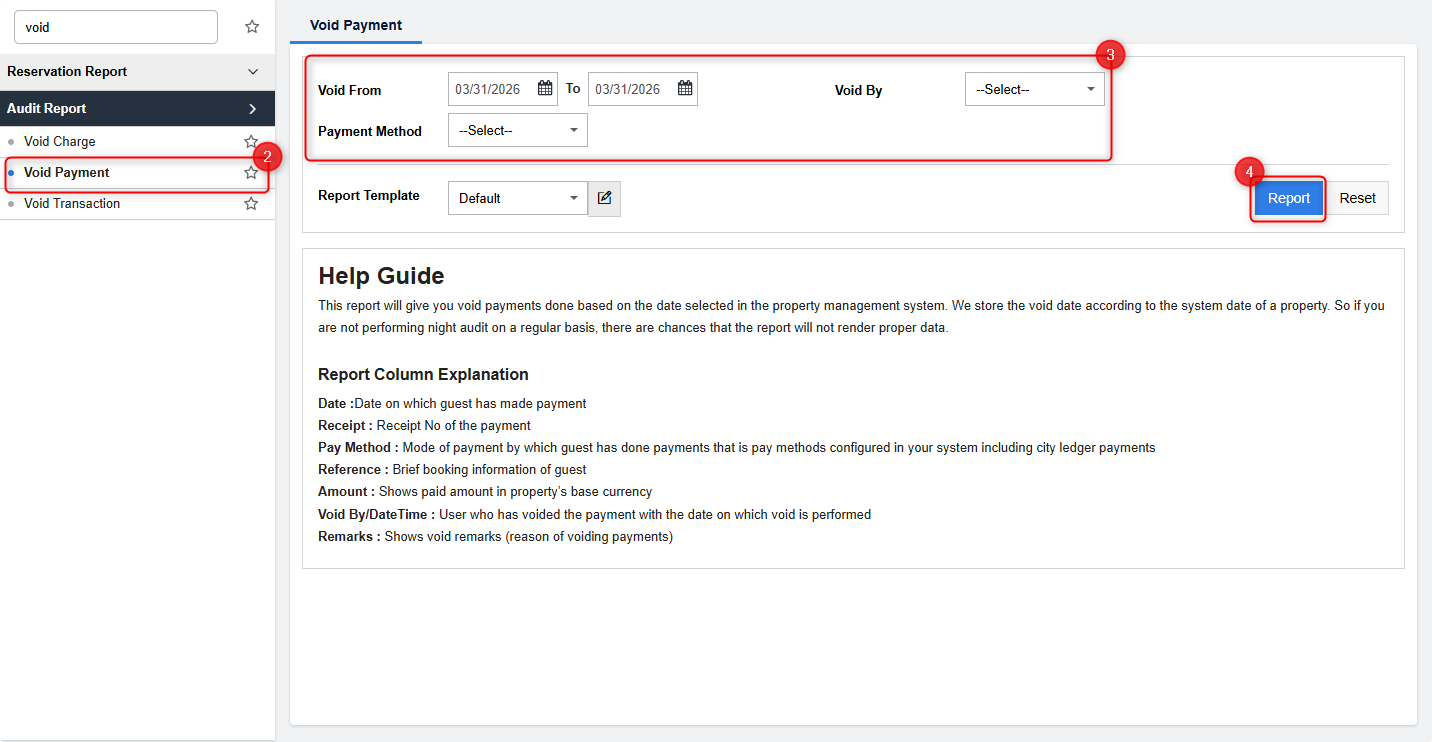
- Search for Void Payment report.
- Apply the required filters (such as date range, payment method, etc.).
- Click on Report to generate the results.
Was this article helpful?
That’s Great!
Thank you for your feedback
Sorry! We couldn't be helpful
Thank you for your feedback
Feedback sent
We appreciate your effort and will try to fix the article