This article explains How to create a task for housekeeping staff and Completing tasks in Mobile App in Property management system (PMS) under Yanolja Cloud Solution:
- How to create a housekeeping task from a reservation
- How to add task details such as alert, description, and due date
- How to assign tasks for housekeeping
- How to complete the task using the mobile application
Steps to Create a Task from Reservation:
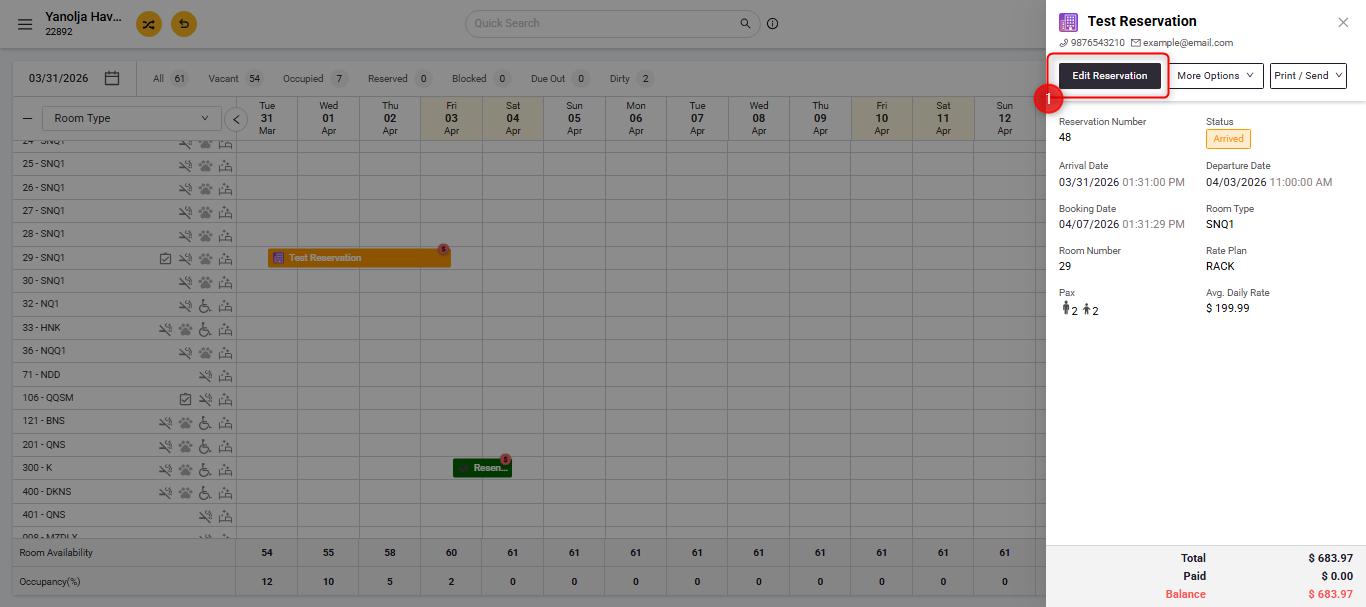
- Select the desired Reservation and click on Edit Reservation.
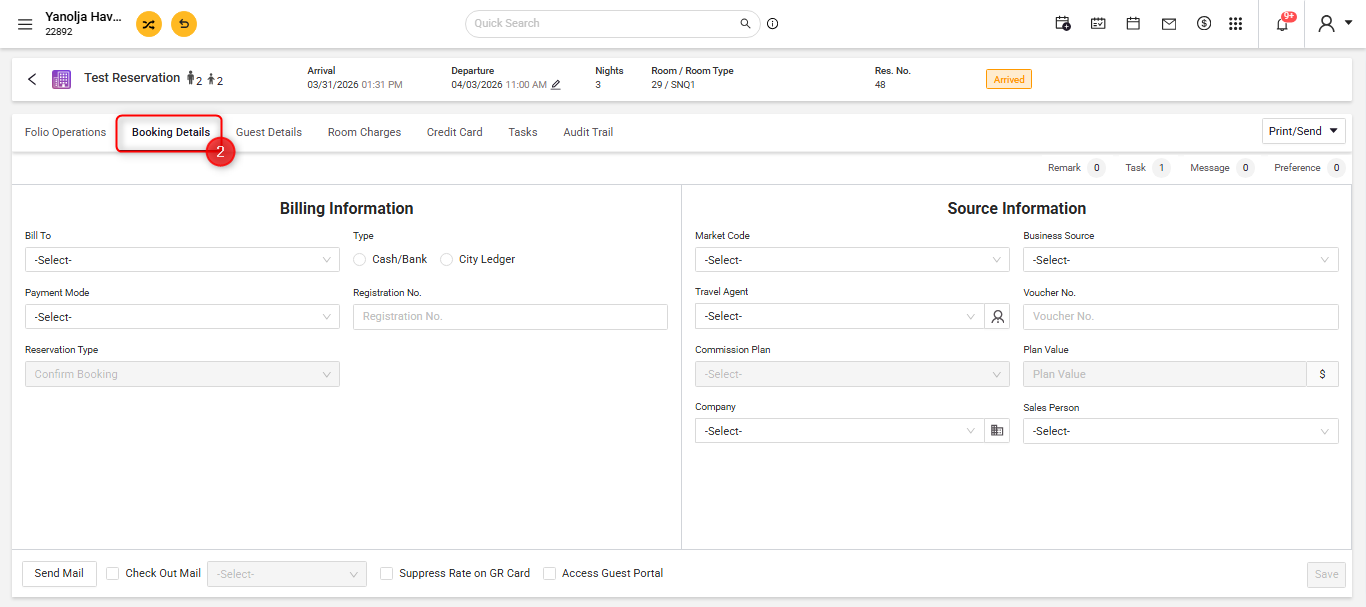
- Navigate to Booking Details.
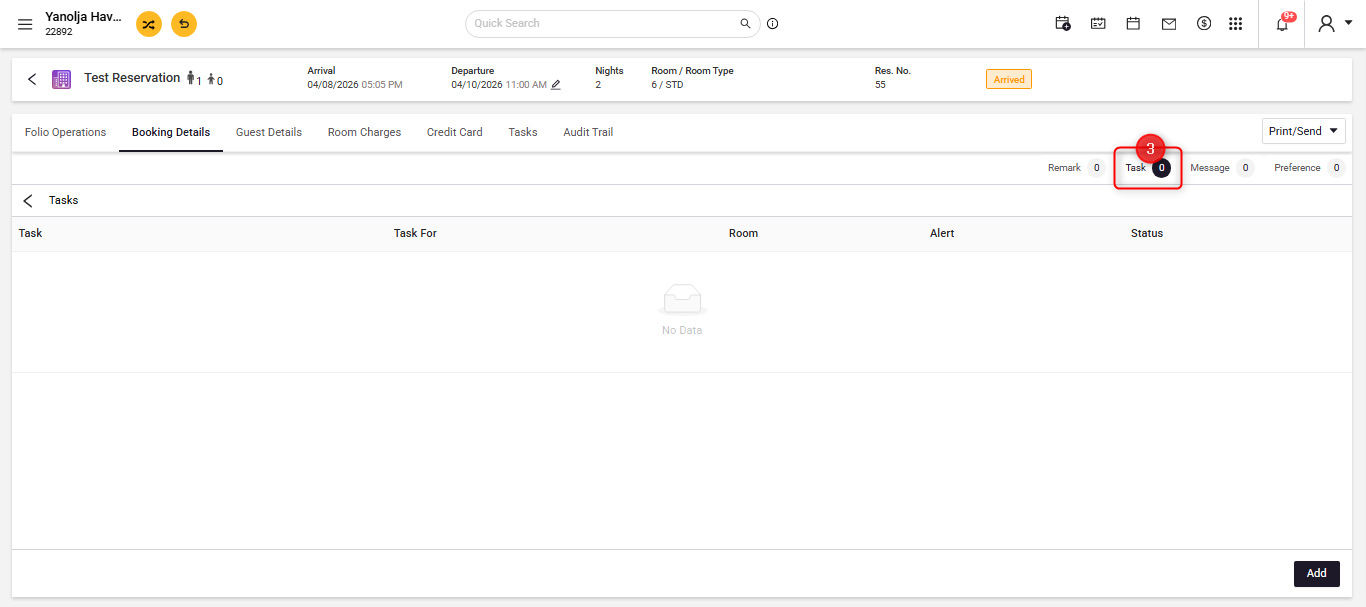
- Click on Task, then click on Add.
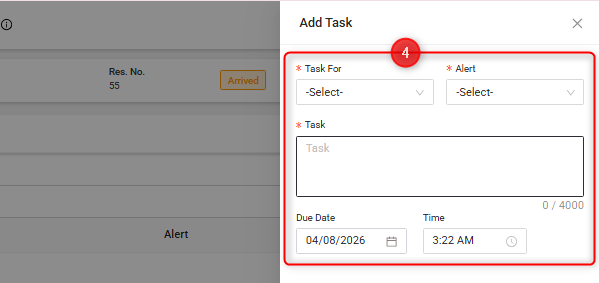
- Select the Task Foroption:
- Front Office: Choose this if the task is related to front desk operations (e.g., guest requests, billing follow-ups).
- Housekeeping: Choose this if the task is related to room cleaning, setup, or maintenance.
- Select the desired Alert: This defines when the task notification will be triggered. You can choose based on operational needs, such as:
- At Check-in (for reservation-based guests)
- At Check-out
- At the time of Payment Completion
- Instantly (immediate task creation)
- Enter the Task Description.
- Select the Due Date & Click on Save to create the task.
Steps to Complete the Task in Mobile Application:
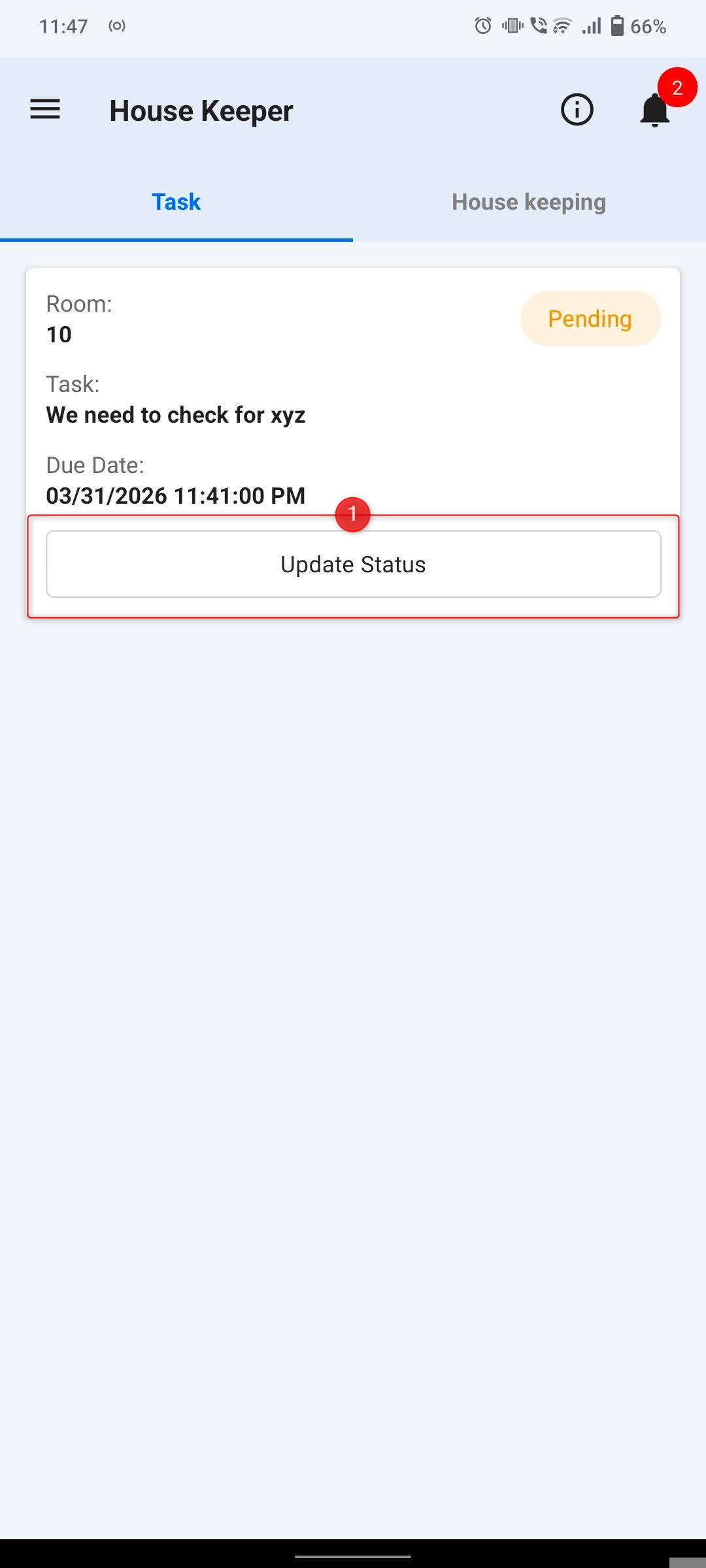
- Open the mobile application. The assigned task will be visible directly on the home screen. Tap on Update Task for the task you are currently working on.
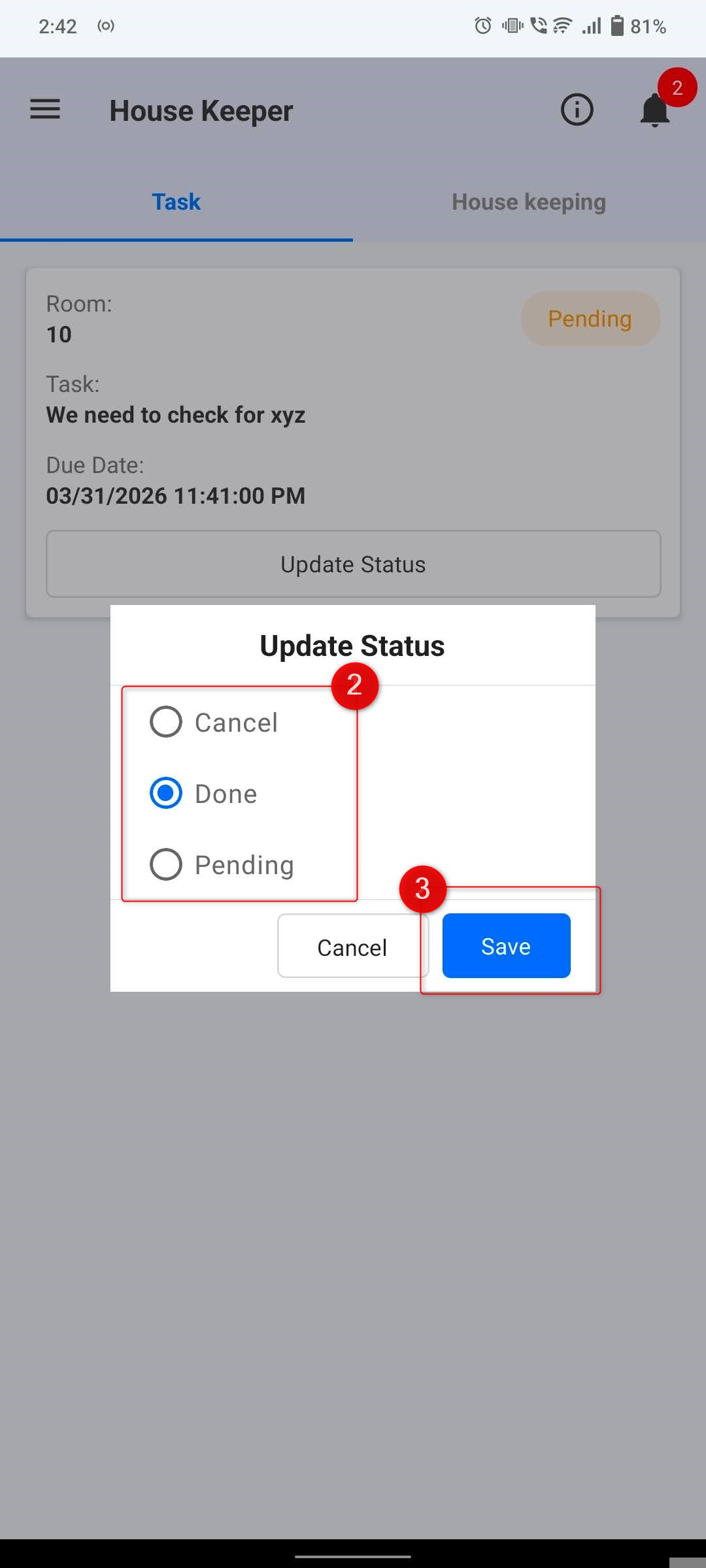
- Select the appropriate status: Done, Pending, or Cancel.
- Tap on Save to update the task.
Once updated, the task status will be automatically reflected in the PMS system.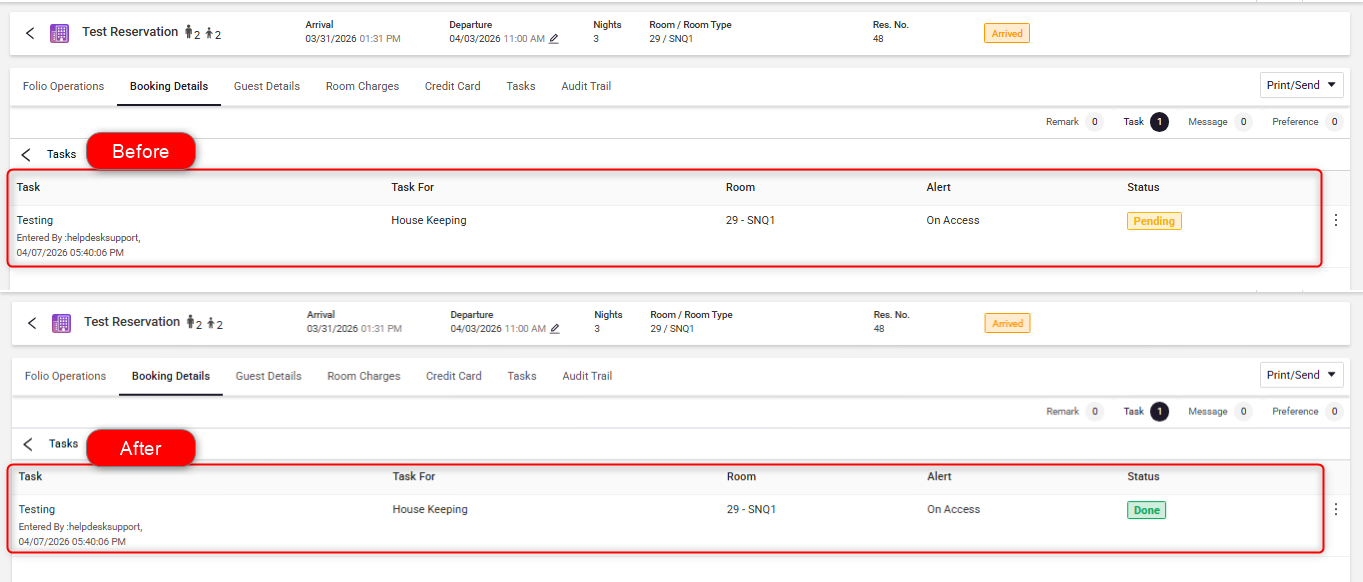
Was this article helpful?
That’s Great!
Thank you for your feedback
Sorry! We couldn't be helpful
Thank you for your feedback
Feedback sent
We appreciate your effort and will try to fix the article