This article explains how to How to assign a Housekeeper to dirty rooms in Property Management Software (PMS) under Yanolja Cloud Solution.
Managing housekeeping assignments is quick and straightforward. Follow the steps below to assign a housekeeper to dirty rooms efficiently:
- Navigate to the Housekeeping Screen
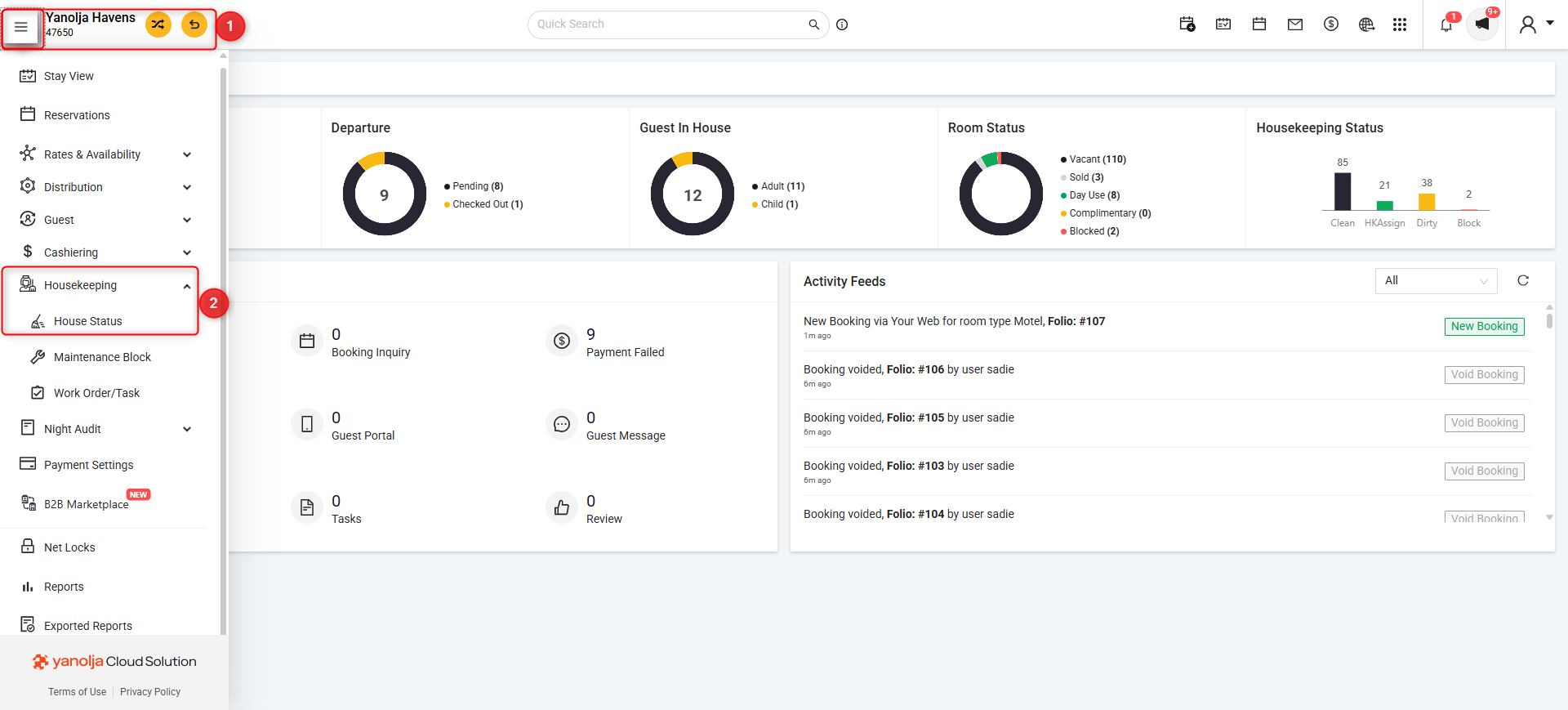
Start by opening the Housekeeping > House status section from your PMS dashboard.
2. Filter by Room Status
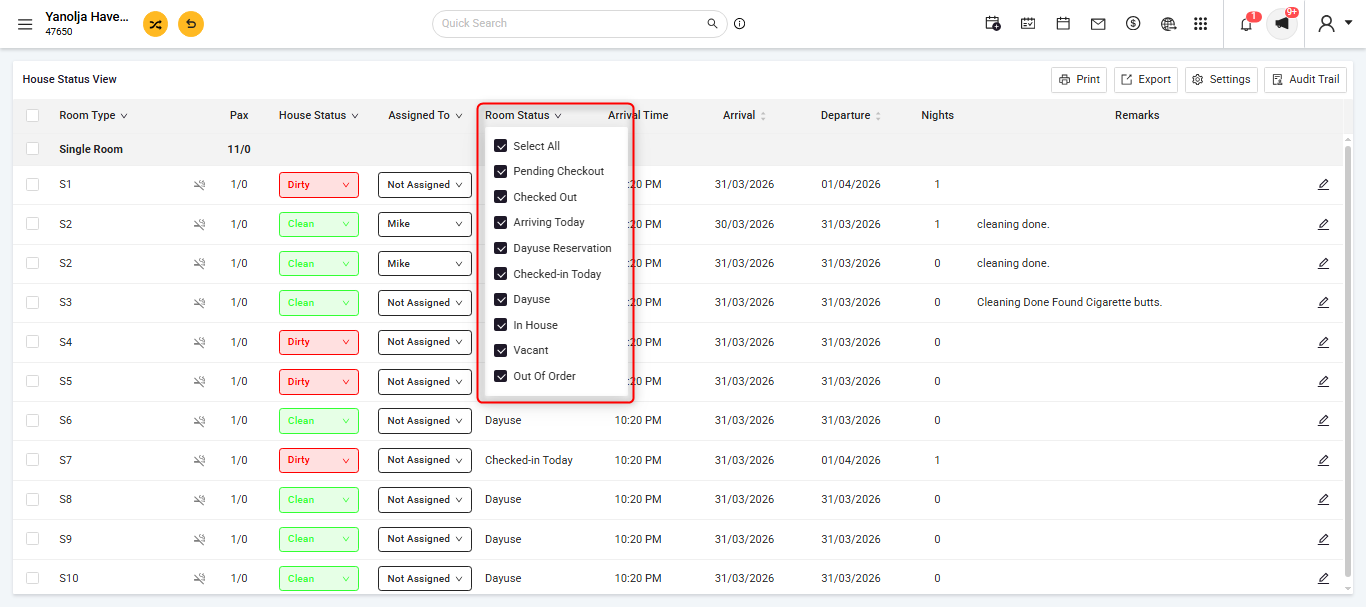
Use the available filters to narrow down the rooms:
- Select Arriving Today or Check-Out from 'Room Status' section, depending on your requirement.
- From the 'House Status' dropdown, choose Dirty Rooms to view only the rooms that need cleaning.
3. Select the Room(s)
Identify the room(s) you want to assign to a housekeeper and select them from the list.
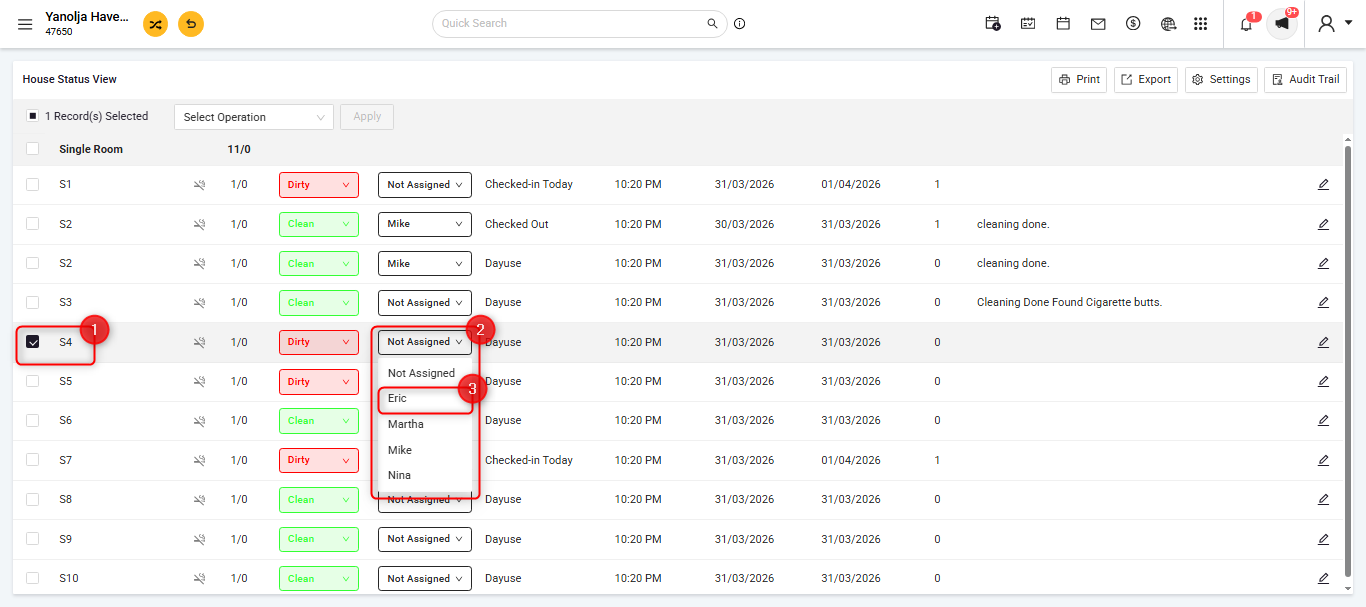 Choose the appropriate housekeeper from the available options and assign them to the selected room(s).
(Note: You can also assign housekeepers to rooms with other statuses using the same method.)
4. Access via Mobile App
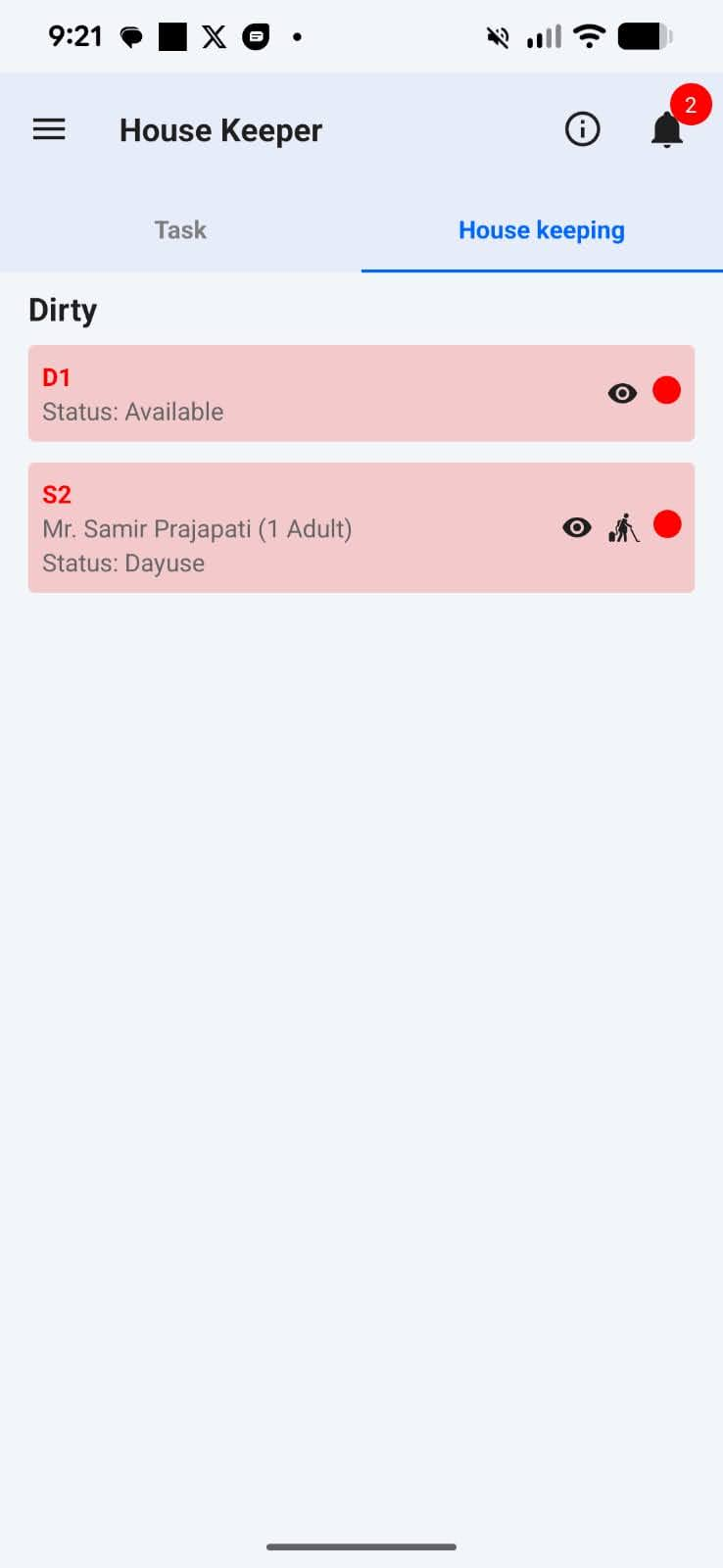
Once assigned, the room details will be reflected in the housekeeper’s mobile application for real-time updates and task tracking.
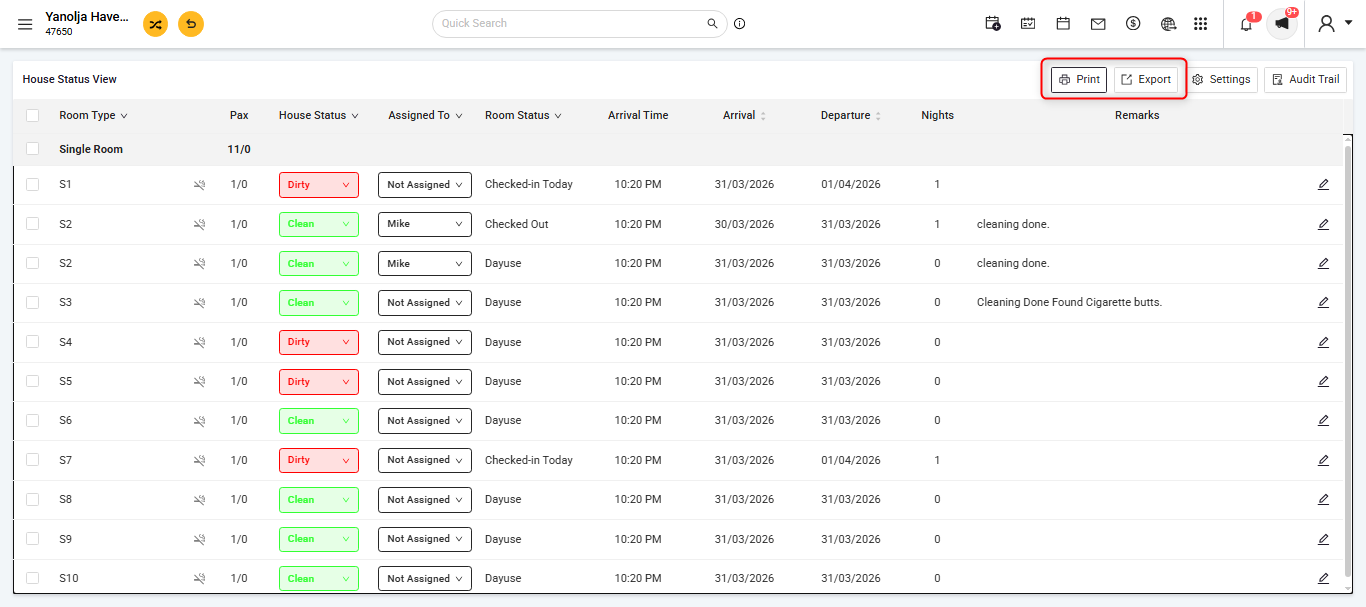
5. Print / Export Assignment Report (Optional)
If needed, you can print a report of the assigned rooms for reference or internal use or you can Export the reports into an Excel or a PDF format as well.
? Tip: Using filters effectively can save time, especially during busy check-out or arrival periods.
Was this article helpful?
That’s Great!
Thank you for your feedback
Sorry! We couldn't be helpful
Thank you for your feedback
Feedback sent
We appreciate your effort and will try to fix the article