This article explains Managing Housekeeping: Everything You Need to Know from the Property Management Software (PMS) under Yanolja Cloud Solution.
- Viewing housekeeping status from the dashboard
- Understanding and updating the room status
- Configuring housekeeping settings
- Creating and managing housekeepers
- Assigning housekeepers to rooms or units
- Setting up units for non-room areas
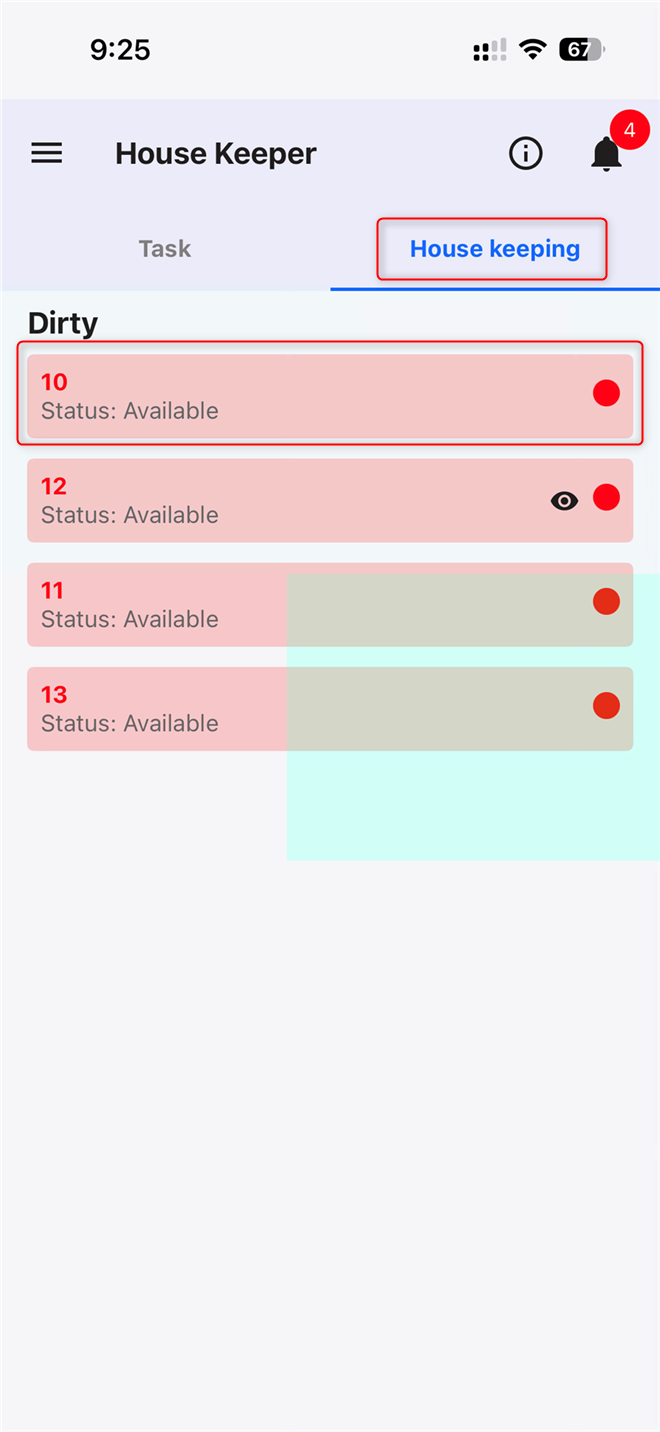
- Logging in and using the Housekeeping Mobile App
1. Housekeeping Status (Dashboard):
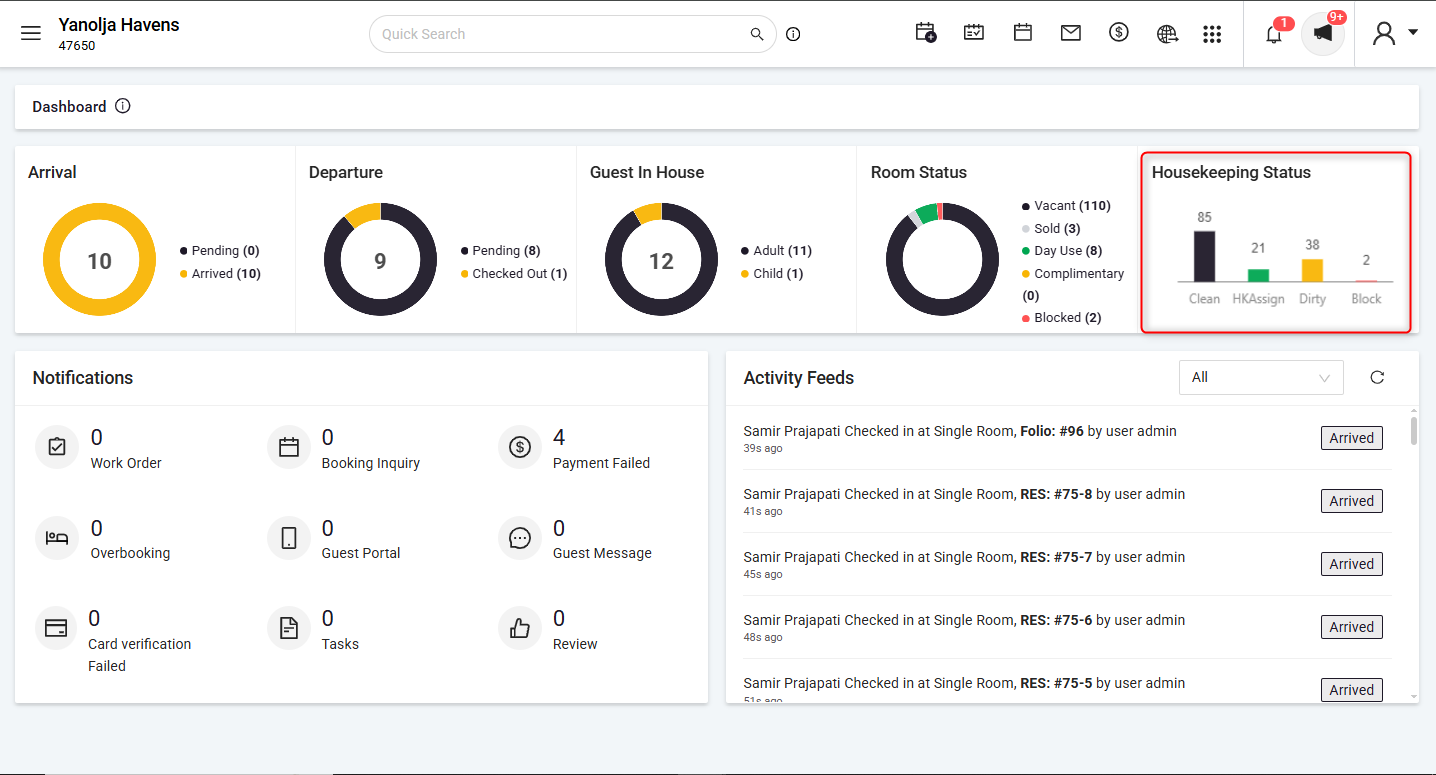
Hotel staff can quickly view the housekeeping status from the dashboard to understand the current room condition.
- Check the number of Clean, Dirty, Assigned, and Blocked rooms
- Helps in planning daily operations, especially in the morning
- Provides a quick overview of room readiness for arrivals
2. Understanding Room Status (Stayview):
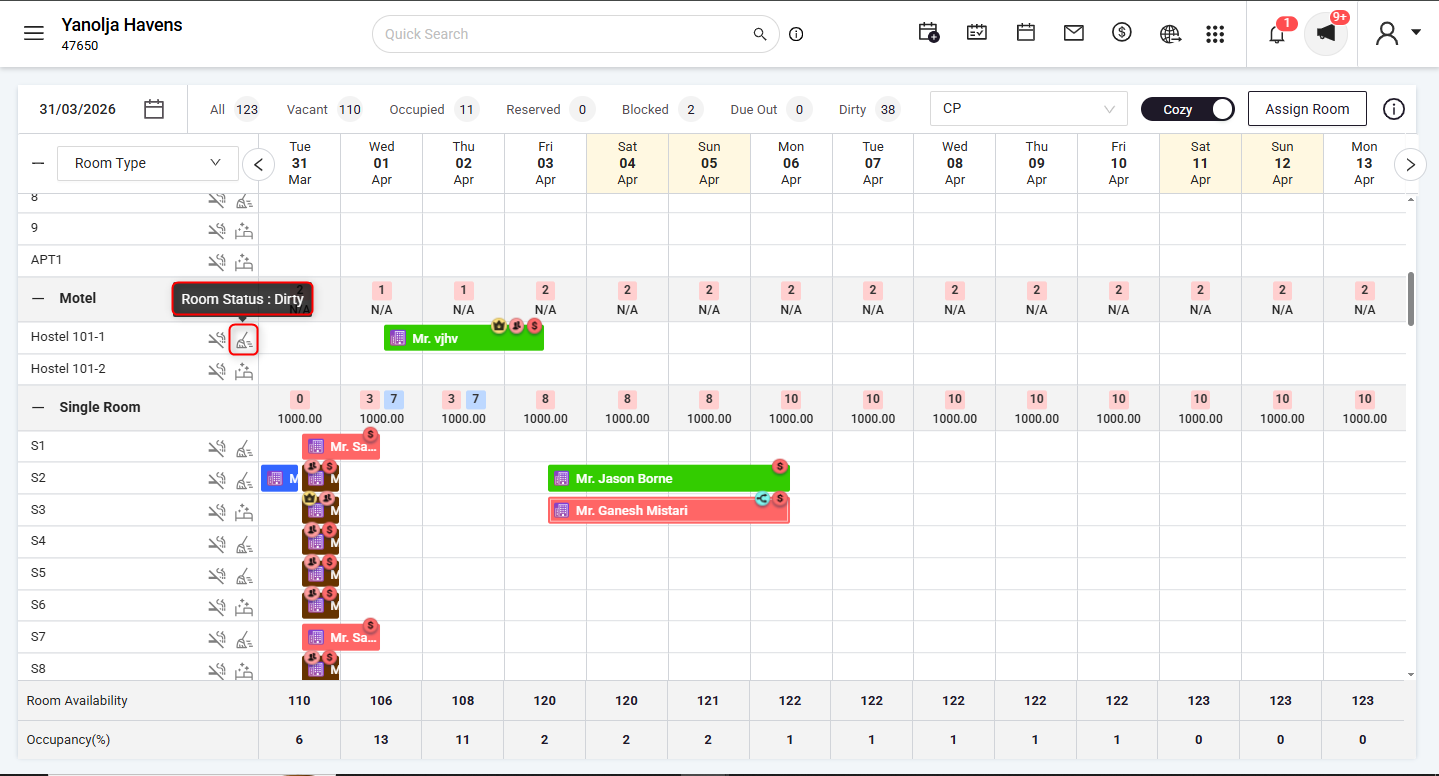
Room status can be easily viewed and updated from the Stayview screen.
- Hover over the room to check its current status
- Click on the room status icon to update it (e.g., Clean or Dirty)
- Enables quick and real-time status updates for better coordination between teams
3. Housekeeping Settings: Define How Your Room Status Reflects Across Operations
A. How do I access Housekeeping Settings?
Go to: Configuration → General Settings → Miscellaneous
B. How do Housekeeping Settings work?
Housekeeping Settings allow you to automatically control room status in different scenarios, such as Night Audit, Unblock Room, and Room Move.
1.1 Night Audit-
You can define how occupied rooms should appear after completing the Night Audit.
- Choose whether rooms should be marked as Clean or Dirty
1.2 Room Status After Removing from Maintenance Block-
When a room is placed under maintenance block and later unblocked, you can define how its status should appear.
- Choose whether the room should be set as Clean or Dirty after removing it from the block
1.3 Room Status After Moving the Room
When a guest is moved from one room to another, you can define how the original room’s status should appear.
- Choose whether the previous room should be set as Clean or Dirty
These settings help maintain accurate room status and reduce manual updates.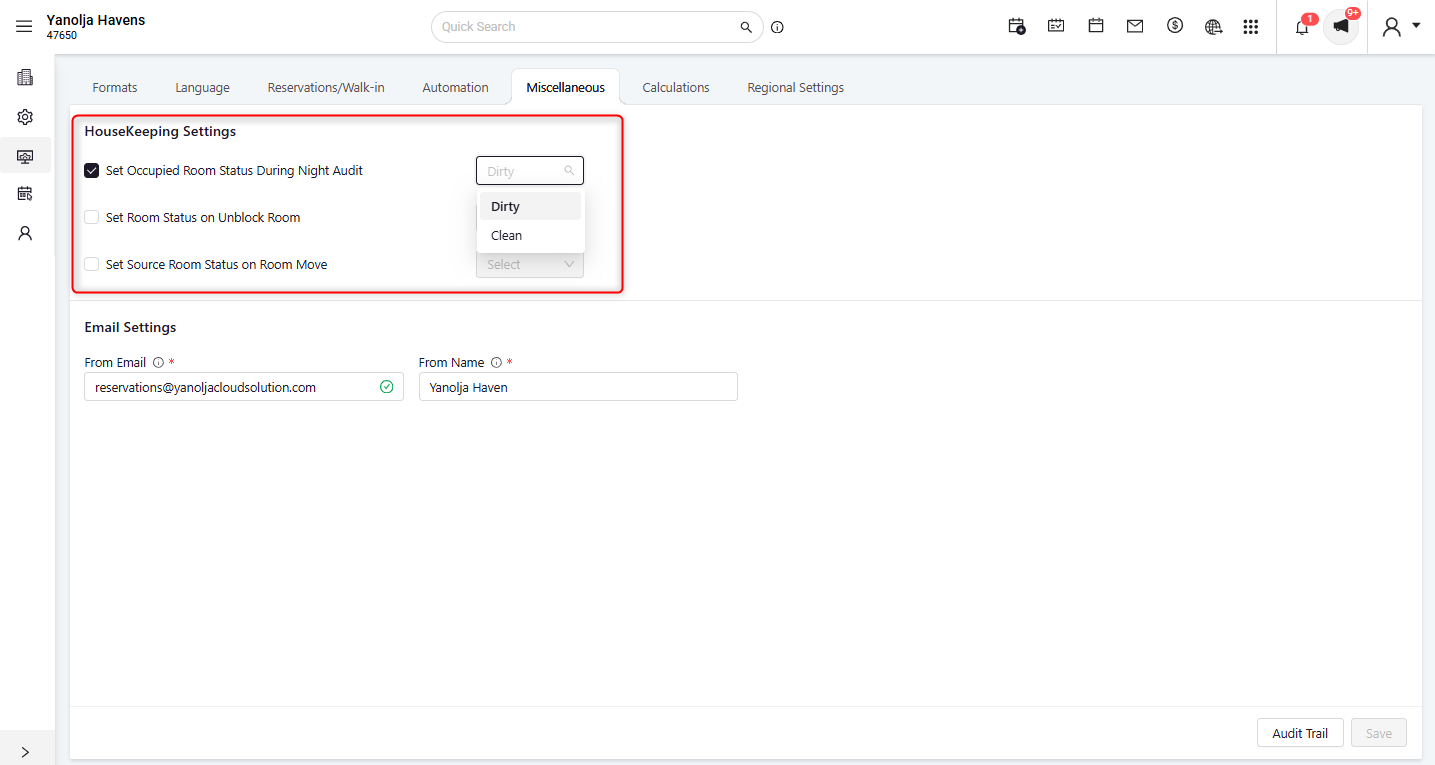
4. Creating a Housekeeper for the Mobile App:
A. How to access
Go to: Configuration → User Management → Add New User → Select User Type as “Housekeeper”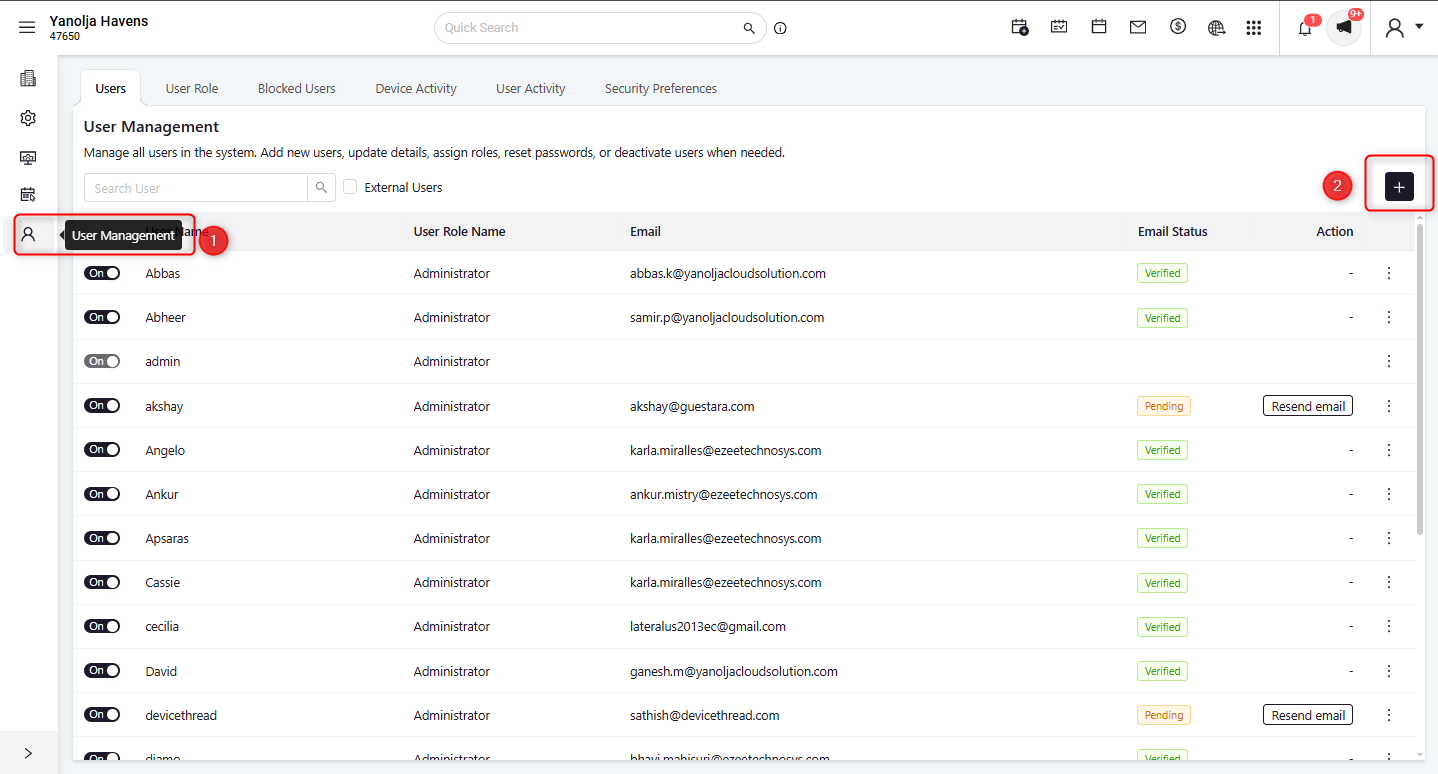
B. How it works
To enable housekeeping staff to access the mobile app, create a Housekeeper user.
- Select User Type as Housekeeper
- Enter Housekeeper Name, User Name, and Password
- Add Mobile Number
- Set Language and App Language as required
- Click Save
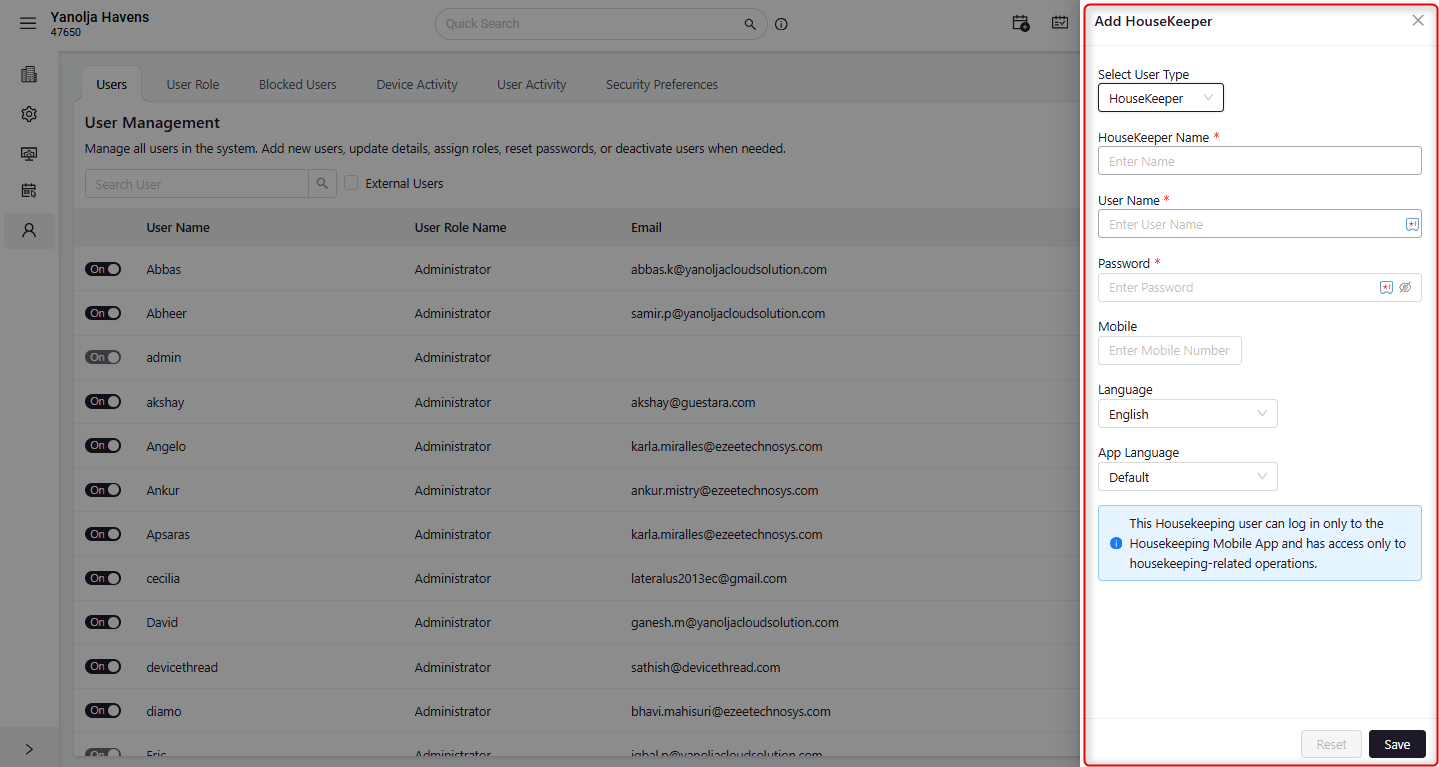
Once created, the housekeeper can log in only to the Housekeeping Mobile App and perform housekeeping-related tasks.
Link to download Housekeeping Mobile App-
IOS- Housekeeping Mobile App
Android- Housekeeping Mobile App
5. Setting Up Units:
A. How it works
Units allow you to assign housekeeping tasks beyond rooms, covering other areas of the property.
- Add a Unit Name (e.g., Lobby, Garden, Laundry, Public Washroom)
- These units can be assigned to housekeeping staff
- Helps track cleaning of non-room areas within the hotel
B. How to access
Go to: Housekeeping → House Status → Settings → Unit List → Click “+” (Add New Unit)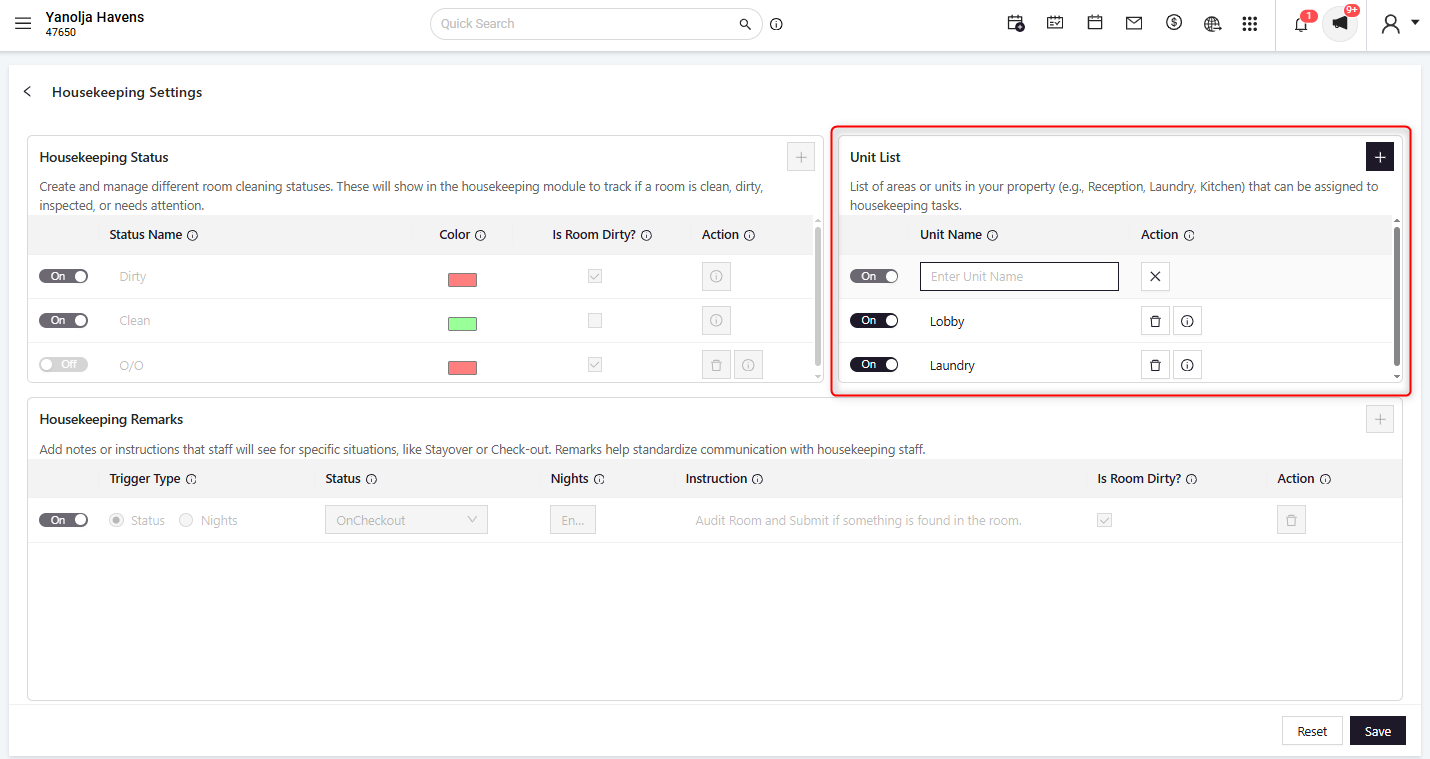
6. Assign Housekeeper :
A. How to access
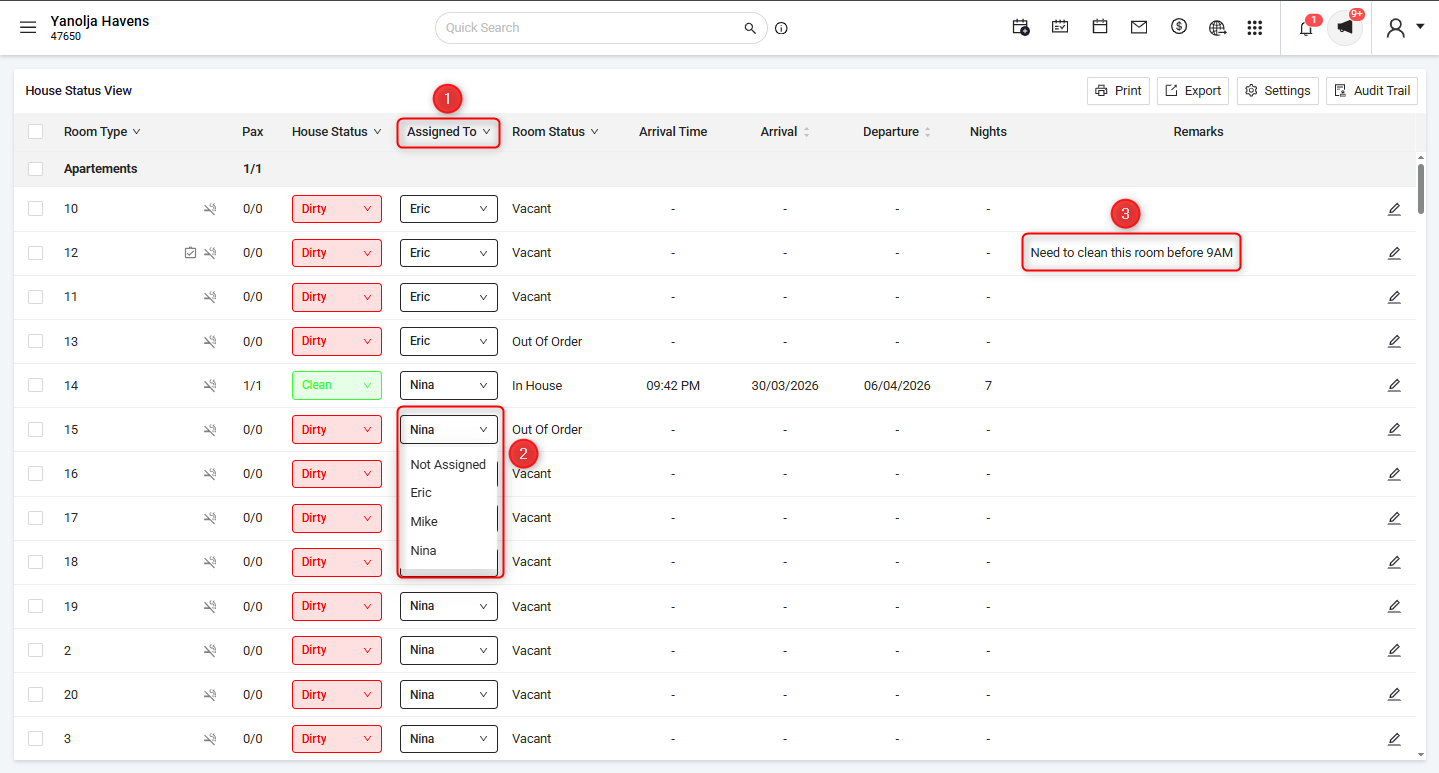
Go to: Housekeeping → House Status → Assigned To
B. How it works
Housekeepers can be assigned to rooms or units directly from the House Status screen.
- Select the required room or unit
- Choose the housekeeper from the “Assigned To” dropdown
The assignment is updated instantly, and a confirmation message is displayed. (e.g., "Housekeeper assigned successfully" or "Housekeeper unassigned successfully")
Was this article helpful?
That’s Great!
Thank you for your feedback
Sorry! We couldn't be helpful
Thank you for your feedback
Feedback sent
We appreciate your effort and will try to fix the article