Post-Departure Email Setup
To schedule post-departure emails in PMS, please follow the steps below:
Login to Your PMS Account
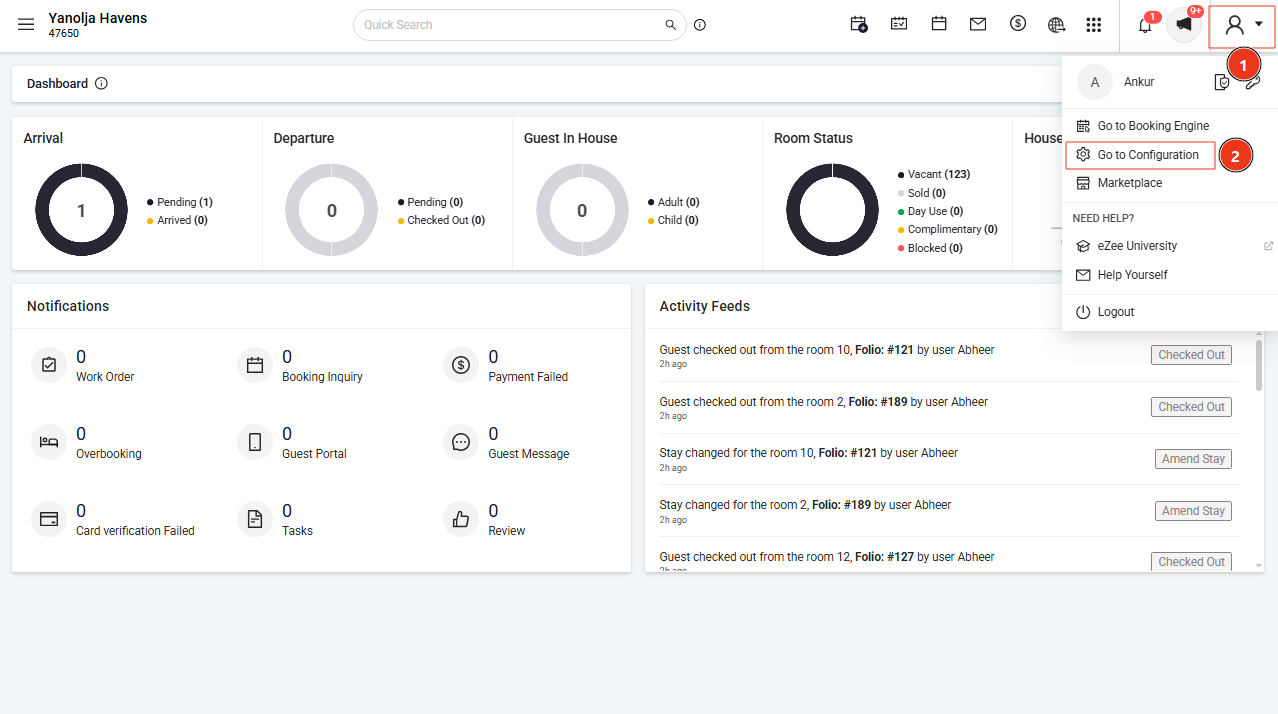
- Sign in to your PMS account.
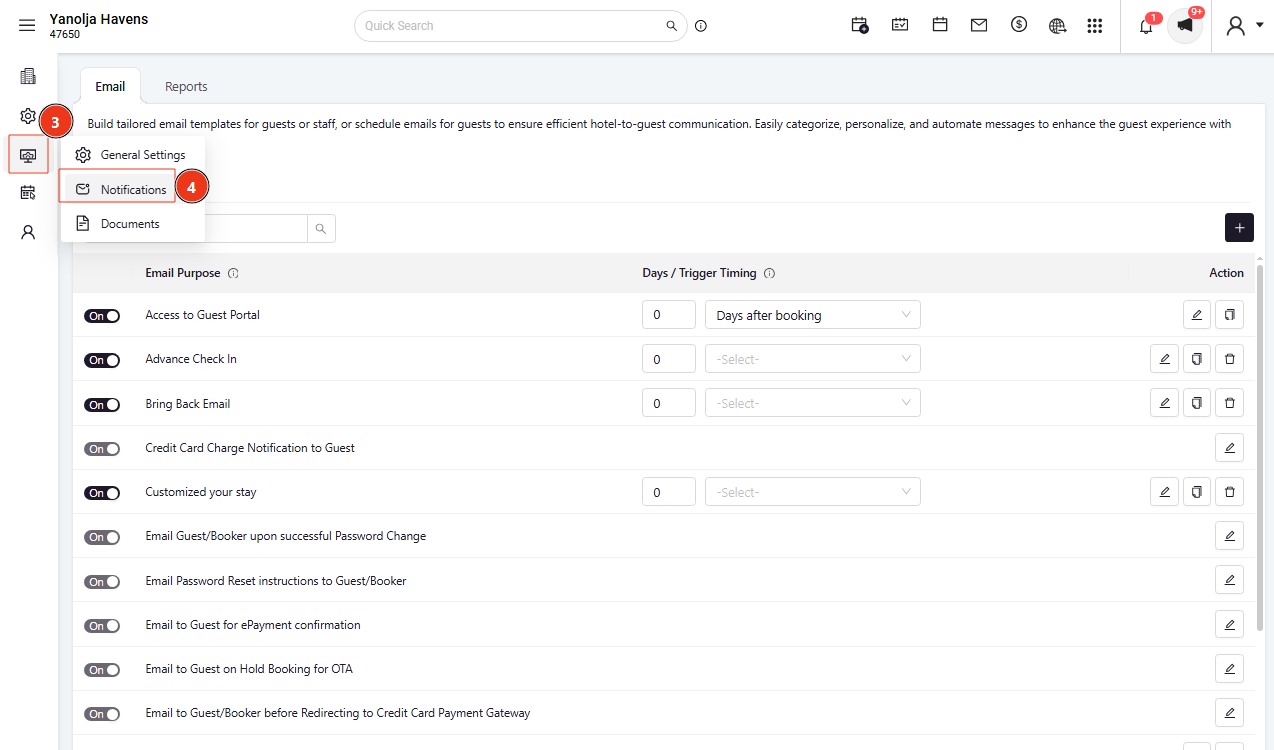
Navigate to Notification Settings
- Go to Configuration
- Select Notification
Add New Guest Email
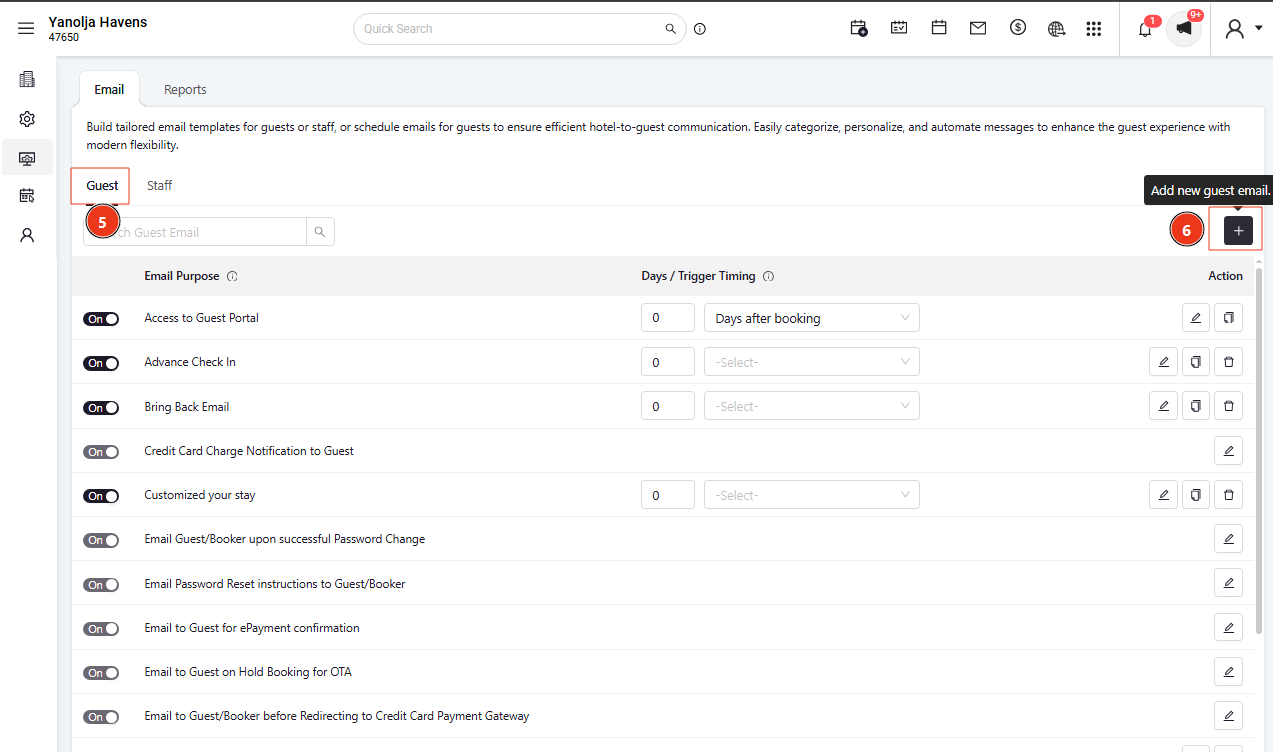
- Click on the Guest option.
- Select (+) Add New Guest Email.
Schedule the Email
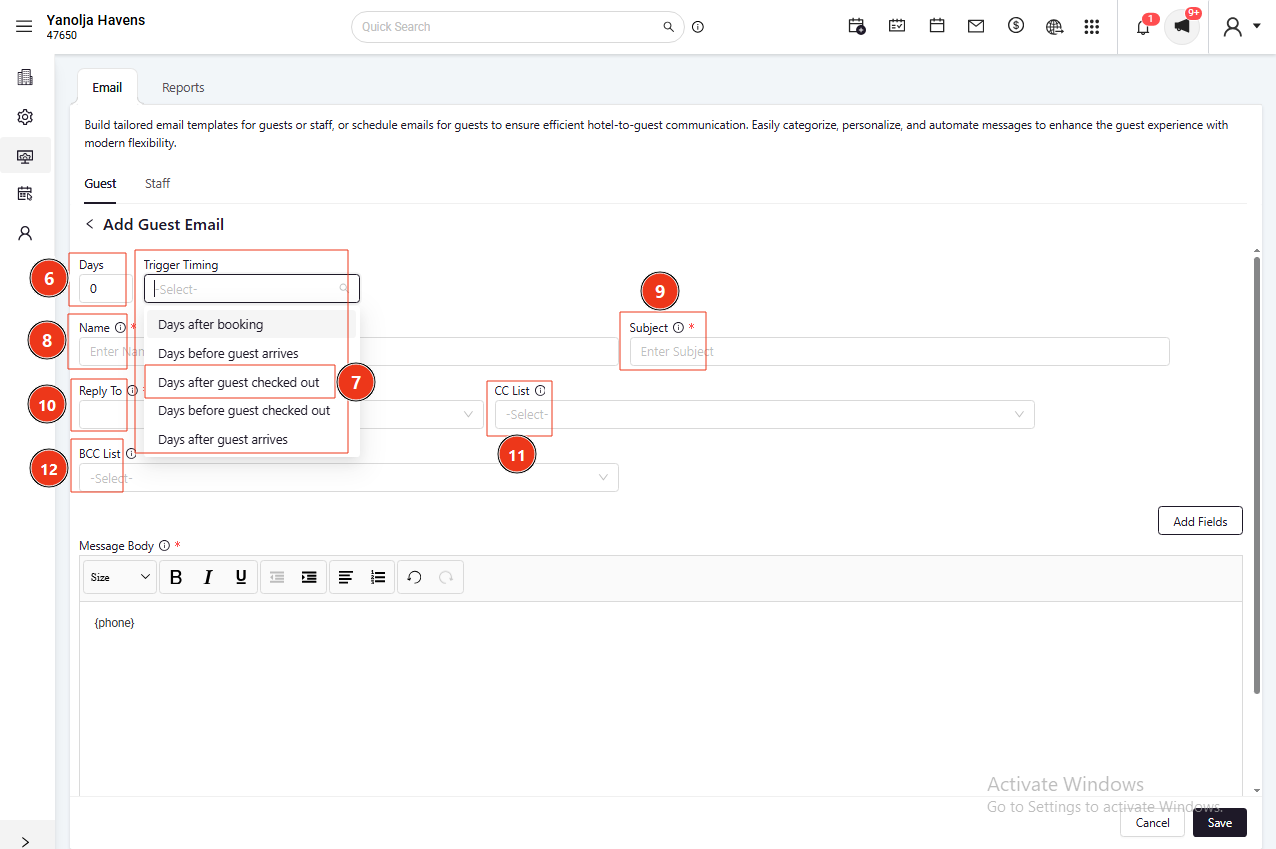
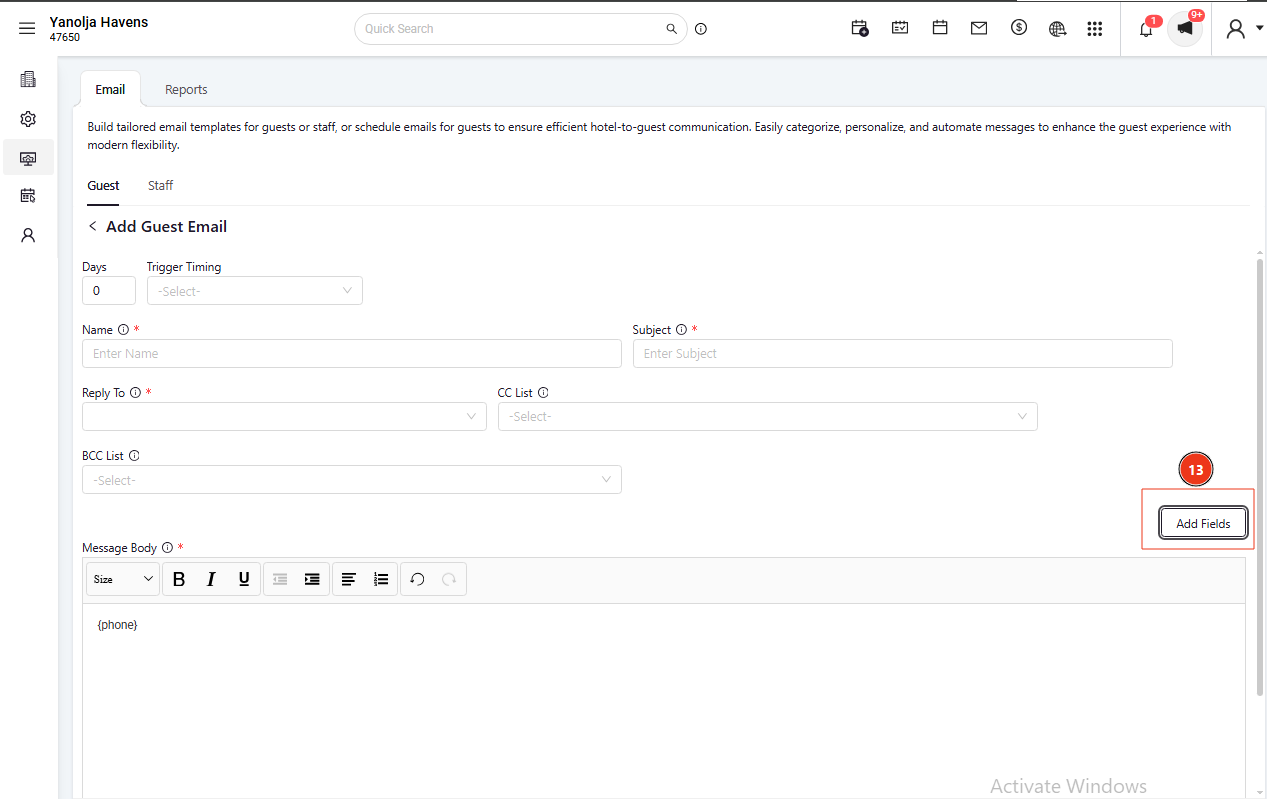
- Define the number of days after the guest’s departure when the email should be sent.
- Example:
- 0 = Email will be sent immediately after checkout
- 1 = Email will be sent one day After departure
5. Design the Email Body
- Compose the email content in the Email Body section.
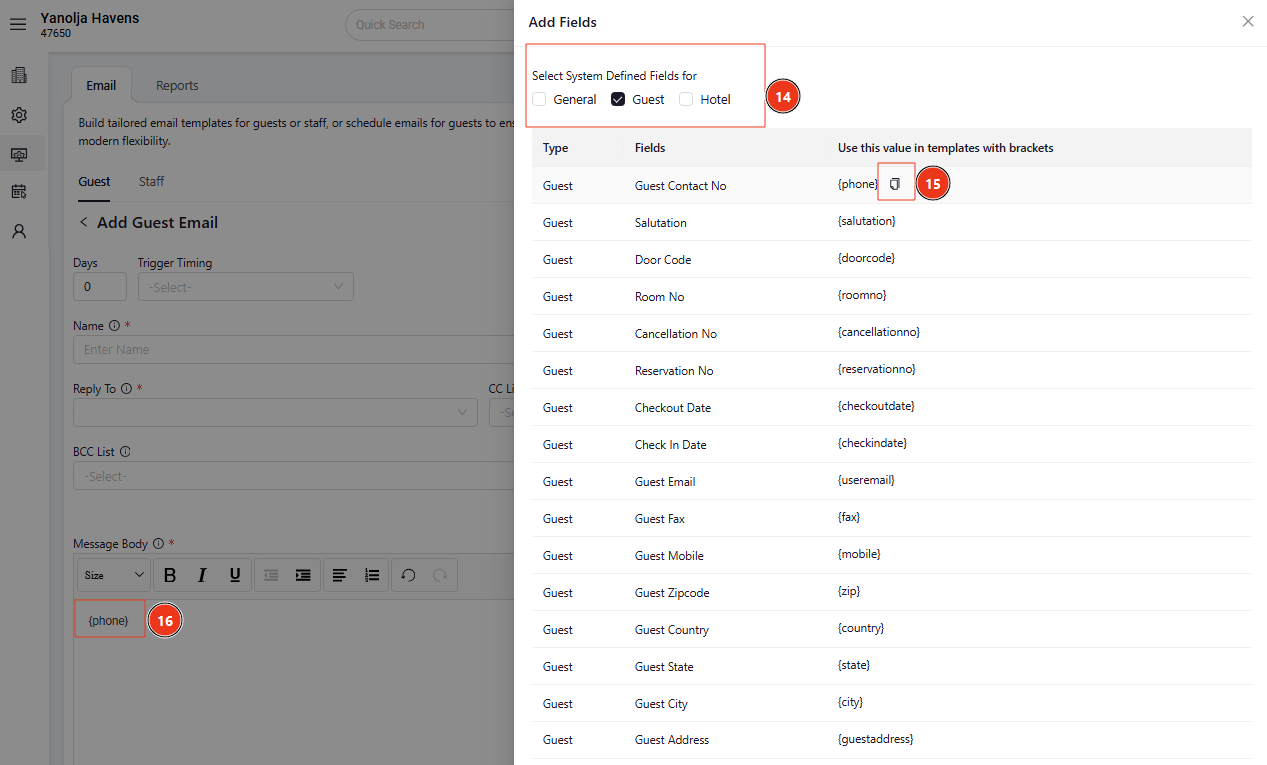
- Use predefined tags enclosed in curly braces
{}to personalize the email.
Example:
{name}= Guest Name
You may use other available tags as required.
6. Save and Activate
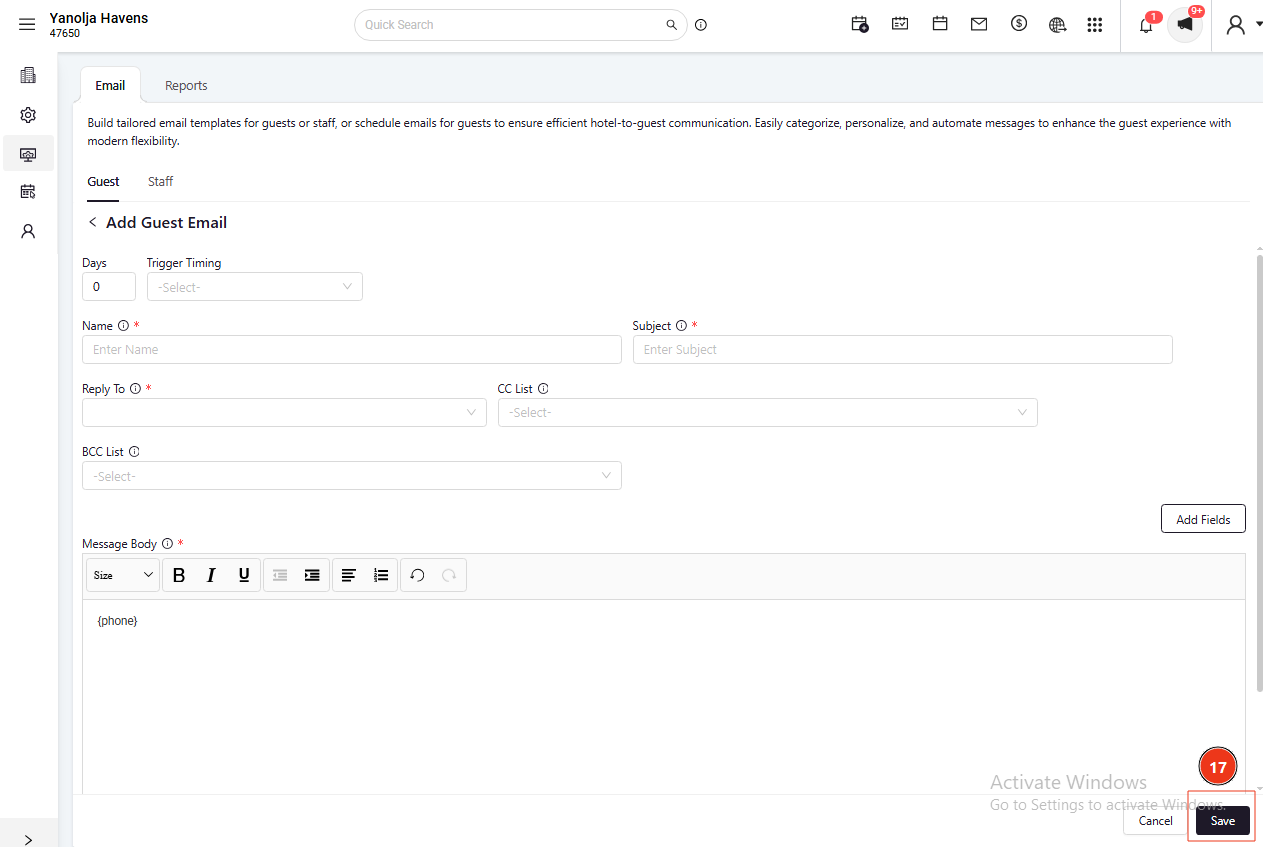
- After completing the setup, click Save.
- The system will automatically send the email based on the configured schedule.
7. CC and BCC
- You can add email addresses in the CC and BCC fields to send copies of the email to additional recipients if needed.
Was this article helpful?
That’s Great!
Thank you for your feedback
Sorry! We couldn't be helpful
Thank you for your feedback
Feedback sent
We appreciate your effort and will try to fix the article