City Ledger is used when a guest's room charges are to be paid by a company or credit account. By posting the payment through City Ledger, the amount is recorded against the selected company ledger for proper account management and reporting.
To record a guest payment through City Ledger, follow these steps:
Access the Reservation :
1. Open the required reservation.
2. Click More Options and select Add Payment.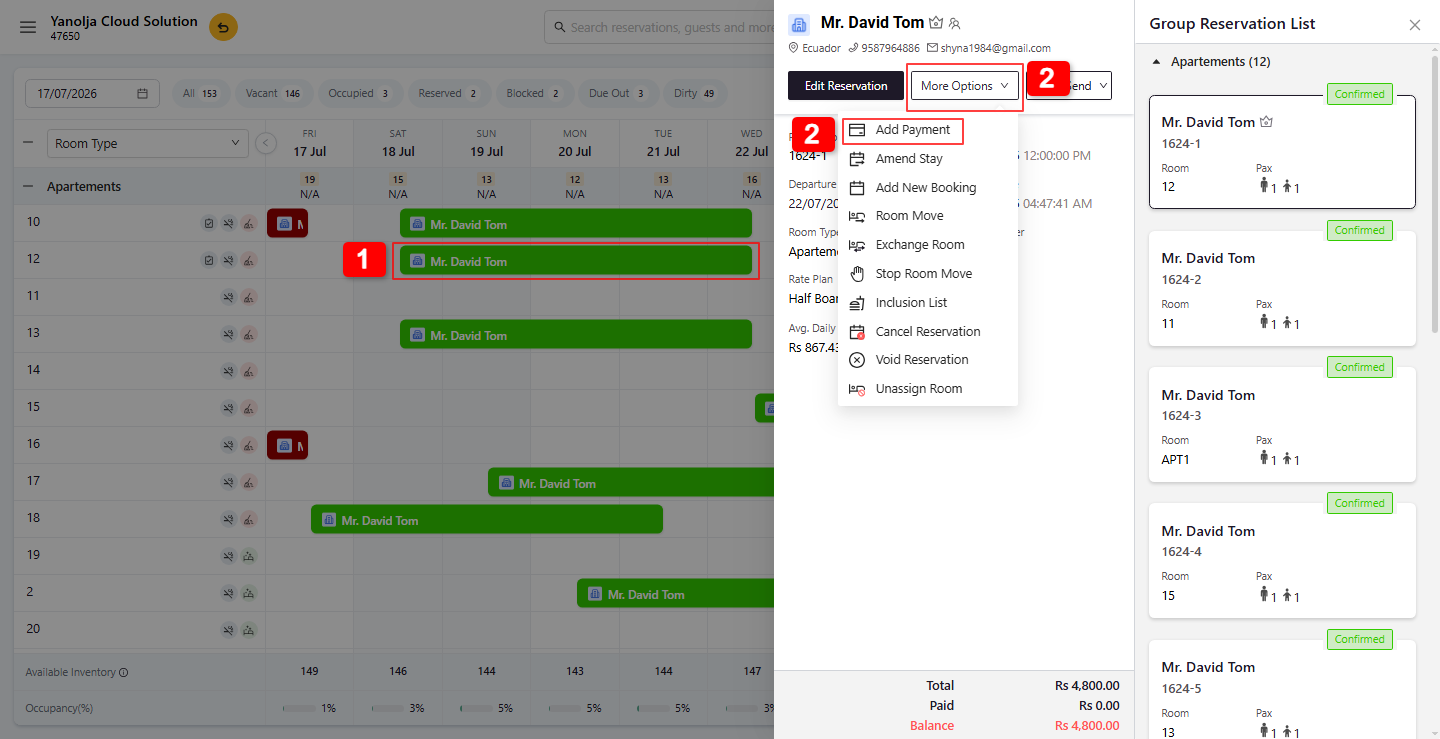
Enter Payment Details :
3. Under Mode of Payment, select City Ledger.
4. Under Business Source, select the Company/City Ledger Account to which the payment should be posted.
5. Enter the Amount received from the guest.
Save the Payment
6. Click Save to record the payment against the selected City Ledger account.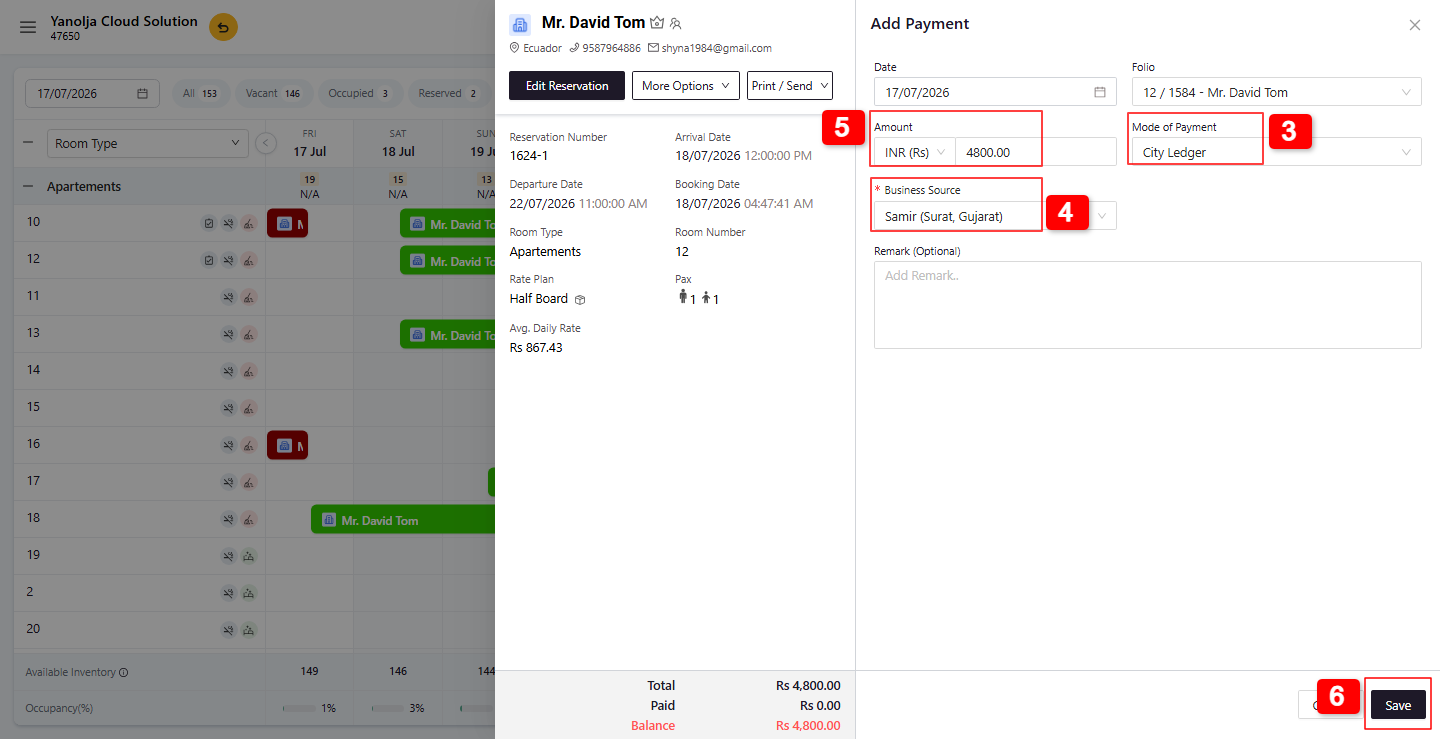
Required User Privileges :
To post City Ledger payments, ensure the user has the required permissions.
1. Go to User Management & User section.
2. Edit the required user.
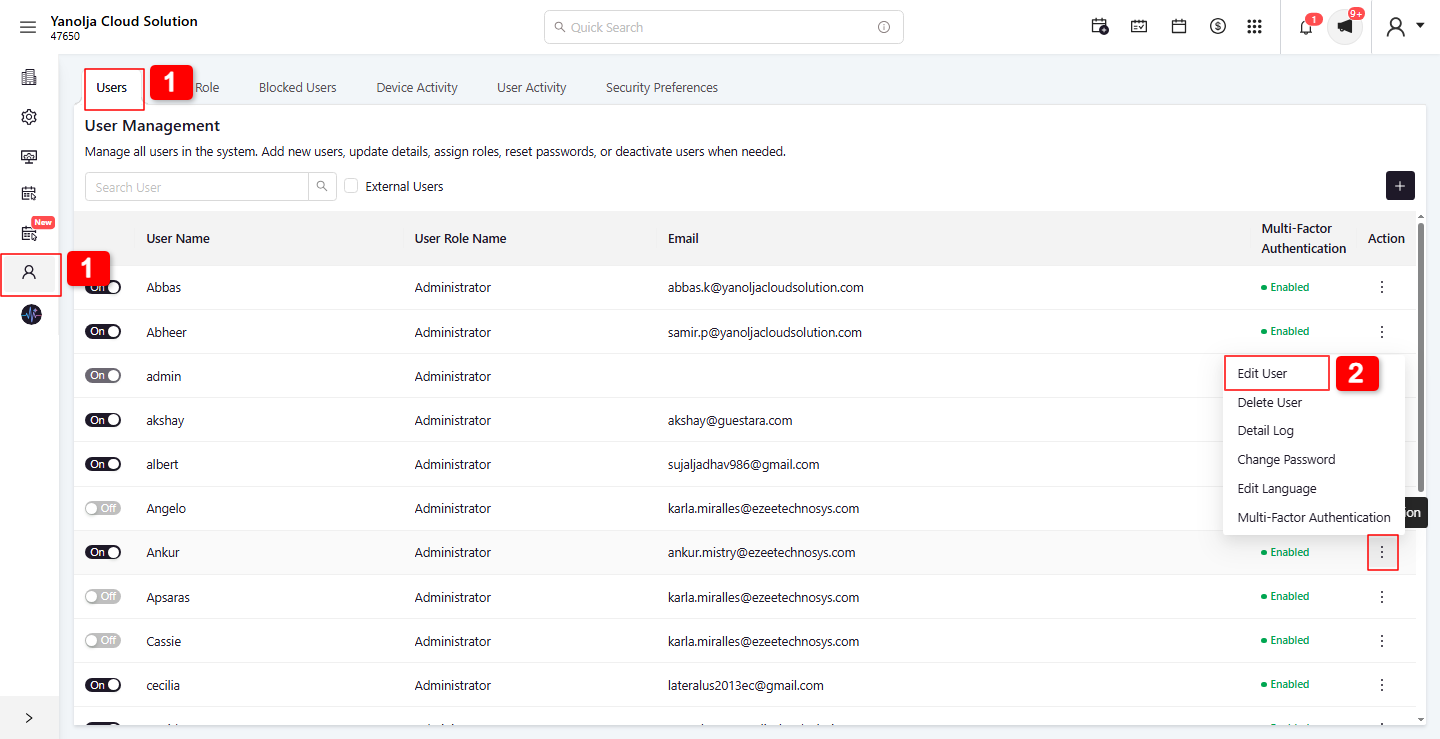
3. Click Filter.
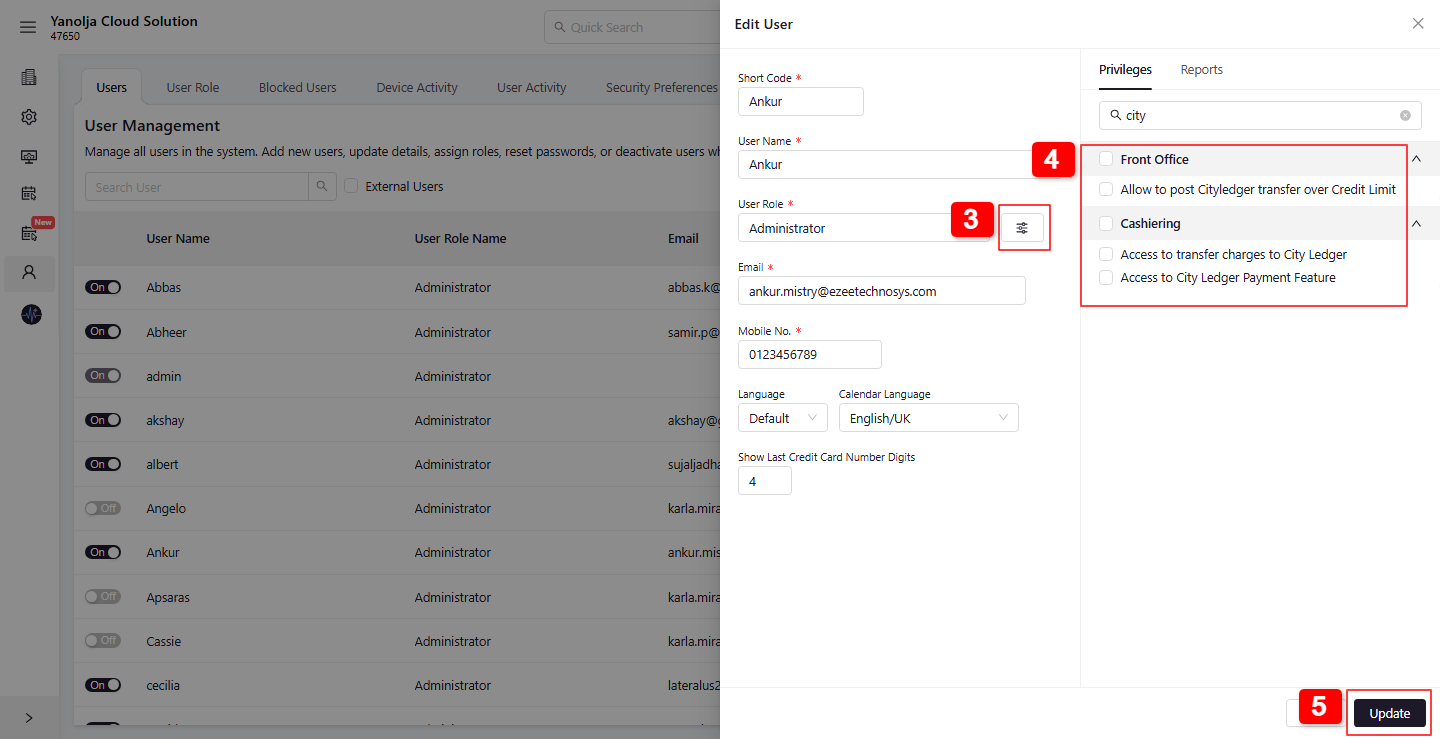
4. Enable the following privileges:
Allow to post City Ledger Transfer over Credit Limit
Access to Transfer Charges to City Ledger
Access to City Ledger Payment Feature
5. Click on Update to save changes.
Reports :
The recorded City Ledger payment can be verified using the following reports:
1. Daily Receipt – Details
This report displays payment details for each reservation along with the payment type for the selected date range.
2. Daily Receipt – Summary
This report provides a summarized view of payments grouped by payment type and user for the selected period.
Was this article helpful?
That’s Great!
Thank you for your feedback
Sorry! We couldn't be helpful
Thank you for your feedback
Feedback sent
We appreciate your effort and will try to fix the article