If you need to update values for a specific time period, you can use the Distribution Wizard, which allows you to add multiple dates and rate plans.
To update multiple dates at once in the system using the Distribution Wizard, follow these steps:
Access Distribution Wizard:
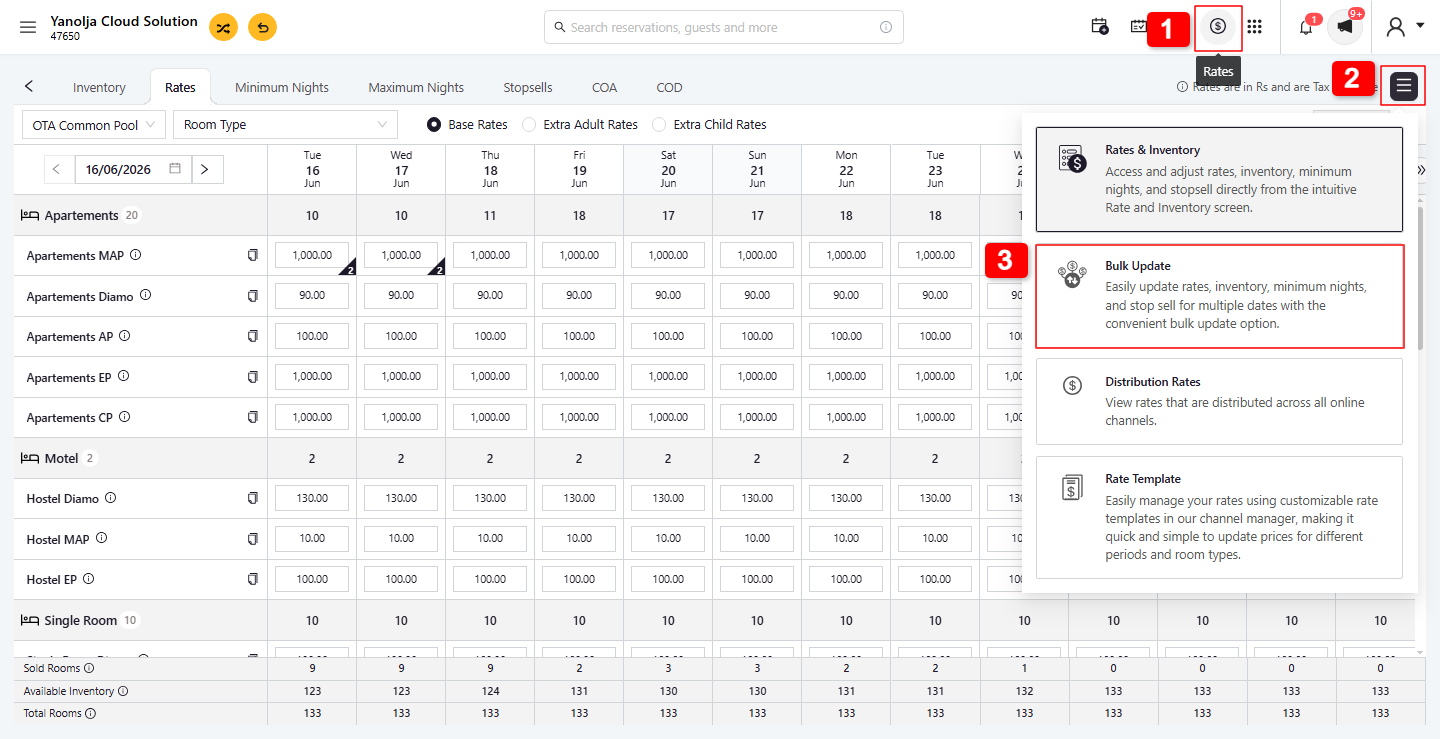
1. Go to Rates.
2. Click on hamburger icon (≡).
3. Click on Bulk Update.
Specify Date Range:
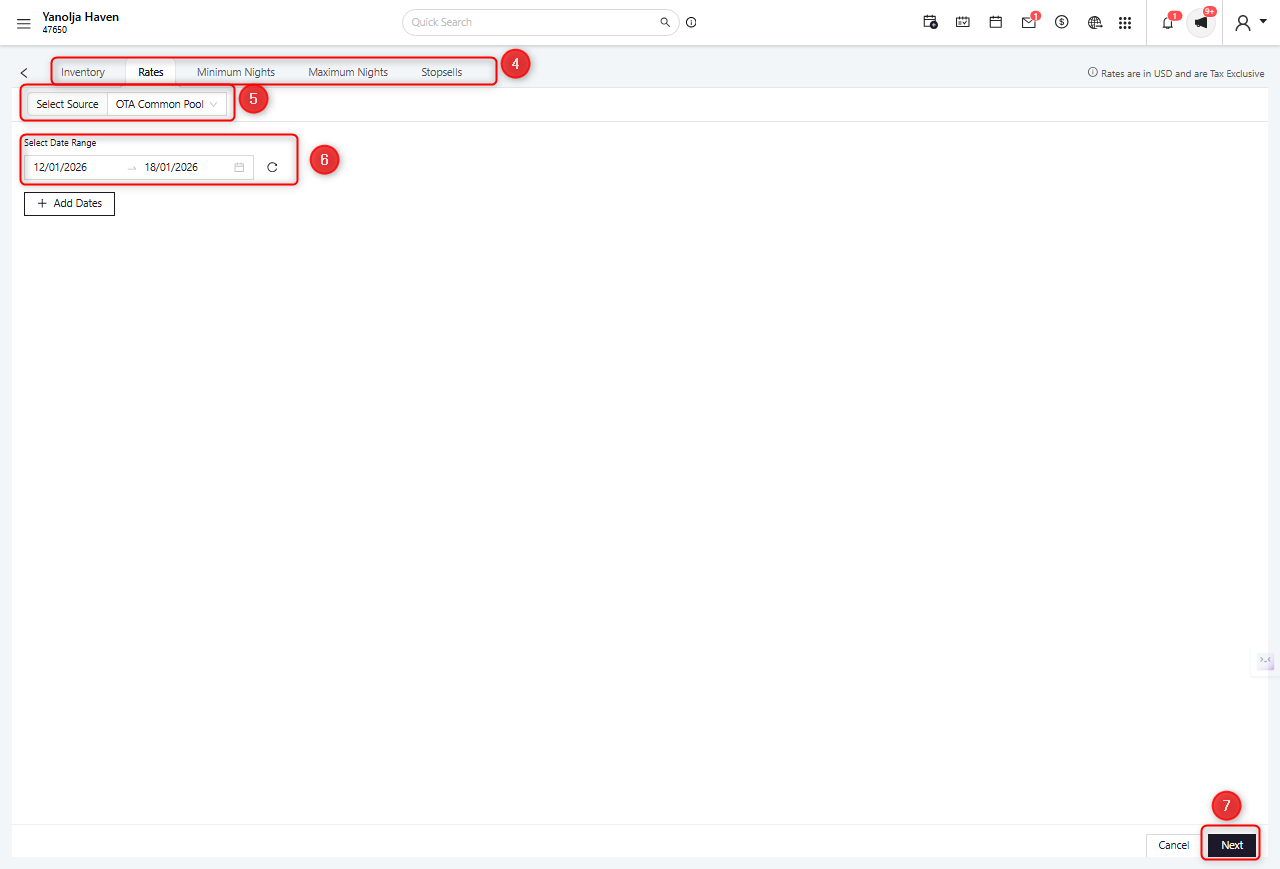
4. Open the operation tab you want to perform, such as. (Inventory, Rates, Minimum Nights, Maximum Nights and StopSells)
5. Select the required Sources.
6. Choose the Date Range for which you want to apply the update.
7. Click Next to proceed.
Select Appropriate Rate Plans:
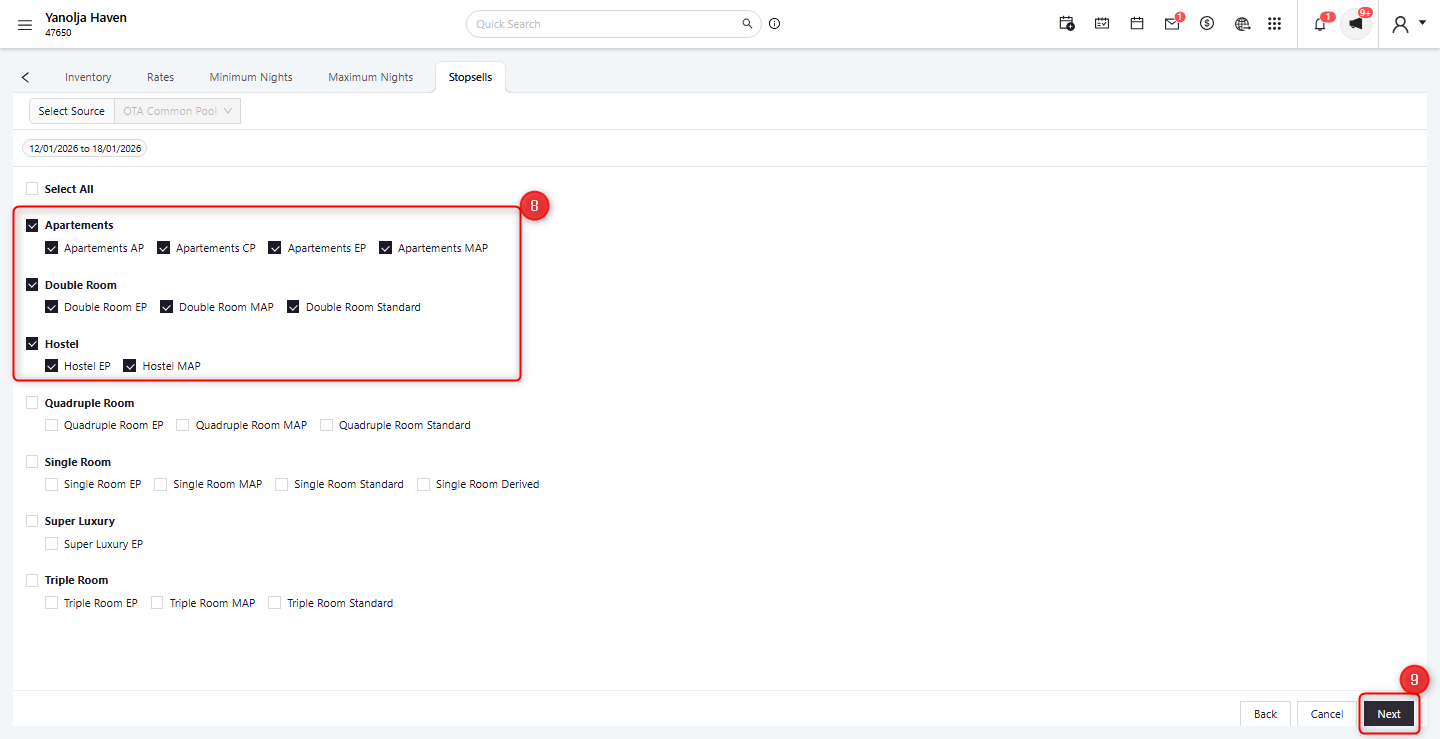
8. Select the desired Rate Plan(s) you want to update.
9. Once selected, click Next to proceed.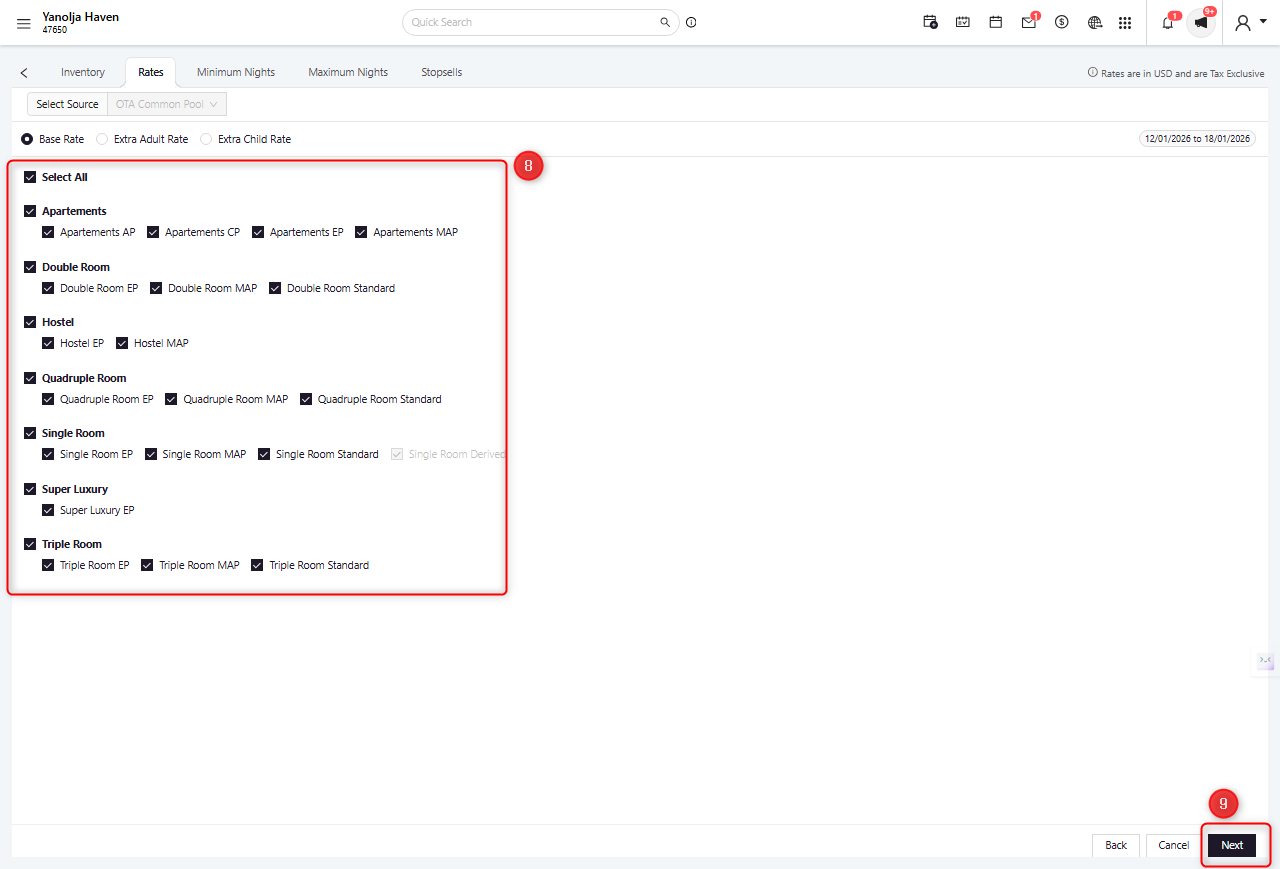
Define Application Days:
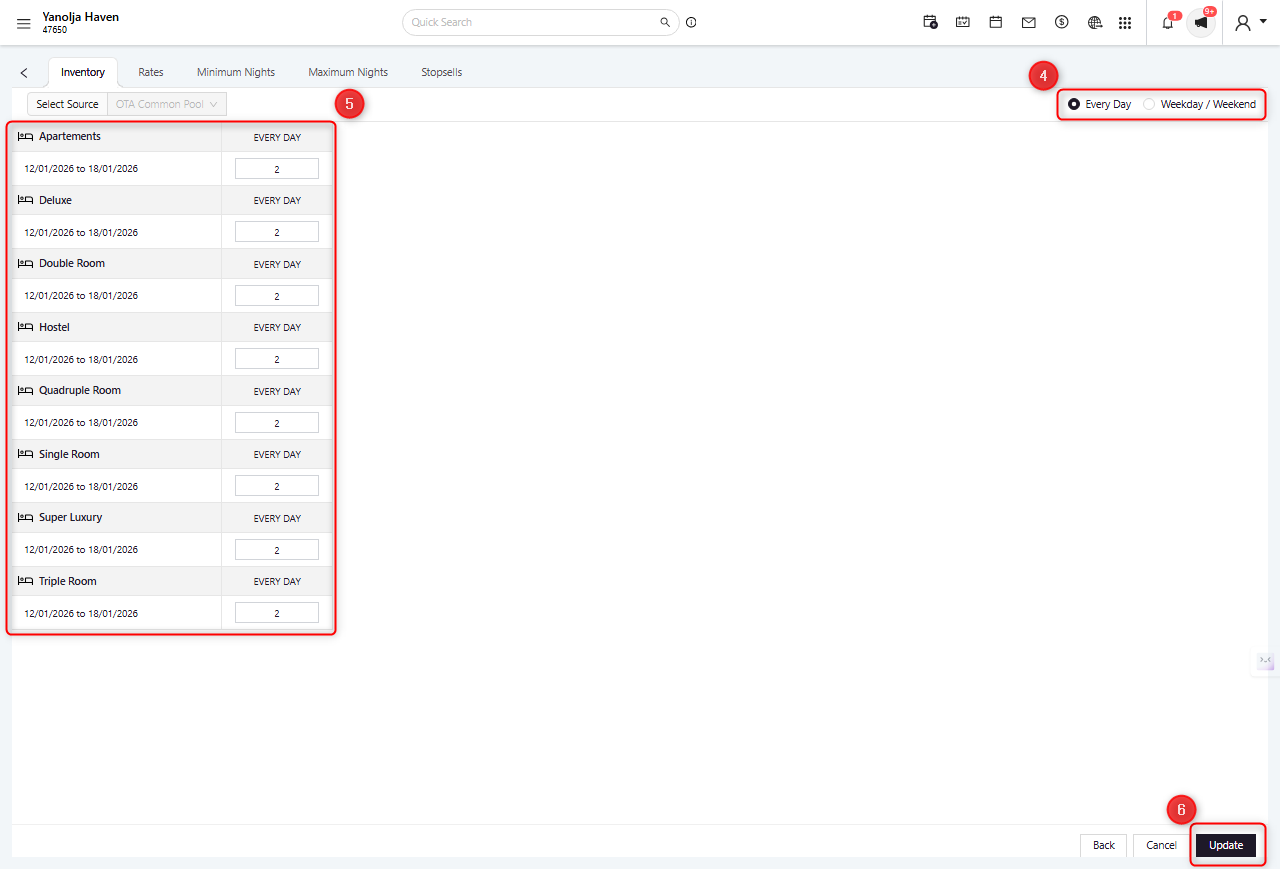
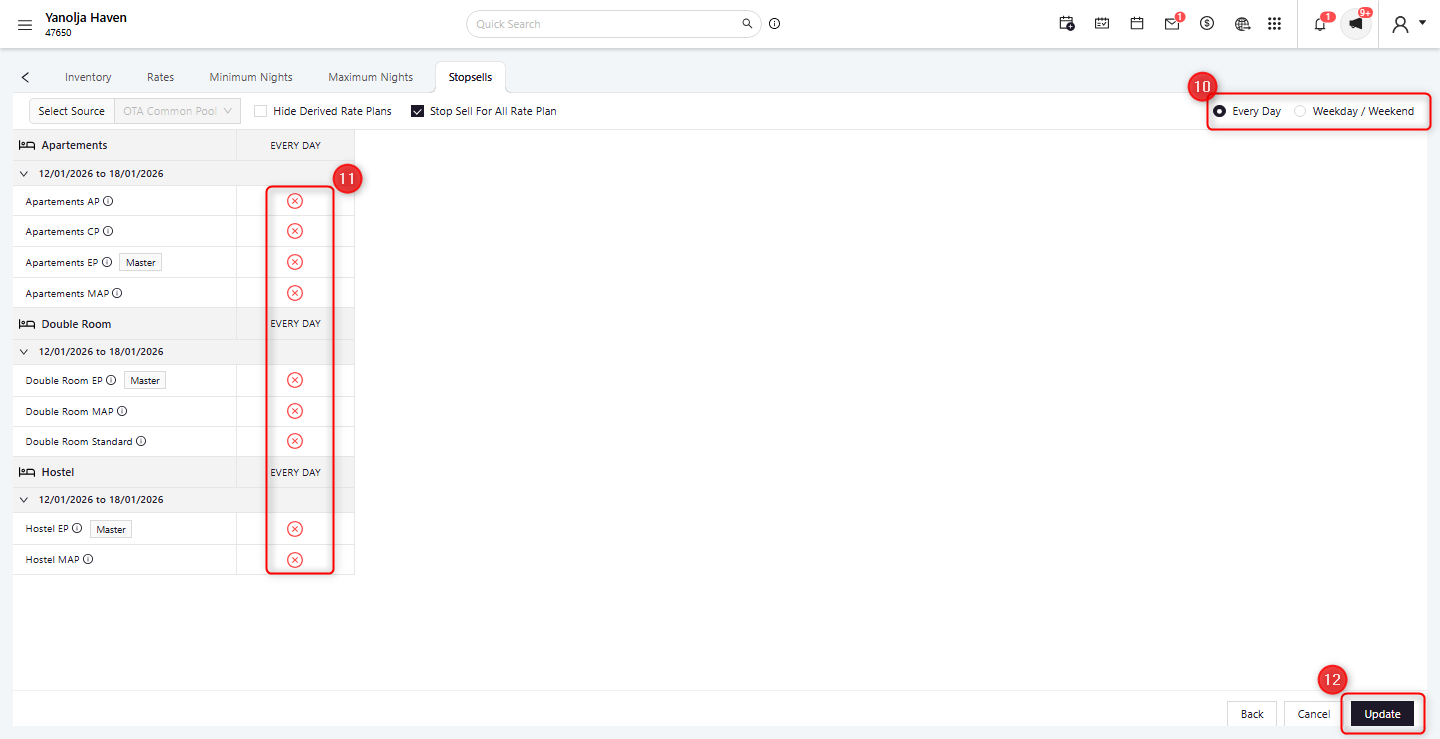
10. Select Every Day to apply updates to all days within the chosen date range/Select Weekday/Weekend to apply updates only to specific days./Select Day-wise to apply updates for specific days (e.g., Monday, Wednesday, Friday).
Enter Data: Input the new values for the selected operation:
11. Enter the required data based on the selected operation.
12. Once done, click Update to apply the changes. The system will process the updates, and you'll receive a notification once this is completed.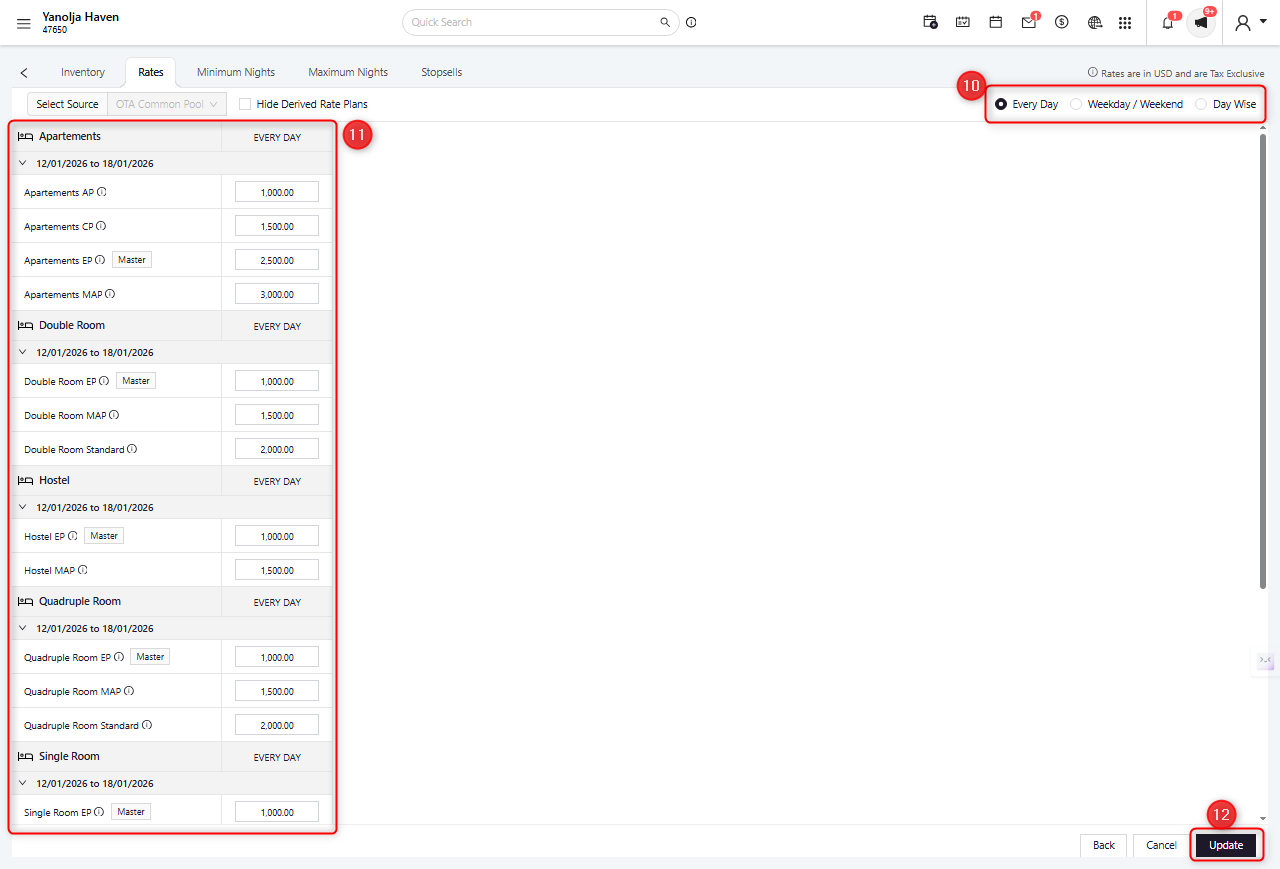
Inventory: Specify the inventory levels.
Apply Updates: After entering the necessary data, click 'Update' to apply the changes. The system will process the updates, and you'll receive a notification once this is completed.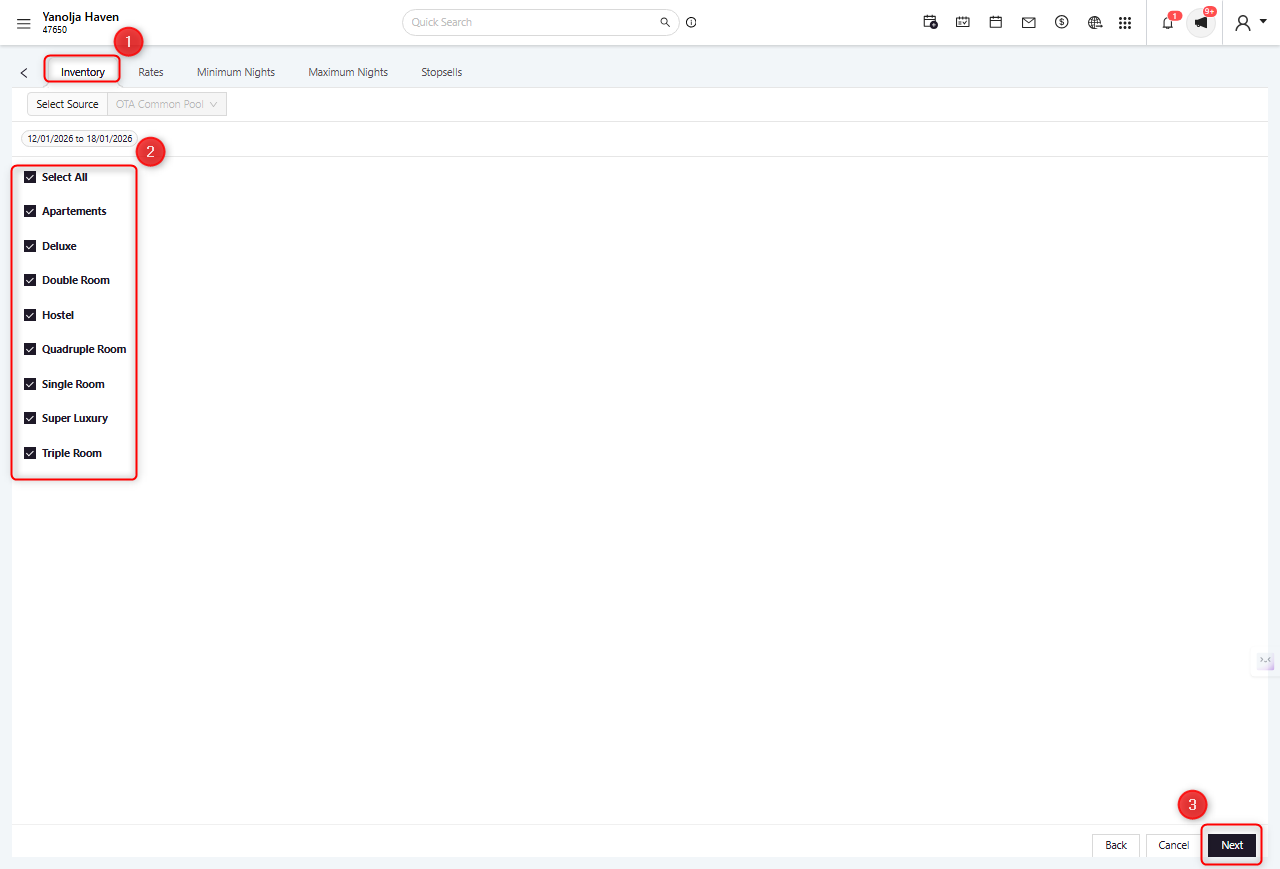
Stop Sell: Toggle the switch to apply (On) or remove (Off) a Stop Sell.
Apply Updates: After entering the necessary data, click 'Update' to apply the changes. The system will process the updates, and you'll receive a notification once this is completed.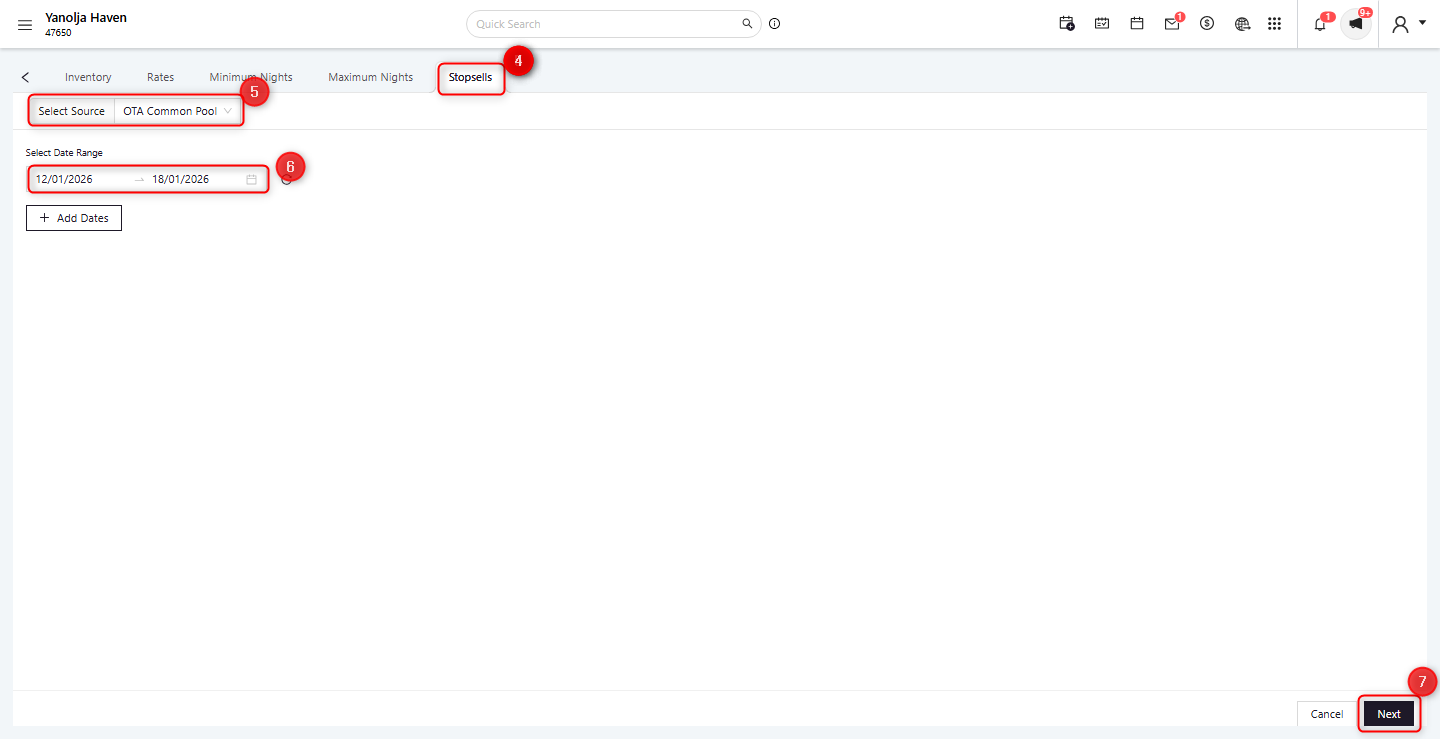
Was this article helpful?
That’s Great!
Thank you for your feedback
Sorry! We couldn't be helpful
Thank you for your feedback
Feedback sent
We appreciate your effort and will try to fix the article