If you need to update data for a specific day, you can use the Rates & Inventory section to make the necessary changes.
In the Channel Manager, you can update Inventory, Rates, Stop Sell, and other data for a 12-day period using the Rates & Inventory module. Below are the steps:
How to Update Data for 12 Days at Once
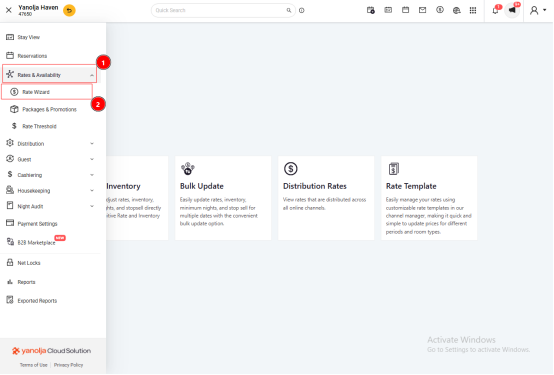
1️⃣ Access Rates & Inventory
Navigate to the Rates & Inventory section in the Channel Manager.
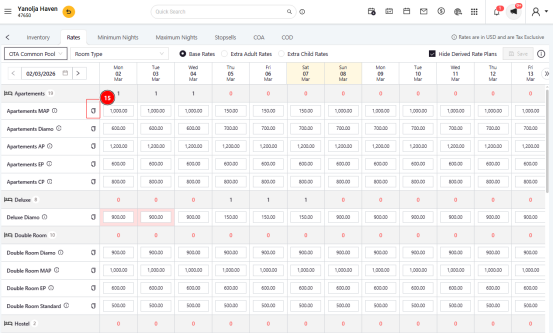
The system displays a 12-day calendar view by default.
To move to the next set of 12 days, click on the “>” (Next) button.
2️⃣ Select the Date
Click on the specific date you wish to update.
Select the required room type and rate plan (if applicable).
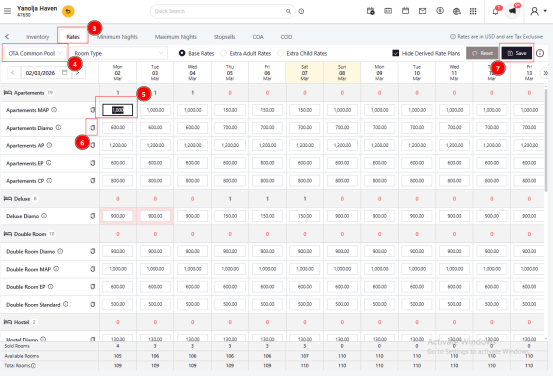
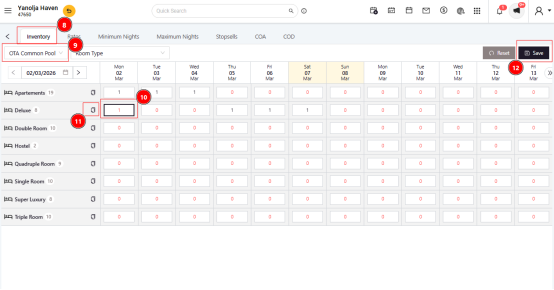 3️⃣ Enter the Desired Values
Source:
Select “OTA Common Pool” to update data for Online Travel Agencies or “Web” for the booking engine.Operation:
From the dropdown menu, choose the operation you want to perform, such as:Rates
Extra Adult Rates
Inventory
Stop Sell
Minimum Nights
COA/ COD
Enter the required value and click Save to update the data.
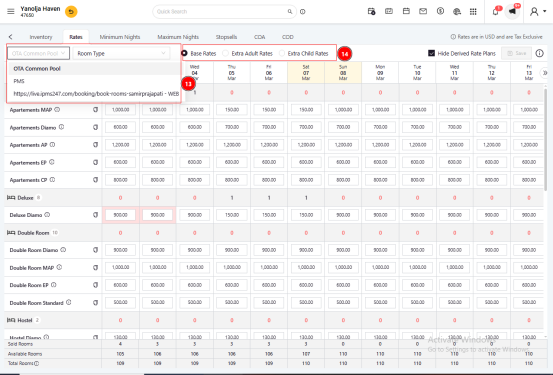
4️⃣ Use the Copy Function (For Multiple Days)
To apply the same value across the remaining 12 days:
Enter the value for one day.
Click on the “Copy” icon.
Apply it to the desired dates within the visible 12-day range.
Was this article helpful?
That’s Great!
Thank you for your feedback
Sorry! We couldn't be helpful
Thank you for your feedback
Feedback sent
We appreciate your effort and will try to fix the article