This FAQ explains the step-by-step process to create Rate Plans PMS (Property Management System):
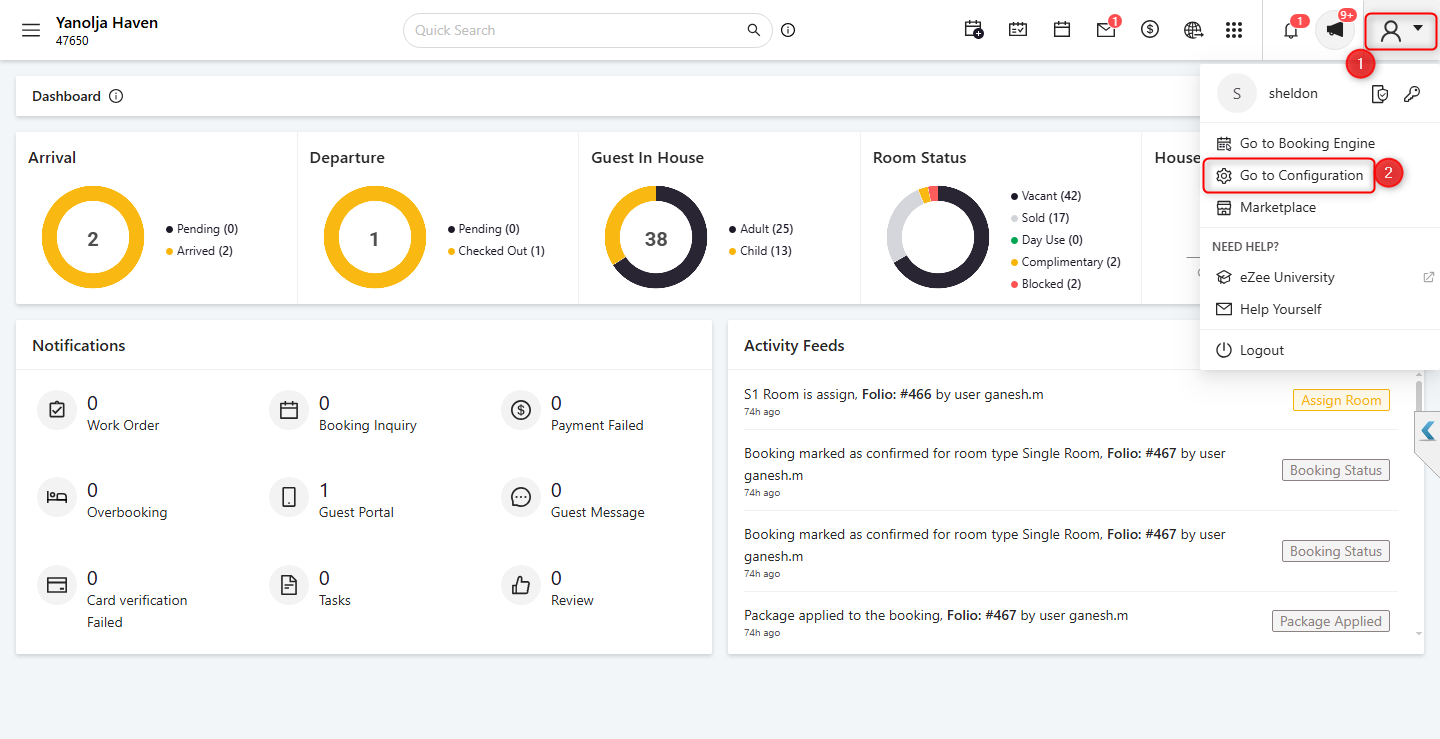
Step 1:
1. Click on the User dropdown located at the top-right corner of the screen.
2. Select Configuration.
Step 2:
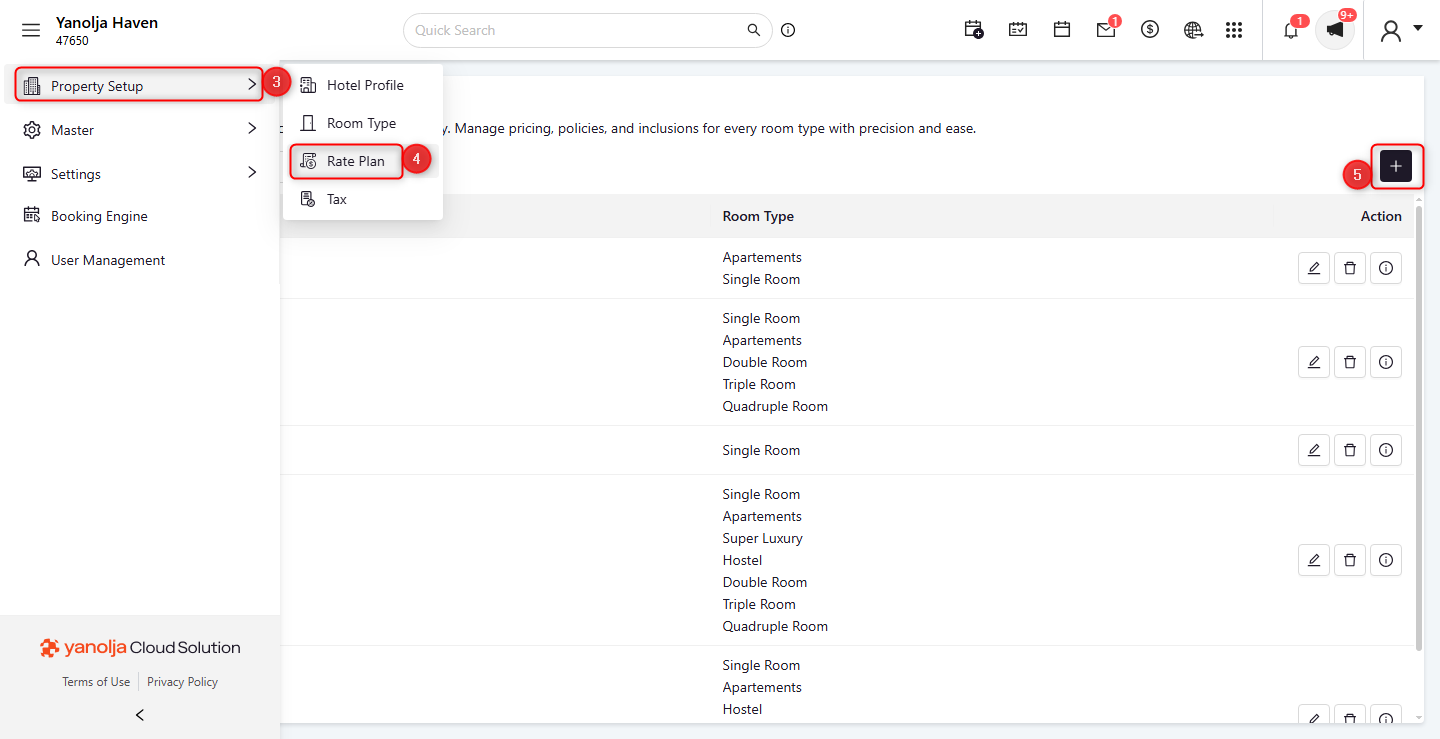
3. Click on Property Setup.
4. Click on Rate Plan.
5. Click on the “+” (Add) icon to create a new Rate Plan.
Step 3 :
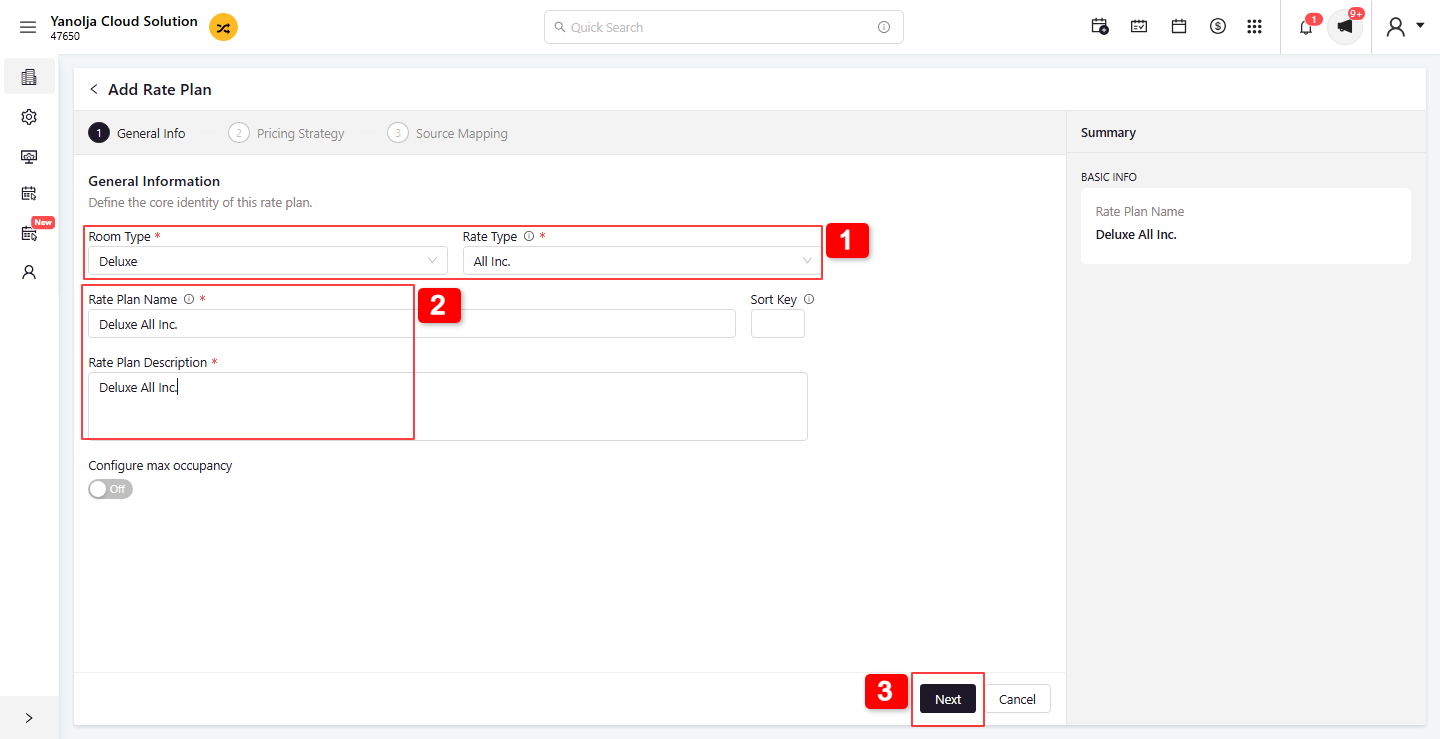
General Information
- Select the Room Type and Rate Type.
- Enter the Rate Plan Name and its Description.
- Click Next.
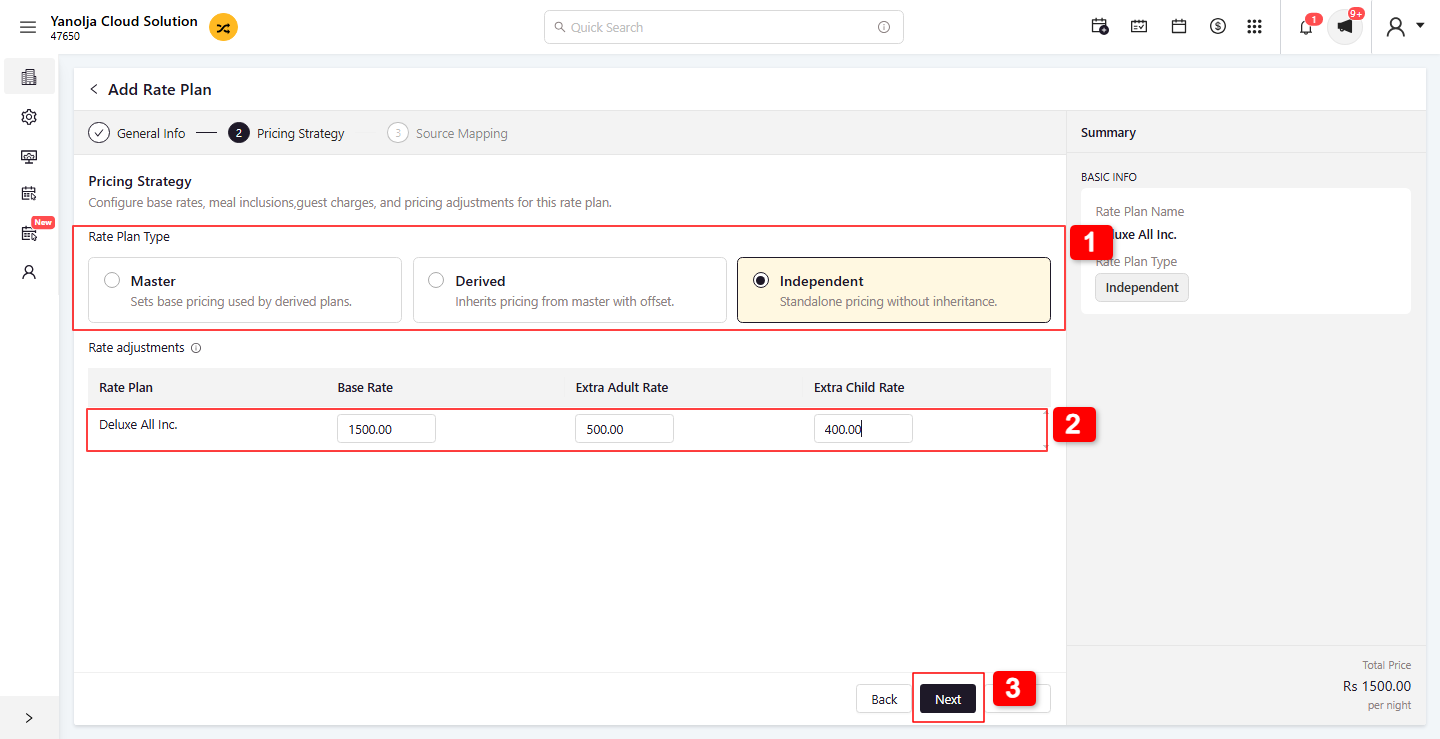
Pricing Strategy
- Select the Rate Plan Type (Master, Derived, or Independent).
- Enter the Base Rate, Extra Adult Rate, and Extra Child Rate.
- Click Next to proceed.
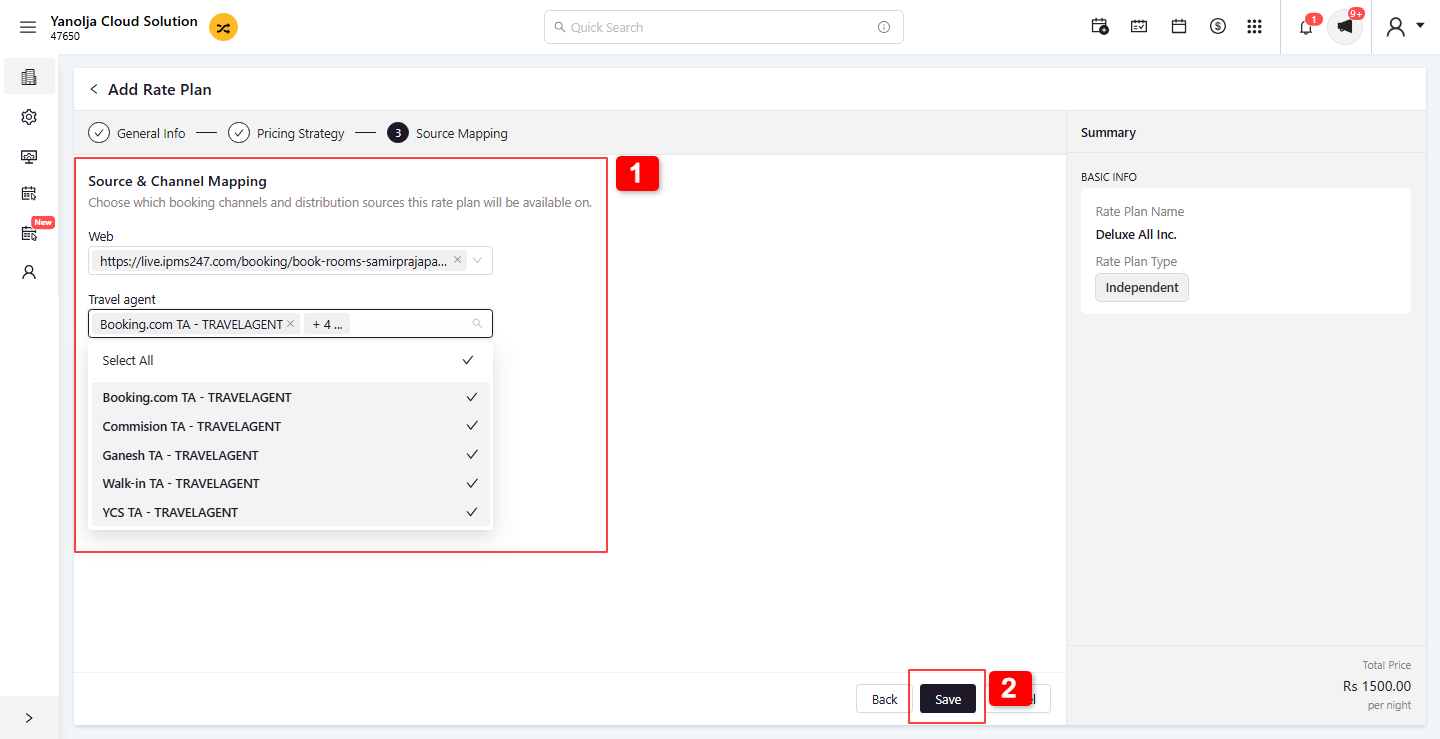
Source Mapping
1. In the Source and Channel Mapping section, select the rate plan you want to publish on the Web and for Travel Agents.
2. Click Save to save the rate plan.
How do I create a Derived Rate Plan?
Step 4:
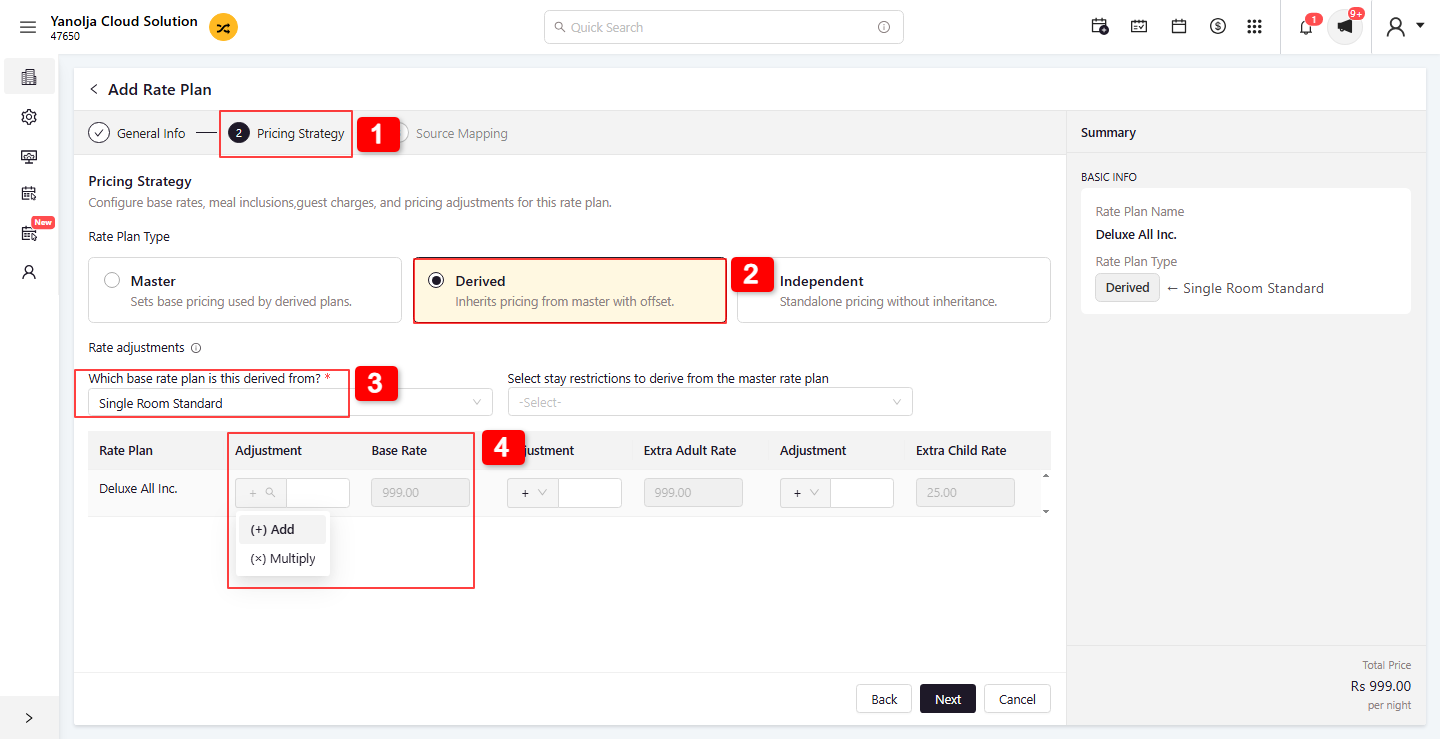
10. Select the Derived Rate Plan option. Choose the Base Rate Plan from which it will be derived.
11. Choose the Base Rate Plan from which it will be derived.
12. Select the adjustment type (Add or Multiply). Enter the value by which the rate should be added to or multiplied from the base Rate Plan.
Was this article helpful?
That’s Great!
Thank you for your feedback
Sorry! We couldn't be helpful
Thank you for your feedback
Feedback sent
We appreciate your effort and will try to fix the article