Night Audit (Day Close)
Night Audit, also referred to as Day Close, is a vital operational process in. It ensures that all daily hotel activities are properly completed and that the system transitions smoothly to the next business day. The Night Audit verifies reservations, room statuses, guest folios, and financial transactions to maintain accurate and reliable records.
Accessing the Night Audit Option
To access the Night Audit:
Click on the menu (☰) located in the top-left corner of the screen.
Navigate to Front Office.
Select Night Audit to begin the process.
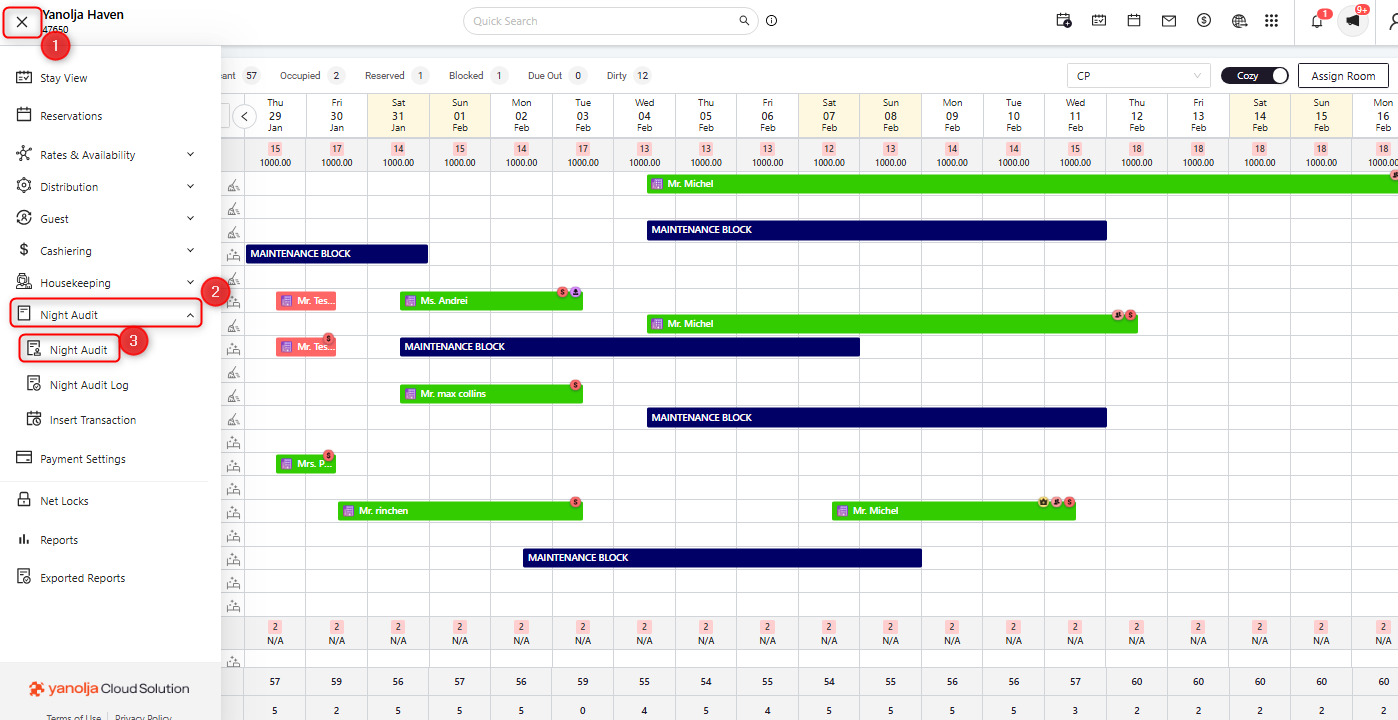
Steps Involved in Night Audit
The Night Audit process consists of the following six steps:
1. Pending Reservations
This section displays all reservations with a check-in date matching the system’s current working date where the check-in has not yet been completed.
Available actions include:
Assign Room and Check-In Guest
If the reservation does not have a room assigned, assign a room before proceeding with check-in. If the guest has arrived, complete the check-in process. If guest identity details were not added at the time of booking, they must be entered prior to check-in.Mark as No-Show
If the guest has not arrived, the reservation can be marked as a No-Show to indicate that the booking was not utilized.Cancel the Reservation
If the guest has requested cancellation, the reservation can be canceled as per the hotel’s cancellation policy.Void the Booking
If the reservation was created by mistake, it can be voided to remove it from the system. Providing a reason is mandatory when voiding a reservation.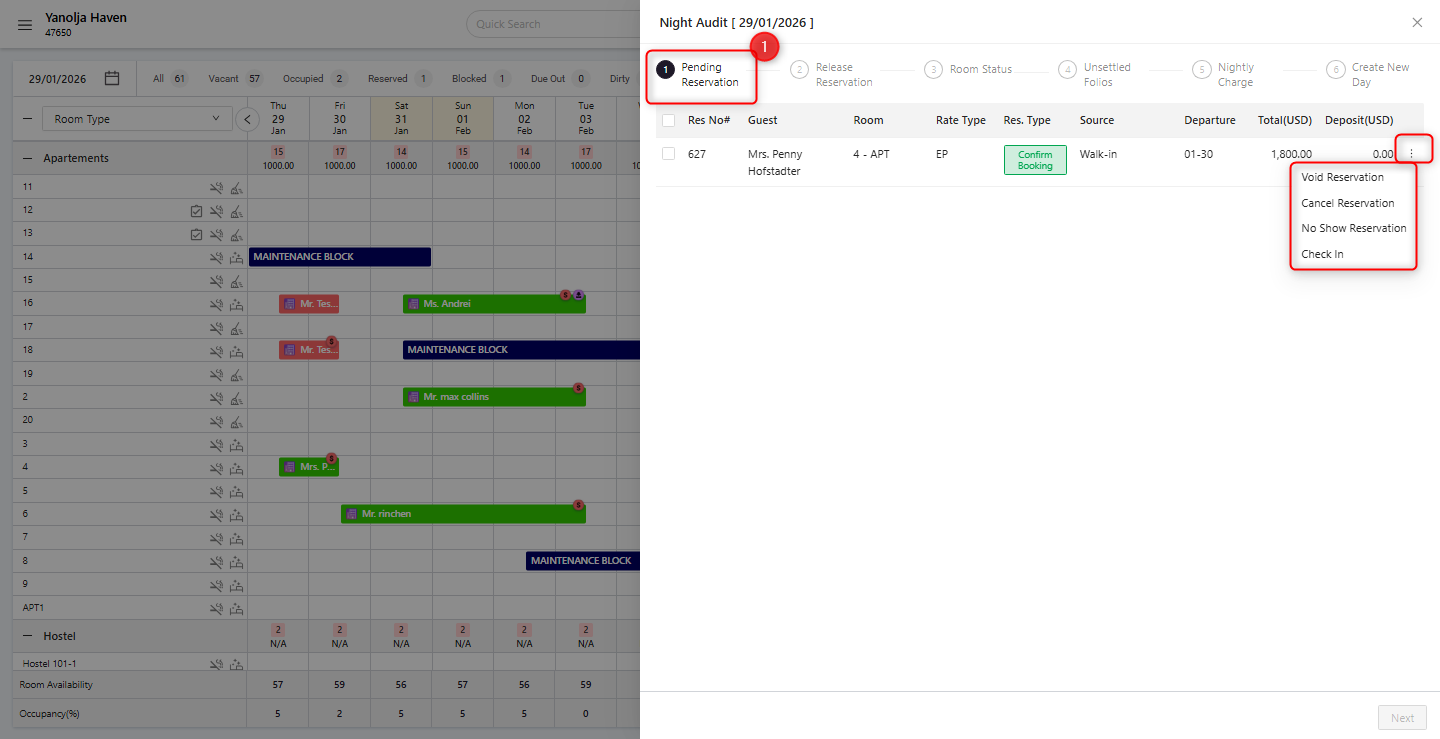
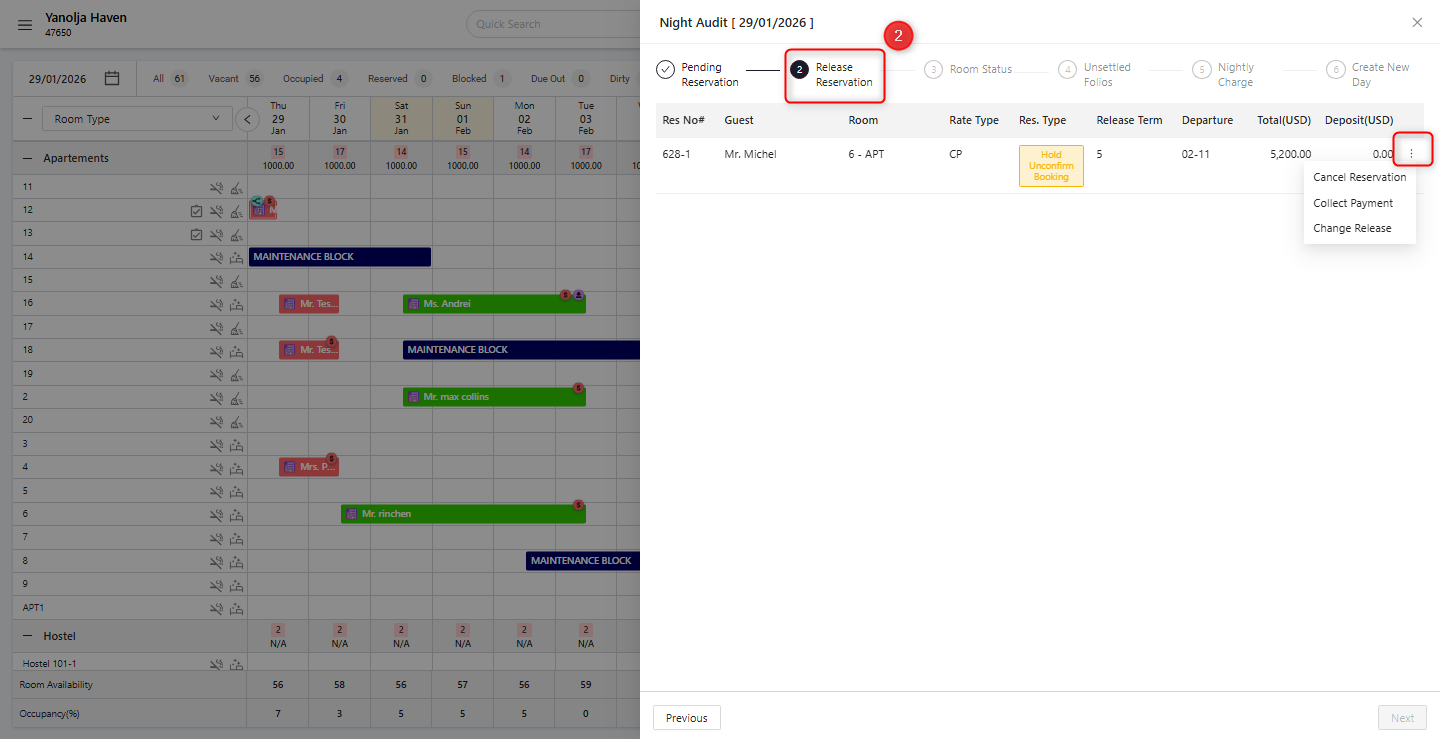
2. Release Reservations
Some reservations have a release date, which indicates that the room inventory is held only until that date if advance payment has not been received.
If payment has been received, click on Collect Payment to add the payment entry and confirm the reservation.
If the release date has been reached without payment confirmation, you may either cancel the reservation or extend the release date, depending on the situation.
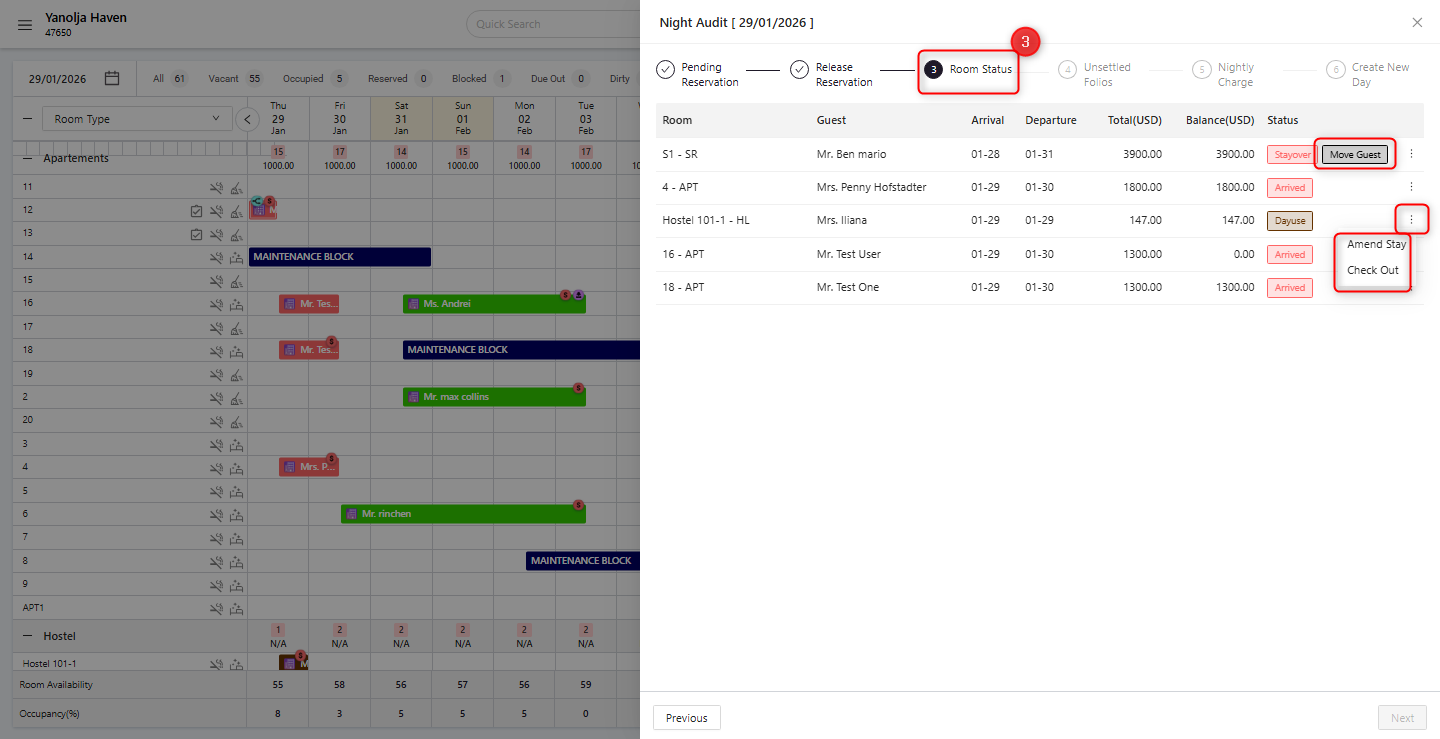
3. Room Status
Review the status of all rooms, including occupied rooms, rooms due for check-out, and blocked rooms.
Guests scheduled to check out on the current date will appear as Due Out. You may either proceed with check-out or extend the stay if requested.
The same process applies to day-use reservations, where the check-in and check-out occur on the same date.
4. Unsettled Folios
Review all guest folios that have outstanding balances.
Ensure that all pending payments are settled before proceeding with the Night Audit to maintain accurate financial records and reporting.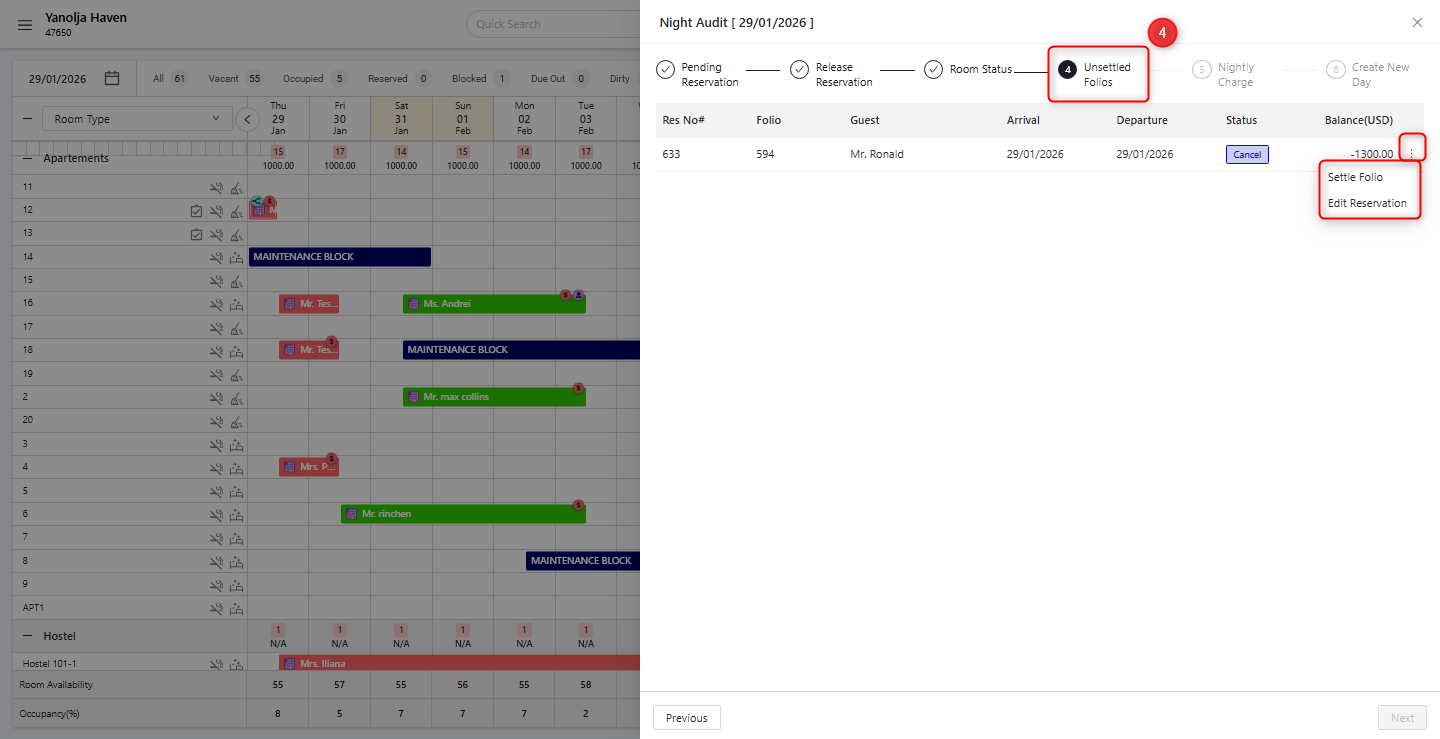
5. Nightly Charges
Post room charges for all occupied rooms based on the current working date.
This step ensures that room tariffs and applicable charges are correctly applied for each guest’s stay.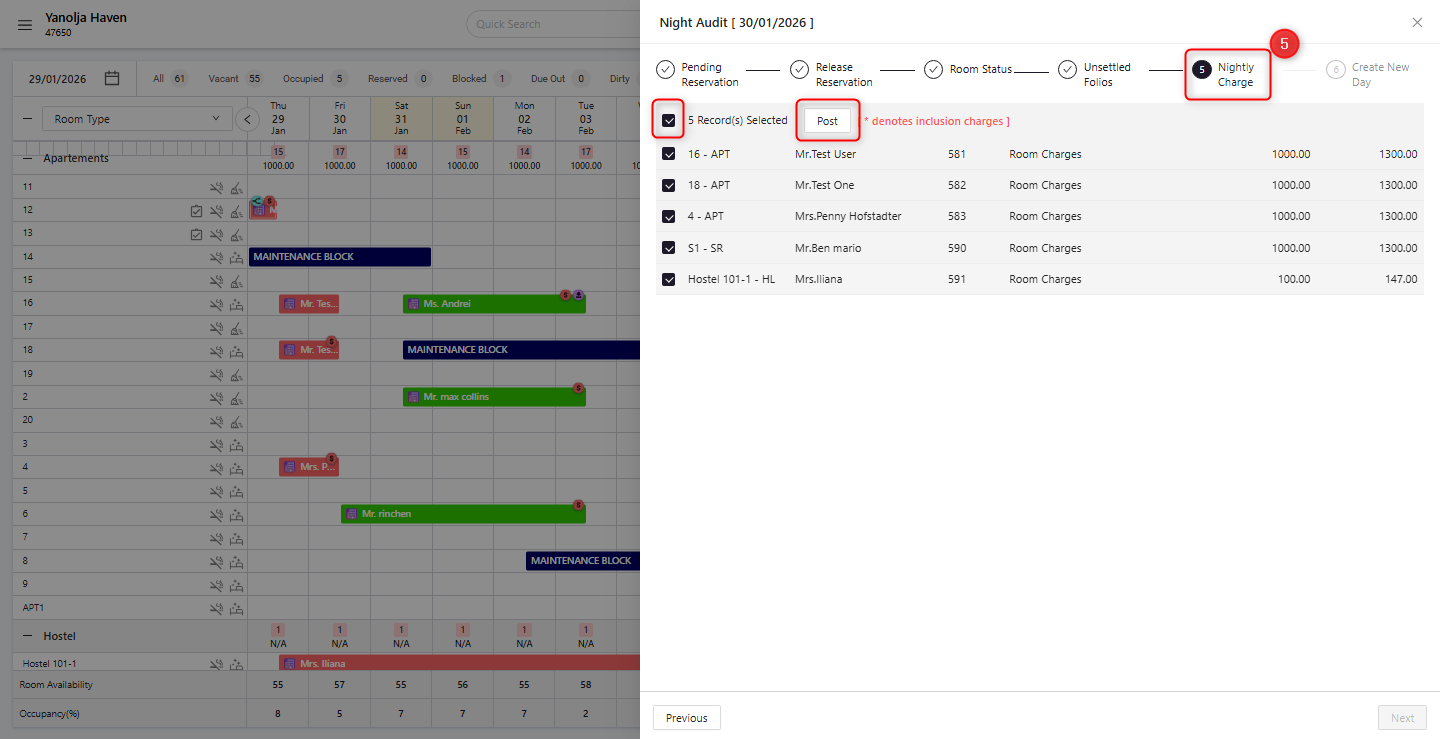
6. Create New Day
As the final step:
Verify the upcoming system date.
Click on Finish to close the current business day and initiate the new business day.
Once completed, the system’s working date is updated, and all data from the previous day is locked to prevent further modifications.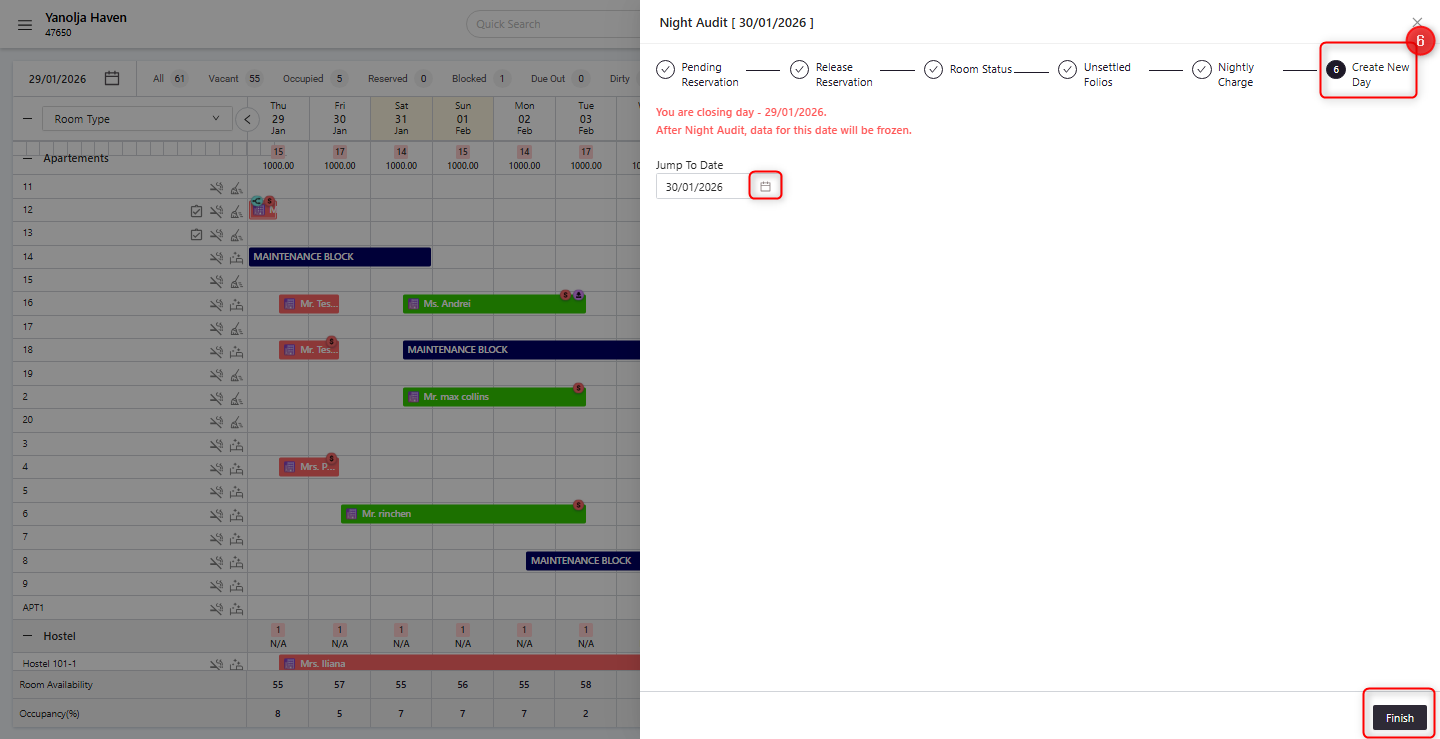
Reports Generated After Night Audit
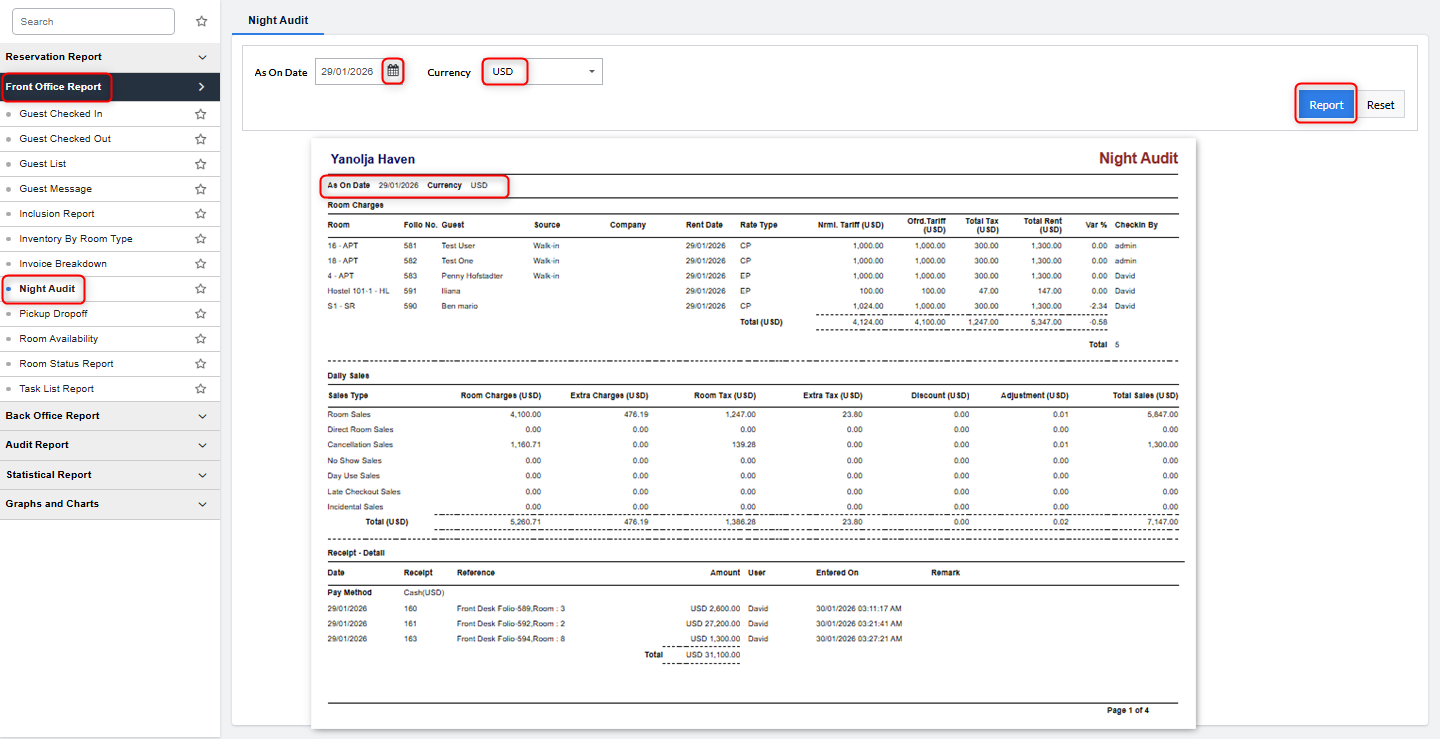
After successful completion of the Night Audit, the system generates several reports that summarize the day’s activities and transactions. Common reports include:
Night Audit Report – A comprehensive summary of reservations, transactions, and room statuses for the closed business day.
Daily Revenue Report – Displays total revenue generated, including room charges and additional services.
Room Status Report – Shows the status of all rooms (occupied, vacant, checked-out, etc.).
No-Show and Cancellation Report – Lists reservations marked as no-show or canceled.
Folio List – Provides details of all settled and unsettled guest accounts.
Audit Trail Report – Logs all Night Audit activities for tracking changes and ensuring compliance.
Impact of Not Performing Night Audit
If the Night Audit is not completed, the system will continue operating on the previous business day until the audit is successfully performed. As a result:
Check-in and check-out options for the current date will not be available.
Invoice numbers cannot be generated if guests are not checked out.
Financial transactions and reports will reflect outdated data, leading to inconsistencies.
User Access Requirement for Night Audit
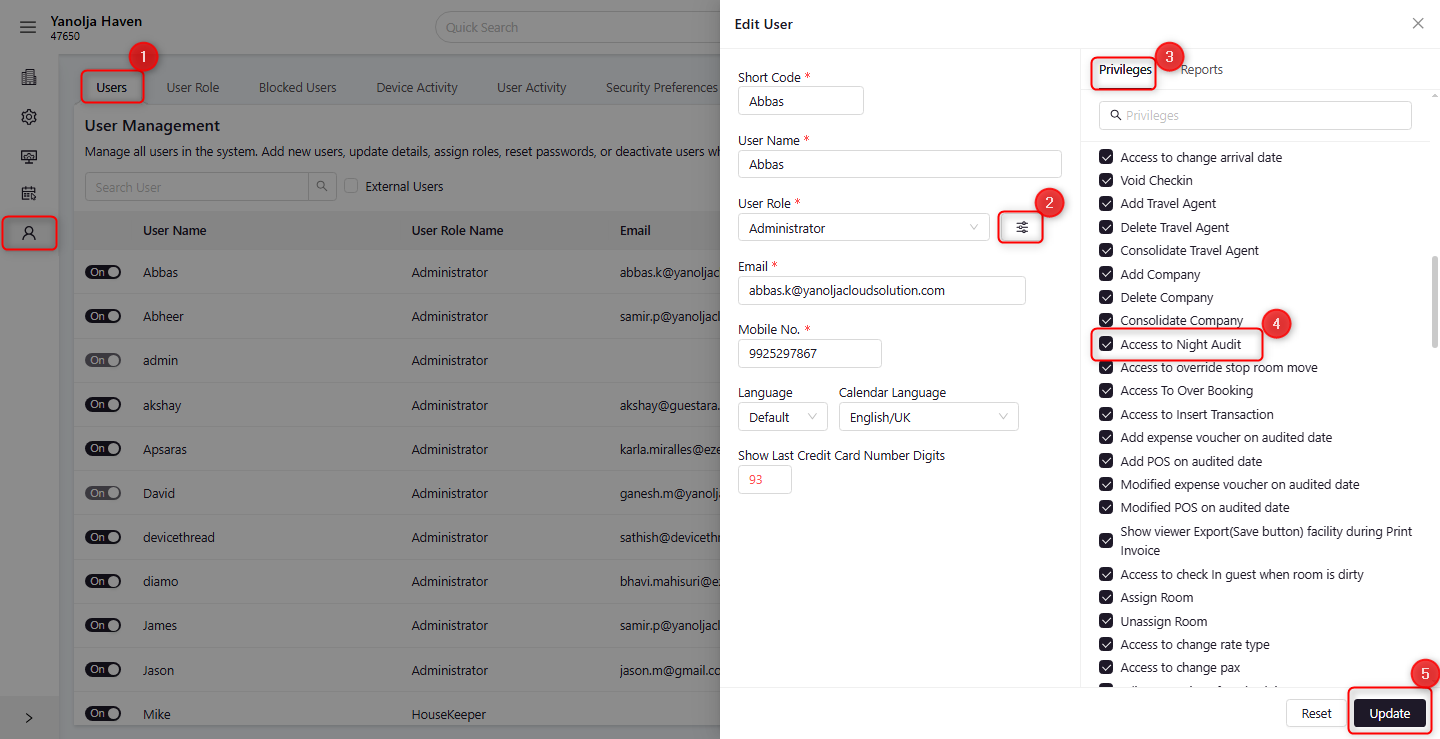
To perform the Night Audit, the user must have appropriate access rights. Access can be granted by following these steps:
Go to Configuration.
Navigate to the User section.
Select an existing User and click Edit User, or create a new user.
Open the Privileges tab.
Under Front Office, enable Access to Night Audit.
Update the changes.
By following this structured Night Audit process, System ensures accurate financial records, proper room management, and a seamless transition between business days, helping prevent operational and reporting discrepancies.
Was this article helpful?
That’s Great!
Thank you for your feedback
Sorry! We couldn't be helpful
Thank you for your feedback
Feedback sent
We appreciate your effort and will try to fix the article