To print a Group Invoice, Group Receipt, or to send an invoice to a group, follow the steps below:
Printing or Sending a Group Invoice
Step 1: Navigate to Reservations
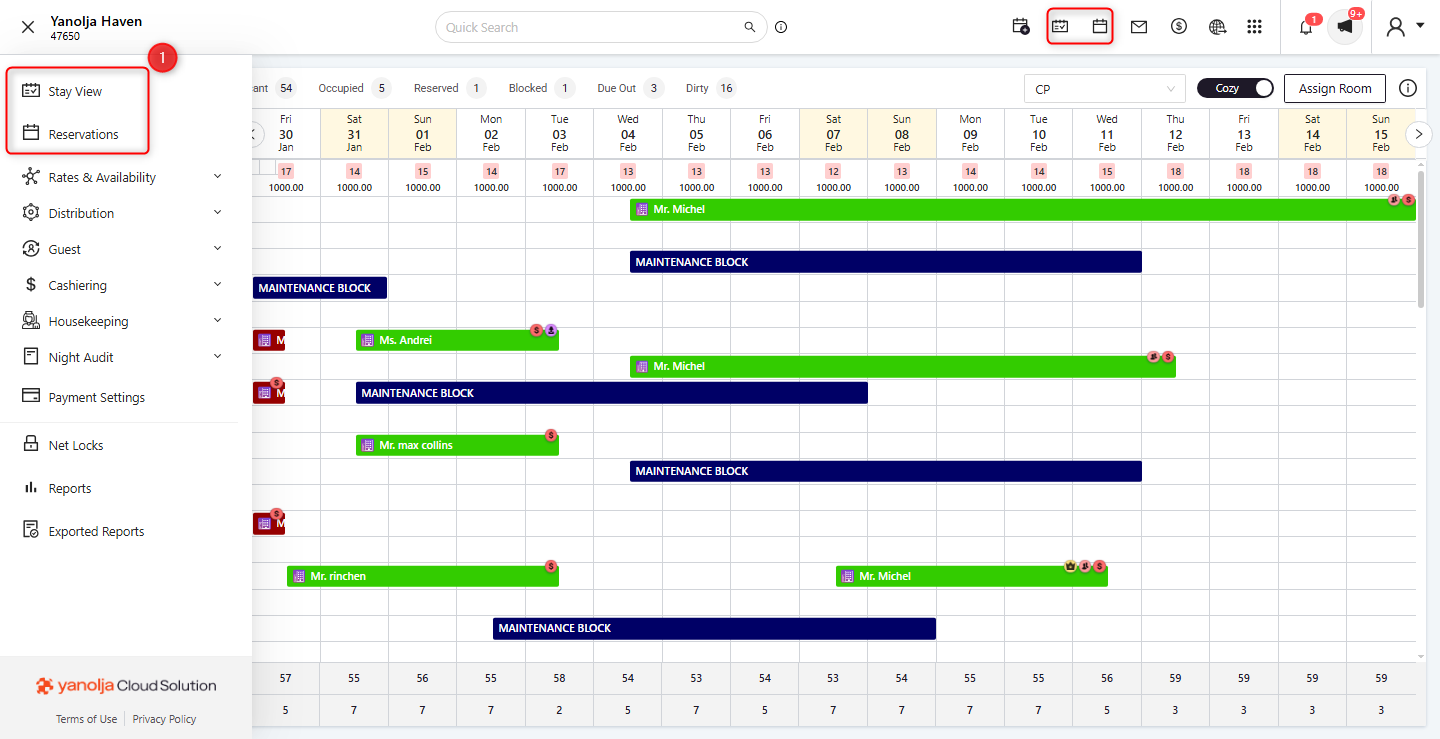
Log in to your PMS account and click on the Reservation or Stay view tab.
Step 2: Select the Group Reservation
In the Reservations or Stay view section, locate and select the required group reservation.
Click on the Print/Send button.
Step 3: Choose the Required Option
You will be presented with two options: Print and Send.
Print Option
Click on Print to generate an invoice.
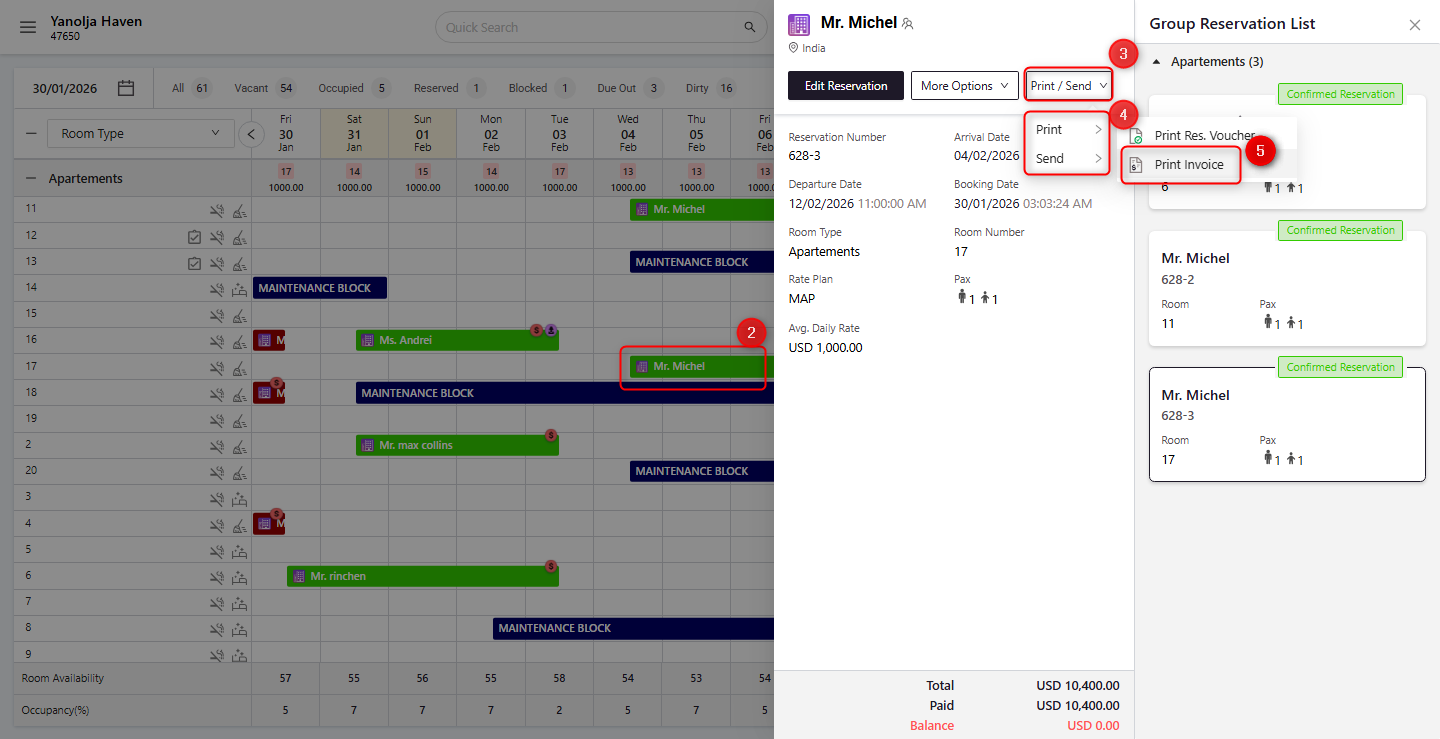
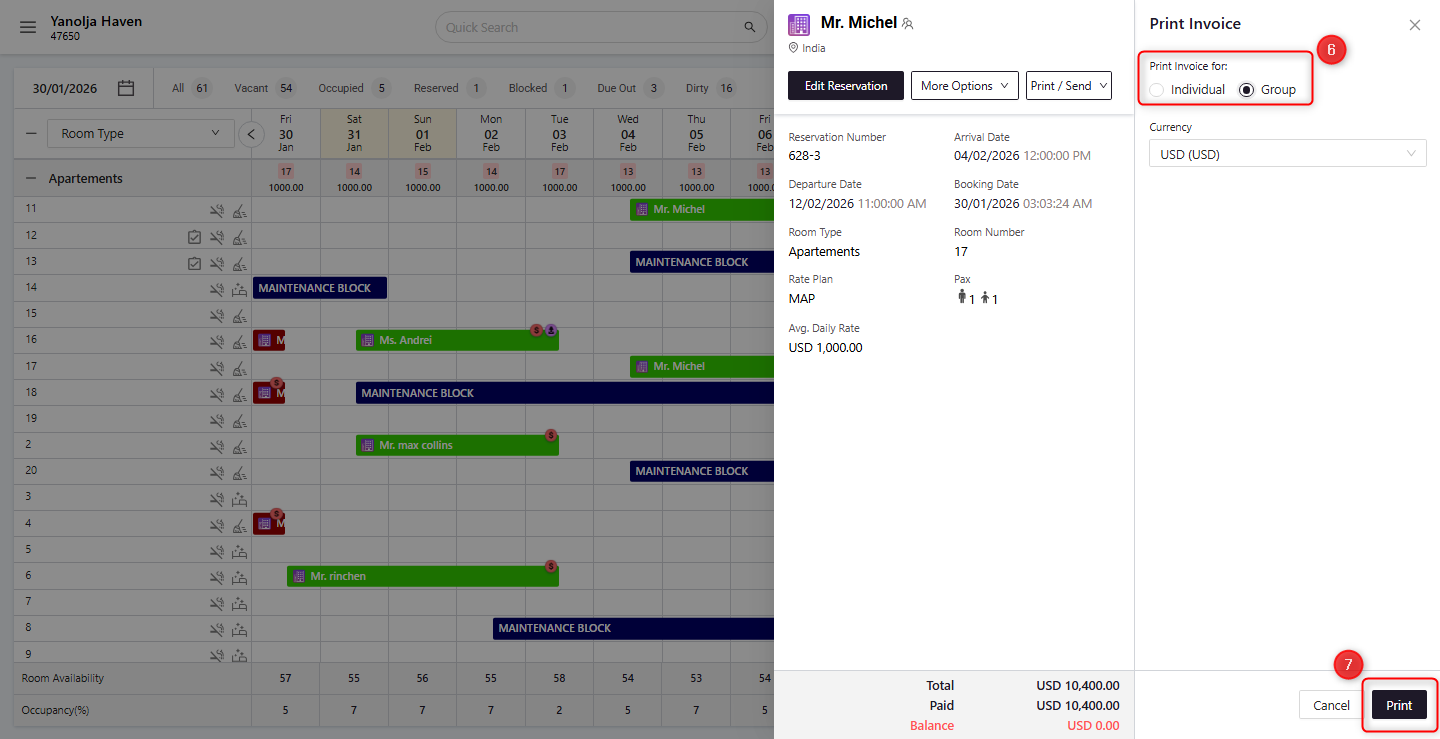
You can choose to print the invoice for a single room or for the entire group.
To print a Group Invoice, select the Group option and click on Print.
Send Option
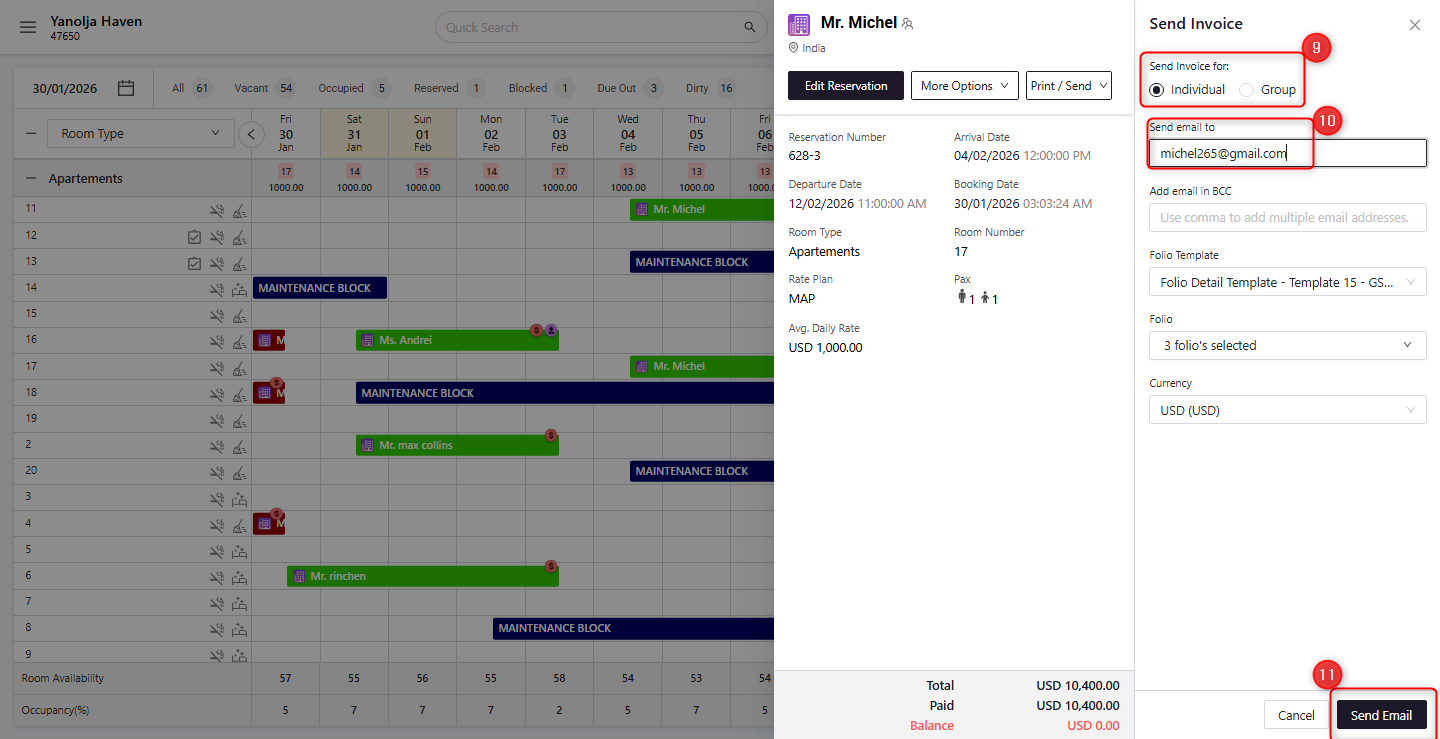
Click on Send to email the invoice.
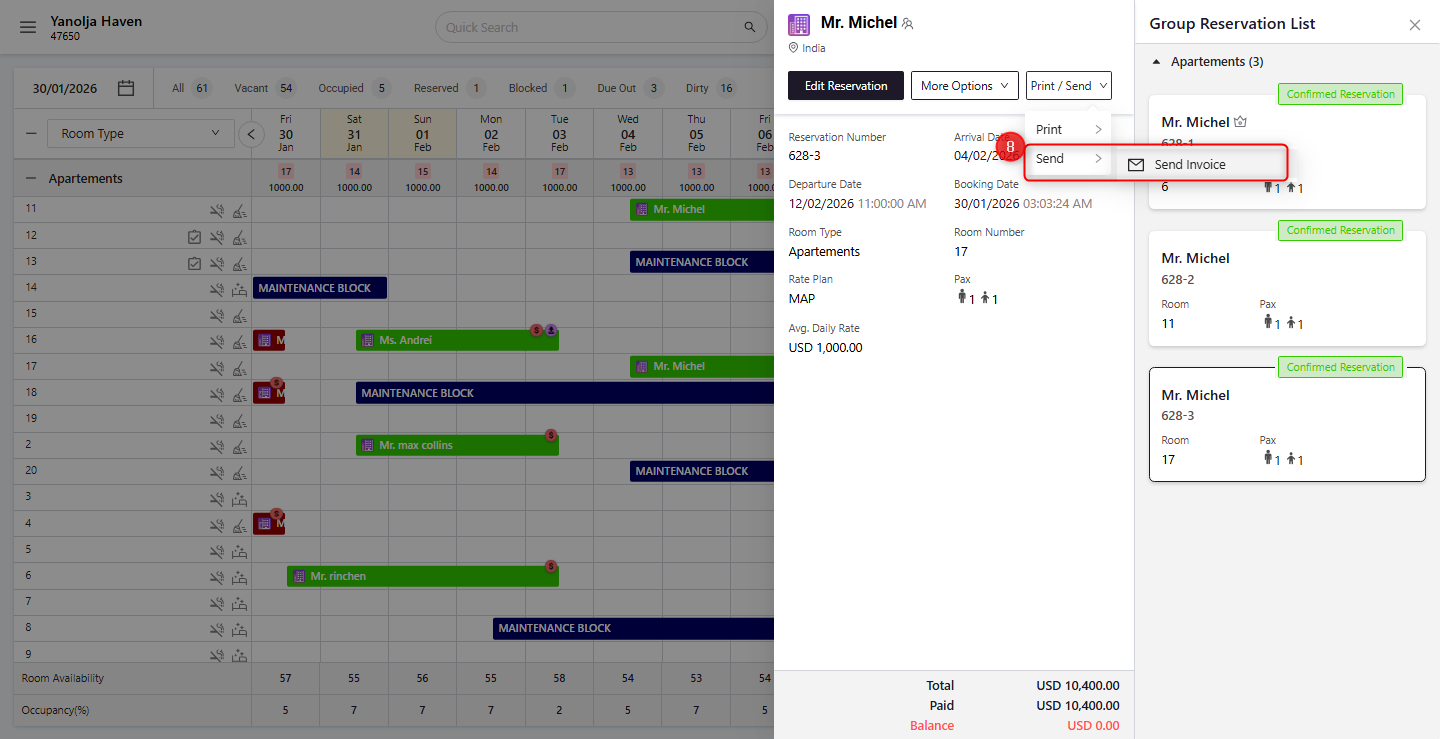
You can choose to send the invoice for a single room or for the entire group.
A dialog box will open where you can enter the guest’s email address.
Click on Send to email the invoice successfully.
Printing or Sending a Group Receipt
Step 1: Edit the Group Reservation
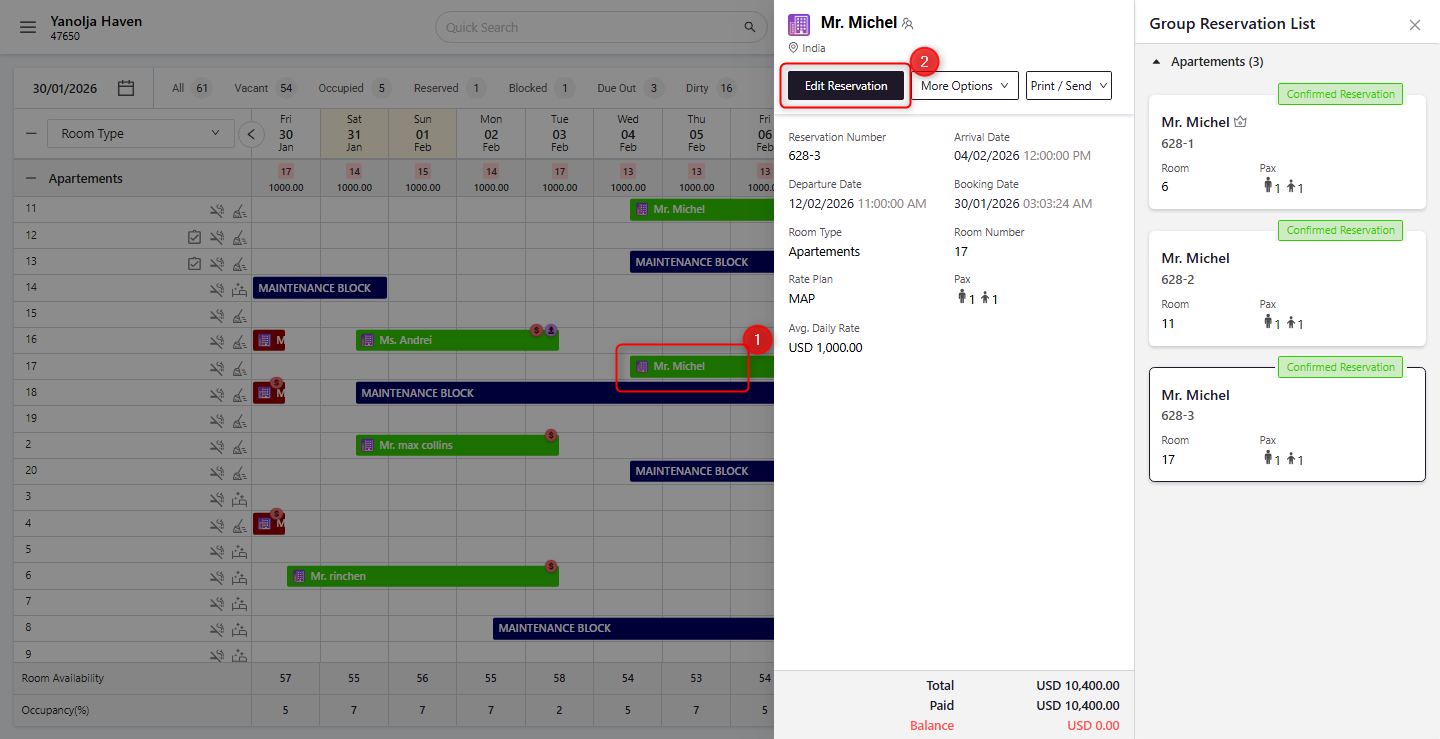
In the PMS, locate and select the group reservation you want to manage.
Click on Edit Reservation.
Step 2: Access Folio Operations
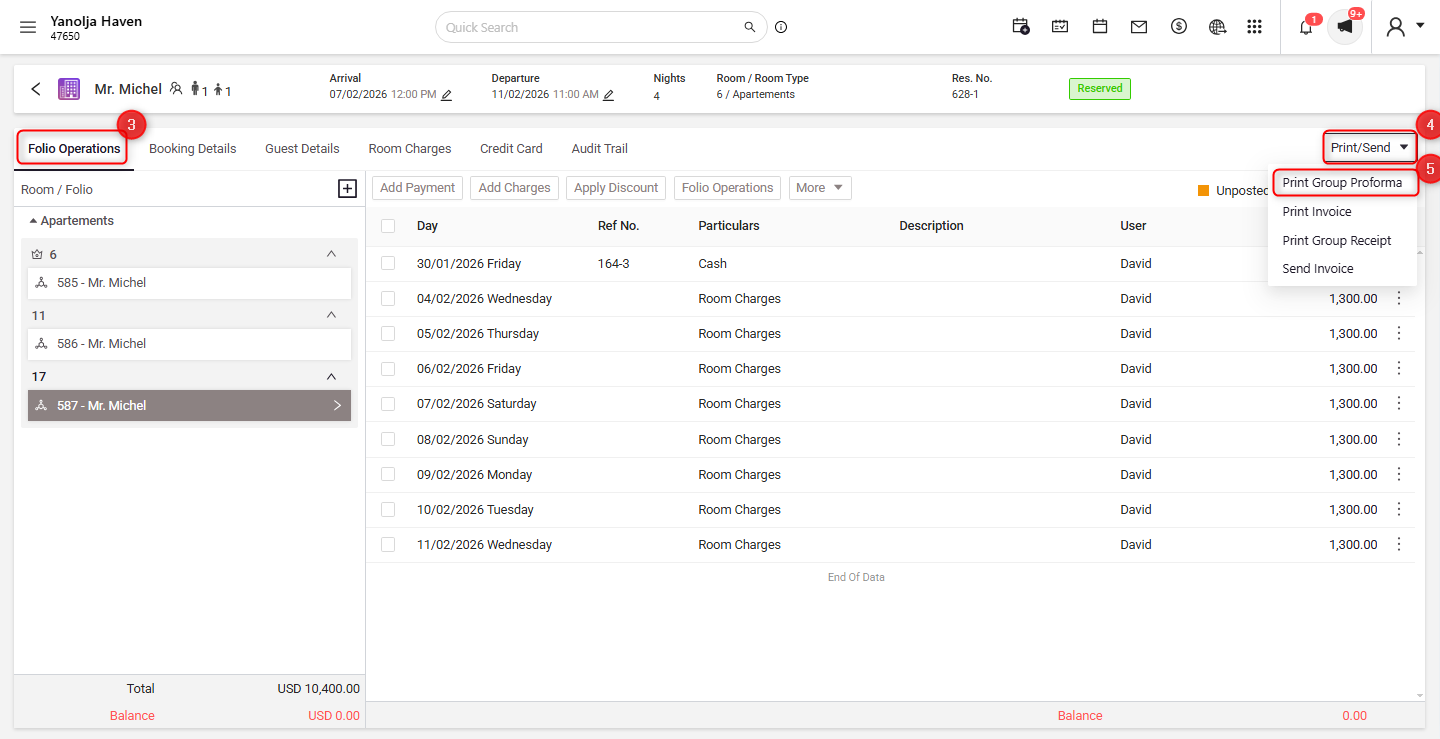
Within the reservation details, navigate to the Folio Operations section.
Click on the Print/Send button.
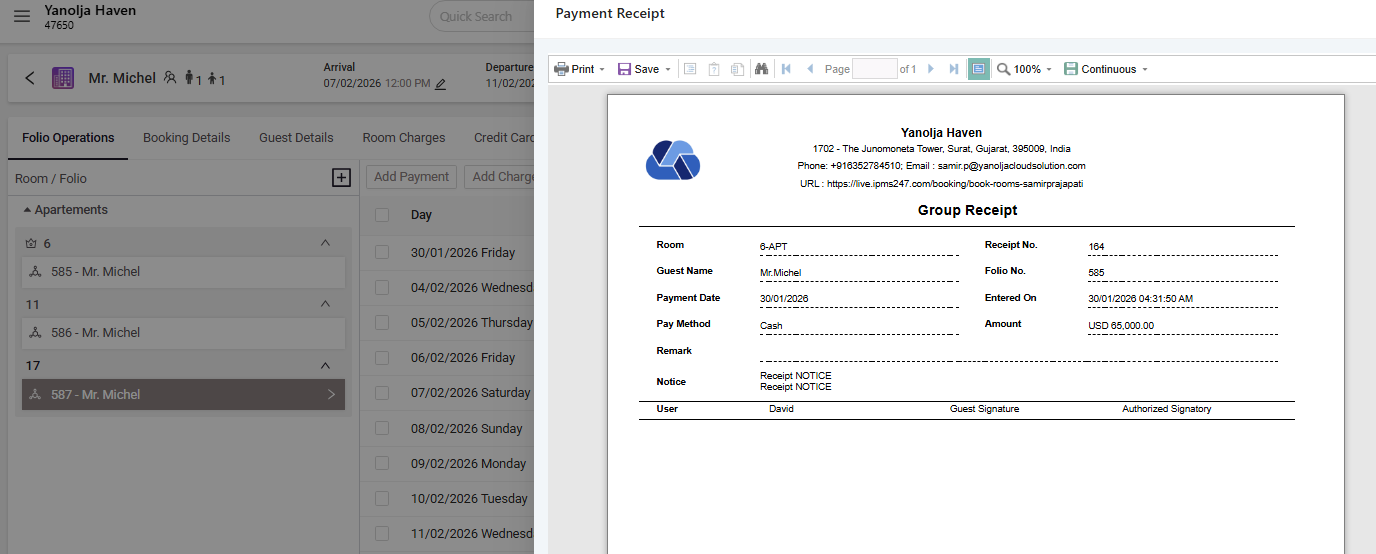
Select Print Group Proforma to generate the payment receipt for the group reservation.
Note: The group receipt will only be printed if payment has been collected for the reservation. If no payment has been recorded, the system will display the message “No receipt to print.”
Following these steps ensures smooth printing or emailing of group invoices and receipts while maintaining accurate documentation within System.
Was this article helpful?
That’s Great!
Thank you for your feedback
Sorry! We couldn't be helpful
Thank you for your feedback
Feedback sent
We appreciate your effort and will try to fix the article