How to Connect PMS and POS with Tally Integration?
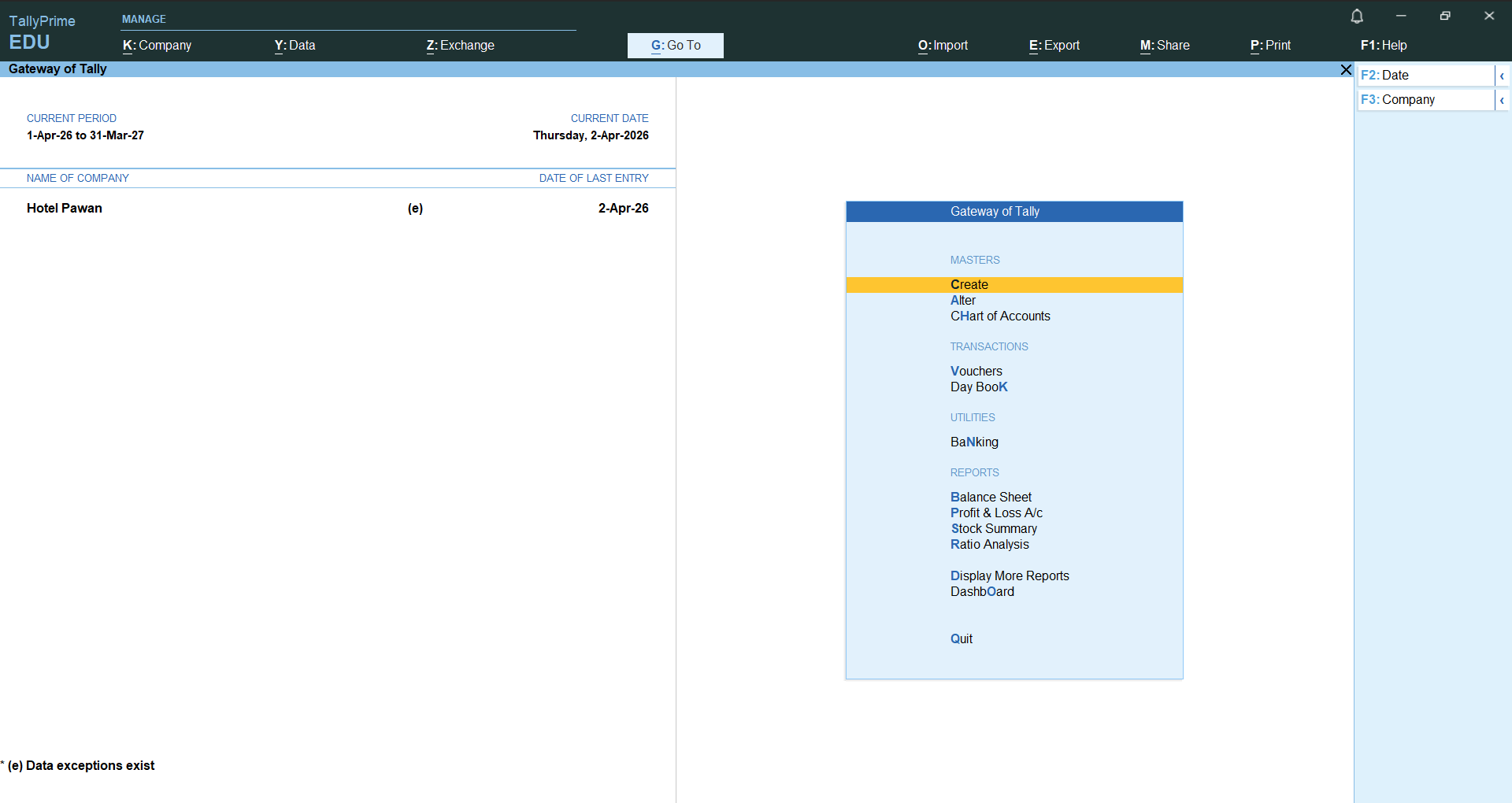
Step 1: Open Tally
Ensure that Tally is opened first and the required company is loaded.
Step 2: Open the Integration Web Link:
Launch the integration tool using the provided link.
https://web.centrixbooking.com/fasint/live/login.html
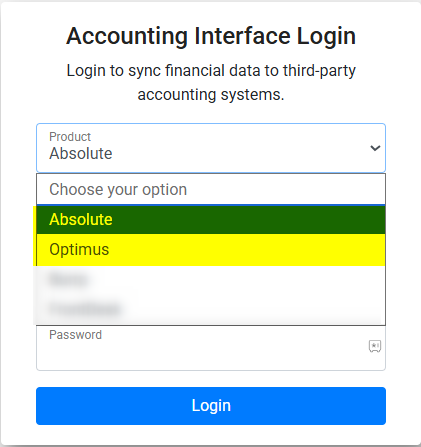
Step 3: Select the Product
Choose the appropriate product based on your requirement:
- Absolute for PMS
- Optimus for POS
Step 4: Enter Login Credentials
- For PMS (Absolute): Enter your PMS login credentials
- For POS (Optimus): Enter your POS login credentials
- After entering the credentials, click on the Login button.
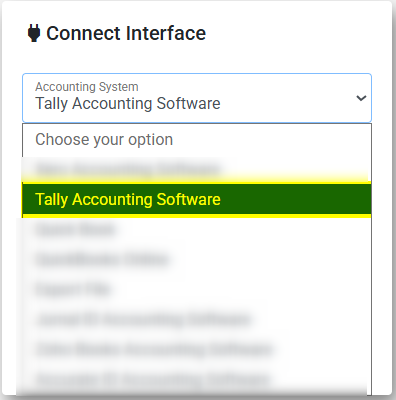
Step 5: Select Accounting System
Choose Tally Accounting Software as the accounting system and click on Connect.
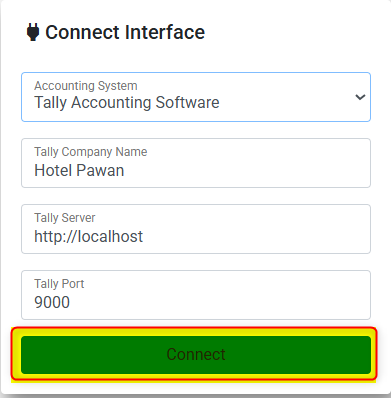
Once the above steps are completed, the integration will be successfully connected to the Tally accounting system.
Was this article helpful?
That’s Great!
Thank you for your feedback
Sorry! We couldn't be helpful
Thank you for your feedback
Feedback sent
We appreciate your effort and will try to fix the article