How to Download and Install the Desktop Application
Follow the steps below to download and install the desktop application on your PC or tablet:
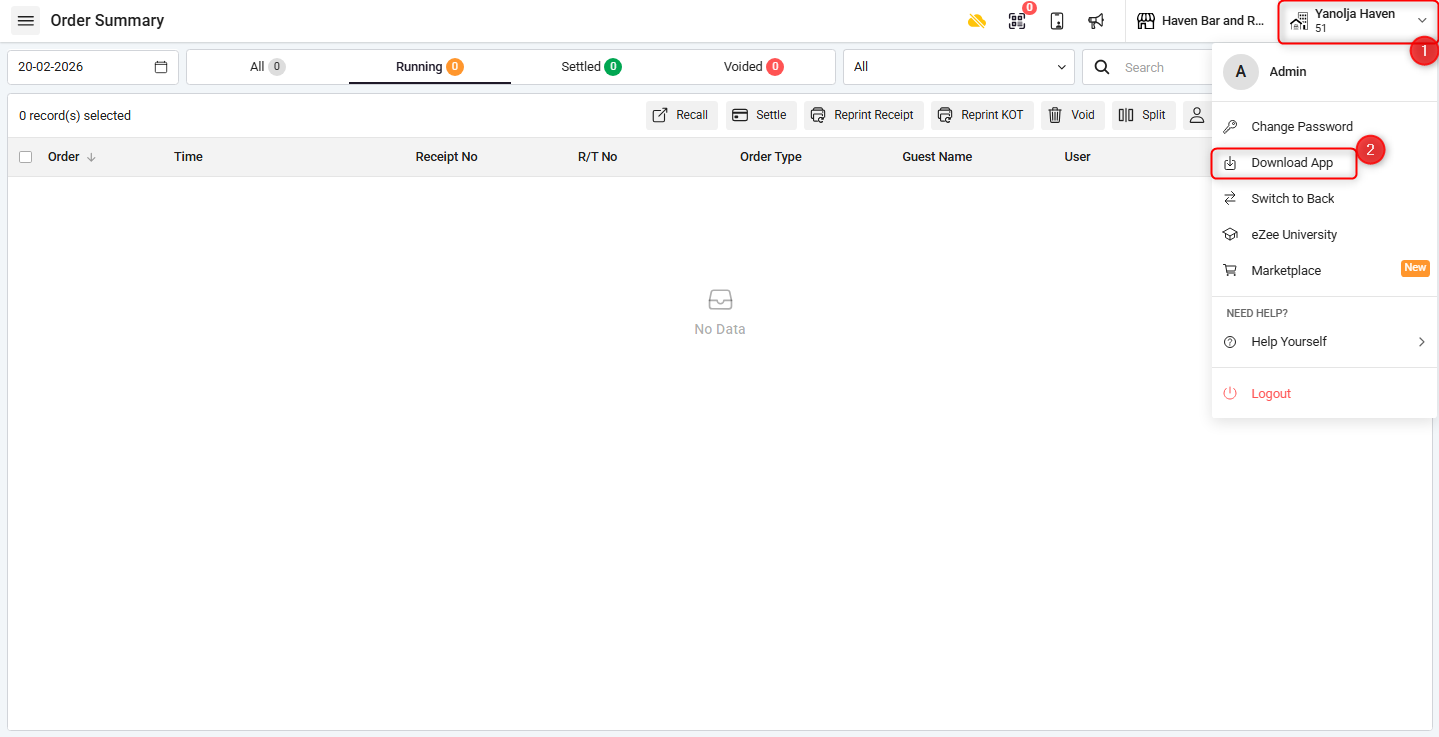
Log in to your account and click on your Property Name located in the top-right corner of the screen.
From the dropdown menu, click on the Download App option.
Click on the appropriate app icon based on your device to download : Windows, Android, or Apple (macOS).
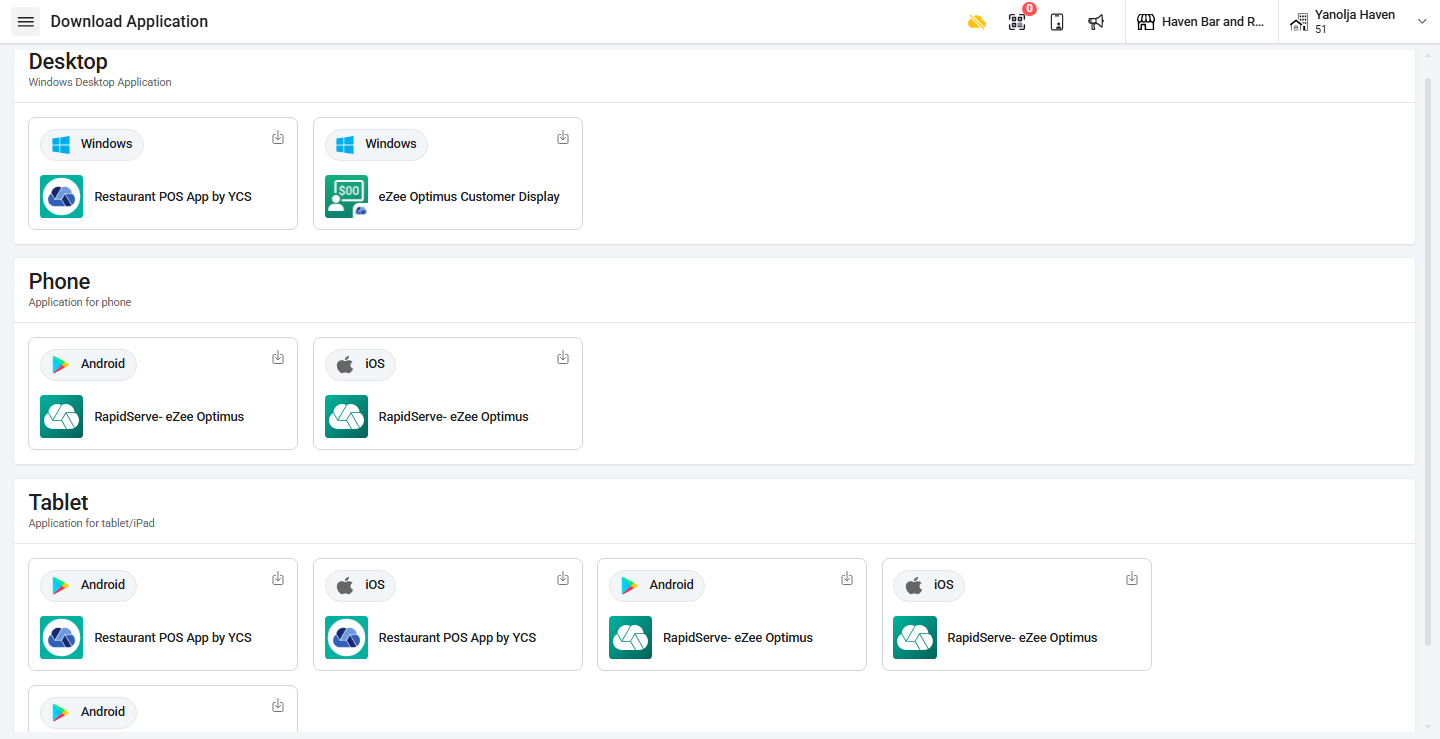
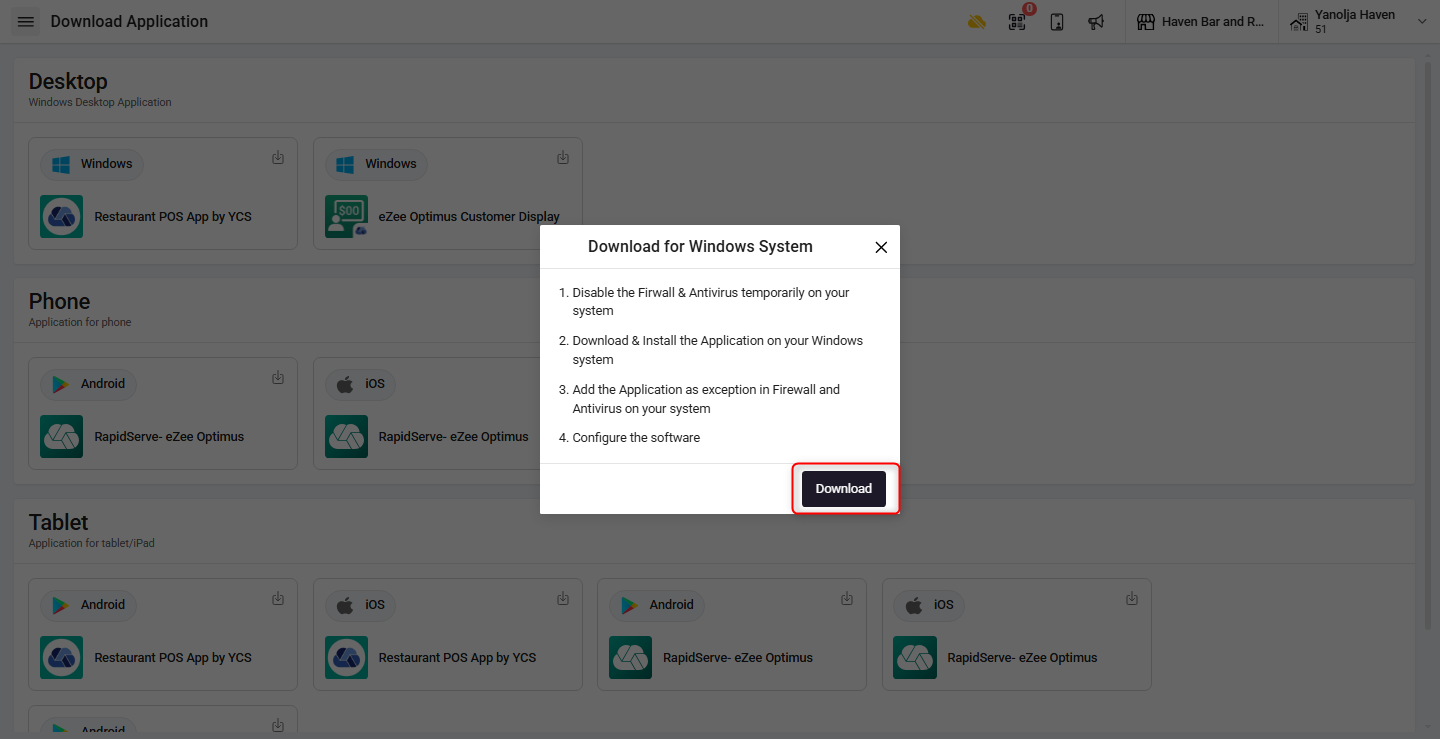
The application file will begin downloading. Once the download is complete, navigate to your Downloads folder.
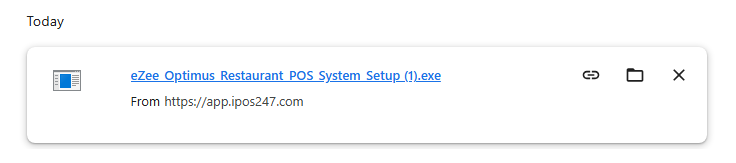
Open the downloaded file and run the installer.
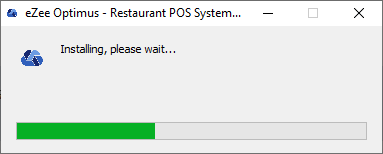
- Once you run the file, the installation process will begin automatically.
After the installation is finished, you can launch the application from your Desktop or Applications folder.
Installing the RapidServe Mobile App
To use RapidServe, the mobile ordering application of Ozone, please follow the steps below:
Open the Google Play Store or Apple App Store on your device.
In the search bar, type “eZee RapidServe.”
Locate the application in the search results and tap Install.
Wait for the download and installation process to complete.
Once installed, open the app and log in with your credentials.
Was this article helpful?
That’s Great!
Thank you for your feedback
Sorry! We couldn't be helpful
Thank you for your feedback
Feedback sent
We appreciate your effort and will try to fix the article